
Core · Video walkthrough
Configure a compensation default and complete independent approval
Set effective dates, base pay and components; inspect the loaded-day preview and verify a separate manager’s approval.
Before you begin
- Authorized Workforce access in a separate fictional training department.
- Existing workers, work entries and a disposable training unit; all example amounts are fictional.
Chapters
- Open compensation and understand the fallback order
- Set the effective period and hourly base
- Add a pay component
- Add the employer cost and multipliers
- Save and read the loaded-day preview
- Recognize the independent-review guard
- Approve as a separate manager and verify the stored result
- Apply the process to your own organization
Watch the walkthrough
Step 1
Open compensation and understand the fallback order
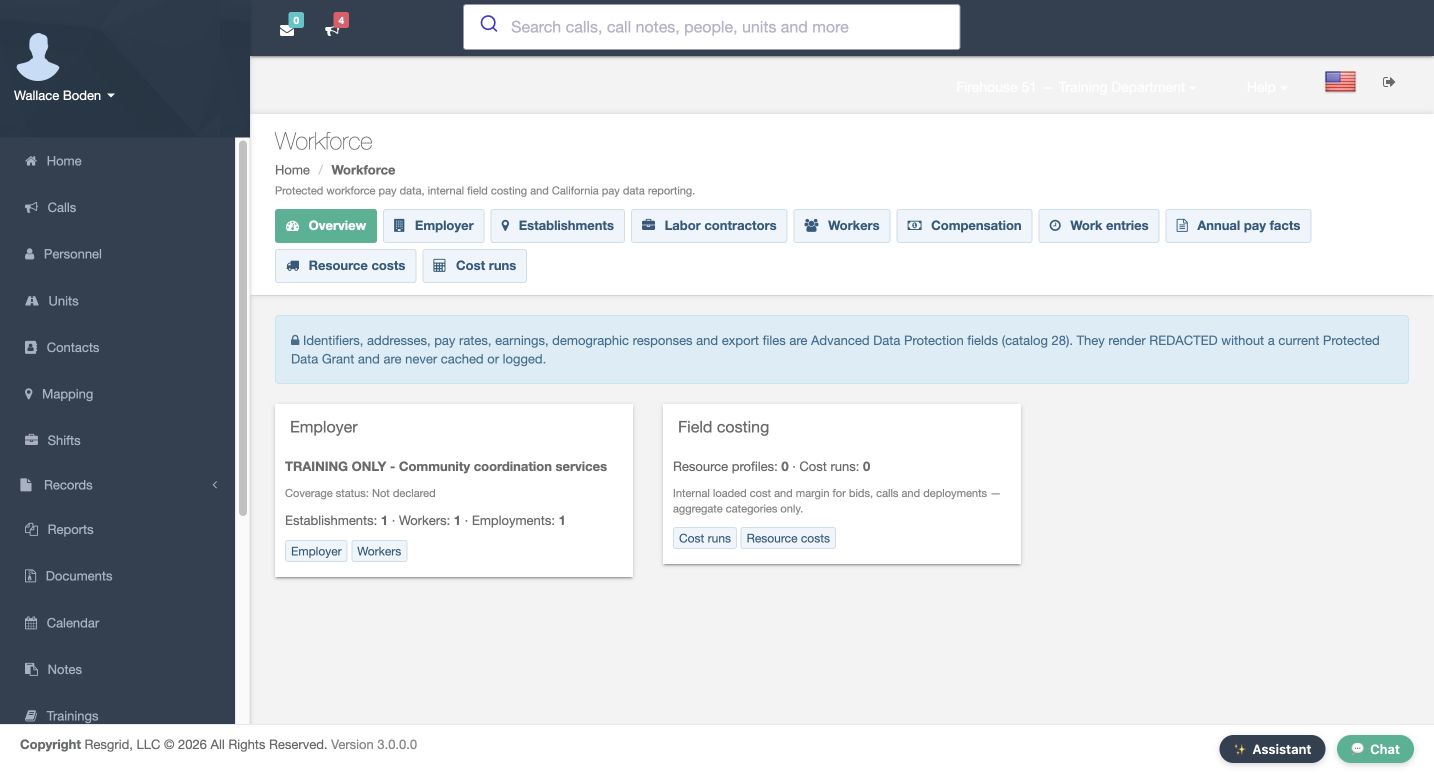
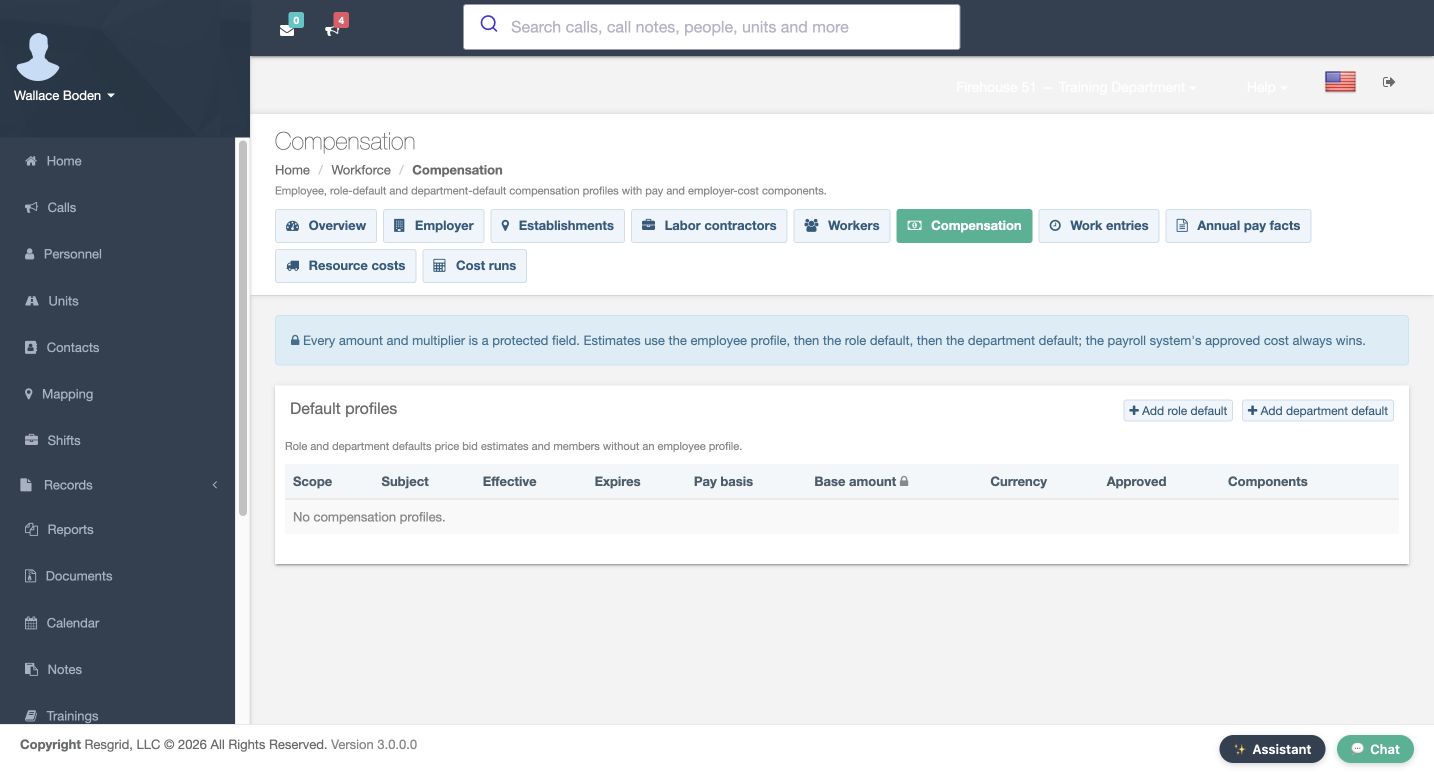
In Workforce, open Compensation. The page separates employee, role-default and department-default profiles. Its help gives the estimate order: employee profile, then role default, then department default. It also says an approved payroll cost takes precedence. This lesson creates one fictional department default so you can see its settings and independent approval. It does not set a real employee’s pay. Select Add department default to open the form.
Practice
Open compensation and understand the fallback order
Step 2
Set the effective period and hourly base
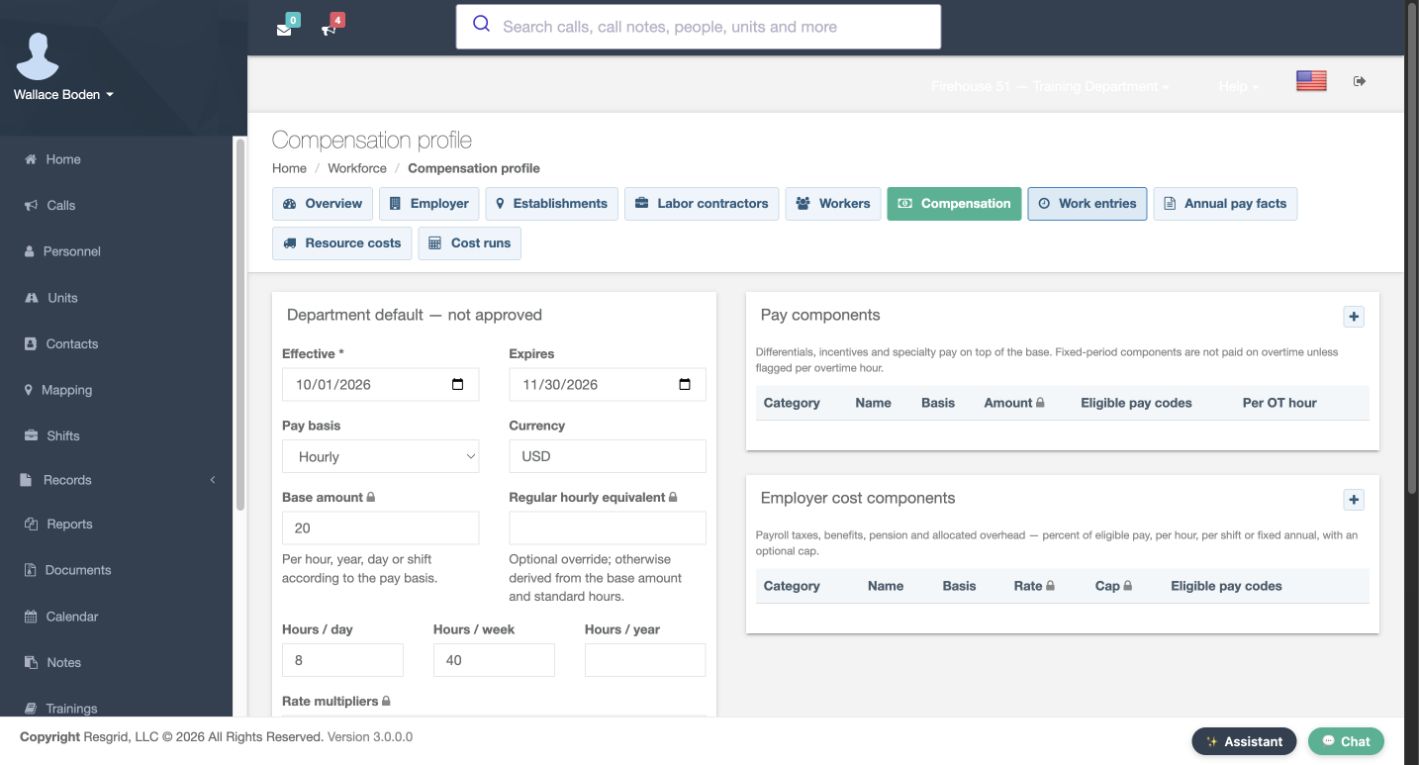
Check the profile heading so you know which scope you are editing. Set Effective to October first and Expires to November thirtieth in this dated exercise. Choose Hourly, use U S D, and enter a Base amount of twenty. The form explains that the base is interpreted according to the pay basis. Keep eight Hours per day and forty Hours per week. The Regular hourly equivalent is an optional override; it stays blank here. These are deliberately simple fictional values for checking the software calculation.
Practice
Set the effective period and hourly base
Step 3
Add a pay component
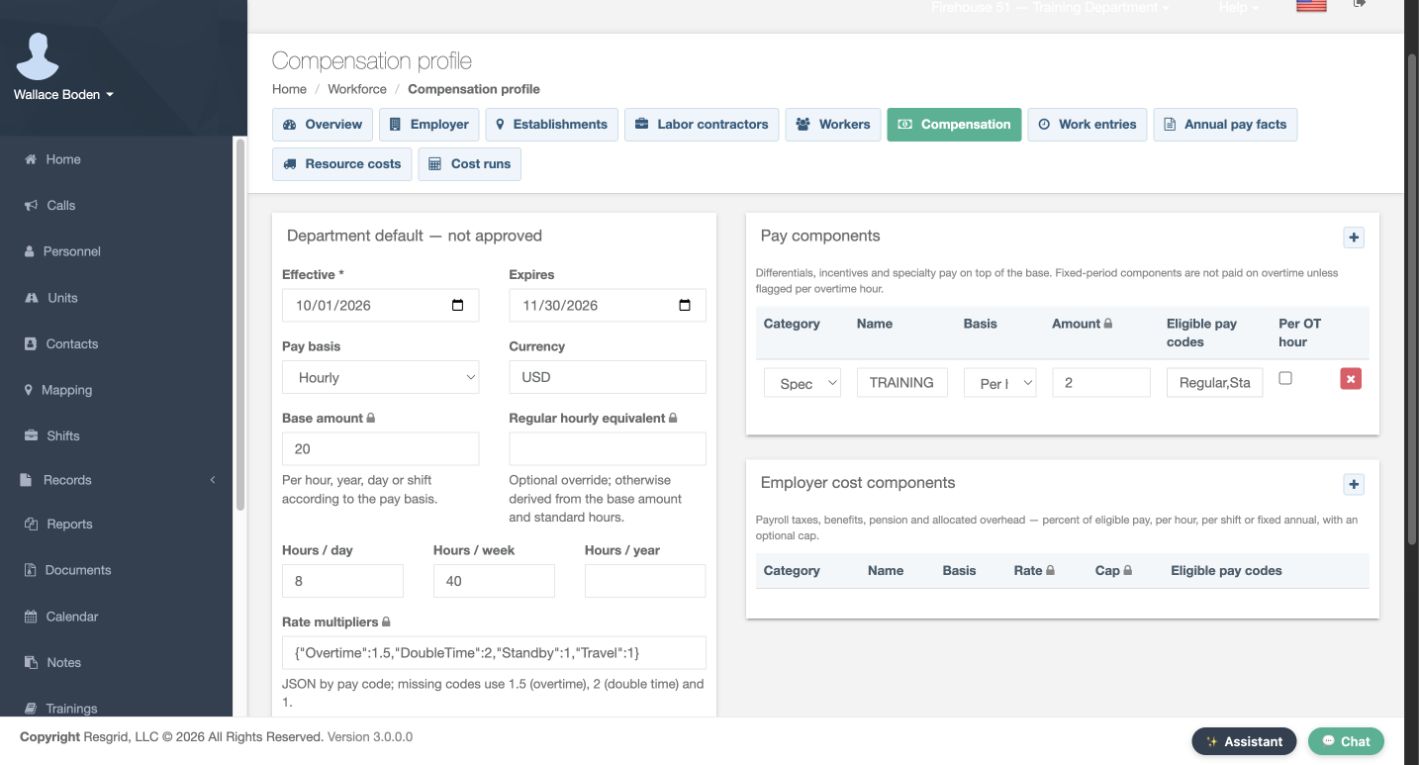
Use the plus control in Pay components to add a row. Each row has a Category, Name, Basis, Amount, Eligible pay codes and a Per O T hour checkbox. The example adds a named equipment differential with an amount of two per hour for Regular and Standby. Its overtime checkbox remains unchecked. The panel explains that these components sit on top of the base. Review the row as a separate contribution instead of putting every cost into the base amount.
Practice
Add a pay component
Step 4
Add the employer cost and multipliers
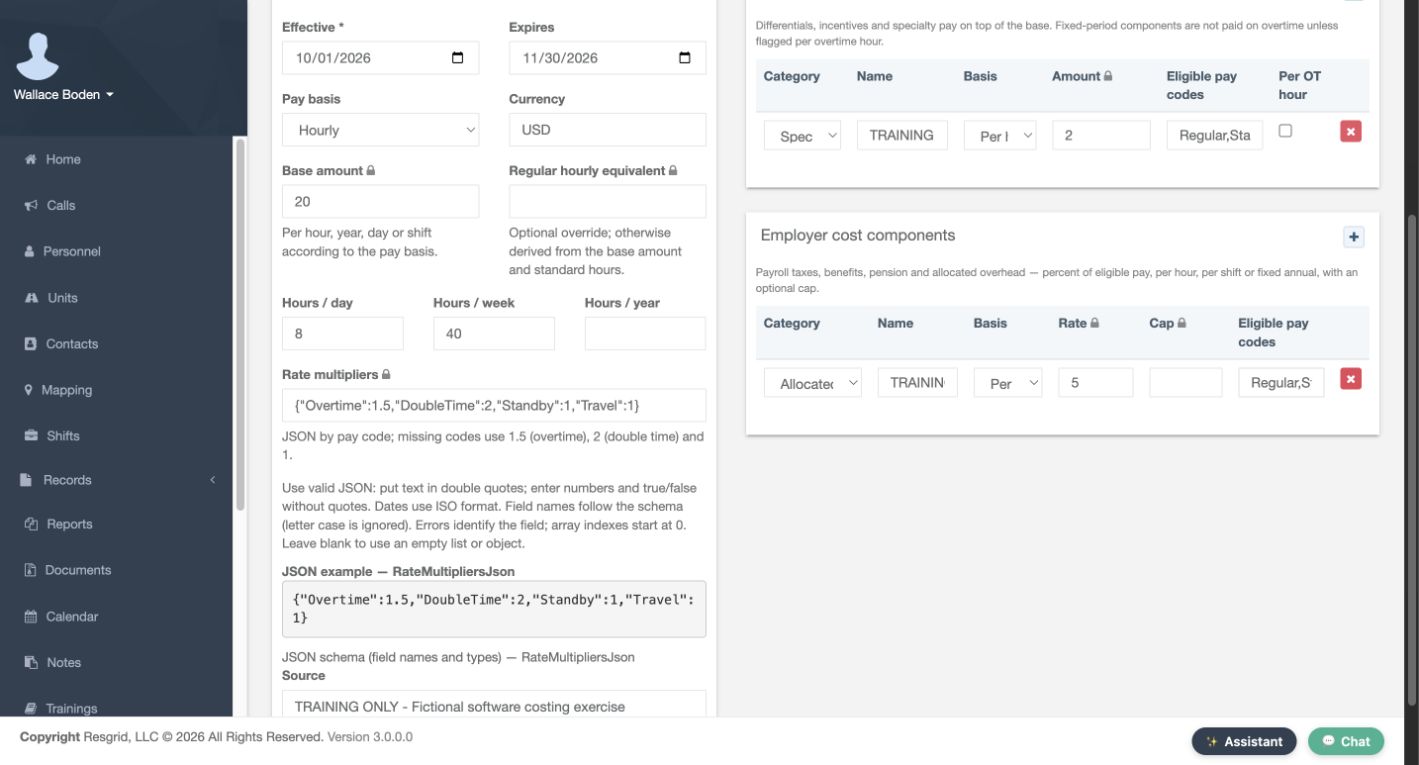
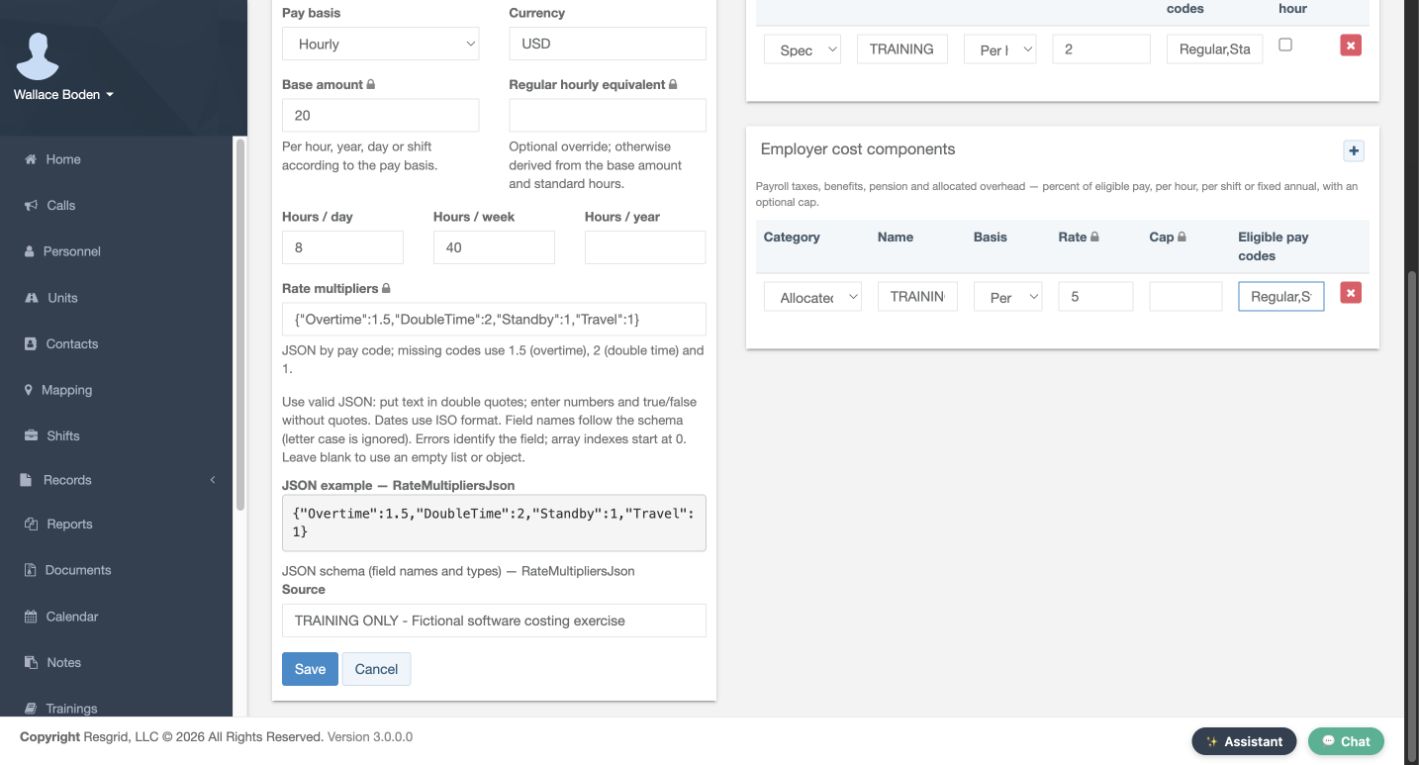
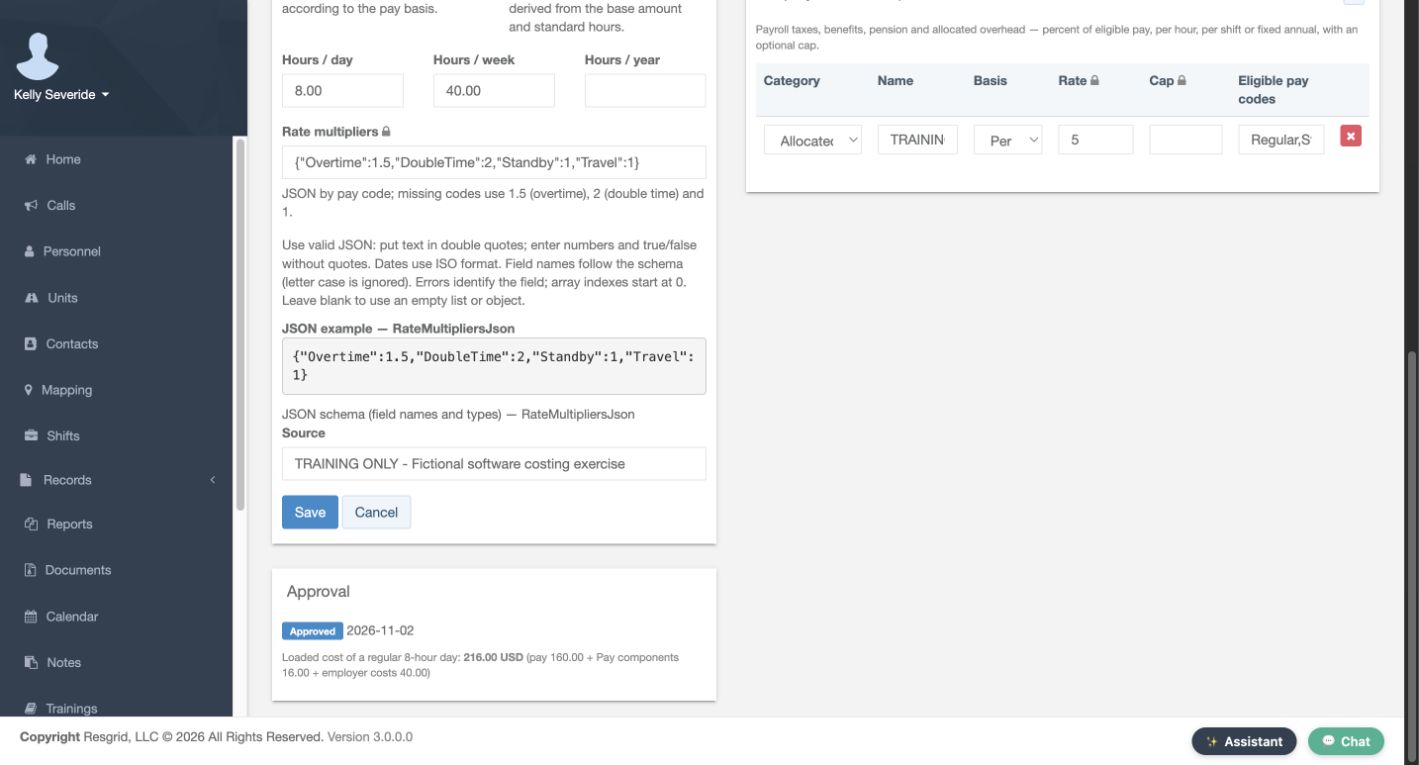
Use the plus control in Employer cost components for a separate fictional overhead amount of five per hour, again limited to Regular and Standby. Leave its optional Cap blank. In Rate multipliers, the example sets Overtime to one point five, DoubleTime to two, and Standby and Travel to one, using the J S O N structure shown. Add a Source note that identifies this as a fictional software exercise. These values are configuration examples, not prescribed rates for any department.
Practice
Add the employer cost and multipliers
Step 5
Save and read the loaded-day preview
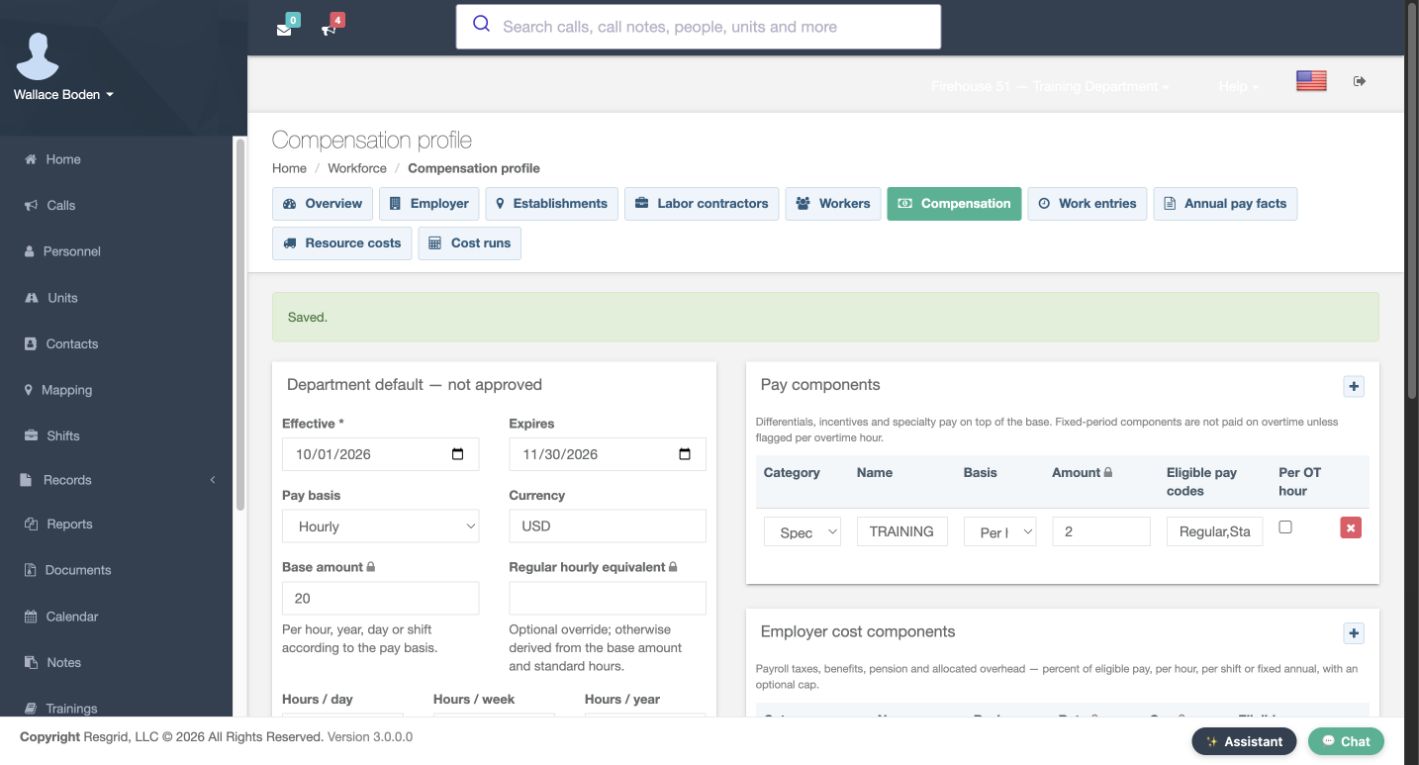
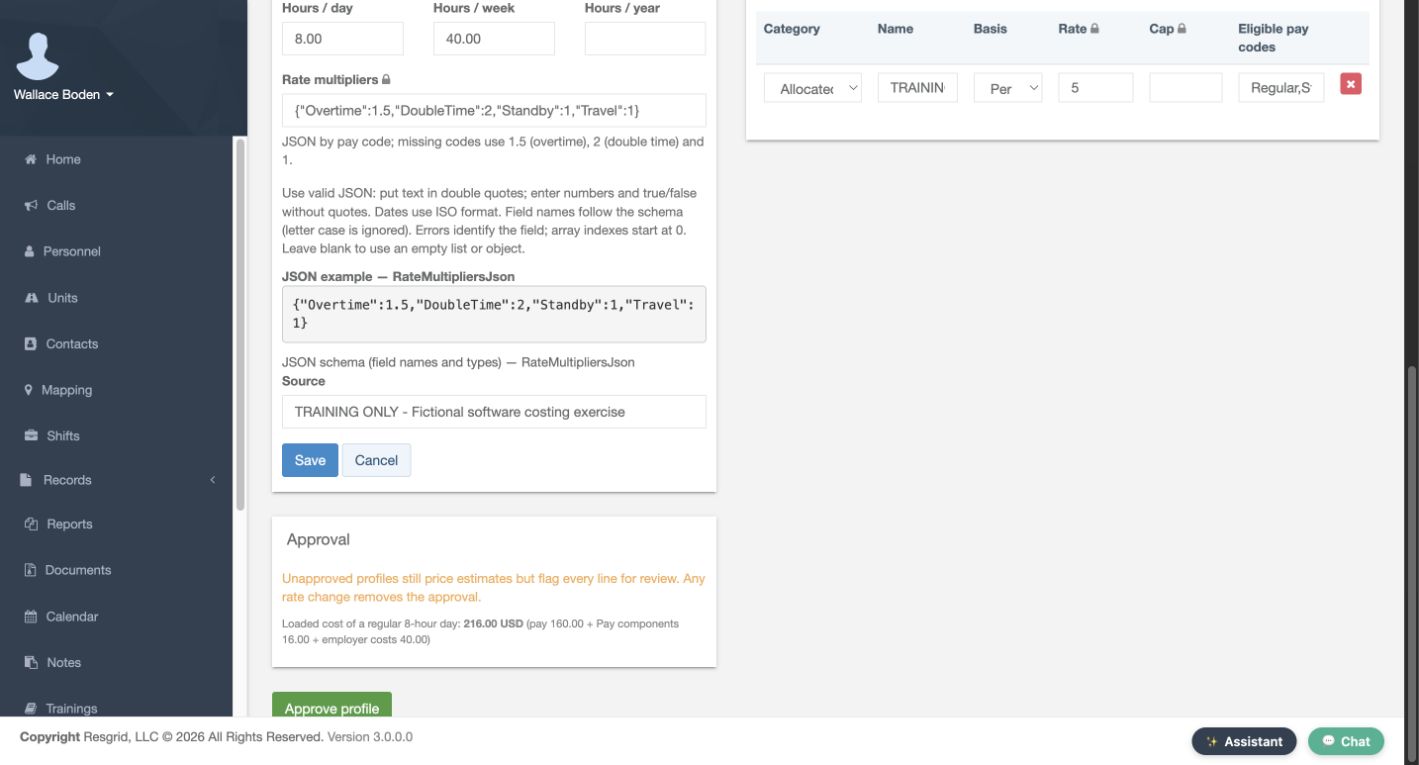
Select Save, then confirm the Saved message and the persisted inputs. Scroll to Approval. Resgrid previews a regular eight-hour day at two hundred sixteen dollars: one hundred sixty in base pay, sixteen in pay components and forty in employer costs. Those amounts match the configured twenty, two and five per hour. The profile is still not approved. The notice says unapproved profiles can price estimates but flag their lines for review, and a rate change removes an approval.
Practice
Save and read the loaded-day preview
Step 6
Recognize the independent-review guard
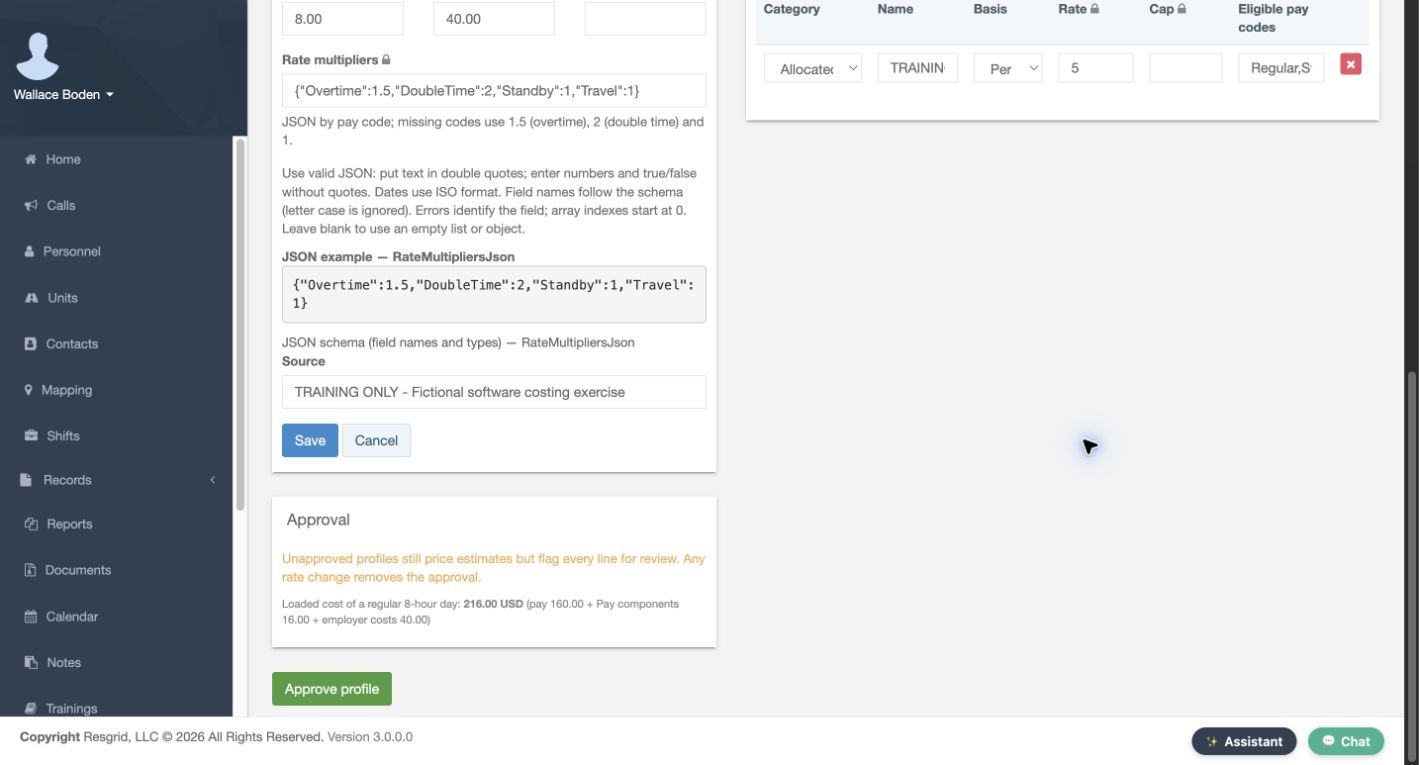
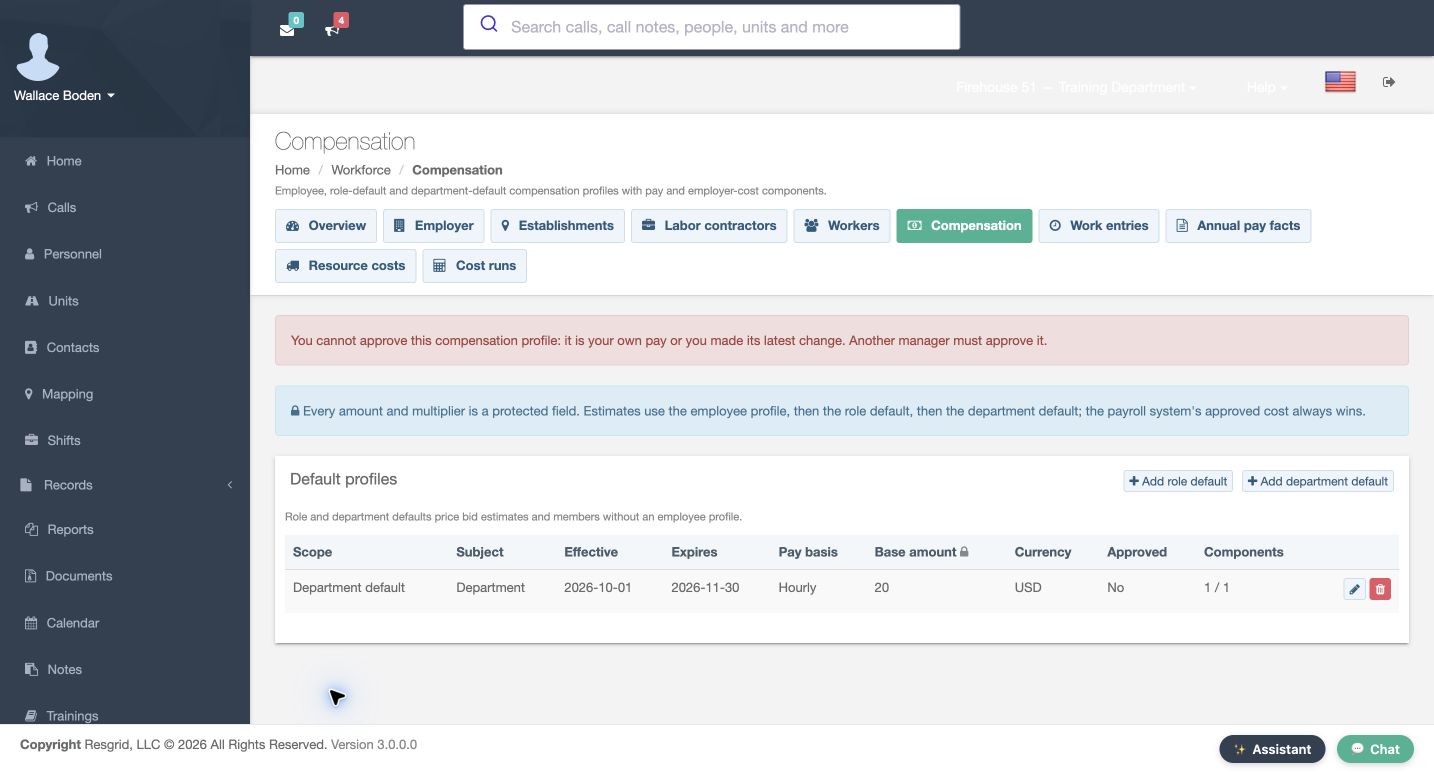
Approve profile is a separate action from Save. When the manager who made the latest change tries to approve this example, Resgrid refuses. The message says that it is the manager’s own pay or they made the latest change, and another manager must approve it. The index still shows No in Approved. Do not treat a saved profile or a calculated preview as approval. Have a different authorized manager review the same profile through their normal account.
Practice
Recognize the independent-review guard
Step 7
Approve as a separate manager and verify the stored result
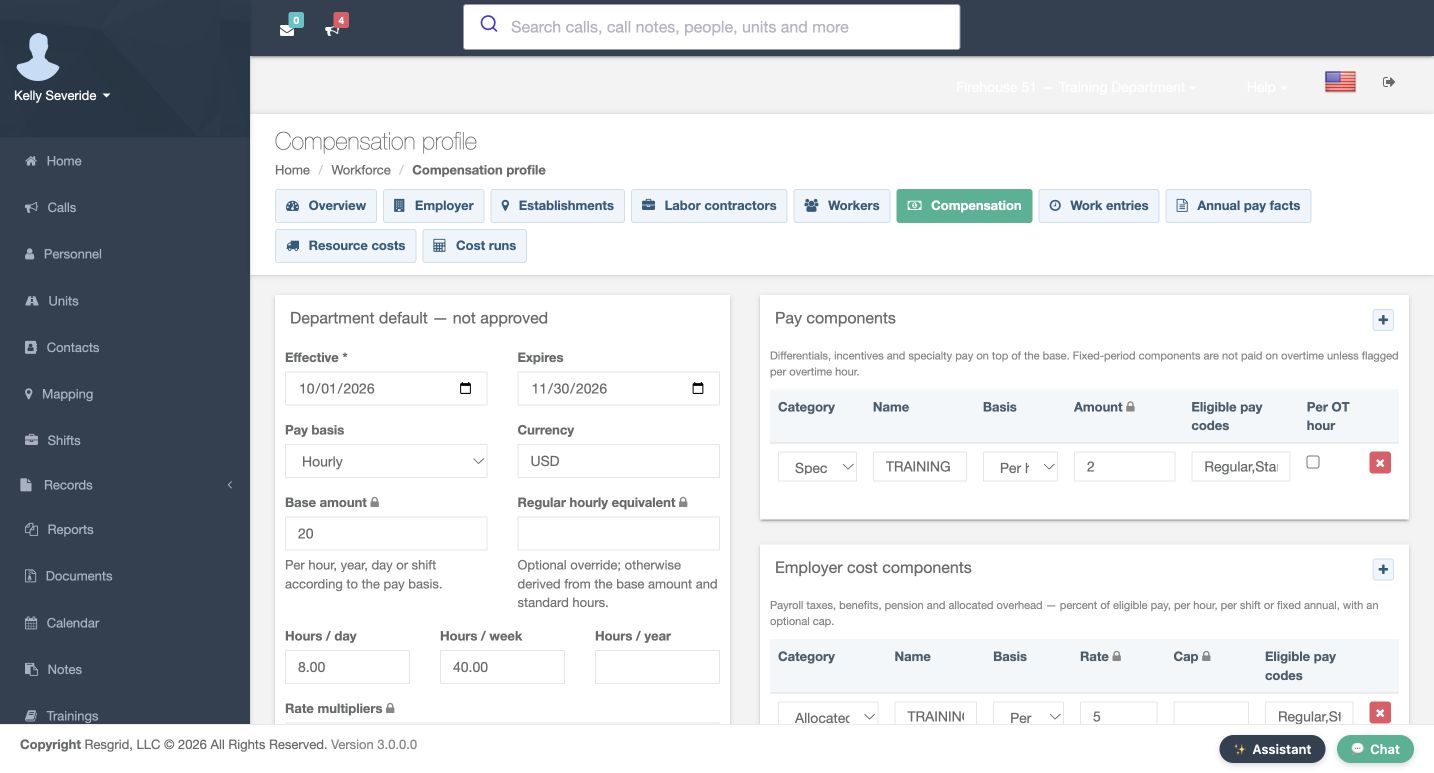
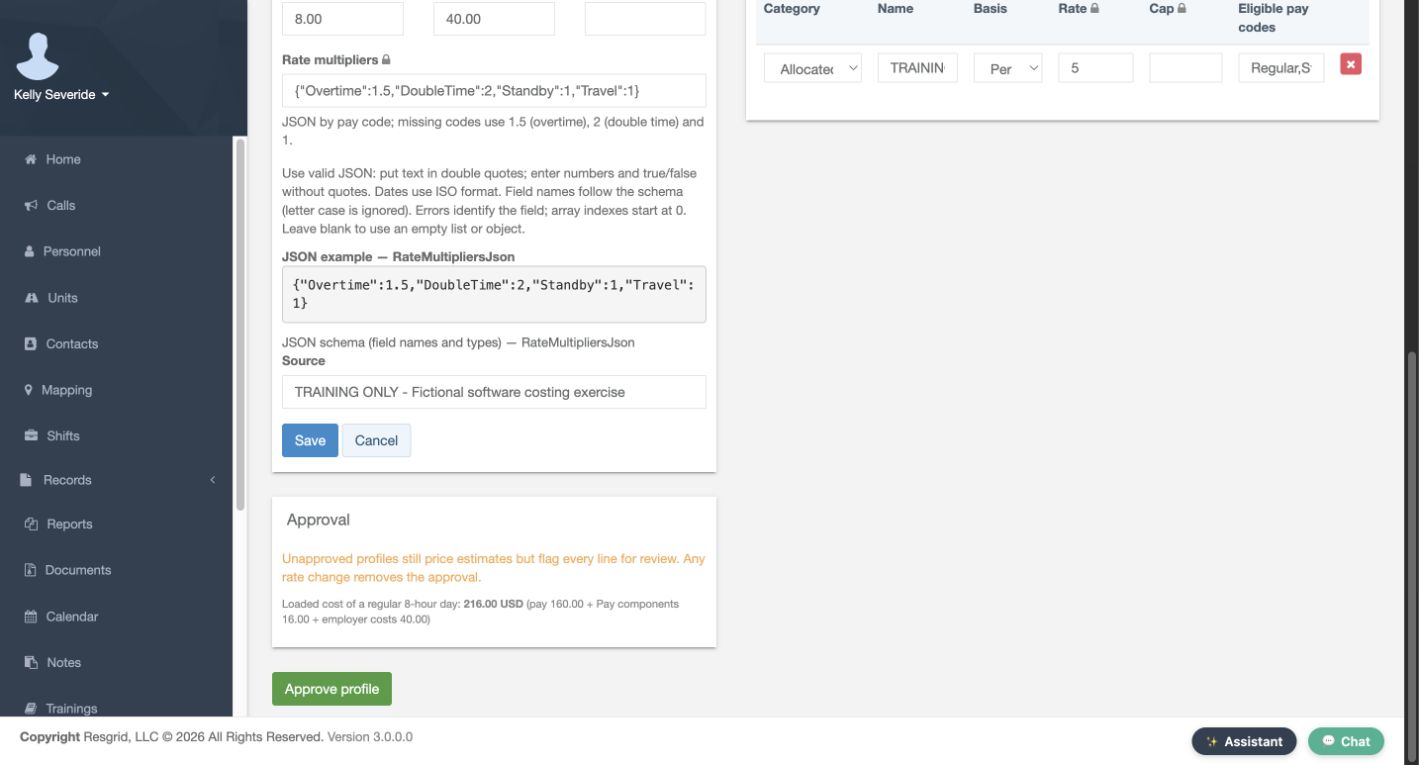
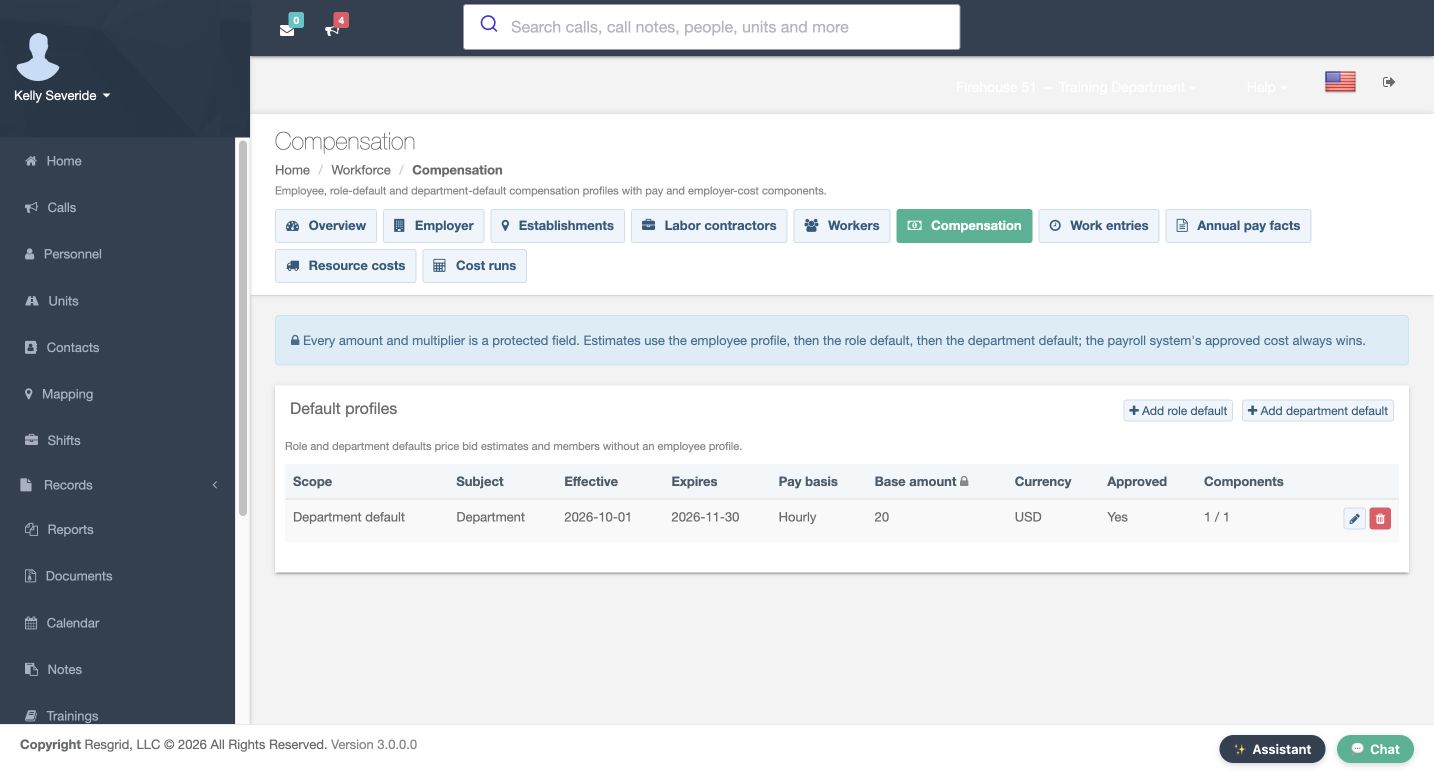
The recording now uses a different, existing fictional administrator, Kelly Severide. The same department default is still not approved when that manager opens it. After reviewing the inputs and preview, select Approve profile. The returned form shows the approval date, and the Compensation index independently shows Yes. That is the successful stored result. The account switch uses normal sign-in; no permissions were changed and no approval restriction was bypassed.
Practice
Approve as a separate manager and verify the stored result
Step 8
Apply the process to your own organization
Use the same separation of preparation and review for search-and-rescue teams, security companies, wildland contractors, industrial emergency teams and community response services. Community paramedicine, mental health response, fire and E M S departments can all name components that fit their own organization. Agree who maintains profiles, who independently approves them, and who checks the resulting costing output. Keep fictional exercises separate from operational compensation data.
Practice
Apply the process to your own organization
Examples for your department
- Fire / EMS
- Review the same fictional personnel and resource costing controls using the terminology appropriate to your department.
- Community response
- Review the same fictional personnel and resource costing controls using the terminology appropriate to your department.
- Search and rescue
- Review the same fictional personnel and resource costing controls using the terminology appropriate to your department.
- Security
- Review the same fictional personnel and resource costing controls using the terminology appropriate to your department.
- Wildland
- Review the same fictional personnel and resource costing controls using the terminology appropriate to your department.
- Industrial
- Review the same fictional personnel and resource costing controls using the terminology appropriate to your department.
Transcript
Download transcriptRead the complete transcript
Configure a compensation default and complete independent approval
Audience: Department administrators, Workforce managers, Operational supervisors

Open compensation and understand the fallback order
In Workforce, open Compensation. The page separates employee, role-default and department-default profiles. Its help gives the estimate order: employee profile, then role default, then department default. It also says an approved payroll cost takes precedence. This lesson creates one fictional department default so you can see its settings and independent approval. It does not set a real employee’s pay. Select Add department default to open the form.
Practice: Open compensation and understand the fallback order

Set the effective period and hourly base
Check the profile heading so you know which scope you are editing. Set Effective to October first and Expires to November thirtieth in this dated exercise. Choose Hourly, use U S D, and enter a Base amount of twenty. The form explains that the base is interpreted according to the pay basis. Keep eight Hours per day and forty Hours per week. The Regular hourly equivalent is an optional override; it stays blank here. These are deliberately simple fictional values for checking the software calculation.
Practice: Set the effective period and hourly base

Add a pay component
Use the plus control in Pay components to add a row. Each row has a Category, Name, Basis, Amount, Eligible pay codes and a Per O T hour checkbox. The example adds a named equipment differential with an amount of two per hour for Regular and Standby. Its overtime checkbox remains unchecked. The panel explains that these components sit on top of the base. Review the row as a separate contribution instead of putting every cost into the base amount.
Practice: Add a pay component

Add the employer cost and multipliers
Use the plus control in Employer cost components for a separate fictional overhead amount of five per hour, again limited to Regular and Standby. Leave its optional Cap blank. In Rate multipliers, the example sets Overtime to one point five, DoubleTime to two, and Standby and Travel to one, using the J S O N structure shown. Add a Source note that identifies this as a fictional software exercise. These values are configuration examples, not prescribed rates for any department.
Practice: Add the employer cost and multipliers

Save and read the loaded-day preview
Select Save, then confirm the Saved message and the persisted inputs. Scroll to Approval. Resgrid previews a regular eight-hour day at two hundred sixteen dollars: one hundred sixty in base pay, sixteen in pay components and forty in employer costs. Those amounts match the configured twenty, two and five per hour. The profile is still not approved. The notice says unapproved profiles can price estimates but flag their lines for review, and a rate change removes an approval.
Practice: Save and read the loaded-day preview

Recognize the independent-review guard
Approve profile is a separate action from Save. When the manager who made the latest change tries to approve this example, Resgrid refuses. The message says that it is the manager’s own pay or they made the latest change, and another manager must approve it. The index still shows No in Approved. Do not treat a saved profile or a calculated preview as approval. Have a different authorized manager review the same profile through their normal account.
Practice: Recognize the independent-review guard

Approve as a separate manager and verify the stored result
The recording now uses a different, existing fictional administrator, Kelly Severide. The same department default is still not approved when that manager opens it. After reviewing the inputs and preview, select Approve profile. The returned form shows the approval date, and the Compensation index independently shows Yes. That is the successful stored result. The account switch uses normal sign-in; no permissions were changed and no approval restriction was bypassed.
Practice: Approve as a separate manager and verify the stored result

Apply the process to your own organization
Use the same separation of preparation and review for search-and-rescue teams, security companies, wildland contractors, industrial emergency teams and community response services. Community paramedicine, mental health response, fire and E M S departments can all name components that fit their own organization. Agree who maintains profiles, who independently approves them, and who checks the resulting costing output. Keep fictional exercises separate from operational compensation data.
Practice: Apply the process to your own organization

Examples for your department
Fire / EMS: Review the same fictional personnel and resource costing controls using the terminology appropriate to your department.
Community response: Review the same fictional personnel and resource costing controls using the terminology appropriate to your department.
Search and rescue: Review the same fictional personnel and resource costing controls using the terminology appropriate to your department.
Security: Review the same fictional personnel and resource costing controls using the terminology appropriate to your department.
Wildland: Review the same fictional personnel and resource costing controls using the terminology appropriate to your department.
Industrial: Review the same fictional personnel and resource costing controls using the terminology appropriate to your department.