
Core · Video walkthrough
Offer a department record form in IC
Review per-form app availability, prepare IC-only client surfaces, validate and save a draft, then inspect publication impact and the published version.
Before you begin
- An authorized Core administrator session with Record Definitions available.
- A separate fictional department-owned draft form. The definition-creation lesson covers creating and cloning forms.
Chapters
Watch the walkthrough
Step 1
Review which apps receive a form
A department record form needs the right app availability before field staff can use it. On its definition page, scroll to Client surfaces. This existing training form has Responder selected and IC clear. Unit and Dispatch are also clear. Read this group of choices for the particular form you intend to offer. A form being available in one application does not tell you which other applications are selected here.
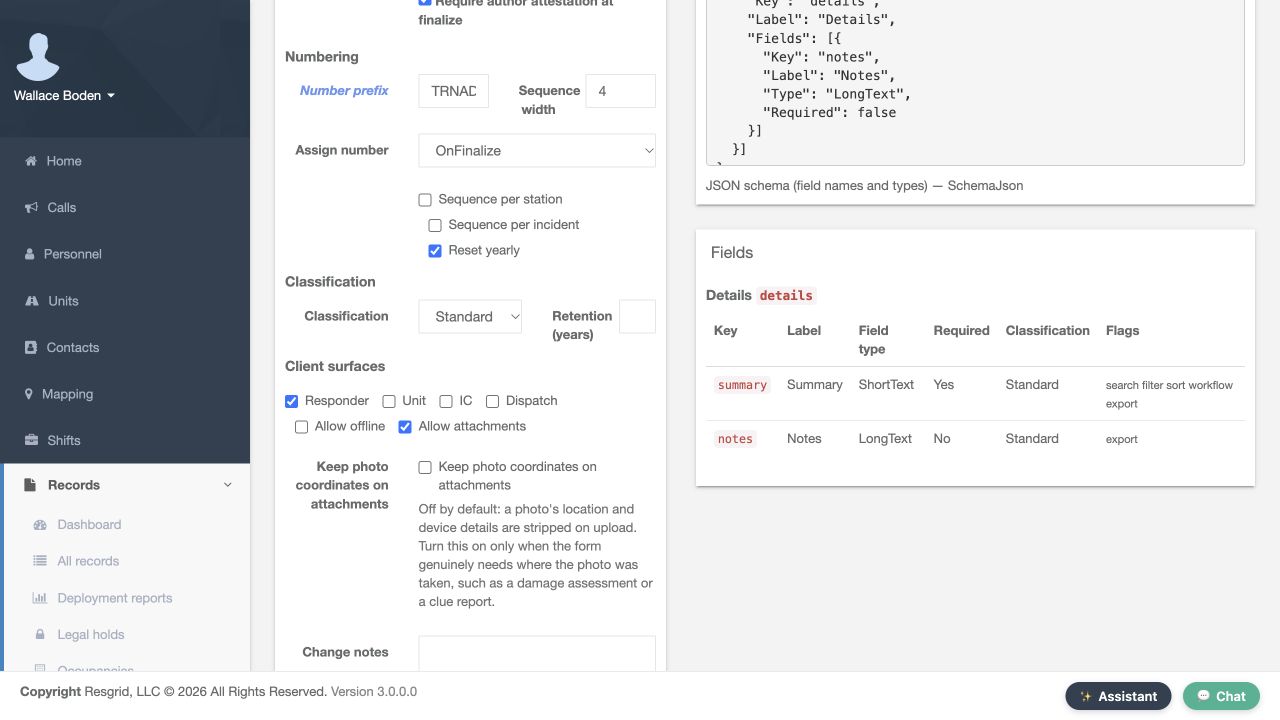
Practice
Locate Client surfaces on a department definition and read the pictured Responder and IC choices.
Step 2
Work in a separate definition draft
For the practice change, we use a separate department-owned form called Training Only, IC coordination note. The heading identifies version one as Draft, and the creation notice says to edit the schema, validate, then publish. Lifecycle preset currently shows Quick Entry. Confirm the form name and version state before preparing its app choices. This keeps the availability decision tied to the intended definition version.
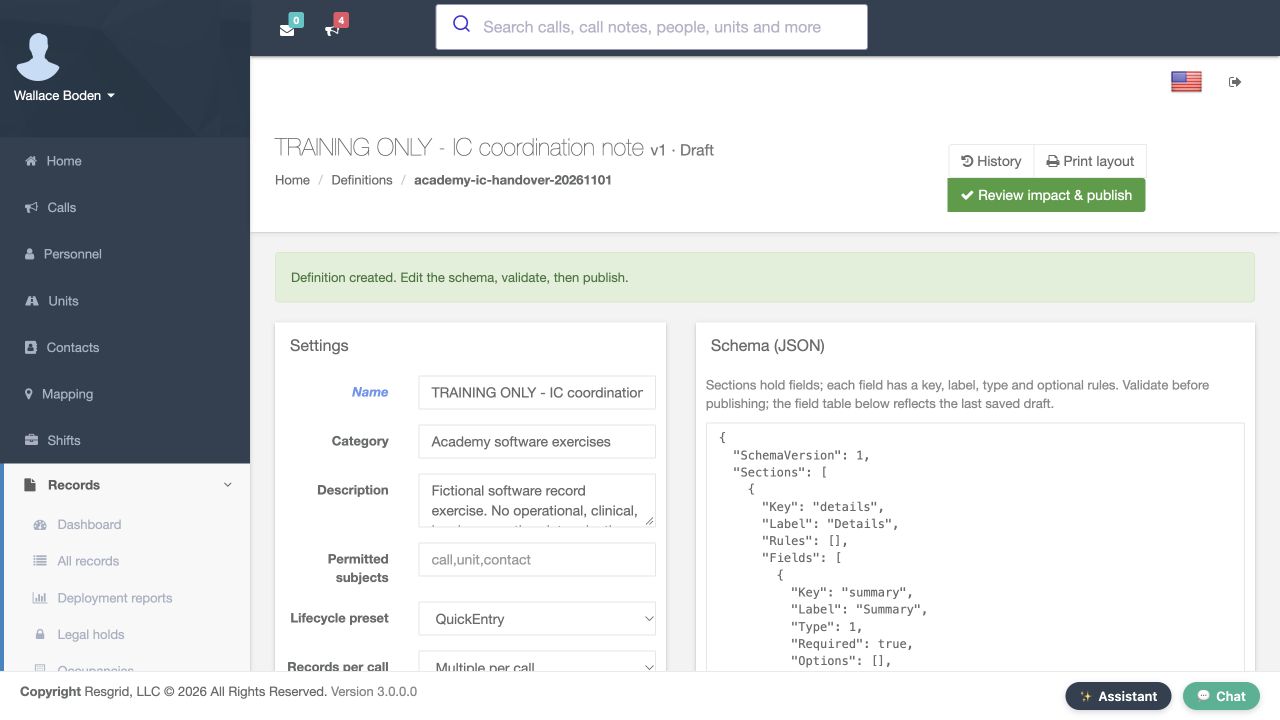
Practice
Confirm the fictional form name, Draft version and displayed lifecycle before changing its app choices.
Step 3
Prepare IC-only availability
In Client surfaces, clear Responder and select IC for this separate practice form. Unit and Dispatch remain clear. The pictured choices now target IC when this version is published. Allow offline is also clear for this exercise. Review the entire group before saving, rather than assuming that selecting one app automatically selects the others. These are prepared draft settings at this stage.
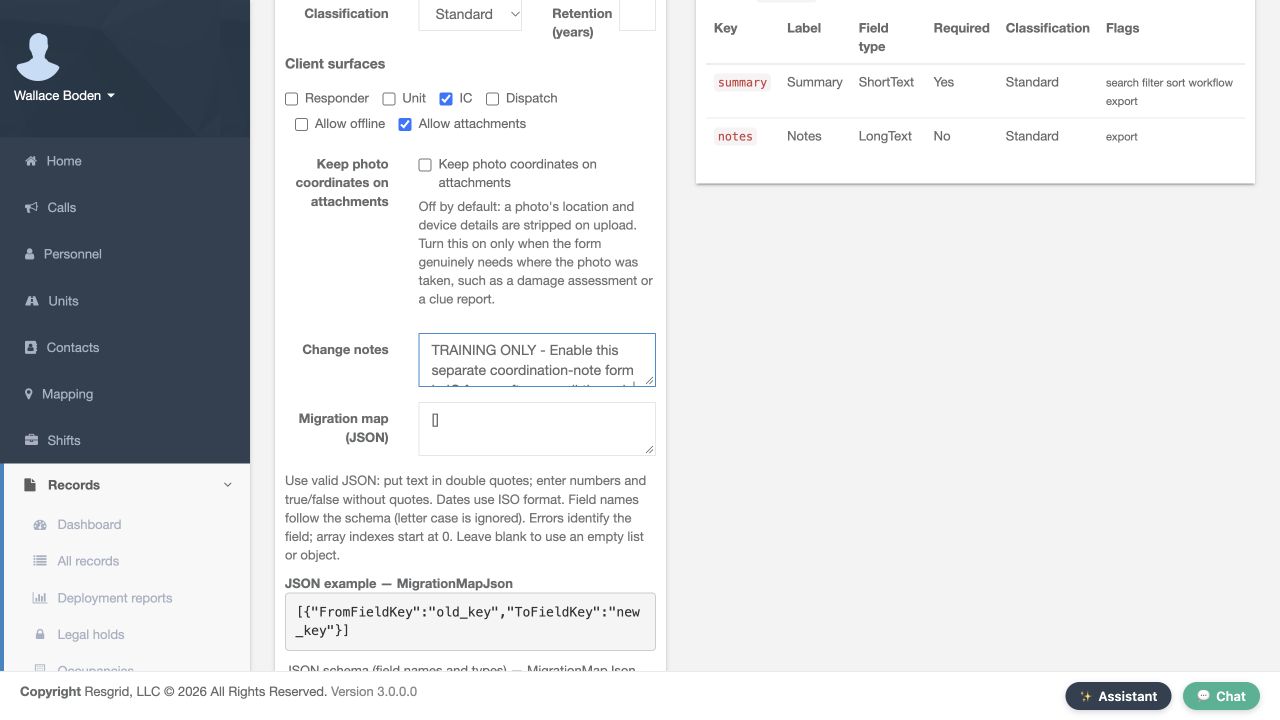
Practice
Prepare IC selected and the other three app choices clear on a fictional draft. Read Allow offline without enabling it.
Step 4
Validate and read the result
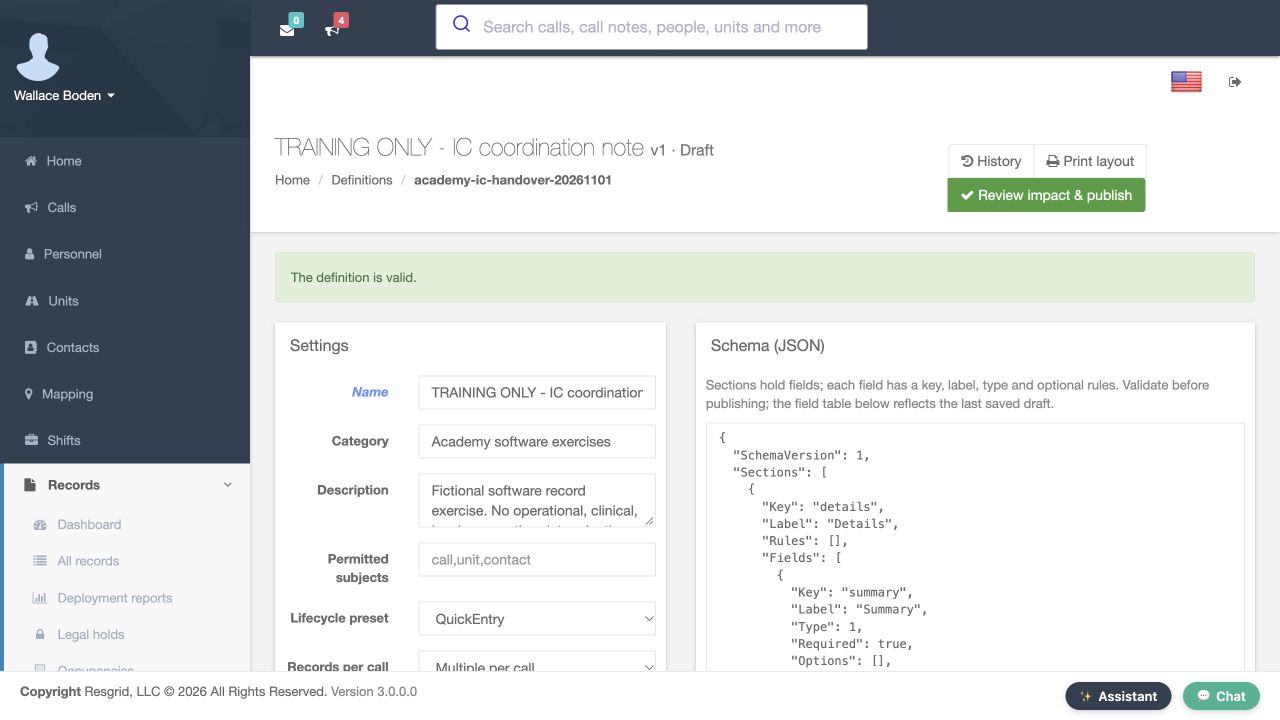
At the bottom of the definition editor, choose Validate. The returned page displays The definition is valid. Read that result before moving toward publication. Validation is a useful checkpoint for the form definition you are preparing; it does not tell an operator which app choices you intended. Compare the configuration with the requested departmental use as well as checking that validation succeeds.
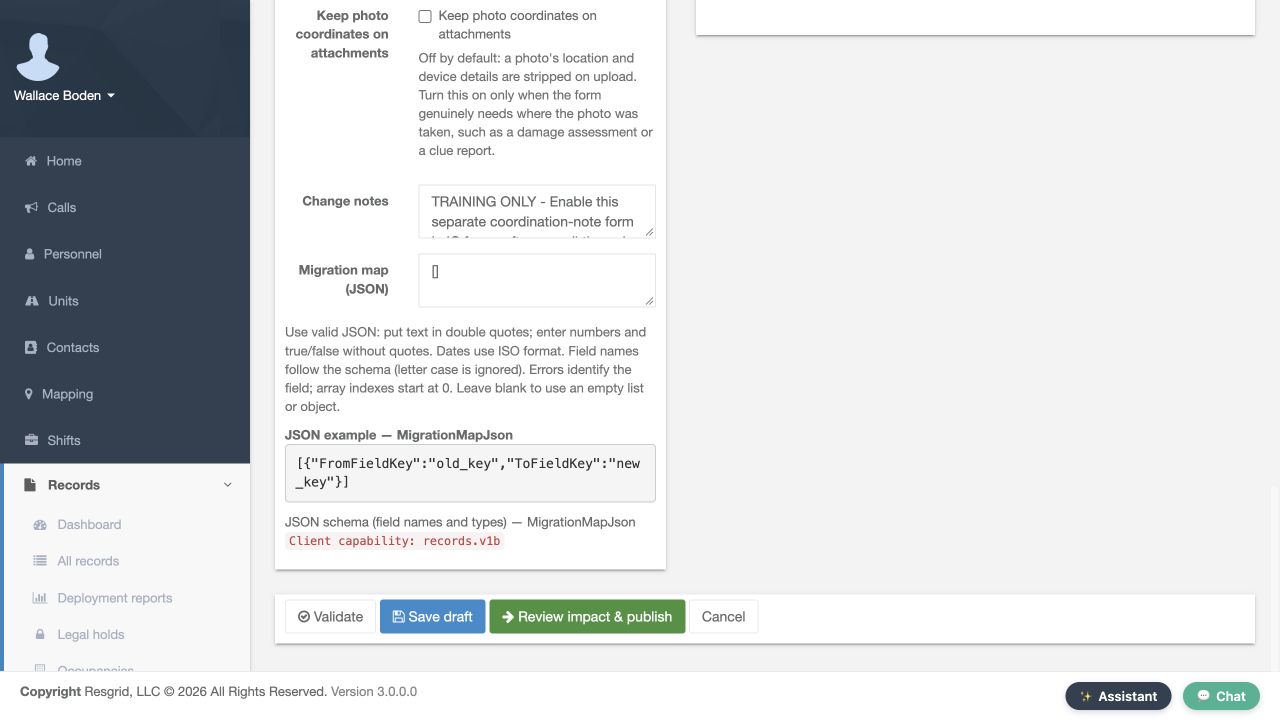
Practice
Find Validate and read its returned validation notice.
Step 5
Save the intended draft configuration
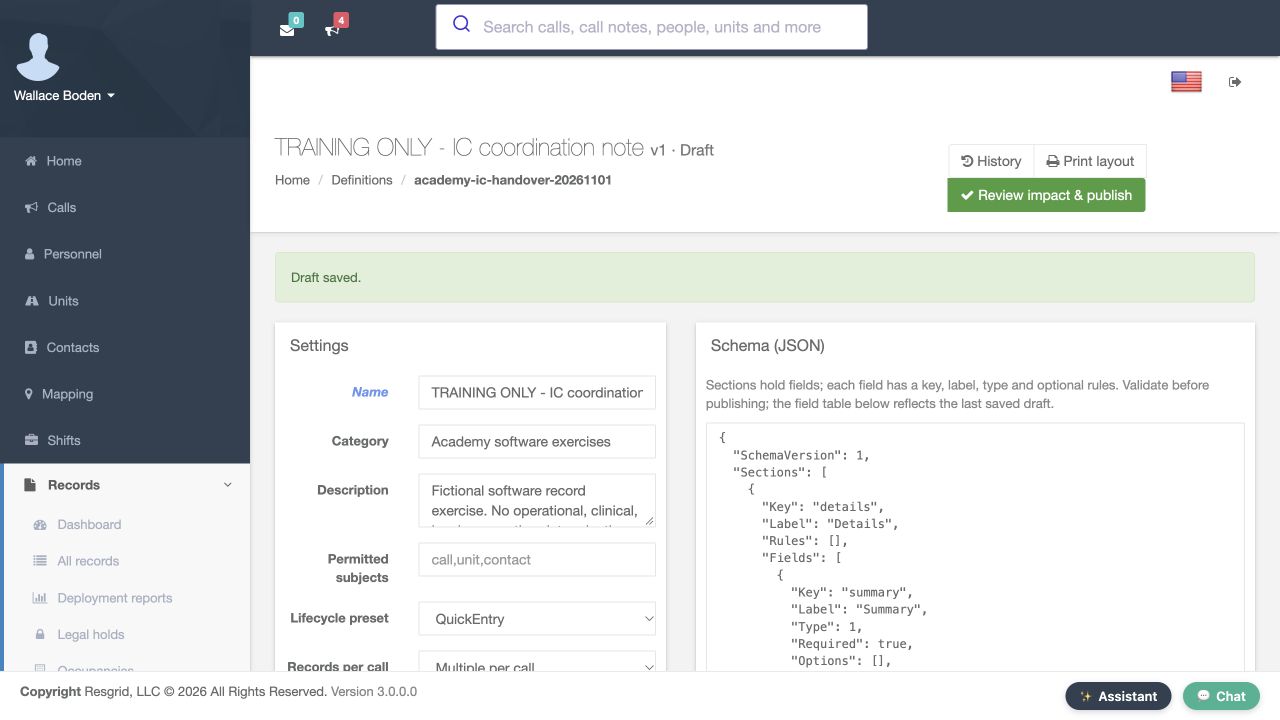
Use Save draft to retain the prepared configuration. The returned page displays Draft saved, while the heading still identifies the version as Draft. Read that state before proceeding. Review impact and publish is the next action for deciding whether this version is ready to be offered. Keeping validation, saving and publication as explicit checkpoints makes it easier to explain where a form is in the setup process.
Practice
Use Save draft and confirm the saved notice and Draft heading before opening the impact review.
Step 6
Compare app enablement with the form surface
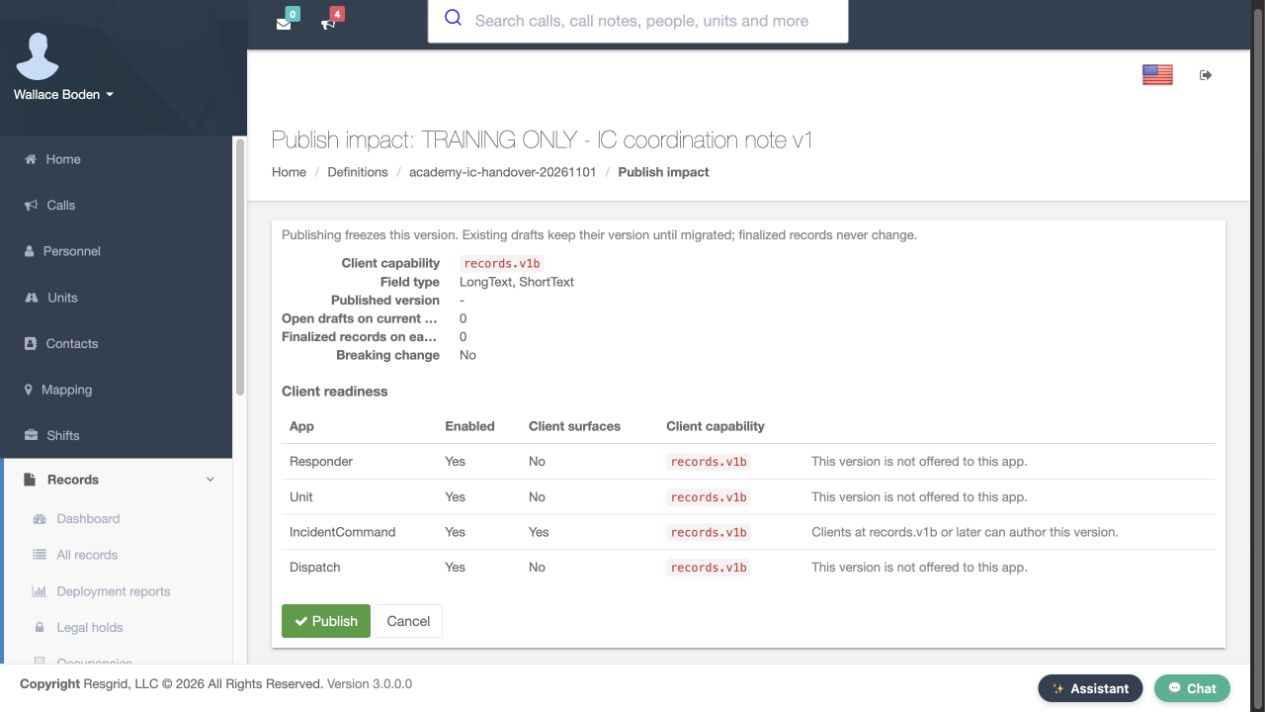
Open Review impact and publish, then inspect Client readiness. The Enabled column and Client surfaces column answer different questions. Here every app is enabled, but only the Incident Command row has Yes under Client surfaces. Responder, Unit and Dispatch say this version is not offered to that app. The IC row says clients at records version one B or later can author this version. Read the complete row, including its capability requirement, before publishing.
Practice
Compare Enabled and Client surfaces for IC and one other app, then read the capability message.
Step 7
Publish the reviewed version
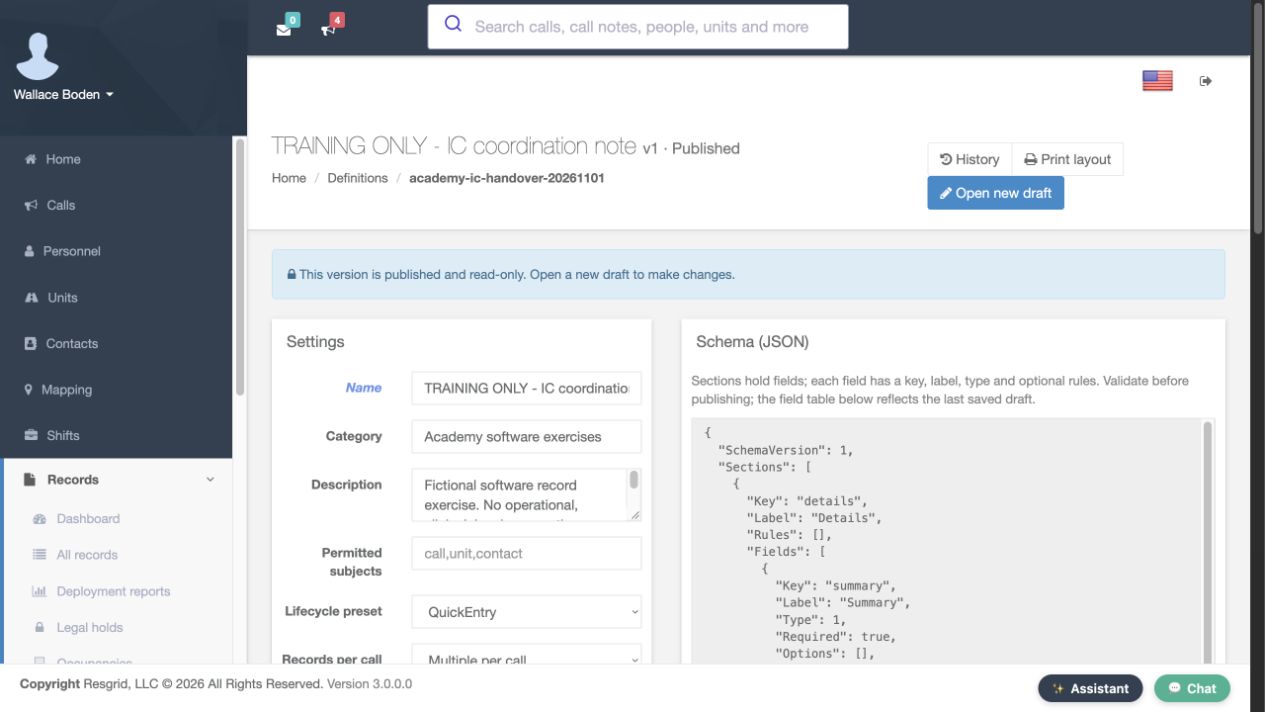
The impact page explains that publishing freezes the version. After reviewing the intended form and its app readiness, choose Publish. The resulting definition page identifies version one as Published and displays the published, read-only notice. Verify that returned state before telling staff the setup is complete. The separate IC record walkthrough shows this published form being selected and used in the app.
Practice
Read the publication consequence and verify the Published heading and read-only notice in a training environment.
Step 8
Plan future changes and departmental use
Open new draft is available for the next definition change. Use the version heading to keep published forms and future work clear during administration. The same availability review can support a security handover form, a search-and-rescue coordination note, community paramedicine or mental health team documentation, wildland contractor records, industrial exercise forms, and fire or E M S department records. Choose app availability deliberately for the people who will actually fill out each form.
Practice
Locate Open new draft and discuss which authorized app users should receive a fictional form for your department.
Examples for your department
- Fire / EMS
- A command aide practices an authorized department coordination record.
- Community response
- A community paramedicine or mental health team practices a coordination handover form.
- Search and rescue
- A search coordinator practices a mission-support handover record.
- Security
- A supervisor practices a shift or event handover form.
- Wildland
- A contractor practices crew coordination documentation.
- Industrial
- An industrial response team practices exercise documentation.
Transcript
Download transcriptRead the complete transcript
Offer a department record form in IC
Audience: Department administrators, Records administrators, Department trainers

Review which apps receive a form
A department record form needs the right app availability before field staff can use it. On its definition page, scroll to Client surfaces. This existing training form has Responder selected and IC clear. Unit and Dispatch are also clear. Read this group of choices for the particular form you intend to offer. A form being available in one application does not tell you which other applications are selected here.
Practice: Locate Client surfaces on a department definition and read the pictured Responder and IC choices.

Work in a separate definition draft
For the practice change, we use a separate department-owned form called Training Only, IC coordination note. The heading identifies version one as Draft, and the creation notice says to edit the schema, validate, then publish. Lifecycle preset currently shows Quick Entry. Confirm the form name and version state before preparing its app choices. This keeps the availability decision tied to the intended definition version.
Practice: Confirm the fictional form name, Draft version and displayed lifecycle before changing its app choices.

Prepare IC-only availability
In Client surfaces, clear Responder and select IC for this separate practice form. Unit and Dispatch remain clear. The pictured choices now target IC when this version is published. Allow offline is also clear for this exercise. Review the entire group before saving, rather than assuming that selecting one app automatically selects the others. These are prepared draft settings at this stage.
Practice: Prepare IC selected and the other three app choices clear on a fictional draft. Read Allow offline without enabling it.

Validate and read the result
At the bottom of the definition editor, choose Validate. The returned page displays The definition is valid. Read that result before moving toward publication. Validation is a useful checkpoint for the form definition you are preparing; it does not tell an operator which app choices you intended. Compare the configuration with the requested departmental use as well as checking that validation succeeds.
Practice: Find Validate and read its returned validation notice.

Save the intended draft configuration
Use Save draft to retain the prepared configuration. The returned page displays Draft saved, while the heading still identifies the version as Draft. Read that state before proceeding. Review impact and publish is the next action for deciding whether this version is ready to be offered. Keeping validation, saving and publication as explicit checkpoints makes it easier to explain where a form is in the setup process.
Practice: Use Save draft and confirm the saved notice and Draft heading before opening the impact review.

Compare app enablement with the form surface
Open Review impact and publish, then inspect Client readiness. The Enabled column and Client surfaces column answer different questions. Here every app is enabled, but only the Incident Command row has Yes under Client surfaces. Responder, Unit and Dispatch say this version is not offered to that app. The IC row says clients at records version one B or later can author this version. Read the complete row, including its capability requirement, before publishing.
Practice: Compare Enabled and Client surfaces for IC and one other app, then read the capability message.

Publish the reviewed version
The impact page explains that publishing freezes the version. After reviewing the intended form and its app readiness, choose Publish. The resulting definition page identifies version one as Published and displays the published, read-only notice. Verify that returned state before telling staff the setup is complete. The separate IC record walkthrough shows this published form being selected and used in the app.
Practice: Read the publication consequence and verify the Published heading and read-only notice in a training environment.

Plan future changes and departmental use
Open new draft is available for the next definition change. Use the version heading to keep published forms and future work clear during administration. The same availability review can support a security handover form, a search-and-rescue coordination note, community paramedicine or mental health team documentation, wildland contractor records, industrial exercise forms, and fire or E M S department records. Choose app availability deliberately for the people who will actually fill out each form.
Practice: Locate Open new draft and discuss which authorized app users should receive a fictional form for your department.

Examples for your department
Fire / EMS: A command aide practices an authorized department coordination record.
Community response: A community paramedicine or mental health team practices a coordination handover form.
Search and rescue: A search coordinator practices a mission-support handover record.
Security: A supervisor practices a shift or event handover form.
Wildland: A contractor practices crew coordination documentation.
Industrial: An industrial response team practices exercise documentation.