
Core · Video walkthrough
Customize map markers and verify real priority and status changes
Save call, Engine and Officer icons; verify Urgent, Available and Standing By replacements; restore the reserve unit and inspect actual map/legend fallbacks.
Before you begin
- Use an isolated fictional training department and permission to edit its call/unit types, personnel roles and marker overrides.
- Use disposable training images in a supported format under one megabyte; keep bold shapes readable at small map/list sizes.
- Know the named entities, existing role membership and actual priority/status meanings before changing icons.
- A permitted location is required to inspect an operating marker. The reserve unit point in this recording is separately declared simulated station-fixture data; neither status dialog collected GPS.
- The walkthrough shows actual Core desktop browser screens. Native-device rendering, provider delivery and physical apparatus movement are not demonstrated.
Chapters
- Identify the three marker families
- Save and reopen a call type base icon
- Save the actual Urgent priority override
- Set the Engine base and verify the named reserve unit
- Save Available and compare a real status change
- Save Officer and inspect existing membership and order
- Save Standing By and find Matthew Casey
- Read the complete legend and fallback order
- Restore the reserve unit and verify its unavailable marker
- Remove the disposable Urgent override and verify fallback
Watch the walkthrough
Step 1
Identify the three marker families
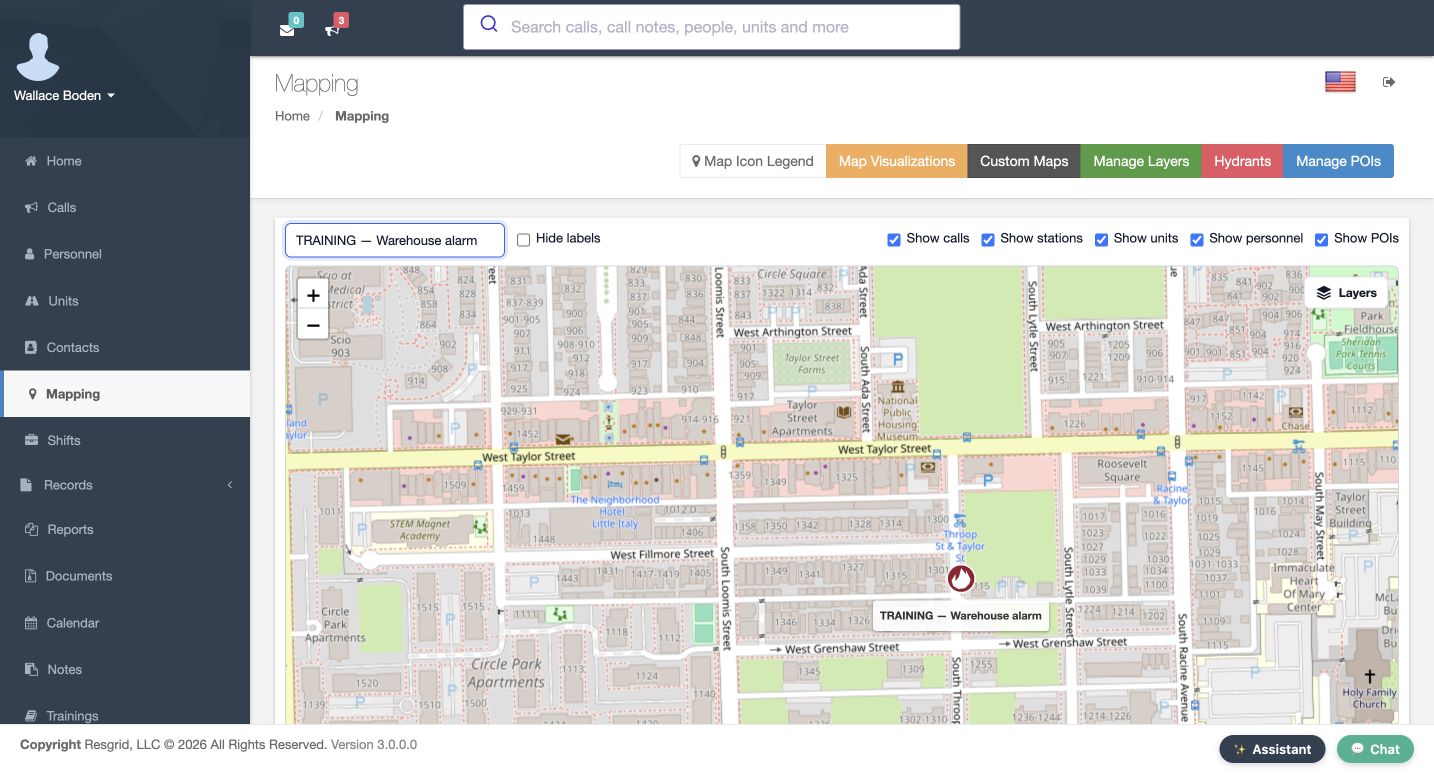
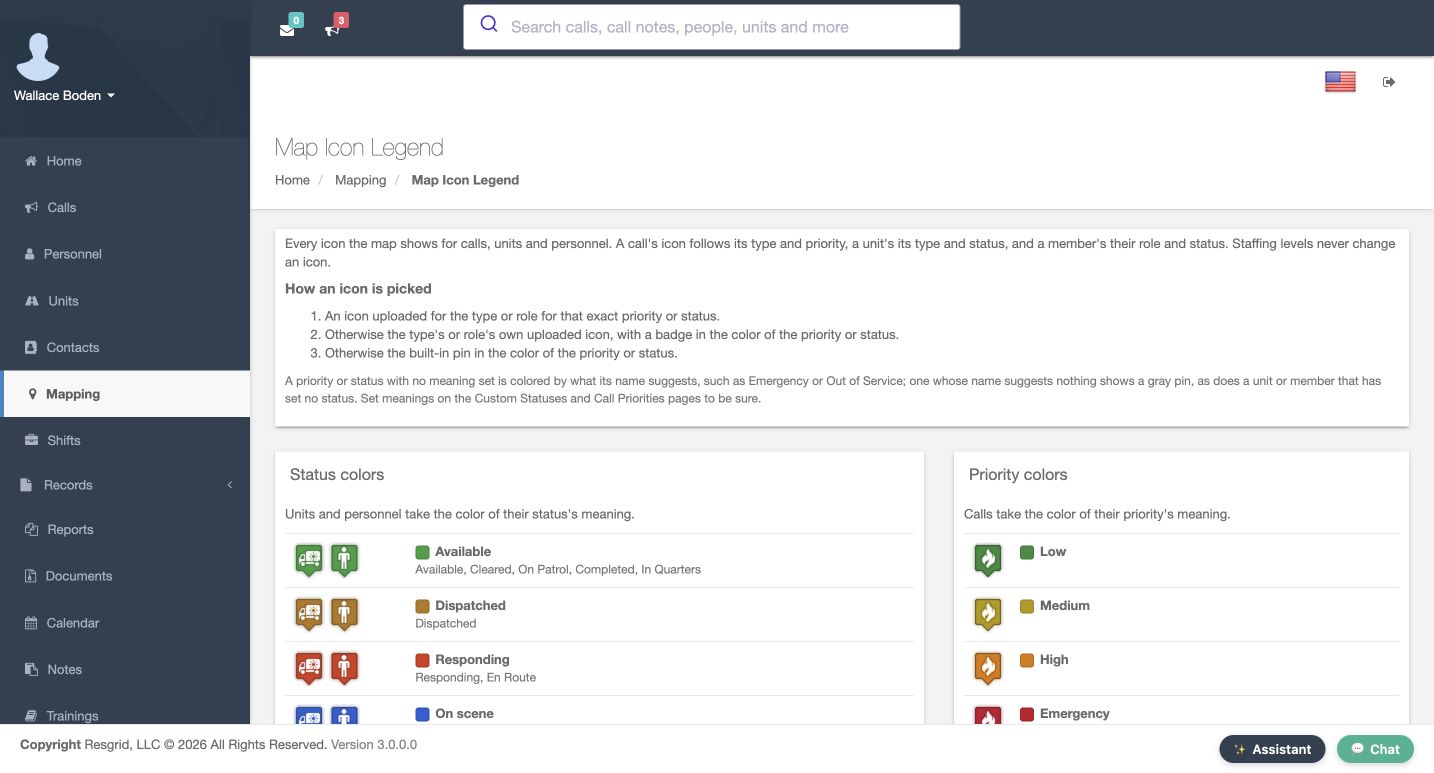
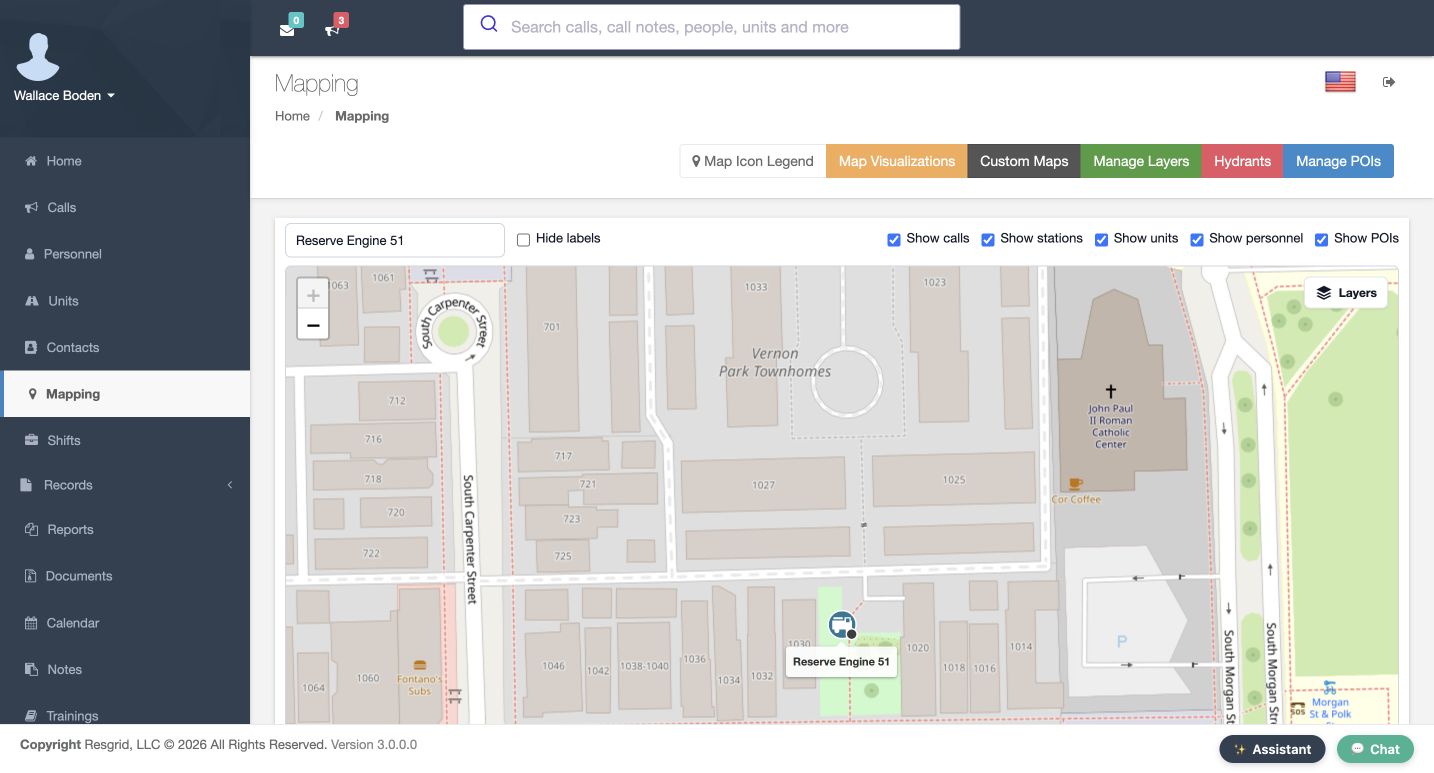
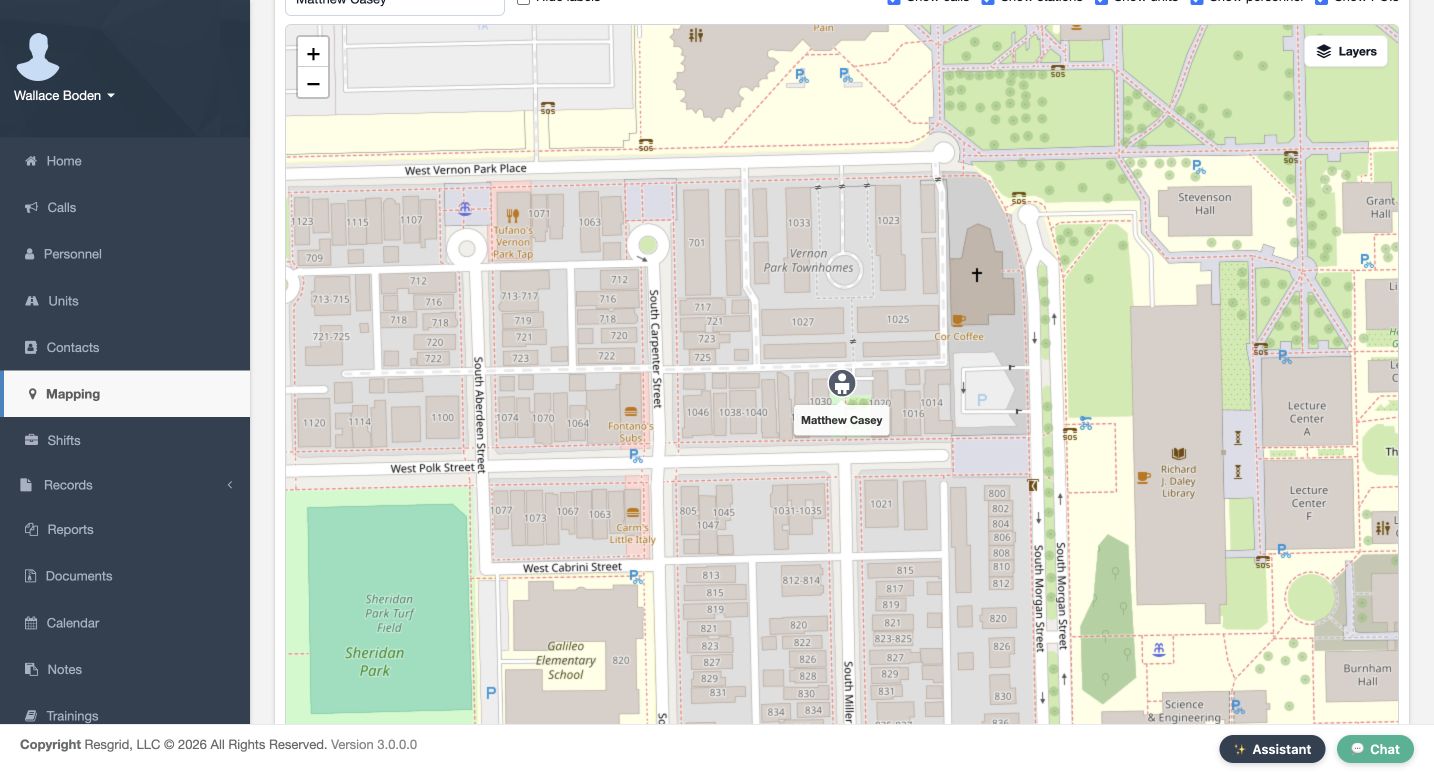
Open Mapping and choose Map Icon Legend. A call's marker follows its type and priority. A unit's marker follows its type and current status. A person's marker follows an applicable role and status. Staffing levels do not change the icon. Our fictional examples are the Warehouse alarm, Reserve Engine 51 and Matthew Casey. Keep their names visible while comparing symbols. The colors and artwork identify different things, so match a marker to its named entity before drawing an operational conclusion.
Practice
Locate a named call, unit and person; explain whether type/priority, type/status or role/status controls its icon.
Step 2
Save and reopen a call type base icon
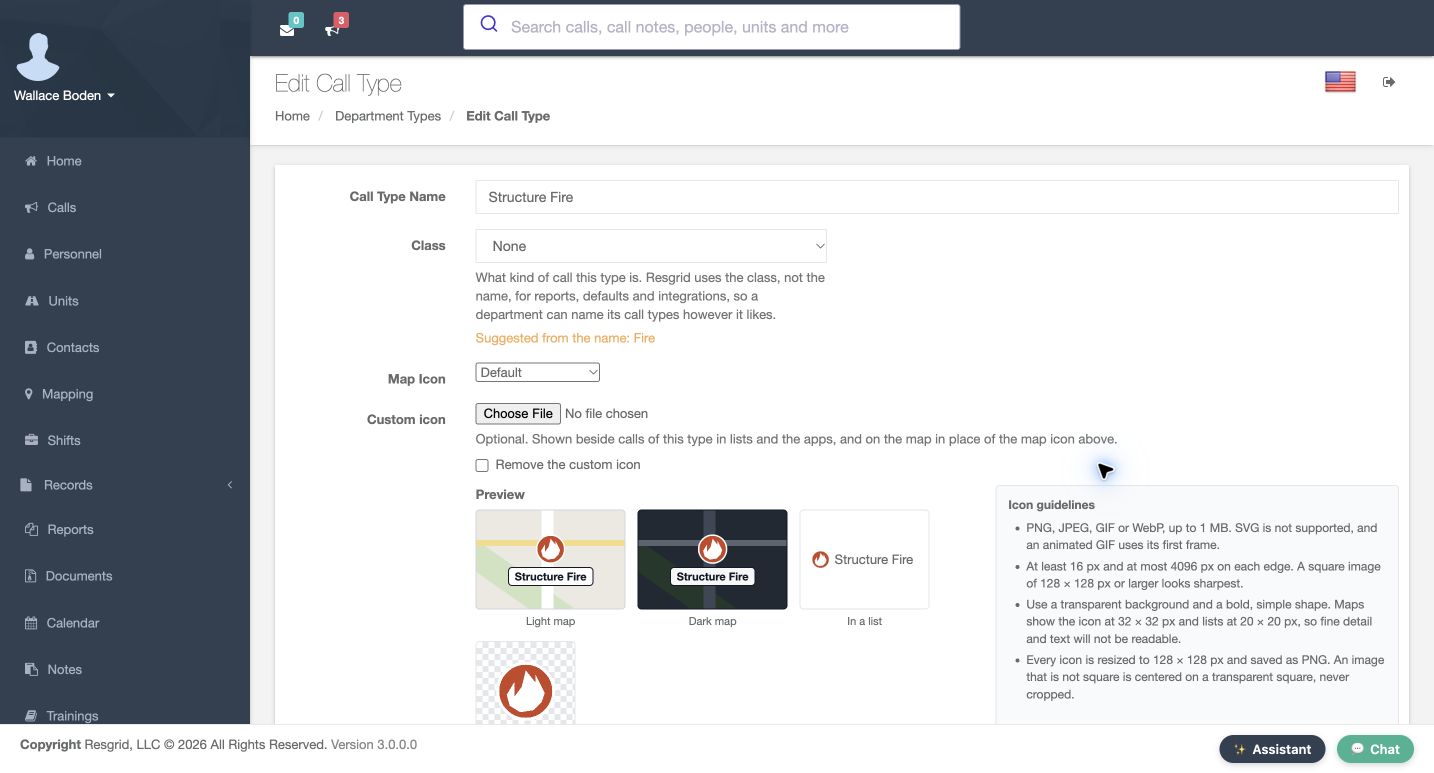
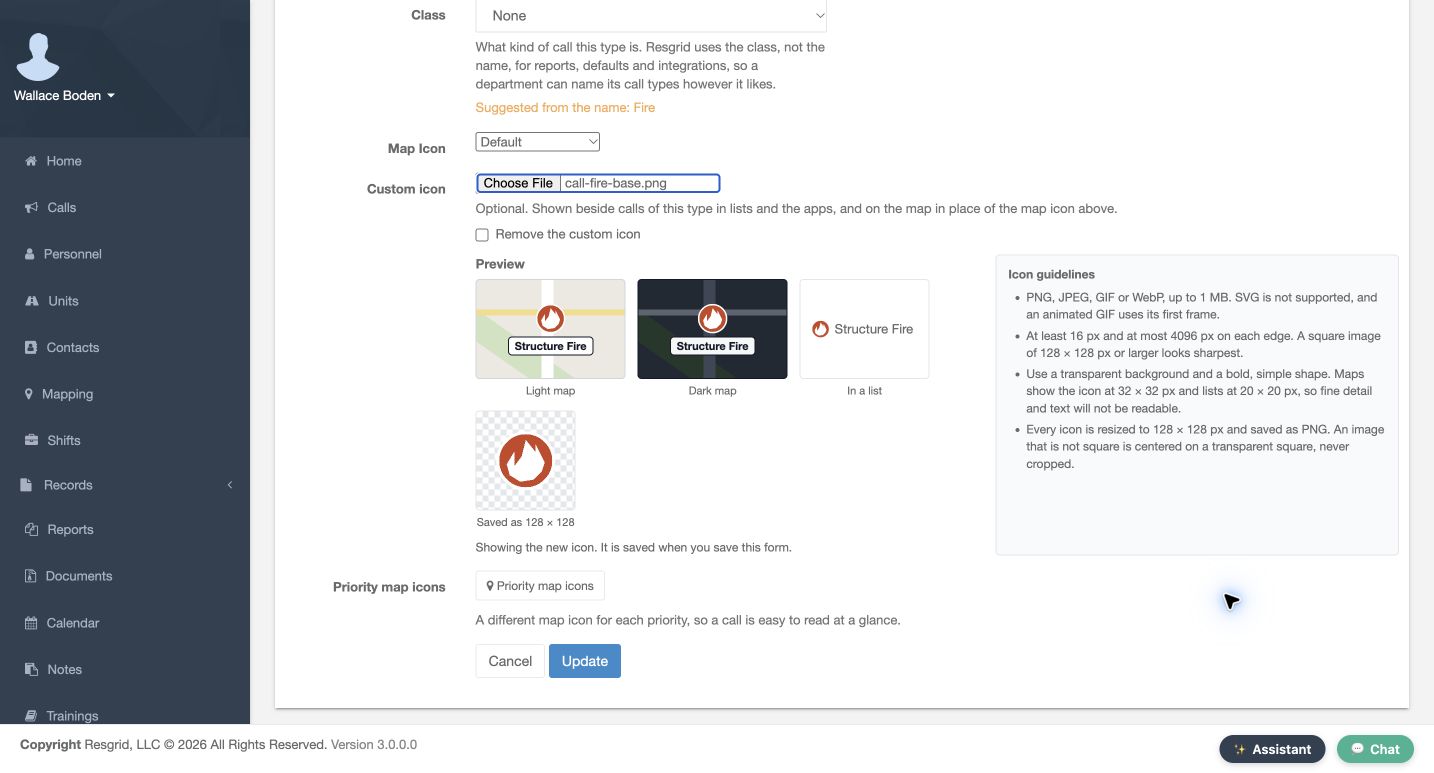
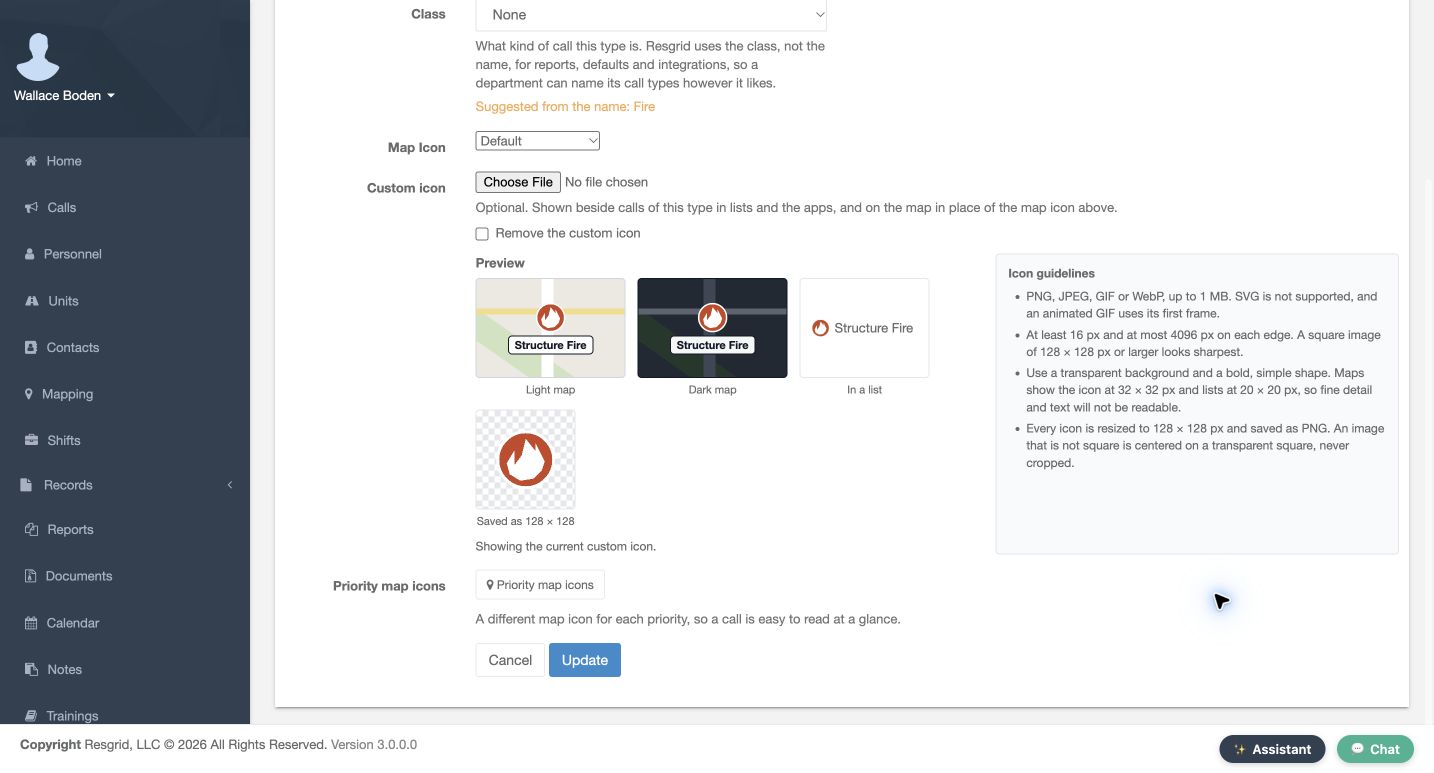
From Department Types, edit Structure Fire. The Map Icon selector supplies a built-in choice; Custom icon supplies the uploaded alternative. Choose File and select the training fire image. Read the Icon guidelines: supported formats are PNG, JPEG, GIF and WebP, up to one megabyte. SVG is not supported. Compare Preview on Light map, Dark map and In a list. A bold transparent square stays readable when small. Choose Update, then reopen the form. Showing the current custom icon confirms the stored result, rather than just a selected file.
Practice
In an authorized training type, select one supported image, inspect all three previews, save and reopen before treating the result as stored.
Step 3
Save the actual Urgent priority override
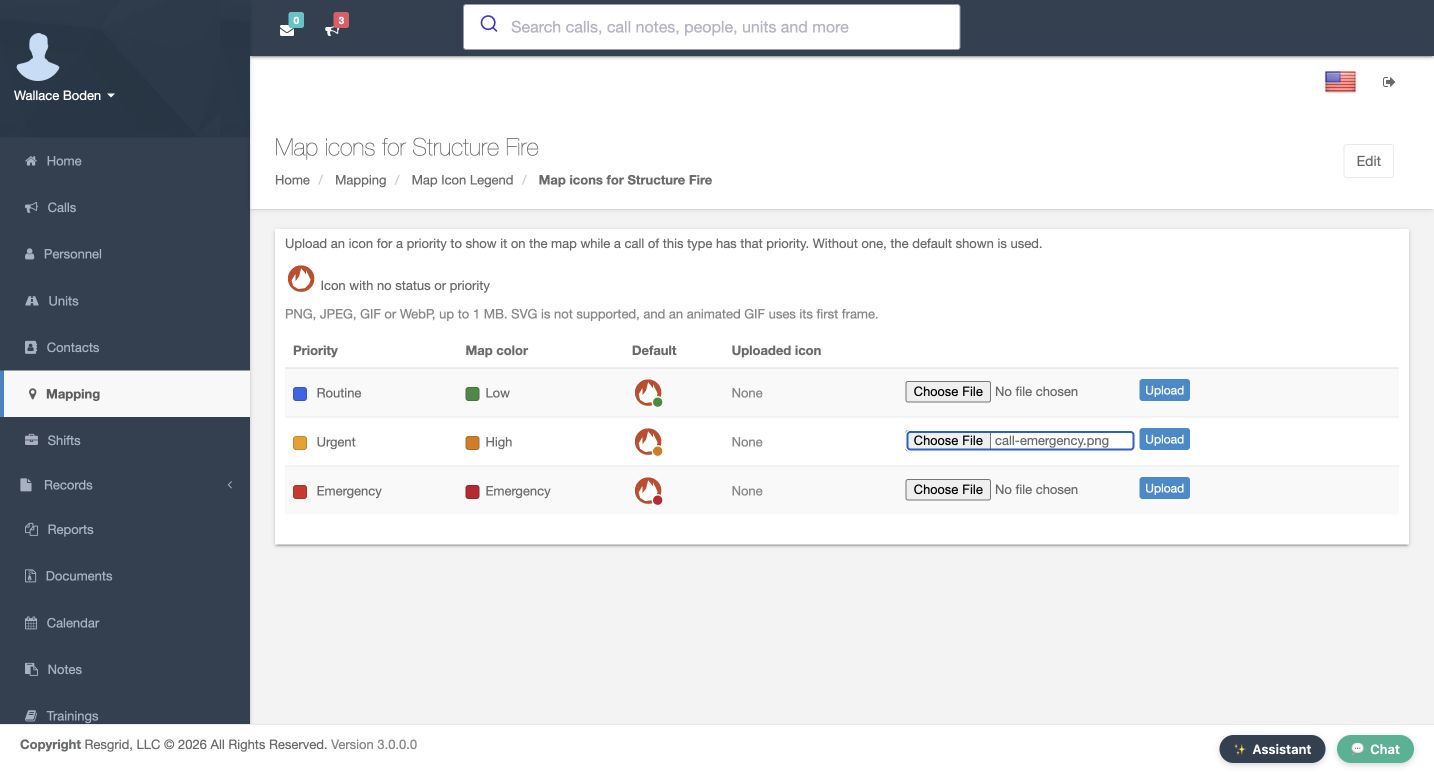
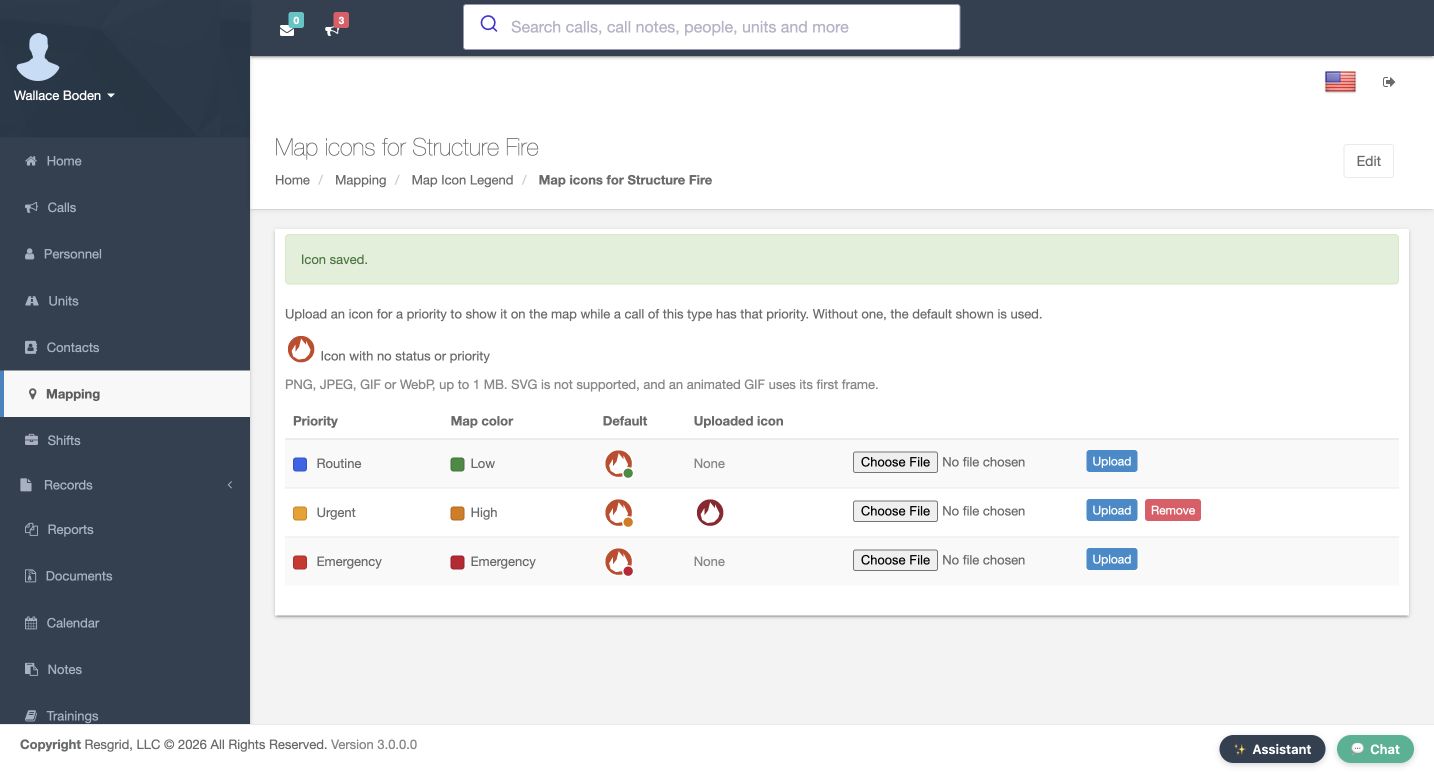
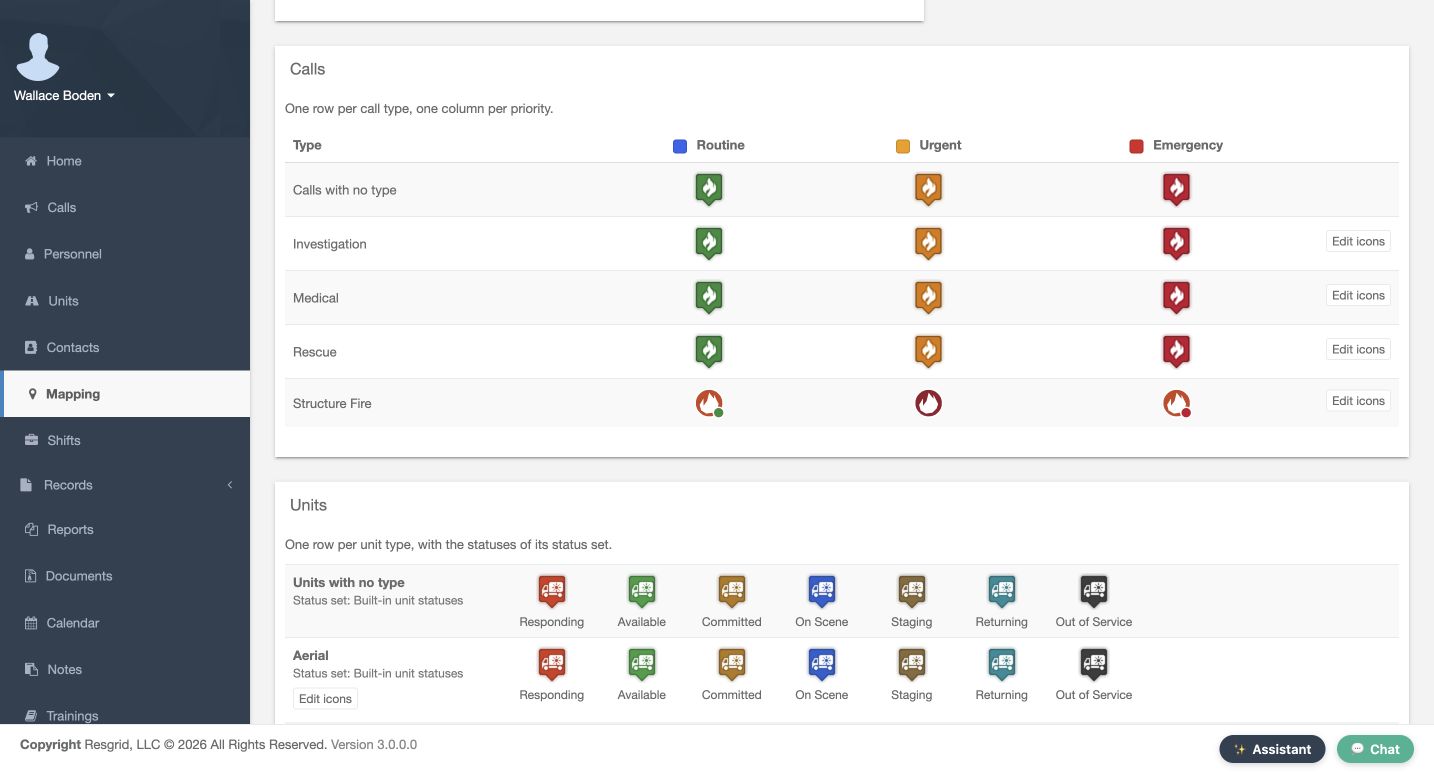
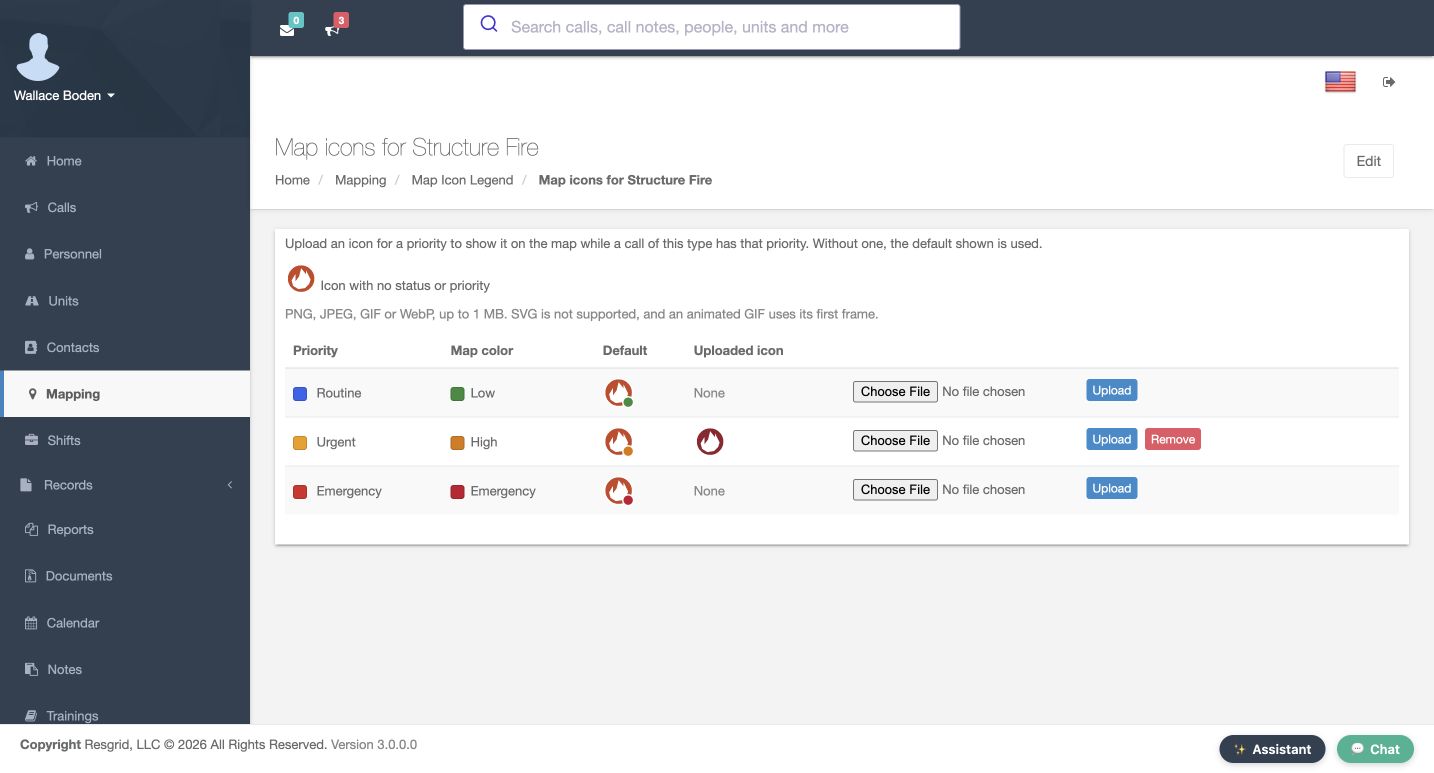
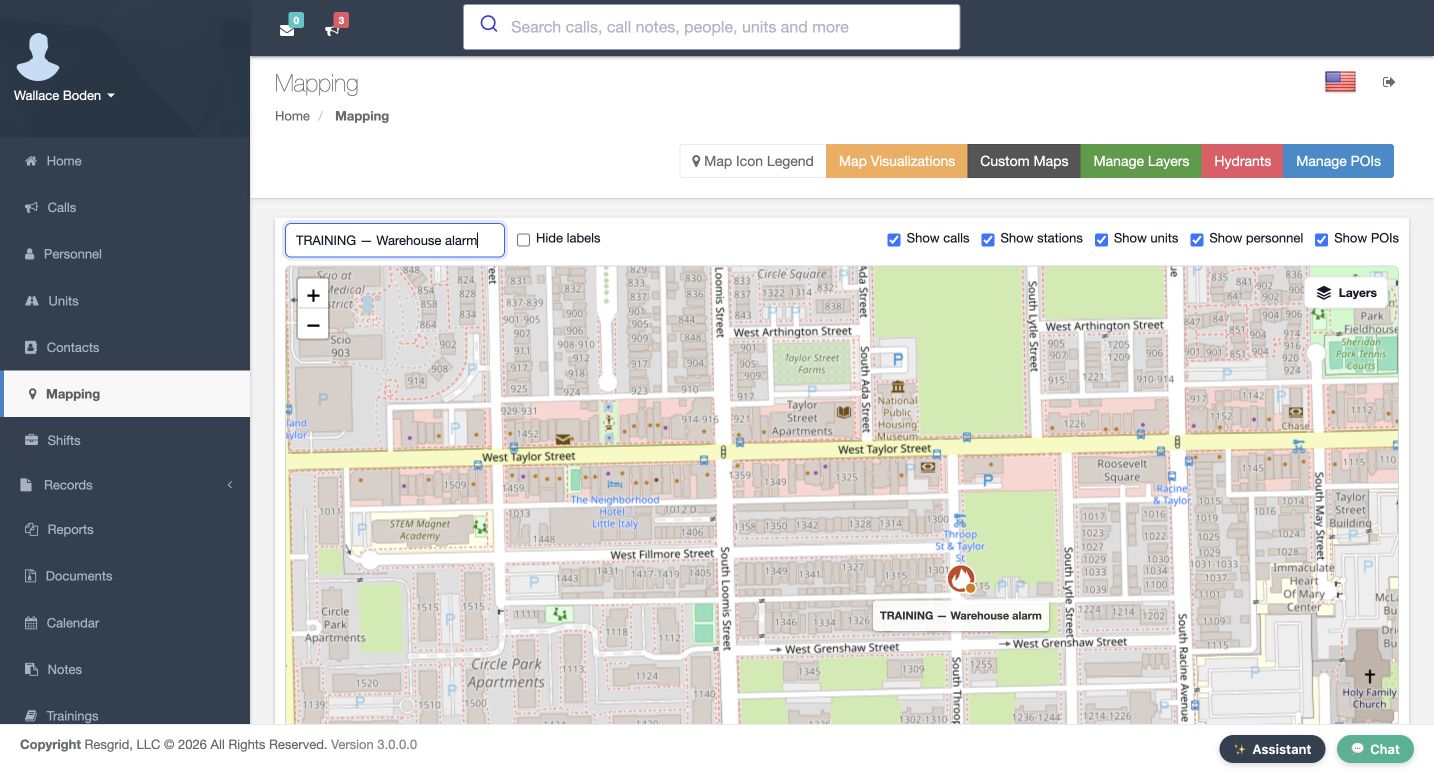
Choose Priority map icons. Find the Urgent row. Priority and Map color describe the actual setting; Default shows its fallback. The file selected here happens to be named call-emergency, but it is being uploaded for Urgent. A filename does not change the call's priority. Use that row's Upload button. Icon saved and the image under Uploaded icon show the stored replacement; Remove is now available. The named Warehouse alarm now shows that replacement on Mapping. In the legend, Routine and Emergency still use the type's base image with their priority badges.
Practice
Find the actual intended priority row, upload a disposable icon there, and compare its saved row, named map marker and legend. Do not infer priority from a filename.
Step 4
Set the Engine base and verify the named reserve unit
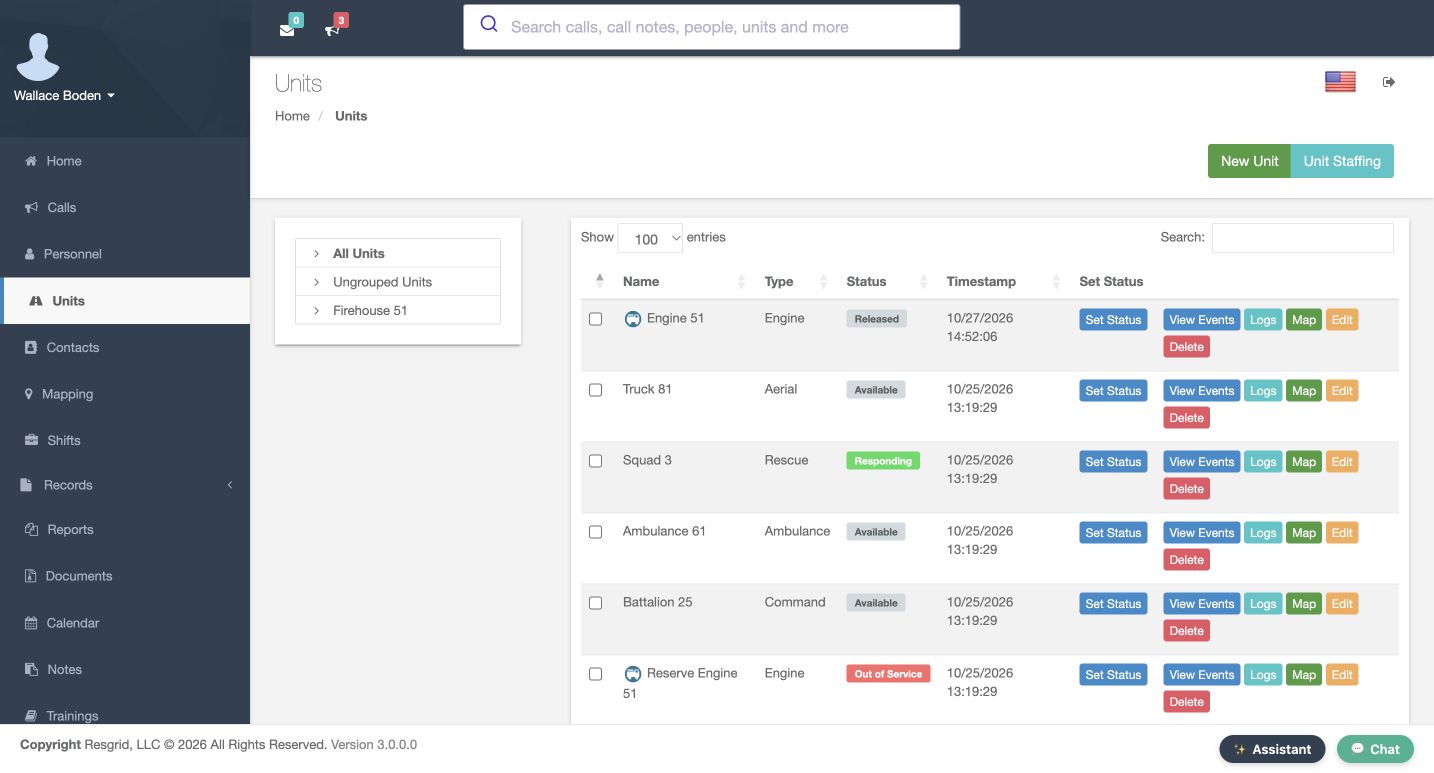
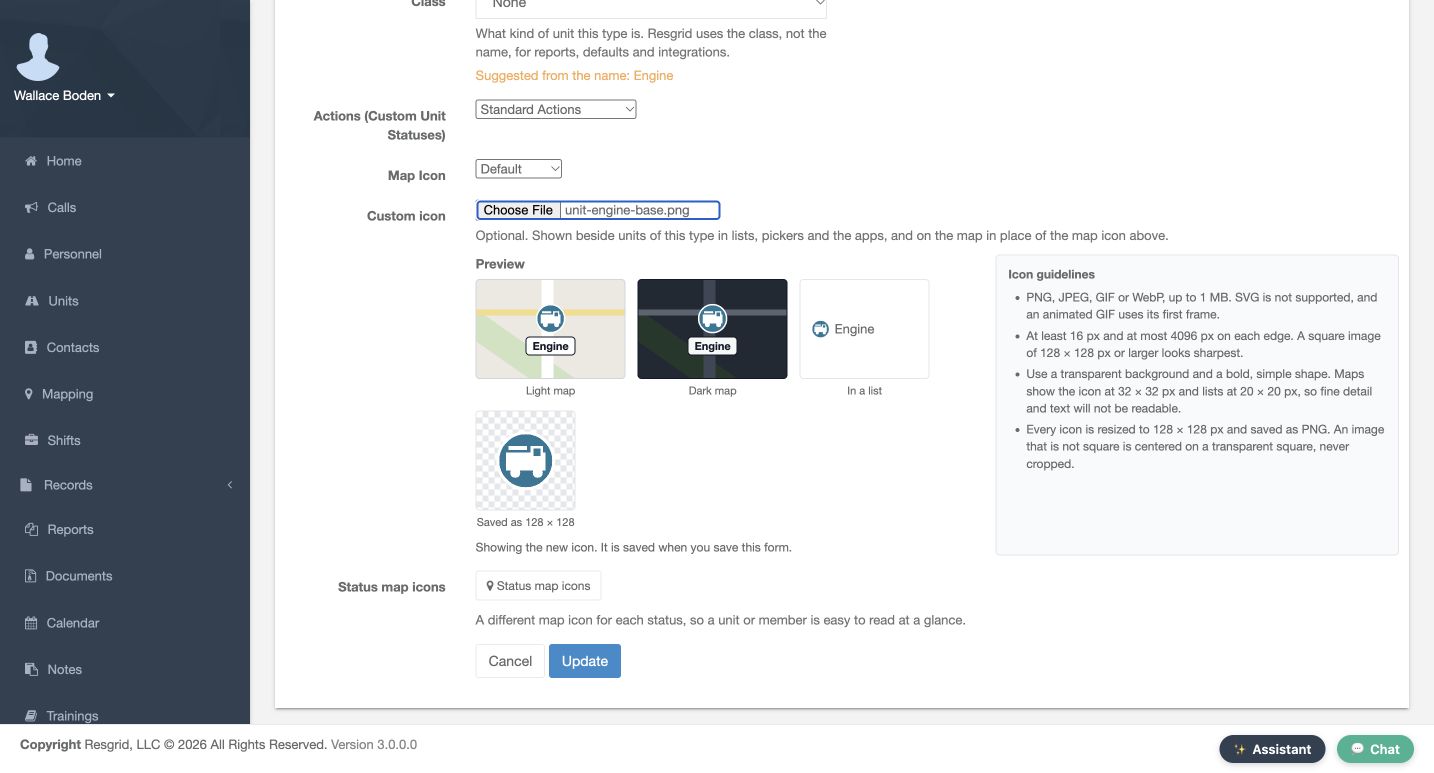
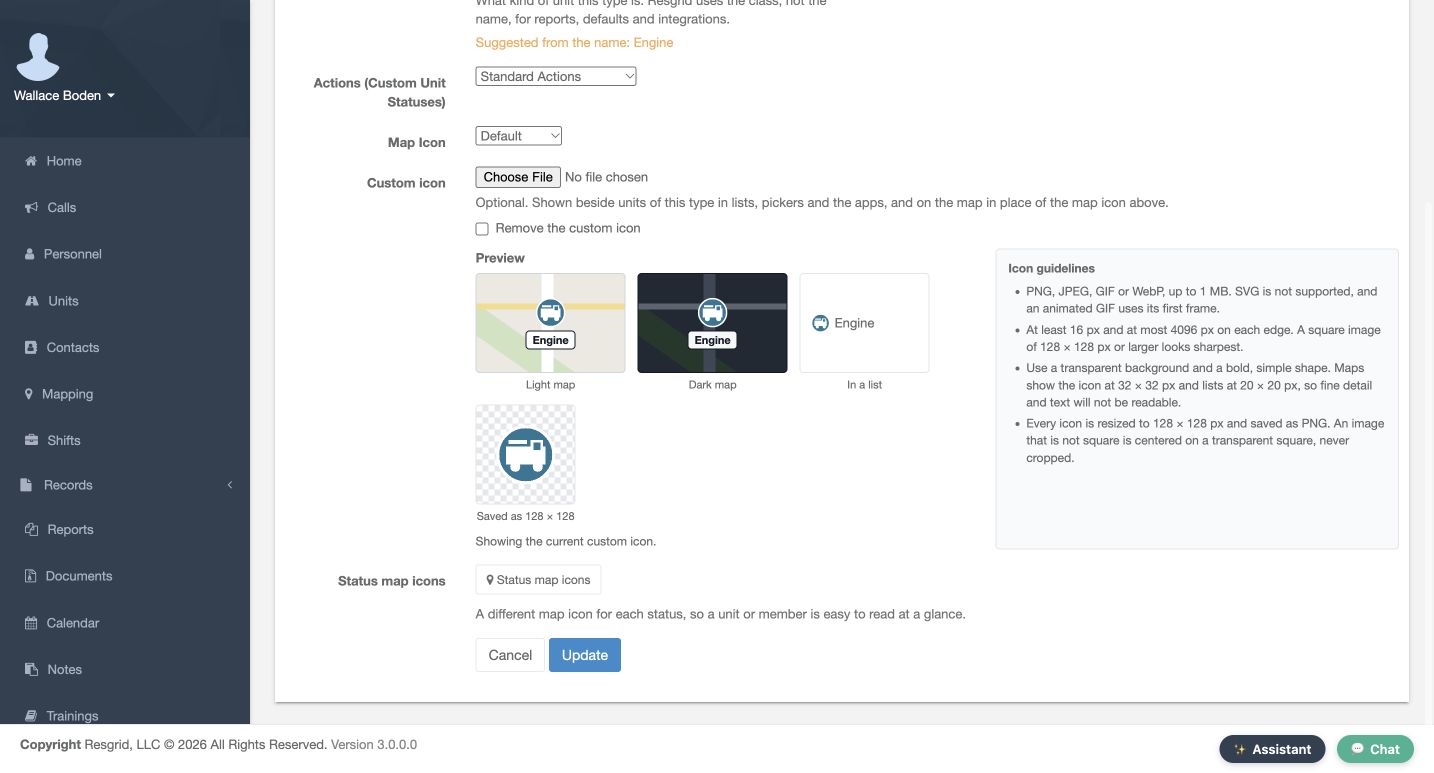
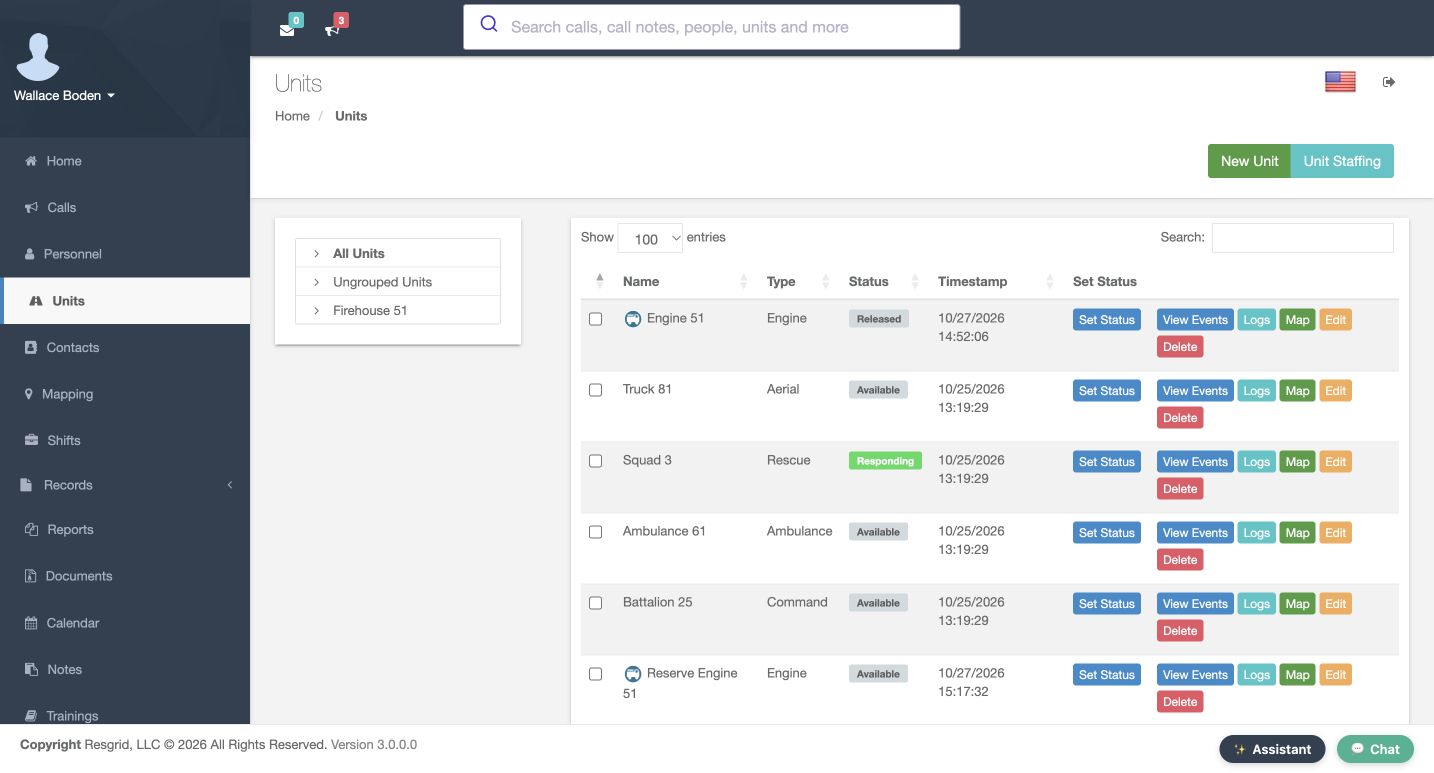
Open Units and check Reserve Engine 51. Its Type is Engine and its starting Status is Out of Service. Engine 51 is a different unit and remains Released in this recording. Edit the Engine unit type. Review Actions, which is set to Standard Actions, then choose the training image under Custom icon. Compare the light, dark and list previews before choosing Update. Reopen the definition to confirm the current saved icon. The reserve unit's map initially shows that blue base image with an unavailable badge. Changing an icon definition does not change the unit's status.
Practice
Confirm the named unit really uses Engine and read its current status before comparing the saved Engine base with the map.
Step 5
Save Available and compare a real status change
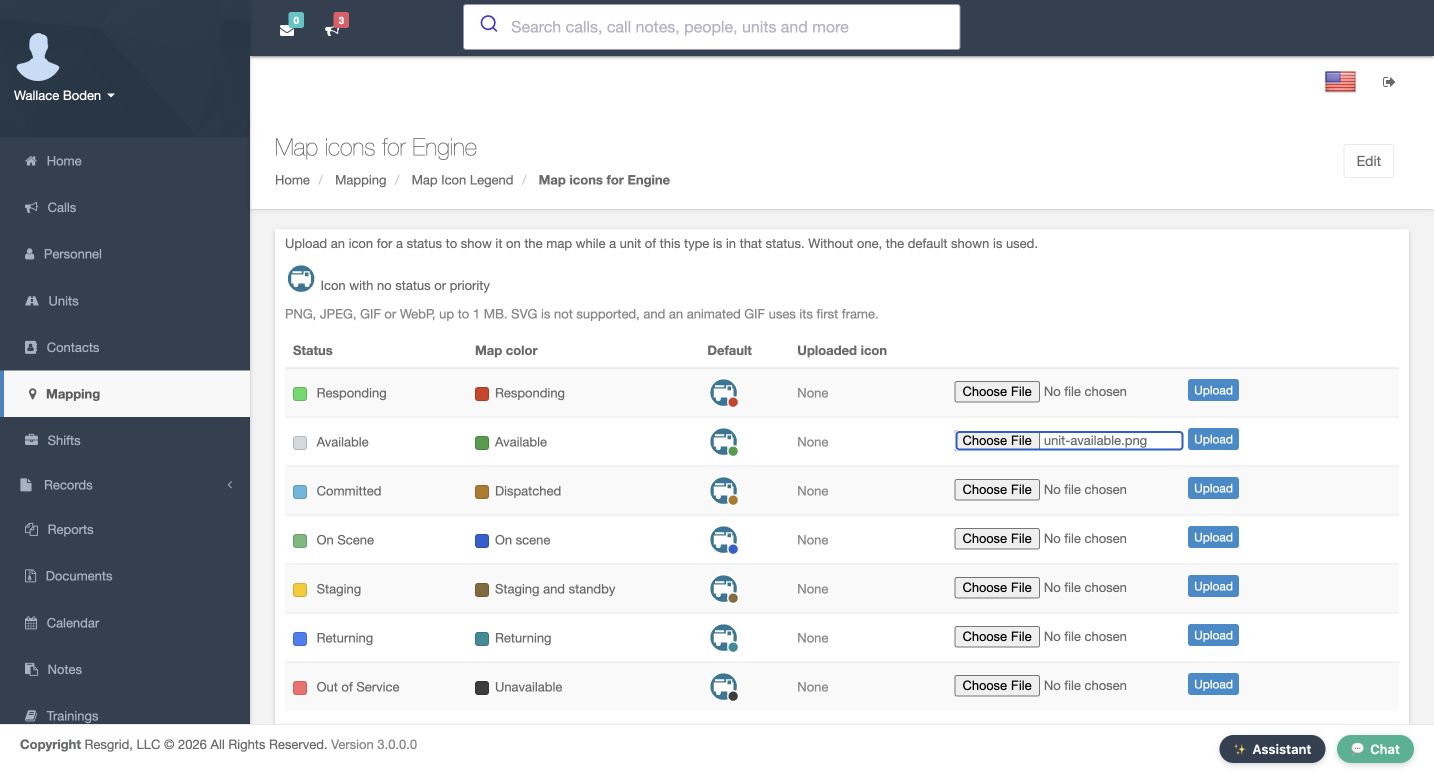
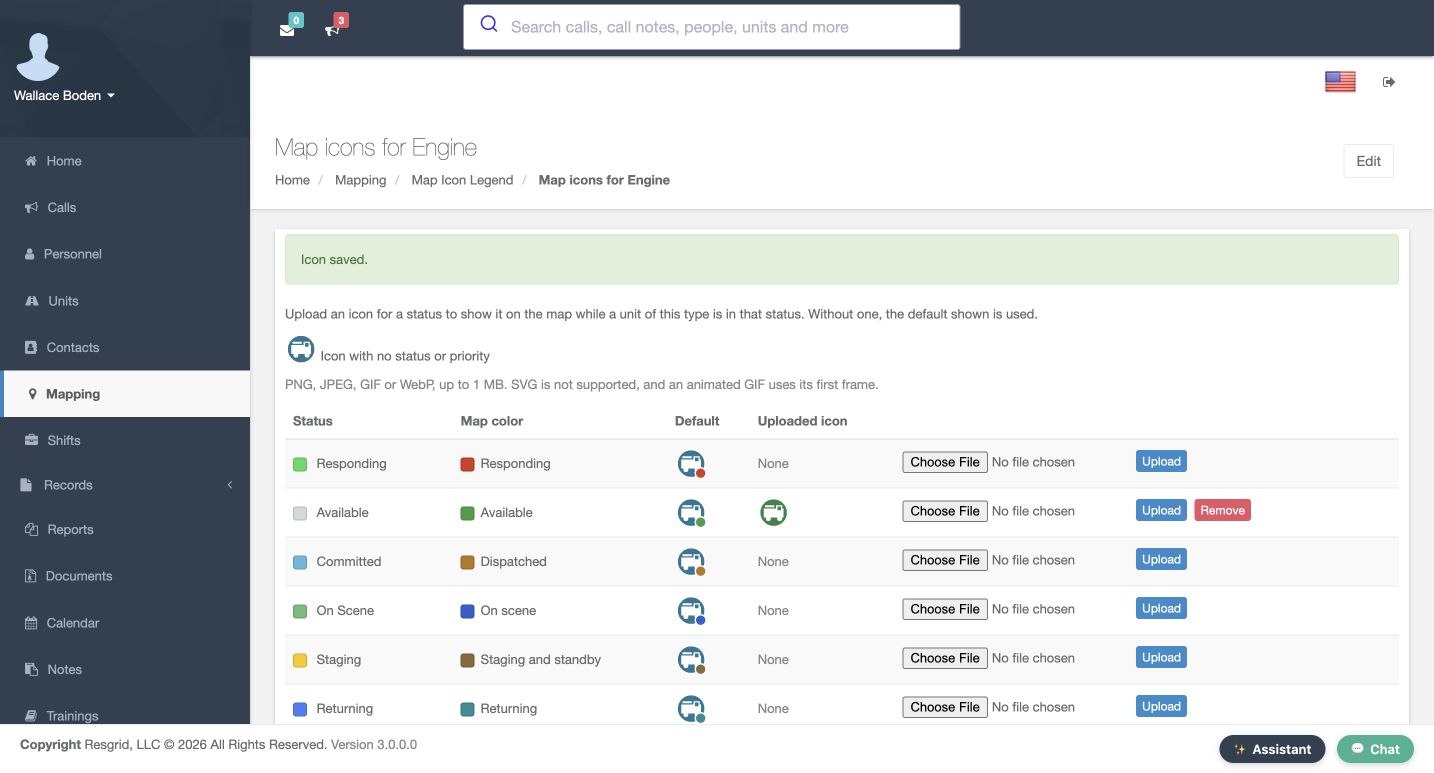
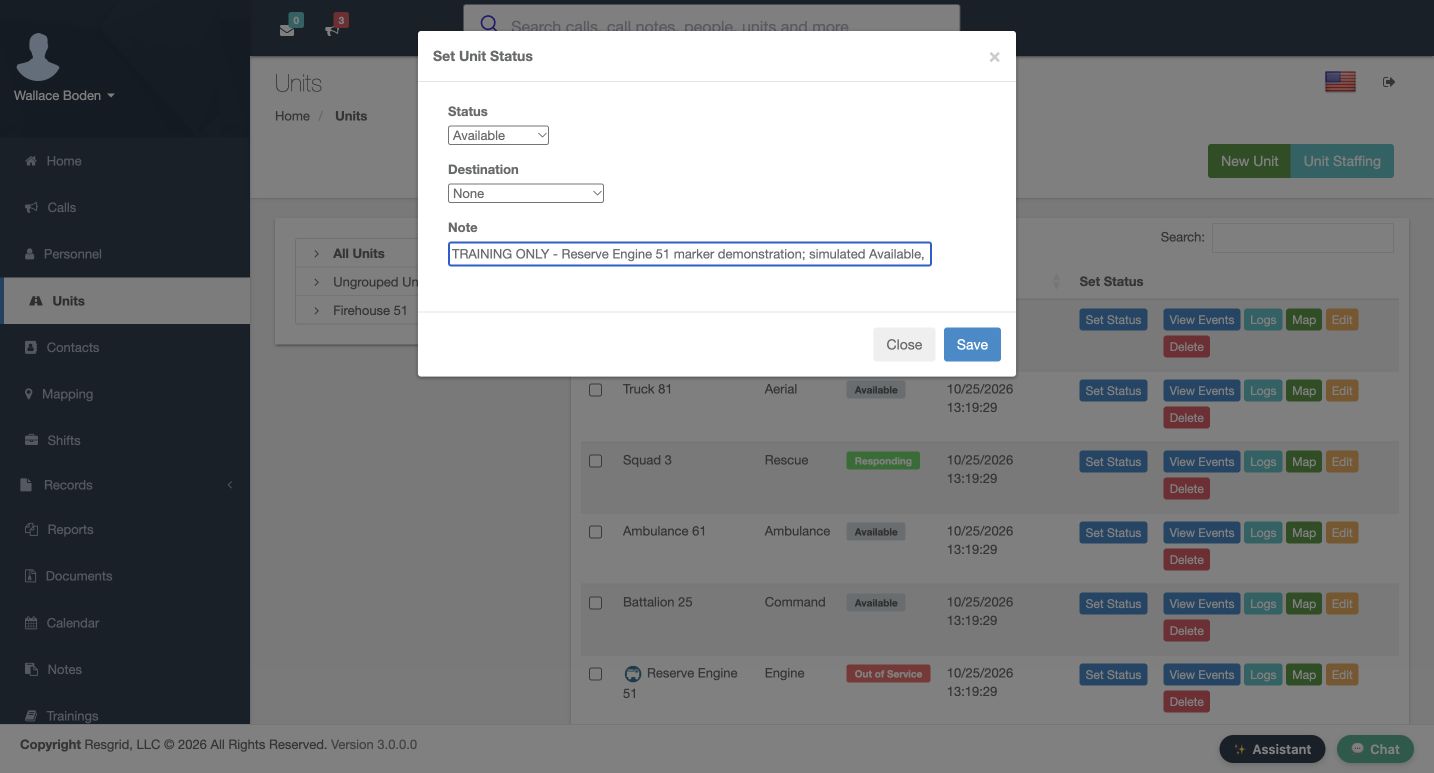
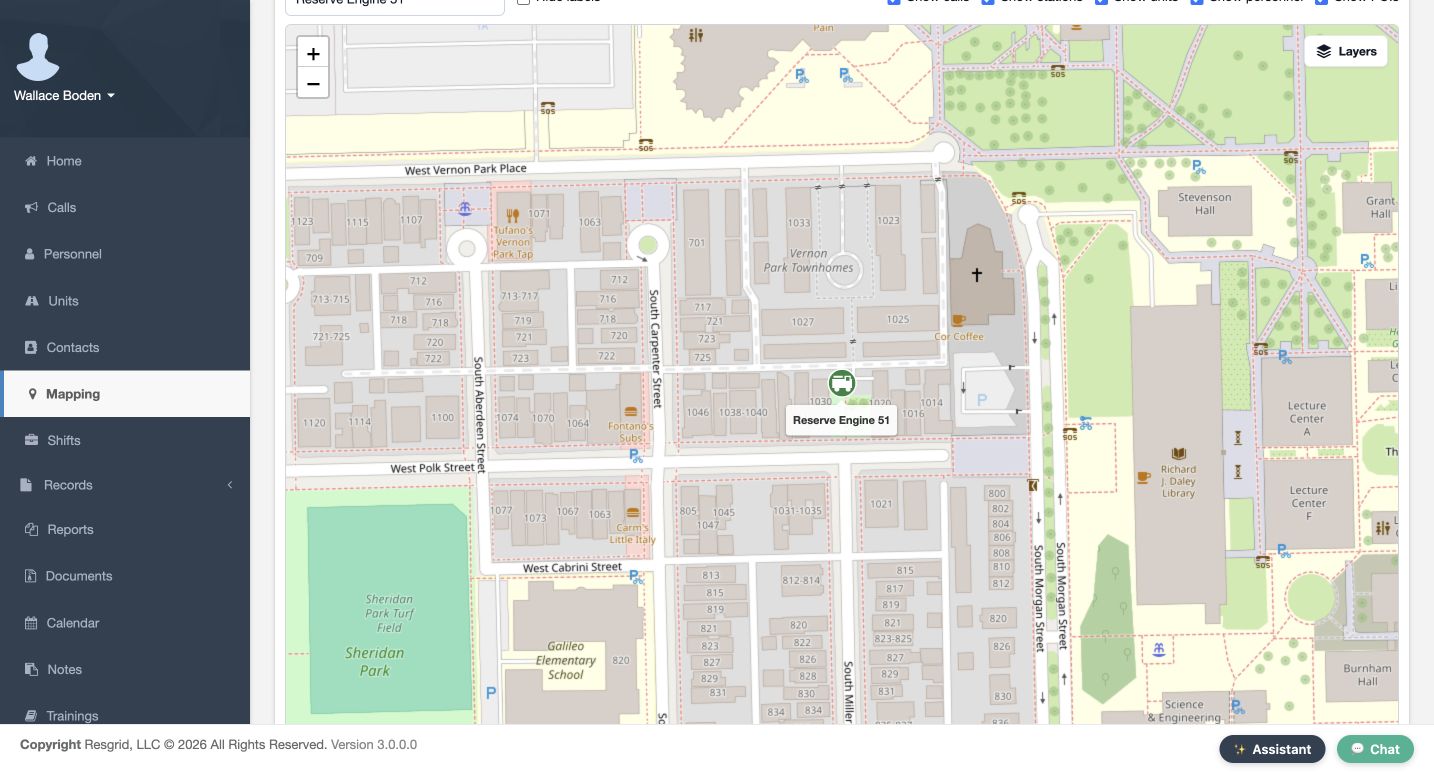
Open Status map icons for Engine. Choose the Available row and select the green training image. Notice that Map color follows the operational meaning, while the status label has its own display color. Choose Upload and confirm Icon saved. This replacement applies to Engine units while Available. For the disposable reserve example, open Set Status, choose Available, keep Destination at None, add a clear training Note and choose Save. The Units grid confirms Available. The map then shows the green replacement. Its station point was supplied separately as declared simulated fixture setup. This dialog did not collect GPS or inherit station coordinates; an entity without a permitted location may have no marker.
Practice
In a disposable unit example, distinguish saved Available status from separately prepared simulated location. Verify its named marker without claiming GPS collection.
Step 6
Save Officer and inspect existing membership and order
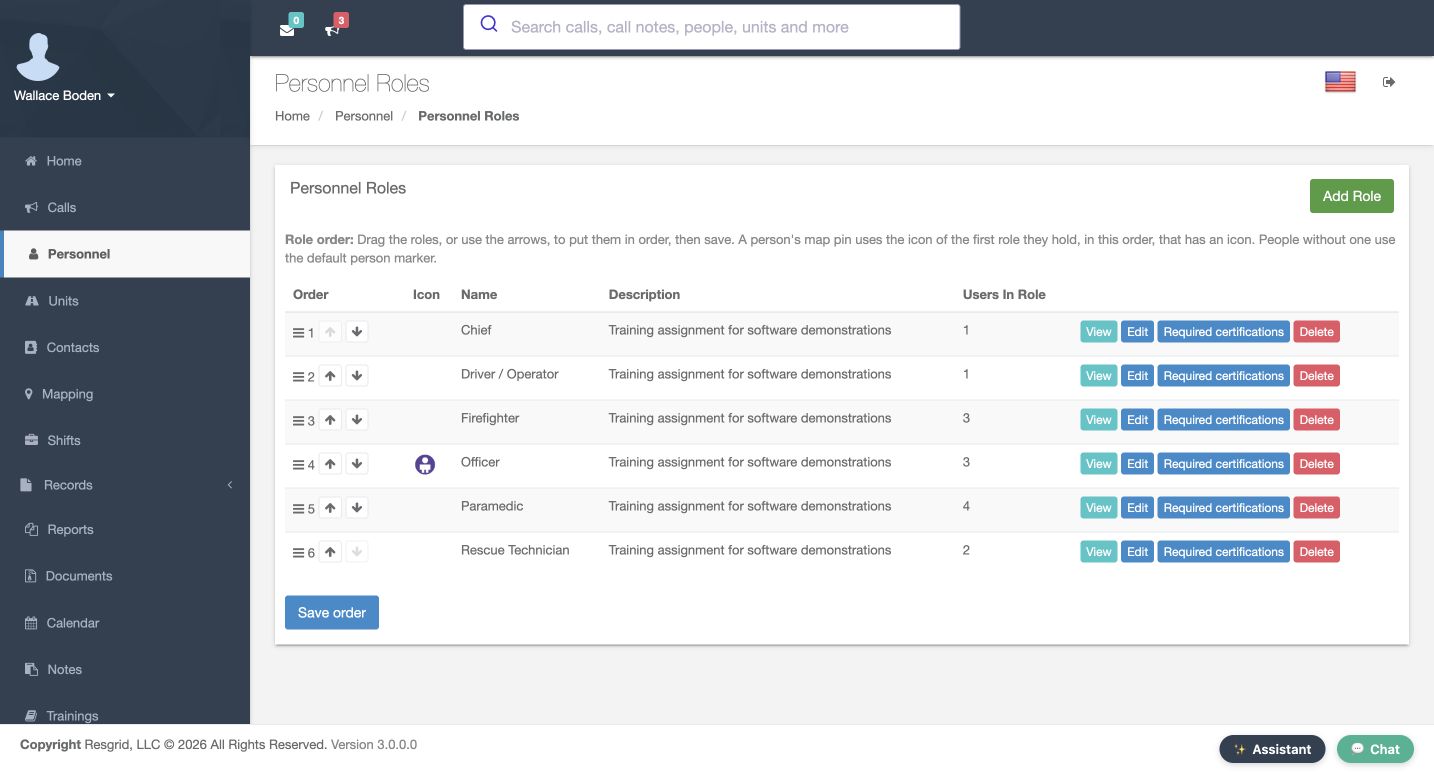
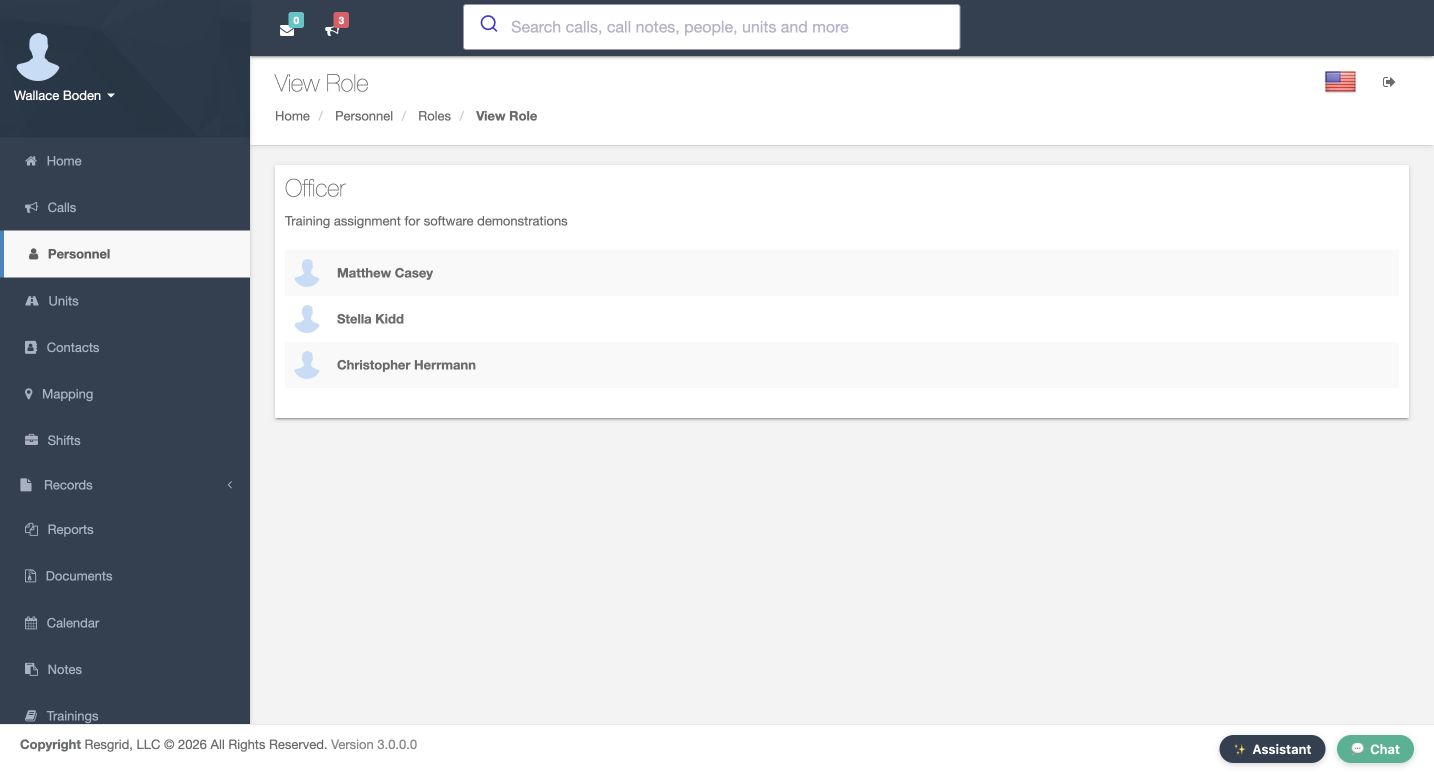
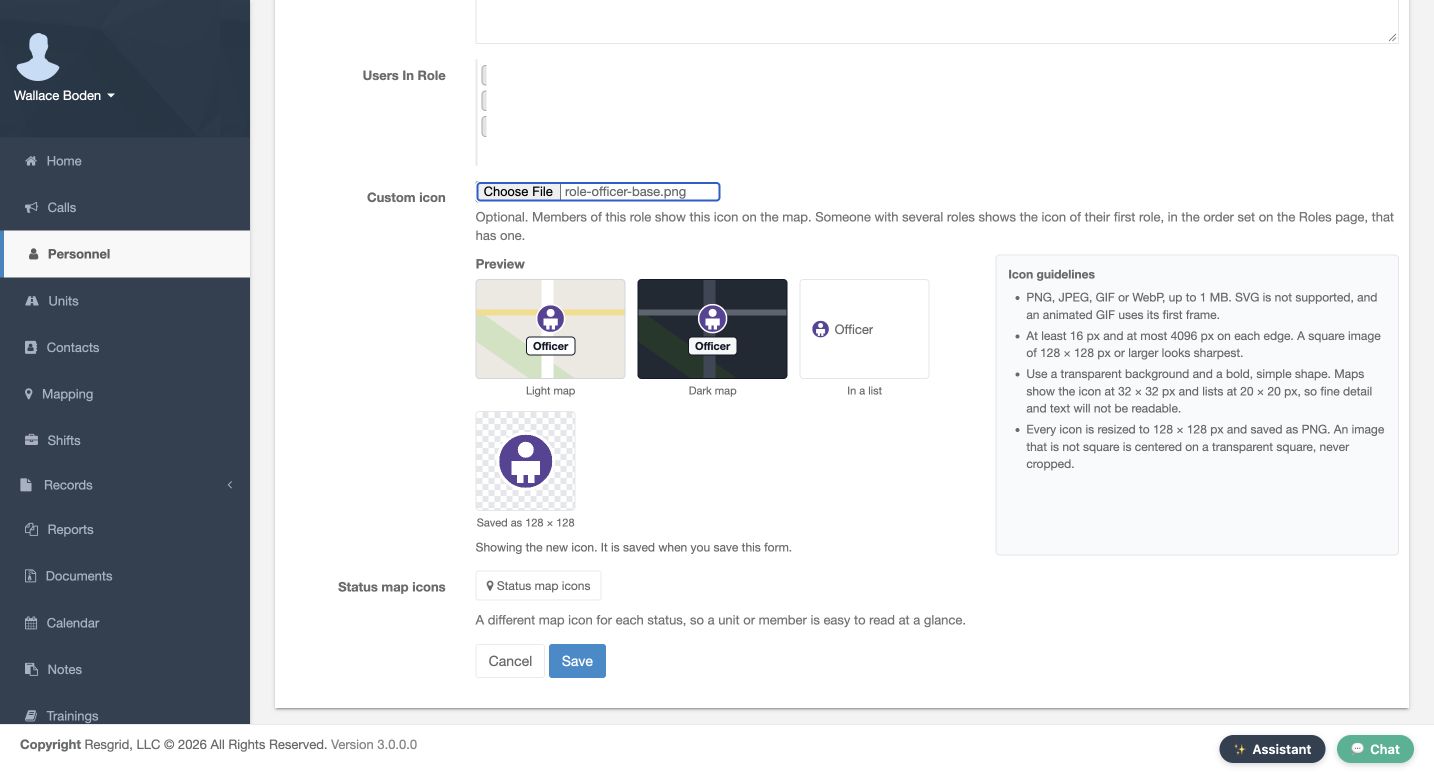
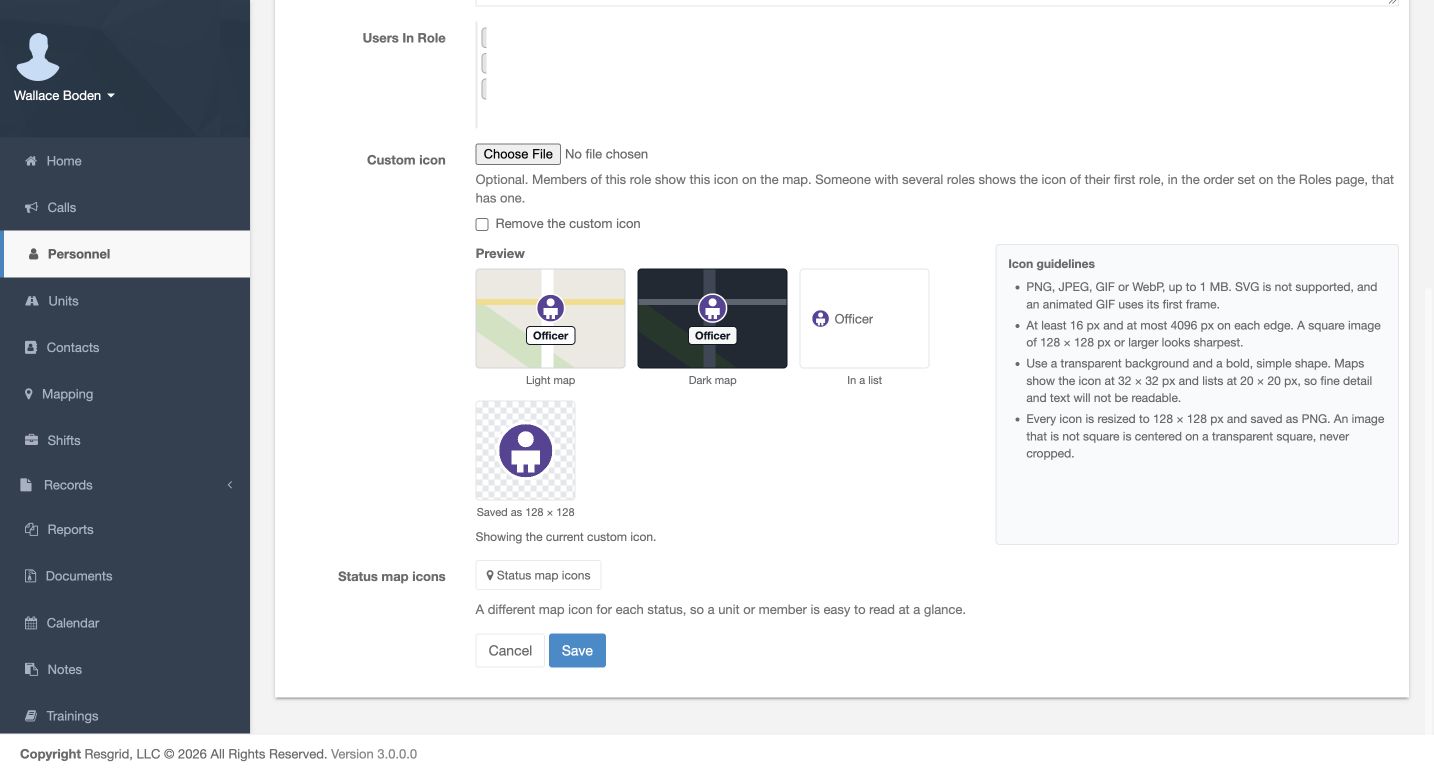
Open Personnel Roles and view Officer. Matthew Casey, Stella Kidd and Christopher Herrmann are already members in this fictional department. Edit the role, choose the training image under Custom icon, inspect Preview and choose Save. Reopen it to confirm Showing the current custom icon. Back on Personnel Roles, read Role order. A person uses the first role they hold, in this order, that has an icon. Officer is fourth here. If you deliberately change the order, use Save order. No role order or membership is changed in this example.
Practice
Verify existing role membership, saved icon and department ordering. Explain which first applicable role would win without changing real personnel assignments.
Step 7
Save Standing By and find Matthew Casey
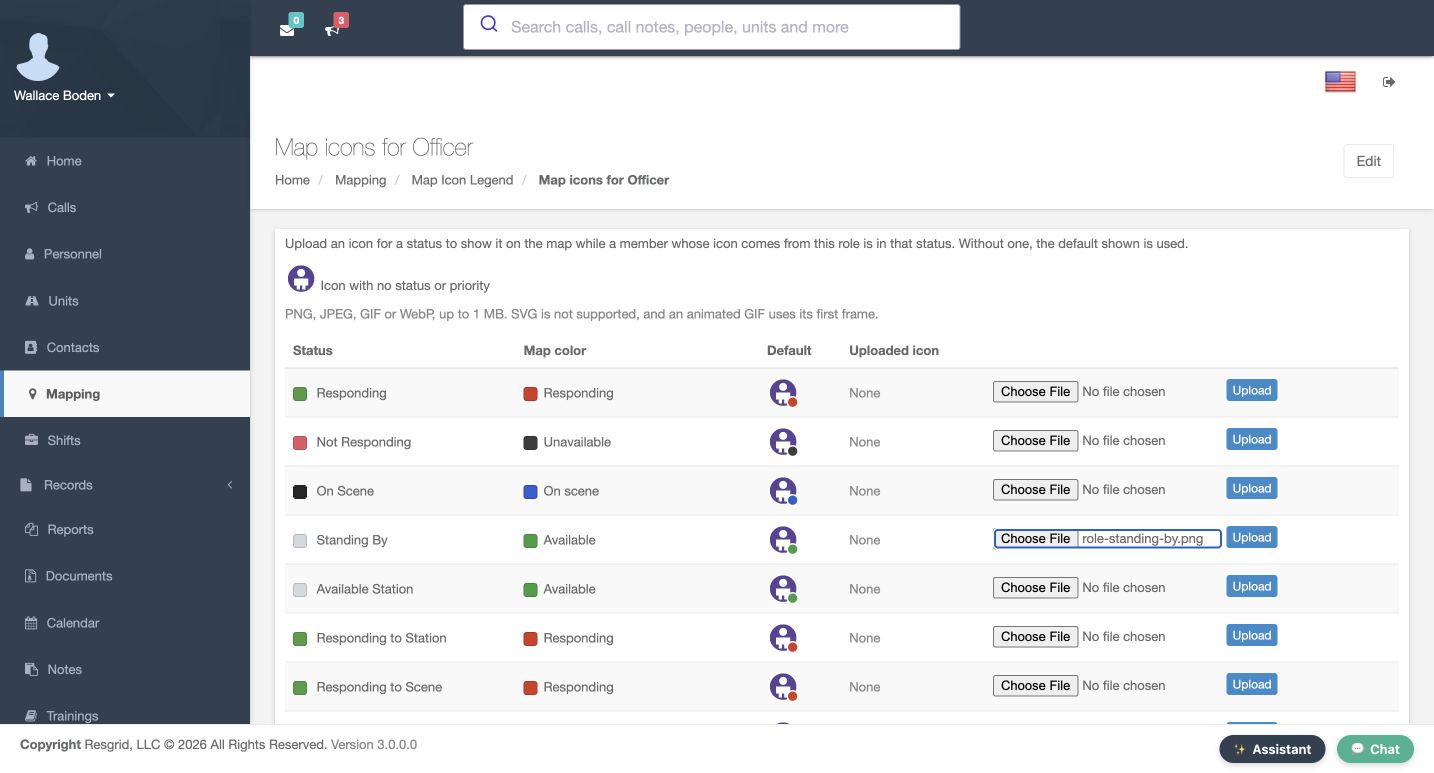
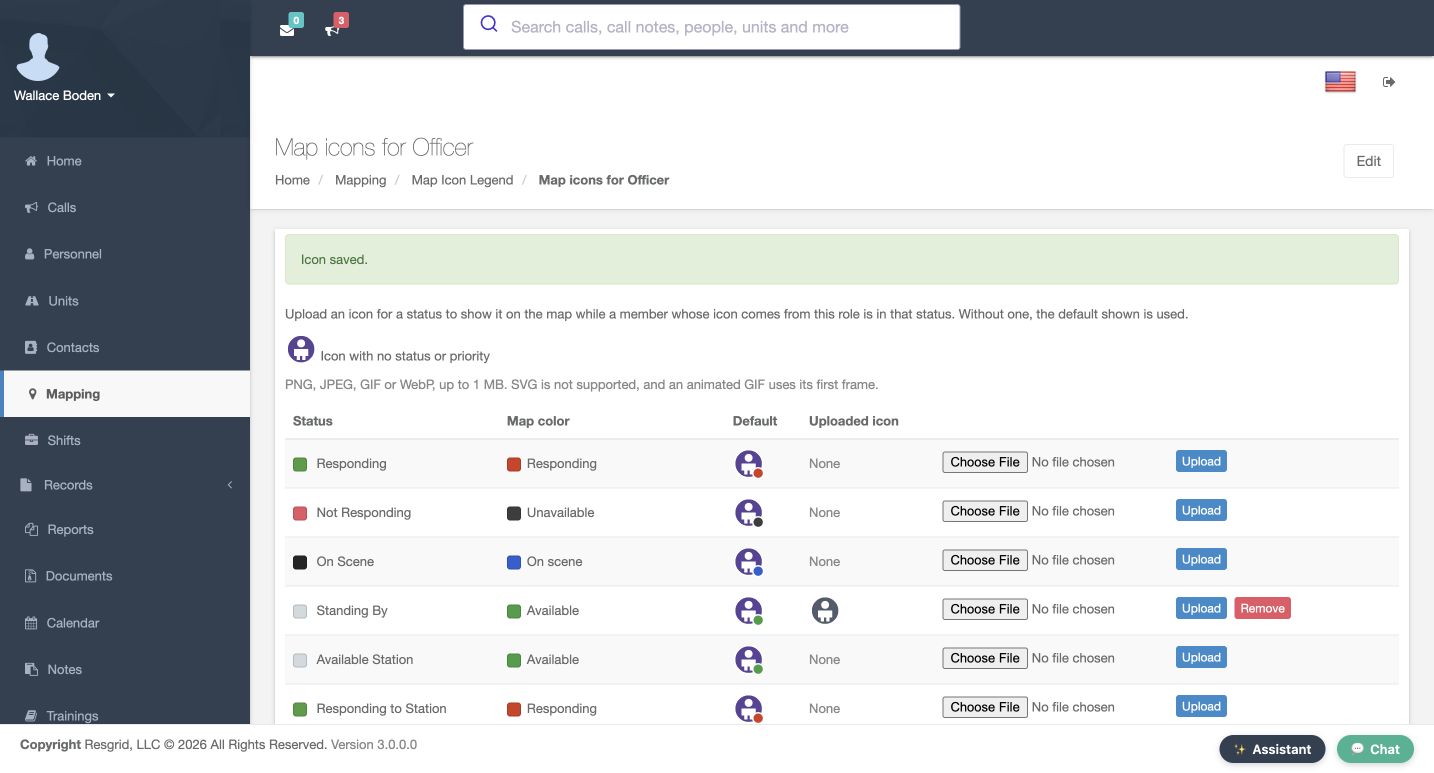
From Officer, choose Status map icons. Find Standing By and select its training replacement. This combination belongs to that role and that personnel status; it does not apply to every member regardless of role. Choose Upload and check Icon saved, Uploaded icon and Remove on the same row. Return to the map and filter to Matthew Casey. The named marker shows the gray replacement from the Standing By row. Keep the visible name with the symbol so a nearby person's marker cannot be mistaken for Casey's.
Practice
Save one role/status replacement, then filter the map to the exact fictional member and compare the name and symbol.
Step 8
Read the complete legend and fallback order
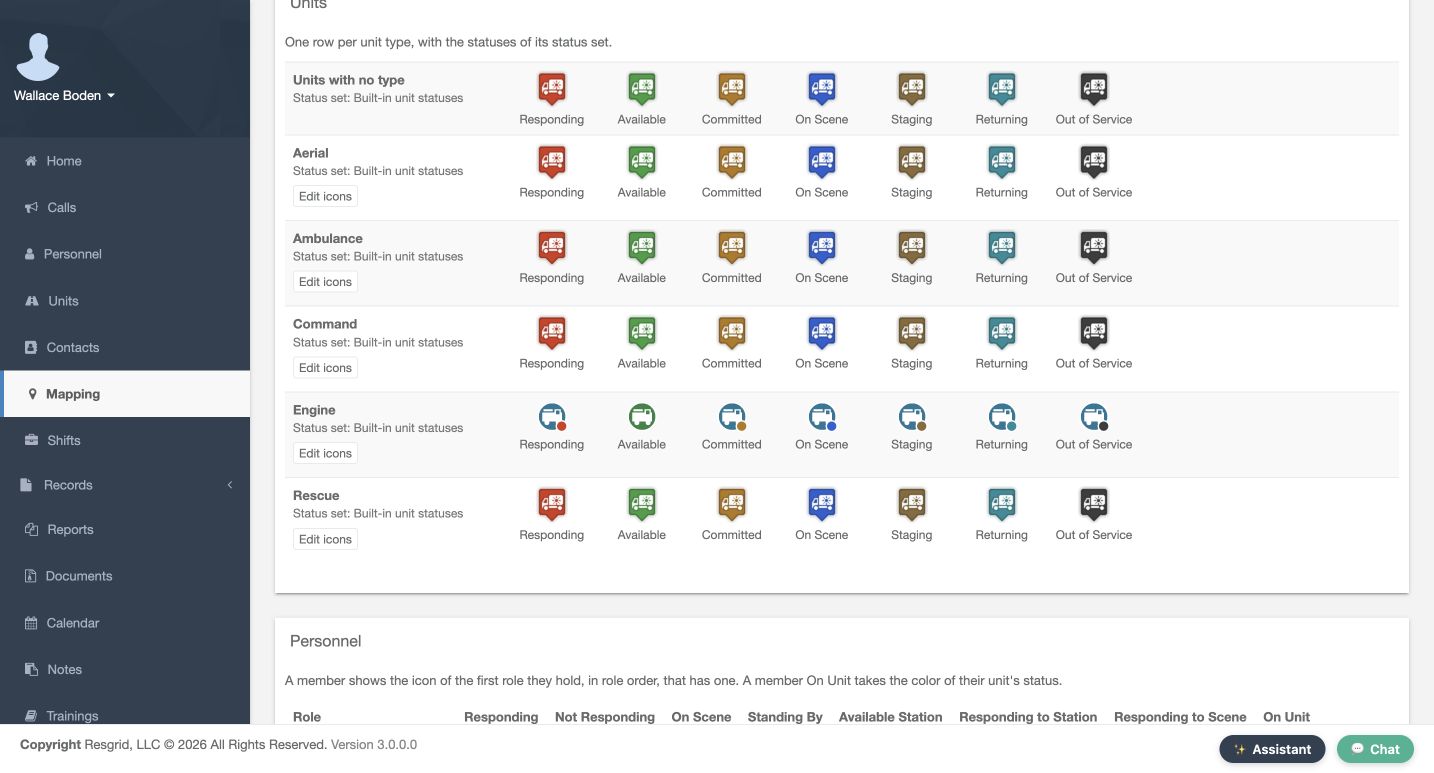
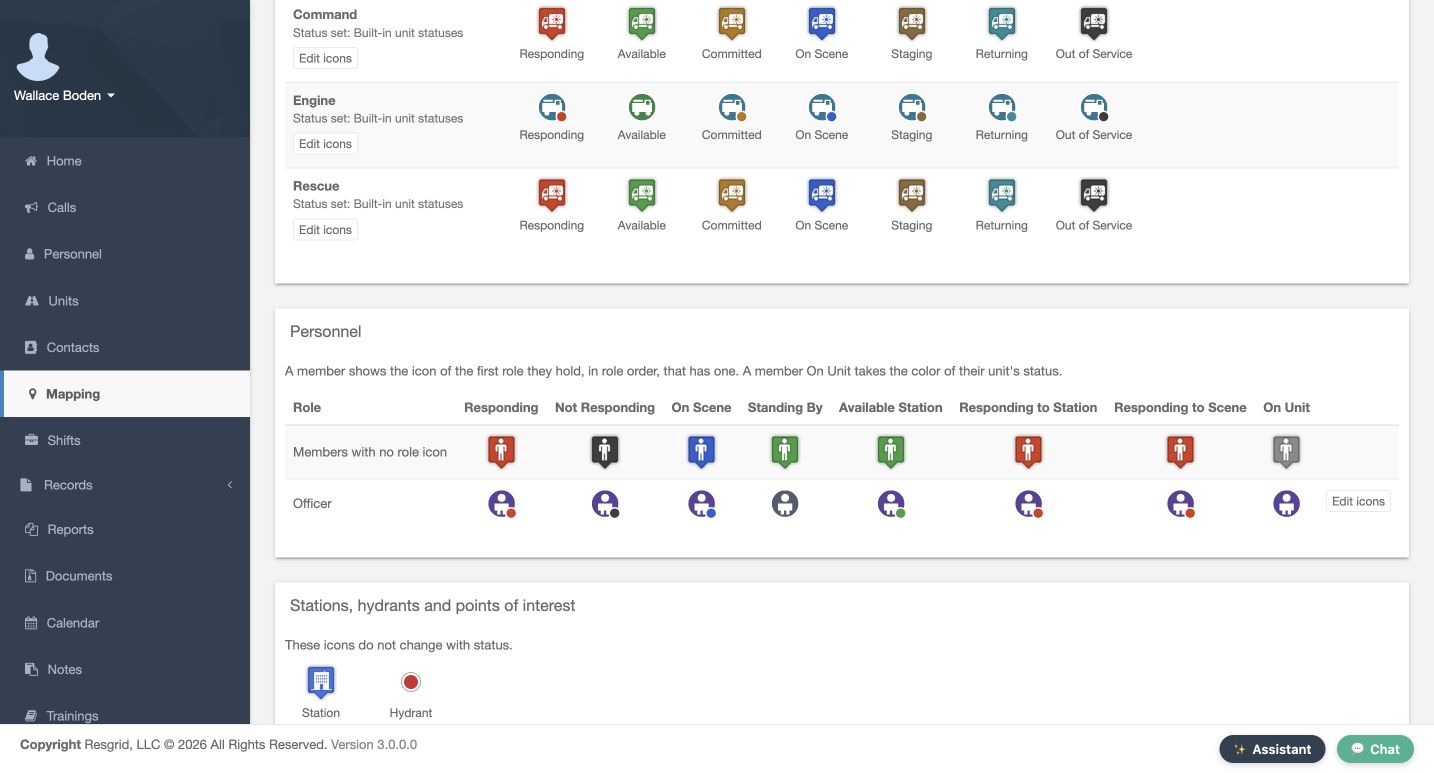
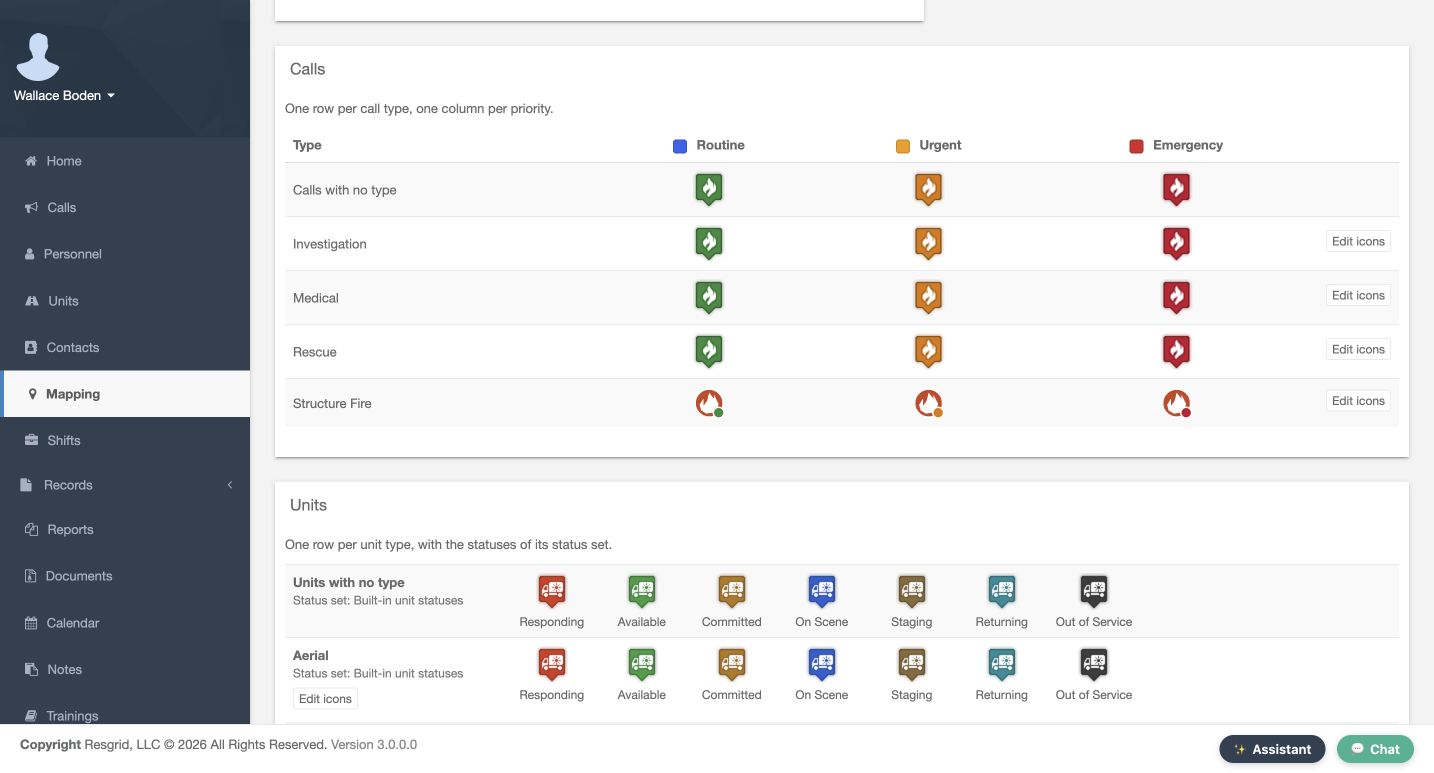
Use Map Icon Legend to explain how a symbol is chosen. An upload for the exact priority or status wins. Otherwise the type's or role's own upload can carry a meaning-colored badge. Otherwise a built-in pin uses that style. Compare the Structure Fire row across priorities. Then compare Engine across statuses: Available has its specific replacement while the other states use the base and badge. Finally compare Officer across personnel statuses. The legend also explains that a member On Unit can take the color of their unit's status. That is a reference example here, not a newly performed crew assignment.
Practice
Predict a current entity marker from its legend cell and explain the two fallback levels; treat unexercised On Unit cases as reference.
Step 9
Restore the reserve unit and verify its unavailable marker
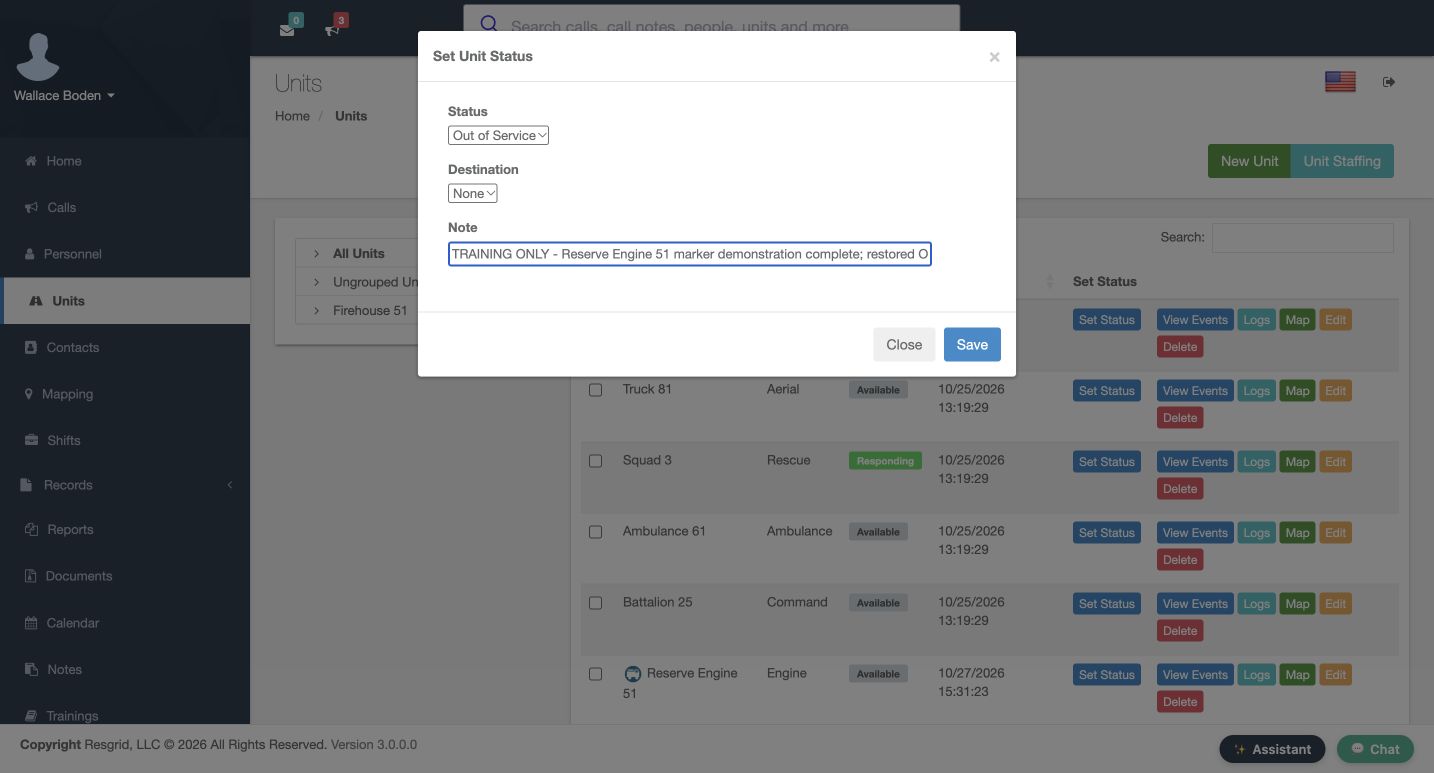
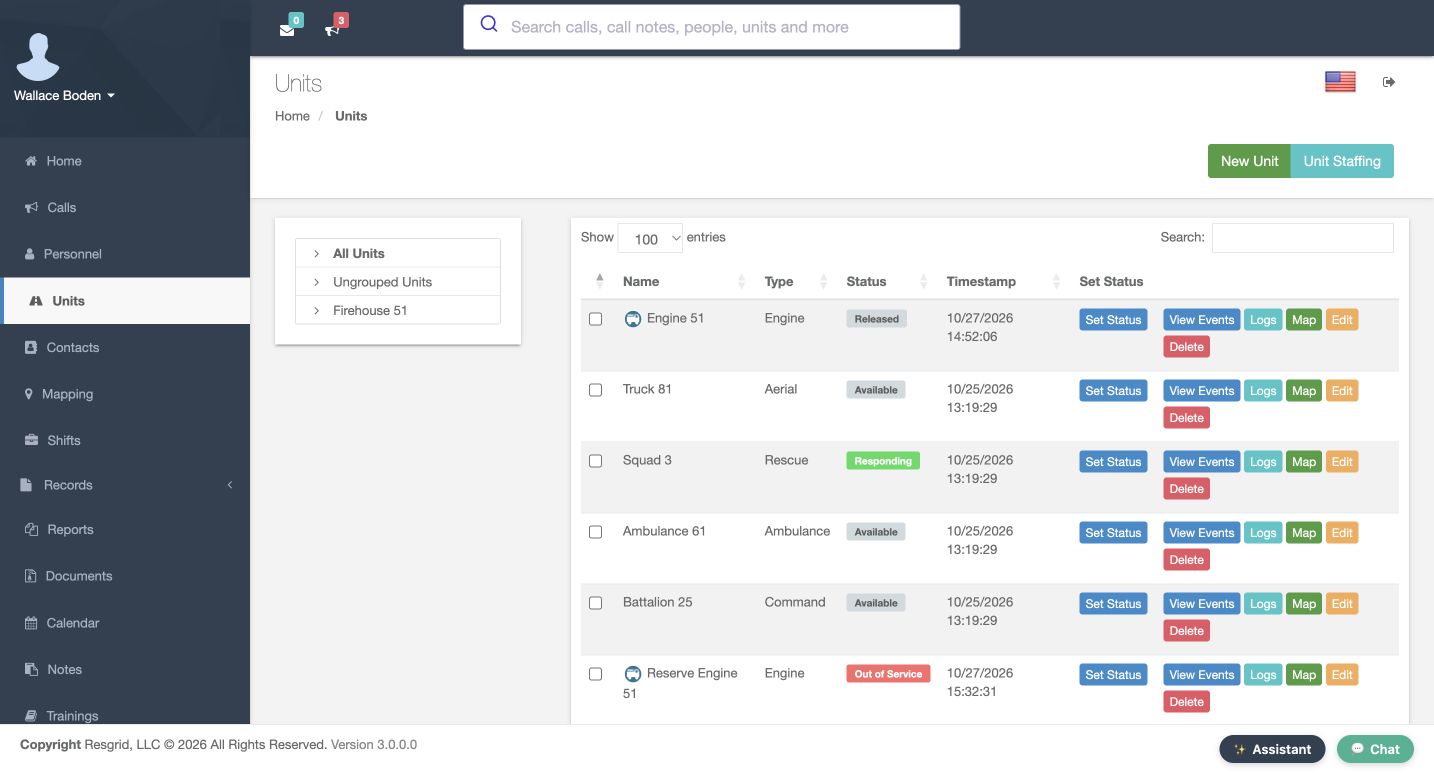
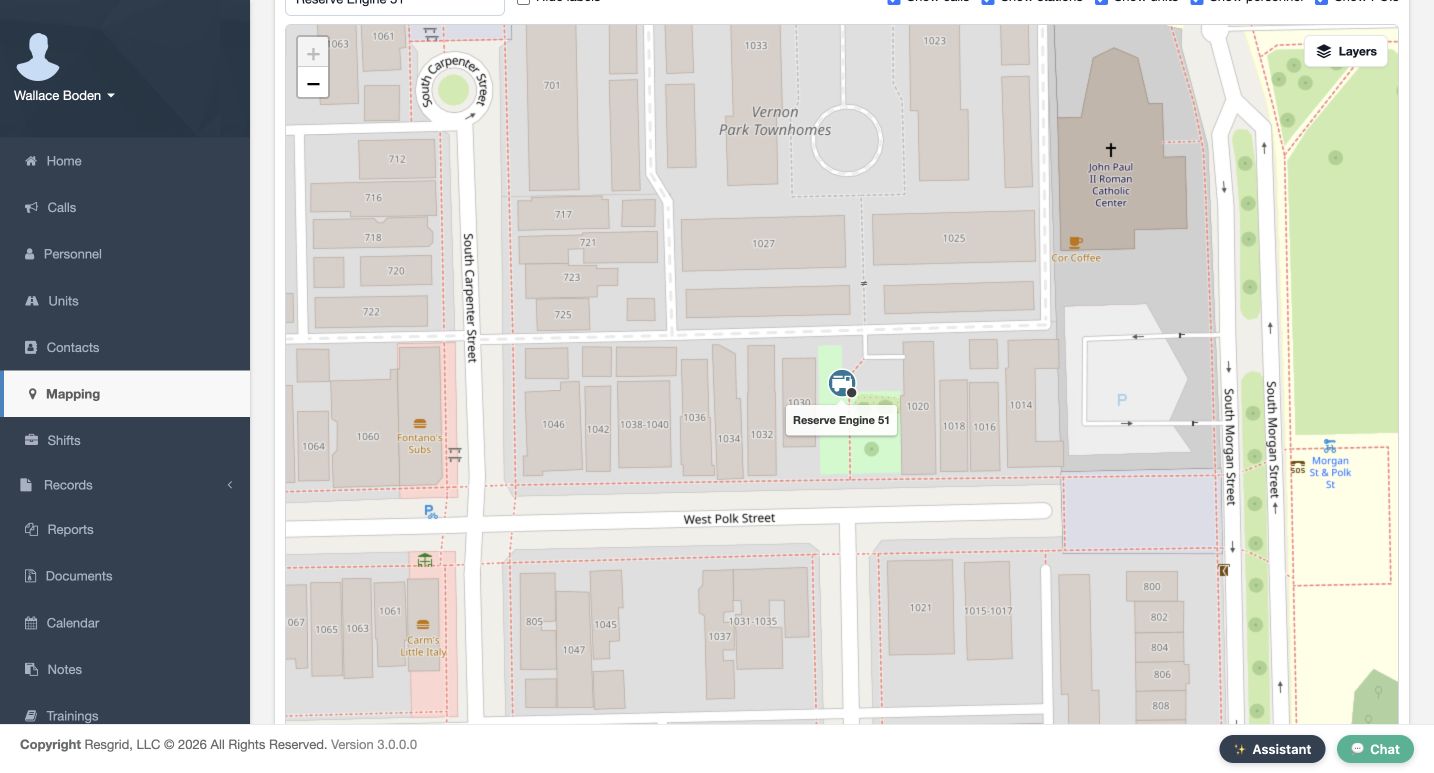
Restore the disposable reserve unit through Set Status. Choose Out of Service, wait for Destination to settle at None, add the training restoration Note and choose Save. The Units grid confirms Out of Service, while Engine 51 remains Released. For this recording, the original fictional station point is restored again as separate simulated setup data. The actual map now shows the blue Engine base with its black unavailable badge, matching the legend. The status changes used the normal application controls; neither setup step demonstrates device GPS or an operational response.
Practice
Restore only the disposable unit through the normal status form; verify the saved Out of Service row and map separately. Preserve demonstration history and explicitly identify simulated setup.
Step 10
Remove the disposable Urgent override and verify fallback
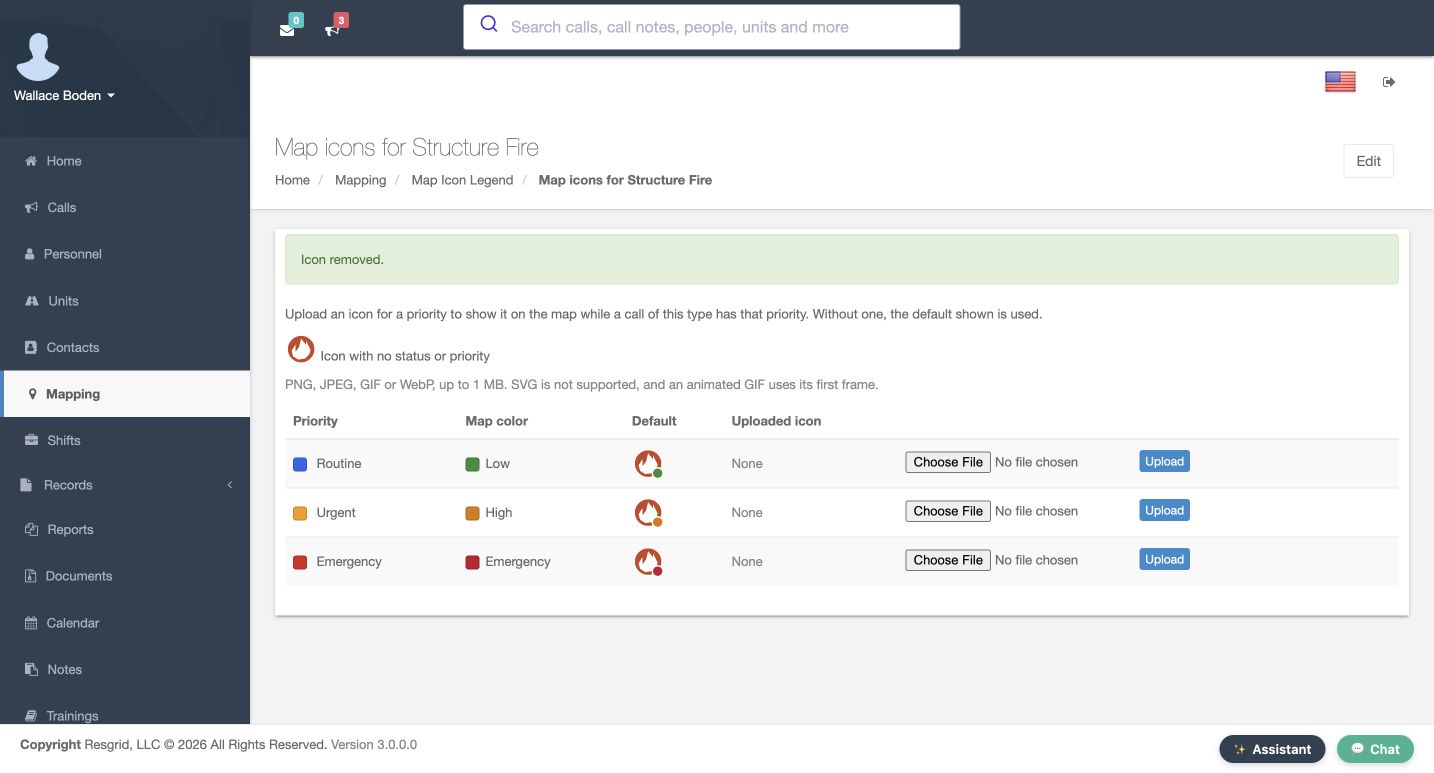
Test a reversible fallback by returning to Structure Fire's Urgent row and choosing Remove for this disposable override. Icon removed appears, and Uploaded icon returns to None. The call's priority has not changed. Revisit the legend and the named Warehouse alarm. Both now show the base fire image with the high-priority badge. The original training calls remain open and unchanged. Finish by recording a small, consistent set of symbols and meanings, and retain labels where an icon could be ambiguous. These are actual Core browser views; native-device appearance is not demonstrated here.
Practice
Remove only a disposable priority override, verify None and the real legend/map fallback, and document the symbols your team will recognize.
Examples for your department
- Fire / EMS
- Practice with a training Structure Fire priority and disposable reserve Engine; compare the real Urgent/Available examples, then restore the unit and verify its unavailable badge without implying deployment.
- Community response
- As a practice variation, use distinct clinician and peer-responder role images, check existing role membership/order and compare status replacements with labels. These role names are scenario suggestions, not additional configured or captured roles.
- Search and rescue
- As a practice variation, distinguish a Rescue unit and a search-leader role. Predict map appearances from the actual type/status and role/status legend; an icon does not establish a qualification or physical location.
- Security
- As a practice variation, compare patrol-unit and supervisor-role symbols across their actual current statuses. Use the saved-row, named-map and legend checks demonstrated here before adopting a convention.
- Wildland
- As a practice variation, distinguish crew and supply apparatus while keeping staging and returning meanings recognizable. Review the corresponding legend cells; no new wildland status change or field tracking is claimed.
- Industrial
- As a practice variation, use consistent ERT role and plant-apparatus images. Rehearse a disposable Available-to-Out of Service comparison and restoration with explicitly simulated setup; preserve maintenance and response distinctions.
Transcript
Download transcriptRead the complete transcript
Customize map markers and verify real priority and status changes
Audience: Department administrators and mapping coordinators

Identify the three marker families
Open Mapping and choose Map Icon Legend. A call's marker follows its type and priority. A unit's marker follows its type and current status. A person's marker follows an applicable role and status. Staffing levels do not change the icon. Our fictional examples are the Warehouse alarm, Reserve Engine 51 and Matthew Casey. Keep their names visible while comparing symbols. The colors and artwork identify different things, so match a marker to its named entity before drawing an operational conclusion.
Practice: Locate a named call, unit and person; explain whether type/priority, type/status or role/status controls its icon.

Save and reopen a call type base icon
From Department Types, edit Structure Fire. The Map Icon selector supplies a built-in choice; Custom icon supplies the uploaded alternative. Choose File and select the training fire image. Read the Icon guidelines: supported formats are PNG, JPEG, GIF and WebP, up to one megabyte. SVG is not supported. Compare Preview on Light map, Dark map and In a list. A bold transparent square stays readable when small. Choose Update, then reopen the form. Showing the current custom icon confirms the stored result, rather than just a selected file.
Practice: In an authorized training type, select one supported image, inspect all three previews, save and reopen before treating the result as stored.

Save the actual Urgent priority override
Choose Priority map icons. Find the Urgent row. Priority and Map color describe the actual setting; Default shows its fallback. The file selected here happens to be named call-emergency, but it is being uploaded for Urgent. A filename does not change the call's priority. Use that row's Upload button. Icon saved and the image under Uploaded icon show the stored replacement; Remove is now available. The named Warehouse alarm now shows that replacement on Mapping. In the legend, Routine and Emergency still use the type's base image with their priority badges.
Practice: Find the actual intended priority row, upload a disposable icon there, and compare its saved row, named map marker and legend. Do not infer priority from a filename.

Set the Engine base and verify the named reserve unit
Open Units and check Reserve Engine 51. Its Type is Engine and its starting Status is Out of Service. Engine 51 is a different unit and remains Released in this recording. Edit the Engine unit type. Review Actions, which is set to Standard Actions, then choose the training image under Custom icon. Compare the light, dark and list previews before choosing Update. Reopen the definition to confirm the current saved icon. The reserve unit's map initially shows that blue base image with an unavailable badge. Changing an icon definition does not change the unit's status.
Practice: Confirm the named unit really uses Engine and read its current status before comparing the saved Engine base with the map.

Save Available and compare a real status change
Open Status map icons for Engine. Choose the Available row and select the green training image. Notice that Map color follows the operational meaning, while the status label has its own display color. Choose Upload and confirm Icon saved. This replacement applies to Engine units while Available. For the disposable reserve example, open Set Status, choose Available, keep Destination at None, add a clear training Note and choose Save. The Units grid confirms Available. The map then shows the green replacement. Its station point was supplied separately as declared simulated fixture setup. This dialog did not collect GPS or inherit station coordinates; an entity without a permitted location may have no marker.
Practice: In a disposable unit example, distinguish saved Available status from separately prepared simulated location. Verify its named marker without claiming GPS collection.

Save Officer and inspect existing membership and order
Open Personnel Roles and view Officer. Matthew Casey, Stella Kidd and Christopher Herrmann are already members in this fictional department. Edit the role, choose the training image under Custom icon, inspect Preview and choose Save. Reopen it to confirm Showing the current custom icon. Back on Personnel Roles, read Role order. A person uses the first role they hold, in this order, that has an icon. Officer is fourth here. If you deliberately change the order, use Save order. No role order or membership is changed in this example.
Practice: Verify existing role membership, saved icon and department ordering. Explain which first applicable role would win without changing real personnel assignments.

Save Standing By and find Matthew Casey
From Officer, choose Status map icons. Find Standing By and select its training replacement. This combination belongs to that role and that personnel status; it does not apply to every member regardless of role. Choose Upload and check Icon saved, Uploaded icon and Remove on the same row. Return to the map and filter to Matthew Casey. The named marker shows the gray replacement from the Standing By row. Keep the visible name with the symbol so a nearby person's marker cannot be mistaken for Casey's.
Practice: Save one role/status replacement, then filter the map to the exact fictional member and compare the name and symbol.

Read the complete legend and fallback order
Use Map Icon Legend to explain how a symbol is chosen. An upload for the exact priority or status wins. Otherwise the type's or role's own upload can carry a meaning-colored badge. Otherwise a built-in pin uses that style. Compare the Structure Fire row across priorities. Then compare Engine across statuses: Available has its specific replacement while the other states use the base and badge. Finally compare Officer across personnel statuses. The legend also explains that a member On Unit can take the color of their unit's status. That is a reference example here, not a newly performed crew assignment.
Practice: Predict a current entity marker from its legend cell and explain the two fallback levels; treat unexercised On Unit cases as reference.

Restore the reserve unit and verify its unavailable marker
Restore the disposable reserve unit through Set Status. Choose Out of Service, wait for Destination to settle at None, add the training restoration Note and choose Save. The Units grid confirms Out of Service, while Engine 51 remains Released. For this recording, the original fictional station point is restored again as separate simulated setup data. The actual map now shows the blue Engine base with its black unavailable badge, matching the legend. The status changes used the normal application controls; neither setup step demonstrates device GPS or an operational response.
Practice: Restore only the disposable unit through the normal status form; verify the saved Out of Service row and map separately. Preserve demonstration history and explicitly identify simulated setup.

Remove the disposable Urgent override and verify fallback
Test a reversible fallback by returning to Structure Fire's Urgent row and choosing Remove for this disposable override. Icon removed appears, and Uploaded icon returns to None. The call's priority has not changed. Revisit the legend and the named Warehouse alarm. Both now show the base fire image with the high-priority badge. The original training calls remain open and unchanged. Finish by recording a small, consistent set of symbols and meanings, and retain labels where an icon could be ambiguous. These are actual Core browser views; native-device appearance is not demonstrated here.
Practice: Remove only a disposable priority override, verify None and the real legend/map fallback, and document the symbols your team will recognize.

Examples for your department
Fire / EMS: Practice with a training Structure Fire priority and disposable reserve Engine; compare the real Urgent/Available examples, then restore the unit and verify its unavailable badge without implying deployment.
Community response: As a practice variation, use distinct clinician and peer-responder role images, check existing role membership/order and compare status replacements with labels. These role names are scenario suggestions, not additional configured or captured roles.
Search and rescue: As a practice variation, distinguish a Rescue unit and a search-leader role. Predict map appearances from the actual type/status and role/status legend; an icon does not establish a qualification or physical location.
Security: As a practice variation, compare patrol-unit and supervisor-role symbols across their actual current statuses. Use the saved-row, named-map and legend checks demonstrated here before adopting a convention.
Wildland: As a practice variation, distinguish crew and supply apparatus while keeping staging and returning meanings recognizable. Review the corresponding legend cells; no new wildland status change or field tracking is claimed.
Industrial: As a practice variation, use consistent ERT role and plant-apparatus images. Rehearse a disposable Available-to-Out of Service comparison and restoration with explicitly simulated setup; preserve maintenance and response distinctions.