
Unit · Video walkthrough
Unit: save, resume and submit a training checklist
Match a published vehicle checklist to its target, record exercise answers and notes, save progress, close and reopen the working run, then submit and verify the returned result.
Before you begin
- Authorized Unit access, the intended vehicle selected and an appropriate published vehicle-target training checklist available.
- Use a disposable fictional exercise. Engine 51 is selected with Released, No Active Call and one of one roles visible; the existing crew assignment is unchanged.
- The captured answers are a software exercise. The reported location is left blank; no administrator setup is demonstrated.
Chapters
Watch the walkthrough
Step 1
Match the form to the selected vehicle
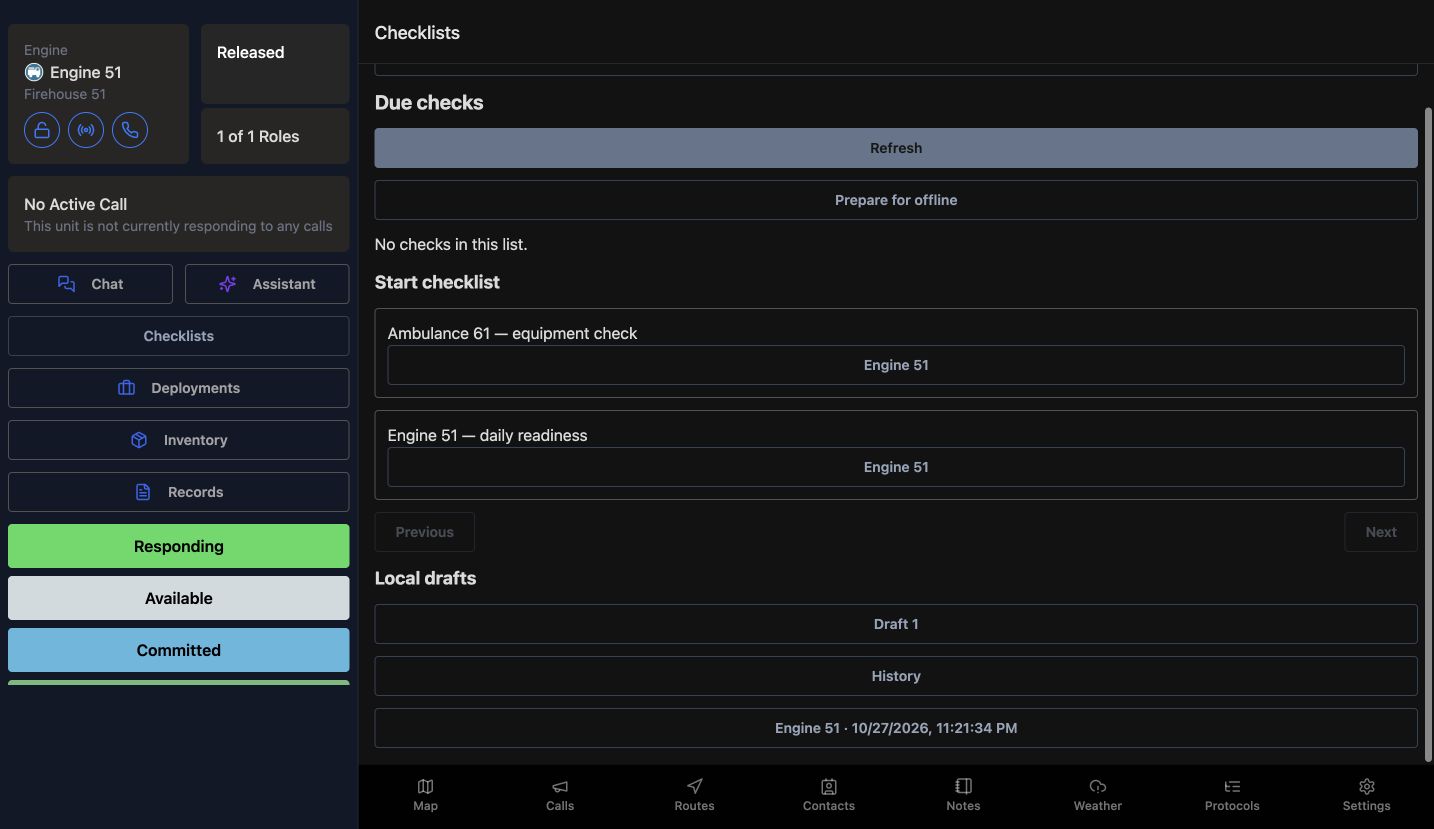
Unit checklists help vehicle crews keep each check tied to the right apparatus and form. Here, Engine 51 is selected. Open Checklists and look under Start checklist. Find Engine 51 daily readiness, then choose the Engine 51 button directly beneath it. The Ambulance 61 form offers a same-named target button, so match both the form and vehicle before starting.
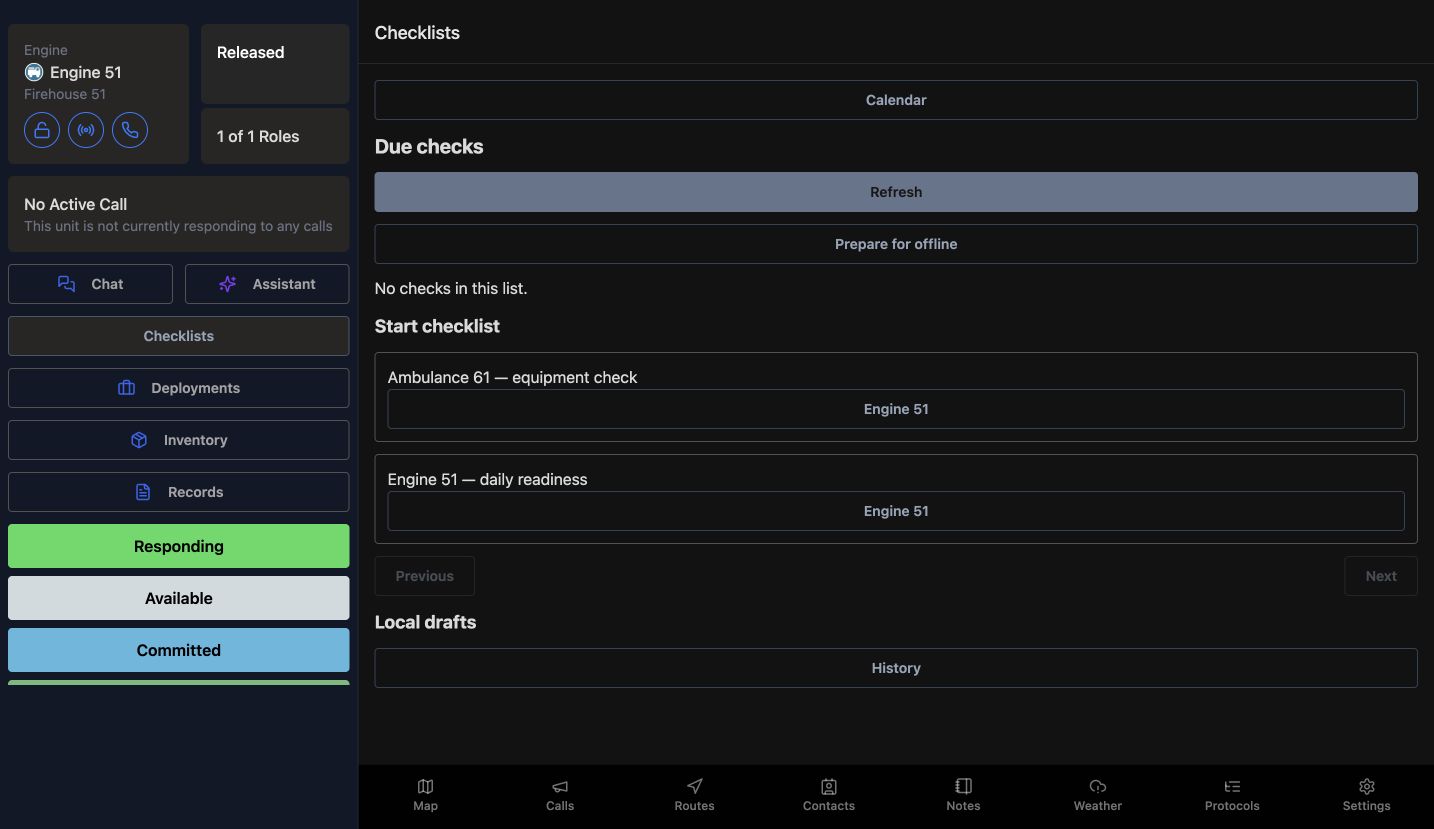
Practice
Match both the published form name and target unit before starting an authorized training run.
Step 2
Answer the first required item
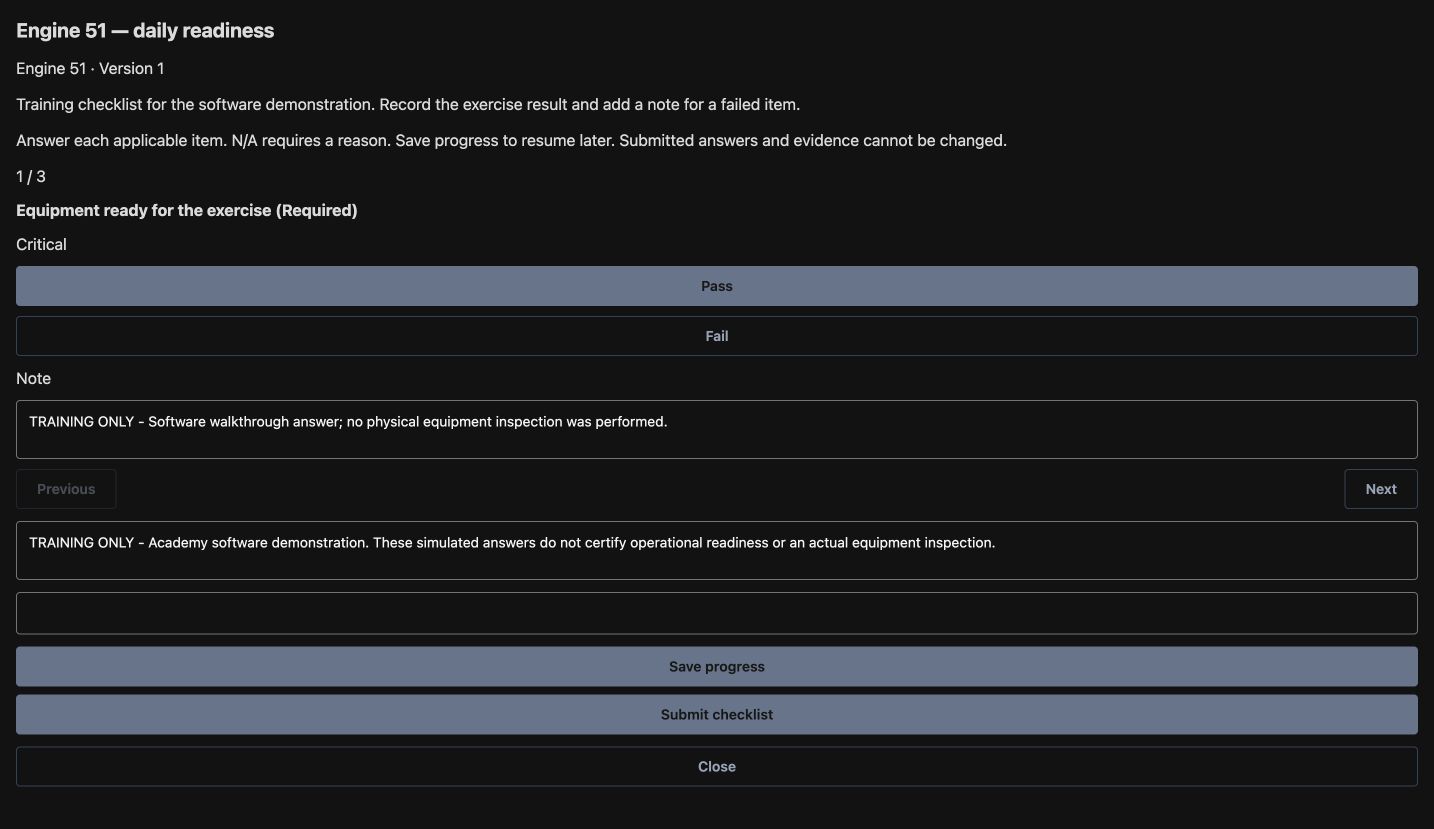
The form opens for Engine 51, Version 1. Equipment ready for the exercise is the first item, marked Required and Critical. Choose Pass for this training run and add a Note explaining that this is a software walkthrough and no physical inspection was performed. That context makes the simulated answer clear to the next reader. Check the note, then choose Next.
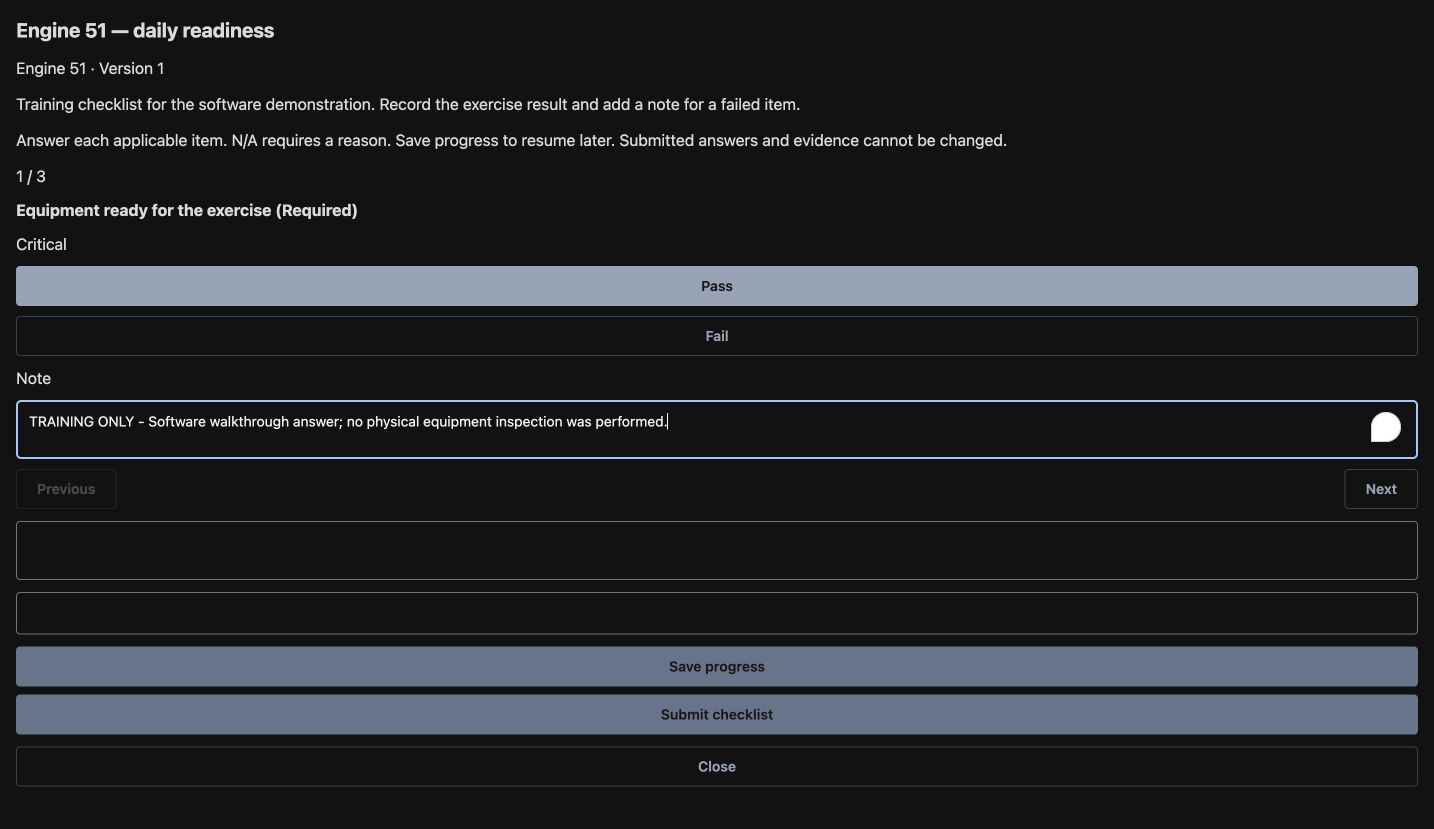
Practice
For a disposable exercise, enter Pass with an explicit software-only note; do not substitute this for an inspection.
Step 3
Keep the supplies answer specific
Stock and supplies recorded is item two. Choose Pass and add a supplies-specific note that keeps the answer within the exercise. An item note should explain that particular answer, so the next crew member can understand what was recorded. Confirm the heading and answer, then choose Next. Use the same review habit for a patrol kit or SAR cache with your team's published form.
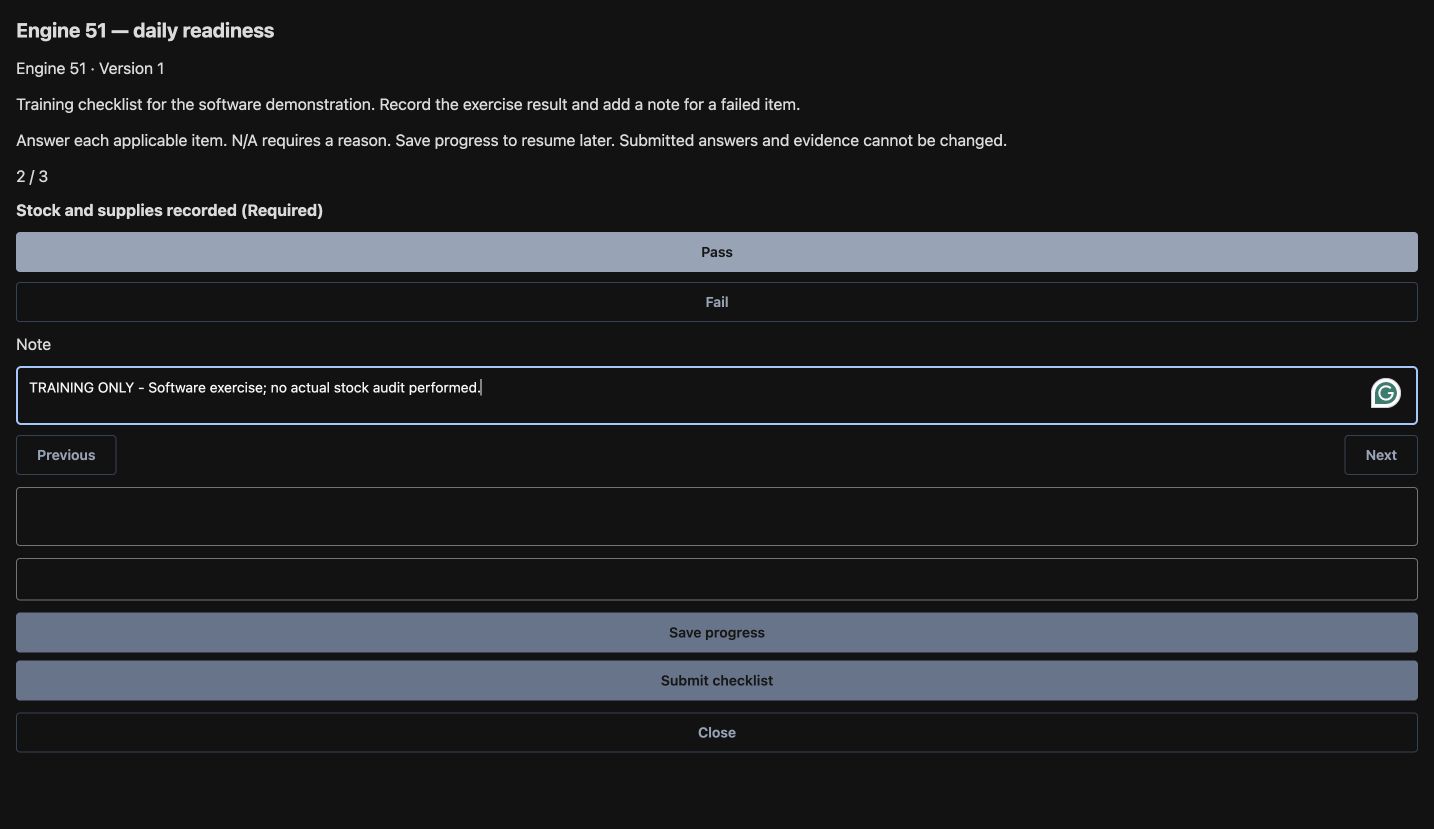
Practice
Use an appropriate team checklist to review a hypothetical SAR cache or patrol kit; keep its item note specific.
Step 4
Save progress, then close the sheet
The third item is Handover notes reviewed. Choose Pass and record the fictional handover context in the item's Note. Below the navigation buttons, the general note describes the whole run. Keep its overall training purpose clear; leave the location field blank here. Choose Save progress to save the unfinished run. The sheet stays open, so choose Close to return to the list and review the saved entry.
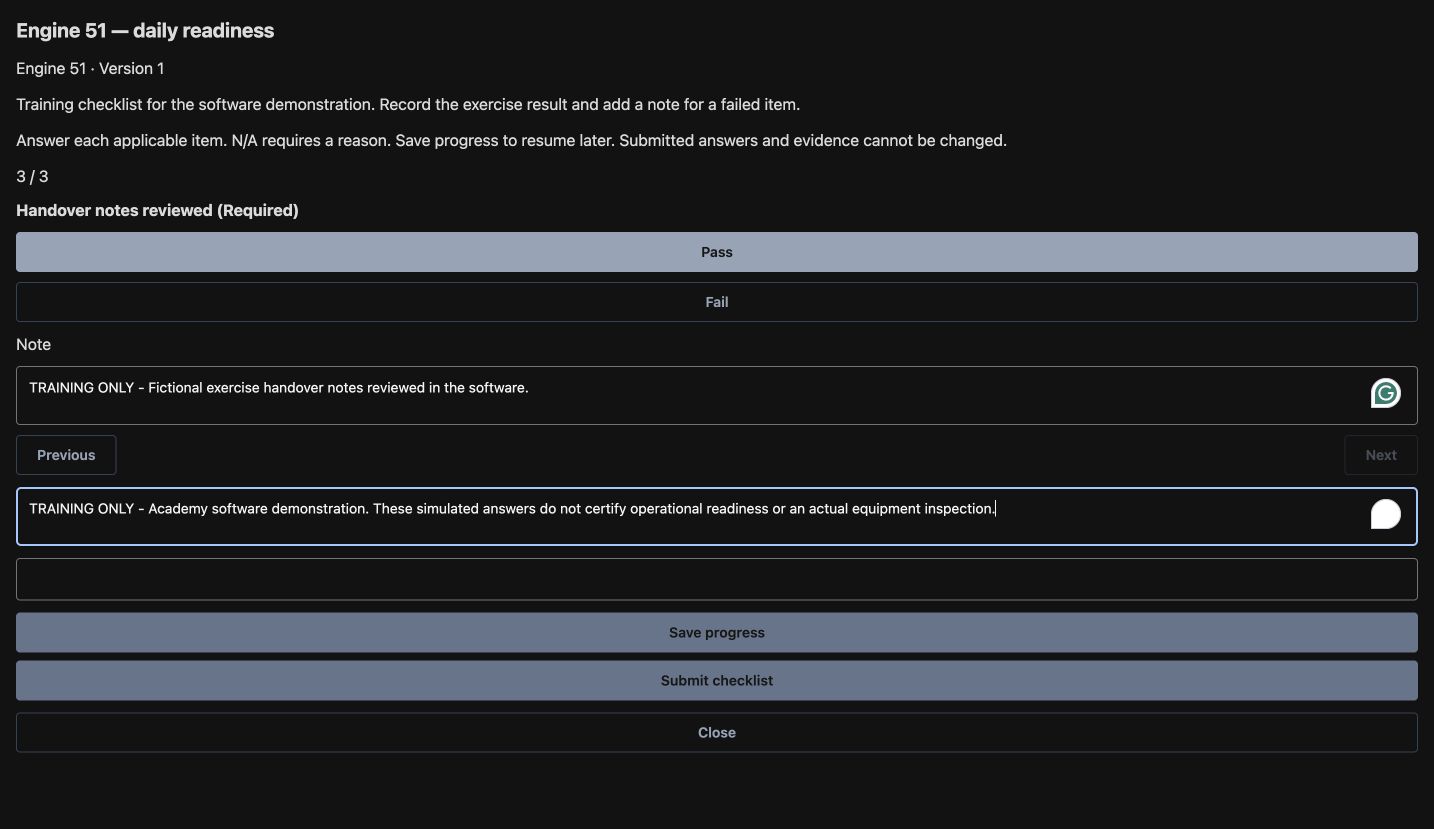
Practice
Save progress on a disposable exercise, explicitly close the sheet, then find the saved target in History.
Step 5
Open the saved history entry
Local drafts now shows Draft 1. Choose History to load the saved run list, then open the timestamped Engine 51 entry. The vehicle and time help you find the work you just saved. Save progress keeps the run available for review before final submission. That matters during handover, when someone needs to check the entered answers before finalizing the record.
Practice
Find the intended saved exercise by target and timestamp; do not infer a submitted result from the list alone.
Step 6
Review the resumed answer and notes
The reopened run brings back the first item's Pass answer, equipment note and general note. Read them together and compare them with the intended record before continuing. Save progress and Submit checklist remain available while this is the working run. For a community care vehicle, this review gives the next operator the answer, its explanation and the overall context in one place.
Practice
Reopen saved work in the same tab and verify the visible answer and notes before finalizing it.
Step 7
Submit and read the returned result
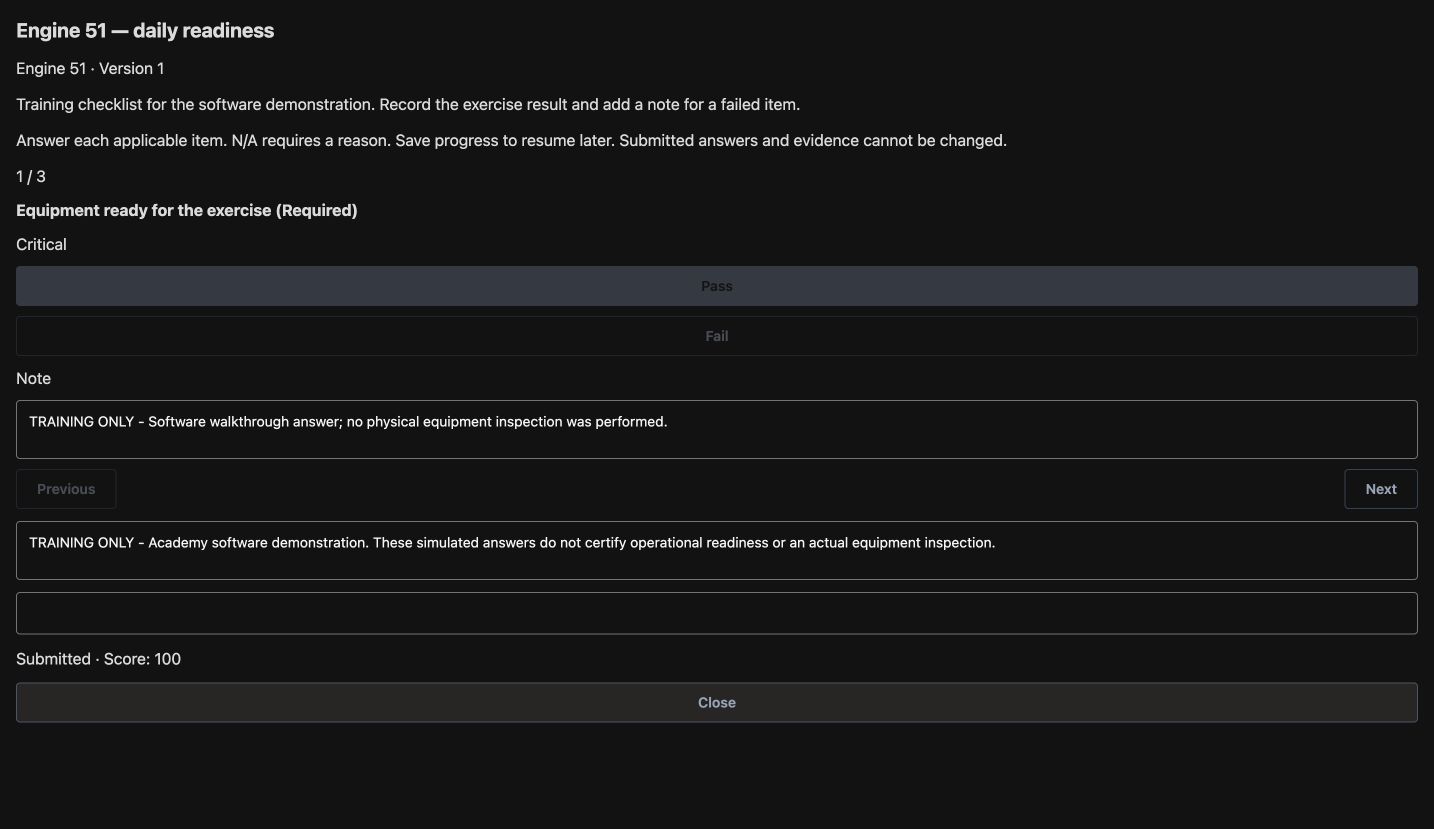
When the review is complete, choose Submit checklist. The sheet changes to Submitted, Score 100. The answer fields are now read-only, and Close remains available. Save progress and Submit checklist are gone. The score is the result of the answers entered in this training form. Read the returned state to confirm that the run has reached submission.
Practice
Submit only an authorized disposable software exercise and inspect the actual returned submitted state.
Step 8
Verify the final readback
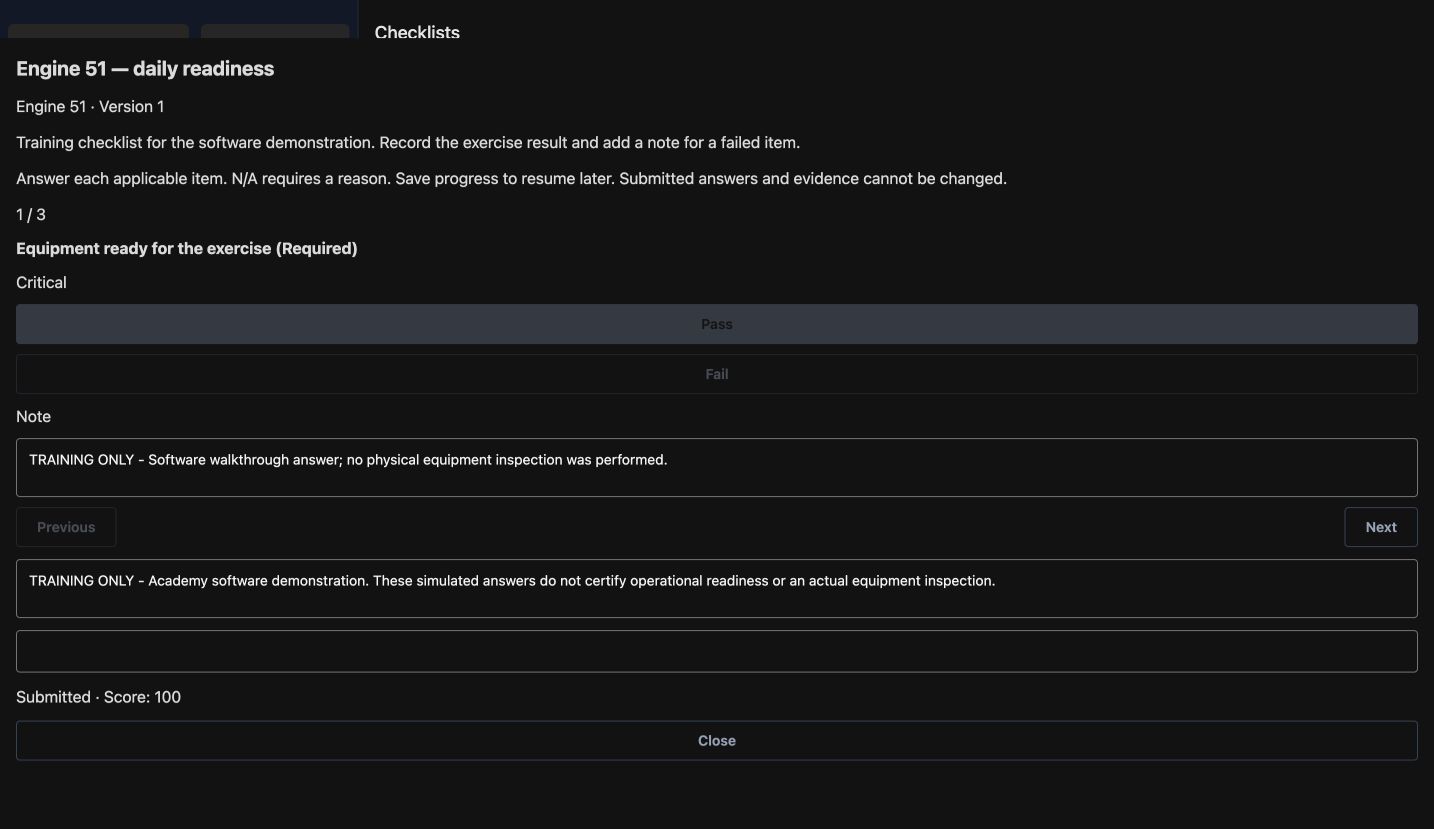
After reopening the run from refreshed History, the submitted result and training notes are still present. Check them before handing the record to another operator. Carry the same target, answer, note and review habit to a wildland vehicle or industrial support equipment using the appropriate form. This example covers saving and reopening in the same browser tab; offline use, browser restarts and device-location behavior need separate checks.
Practice
Reopen the submitted exercise from refreshed History and explain its software-only meaning and limits.
Examples for your department
- Fire / EMS
- Use the published Engine 51 training form to separate equipment, supplies and handover answers from the whole-run note.
- Community response
- Apply the same target check and note review to an appropriate community care vehicle form.
- Search and rescue
- Use the demonstrated per-item answer/note habit with an appropriate SAR cache form.
- Security
- Use an appropriate patrol-kit or vehicle checklist with the same target, answer and note review.
- Wildland
- Use an appropriate vehicle checklist and the demonstrated save, resume, submit and readback sequence.
- Industrial
- Use an appropriate support-equipment form with distinct item notes and overall exercise scope.
Transcript
Download transcriptRead the complete transcript
Unit: save, resume and submit a training checklist
Audience: Apparatus and vehicle crews, Team leaders, Fleet and equipment supervisors

Match the form to the selected vehicle
Unit checklists help vehicle crews keep each check tied to the right apparatus and form. Here, Engine 51 is selected. Open Checklists and look under Start checklist. Find Engine 51 daily readiness, then choose the Engine 51 button directly beneath it. The Ambulance 61 form offers a same-named target button, so match both the form and vehicle before starting.
Practice: Match both the published form name and target unit before starting an authorized training run.

Answer the first required item
The form opens for Engine 51, Version 1. Equipment ready for the exercise is the first item, marked Required and Critical. Choose Pass for this training run and add a Note explaining that this is a software walkthrough and no physical inspection was performed. That context makes the simulated answer clear to the next reader. Check the note, then choose Next.
Practice: For a disposable exercise, enter Pass with an explicit software-only note; do not substitute this for an inspection.

Keep the supplies answer specific
Stock and supplies recorded is item two. Choose Pass and add a supplies-specific note that keeps the answer within the exercise. An item note should explain that particular answer, so the next crew member can understand what was recorded. Confirm the heading and answer, then choose Next. Use the same review habit for a patrol kit or SAR cache with your team's published form.
Practice: Use an appropriate team checklist to review a hypothetical SAR cache or patrol kit; keep its item note specific.

Save progress, then close the sheet
The third item is Handover notes reviewed. Choose Pass and record the fictional handover context in the item's Note. Below the navigation buttons, the general note describes the whole run. Keep its overall training purpose clear; leave the location field blank here. Choose Save progress to save the unfinished run. The sheet stays open, so choose Close to return to the list and review the saved entry.
Practice: Save progress on a disposable exercise, explicitly close the sheet, then find the saved target in History.

Open the saved history entry
Local drafts now shows Draft 1. Choose History to load the saved run list, then open the timestamped Engine 51 entry. The vehicle and time help you find the work you just saved. Save progress keeps the run available for review before final submission. That matters during handover, when someone needs to check the entered answers before finalizing the record.
Practice: Find the intended saved exercise by target and timestamp; do not infer a submitted result from the list alone.

Review the resumed answer and notes
The reopened run brings back the first item's Pass answer, equipment note and general note. Read them together and compare them with the intended record before continuing. Save progress and Submit checklist remain available while this is the working run. For a community care vehicle, this review gives the next operator the answer, its explanation and the overall context in one place.
Practice: Reopen saved work in the same tab and verify the visible answer and notes before finalizing it.

Submit and read the returned result
When the review is complete, choose Submit checklist. The sheet changes to Submitted, Score 100. The answer fields are now read-only, and Close remains available. Save progress and Submit checklist are gone. The score is the result of the answers entered in this training form. Read the returned state to confirm that the run has reached submission.
Practice: Submit only an authorized disposable software exercise and inspect the actual returned submitted state.

Verify the final readback
After reopening the run from refreshed History, the submitted result and training notes are still present. Check them before handing the record to another operator. Carry the same target, answer, note and review habit to a wildland vehicle or industrial support equipment using the appropriate form. This example covers saving and reopening in the same browser tab; offline use, browser restarts and device-location behavior need separate checks.
Practice: Reopen the submitted exercise from refreshed History and explain its software-only meaning and limits.

Examples for your department
Fire / EMS: Use the published Engine 51 training form to separate equipment, supplies and handover answers from the whole-run note.
Community response: Apply the same target check and note review to an appropriate community care vehicle form.
Search and rescue: Use the demonstrated per-item answer/note habit with an appropriate SAR cache form.
Security: Use an appropriate patrol-kit or vehicle checklist with the same target, answer and note review.
Wildland: Use an appropriate vehicle checklist and the demonstrated save, resume, submit and readback sequence.
Industrial: Use an appropriate support-equipment form with distinct item notes and overall exercise scope.