
Responder · Video walkthrough
Responder: review an assigned work order and verify acceptance
Read a work assignment, inspect the conditional hold and completion fields, then verify recorded acceptance and In progress activity.
Before you begin
- An authorized Responder session and an appropriate work-order assignment.
- A fictional order for software practice and department procedures for accepting work and recording completion.
Chapters
Watch the walkthrough
Step 1
Read the intended assignment before accepting
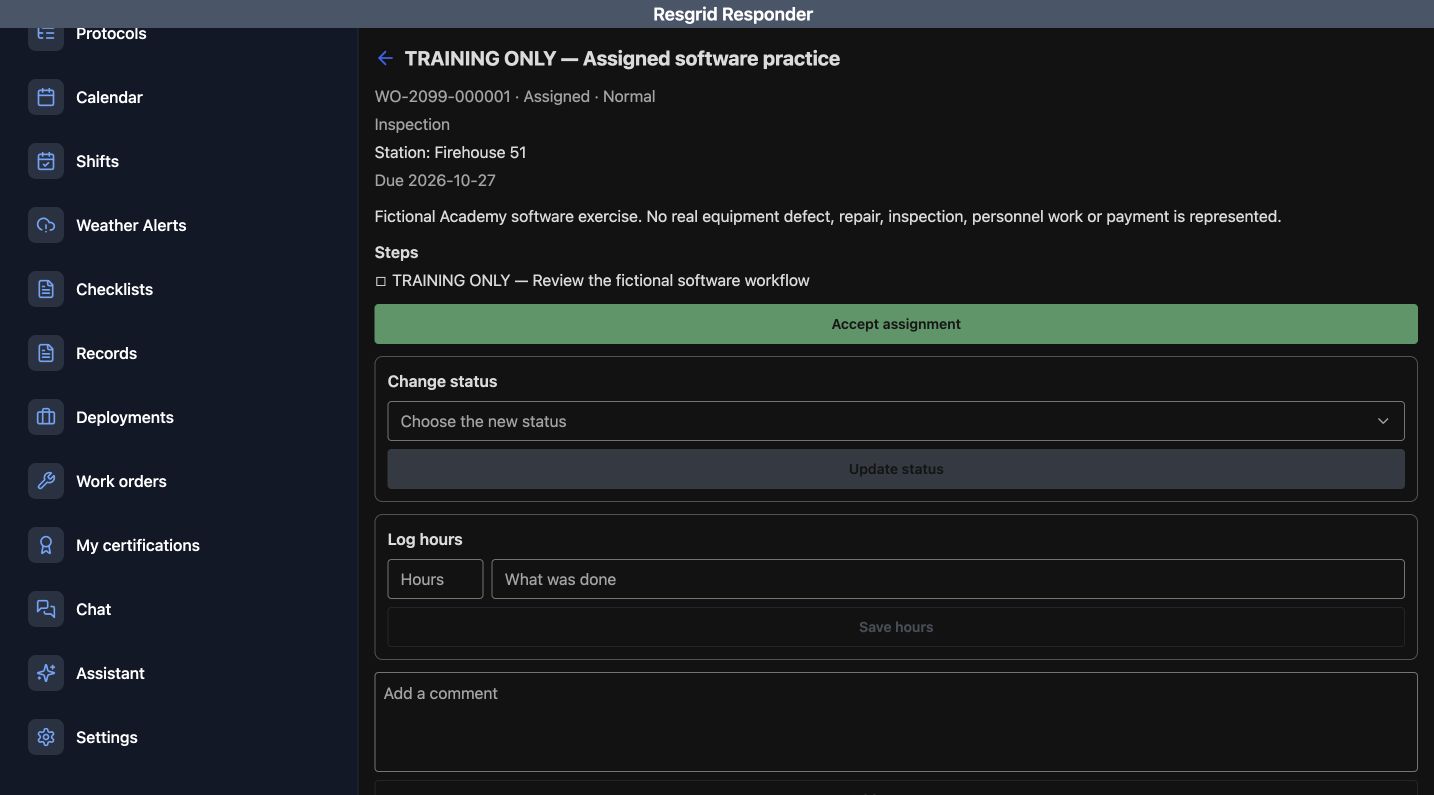
Work orders keep an assignment and its updates together. Start by reading the intended order, its status, priority, station and due date. This recorded example is Training Only, Assigned software practice. It is Assigned, has Normal priority, uses the Inspection type and names Firehouse fifty-one as its station. The description makes it a fictional software exercise. Read the Steps section before accepting responsibility for the intended assignment.
Practice
Read the fictional order identity, Assigned status, Normal priority, station, due date and Steps.
Step 2
Distinguish acceptance and conditional hold fields
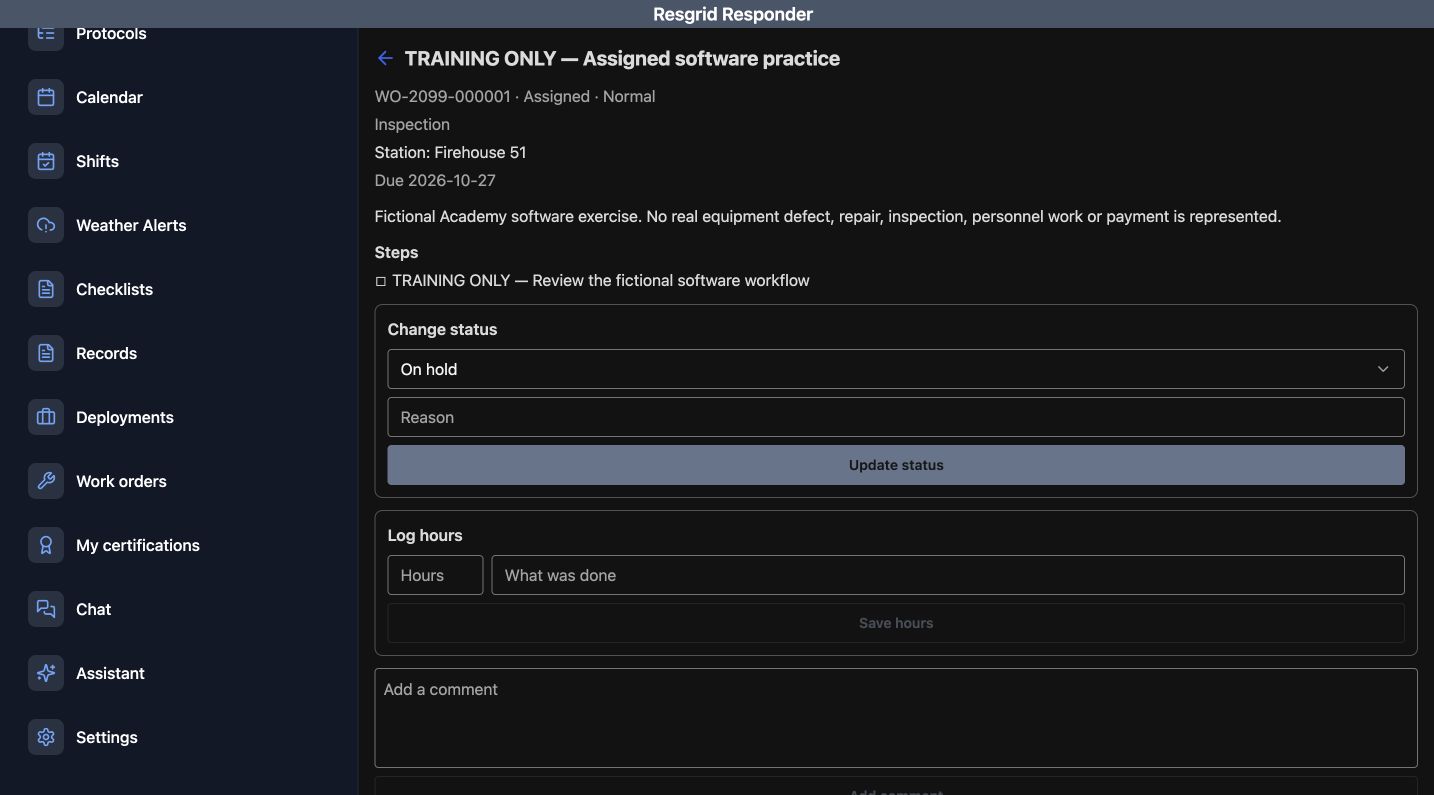
Accept assignment is the green action below Steps. Change status is a separate section with its own Update status button. Log hours and Save hours are separate again. These controls answer different questions: accepting an assignment, recording its progress and logging time. Read the action you intend to take rather than using a status or time entry as a substitute for accepting the right work. The next view previews On hold in Change status. A Reason field appears below that choice, followed by Update status. The order header still says Assigned; selecting a proposed status in the form is different from saving that change. Use a clear reason when a permitted hold is appropriate for actual work. Here we are reviewing the offered fields without submitting a hold.
Practice
Distinguish Accept assignment, status and time updates; compare the On hold choice and Reason field with the still-Assigned header.
Step 3
Read completion fields before making a declaration
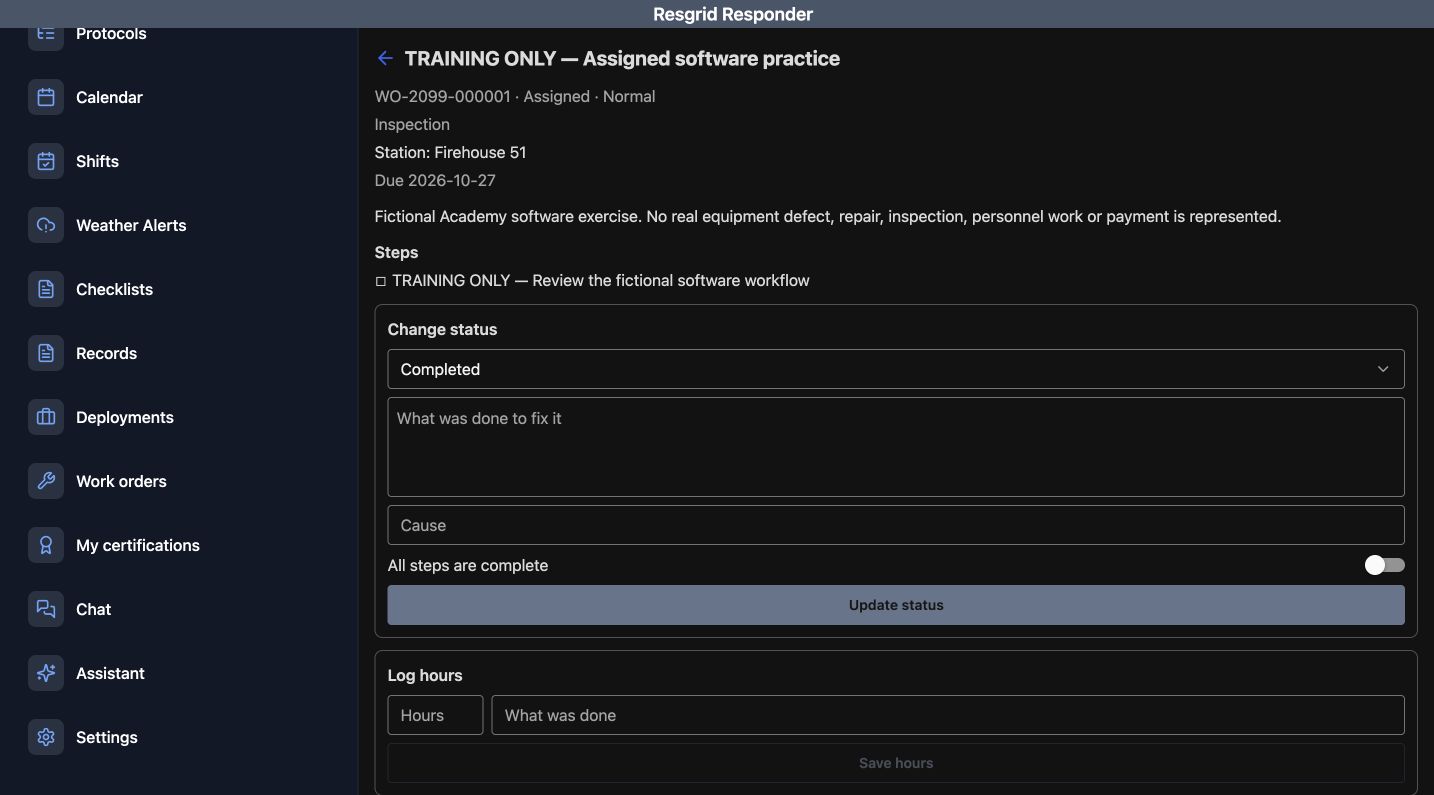
The Completed form presents What was done to fix it, Cause and All steps are complete. The switch is off in this recorded preview, and Update status is below it. These fields help explain a completion decision; they should reflect the actual work and your department's review process. This exercise inspects the fields without declaring that an inspection or repair has been completed.
Practice
Identify the completion explanation, Cause, off All steps are complete switch and Update status.
Step 4
Return to the intended assignment action
After reviewing the available forms, return to the intended assignment. Check its title and Assigned status again. For this software exercise, use Accept assignment. Keep that choice separate from submitting the earlier hold or completion previews. The next screen will be used to verify what was actually recorded, rather than treating a button press as the result.
Practice
Verify the intended order again and identify Accept assignment; distinguish the earlier form previews from saved completion results.
Step 5
Verify recorded acceptance and progress in Activity
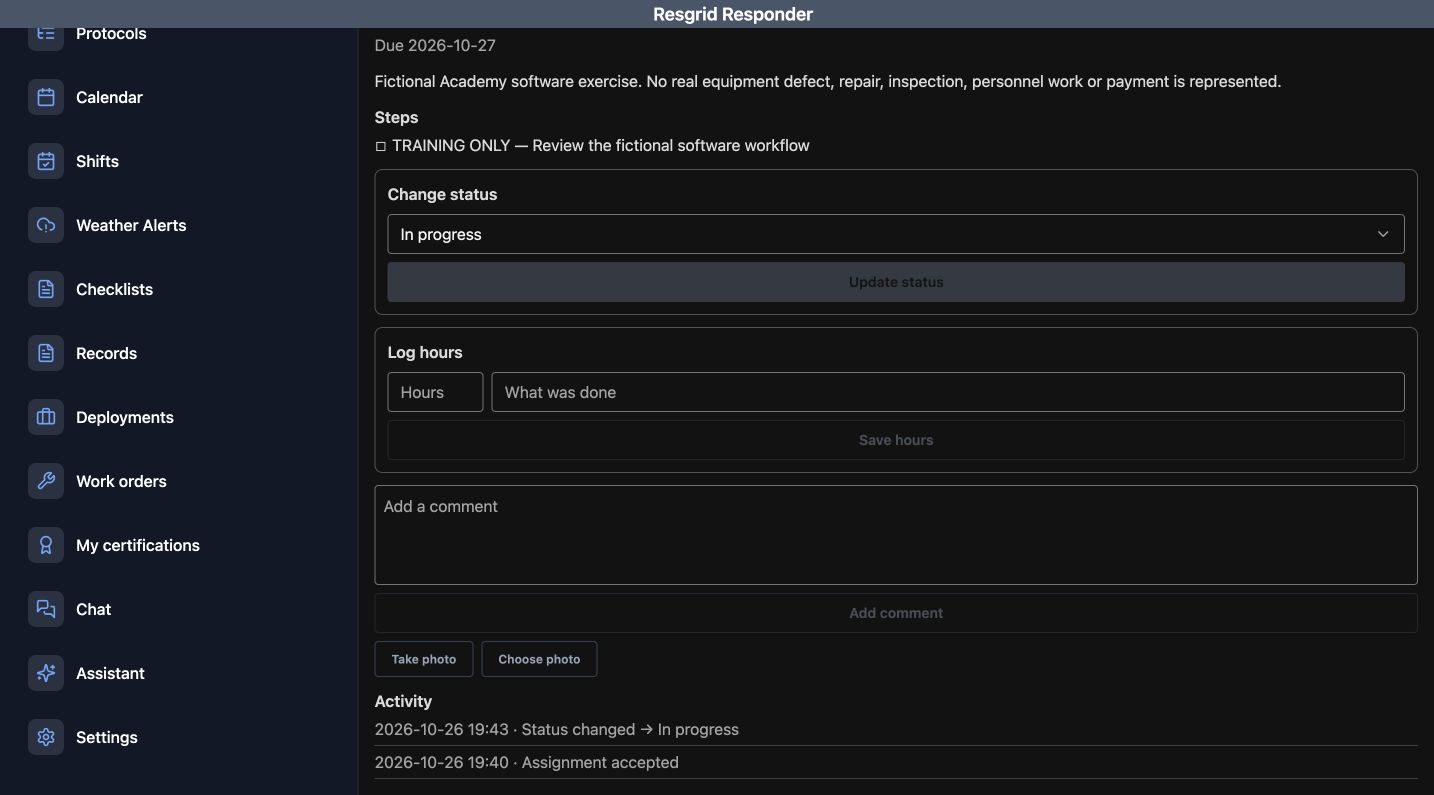
The recorded Activity section now contains Assignment accepted and a later Status changed to In progress entry, each with a timestamp. Change status currently shows In progress. Acceptance and the progress transition are separate recorded events. Read those events when handing work over or checking who has taken responsibility. Log hours, comment and photo controls remain available, but this walkthrough verifies the recorded acceptance and progress only.
Practice
Read the actual Assignment accepted and Status changed to In progress events and their separate timestamps.
Step 6
Use the same review for different departments
The same assignment review helps security teams coordinate post equipment issues, wildland contractors organize crew support, and industrial emergency teams track standby equipment work. Search-and-rescue teams can coordinate support tasks, while community paramedicine and mental health response teams can manage appropriate outreach support work. Fire and EMS departments can use the same process for their assignments. Read the intended work, use the appropriate action and verify Activity before the next handover.
Practice
Apply assignment identity, action and recorded Activity checks to fictional support work for your department.
Examples for your department
- Fire / EMS
- Review a fictional equipment-support assignment and its recorded acceptance.
- Community response
- Coordinate appropriate outreach-support work using clear assignment ownership.
- Search and rescue
- Review mission-support equipment work and its actual Activity entries.
- Security
- Verify the assigned post-support work before accepting it.
- Wildland
- Keep crew-support work ownership and status updates understandable at handover.
- Industrial
- Review standby equipment-support assignments and record accurate progress.
Transcript
Download transcriptRead the complete transcript
Responder: review an assigned work order and verify acceptance
Audience: Personnel receiving work orders, Maintenance coordinators, Department trainers

Read the intended assignment before accepting
Work orders keep an assignment and its updates together. Start by reading the intended order, its status, priority, station and due date. This recorded example is Training Only, Assigned software practice. It is Assigned, has Normal priority, uses the Inspection type and names Firehouse fifty-one as its station. The description makes it a fictional software exercise. Read the Steps section before accepting responsibility for the intended assignment.
Practice: Read the fictional order identity, Assigned status, Normal priority, station, due date and Steps.

Distinguish acceptance and conditional hold fields
Accept assignment is the green action below Steps. Change status is a separate section with its own Update status button. Log hours and Save hours are separate again. These controls answer different questions: accepting an assignment, recording its progress and logging time. Read the action you intend to take rather than using a status or time entry as a substitute for accepting the right work. The next view previews On hold in Change status. A Reason field appears below that choice, followed by Update status. The order header still says Assigned; selecting a proposed status in the form is different from saving that change. Use a clear reason when a permitted hold is appropriate for actual work. Here we are reviewing the offered fields without submitting a hold.
Practice: Distinguish Accept assignment, status and time updates; compare the On hold choice and Reason field with the still-Assigned header.

Read completion fields before making a declaration
The Completed form presents What was done to fix it, Cause and All steps are complete. The switch is off in this recorded preview, and Update status is below it. These fields help explain a completion decision; they should reflect the actual work and your department's review process. This exercise inspects the fields without declaring that an inspection or repair has been completed.
Practice: Identify the completion explanation, Cause, off All steps are complete switch and Update status.

Return to the intended assignment action
After reviewing the available forms, return to the intended assignment. Check its title and Assigned status again. For this software exercise, use Accept assignment. Keep that choice separate from submitting the earlier hold or completion previews. The next screen will be used to verify what was actually recorded, rather than treating a button press as the result.
Practice: Verify the intended order again and identify Accept assignment; distinguish the earlier form previews from saved completion results.

Verify recorded acceptance and progress in Activity
The recorded Activity section now contains Assignment accepted and a later Status changed to In progress entry, each with a timestamp. Change status currently shows In progress. Acceptance and the progress transition are separate recorded events. Read those events when handing work over or checking who has taken responsibility. Log hours, comment and photo controls remain available, but this walkthrough verifies the recorded acceptance and progress only.
Practice: Read the actual Assignment accepted and Status changed to In progress events and their separate timestamps.

Use the same review for different departments
The same assignment review helps security teams coordinate post equipment issues, wildland contractors organize crew support, and industrial emergency teams track standby equipment work. Search-and-rescue teams can coordinate support tasks, while community paramedicine and mental health response teams can manage appropriate outreach support work. Fire and EMS departments can use the same process for their assignments. Read the intended work, use the appropriate action and verify Activity before the next handover.
Practice: Apply assignment identity, action and recorded Activity checks to fictional support work for your department.

Examples for your department
Fire / EMS: Review a fictional equipment-support assignment and its recorded acceptance.
Community response: Coordinate appropriate outreach-support work using clear assignment ownership.
Search and rescue: Review mission-support equipment work and its actual Activity entries.
Security: Verify the assigned post-support work before accepting it.
Wildland: Keep crew-support work ownership and status updates understandable at handover.
Industrial: Review standby equipment-support assignments and record accurate progress.