
Responder · Video walkthrough
Responder: join and withdraw from an open shift
Review a dated open shift and its team needs, confirm a personal signup, inspect the returned roster, then deliberately withdraw and check the result.
Before you begin
- An authorized Responder session and an eligible shift day with a Sign Up control.
- A suitable department team and authorization to change your own roster membership.
- A fictional practice occurrence. This recorded October27 example is historical; choose an eligible date for your own exercise.
Chapters
Watch the walkthrough
Step 1
Check the day, time and open needs
Before joining a shift, read its day detail. This recorded example is Training, Academy signup practice, on Tuesday, October twenty-seventh, twenty twenty-six, from one until three in the afternoon. These are historical recording dates; use an eligible day for your own practice. Open slots shows two. Under Open needs, Firehouse fifty-one lists Chief and Needed, two, while Roster says no one is on this day yet. Check that this is the intended occurrence and appropriate work for you, then choose Sign Up.
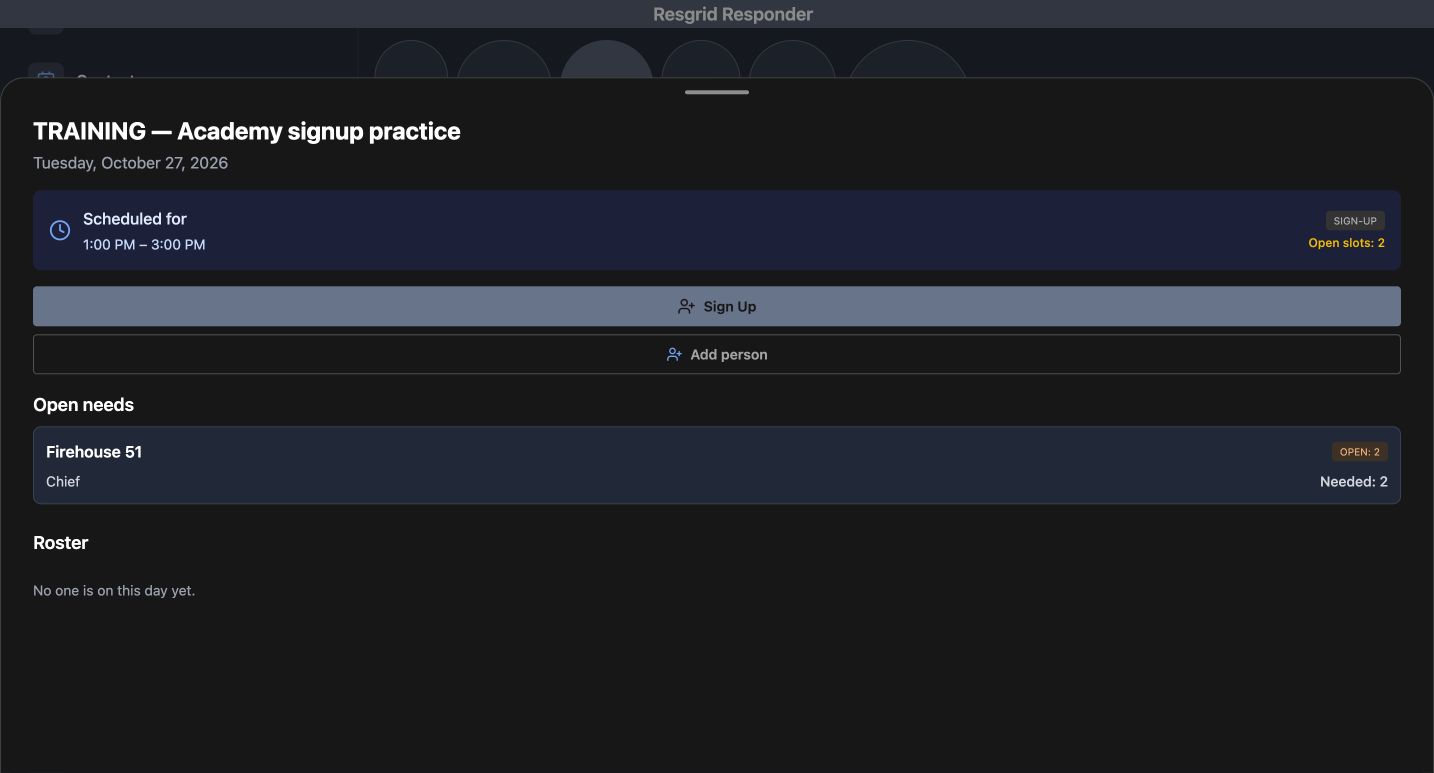
Practice
Verify the intended dated practice occurrence, time, open team needs and Sign Up control.
Step 2
Choose the team before confirming
Choose your team explains that you are selecting the group you are signing up with for this day. The example offers Firehouse fifty-one, with Chief, two, and Open, two. Its radio choice is selected. Review the shift date and time again above the team. Back returns from this confirmation without submitting this choice. When the intended team and occurrence are correct, choose Confirm sign-up once.
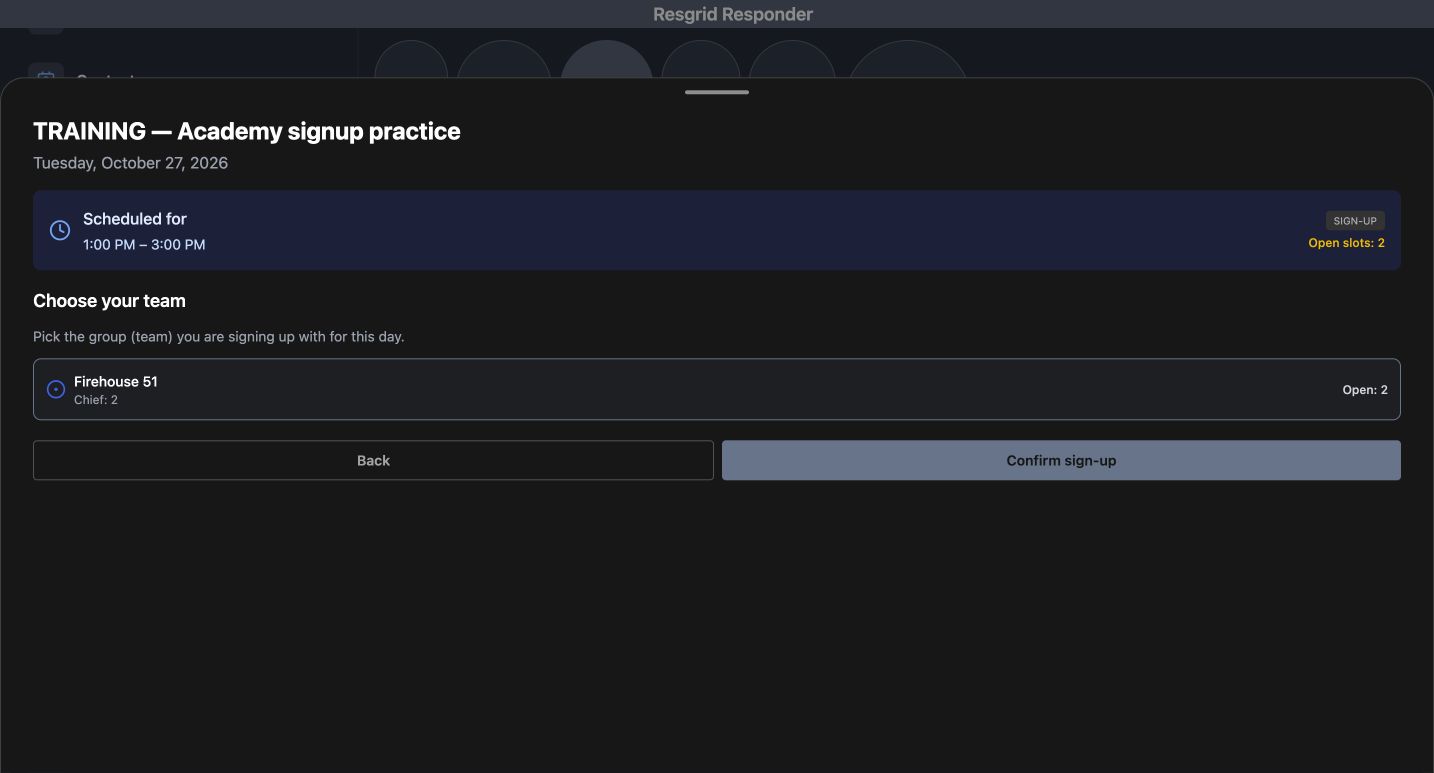
Practice
Read the offered group and needs, distinguish Back from Confirm sign-up, and confirm only the intended practice choice.
Step 3
Verify the returned membership and count
The returned day detail now says You are on, and Open slots has changed from two to one. Under Roster, Firehouse fifty-one contains Wallace Boden with the You label. Open needs shows Chief and Needed, one. Those are the recorded results of this signup. Read the named roster entry as well as the count so you can distinguish your own membership from another person's place. This example returns a rostered result; it does not demonstrate a supervisor approving a pending request.
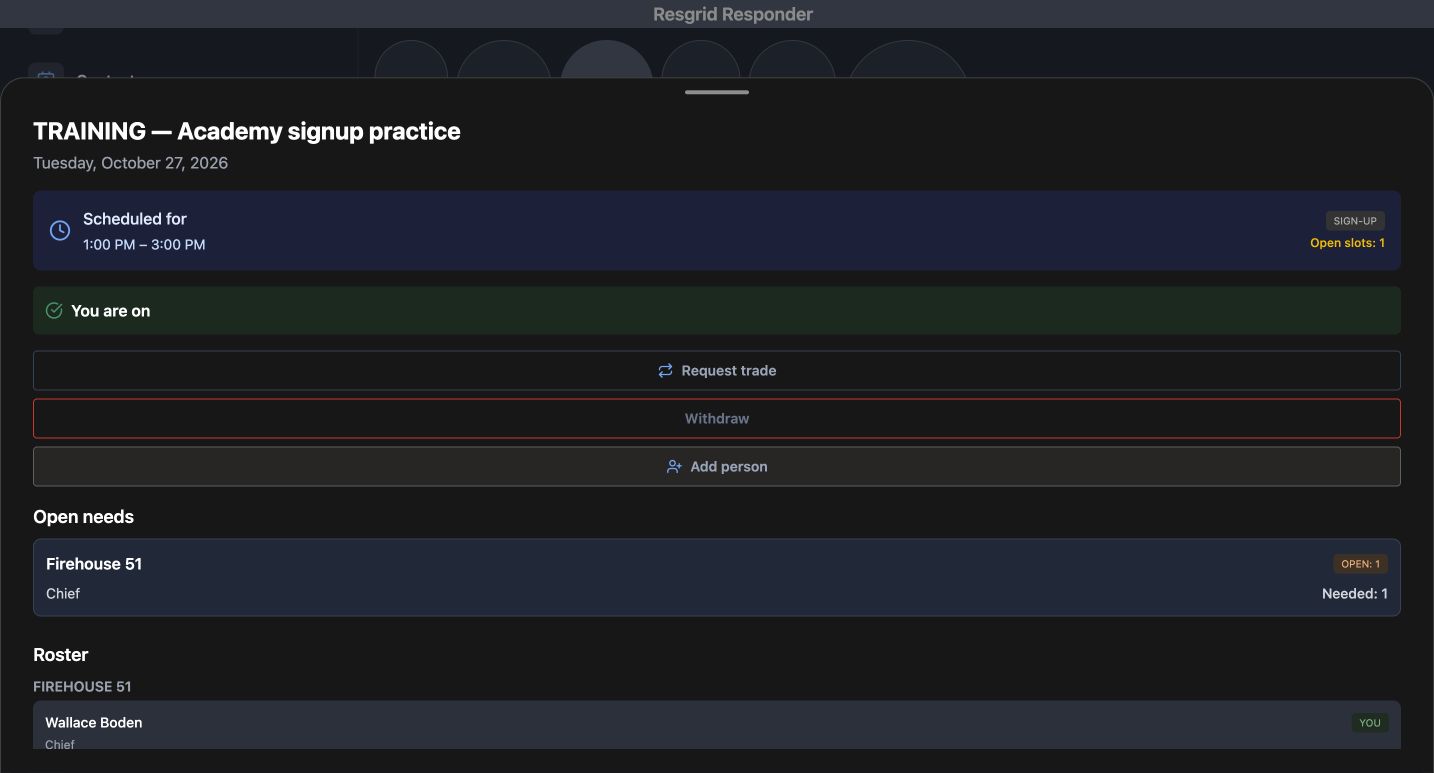
Practice
Verify You are on, the named personal roster entry and the remaining open need.
Step 4
Find the withdrawal action on the same day
The same rostered day offers Withdraw. Check the title, date and hours before using it, especially when a shift name repeats on several days. Request trade is a separate action on this screen; this exercise removes the personal signup instead of asking a colleague to take the shift. Follow your department's coverage arrangements before making that change. Choose Withdraw to review its confirmation.
Practice
Identify Withdraw on the correct dated rostered occurrence.
Step 5
Read the dated withdrawal confirmation
The confirmation asks, Withdraw from this shift, and says you will be removed from the roster for Tuesday, October twenty-seventh. The shift title and one-to-three time remain above it. Back leaves this confirmation without completing the withdrawal. Check the intended occurrence before choosing the red Withdraw button to carry out this training cancellation.
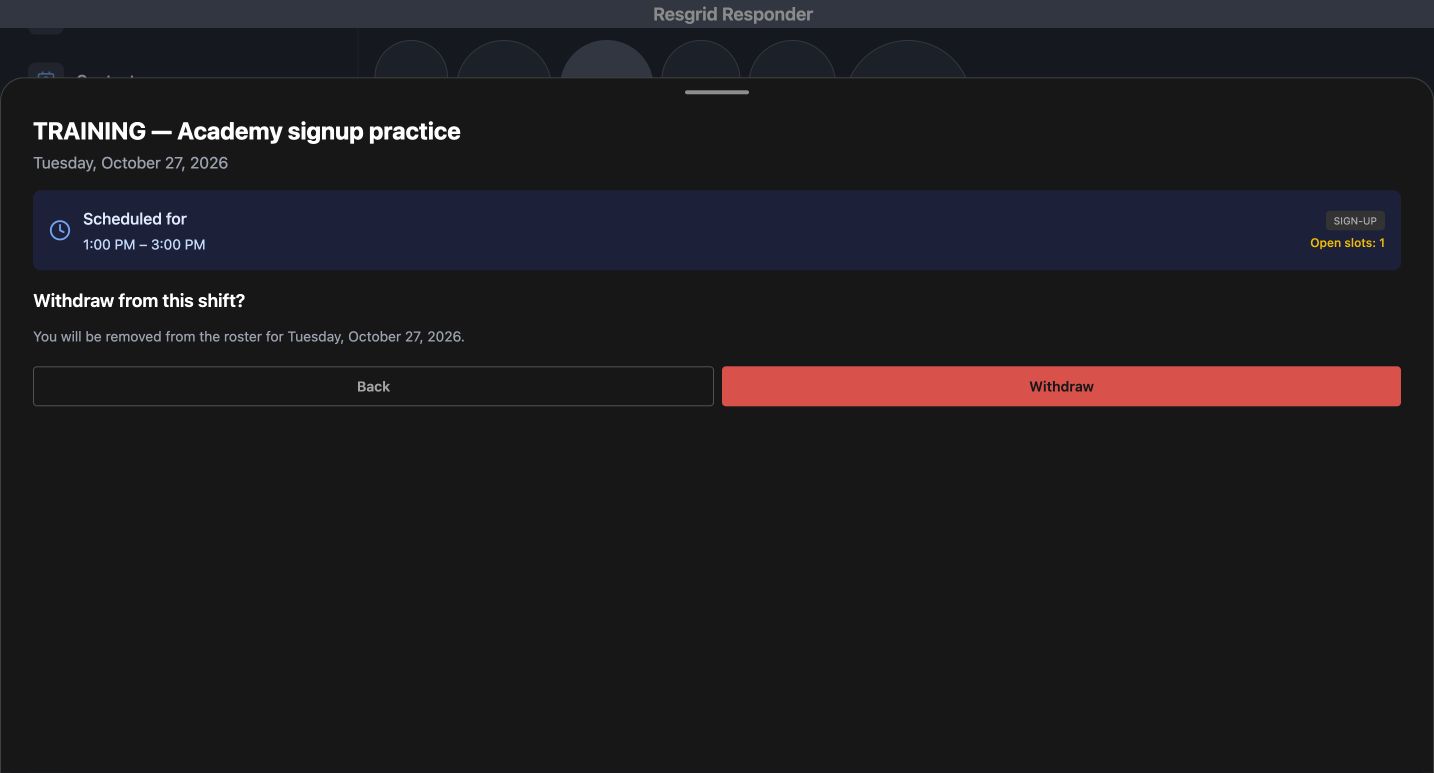
Practice
Read the date and the removal message before deliberately confirming the practice withdrawal.
Step 6
Check the returned open-shift state
The returned detail offers Sign Up again. Open slots is two, Open needs again says Chief and Needed, two, and Roster says no one is on this day yet. The earlier You are on state and named personal entry are absent. Compare the returned state with the original occurrence rather than assuming that pressing a button completed the change. This recording checks the returned day sheet; it does not claim a separate cancellation-history record or a supervisor approval.
Practice
Compare the returned Sign Up control, open count and empty roster with the original day.
Step 7
Apply the same checks to your department
These checks help community paramedicine and mental health teams plan outreach coverage, search-and-rescue teams fill support shifts, security companies staff posts, wildland contractors coordinate crews, and industrial response teams arrange standby coverage. Fire and EMS departments can use them for station staffing. For each setting, verify the occurrence, team needs, your personal roster state and any required approval process. After a signup or withdrawal, read the actual returned result before planning coverage around it.
Practice
Practice the dated occurrence, team, personal membership and returned-result checks using fictional data for your department.
Examples for your department
- Fire / EMS
- Review a station practice shift and the actual personal roster result.
- Community response
- Review appropriate outreach or mental-health team coverage for the intended occurrence.
- Search and rescue
- Join an eligible mission-support practice shift and verify the named roster entry.
- Security
- Read a staffed post date and team before making an authorized personal signup change.
- Wildland
- Compare crew coverage needs and the actual membership result for a practice occurrence.
- Industrial
- Review emergency-team standby coverage and verify the returned roster after a change.
Transcript
Download transcriptRead the complete transcript
Responder: join and withdraw from an open shift
Audience: Personnel joining eligible shifts, Shift coordinators, Department trainers

Check the day, time and open needs
Before joining a shift, read its day detail. This recorded example is Training, Academy signup practice, on Tuesday, October twenty-seventh, twenty twenty-six, from one until three in the afternoon. These are historical recording dates; use an eligible day for your own practice. Open slots shows two. Under Open needs, Firehouse fifty-one lists Chief and Needed, two, while Roster says no one is on this day yet. Check that this is the intended occurrence and appropriate work for you, then choose Sign Up.
Practice: Verify the intended dated practice occurrence, time, open team needs and Sign Up control.

Choose the team before confirming
Choose your team explains that you are selecting the group you are signing up with for this day. The example offers Firehouse fifty-one, with Chief, two, and Open, two. Its radio choice is selected. Review the shift date and time again above the team. Back returns from this confirmation without submitting this choice. When the intended team and occurrence are correct, choose Confirm sign-up once.
Practice: Read the offered group and needs, distinguish Back from Confirm sign-up, and confirm only the intended practice choice.

Verify the returned membership and count
The returned day detail now says You are on, and Open slots has changed from two to one. Under Roster, Firehouse fifty-one contains Wallace Boden with the You label. Open needs shows Chief and Needed, one. Those are the recorded results of this signup. Read the named roster entry as well as the count so you can distinguish your own membership from another person's place. This example returns a rostered result; it does not demonstrate a supervisor approving a pending request.
Practice: Verify You are on, the named personal roster entry and the remaining open need.

Find the withdrawal action on the same day
The same rostered day offers Withdraw. Check the title, date and hours before using it, especially when a shift name repeats on several days. Request trade is a separate action on this screen; this exercise removes the personal signup instead of asking a colleague to take the shift. Follow your department's coverage arrangements before making that change. Choose Withdraw to review its confirmation.
Practice: Identify Withdraw on the correct dated rostered occurrence.

Read the dated withdrawal confirmation
The confirmation asks, Withdraw from this shift, and says you will be removed from the roster for Tuesday, October twenty-seventh. The shift title and one-to-three time remain above it. Back leaves this confirmation without completing the withdrawal. Check the intended occurrence before choosing the red Withdraw button to carry out this training cancellation.
Practice: Read the date and the removal message before deliberately confirming the practice withdrawal.

Check the returned open-shift state
The returned detail offers Sign Up again. Open slots is two, Open needs again says Chief and Needed, two, and Roster says no one is on this day yet. The earlier You are on state and named personal entry are absent. Compare the returned state with the original occurrence rather than assuming that pressing a button completed the change. This recording checks the returned day sheet; it does not claim a separate cancellation-history record or a supervisor approval.
Practice: Compare the returned Sign Up control, open count and empty roster with the original day.

Apply the same checks to your department
These checks help community paramedicine and mental health teams plan outreach coverage, search-and-rescue teams fill support shifts, security companies staff posts, wildland contractors coordinate crews, and industrial response teams arrange standby coverage. Fire and EMS departments can use them for station staffing. For each setting, verify the occurrence, team needs, your personal roster state and any required approval process. After a signup or withdrawal, read the actual returned result before planning coverage around it.
Practice: Practice the dated occurrence, team, personal membership and returned-result checks using fictional data for your department.

Examples for your department
Fire / EMS: Review a station practice shift and the actual personal roster result.
Community response: Review appropriate outreach or mental-health team coverage for the intended occurrence.
Search and rescue: Join an eligible mission-support practice shift and verify the named roster entry.
Security: Read a staffed post date and team before making an authorized personal signup change.
Wildland: Compare crew coverage needs and the actual membership result for a practice occurrence.
Industrial: Review emergency-team standby coverage and verify the returned roster after a change.