
Responder · Video walkthrough
Responder: read shift schedules, rosters and coverage needs
Find an intended shift, compare personal schedule and day details, inspect calendar coverage and role needs, and read the On Duty, Trades and Approvals views.
Before you begin
- A normal authorized Responder session in the intended department.
- Existing department shifts and day rosters appropriate to your account.
- A fictional training environment for practice; this lesson inspects saved schedules without changing assignments.
Chapters
- Find the intended shift today
- Search and compare the standby result
- Read the day detail and approval rule
- Read names, groups and roster source
- Compare personal shift summaries
- Filter the calendar and select a date
- Inspect the group's role needs
- Read the On Duty roster carefully
- Inspect the trade and approval queues
- Apply the coverage checks to your team
Watch the walkthrough
Step 1
Find the intended shift today
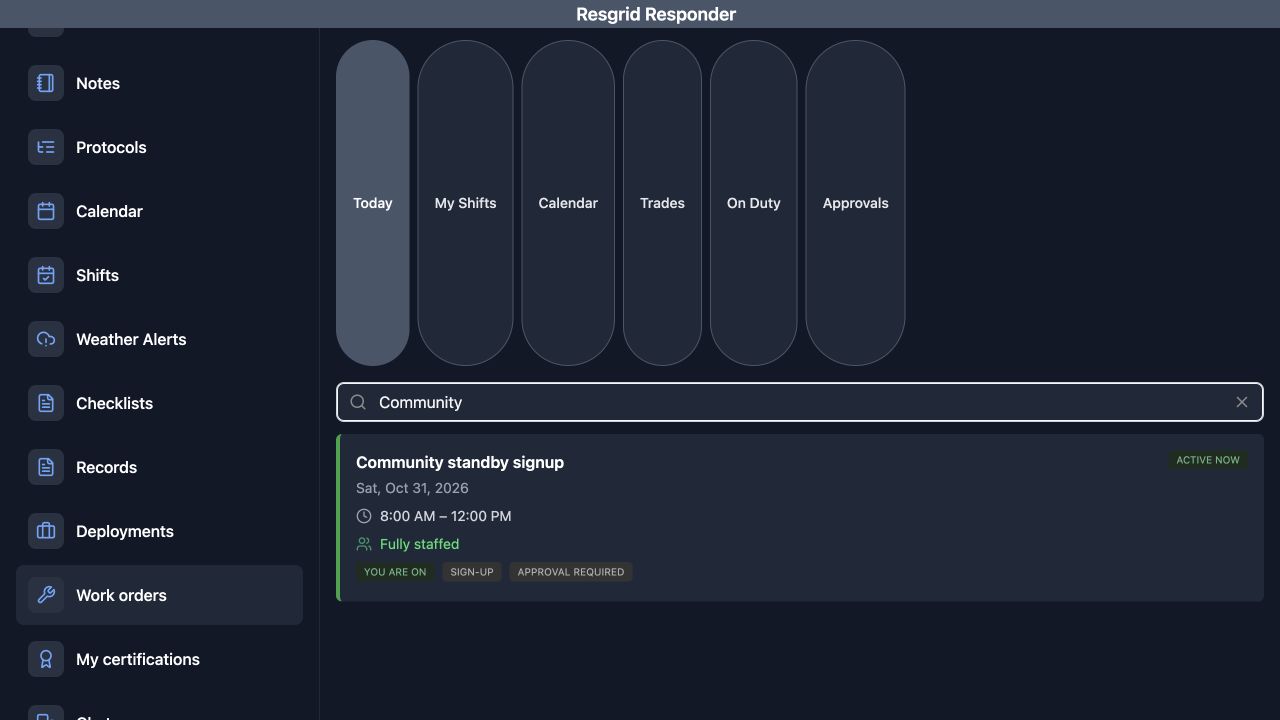
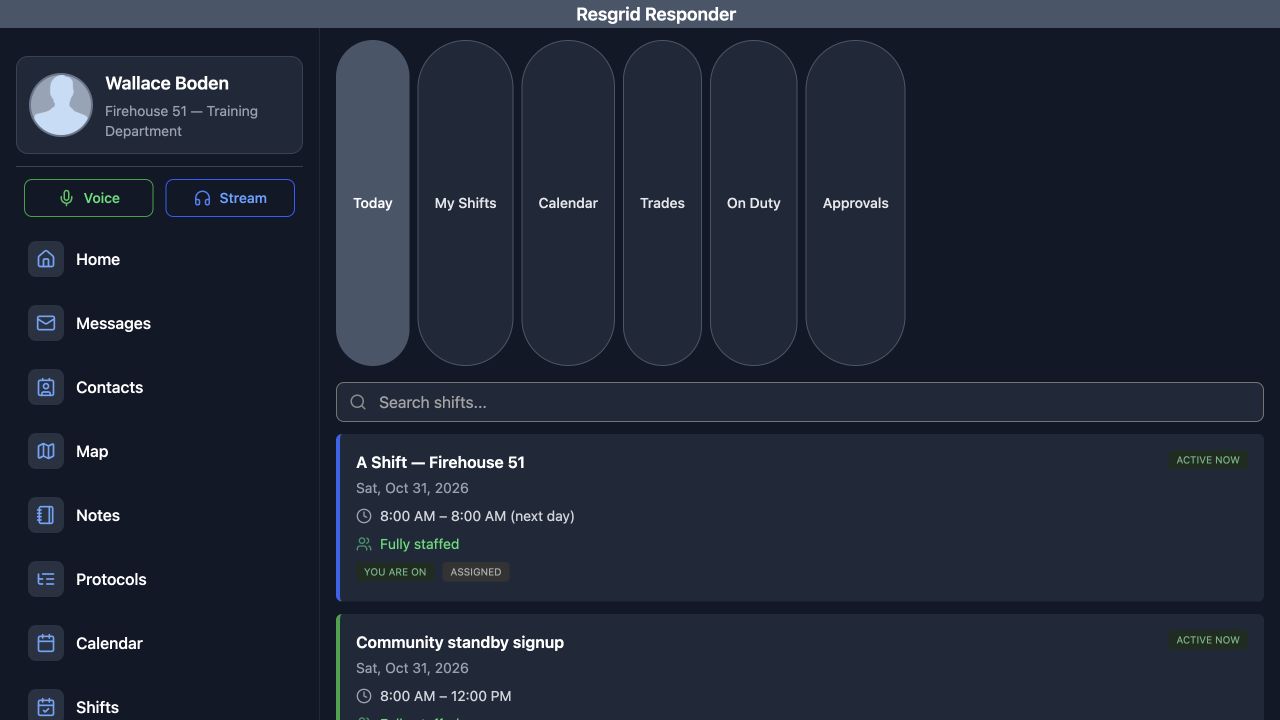
In Responder, open Shifts from the navigation, then choose Today. Across the top are My Shifts, Calendar, Trades, On Duty and Approvals. Start by reading the intended day card. Here, A Shift at Firehouse 51 runs from eight in the morning until eight the next morning. The words next day matter when planning an overnight handover. Assigned describes this schedule's assignment mode. You are on identifies the signed-in person's roster membership, and Fully staffed is the displayed coverage result.
Practice
Open Shifts, choose Today, and read the full date and overnight time range on the intended day card.
Step 2
Search and compare the standby result
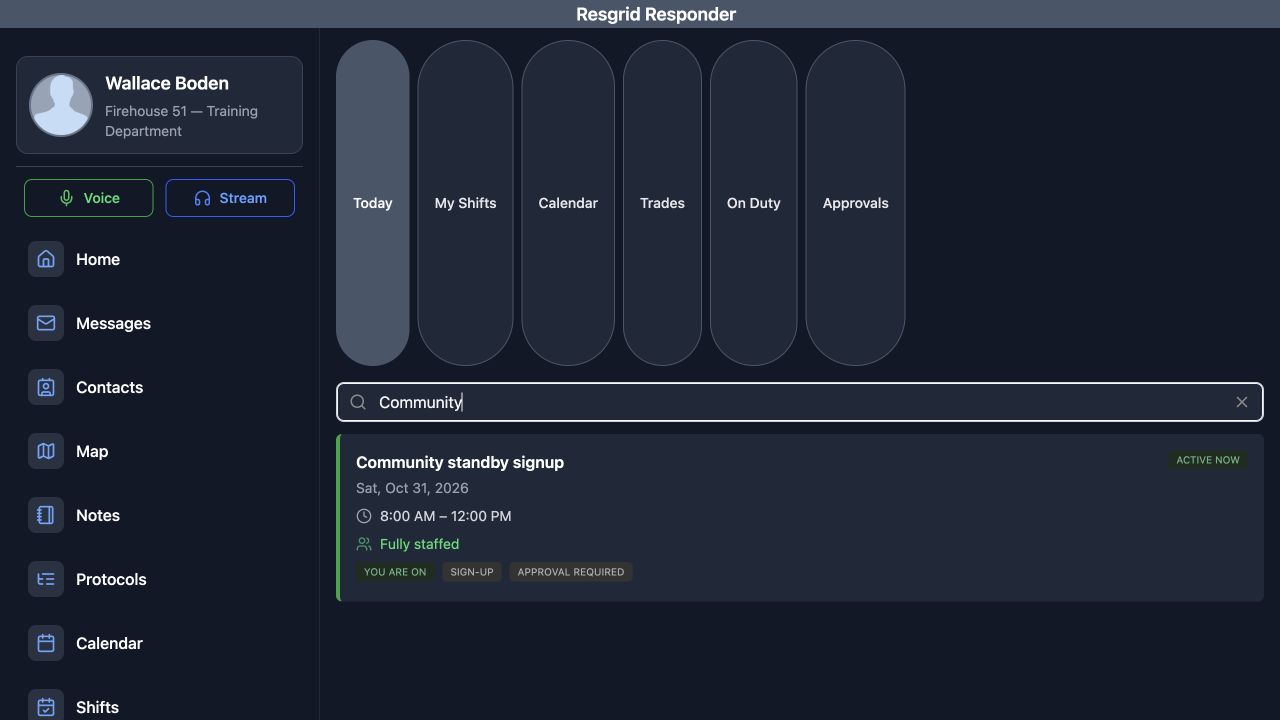
Use Search shifts to narrow the list. Entering Community leaves the Community standby signup card. Read its date and its eight-to-noon time range. This card shows Sign-up and Approval required, while the current account already shows You are on. Those labels answer different questions: how this shift is offered, whether approval is required, and whether this person is already on its roster. Searching changes what you see in the list; it does not change the saved assignment.
Practice
Search for the intended shift and distinguish its assignment mode, approval label and personal roster state.
Step 3
Read the day detail and approval rule
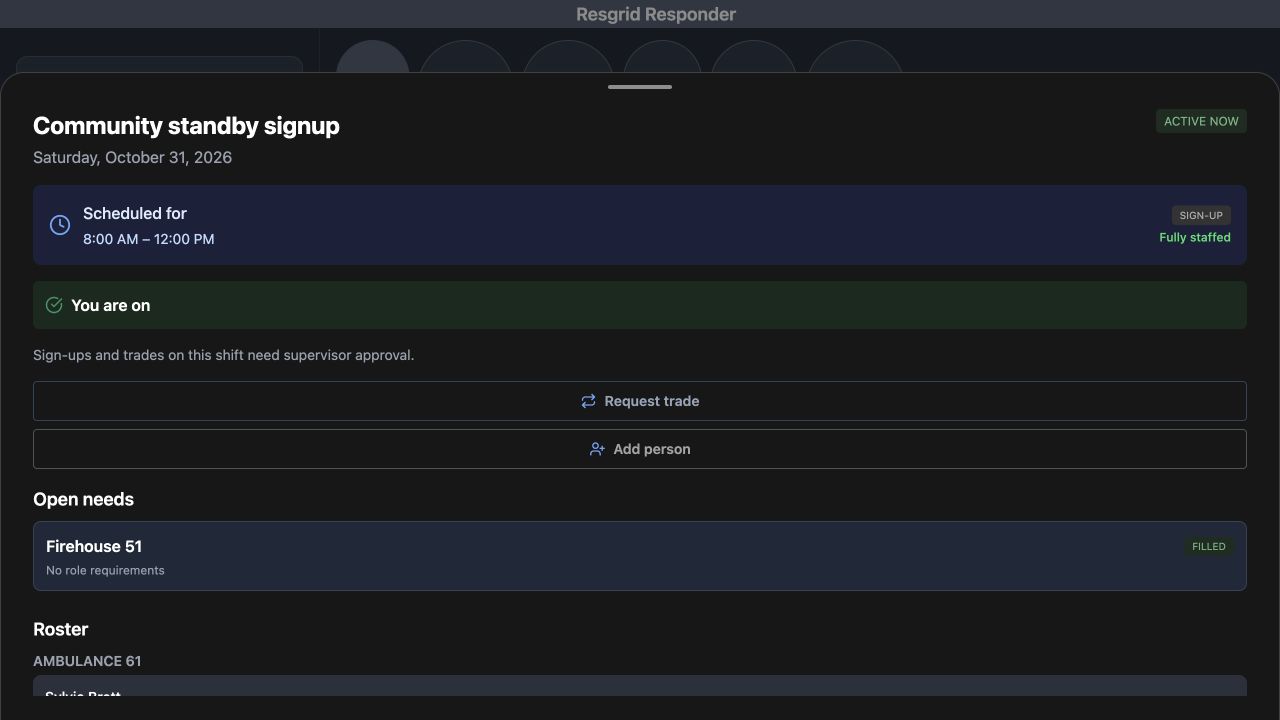
Open the standby card to read its day detail. The heading and date identify the selected occurrence, and Scheduled for repeats its time range. The page explicitly says that sign-ups and trades on this shift need supervisor approval. Read that rule before planning a coverage change. Open needs shows Firehouse 51 as Filled, with No role requirements for this particular day. Request trade and Add person are visible actions here. This walkthrough is inspecting the saved day, so neither action is submitted.
Practice
Open the intended day and read its approval rule and group coverage before considering a roster action.
Step 4
Read names, groups and roster source
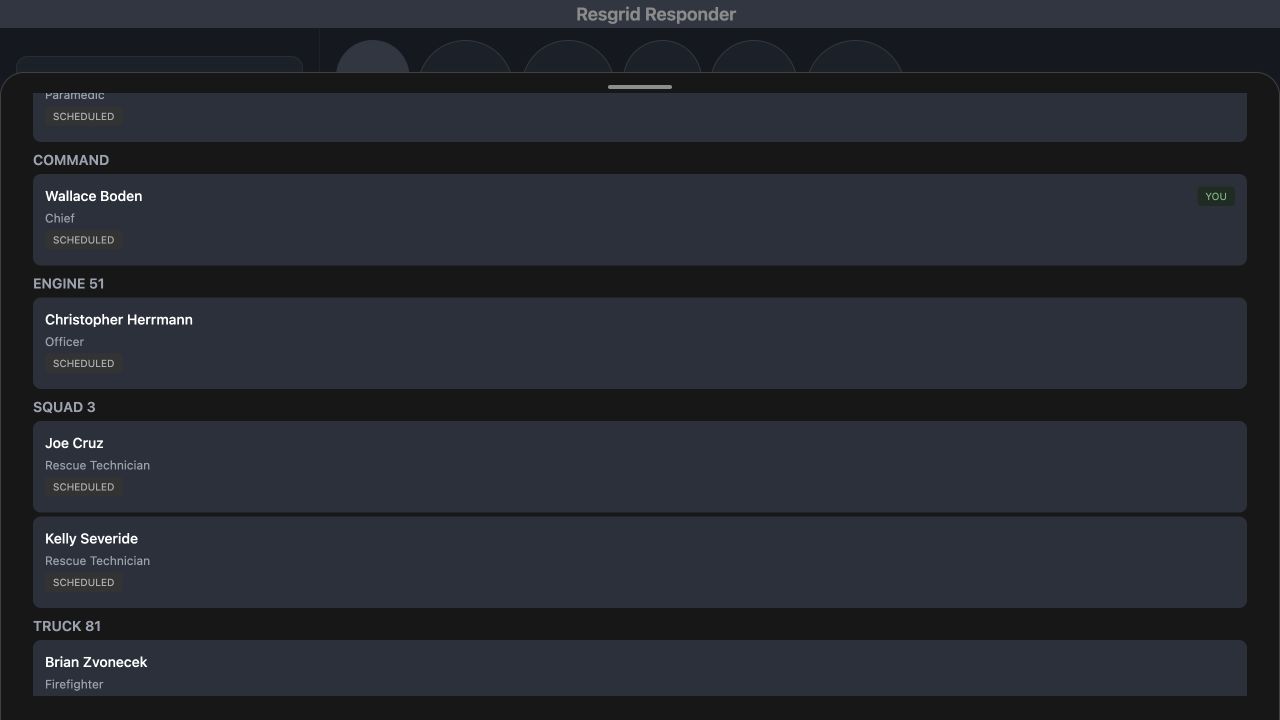
Scroll through Roster and compare the person with the group and role beside them. Wallace Boden appears under Command with Chief, while the Engine and Squad entries identify their own people and roles. The repeated Scheduled label describes the saved roster source. Use these details to check that the people and functions you expected are represented. Confirm actual availability and attendance through your department's procedures before assigning work based on this schedule.
Practice
Read a person's group, role and Scheduled label without treating a saved schedule as physical attendance verification.
Step 5
Compare personal shift summaries
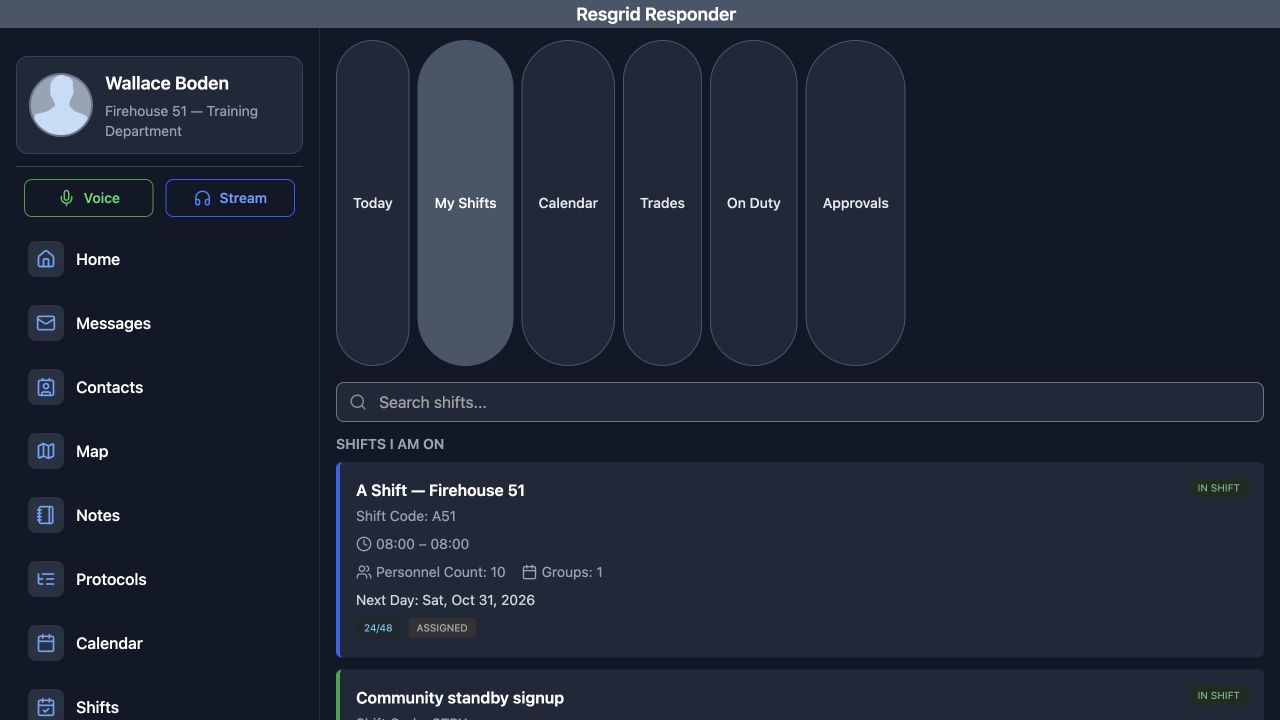
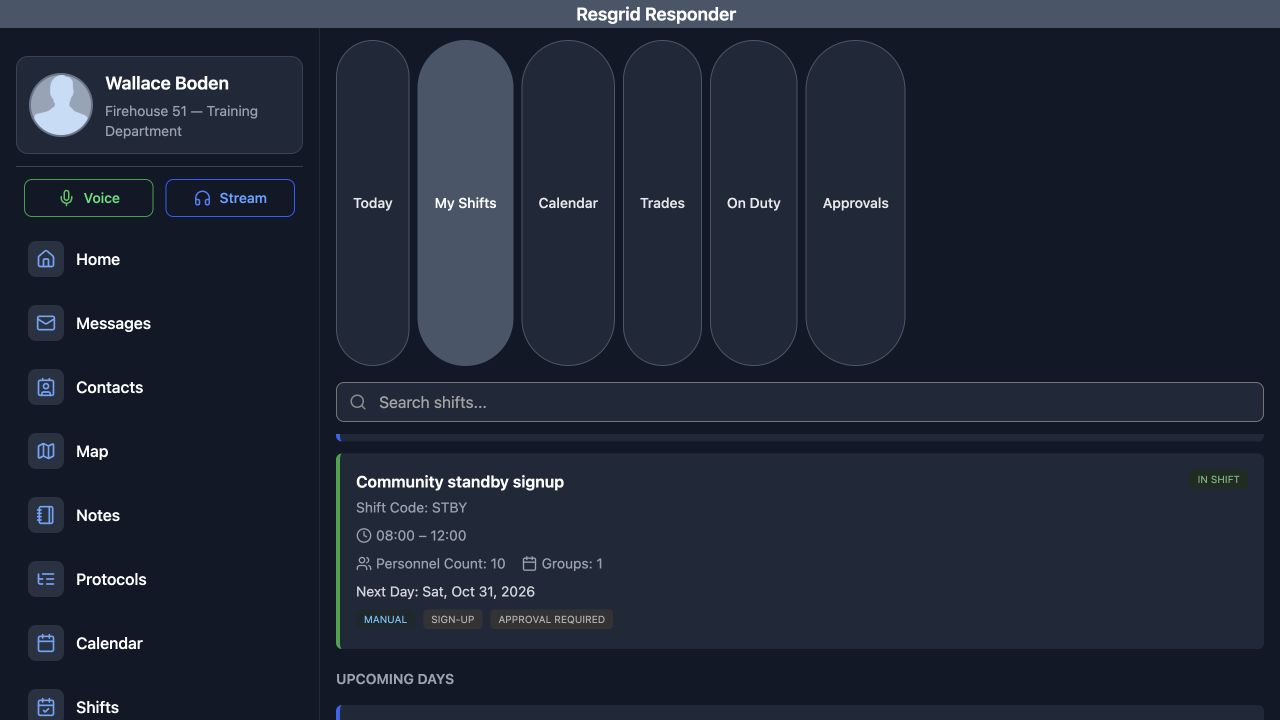
Return to the shift views and choose My Shifts. Under Shifts I am on, the A Shift summary shows its code, personnel count, group count, next displayed day, rotation and Assigned label. Scroll to the standby summary to compare its own code and time range. It shows Manual, Sign-up and Approval required. Upcoming days begins a separate section below these summaries. Keep the shift definition and the dated occurrence distinct when checking which day you need to open.
Practice
Compare the shift summaries and identify the separate Upcoming days section.
Step 6
Filter the calendar and select a date
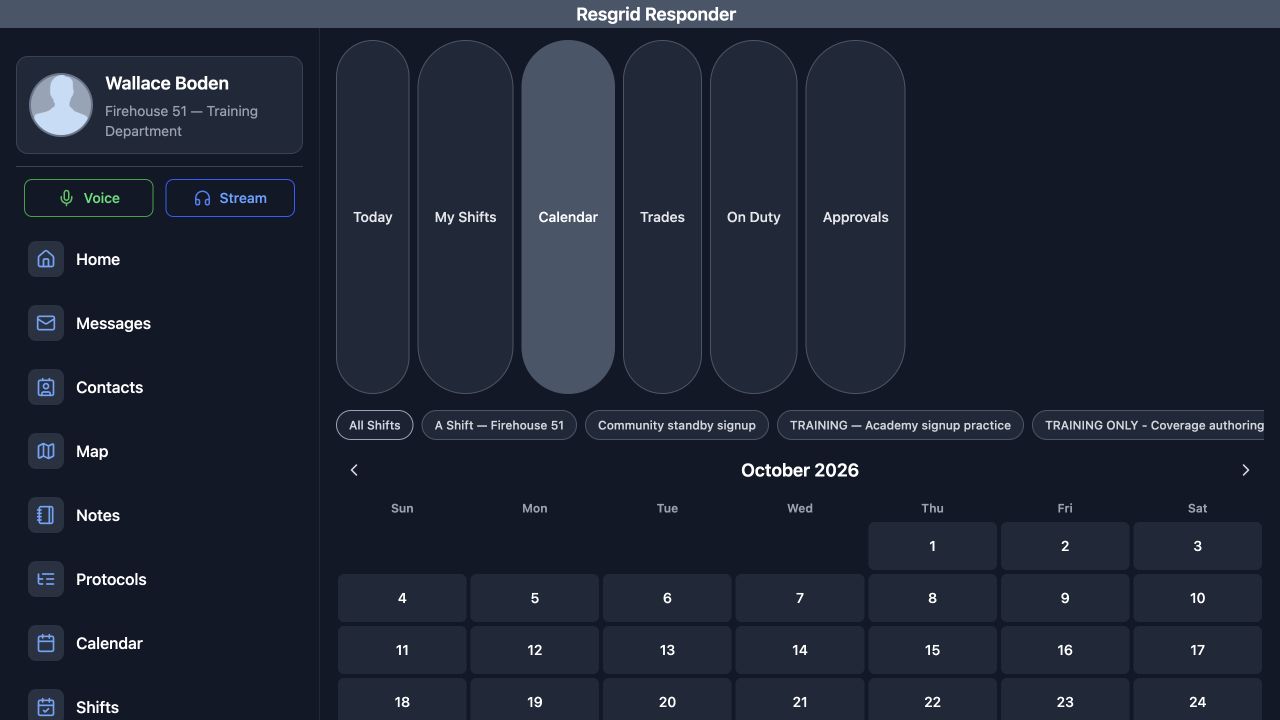
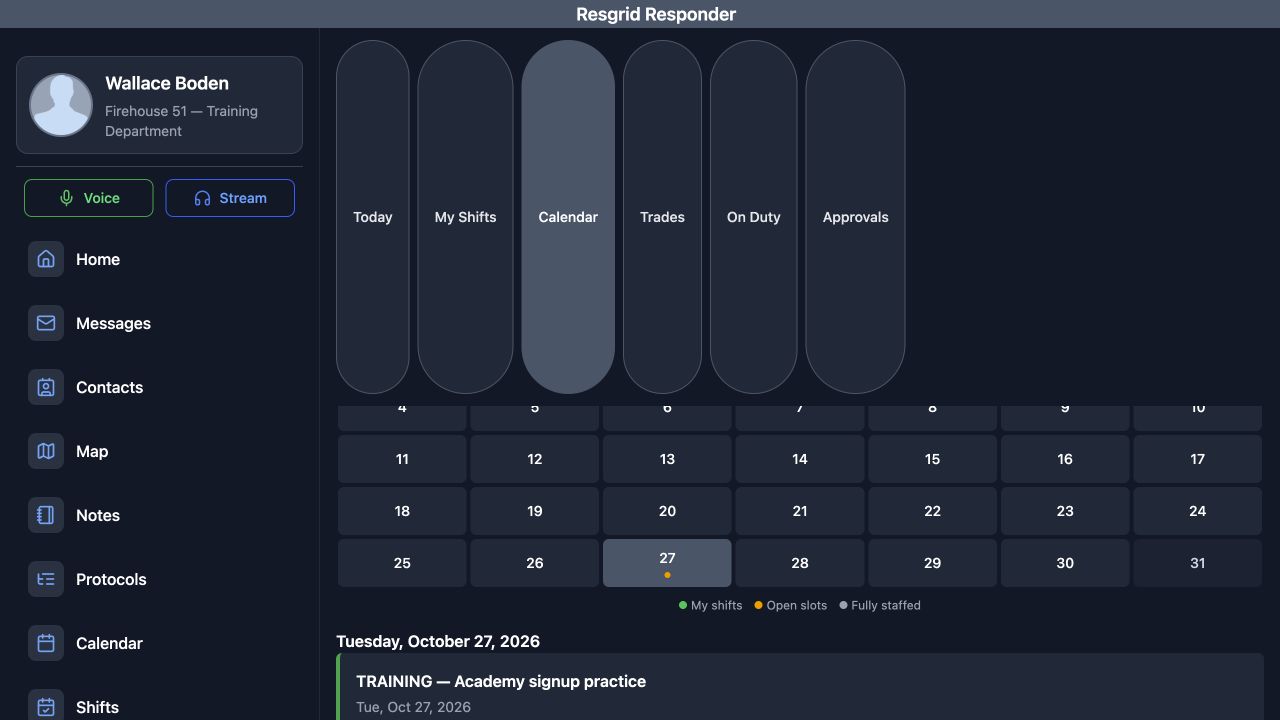
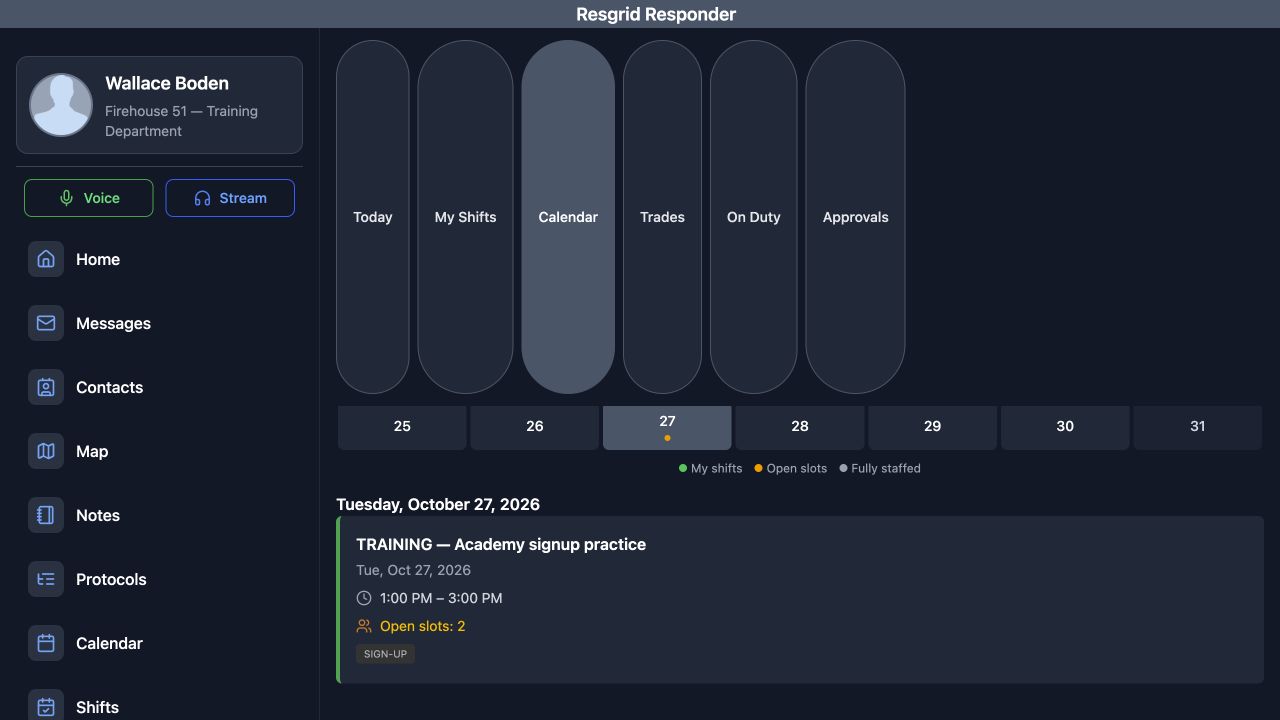
Choose Calendar to look beyond the current day's list. The month heading establishes the period you are reading, and the filter row offers All Shifts or an individual shift. Select Training, Academy signup practice, then select the twenty-seventh of October. The legend identifies My shifts, Open slots and Fully staffed. The selected date appears above its day card, which shows the practice shift from one until three in the afternoon with two open slots. This recorded date is historical; its open-slot label does not establish a current signup opportunity.
Practice
Choose an individual calendar filter, select a date and compare the date heading with its day card.
Step 7
Inspect the group's role needs
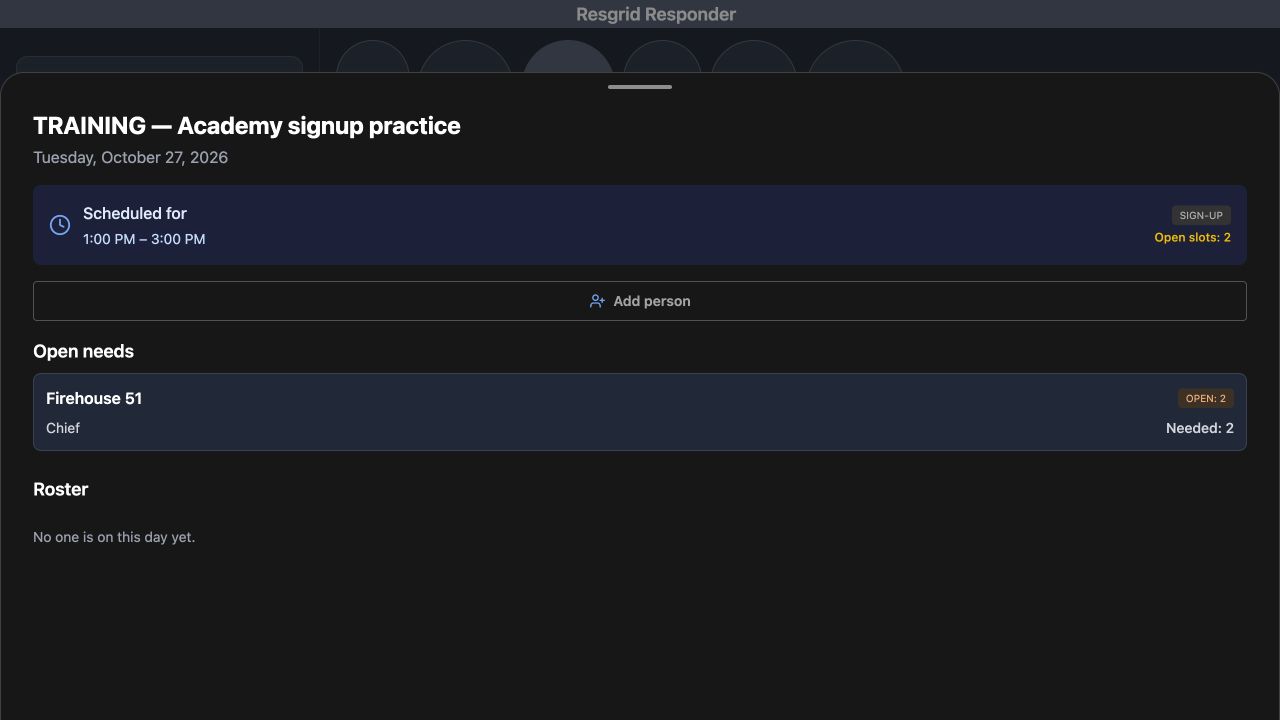
Open that practice day to read the actual group requirements. Open needs shows Firehouse 51 with Open, two, and a Chief requirement marked Needed, two. Below it, Roster says No one is on this day yet. Compare the required function with the saved roster before deciding how to fill a gap. Add person is visible, but this inspection does not change the roster. Checking the dated requirement helps a supervisor distinguish an uncovered function from a day that simply has a familiar shift name.
Practice
Compare the group's displayed role requirement and open count with the actual roster state.
Step 8
Read the On Duty roster carefully
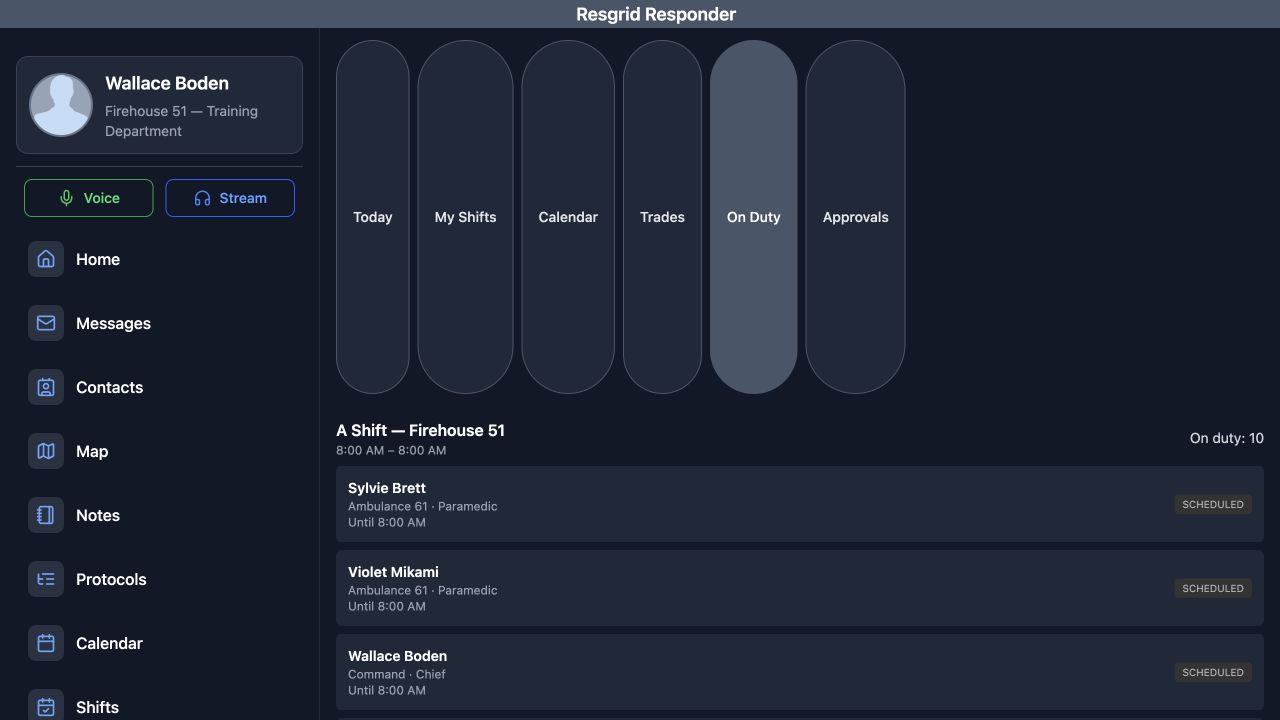
Return to the views and choose On Duty. A Shift shows ten on-duty entries in this recorded state. Each entry gives a name, group and role, an Until time and a Scheduled source label. Read the shift heading with the individual row so you do not mix two overlapping schedules. This view makes the saved coverage picture easier to review. Its Scheduled entries still need the appropriate availability and attendance checks for your department's real work.
Practice
Read the shift heading, on-duty count, individual group and role, Until time and source label together.
Step 9
Inspect the trade and approval queues
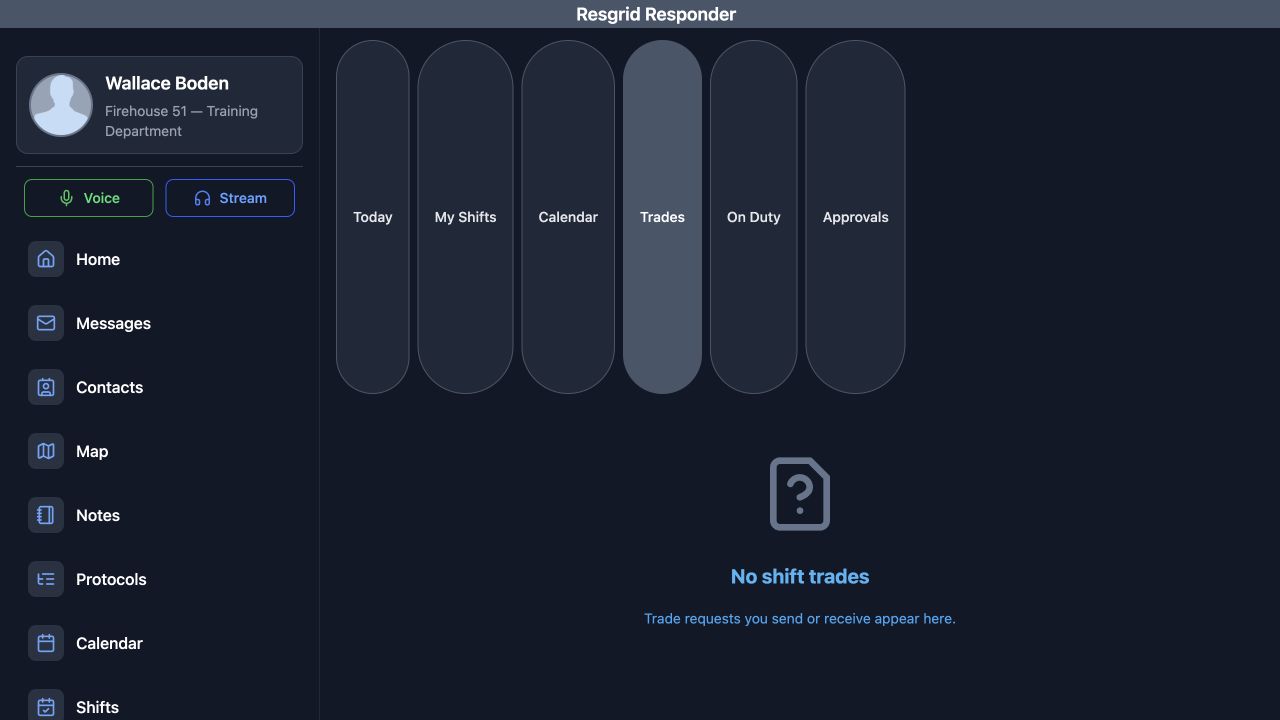
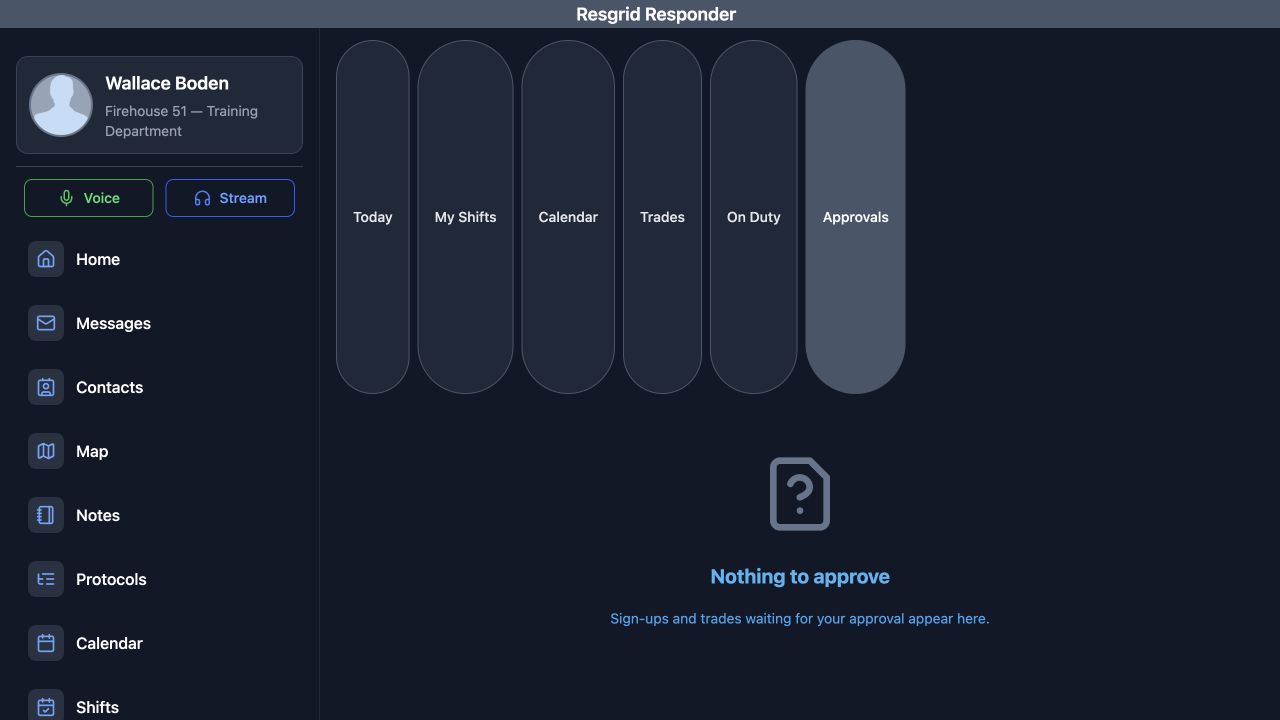
Choose Trades to review the trade workspace. This account currently shows No shift trades, and explains that requests you send or receive appear here. Then choose Approvals. The recorded result is Nothing to approve, with a note that sign-ups and trades waiting for your approval appear here. These are the current account's displayed queues. An empty queue is not a completed approval or a confirmed replacement. Read the actual pending entry and its result whenever your department performs those operations.
Practice
Open Trades and Approvals and read the actual returned queue state before assuming that a staffing change is complete.
Step 10
Apply the coverage checks to your team
Return to the intended day and recheck its identity, hours, personal roster label and approval requirement. The same checks help community paramedicine and mental health teams plan outreach coverage, search-and-rescue teams review mission support, security companies check a staffed post, wildland contractors plan crew coverage, and industrial response teams review an emergency roster. Fire and EMS departments can use them for their own station coverage. Match your department's roles and dates, investigate gaps, and verify the actual people before relying on a schedule for a handover.
Practice
Reopen the intended day and verify the saved schedule against the roles, people and availability your department actually needs.
Examples for your department
- Fire / EMS
- Compare station coverage, overnight times, roles and the actual crew before a handover.
- Community response
- Review appropriate outreach or mental health response coverage and verify actual availability.
- Search and rescue
- Check the intended date and required mission-support roles before planning coverage.
- Security
- Read post coverage, assignment mode and approval requirements before a staffing change.
- Wildland
- Compare crew schedule, dates and role needs while separately confirming actual personnel availability.
- Industrial
- Review the emergency roster and uncovered functions for the intended shift occurrence.
Transcript
Download transcriptRead the complete transcript
Responder: read shift schedules, rosters and coverage needs
Audience: Scheduled personnel, Field supervisors, Department trainers

Find the intended shift today
In Responder, open Shifts from the navigation, then choose Today. Across the top are My Shifts, Calendar, Trades, On Duty and Approvals. Start by reading the intended day card. Here, A Shift at Firehouse 51 runs from eight in the morning until eight the next morning. The words next day matter when planning an overnight handover. Assigned describes this schedule's assignment mode. You are on identifies the signed-in person's roster membership, and Fully staffed is the displayed coverage result.
Practice: Open Shifts, choose Today, and read the full date and overnight time range on the intended day card.

Search and compare the standby result
Use Search shifts to narrow the list. Entering Community leaves the Community standby signup card. Read its date and its eight-to-noon time range. This card shows Sign-up and Approval required, while the current account already shows You are on. Those labels answer different questions: how this shift is offered, whether approval is required, and whether this person is already on its roster. Searching changes what you see in the list; it does not change the saved assignment.
Practice: Search for the intended shift and distinguish its assignment mode, approval label and personal roster state.

Read the day detail and approval rule
Open the standby card to read its day detail. The heading and date identify the selected occurrence, and Scheduled for repeats its time range. The page explicitly says that sign-ups and trades on this shift need supervisor approval. Read that rule before planning a coverage change. Open needs shows Firehouse 51 as Filled, with No role requirements for this particular day. Request trade and Add person are visible actions here. This walkthrough is inspecting the saved day, so neither action is submitted.
Practice: Open the intended day and read its approval rule and group coverage before considering a roster action.

Read names, groups and roster source
Scroll through Roster and compare the person with the group and role beside them. Wallace Boden appears under Command with Chief, while the Engine and Squad entries identify their own people and roles. The repeated Scheduled label describes the saved roster source. Use these details to check that the people and functions you expected are represented. Confirm actual availability and attendance through your department's procedures before assigning work based on this schedule.
Practice: Read a person's group, role and Scheduled label without treating a saved schedule as physical attendance verification.

Compare personal shift summaries
Return to the shift views and choose My Shifts. Under Shifts I am on, the A Shift summary shows its code, personnel count, group count, next displayed day, rotation and Assigned label. Scroll to the standby summary to compare its own code and time range. It shows Manual, Sign-up and Approval required. Upcoming days begins a separate section below these summaries. Keep the shift definition and the dated occurrence distinct when checking which day you need to open.
Practice: Compare the shift summaries and identify the separate Upcoming days section.

Filter the calendar and select a date
Choose Calendar to look beyond the current day's list. The month heading establishes the period you are reading, and the filter row offers All Shifts or an individual shift. Select Training, Academy signup practice, then select the twenty-seventh of October. The legend identifies My shifts, Open slots and Fully staffed. The selected date appears above its day card, which shows the practice shift from one until three in the afternoon with two open slots. This recorded date is historical; its open-slot label does not establish a current signup opportunity.
Practice: Choose an individual calendar filter, select a date and compare the date heading with its day card.

Inspect the group's role needs
Open that practice day to read the actual group requirements. Open needs shows Firehouse 51 with Open, two, and a Chief requirement marked Needed, two. Below it, Roster says No one is on this day yet. Compare the required function with the saved roster before deciding how to fill a gap. Add person is visible, but this inspection does not change the roster. Checking the dated requirement helps a supervisor distinguish an uncovered function from a day that simply has a familiar shift name.
Practice: Compare the group's displayed role requirement and open count with the actual roster state.

Read the On Duty roster carefully
Return to the views and choose On Duty. A Shift shows ten on-duty entries in this recorded state. Each entry gives a name, group and role, an Until time and a Scheduled source label. Read the shift heading with the individual row so you do not mix two overlapping schedules. This view makes the saved coverage picture easier to review. Its Scheduled entries still need the appropriate availability and attendance checks for your department's real work.
Practice: Read the shift heading, on-duty count, individual group and role, Until time and source label together.

Inspect the trade and approval queues
Choose Trades to review the trade workspace. This account currently shows No shift trades, and explains that requests you send or receive appear here. Then choose Approvals. The recorded result is Nothing to approve, with a note that sign-ups and trades waiting for your approval appear here. These are the current account's displayed queues. An empty queue is not a completed approval or a confirmed replacement. Read the actual pending entry and its result whenever your department performs those operations.
Practice: Open Trades and Approvals and read the actual returned queue state before assuming that a staffing change is complete.

Apply the coverage checks to your team
Return to the intended day and recheck its identity, hours, personal roster label and approval requirement. The same checks help community paramedicine and mental health teams plan outreach coverage, search-and-rescue teams review mission support, security companies check a staffed post, wildland contractors plan crew coverage, and industrial response teams review an emergency roster. Fire and EMS departments can use them for their own station coverage. Match your department's roles and dates, investigate gaps, and verify the actual people before relying on a schedule for a handover.
Practice: Reopen the intended day and verify the saved schedule against the roles, people and availability your department actually needs.

Examples for your department
Fire / EMS: Compare station coverage, overnight times, roles and the actual crew before a handover.
Community response: Review appropriate outreach or mental health response coverage and verify actual availability.
Search and rescue: Check the intended date and required mission-support roles before planning coverage.
Security: Read post coverage, assignment mode and approval requirements before a staffing change.
Wildland: Compare crew schedule, dates and role needs while separately confirming actual personnel availability.
Industrial: Review the emergency roster and uncovered functions for the intended shift occurrence.