
Responder · Video walkthrough
Responder: save and finalize an existing department record
Update a saved department-form draft, verify a retained Notes revision, attest to accurate content and confirm the finalized record through the Records list and fresh readback.
Before you begin
- Normal authorized Responder sign-in and access to the intended department Records workspace.
- An existing fictional training draft in the department’s published form; this lesson begins after creation.
- Authority to finalize the record and actual content you can accurately attest to.
Chapters
Watch the walkthrough
Step 1
Find the intended draft
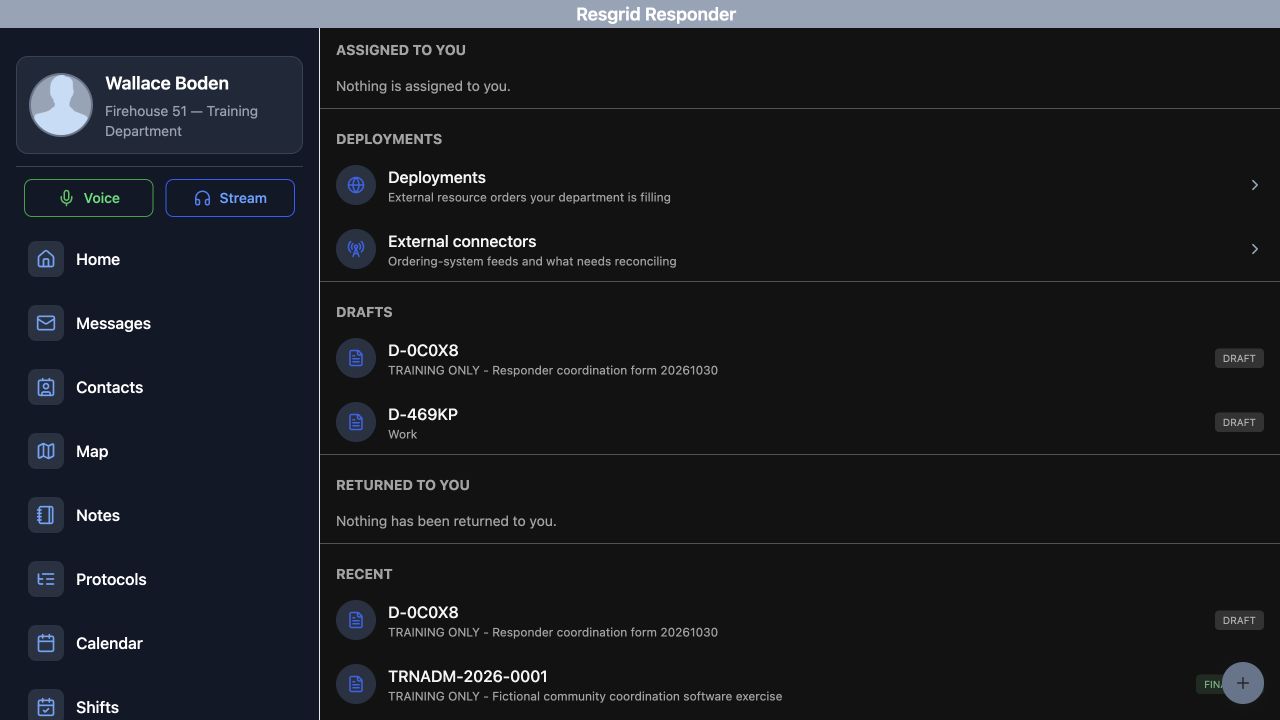
On this Records screen, Drafts and Recent show different parts of an entry’s progress. Find the training entry in Drafts and compare its descriptive text before opening it. The reference beginning with D identifies this draft; it is not yet the final record number. Open that entry, keeping it distinct from the separate Work draft.
Practice
Identify the intended training draft by its descriptive text and draft reference before opening it.
Step 2
Read the existing department form
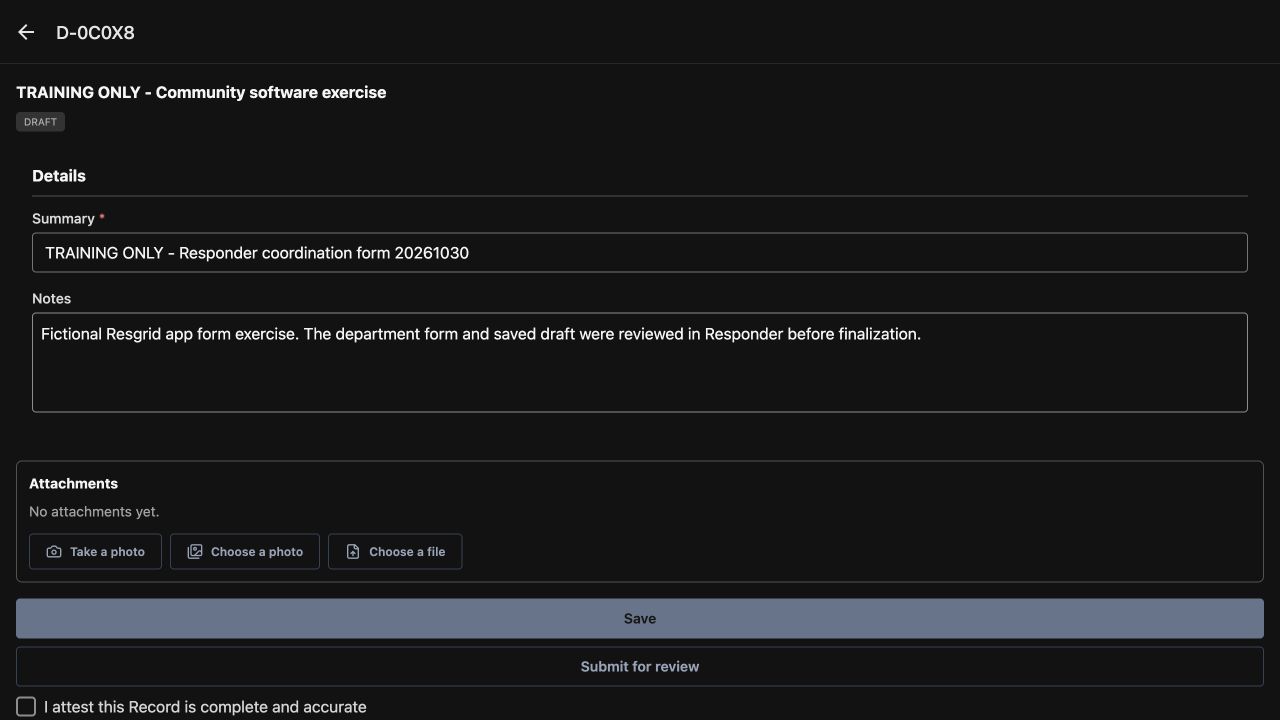
The opened form is Training Only, Community software exercise. In Details, Summary is marked required, and Notes provides space for the supporting explanation. Read the existing Summary first so you can recognize this record when you return to the list. The Notes currently describe a fictional Resgrid form exercise. Under Attachments, Take a photo, Choose a photo and Choose a file are available, while No attachments yet shows this example has none.
Practice
Read the existing Summary and Notes, and distinguish visible attachment choices from an actual uploaded attachment.
Step 3
Save a deliberate Notes revision
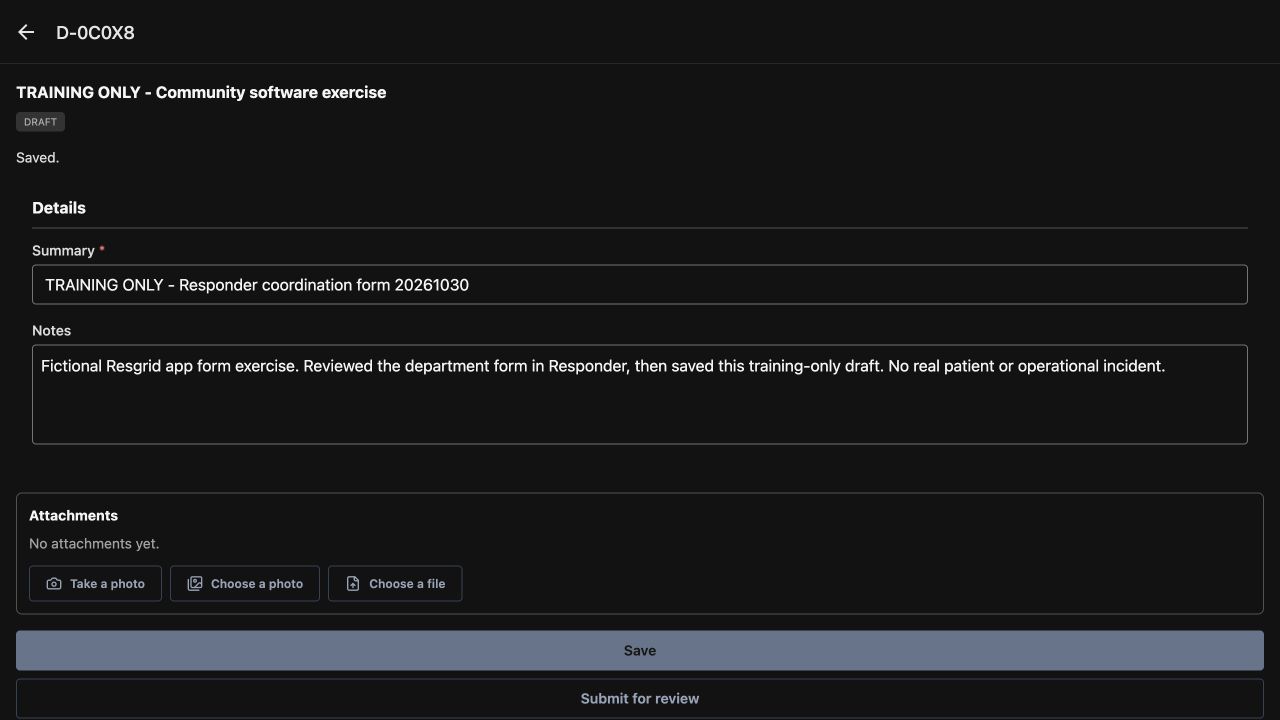
Update Notes with the information that belongs in this entry, then choose Save. Here, the revised Notes explain that the department form was reviewed in Responder and that this is a software practice exercise. The app returns Saved, and the record still shows Draft. Keep the unchanged Summary and draft reference in view so you can tell this revision belongs to the same record.
Practice
Revise only the intended Notes, save once, and check the returned result and unchanged record identity.
Step 4
Check the saved readback
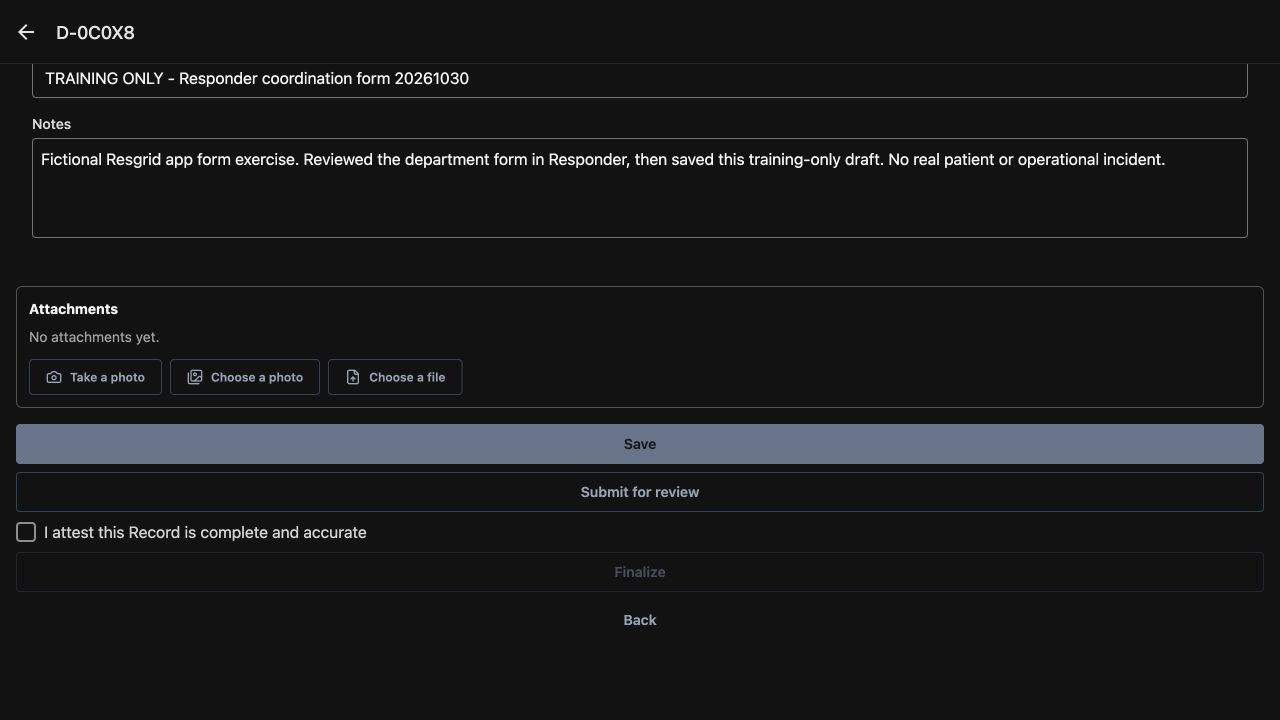
When you reopen the same draft from the Records list, read Notes again. The revised software exercise text is retained here, rather than only sitting in an unsaved editor. No attachments yet remains the actual attachment state. Before completing the record, compare the saved content with the work you actually documented.
Practice
Reopen the saved training draft and check that the revised Notes and attachment state were retained.
Step 5
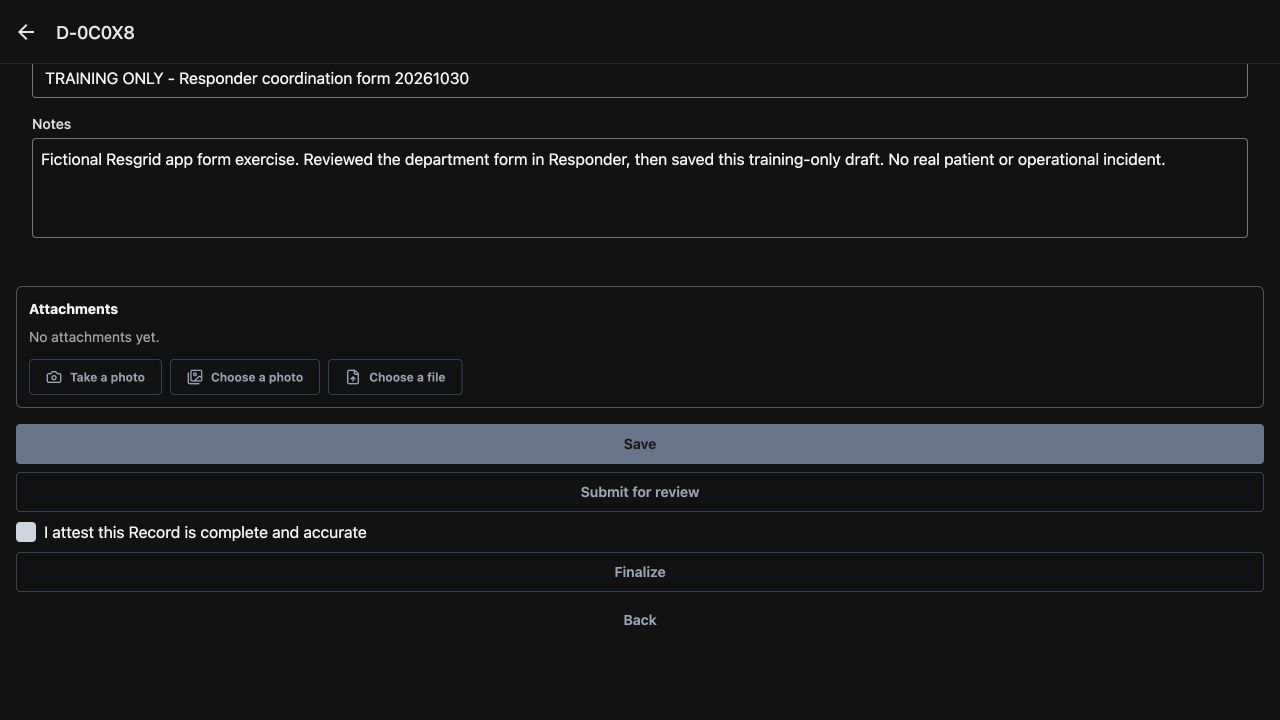
Read and select the attestation
Read the statement, I attest this Record is complete and accurate. The checkbox is initially empty, and Finalize is unavailable. Select the attestation only after checking the record’s actual content. In this example, that content describes a fictional software exercise. With the attestation selected, Finalize becomes available.
Practice
Compare the unchecked and selected attestation states, and attest only to content you have verified.
Step 6
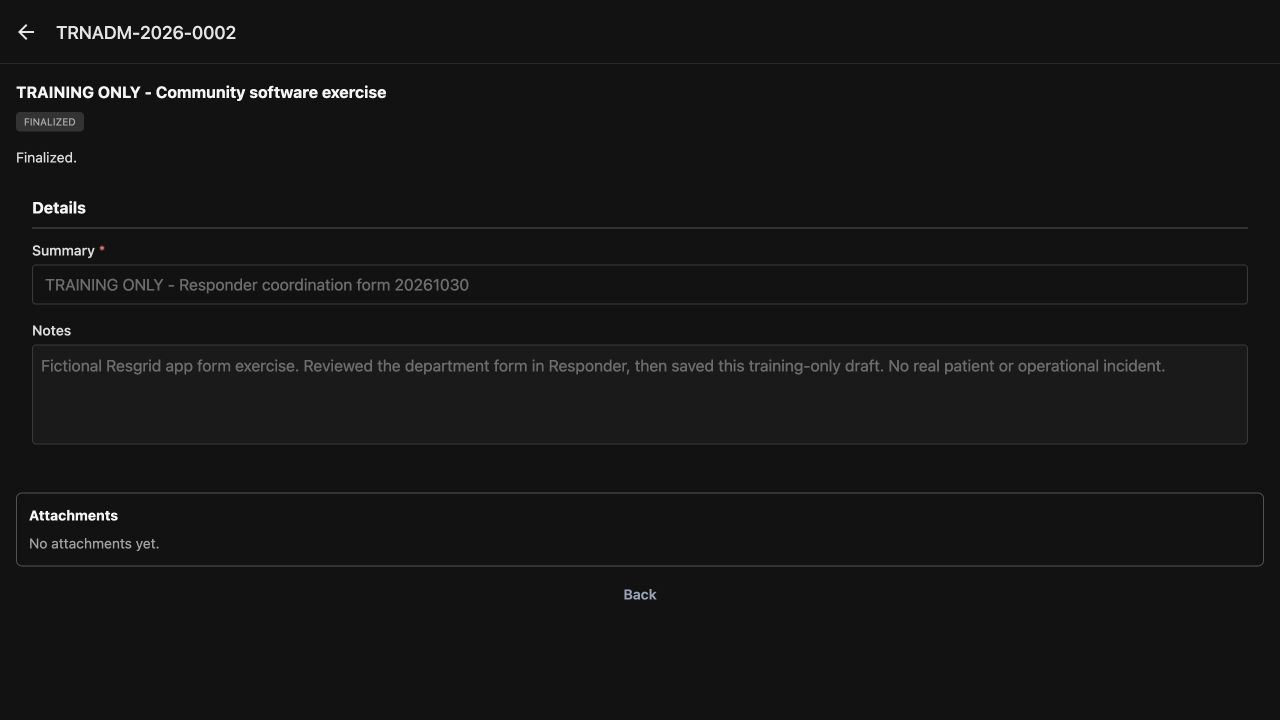
Finalize and inspect the result
Choose Finalize once when this record is ready to complete. The app returns Finalized and displays a final record number at the top in place of the draft reference. Summary and Notes are now read-only, and the attachment-picking actions are no longer offered in this view. This is the observed completion of this record, rather than a submitted review request.
Practice
Inspect the actual Finalized result, permanent record number and read-only form after the deliberate completion action.
Step 7
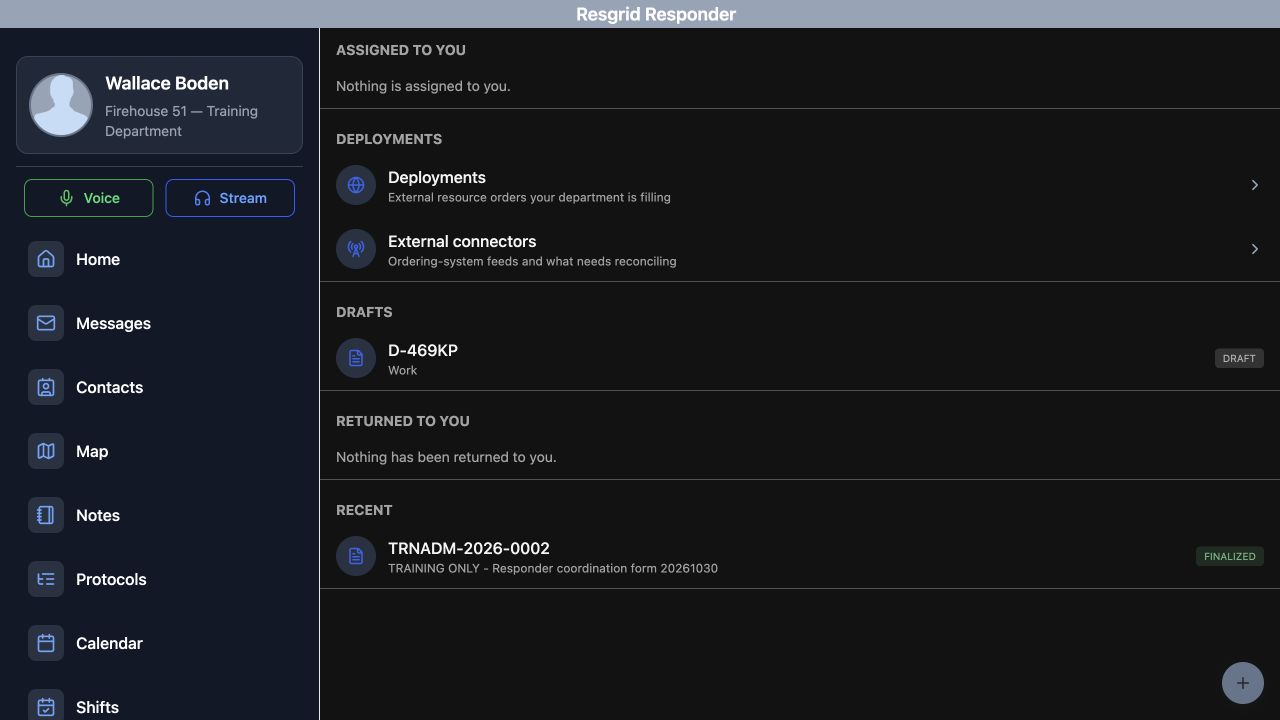
Find the completed entry in Recent
Use Back to return to the Records workspace. In Recent, find the same descriptive text together with its final record number and Finalized status. The separate Work draft remains in Drafts, while the entry you completed is no longer listed there.
Practice
Read the final entry in Recent and distinguish it from unrelated drafts that remain unfinished.
Step 8
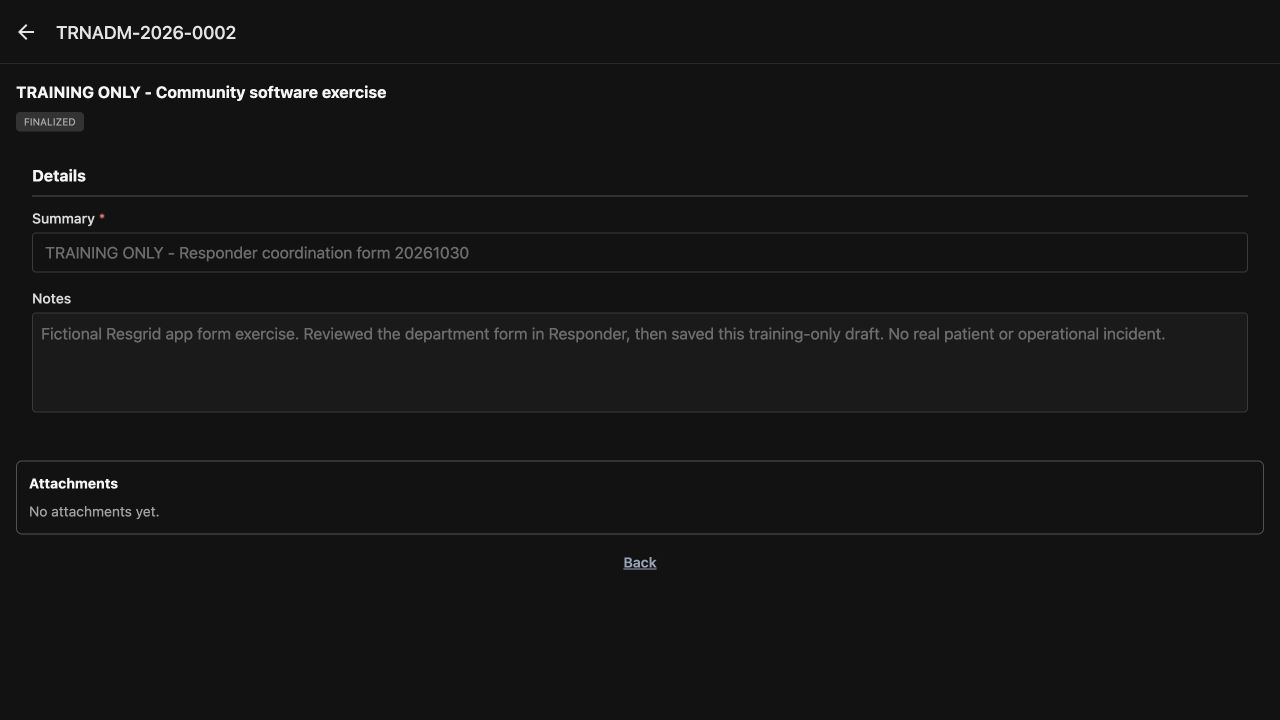
Reopen the final read-only record
Reopen that Recent entry and confirm its number, Finalized status, Summary and Notes. This fresh readback retains the saved content, and Save, Submit for review and Finalize are absent from the completed form. Use the same identity, save and final-readback checks for forms used by community paramedicine and mental health teams, search and rescue, security companies, wildland contractors, industrial responders and fire or EMS departments. Choose the content appropriate to your department, and verify each record’s actual state before leaving it.
Practice
Reopen the final record from Recent and confirm that the saved content and read-only state persist.
Examples for your department
- Fire / EMS
- An authorized crew member completes a training or operational department form, checks the saved draft and confirms its final read-only state.
- Community response
- A community paramedicine or mental health response team verifies an appropriate departmental form and record state while following its own information-handling procedures.
- Search and rescue
- A search team records appropriate mission-support administration in its department form and checks the intended entry before finalization.
- Security
- A security company supervisor verifies the correct administrative entry, supporting notes and completed readback without confusing another unfinished draft.
- Wildland
- A wildland contractor checks the intended crew or training administration entry, saves a deliberate revision and confirms the resulting final record.
- Industrial
- An industrial response team records a department exercise or administrative activity, verifies saved notes and inspects the completed form.
Transcript
Download transcriptRead the complete transcript
Responder: save and finalize an existing department record
Audience: Authorized Responder record authors, Field supervisors, Department trainers

Find the intended draft
On this Records screen, Drafts and Recent show different parts of an entry’s progress. Find the training entry in Drafts and compare its descriptive text before opening it. The reference beginning with D identifies this draft; it is not yet the final record number. Open that entry, keeping it distinct from the separate Work draft.
Practice: Identify the intended training draft by its descriptive text and draft reference before opening it.

Read the existing department form
The opened form is Training Only, Community software exercise. In Details, Summary is marked required, and Notes provides space for the supporting explanation. Read the existing Summary first so you can recognize this record when you return to the list. The Notes currently describe a fictional Resgrid form exercise. Under Attachments, Take a photo, Choose a photo and Choose a file are available, while No attachments yet shows this example has none.
Practice: Read the existing Summary and Notes, and distinguish visible attachment choices from an actual uploaded attachment.

Save a deliberate Notes revision
Update Notes with the information that belongs in this entry, then choose Save. Here, the revised Notes explain that the department form was reviewed in Responder and that this is a software practice exercise. The app returns Saved, and the record still shows Draft. Keep the unchanged Summary and draft reference in view so you can tell this revision belongs to the same record.
Practice: Revise only the intended Notes, save once, and check the returned result and unchanged record identity.

Check the saved readback
When you reopen the same draft from the Records list, read Notes again. The revised software exercise text is retained here, rather than only sitting in an unsaved editor. No attachments yet remains the actual attachment state. Before completing the record, compare the saved content with the work you actually documented.
Practice: Reopen the saved training draft and check that the revised Notes and attachment state were retained.

Read and select the attestation
Read the statement, I attest this Record is complete and accurate. The checkbox is initially empty, and Finalize is unavailable. Select the attestation only after checking the record’s actual content. In this example, that content describes a fictional software exercise. With the attestation selected, Finalize becomes available.
Practice: Compare the unchecked and selected attestation states, and attest only to content you have verified.

Finalize and inspect the result
Choose Finalize once when this record is ready to complete. The app returns Finalized and displays a final record number at the top in place of the draft reference. Summary and Notes are now read-only, and the attachment-picking actions are no longer offered in this view. This is the observed completion of this record, rather than a submitted review request.
Practice: Inspect the actual Finalized result, permanent record number and read-only form after the deliberate completion action.

Find the completed entry in Recent
Use Back to return to the Records workspace. In Recent, find the same descriptive text together with its final record number and Finalized status. The separate Work draft remains in Drafts, while the entry you completed is no longer listed there.
Practice: Read the final entry in Recent and distinguish it from unrelated drafts that remain unfinished.

Reopen the final read-only record
Reopen that Recent entry and confirm its number, Finalized status, Summary and Notes. This fresh readback retains the saved content, and Save, Submit for review and Finalize are absent from the completed form. Use the same identity, save and final-readback checks for forms used by community paramedicine and mental health teams, search and rescue, security companies, wildland contractors, industrial responders and fire or EMS departments. Choose the content appropriate to your department, and verify each record’s actual state before leaving it.
Practice: Reopen the final record from Recent and confirm that the saved content and read-only state persist.

Examples for your department
Fire / EMS: An authorized crew member completes a training or operational department form, checks the saved draft and confirms its final read-only state.
Community response: A community paramedicine or mental health response team verifies an appropriate departmental form and record state while following its own information-handling procedures.
Search and rescue: A search team records appropriate mission-support administration in its department form and checks the intended entry before finalization.
Security: A security company supervisor verifies the correct administrative entry, supporting notes and completed readback without confusing another unfinished draft.
Wildland: A wildland contractor checks the intended crew or training administration entry, saves a deliberate revision and confirms the resulting final record.
Industrial: An industrial response team records a department exercise or administrative activity, verifies saved notes and inspects the completed form.