
Responder · Video walkthrough
Responder: renew certifications and record education hours
Review an existing certification, save an education-hours entry, renew its date, and understand the resulting verification state.
Before you begin
- A normal authorized Responder account and an existing training certification.
- Use fictional exercise values and follow your department record-review procedure.
Chapters
Watch the walkthrough
Step 1
Find the intended certification
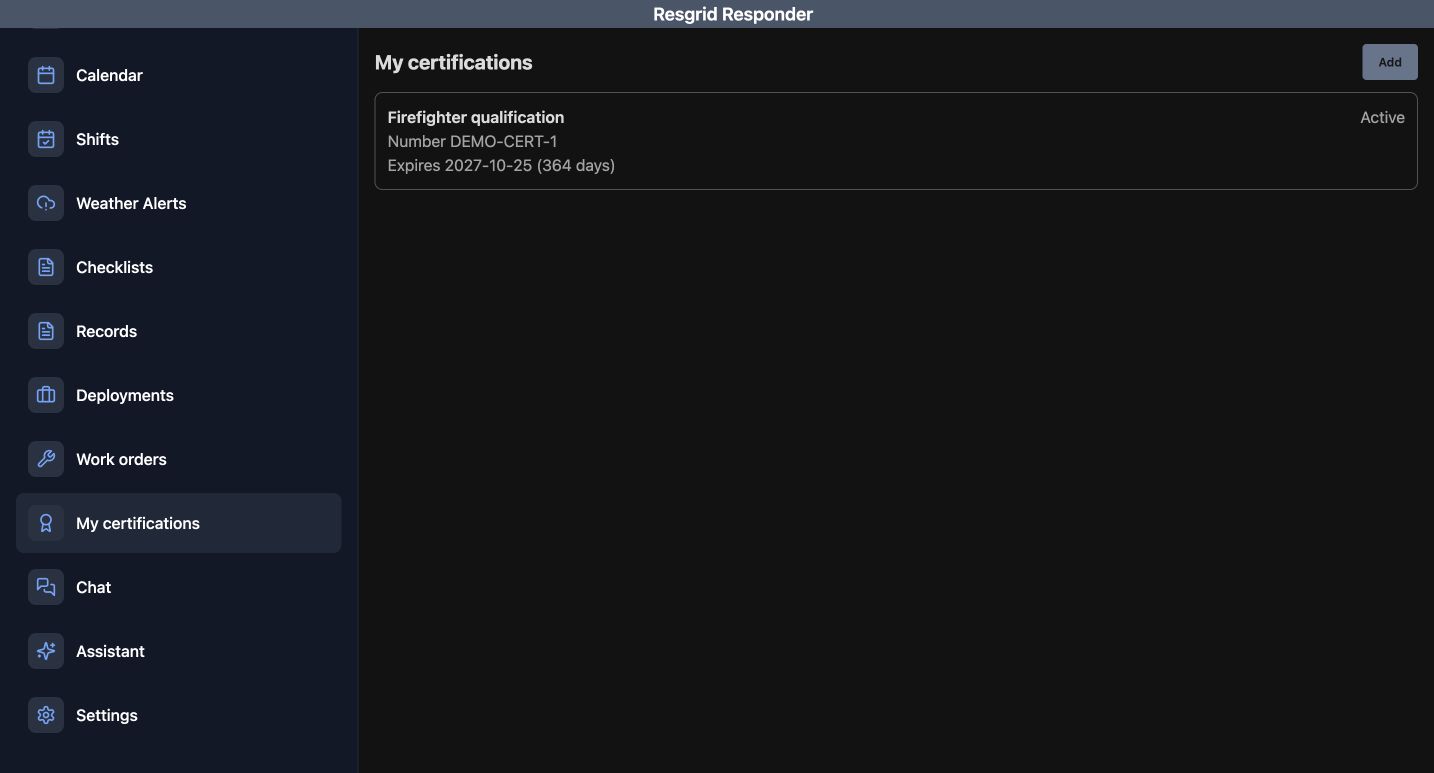
Open My certifications in Responder. This area gives the signed-in member a place to review their own certification records. The training account has an existing Firefighter qualification, marked Active, with the number DEMO-CERT-1 and an expiry date. Open the intended record before changing it. An organization can use this recordkeeping pattern for its own required qualifications, including community response, search teams, security, contractor crews, and industrial response.
Practice
Locate the intended record and compare its name, number and displayed status.
Step 2
Review dates, verification and available fields
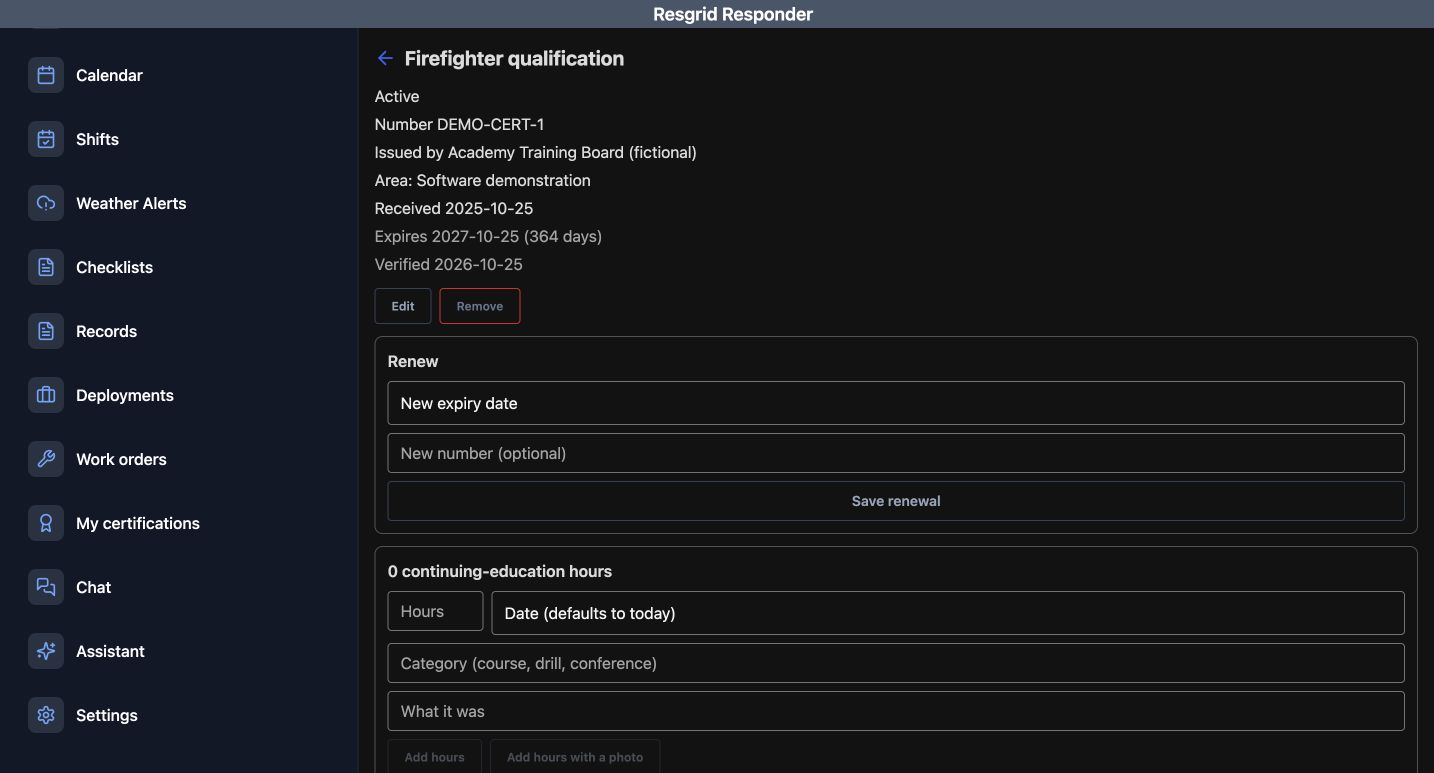
Review the record detail before acting. Check the number, issuer, area, received date, expiry date, and verification date. Our example is issued by the fictional Academy Training Board. Renew has fields for a new expiry date and an optional new number. The continuing-education section starts with zero hours and offers Hours, Date, Category, and What it was. These fields help keep an education entry attached to the correct qualification.
Practice
Compare the record identity and current verification before entering an update.
Step 3
Review and add an education entry
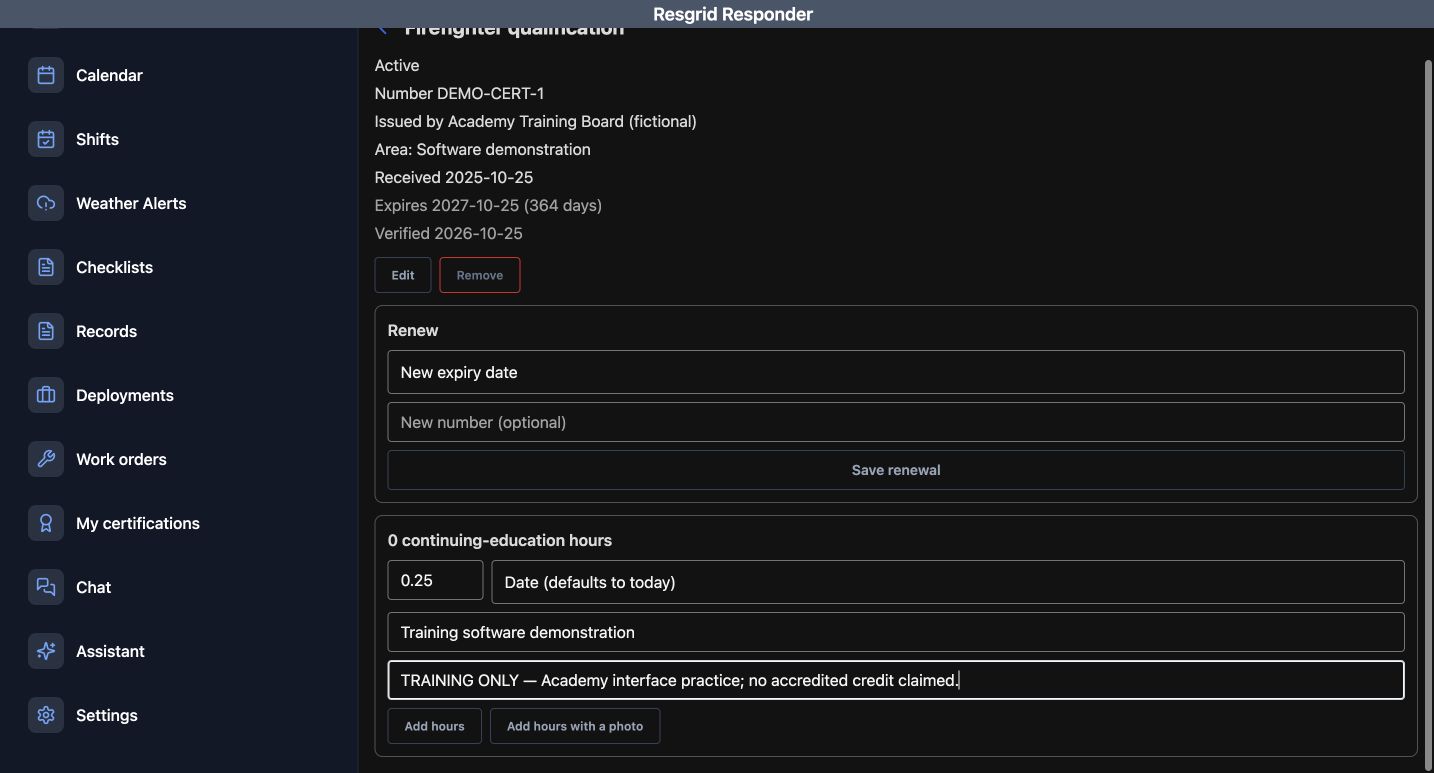
For this software exercise, enter zero point two five hours. The Date field indicates that it defaults to today. We enter Training software demonstration as the category and a note explicitly saying that no accredited credit is claimed. Review the amount, date choice, category, and description before choosing Add hours. Use the actual activity information your department requires when maintaining a real record.
Practice
Review one permitted training entry and choose Add hours only when its values are correct.
Step 4
Read back the saved education hours
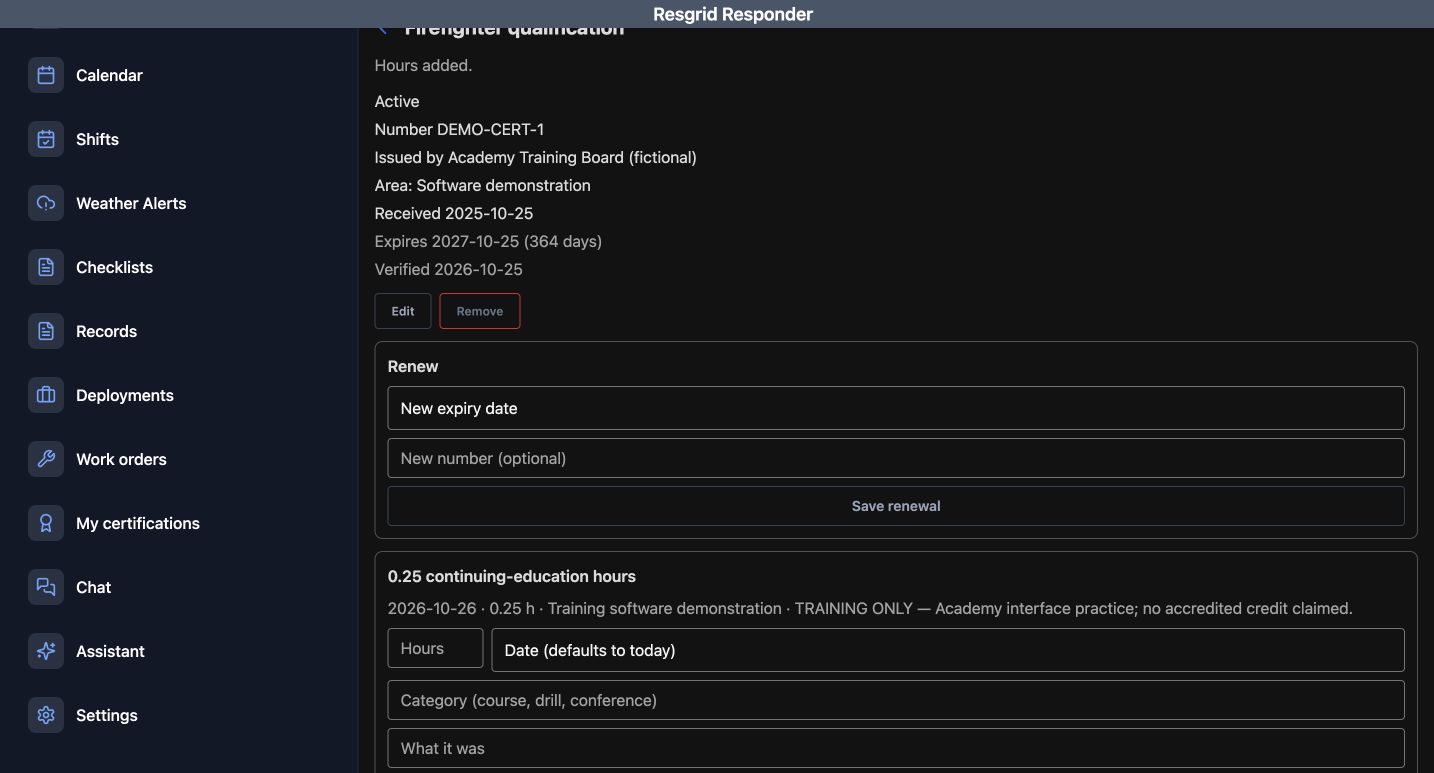
Read back the result. Hours added appears, the total is now zero point two five continuing-education hours, and the stored entry includes its date, amount, category, and note. The number is still DEMO-CERT-1. This saved ledger distinguishes an entry that reached the record from text left in a form. The displayed training entry is a software demonstration; its note does not claim an accredited course or awarded qualification.
Practice
Check the saved total and ledger entry after submission.
Step 5
Review and save the renewal date
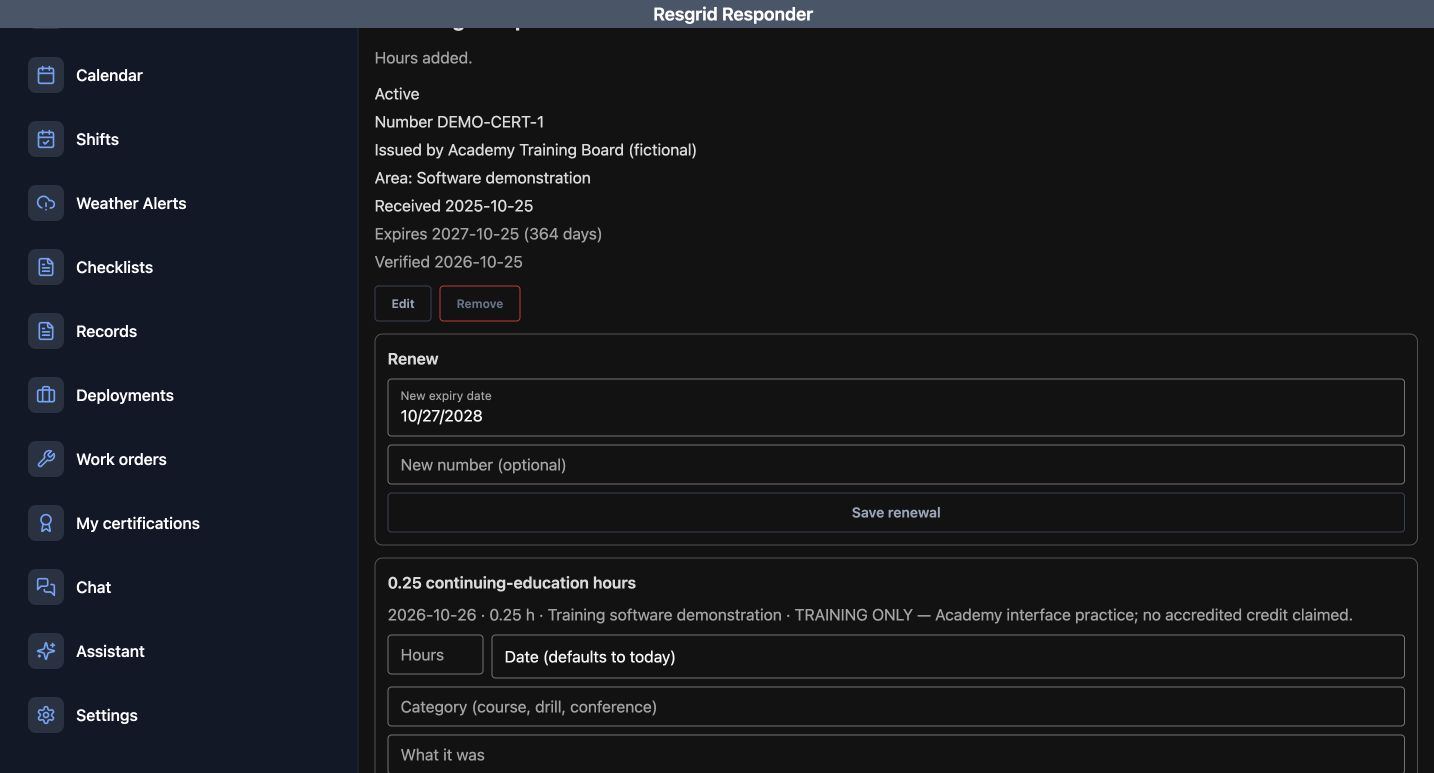
Next, review Renew. In this recorded training example, New expiry date is set to October twenty-seven, twenty twenty-eight. New number is optional and remains blank. Check the intended expiry date and whether the credential number needs to change, then choose Save renewal. Keep an education-hours entry and a certification renewal distinct: one adds an activity to the ledger, while this action updates the certification record.
Practice
Review the renewal date and optional number before Save renewal.
Step 6
Read the saved renewal and verification state
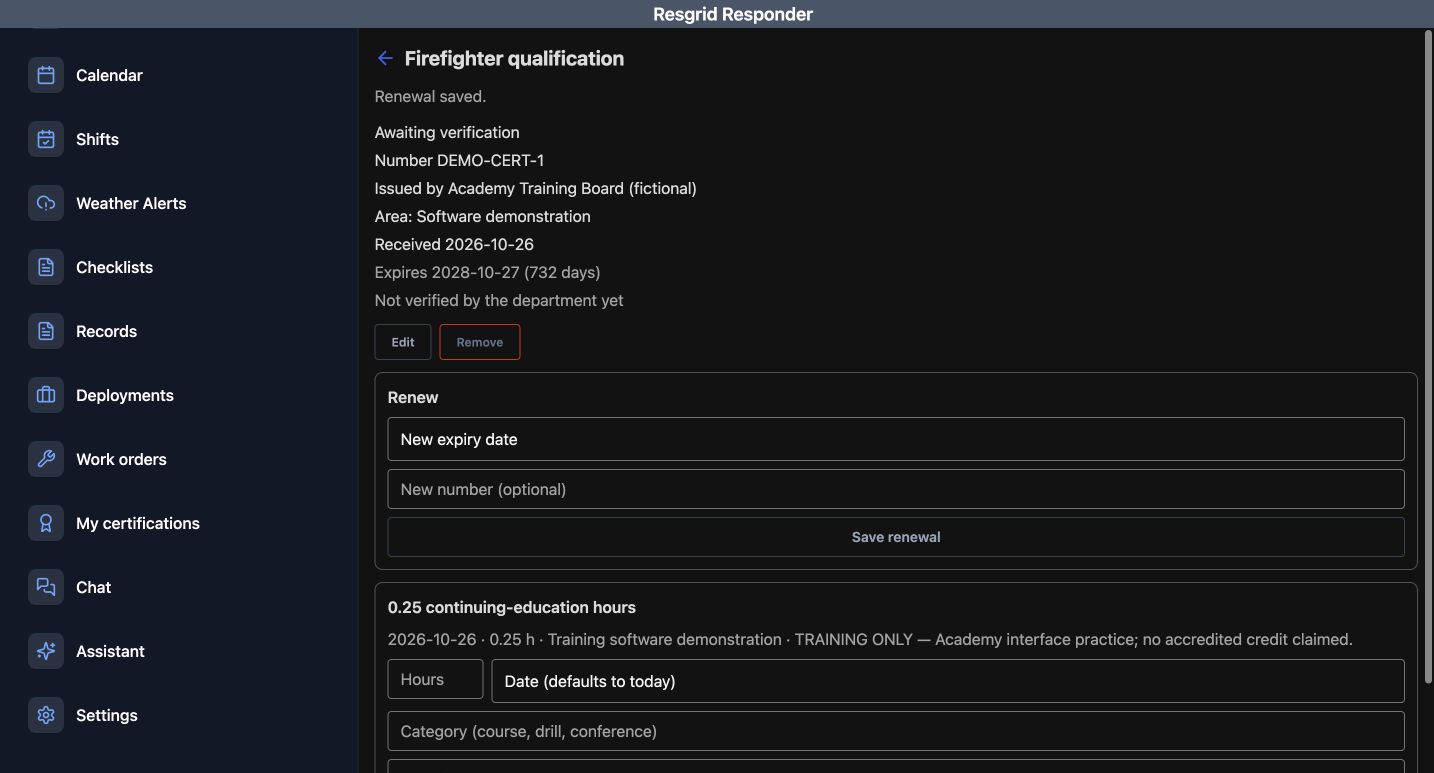
Verify the resulting record. Renewal saved appears, the expiry date is October twenty-seven, twenty twenty-eight, and the original number remains. The status now says Awaiting verification, with Not verified by the department yet. Read that state before treating the update as reviewed. The education entry remains visible below. This same habit supports fire and EMS personnel, community paramedicine and mental health response teams, search and rescue, security companies, wildland contractors, and industrial teams: maintain the details and check the department review state.
Practice
Verify the saved expiry, retained number, education total and pending verification state.
Examples for your department
- Fire / EMS
- Keep a training qualification record and its education entries together.
- Community response
- Track the qualifications your community paramedicine or mental health response team requires.
- Search and rescue
- Review team qualification expiry dates and stored education activities.
- Security
- Keep staff qualification records and permitted training entries organized.
- Wildland
- Maintain contractor crew qualification records and education history.
- Industrial
- Organize response-team qualification records under the site review procedure.
Transcript
Download transcriptRead the complete transcript
Responder: renew certifications and record education hours
Audience: Department members, Personnel maintaining their own records

Find the intended certification
Open My certifications in Responder. This area gives the signed-in member a place to review their own certification records. The training account has an existing Firefighter qualification, marked Active, with the number DEMO-CERT-1 and an expiry date. Open the intended record before changing it. An organization can use this recordkeeping pattern for its own required qualifications, including community response, search teams, security, contractor crews, and industrial response.
Practice: Locate the intended record and compare its name, number and displayed status.

Review dates, verification and available fields
Review the record detail before acting. Check the number, issuer, area, received date, expiry date, and verification date. Our example is issued by the fictional Academy Training Board. Renew has fields for a new expiry date and an optional new number. The continuing-education section starts with zero hours and offers Hours, Date, Category, and What it was. These fields help keep an education entry attached to the correct qualification.
Practice: Compare the record identity and current verification before entering an update.

Review and add an education entry
For this software exercise, enter zero point two five hours. The Date field indicates that it defaults to today. We enter Training software demonstration as the category and a note explicitly saying that no accredited credit is claimed. Review the amount, date choice, category, and description before choosing Add hours. Use the actual activity information your department requires when maintaining a real record.
Practice: Review one permitted training entry and choose Add hours only when its values are correct.

Read back the saved education hours
Read back the result. Hours added appears, the total is now zero point two five continuing-education hours, and the stored entry includes its date, amount, category, and note. The number is still DEMO-CERT-1. This saved ledger distinguishes an entry that reached the record from text left in a form. The displayed training entry is a software demonstration; its note does not claim an accredited course or awarded qualification.
Practice: Check the saved total and ledger entry after submission.

Review and save the renewal date
Next, review Renew. In this recorded training example, New expiry date is set to October twenty-seven, twenty twenty-eight. New number is optional and remains blank. Check the intended expiry date and whether the credential number needs to change, then choose Save renewal. Keep an education-hours entry and a certification renewal distinct: one adds an activity to the ledger, while this action updates the certification record.
Practice: Review the renewal date and optional number before Save renewal.

Read the saved renewal and verification state
Verify the resulting record. Renewal saved appears, the expiry date is October twenty-seven, twenty twenty-eight, and the original number remains. The status now says Awaiting verification, with Not verified by the department yet. Read that state before treating the update as reviewed. The education entry remains visible below. This same habit supports fire and EMS personnel, community paramedicine and mental health response teams, search and rescue, security companies, wildland contractors, and industrial teams: maintain the details and check the department review state.
Practice: Verify the saved expiry, retained number, education total and pending verification state.

Examples for your department
Fire / EMS: Keep a training qualification record and its education entries together.
Community response: Track the qualifications your community paramedicine or mental health response team requires.
Search and rescue: Review team qualification expiry dates and stored education activities.
Security: Keep staff qualification records and permitted training entries organized.
Wildland: Maintain contractor crew qualification records and education history.
Industrial: Organize response-team qualification records under the site review procedure.