
Responder · Video walkthrough
Responder: add call notes and record a personnel check-in
Add a note to the intended call, verify the saved text and author, then make a named personnel check-in and inspect its timer and history.
Before you begin
- An authorized Responder session with the appropriate call and check-in controls available.
- A fictional practice call and permission to record your own personnel check-in.
- Department procedures for operational notes, check-in intervals and missed check-ins.
Chapters
Watch the walkthrough
Step 1
Identify the call before adding a note
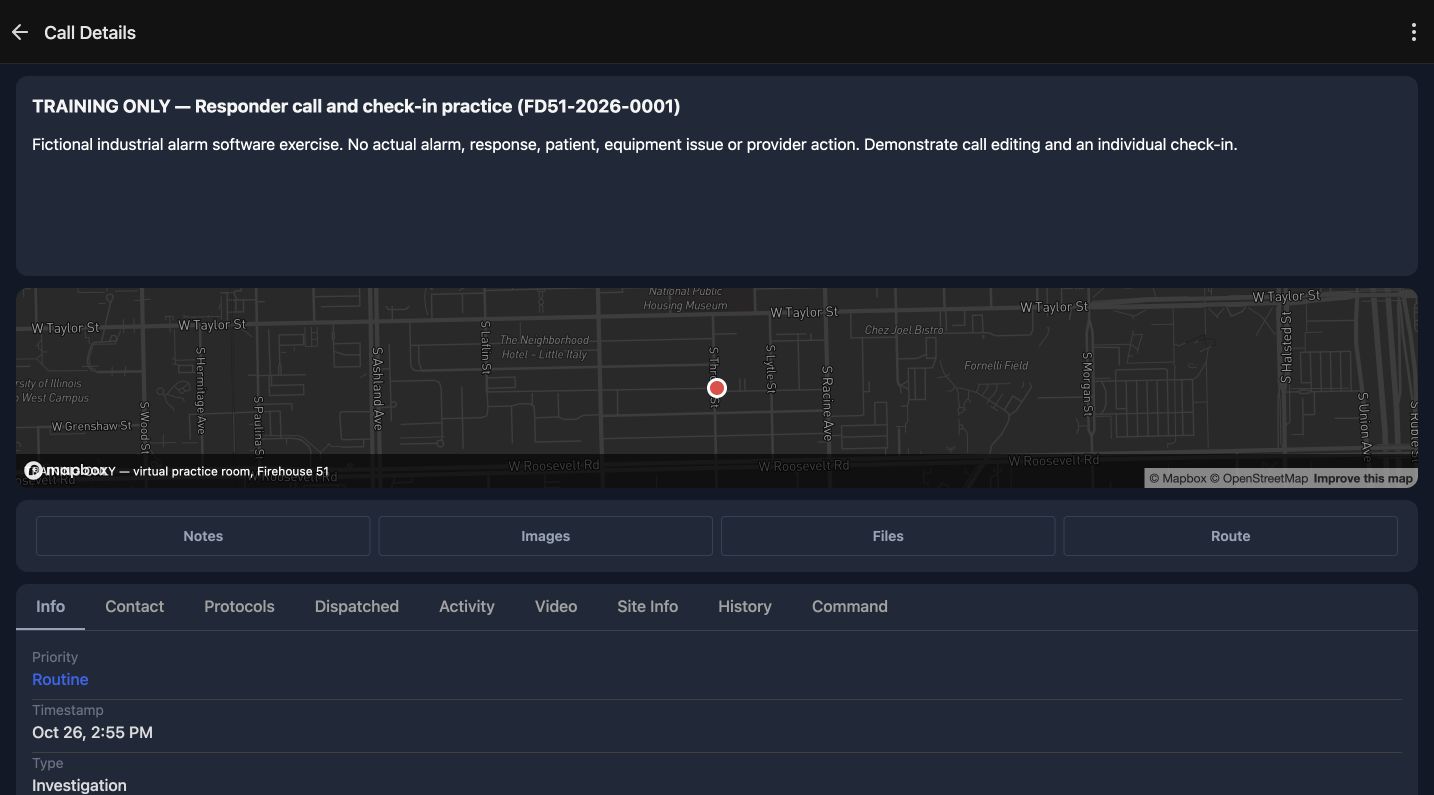
Call notes keep an incident update with the call it belongs to. Begin by reading the title and call number in Call Details. This example is Training Only, Responder call and check-in practice, F D fifty-one, twenty twenty-six, zero zero zero one. Its Nature describes a fictional industrial alarm exercise. Check the incident identity before adding information, especially when several calls have similar names. Choose Notes to open this call's notes.
Practice
Verify the intended practice incident and find its Notes control.
Step 2
Review and submit a useful call note
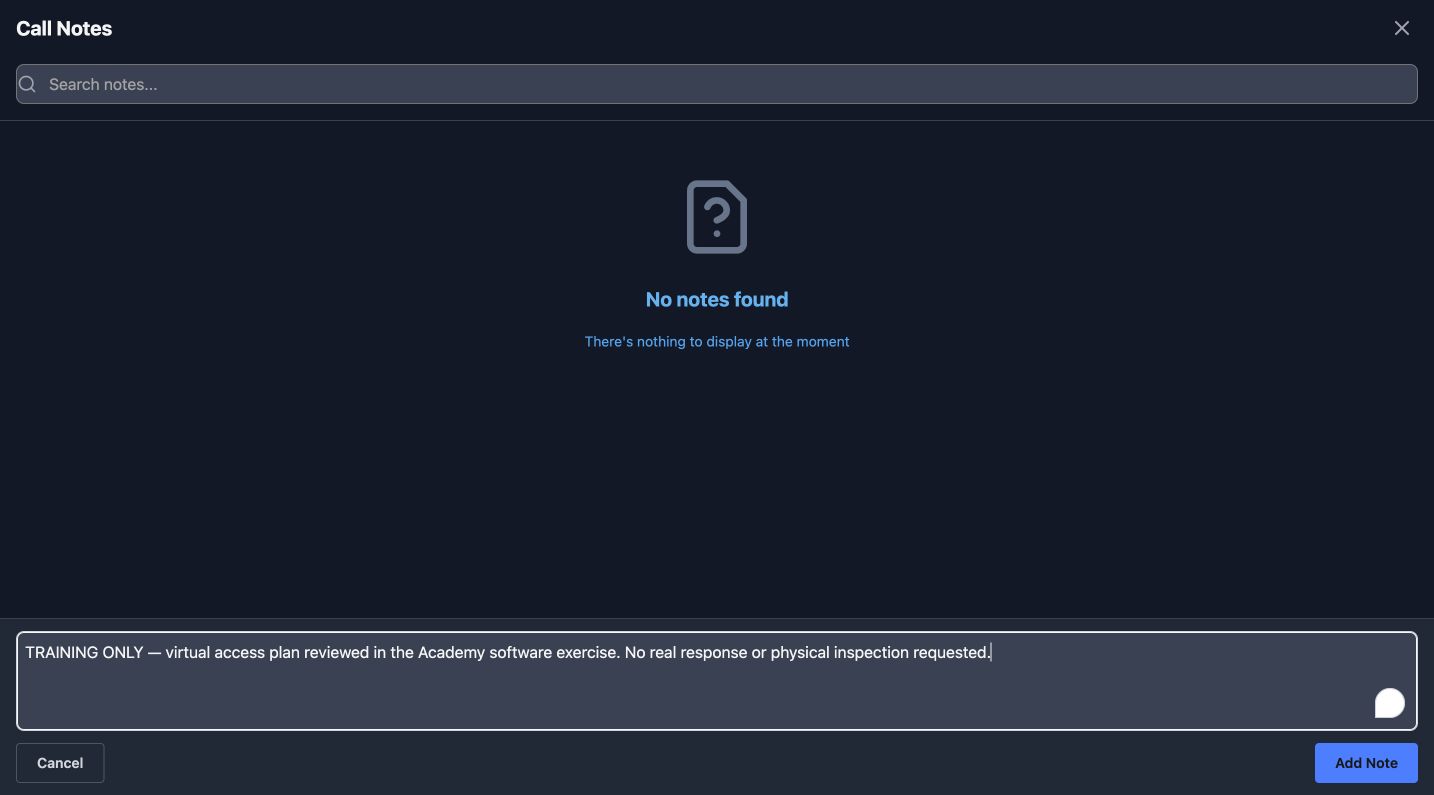
The Call Notes panel has a search field, an entry area and Add Note. In this prepared example, the entry records that a virtual access plan was reviewed in the Academy software exercise, with no real response or physical inspection requested. Use a clear update that distinguishes an observation, a request and completed work. Review the text before choosing Add Note. Avoid putting an update on the wrong incident simply because a notes panel is already open.
Practice
Review the prepared fictional note and identify Add Note before submitting it.
Step 3
Verify the saved note after reopening
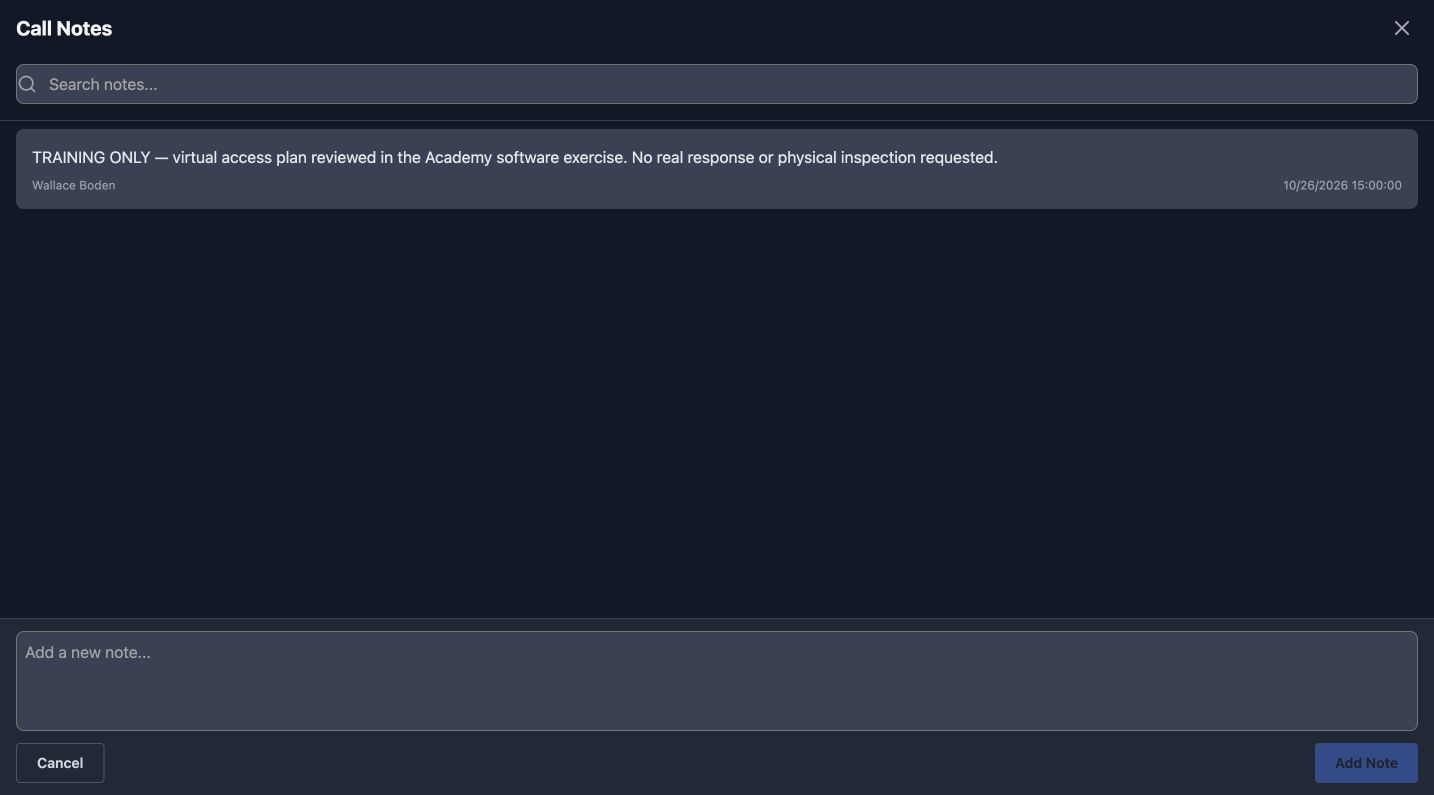
Reopen Call Notes and read the saved entry. The same complete text now appears in the list with Wallace Boden as its author and a recorded timestamp. The entry area below is empty again. Verify the actual saved text as well as its author; a prepared message in an entry field is different from a listed note. This gives the next person reviewing the call a specific update they can find and understand.
Practice
Compare the saved note with the prepared text, author and timestamp.
Step 4
Read the named personnel timer
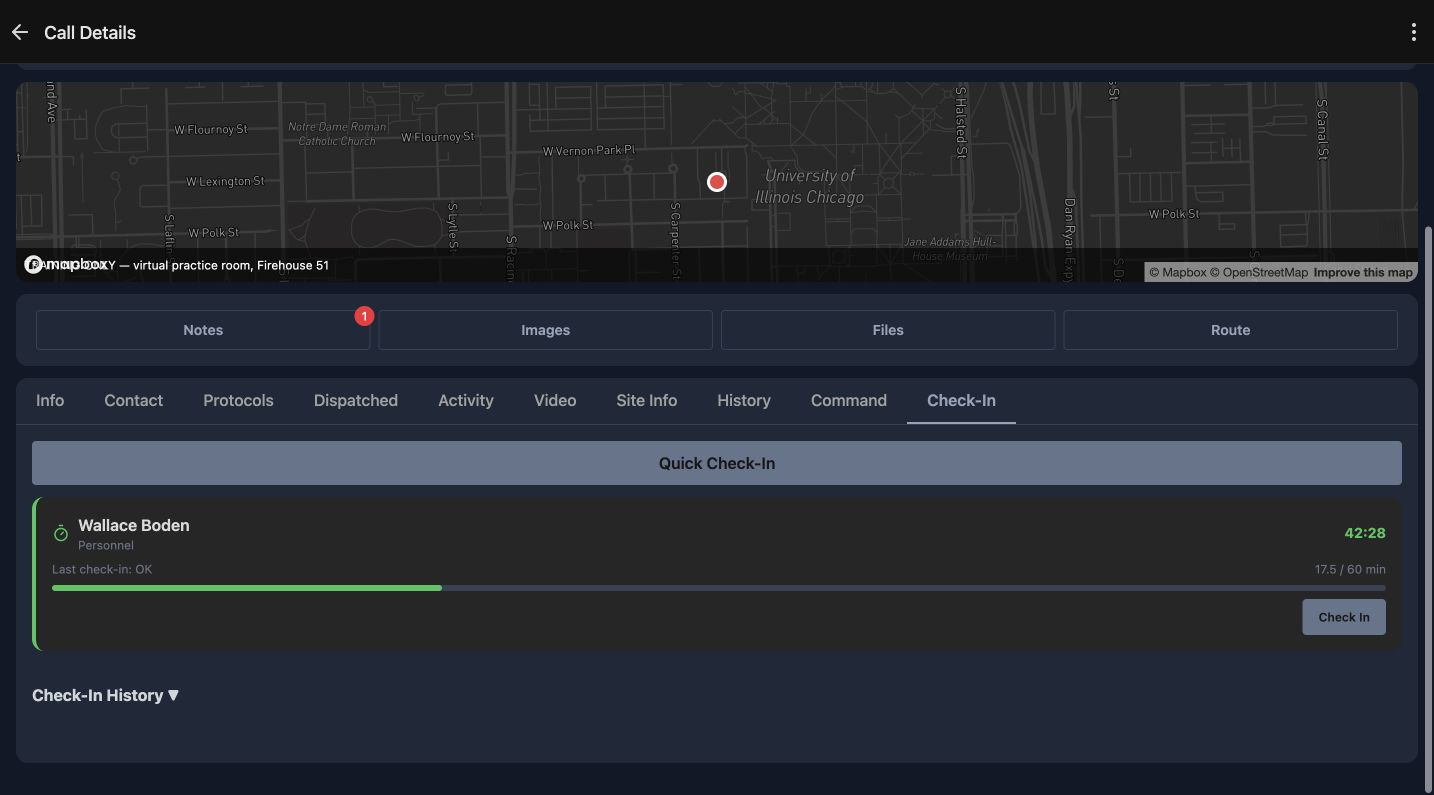
On the same call, open the Check-In tab. This view shows Wallace Boden, the Personnel type, a timer and Check In. The recorded timer has forty-two minutes and twenty-eight seconds remaining, with seventeen point five of sixty minutes elapsed. Read whose timer you are viewing before taking action. Quick Check-In and Check-In History are also visible. For this exercise, choose the Check In button on Wallace Boden's card to review the named confirmation.
Practice
Read the intended person and timer, then identify Check In on that card.
Step 5
Review the person, type and optional note
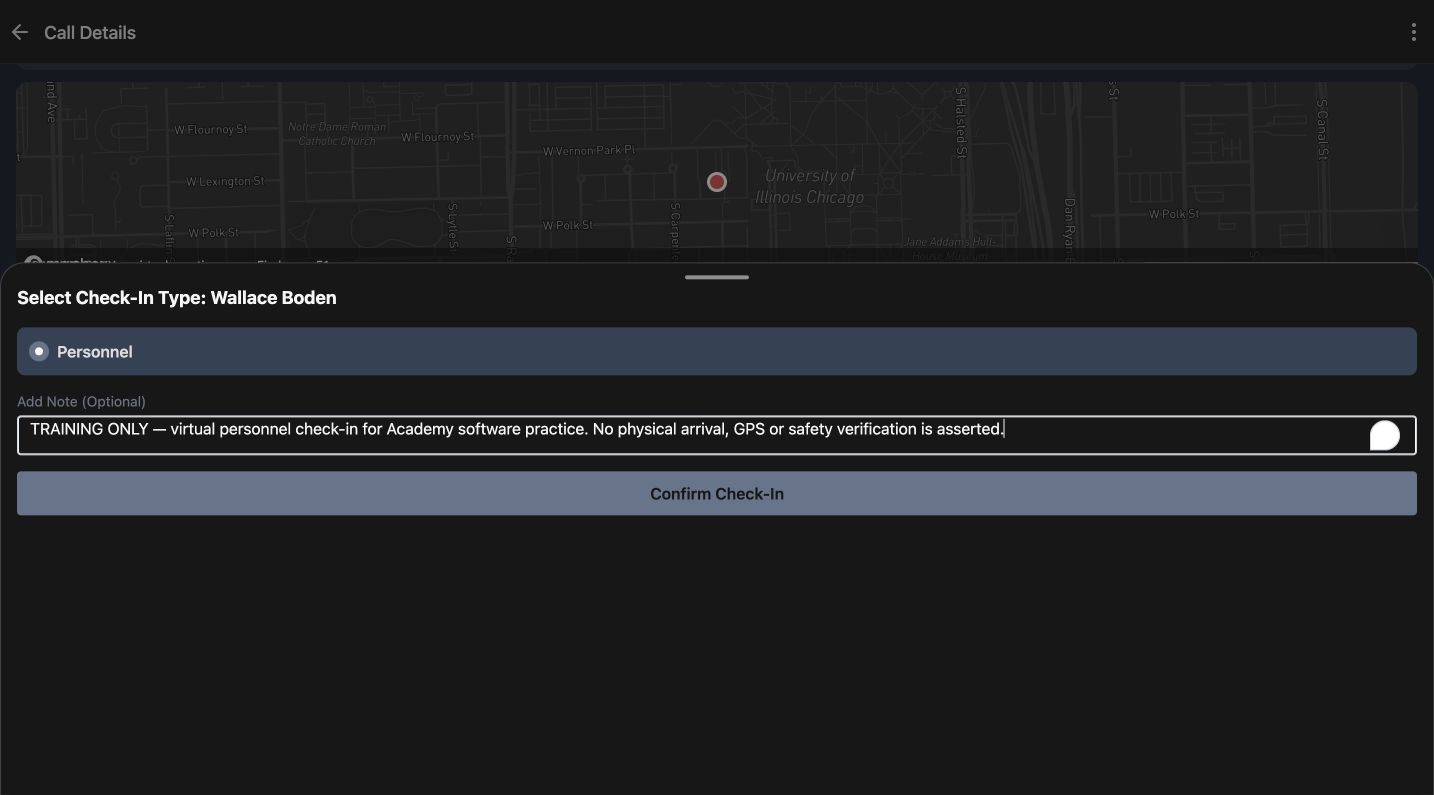
The sheet identifies Select Check-In Type, Wallace Boden. Personnel is selected, and Add Note is optional. This exercise note explicitly describes a virtual personnel check-in for Academy software practice. A software entry should accurately describe what was recorded. Check the named person, selected type and note, then choose Confirm Check-In once. Keep actual personnel accountability and any missed check-in response aligned with your department's procedures.
Practice
Verify the named person, selected Personnel type and truthful practice note before Confirm Check-In.
Step 6
Inspect the returned timer and saved history
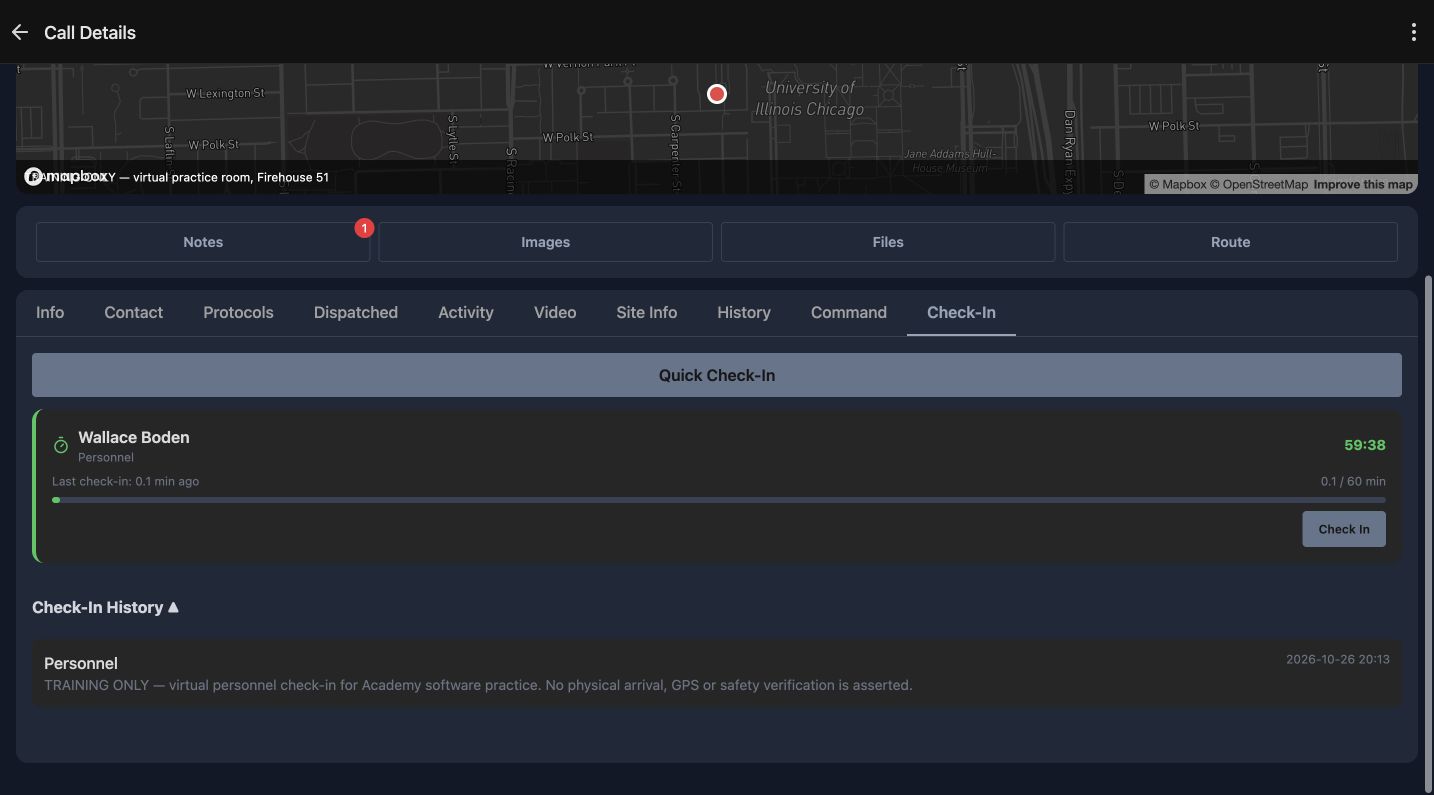
The returned Personnel card now shows fifty-nine minutes and thirty-eight seconds remaining and Last check-in, zero point one minutes ago. Below it, the expanded Check-In History contains a Personnel entry, the same practice note and its timestamp. Review the saved history as well as the changed timer. This recording demonstrates the software check-in; it does not establish physical arrival or a field safety check. A visible saved entry is the result to verify before relying on the software record in a handover.
Practice
Verify the refreshed timer and the matching note and timestamp in expanded Check-In History.
Step 7
Use consistent updates across different teams
Community paramedicine and mental health response teams can use clear updates during coordinated outreach. Search-and-rescue teams can keep support staff informed, security teams can document post updates, wildland contractors can coordinate crew activity, and industrial emergency teams can maintain standby accountability. Fire and EMS departments can apply the same habits. Select the intended call, record only what you mean, and inspect the saved note or check-in history before handing over to another team member.
Practice
Practice incident identity, clear notes and named check-in verification using fictional data for your department.
Examples for your department
- Fire / EMS
- Record an appropriate call update and verify a named personnel check-in during a station exercise.
- Community response
- Keep outreach coordination notes clear and distinguish a software check-in from a field assessment.
- Search and rescue
- Give authorized support personnel a readable call update and inspect check-in history.
- Security
- Record an appropriate post update and verify the intended staff member's check-in.
- Wildland
- Keep crew coordination updates with the intended exercise call and inspect the saved record.
- Industrial
- Practice a fictional standby update and named personnel accountability entry.
Transcript
Download transcriptRead the complete transcript
Responder: add call notes and record a personnel check-in
Audience: Responders using call notes and check-ins, Department trainers, Personnel accountability coordinators

Identify the call before adding a note
Call notes keep an incident update with the call it belongs to. Begin by reading the title and call number in Call Details. This example is Training Only, Responder call and check-in practice, F D fifty-one, twenty twenty-six, zero zero zero one. Its Nature describes a fictional industrial alarm exercise. Check the incident identity before adding information, especially when several calls have similar names. Choose Notes to open this call's notes.
Practice: Verify the intended practice incident and find its Notes control.

Review and submit a useful call note
The Call Notes panel has a search field, an entry area and Add Note. In this prepared example, the entry records that a virtual access plan was reviewed in the Academy software exercise, with no real response or physical inspection requested. Use a clear update that distinguishes an observation, a request and completed work. Review the text before choosing Add Note. Avoid putting an update on the wrong incident simply because a notes panel is already open.
Practice: Review the prepared fictional note and identify Add Note before submitting it.

Verify the saved note after reopening
Reopen Call Notes and read the saved entry. The same complete text now appears in the list with Wallace Boden as its author and a recorded timestamp. The entry area below is empty again. Verify the actual saved text as well as its author; a prepared message in an entry field is different from a listed note. This gives the next person reviewing the call a specific update they can find and understand.
Practice: Compare the saved note with the prepared text, author and timestamp.

Read the named personnel timer
On the same call, open the Check-In tab. This view shows Wallace Boden, the Personnel type, a timer and Check In. The recorded timer has forty-two minutes and twenty-eight seconds remaining, with seventeen point five of sixty minutes elapsed. Read whose timer you are viewing before taking action. Quick Check-In and Check-In History are also visible. For this exercise, choose the Check In button on Wallace Boden's card to review the named confirmation.
Practice: Read the intended person and timer, then identify Check In on that card.

Review the person, type and optional note
The sheet identifies Select Check-In Type, Wallace Boden. Personnel is selected, and Add Note is optional. This exercise note explicitly describes a virtual personnel check-in for Academy software practice. A software entry should accurately describe what was recorded. Check the named person, selected type and note, then choose Confirm Check-In once. Keep actual personnel accountability and any missed check-in response aligned with your department's procedures.
Practice: Verify the named person, selected Personnel type and truthful practice note before Confirm Check-In.

Inspect the returned timer and saved history
The returned Personnel card now shows fifty-nine minutes and thirty-eight seconds remaining and Last check-in, zero point one minutes ago. Below it, the expanded Check-In History contains a Personnel entry, the same practice note and its timestamp. Review the saved history as well as the changed timer. This recording demonstrates the software check-in; it does not establish physical arrival or a field safety check. A visible saved entry is the result to verify before relying on the software record in a handover.
Practice: Verify the refreshed timer and the matching note and timestamp in expanded Check-In History.

Use consistent updates across different teams
Community paramedicine and mental health response teams can use clear updates during coordinated outreach. Search-and-rescue teams can keep support staff informed, security teams can document post updates, wildland contractors can coordinate crew activity, and industrial emergency teams can maintain standby accountability. Fire and EMS departments can apply the same habits. Select the intended call, record only what you mean, and inspect the saved note or check-in history before handing over to another team member.
Practice: Practice incident identity, clear notes and named check-in verification using fictional data for your department.

Examples for your department
Fire / EMS: Record an appropriate call update and verify a named personnel check-in during a station exercise.
Community response: Keep outreach coordination notes clear and distinguish a software check-in from a field assessment.
Search and rescue: Give authorized support personnel a readable call update and inspect check-in history.
Security: Record an appropriate post update and verify the intended staff member's check-in.
Wildland: Keep crew coordination updates with the intended exercise call and inspect the saved record.
Industrial: Practice a fictional standby update and named personnel accountability entry.