
Responder · Video walkthrough
Responder communications, conversations, and field references
Choose the correct communication audience, compose and acknowledge fictional notices, organize direct/group/thread chat, consult contact and briefing references, and inspect native/provider configuration limits through actual Responder screens.
Before you begin
- Demo inbox and sent messages, safe recipients, a second chat session, and Chat.System enabled.
- Configured voice channels, audio stream entries, and supported test hardware only for optional live demonstrations.
- Contacts with preplans, files, notes, and call history; department notes and protocols.
Chapters
- Choose the right communication surface
- Compose a scoped departmental message
- Respond and maintain the inbox
- Start a direct or group conversation
- Use the chat composer with context
- Keep threads and message actions meaningful
- Inspect the assistant before using a provider
- Check voice availability on the intended platform
- Inspect streams and audio hardware settings
- Use contact context and preplans
- Consult notes and protocols in place
- Prepare the target device and verify notifications
Watch the walkthrough
Step 1
Choose the right communication surface
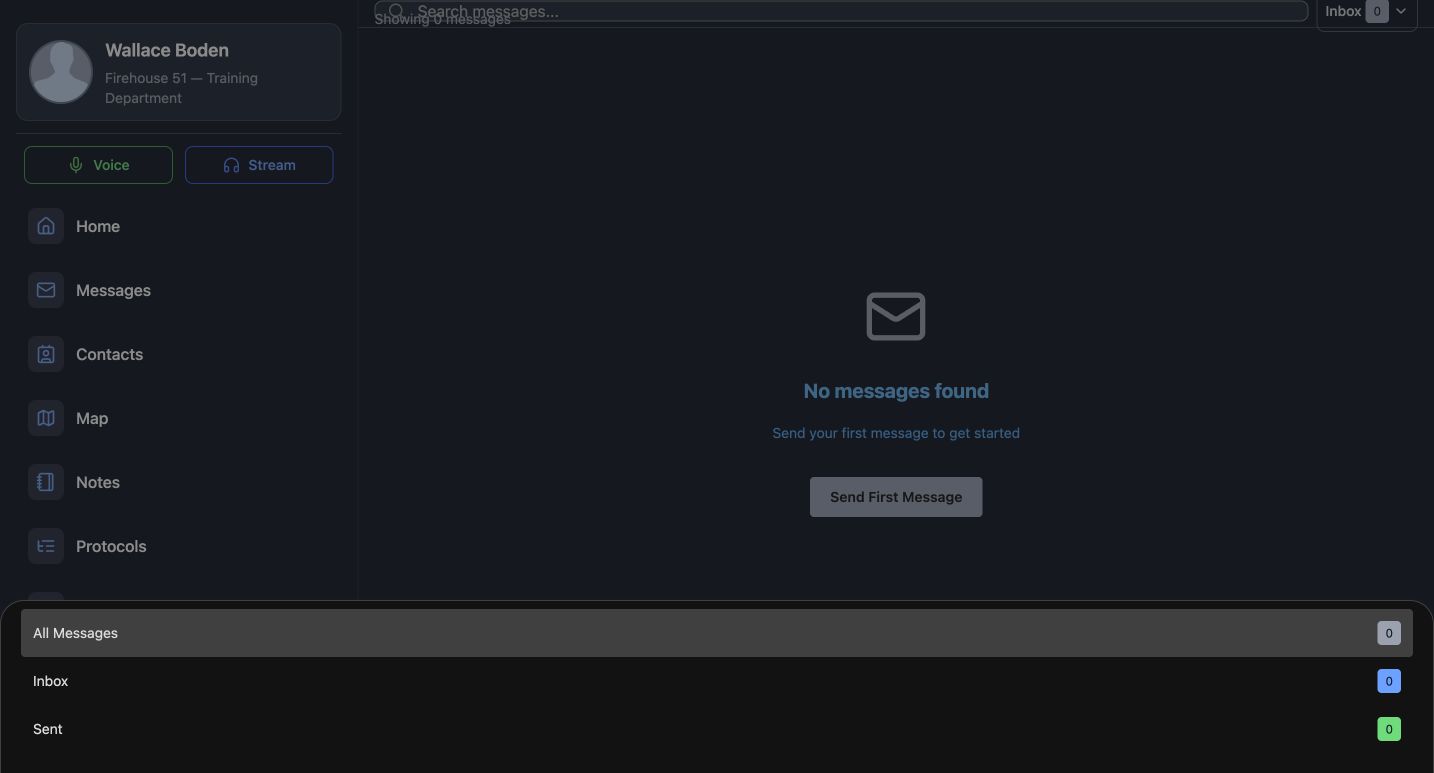
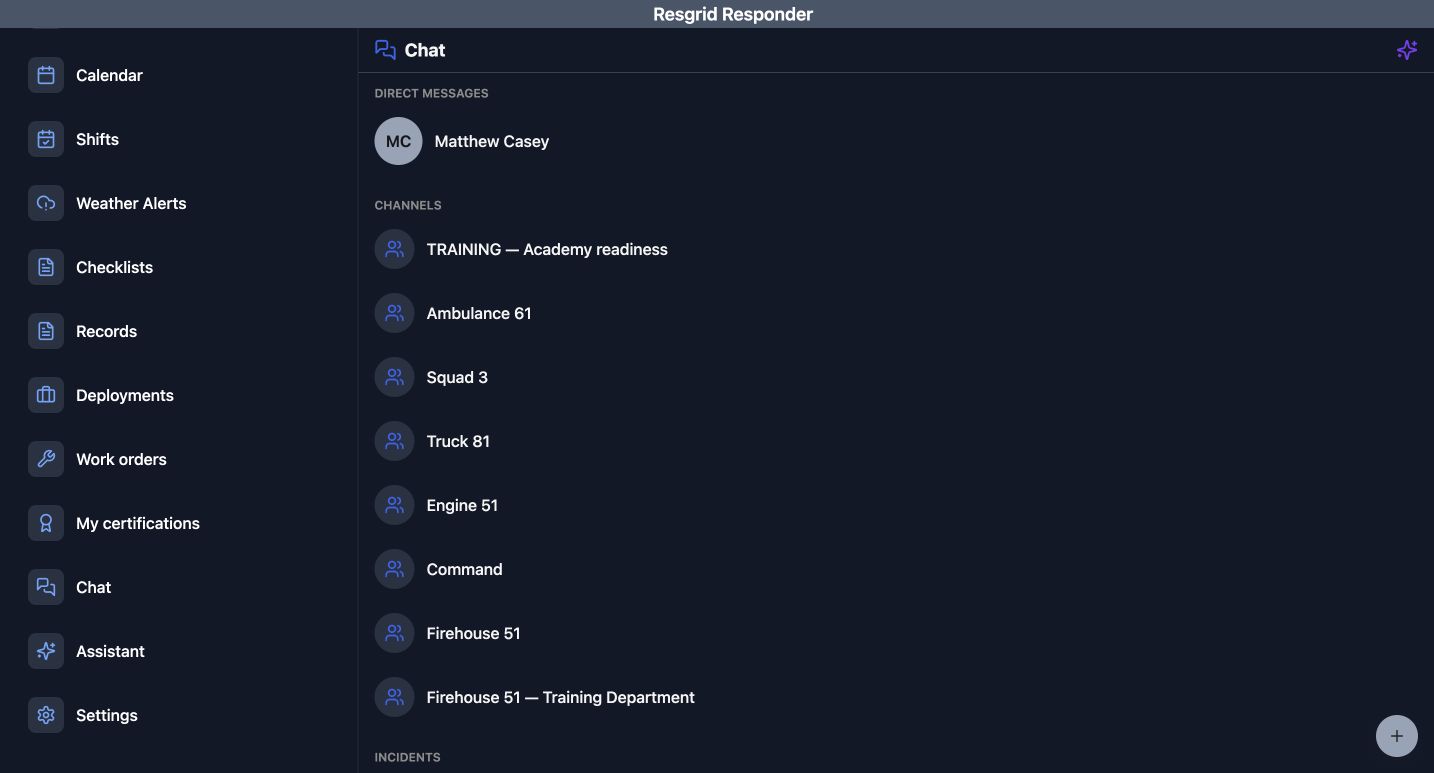
Messages organizes departmental notices into Inbox, Sent, and All Messages. Chat organizes ongoing conversations. Choose the audience and purpose before composing anything. Community response teams can use a notice for a briefing and a chat for coordination; industrial teams can use the same distinction for shift handovers. A stored message in your own app confirms a record, not delivery to every recipient’s device.
Practice
Choose a notice and a conversation for a fictional community-response handover, then identify the intended recipients.
Step 2
Compose a scoped departmental message
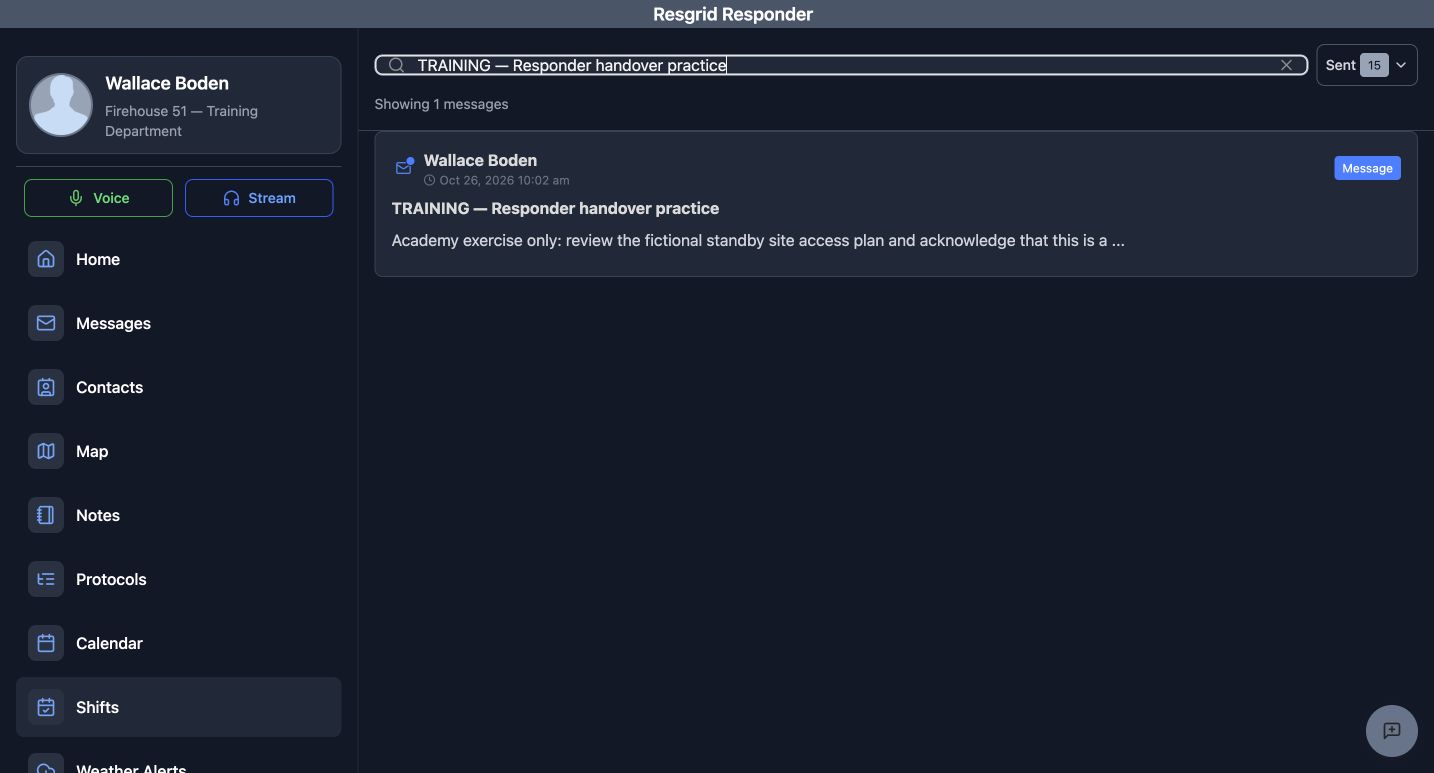
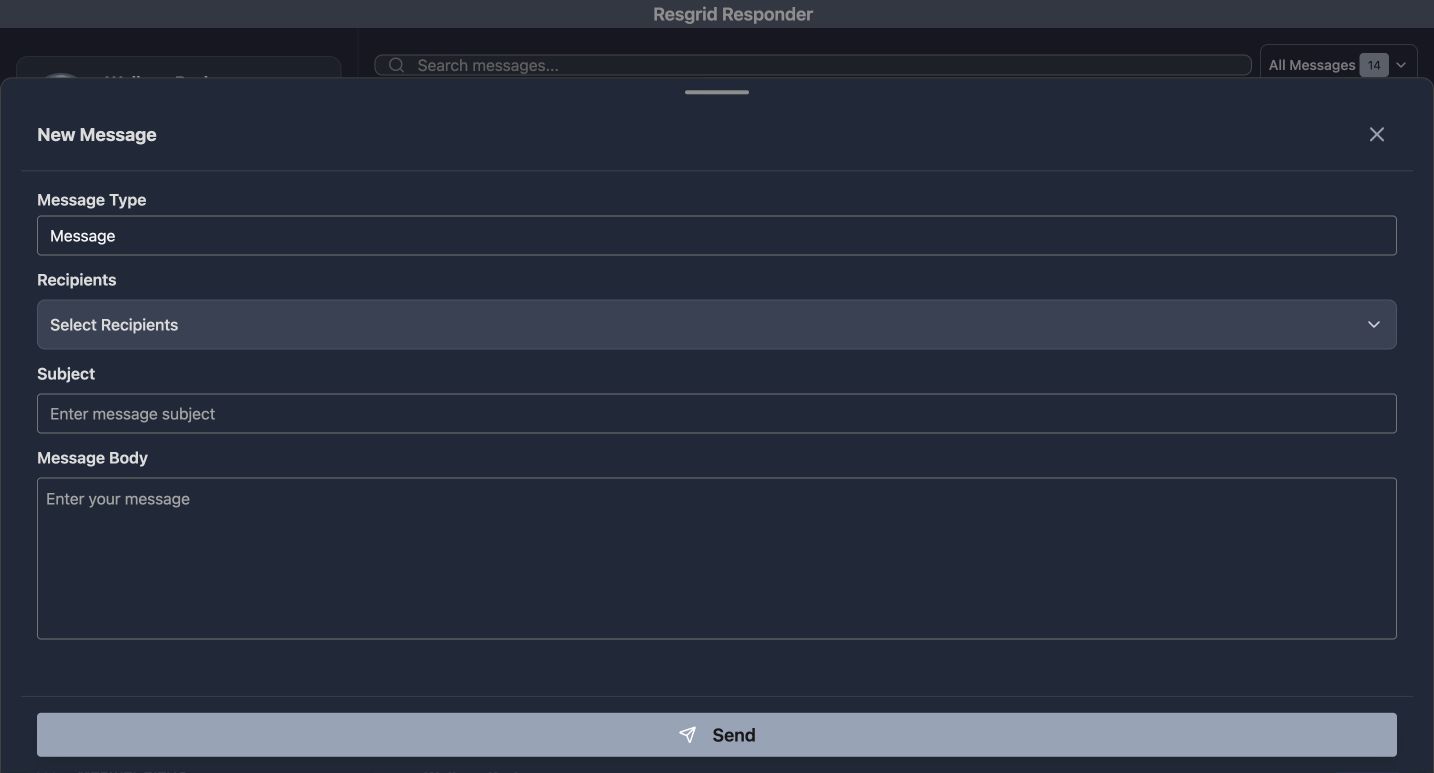
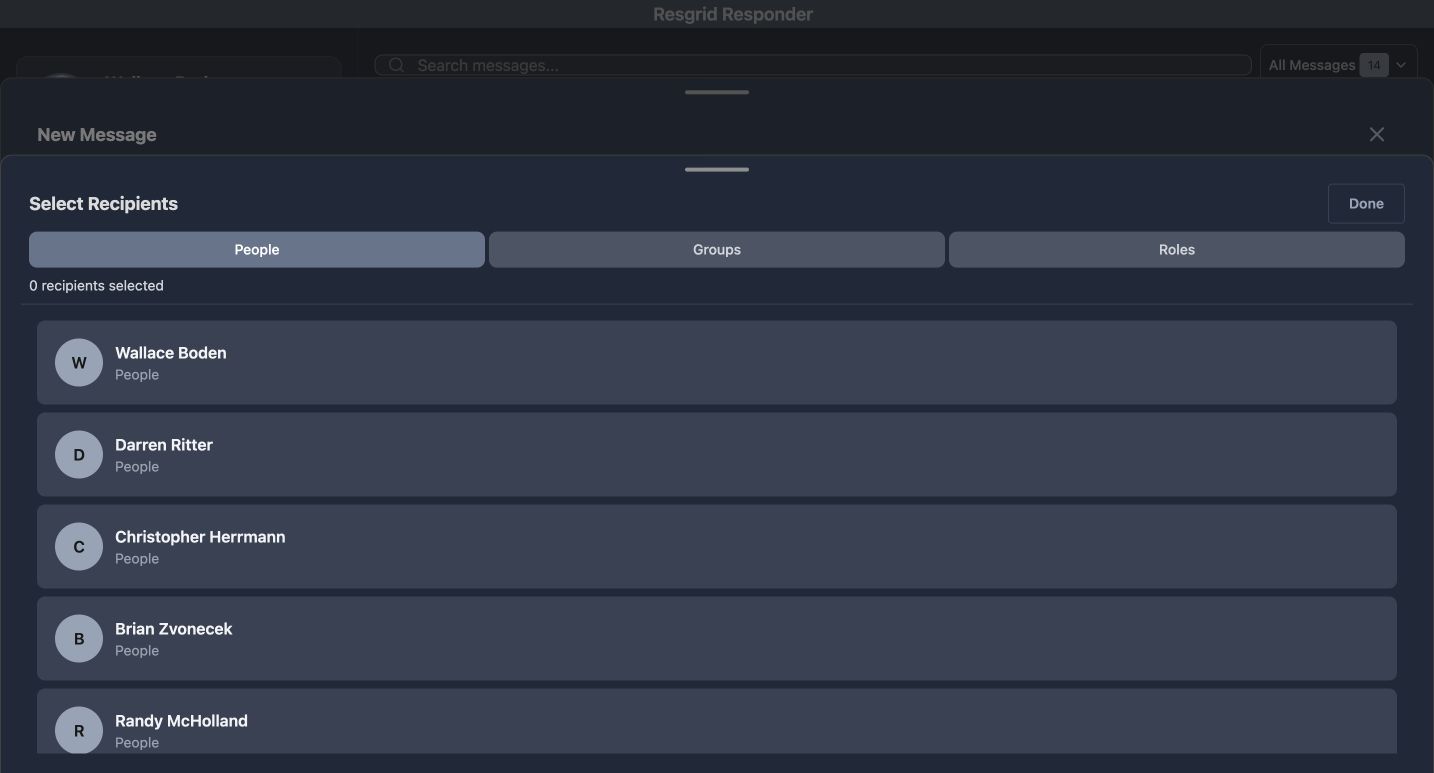
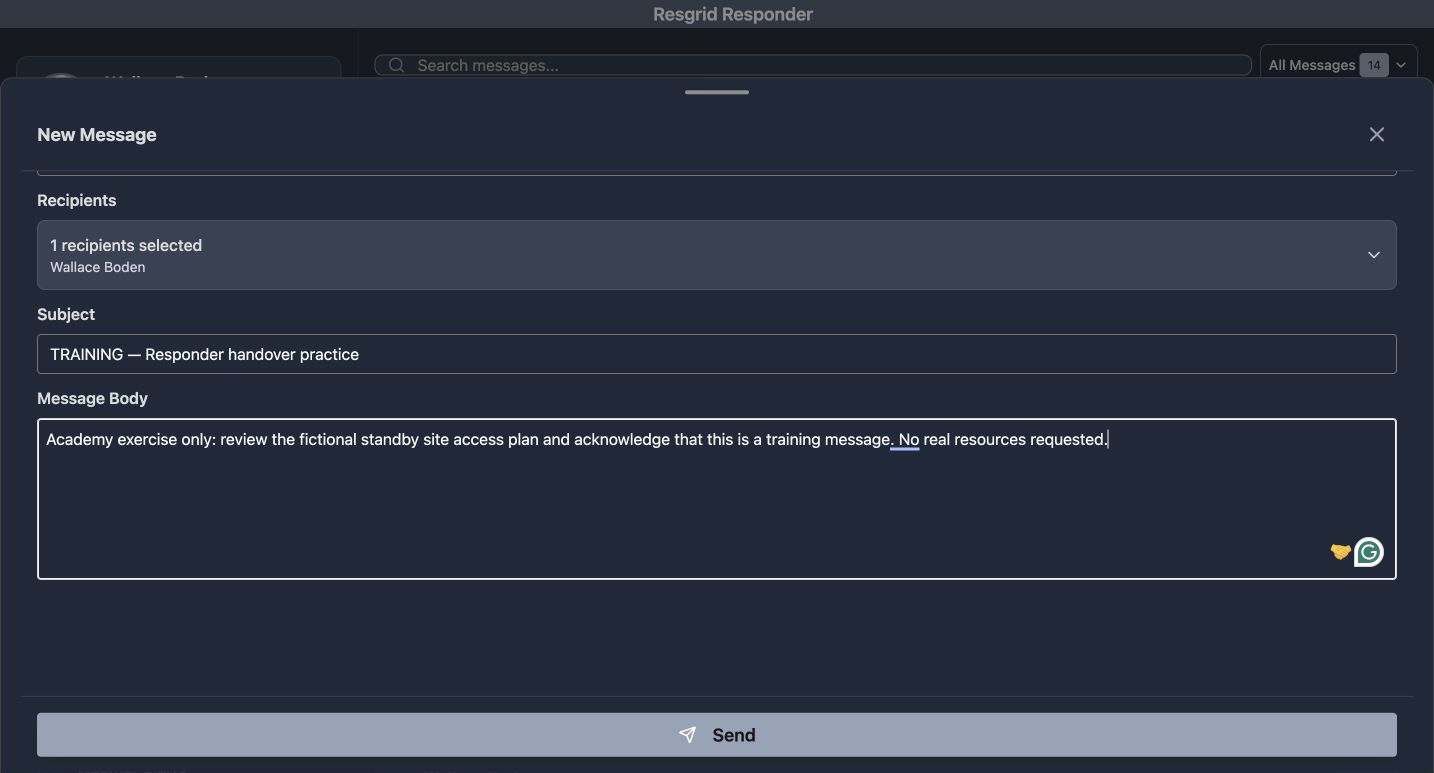
The Compose icon opens New Message. Choose Message Type and Recipients, then enter a clear Subject and Message Body. The recipient picker separates People, Groups, and Roles. Check the selected names before Send. Our training notice goes only to the fictional Boden account. Find its saved card in Sent and open the content afterward; do not treat that card as proof of a push notification.
Practice
Prepare a clearly marked training notice to one fictional member and verify its saved content in Sent.
Step 3
Respond and maintain the inbox
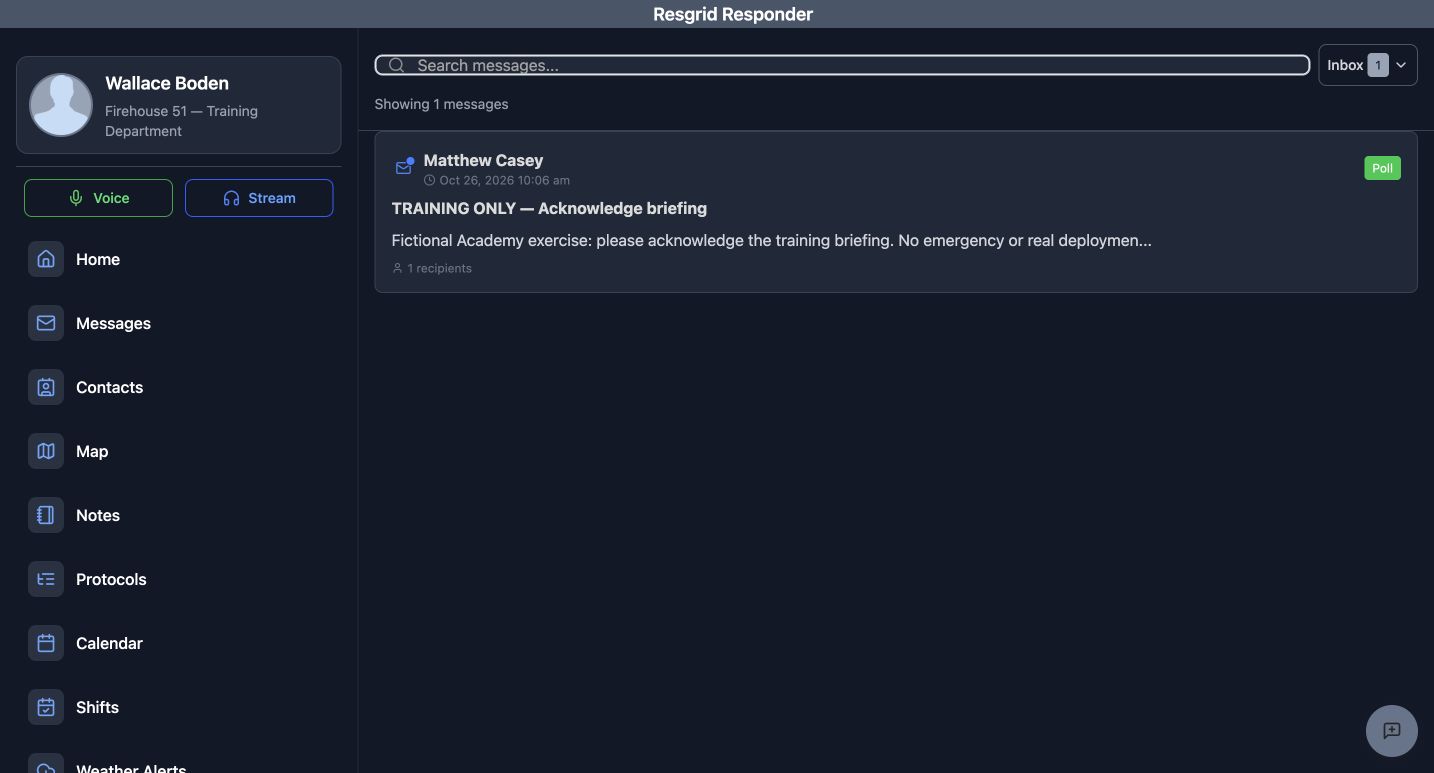
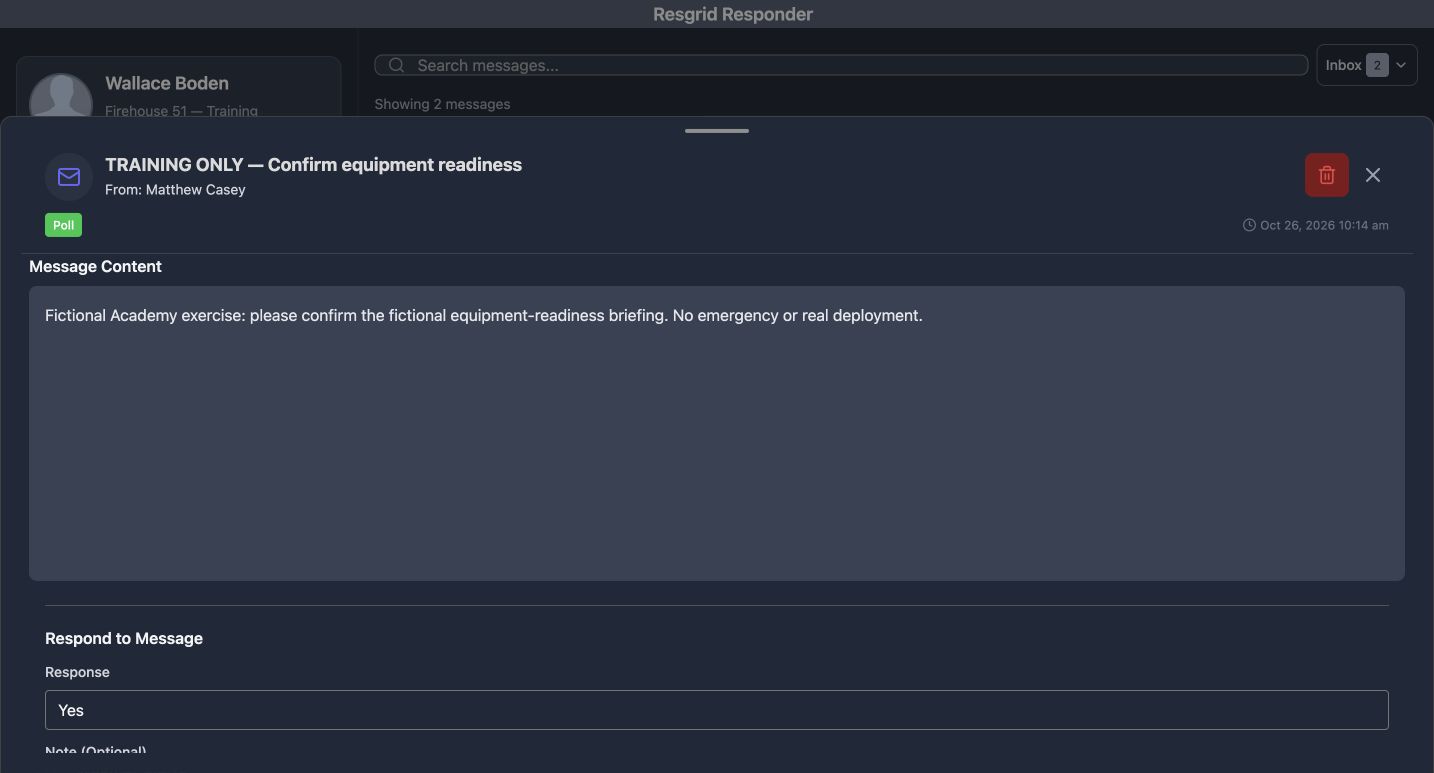
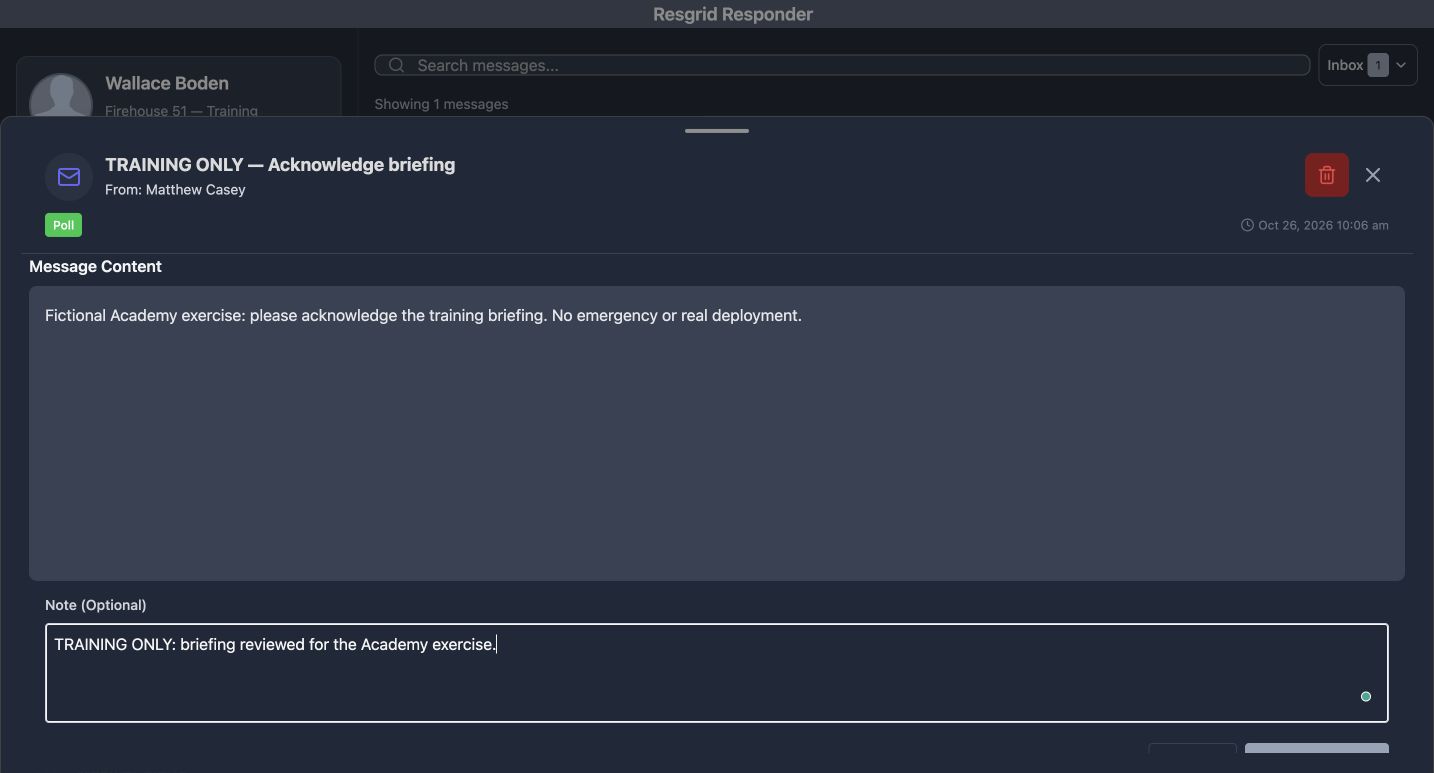
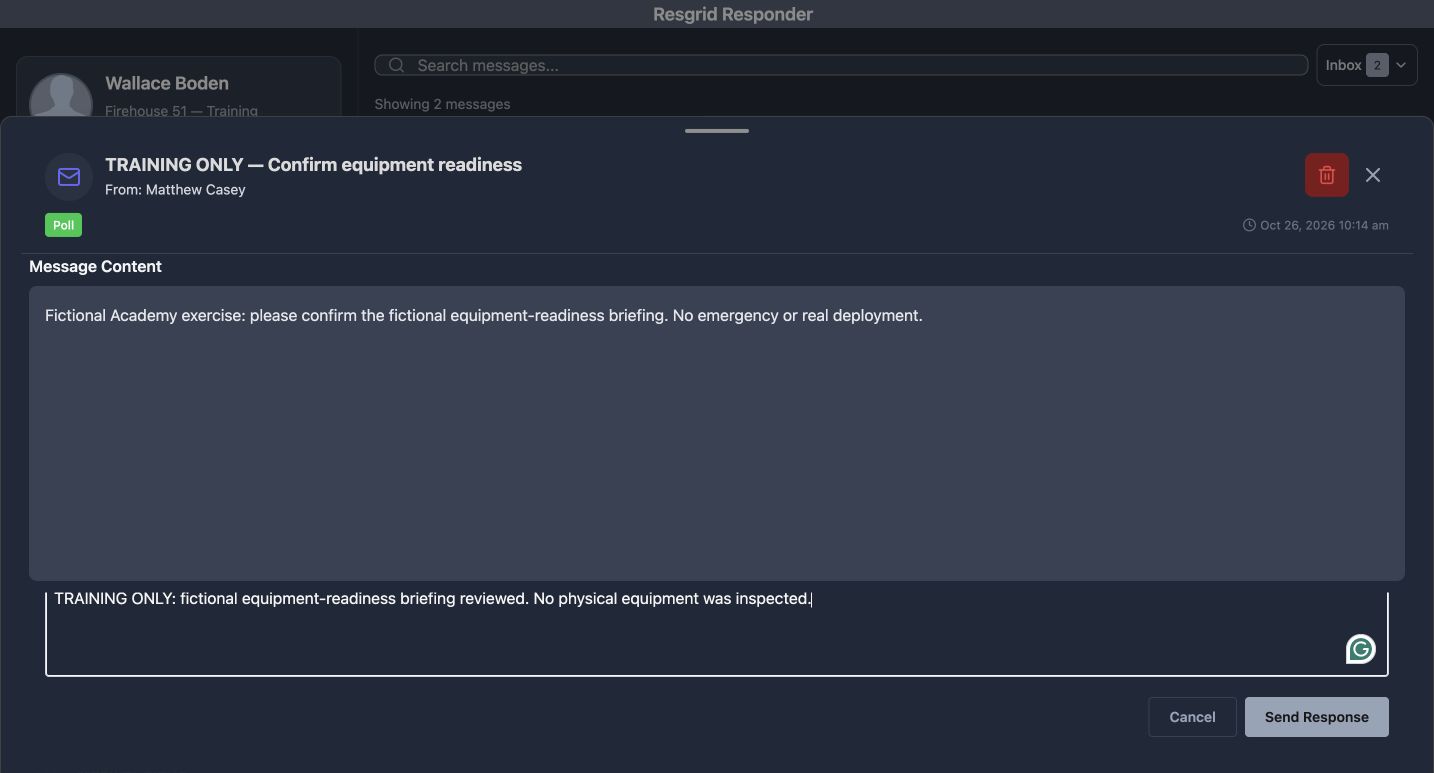
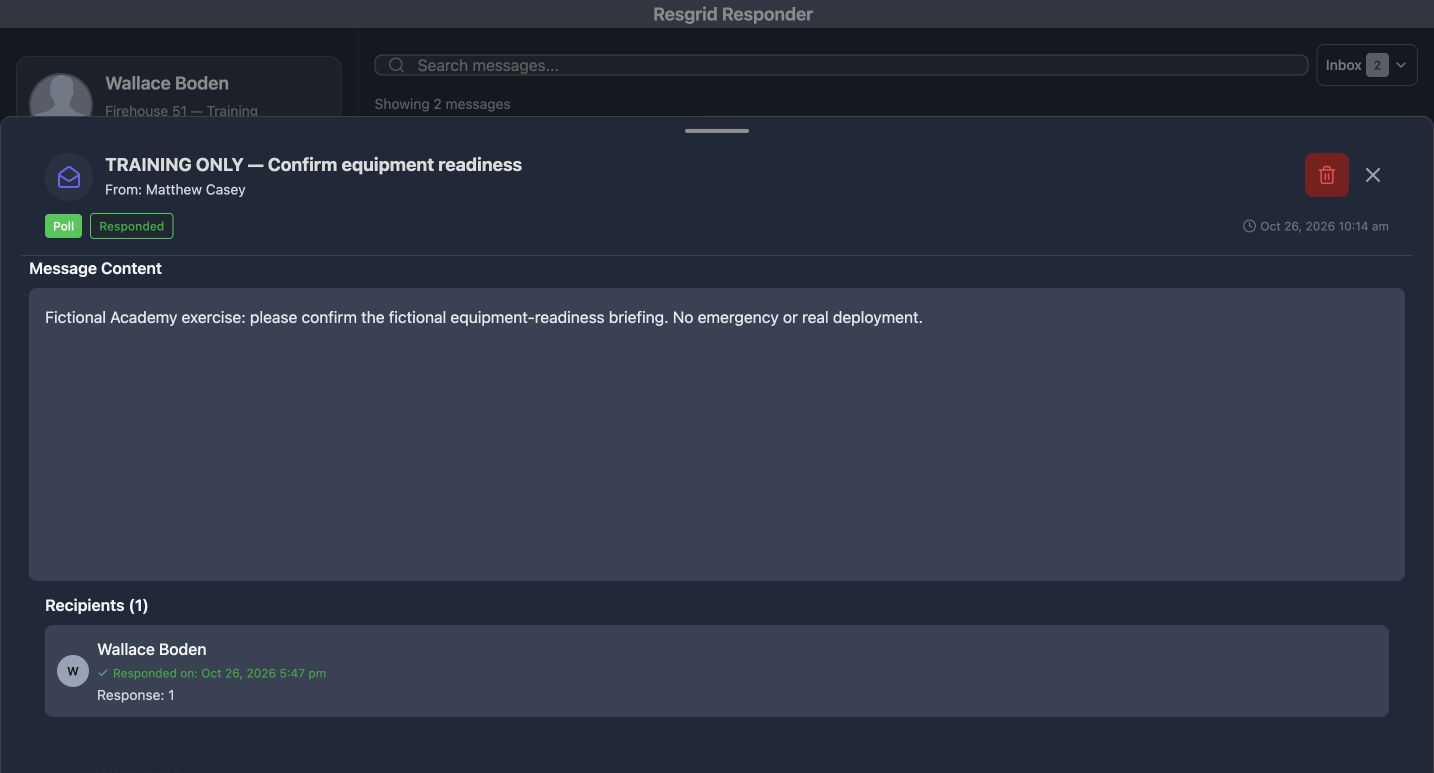
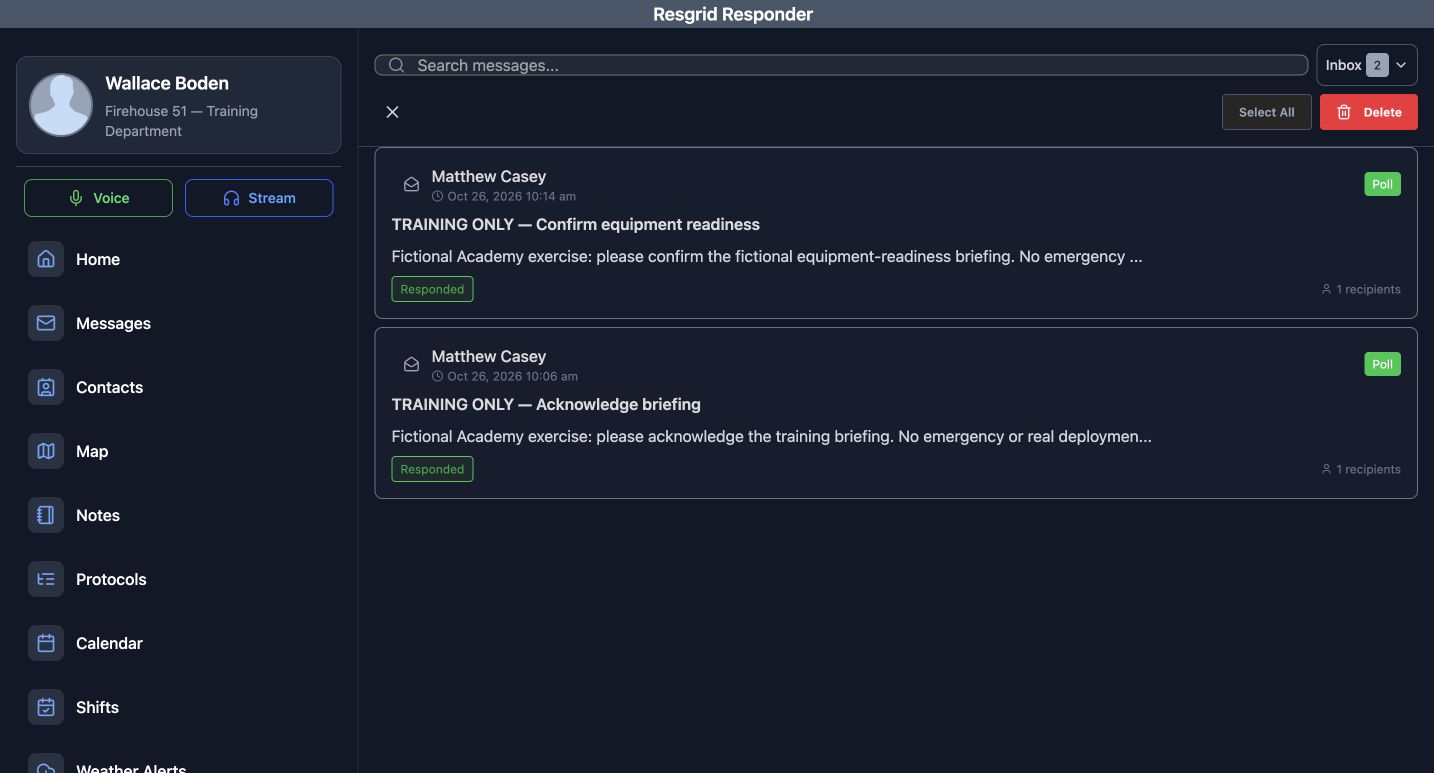
An incoming Poll can open Respond to Message through its reply arrow. Enter Response, add a Note (Optional), and choose Send Response. The training polls show a stored Yes response as code one; inspect the Responded result. Long-pressing a card exposes Select All and Delete. Review the selection carefully. This browser’s native confirmation does not complete deletion, so these examples preserve both messages.
Practice
Acknowledge a fictional briefing poll, inspect the stored response, and enter then leave selection mode without deleting data.
Step 4
Start a direct or group conversation
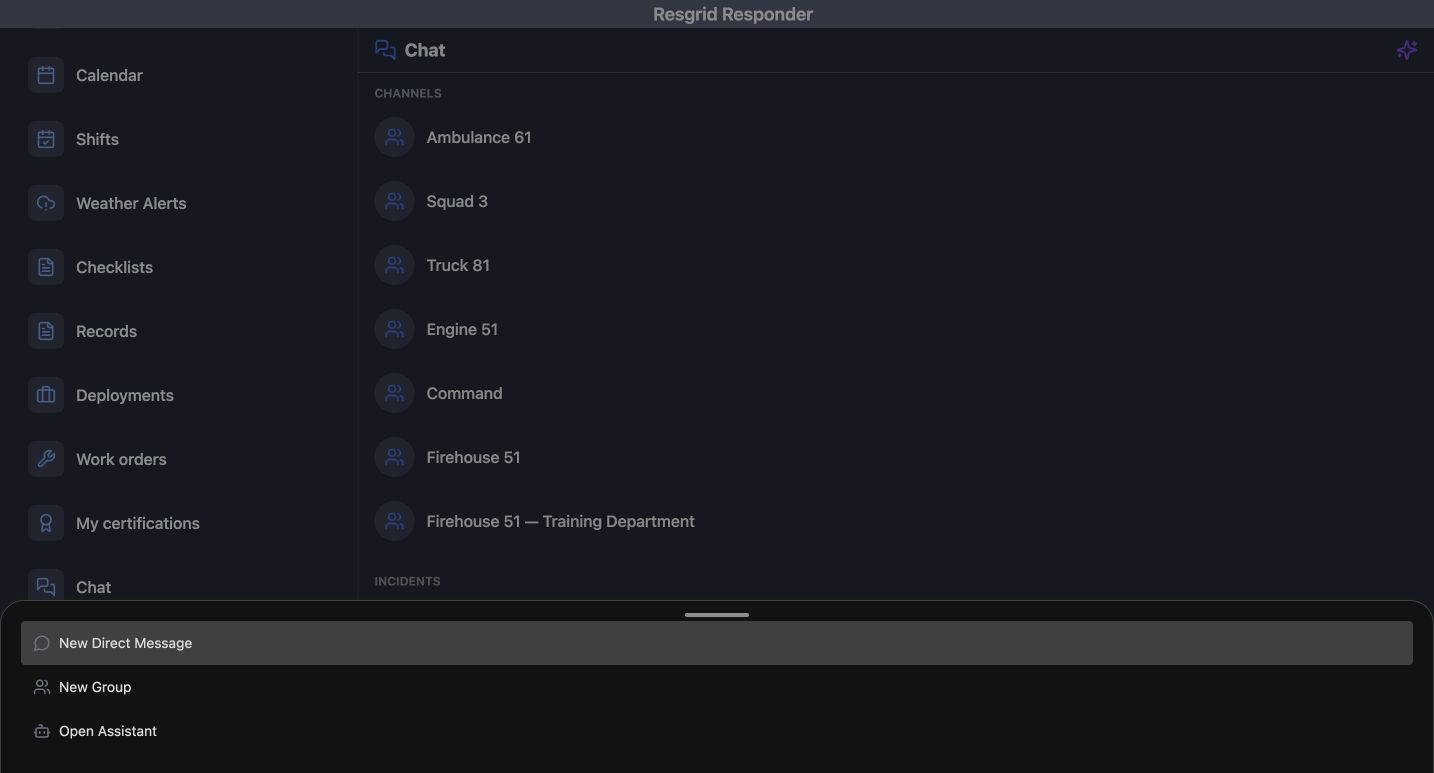
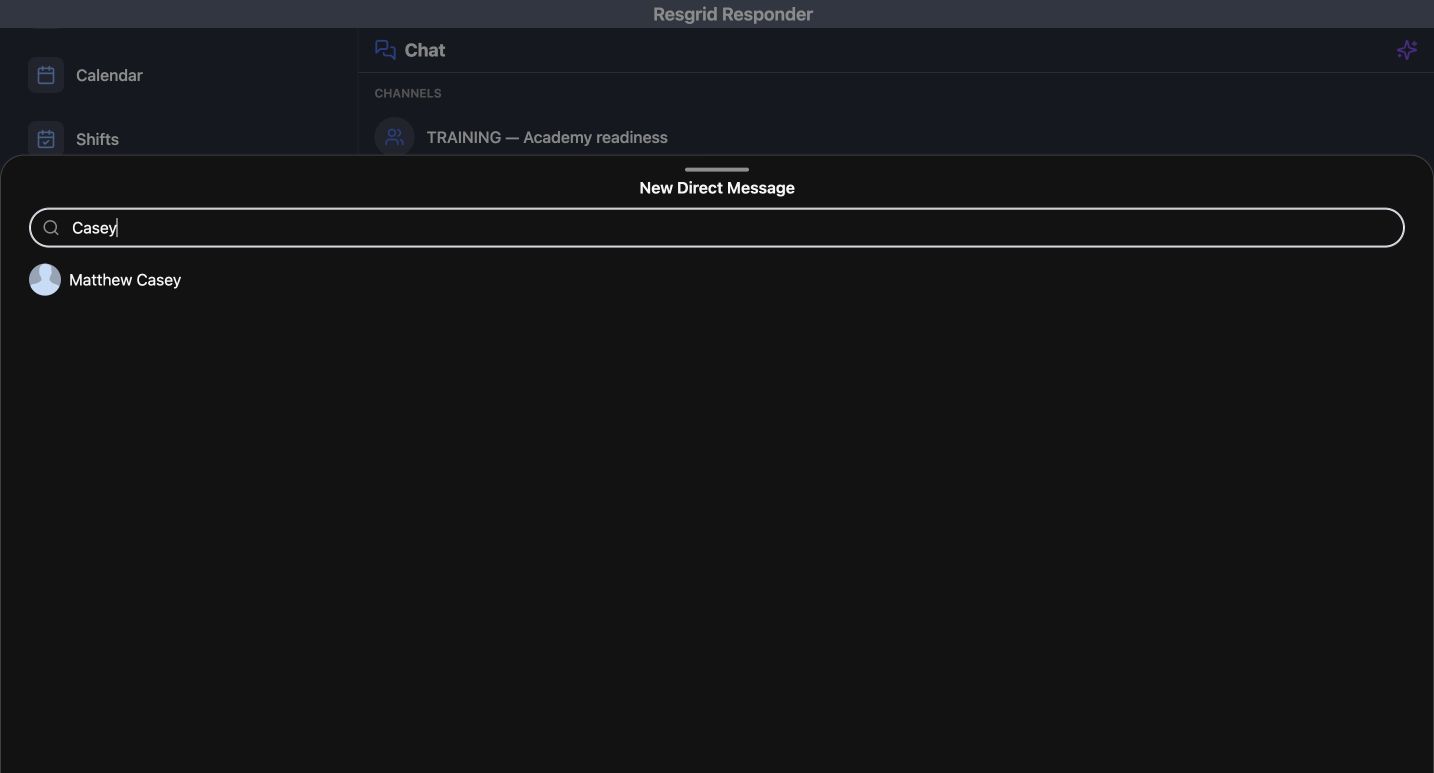
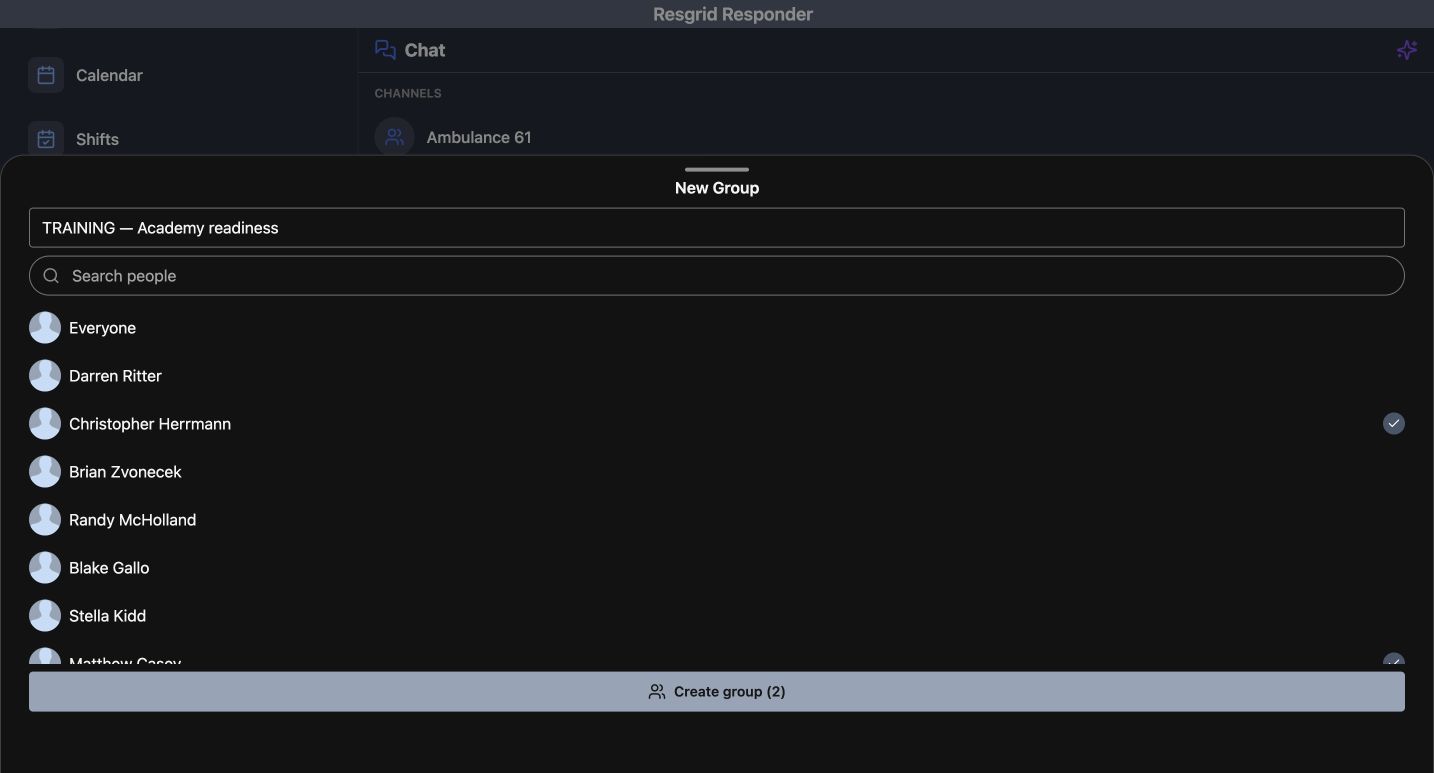
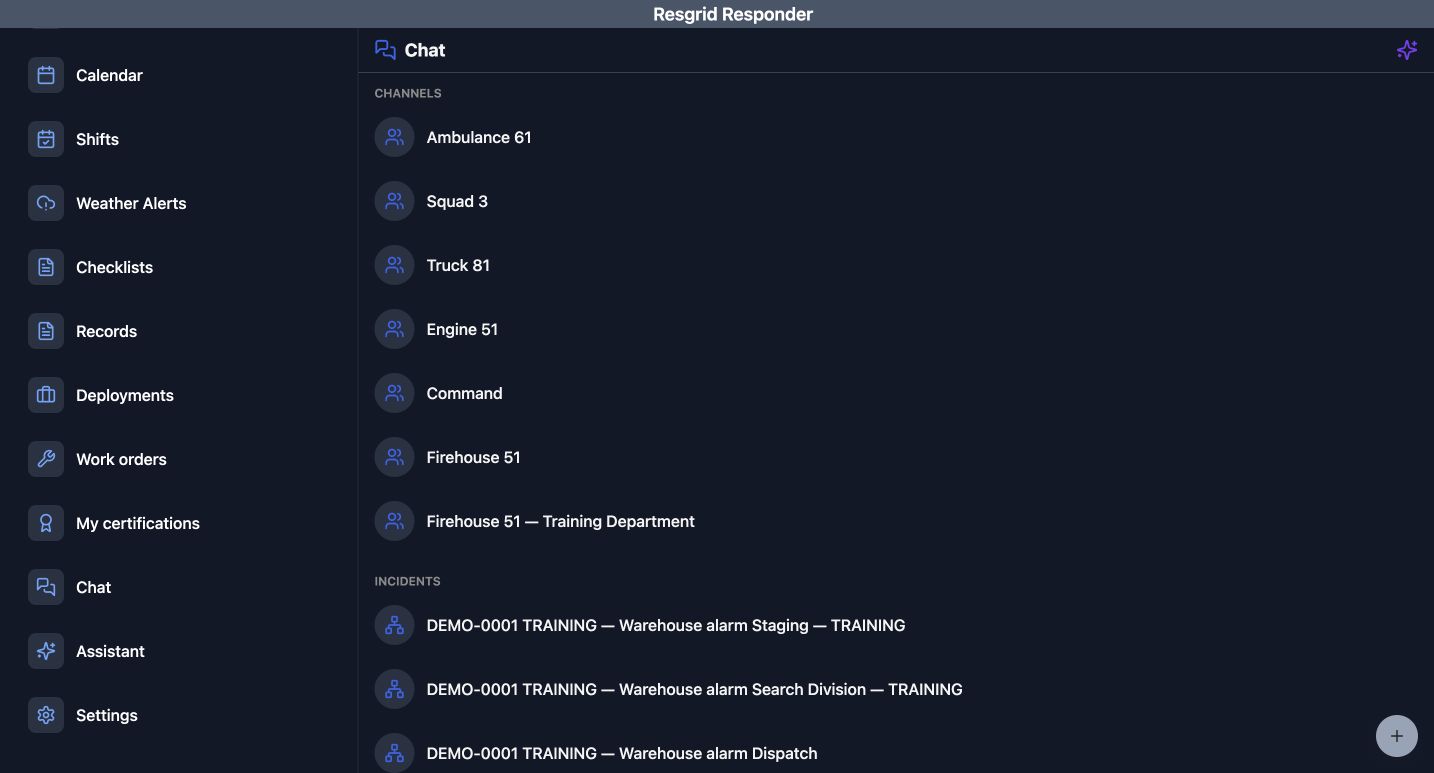
Open New conversation and choose New Direct Message for one person or New Group for a shared discussion. Search for the intended member instead of choosing Everyone. Name the group and review the selected people before you create the group. Direct messages, channels, and incidents then organize the list. SAR task teams and security posts can use these same audience checks to avoid sending coordination to the wrong team.
Practice
Find fictional Matthew Casey for a direct conversation, then inspect the two-member Academy readiness group.
Step 5
Use the chat composer with context
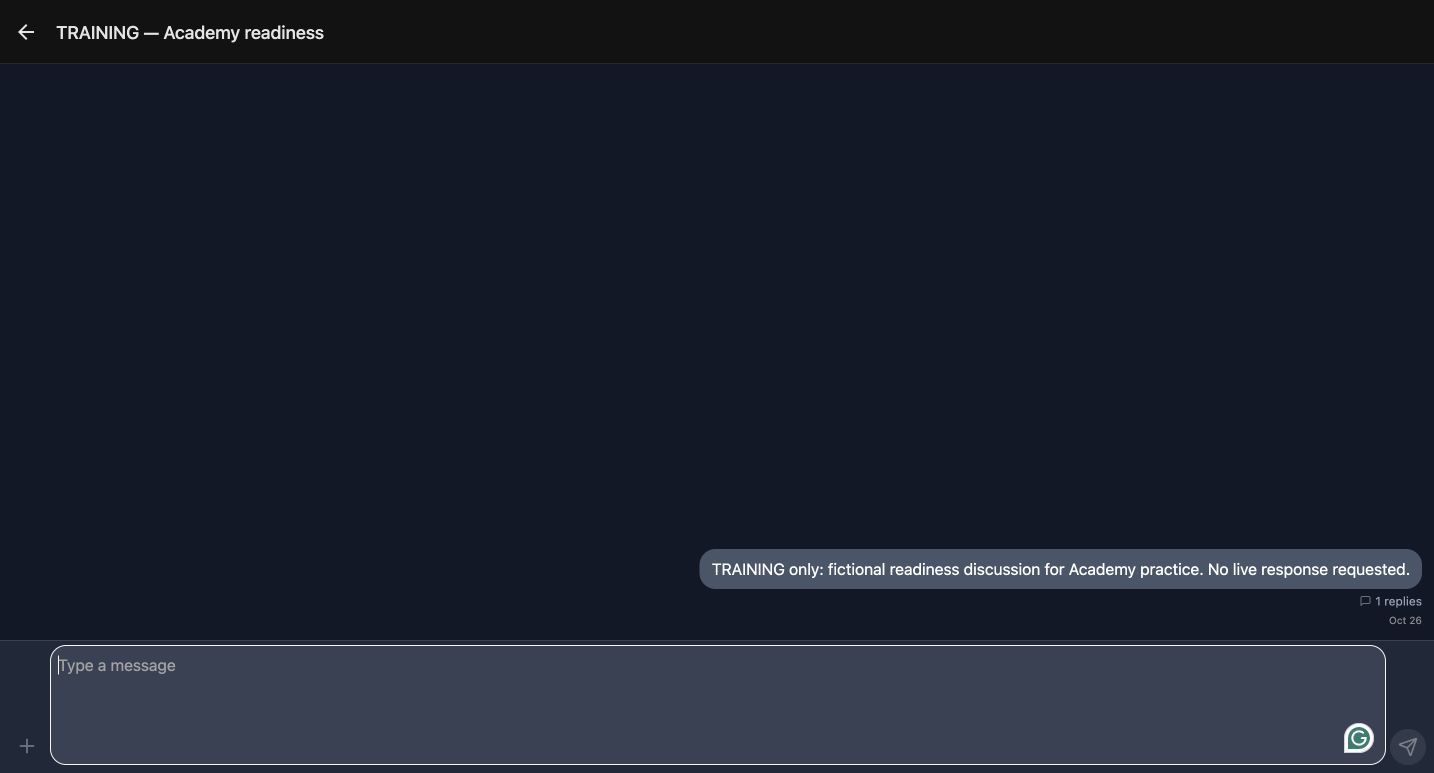
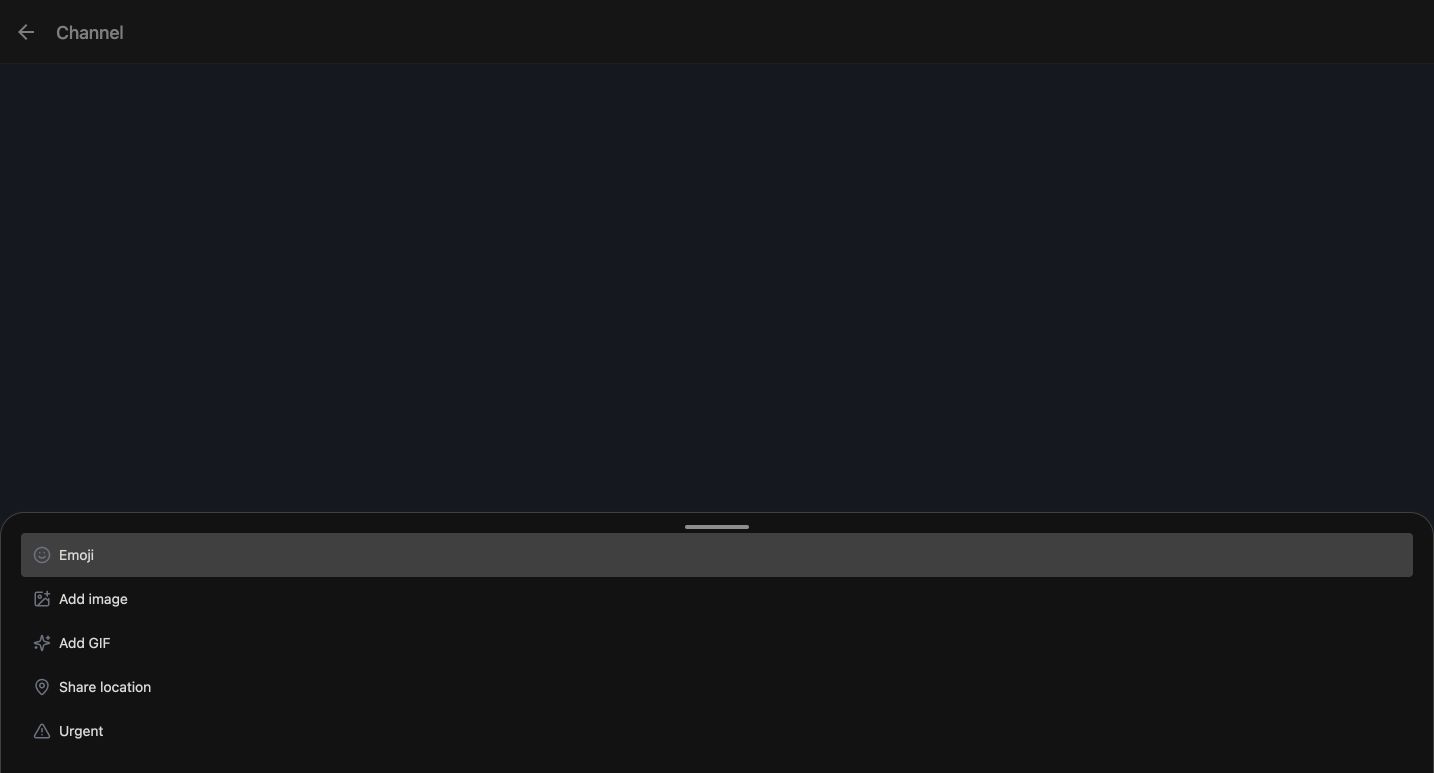
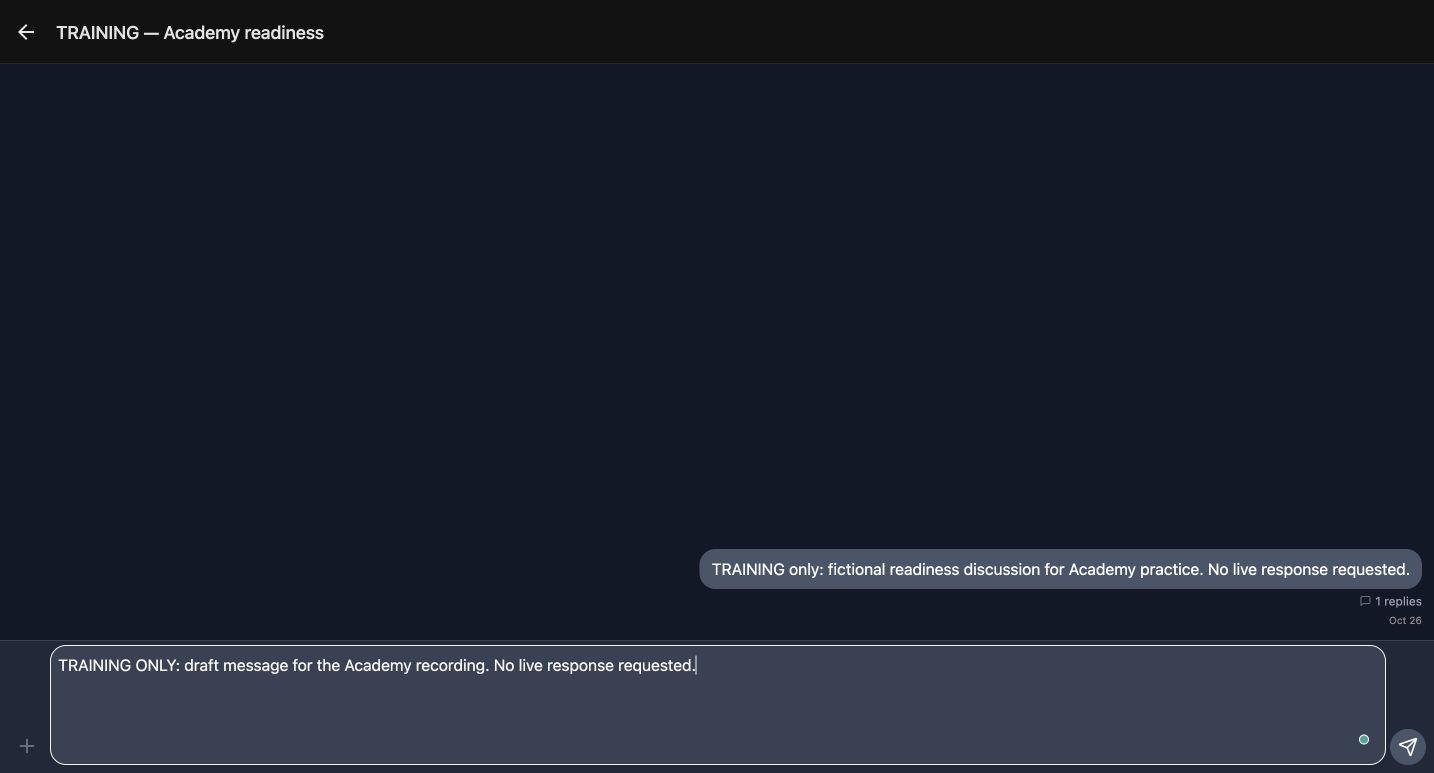
Confirm the conversation name before entering Type a message. Attach is the plus icon; its menu offers Emoji, Add image, Add GIF, Share location, and Urgent in a channel. Send is the paper-plane icon and becomes available after entering text. Threads offer fewer attachment choices. This exercise uses fictional text; media services, location permissions, and real hardware require separate checks on the intended platform.
Practice
Compare the channel and thread attachment menus, prepare an unsent training draft, and explain when urgency is appropriate.
Step 6
Keep threads and message actions meaningful
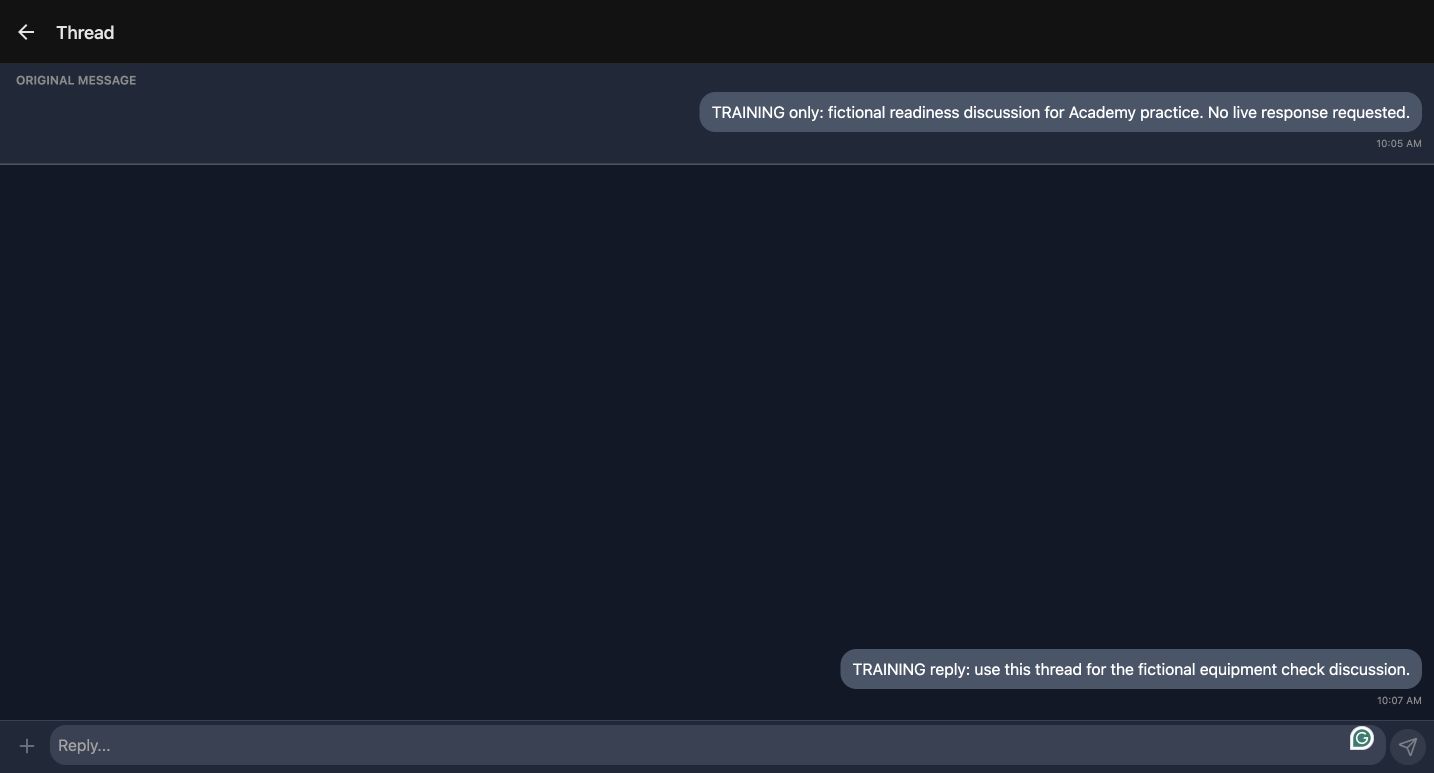
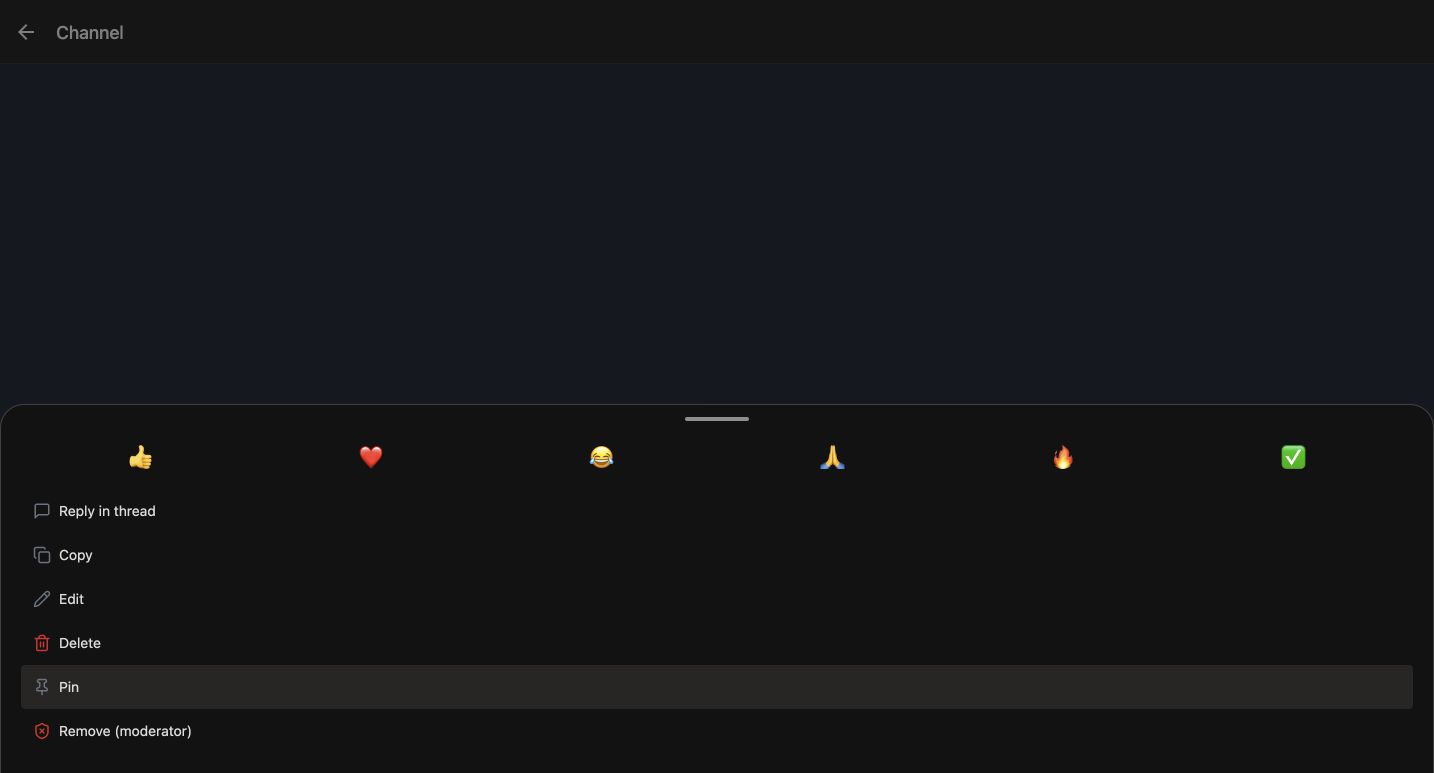
Long-press a message to inspect its actions. The training account’s own-message menu shows Reply in thread, Copy, Edit, Delete, Pin, and moderator removal. Available actions depend on ownership and permissions. Thread keeps the ORIGINAL MESSAGE visible while you add related replies. Review the target before editing, pinning, deleting, or moderating. The captured reply is fictional; no deletion or moderator removal is demonstrated.
Practice
Open the fictional message menu, follow its thread, and distinguish an ordinary reply from a destructive or moderation action.
Step 7
Inspect the assistant before using a provider
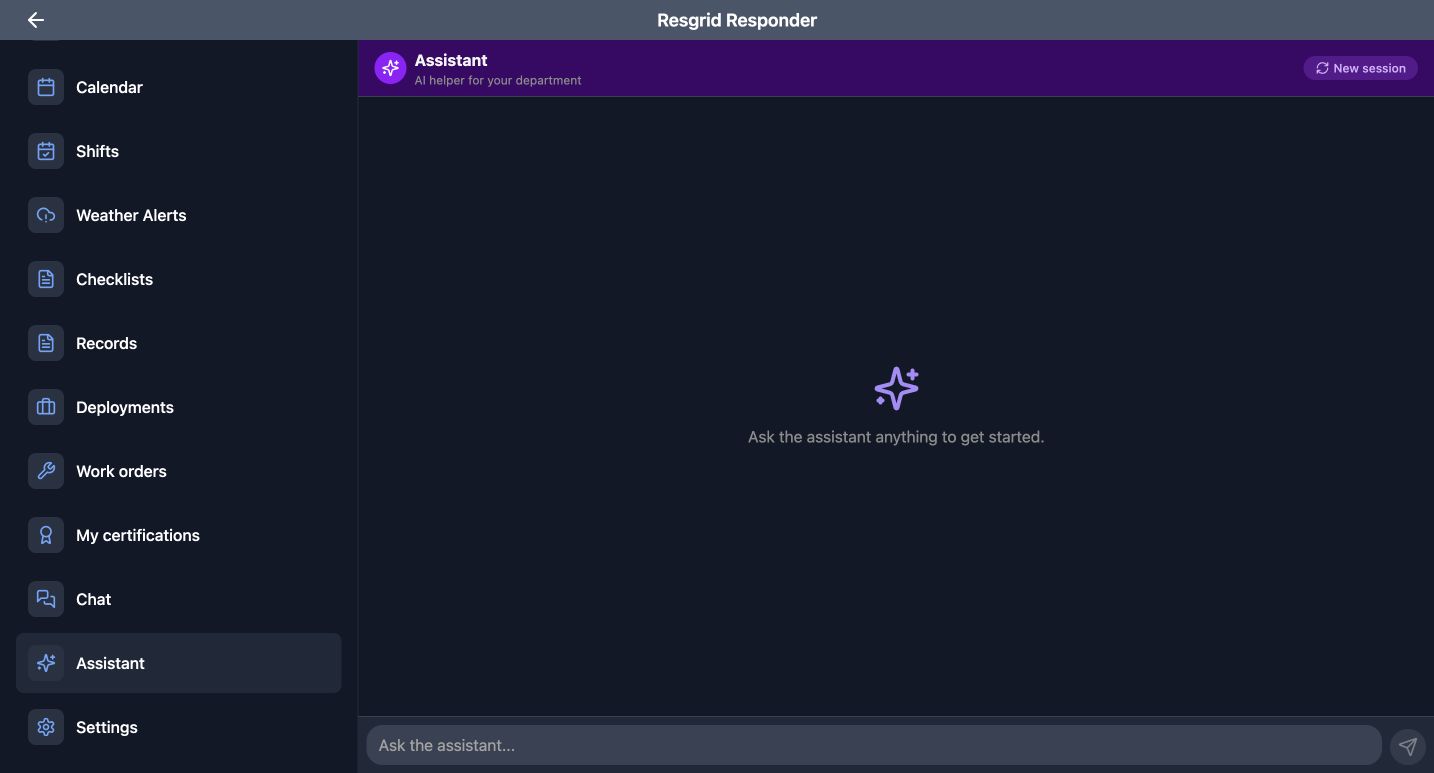
Assistant opens a question workspace with New session and a Send icon. Decide what you need to know and whether the information is approved for that service before submitting anything. A bounded question about a training procedure is more useful than a vague request for everything. This recording stays on the workspace: it does not invoke a provider or validate an answer. Verify any operational answer against approved references.
Practice
Draft a bounded, non-sensitive training question and identify the reference you would use to verify its answer.
Step 8
Check voice availability on the intended platform
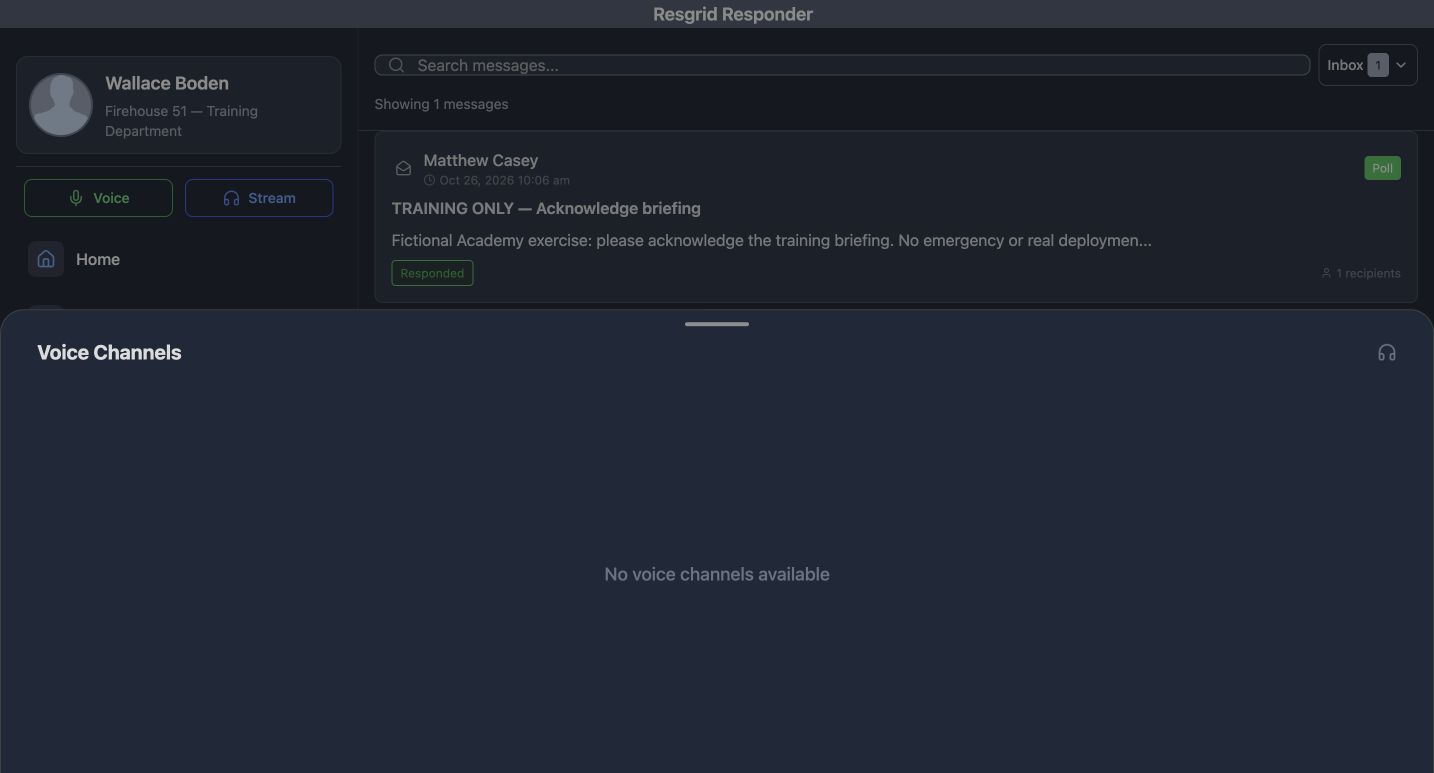
Voice opens Voice Channels. This training configuration says No voice channels available, so there is no channel to join here. Resolve that setup before relying on voice coordination. A configured deployment also needs the intended device’s audio permissions, microphone, and push-to-talk equipment checked through an approved test. An empty browser list cannot establish native radio or background-audio behavior. Keep the team’s agreed fallback communication available.
Practice
Explain the empty channel state to a fictional team and identify the authorized configuration and device checks needed before use.
Step 9
Inspect streams and audio hardware settings
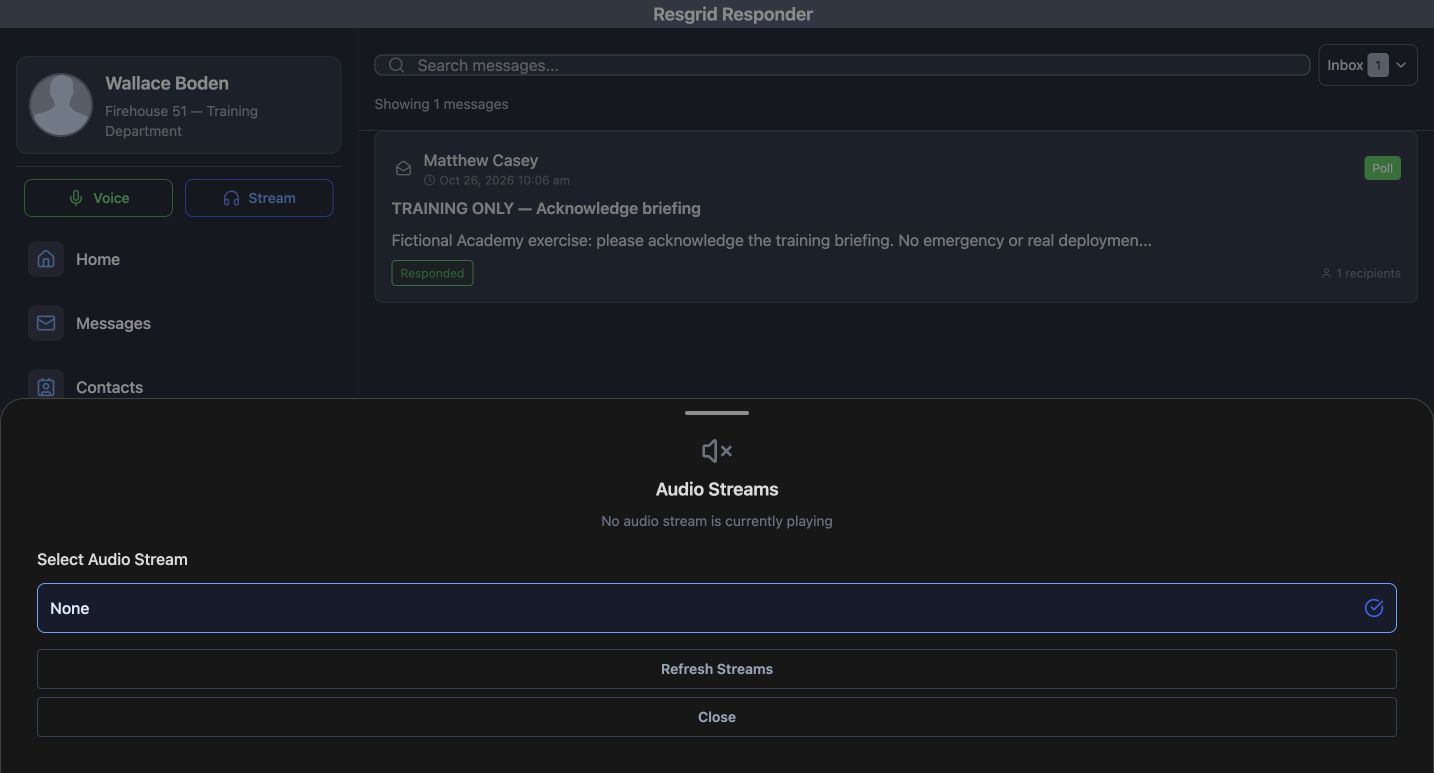
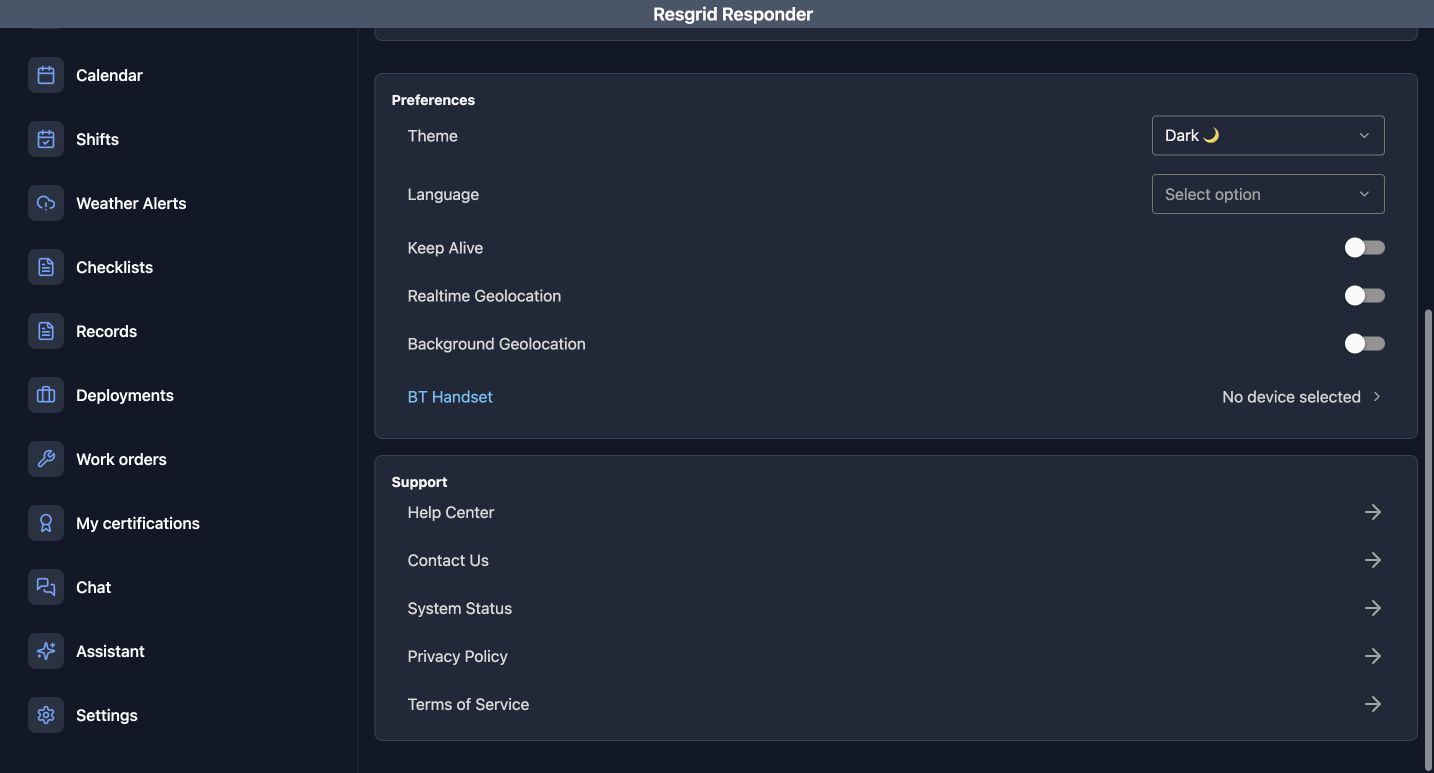
Stream opens Audio Streams and Select Audio Stream. None means no stream is selected; the screen also says no audio stream is currently playing. Refresh Streams reloads the configured list. In Settings, BT Handset currently says No device selected. Inspect these states before troubleshooting audio. Browser settings do not demonstrate Bluetooth pairing, headset buttons, or native background playback, and this exercise does not connect a real provider.
Practice
Distinguish an unselected stream from an unpaired handset, then describe a permitted device test without claiming audio was heard.
Step 10
Use contact context and preplans
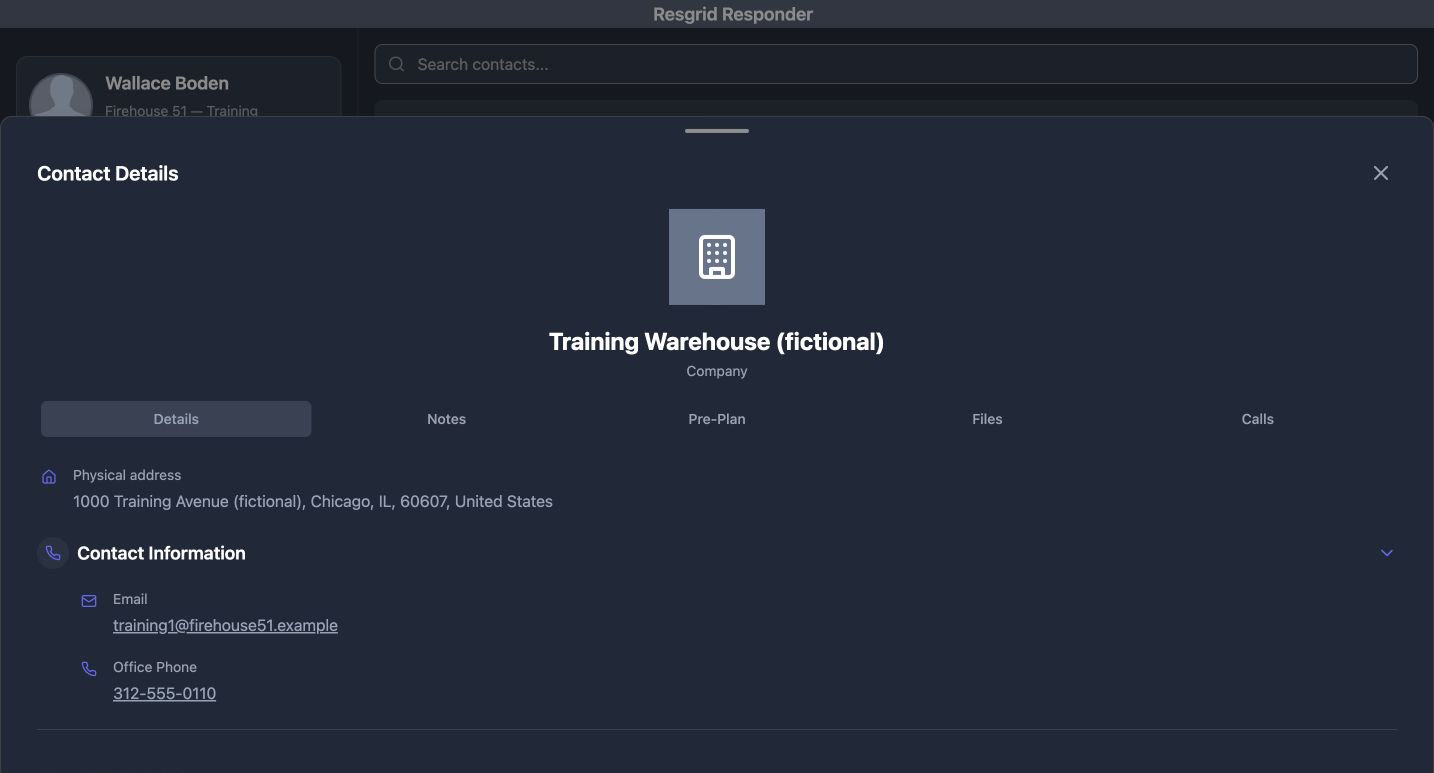
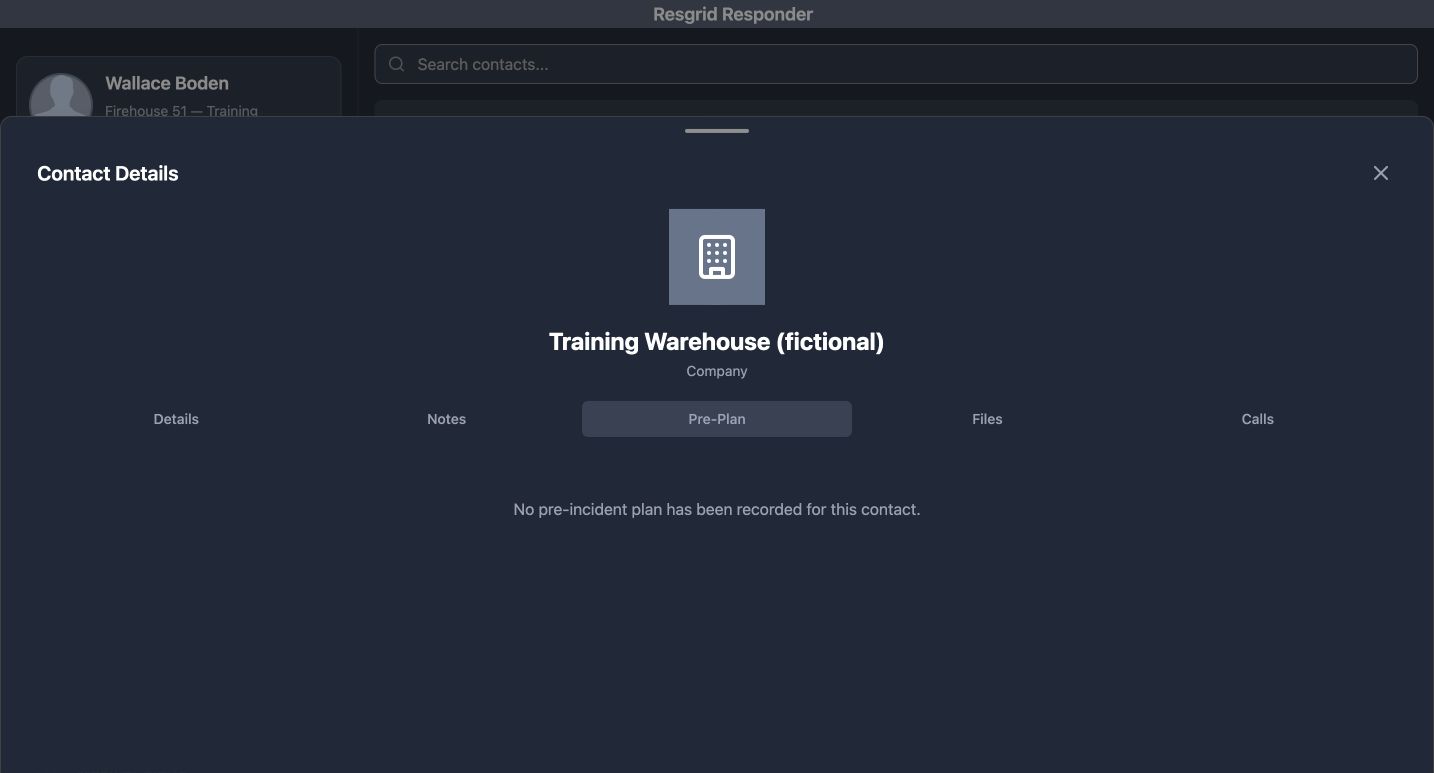
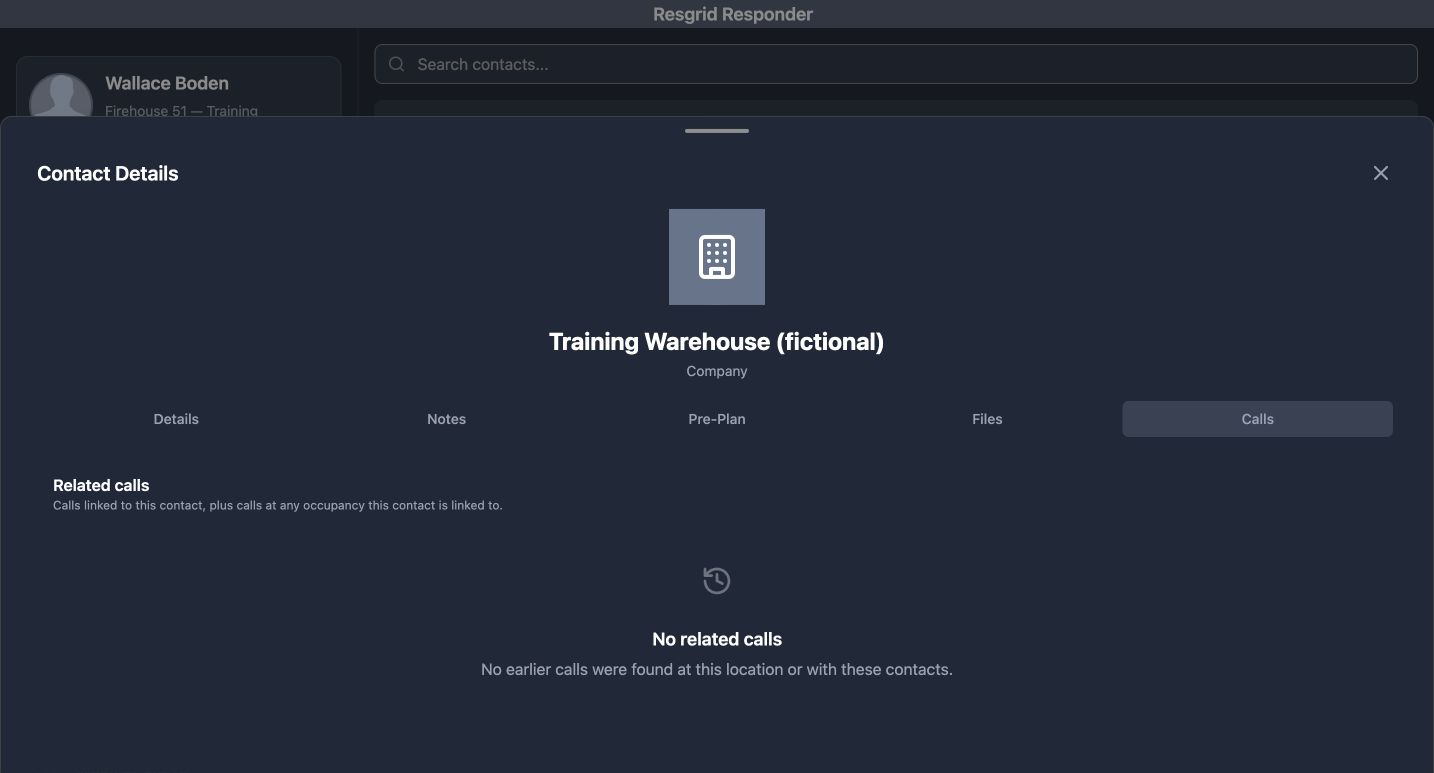
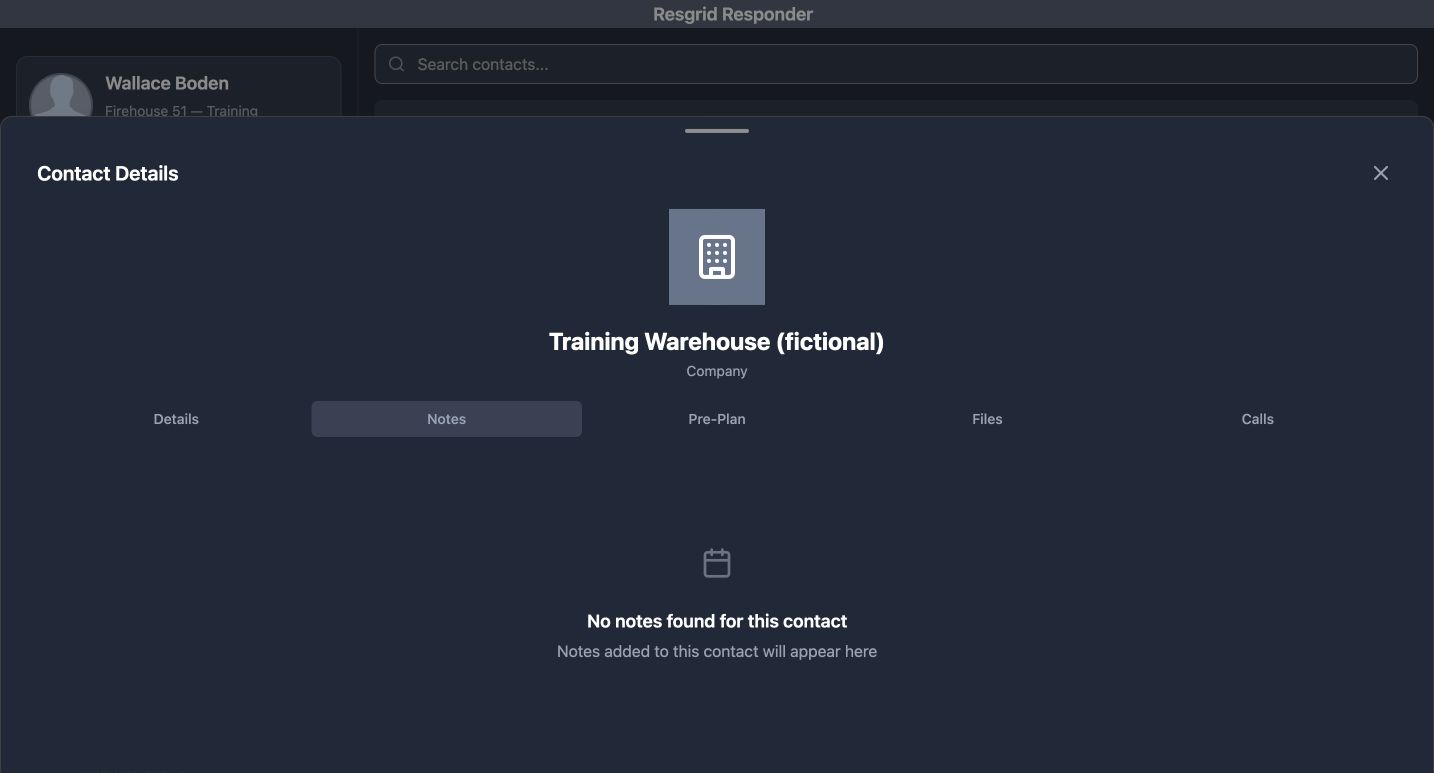
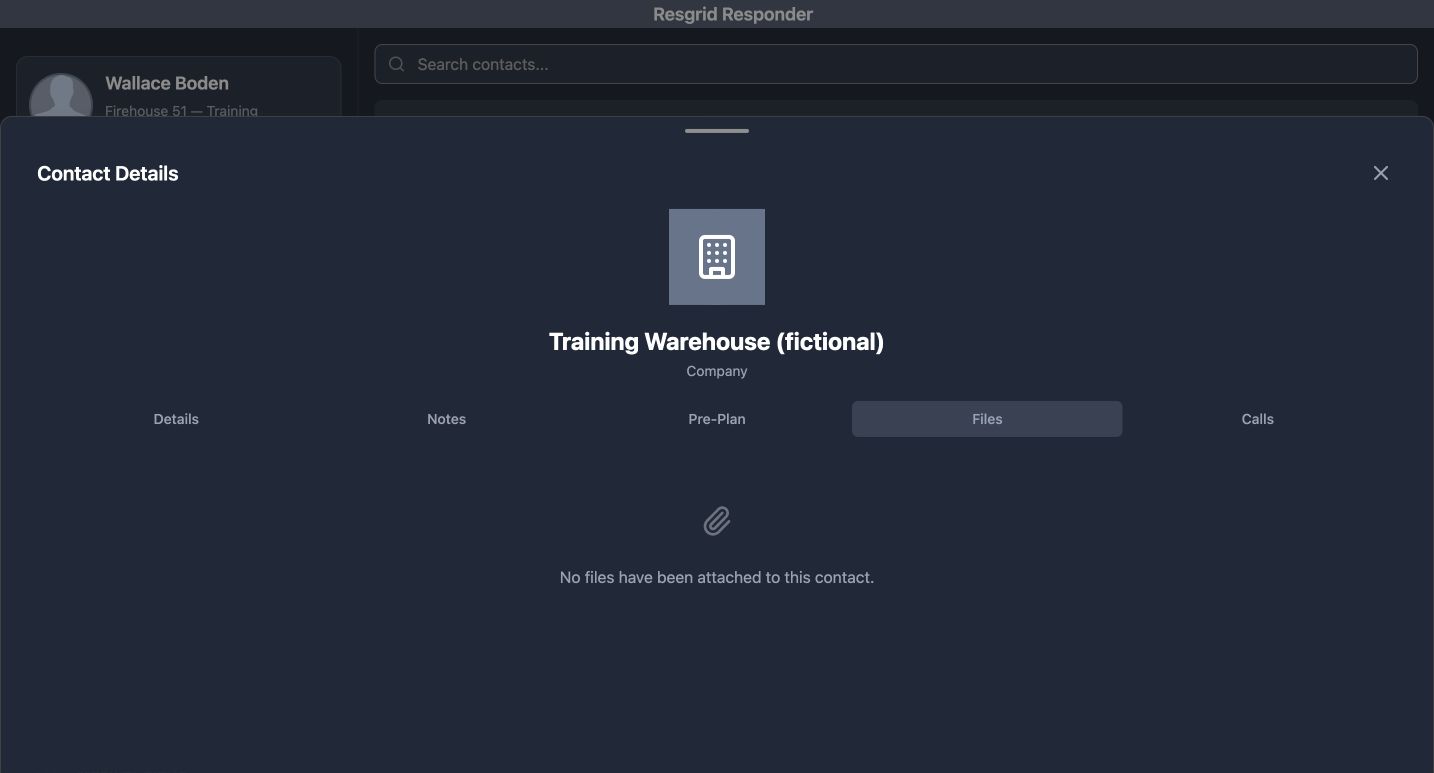
Contacts opens Contact Details with Details, Notes, Pre-Plan, Files, and Calls. Confirm the contact’s identity before following its information. Our fictional warehouse has no recorded preplan, notes, files, or related calls in these tabs. That absence does not establish that the site has no hazards. Wildland and industrial teams can use the same tabs for reliable access information and site documents once their department has populated them.
Practice
Review the fictional warehouse’s empty tabs and explain what information must be obtained before relying on a site plan.
Step 11
Consult notes and protocols in place
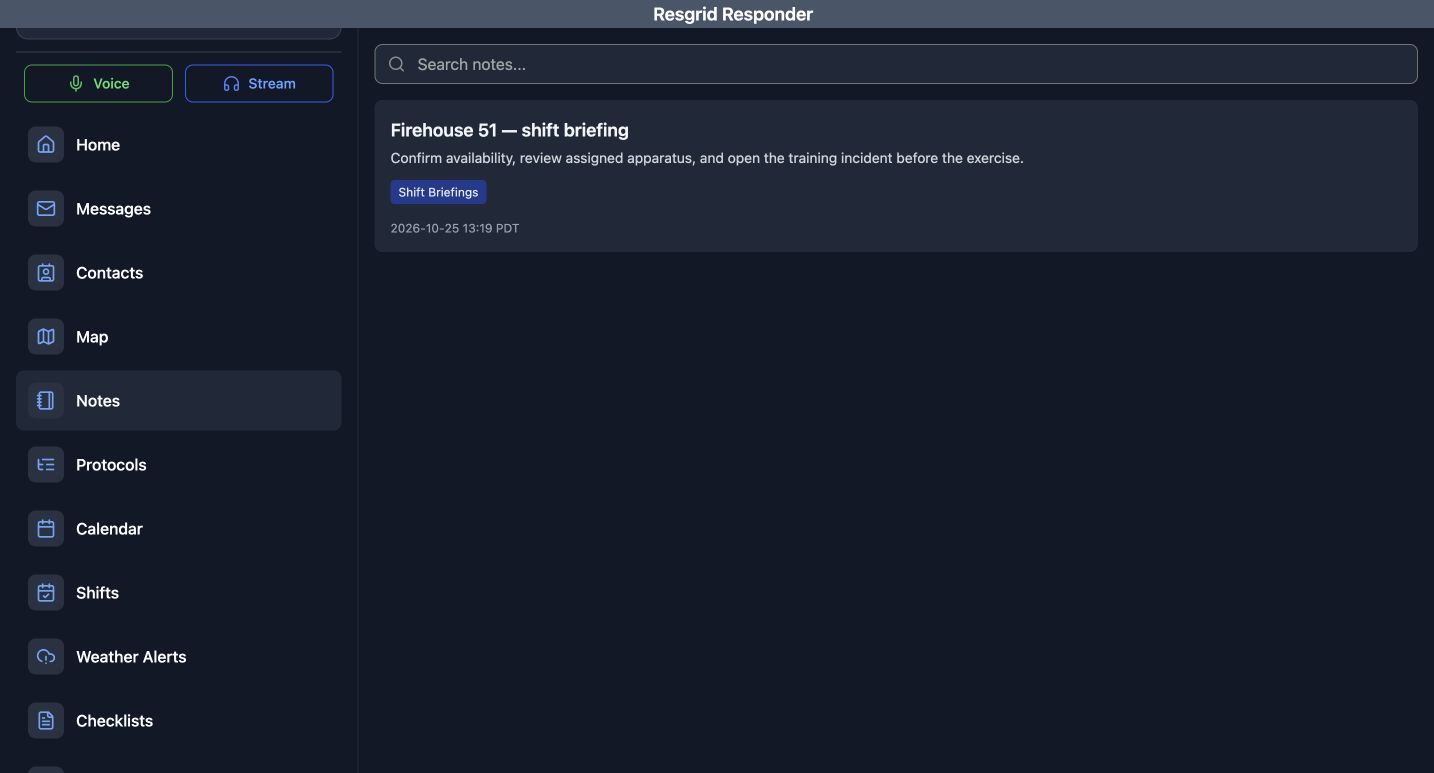
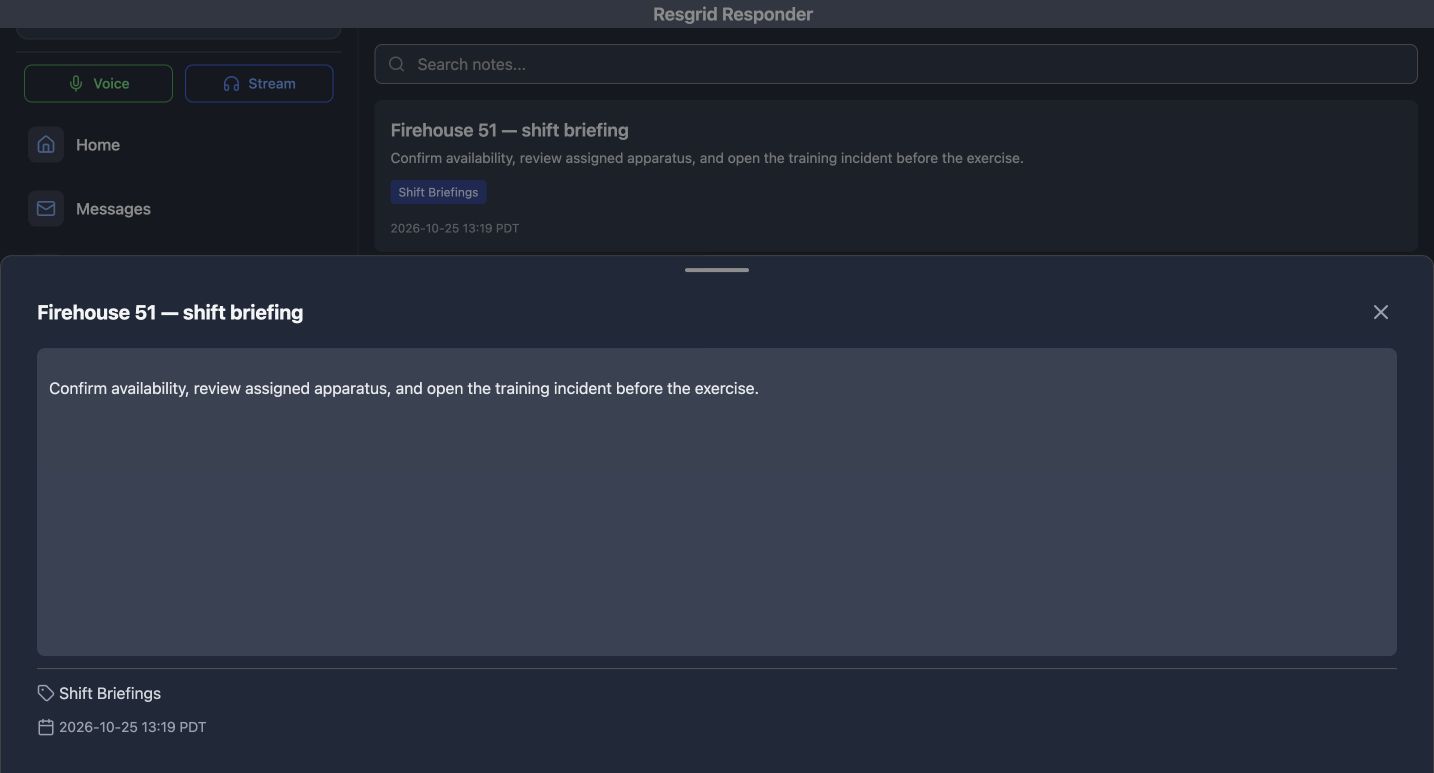
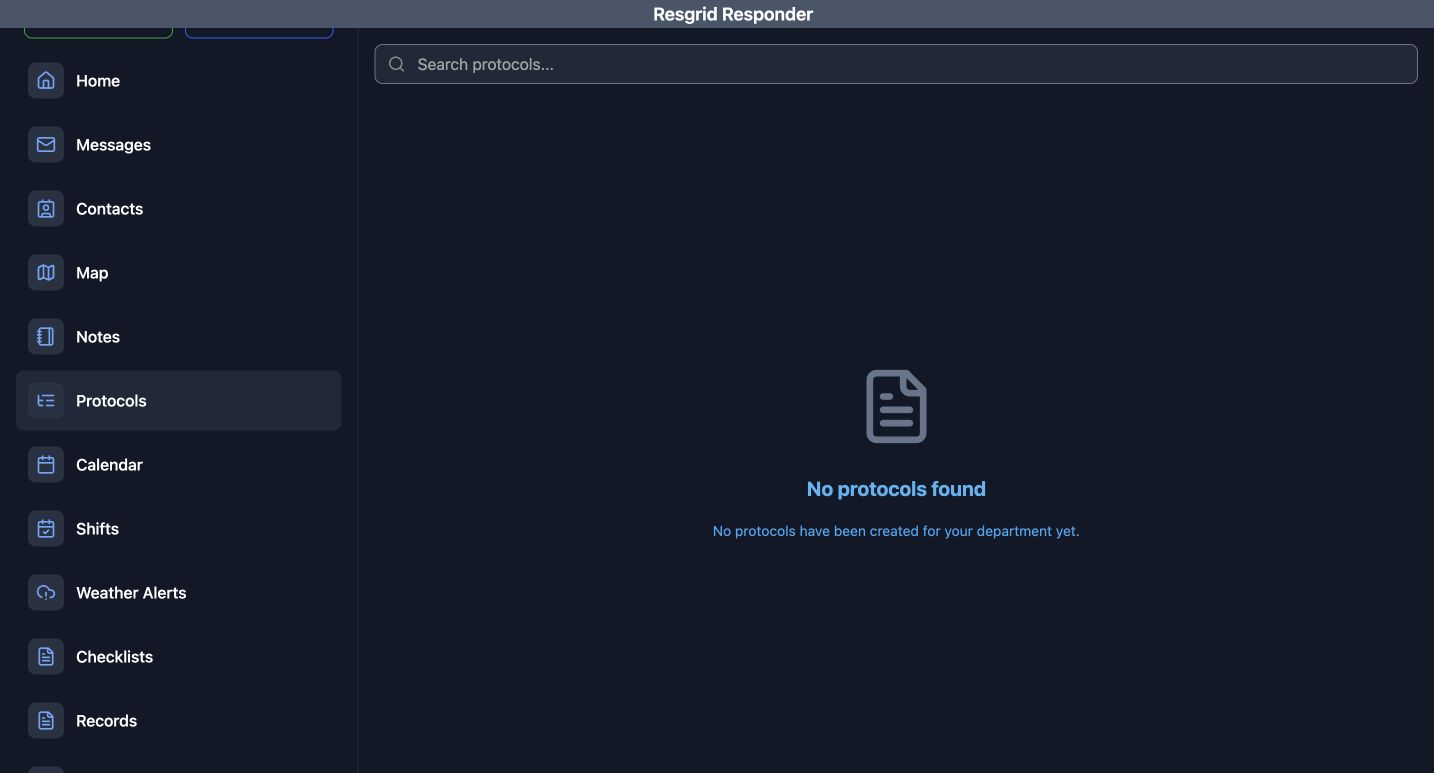
Notes contains the Firehouse 51 — shift briefing. Open it to read the actual briefing content and its category and date. Protocols is a separate reference library; this training department shows No protocols found. Search the appropriate library and confirm that an approved reference exists before relying on it. Reading a briefing does not create a protocol, and an empty library is a reason to obtain the correct departmental material.
Practice
Find the fictional shift briefing and identify the missing protocol material needed for a planned training activity.
Step 12
Prepare the target device and verify notifications
In Settings, inspect Keep Alive, Realtime Geolocation, Background Geolocation, and BT Handset. These preferences affect different device capabilities; do not assume one switch enables all field behavior. Native background location, audio hardware, and push notifications require the appropriate platform, permissions, and an approved device test. This browser exercise leaves the location switches off. Confirm actual alert receipt separately before a team depends on a device for notifications.
Practice
Explain which settings and permitted device tests a fictional SAR or community-response member would verify before a shift.
Examples for your department
- Fire / EMS
- A station team separates a shift briefing notice from an ongoing crew discussion.
- Community response
- A mobile care team coordinates a training briefing and follows up in a limited conversation without unnecessary sensitive narratives.
- Search and rescue
- A search task team keeps assignment follow-up in a thread and checks whether its approved briefing and protocols are available.
- Security
- A patrol supervisor needs checkpoint follow-up in a limited channel and a poll response recorded in the system.
- Wildland
- A seasonal crew shares a training briefing and reviews a site contact before relying on its communications equipment.
- Industrial
- An industrial team needs an approved site preplan and clearly configured communication channels for shift handovers.
Transcript
Download transcriptRead the complete transcript
Responder communications, conversations, and field references
Audience: Members who coordinate with colleagues, respond to departmental messages, or consult field information.

Choose the right communication surface
Messages organizes departmental notices into Inbox, Sent, and All Messages. Chat organizes ongoing conversations. Choose the audience and purpose before composing anything. Community response teams can use a notice for a briefing and a chat for coordination; industrial teams can use the same distinction for shift handovers. A stored message in your own app confirms a record, not delivery to every recipient’s device.
Practice: Choose a notice and a conversation for a fictional community-response handover, then identify the intended recipients.

Compose a scoped departmental message
The Compose icon opens New Message. Choose Message Type and Recipients, then enter a clear Subject and Message Body. The recipient picker separates People, Groups, and Roles. Check the selected names before Send. Our training notice goes only to the fictional Boden account. Find its saved card in Sent and open the content afterward; do not treat that card as proof of a push notification.
Practice: Prepare a clearly marked training notice to one fictional member and verify its saved content in Sent.

Respond and maintain the inbox
An incoming Poll can open Respond to Message through its reply arrow. Enter Response, add a Note (Optional), and choose Send Response. The training polls show a stored Yes response as code one; inspect the Responded result. Long-pressing a card exposes Select All and Delete. Review the selection carefully. This browser’s native confirmation does not complete deletion, so these examples preserve both messages.
Practice: Acknowledge a fictional briefing poll, inspect the stored response, and enter then leave selection mode without deleting data.

Start a direct or group conversation
Open New conversation and choose New Direct Message for one person or New Group for a shared discussion. Search for the intended member instead of choosing Everyone. Name the group and review the selected people before you create the group. Direct messages, channels, and incidents then organize the list. SAR task teams and security posts can use these same audience checks to avoid sending coordination to the wrong team.
Practice: Find fictional Matthew Casey for a direct conversation, then inspect the two-member Academy readiness group.

Use the chat composer with context
Confirm the conversation name before entering Type a message. Attach is the plus icon; its menu offers Emoji, Add image, Add GIF, Share location, and Urgent in a channel. Send is the paper-plane icon and becomes available after entering text. Threads offer fewer attachment choices. This exercise uses fictional text; media services, location permissions, and real hardware require separate checks on the intended platform.
Practice: Compare the channel and thread attachment menus, prepare an unsent training draft, and explain when urgency is appropriate.

Keep threads and message actions meaningful
Long-press a message to inspect its actions. The training account’s own-message menu shows Reply in thread, Copy, Edit, Delete, Pin, and moderator removal. Available actions depend on ownership and permissions. Thread keeps the ORIGINAL MESSAGE visible while you add related replies. Review the target before editing, pinning, deleting, or moderating. The captured reply is fictional; no deletion or moderator removal is demonstrated.
Practice: Open the fictional message menu, follow its thread, and distinguish an ordinary reply from a destructive or moderation action.

Inspect the assistant before using a provider
Assistant opens a question workspace with New session and a Send icon. Decide what you need to know and whether the information is approved for that service before submitting anything. A bounded question about a training procedure is more useful than a vague request for everything. This recording stays on the workspace: it does not invoke a provider or validate an answer. Verify any operational answer against approved references.
Practice: Draft a bounded, non-sensitive training question and identify the reference you would use to verify its answer.

Check voice availability on the intended platform
Voice opens Voice Channels. This training configuration says No voice channels available, so there is no channel to join here. Resolve that setup before relying on voice coordination. A configured deployment also needs the intended device’s audio permissions, microphone, and push-to-talk equipment checked through an approved test. An empty browser list cannot establish native radio or background-audio behavior. Keep the team’s agreed fallback communication available.
Practice: Explain the empty channel state to a fictional team and identify the authorized configuration and device checks needed before use.

Inspect streams and audio hardware settings
Stream opens Audio Streams and Select Audio Stream. None means no stream is selected; the screen also says no audio stream is currently playing. Refresh Streams reloads the configured list. In Settings, BT Handset currently says No device selected. Inspect these states before troubleshooting audio. Browser settings do not demonstrate Bluetooth pairing, headset buttons, or native background playback, and this exercise does not connect a real provider.
Practice: Distinguish an unselected stream from an unpaired handset, then describe a permitted device test without claiming audio was heard.

Use contact context and preplans
Contacts opens Contact Details with Details, Notes, Pre-Plan, Files, and Calls. Confirm the contact’s identity before following its information. Our fictional warehouse has no recorded preplan, notes, files, or related calls in these tabs. That absence does not establish that the site has no hazards. Wildland and industrial teams can use the same tabs for reliable access information and site documents once their department has populated them.
Practice: Review the fictional warehouse’s empty tabs and explain what information must be obtained before relying on a site plan.

Consult notes and protocols in place
Notes contains the Firehouse 51 — shift briefing. Open it to read the actual briefing content and its category and date. Protocols is a separate reference library; this training department shows No protocols found. Search the appropriate library and confirm that an approved reference exists before relying on it. Reading a briefing does not create a protocol, and an empty library is a reason to obtain the correct departmental material.
Practice: Find the fictional shift briefing and identify the missing protocol material needed for a planned training activity.

Prepare the target device and verify notifications
In Settings, inspect Keep Alive, Realtime Geolocation, Background Geolocation, and BT Handset. These preferences affect different device capabilities; do not assume one switch enables all field behavior. Native background location, audio hardware, and push notifications require the appropriate platform, permissions, and an approved device test. This browser exercise leaves the location switches off. Confirm actual alert receipt separately before a team depends on a device for notifications.
Practice: Explain which settings and permitted device tests a fictional SAR or community-response member would verify before a shift.

Examples for your department
Fire / EMS: A station team separates a shift briefing notice from an ongoing crew discussion.
Community response: A mobile care team coordinates a training briefing and follows up in a limited conversation without unnecessary sensitive narratives.
Search and rescue: A search task team keeps assignment follow-up in a thread and checks whether its approved briefing and protocols are available.
Security: A patrol supervisor needs checkpoint follow-up in a limited channel and a poll response recorded in the system.
Wildland: A seasonal crew shares a training briefing and reviews a site contact before relying on its communications equipment.
Industrial: An industrial team needs an approved site preplan and clearly configured communication channels for shift handovers.