
IC · Video walkthrough
IC: create, revise and finalize a department record
Choose an offered department form, save and revise a fictional draft, review attestation and finalize it, then verify the numbered result under Recent.
Before you begin
- A signed-in IC account authorized to create the offered form.
- A department-owned practice form already published for IC. The Core client-surfaces lesson covers that setup.
- Use fictional practice data in a separate training department.
Chapters
- Open an offered department form
- Read the form and its required field
- Enter fictional details and save a draft
- Revise the note and verify the saved text
- Review attestation before finalizing
- Finalize and verify the numbered result
- Find the completed record under Recent
- Apply the record workflow to your department
Watch the walkthrough
Step 1
Open an offered department form
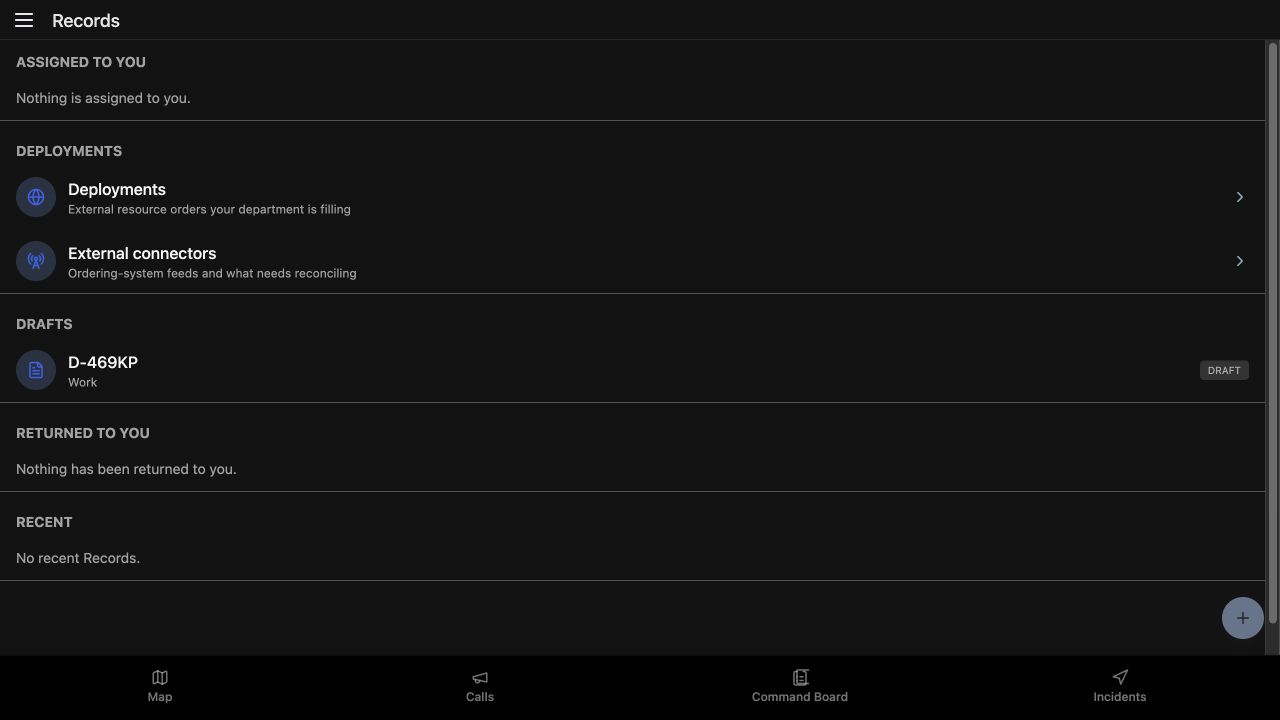
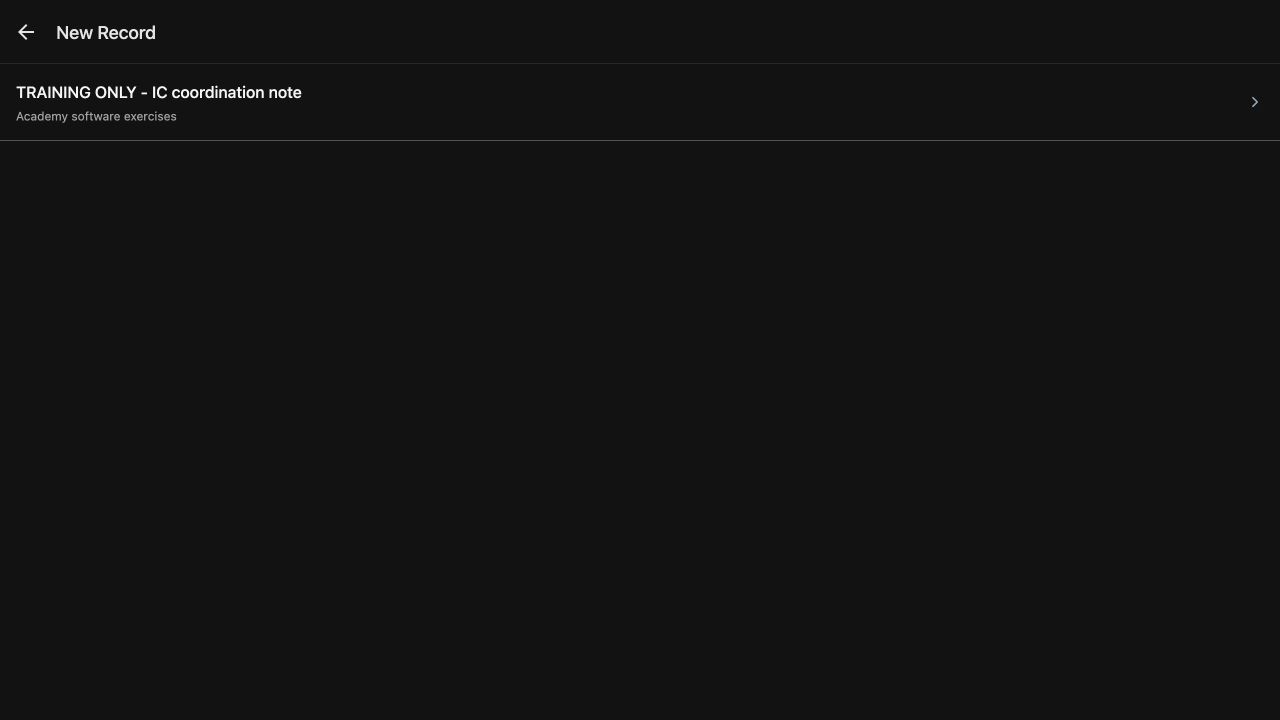
Begin in Records in an authorized IC session. The plus button at the lower right opens the form selection screen. On New Record, this department offers Training Only, IC coordination note, in the Academy software exercises category. Choose that named form. Read the available name and category before starting; your own department may offer a different collection of forms for its work.
Practice
Use the visible plus button, identify the offered training form and choose it by name.
Step 2
Read the form and its required field
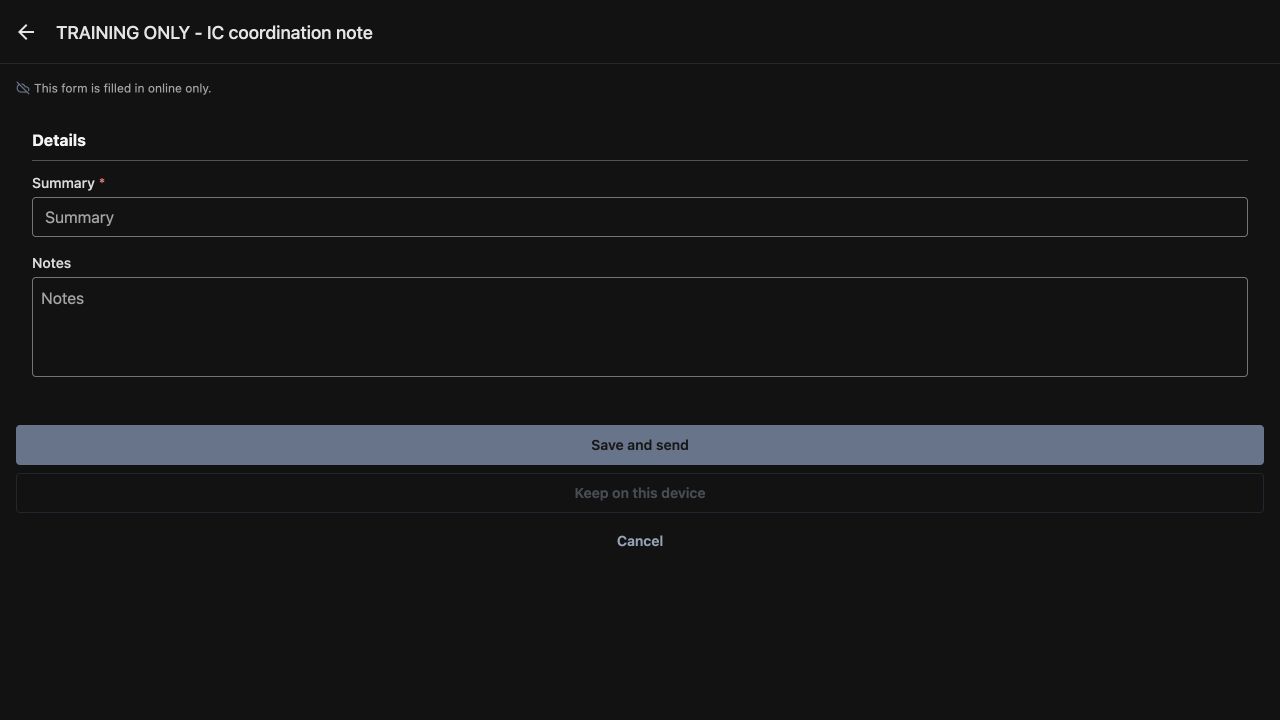
The selected form says This form is filled in online only. In Details, Summary has an asterisk and Notes provides space for the longer explanation. Read those labels before entering information. A clear summary helps another authorized operator recognize the record later, while notes carry the supporting detail. Save and send is the action below the fields for this online example.
Practice
Read the online-only message and identify Summary, Notes and Save and send.
Step 3
Enter fictional details and save a draft
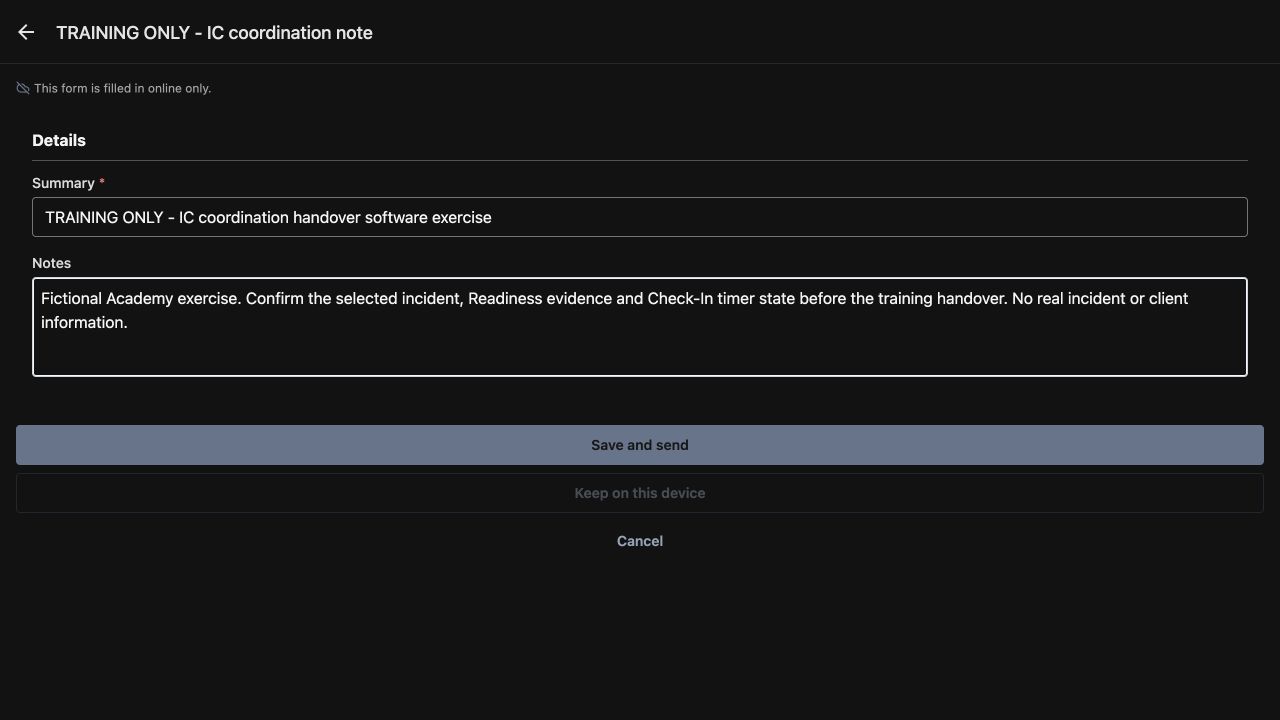
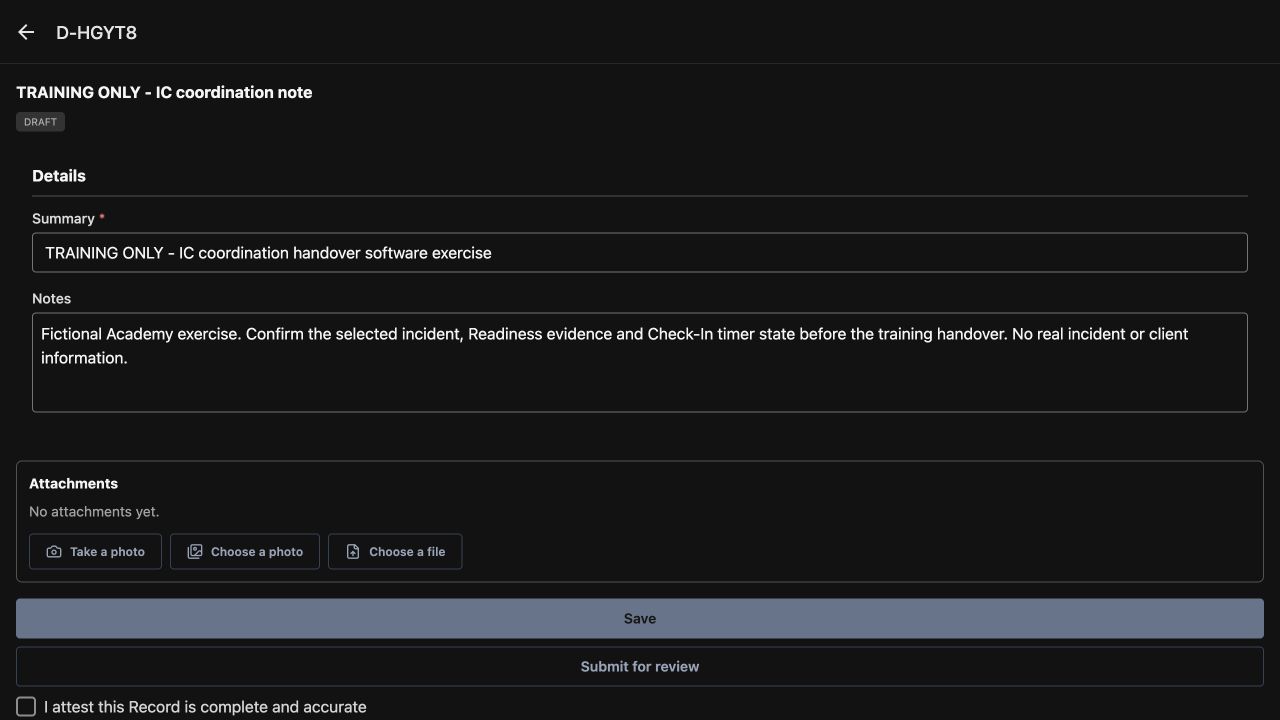
Enter a concise Summary and Notes for the software exercise. The example summary begins Training Only and describes an IC coordination handover. Review both fields, then choose Save and send. The returned record page has a draft reference at the top and a Draft tag beneath the form name. Read those together with your saved text. This is the working draft you can review before finalizing.
Practice
Save a fictional summary and note, then identify the returned draft reference and Draft tag.
Step 4
Revise the note and verify the saved text
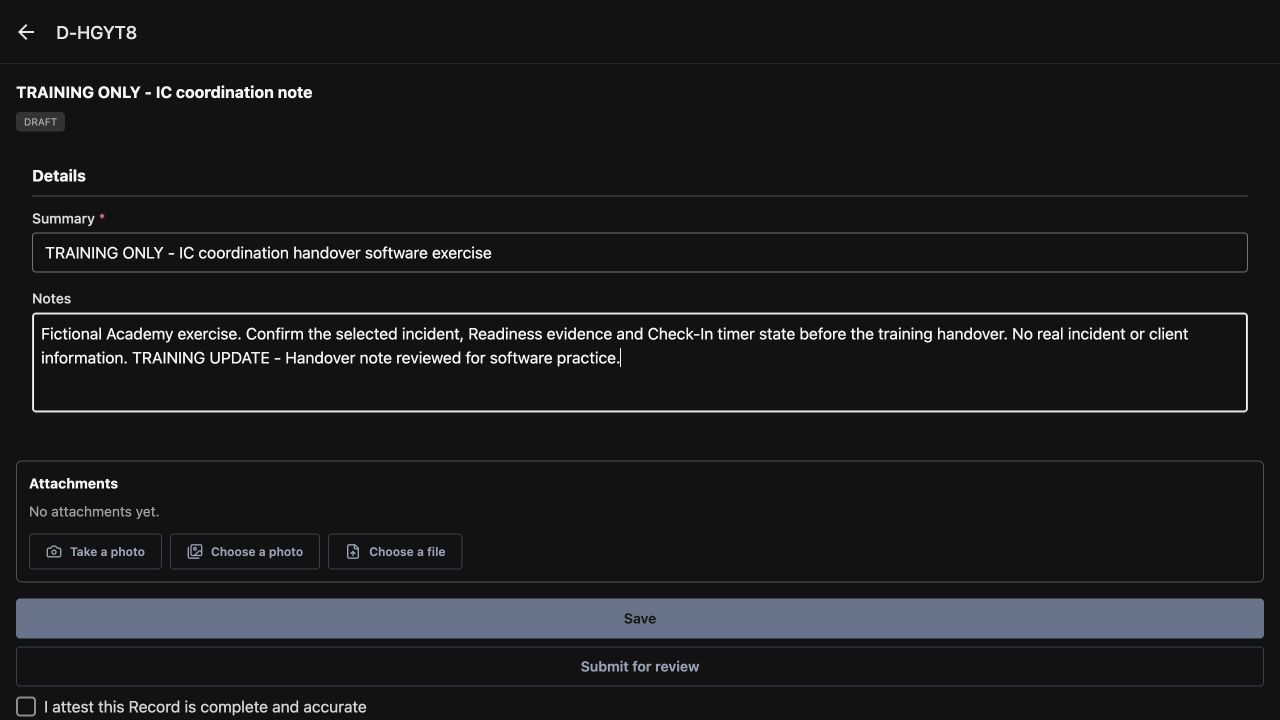
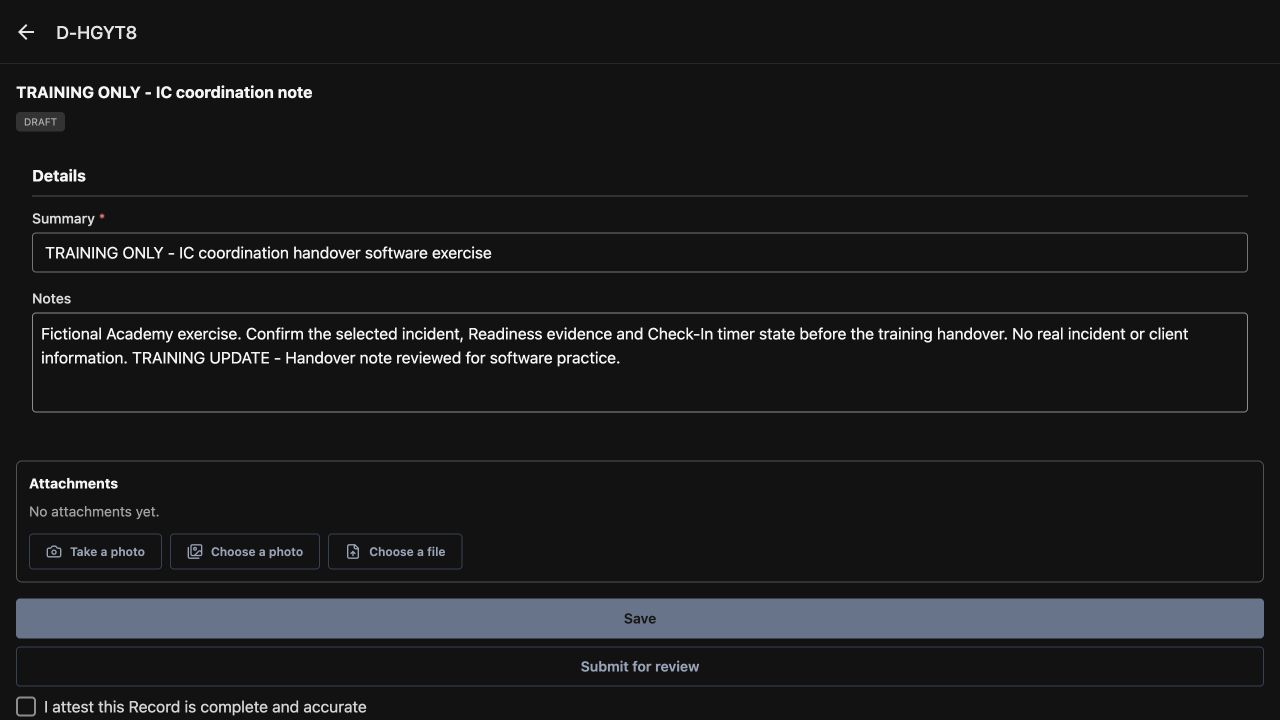
While the record is a draft, update Notes with a clear practice revision. Here the added sentence begins Training Update and says the handover note was reviewed for software practice. Choose Save. The verified draft still shows that update in Notes, retains the original Summary and remains marked Draft. Compare the saved text with the change you intended before moving on to completion.
Practice
Append a fictional revision, use Save and verify the retained Summary, updated Notes and Draft state.
Step 5
Review attestation before finalizing
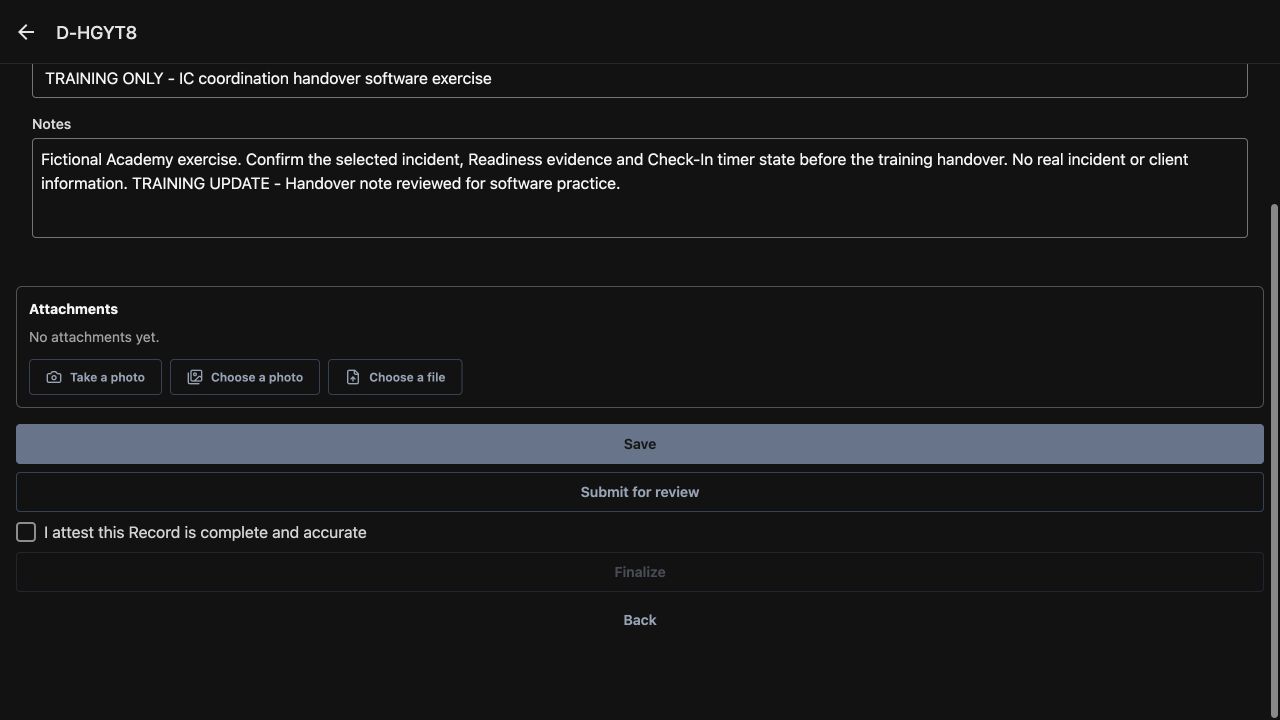
Read I attest this Record is complete and accurate before selecting its checkbox. Finalize is initially disabled in this example. After reviewing this fictional software record, the author selects the attestation and Finalize becomes available. Treat that as a deliberate completion decision based on the actual record contents. For practice, compare the unchecked and selected states before choosing the final action.
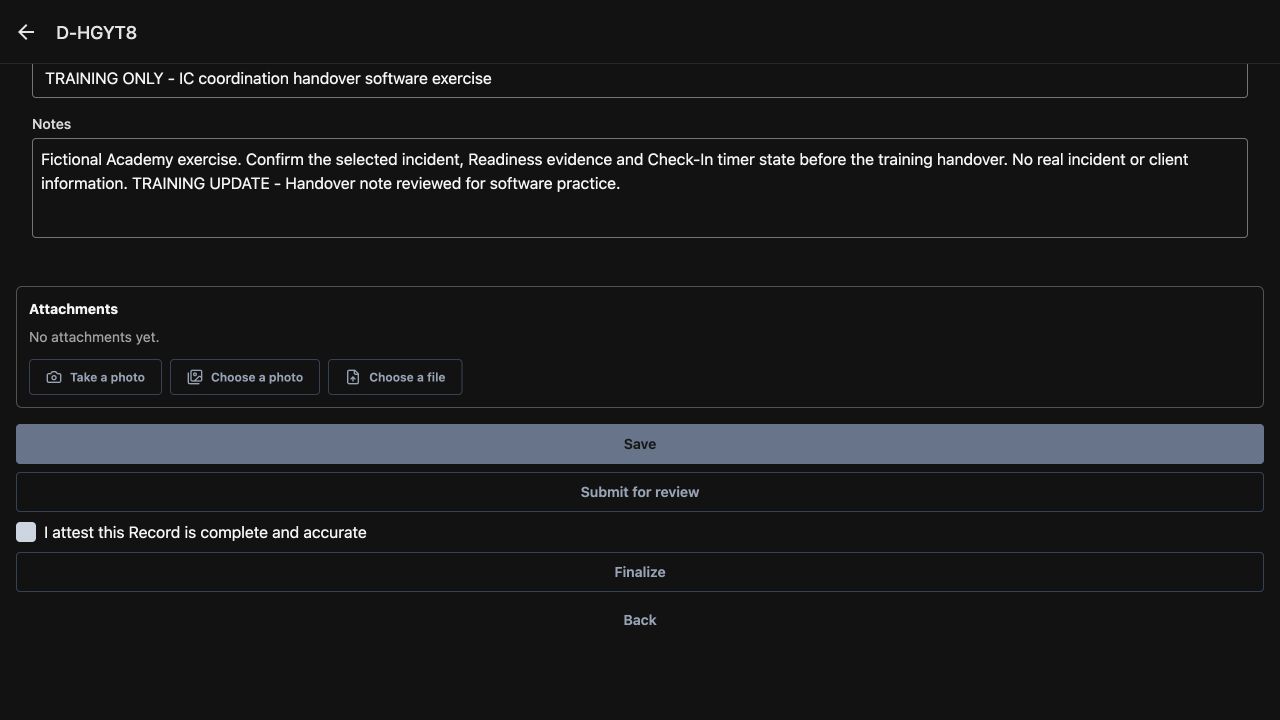
Practice
Read the complete attestation and compare the disabled and available Finalize states using accurate fictional practice data.
Step 6
Finalize and verify the numbered result
Choose Finalize for the reviewed practice record. The returned page shows Finalized and the header now reads I C note, twenty twenty-six, zero zero zero one. Its Summary and Notes are displayed read-only, and the draft editing actions are gone. Verify the state and number as the result of completion. The earlier draft reference and the final record number identify different stages of this same example.
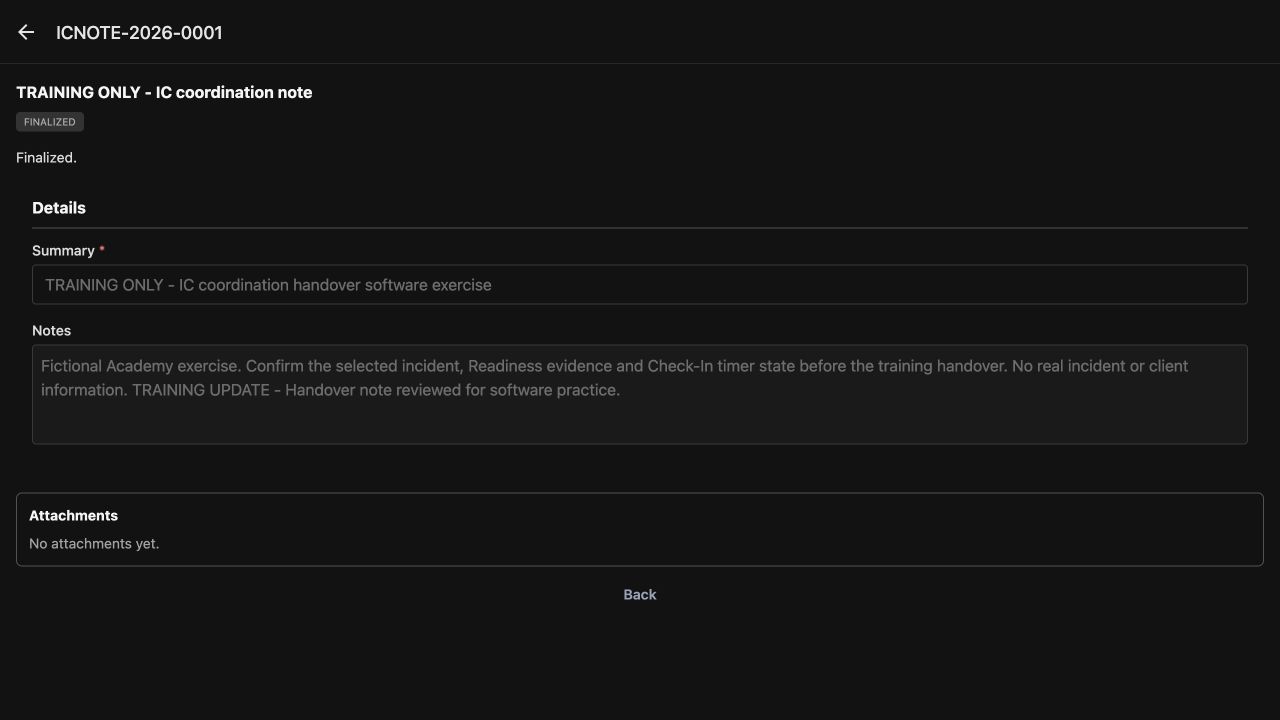
Practice
Finalize an accurate fictional record and verify its Finalized state, record number and read-only fields.
Step 7
Find the completed record under Recent
Use Back to return to Records. Under Recent, find the same record number and the coordination handover summary, with the Finalized tag on the right. An unrelated Work record remains in Drafts above it. Read the section, number, summary and state together when selecting a record; completing one item does not mean that every draft in the workspace has been completed.
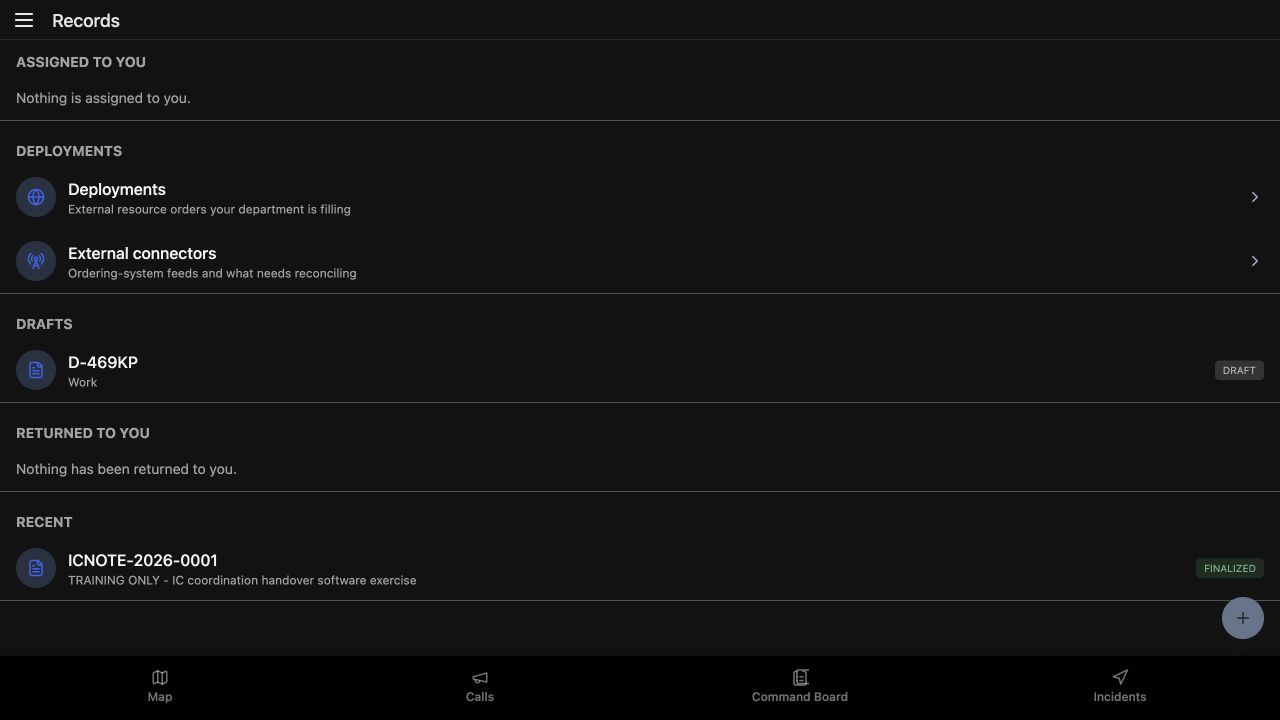
Practice
Locate the numbered record in Recent and distinguish it from another item in Drafts.
Step 8
Apply the record workflow to your department
This workflow can document a security supervisor handover, a search-and-rescue coordination exercise, a community paramedicine or mental health team handover, wildland contractor coordination, industrial response exercises, or fire and E M S department work. The form fields and responsibilities should match your department. The repeatable pattern is to choose the correct form, review the working draft, verify revisions and confirm the final numbered record.
Practice
Describe a fictional departmental example and identify who should author and review its record.
Examples for your department
- Fire / EMS
- A command aide practices an authorized department coordination record.
- Community response
- A community paramedicine or mental health team practices a coordination handover form.
- Search and rescue
- A search coordinator practices a mission-support handover record.
- Security
- A supervisor practices a shift or event handover form.
- Wildland
- A contractor practices crew coordination documentation.
- Industrial
- An industrial response team practices exercise documentation.
Transcript
Download transcriptRead the complete transcript
IC: create, revise and finalize a department record
Audience: Incident commanders, Command aides, Authorized department record authors

Open an offered department form
Begin in Records in an authorized IC session. The plus button at the lower right opens the form selection screen. On New Record, this department offers Training Only, IC coordination note, in the Academy software exercises category. Choose that named form. Read the available name and category before starting; your own department may offer a different collection of forms for its work.
Practice: Use the visible plus button, identify the offered training form and choose it by name.

Read the form and its required field
The selected form says This form is filled in online only. In Details, Summary has an asterisk and Notes provides space for the longer explanation. Read those labels before entering information. A clear summary helps another authorized operator recognize the record later, while notes carry the supporting detail. Save and send is the action below the fields for this online example.
Practice: Read the online-only message and identify Summary, Notes and Save and send.

Enter fictional details and save a draft
Enter a concise Summary and Notes for the software exercise. The example summary begins Training Only and describes an IC coordination handover. Review both fields, then choose Save and send. The returned record page has a draft reference at the top and a Draft tag beneath the form name. Read those together with your saved text. This is the working draft you can review before finalizing.
Practice: Save a fictional summary and note, then identify the returned draft reference and Draft tag.

Revise the note and verify the saved text
While the record is a draft, update Notes with a clear practice revision. Here the added sentence begins Training Update and says the handover note was reviewed for software practice. Choose Save. The verified draft still shows that update in Notes, retains the original Summary and remains marked Draft. Compare the saved text with the change you intended before moving on to completion.
Practice: Append a fictional revision, use Save and verify the retained Summary, updated Notes and Draft state.

Review attestation before finalizing
Read I attest this Record is complete and accurate before selecting its checkbox. Finalize is initially disabled in this example. After reviewing this fictional software record, the author selects the attestation and Finalize becomes available. Treat that as a deliberate completion decision based on the actual record contents. For practice, compare the unchecked and selected states before choosing the final action.
Practice: Read the complete attestation and compare the disabled and available Finalize states using accurate fictional practice data.

Finalize and verify the numbered result
Choose Finalize for the reviewed practice record. The returned page shows Finalized and the header now reads I C note, twenty twenty-six, zero zero zero one. Its Summary and Notes are displayed read-only, and the draft editing actions are gone. Verify the state and number as the result of completion. The earlier draft reference and the final record number identify different stages of this same example.
Practice: Finalize an accurate fictional record and verify its Finalized state, record number and read-only fields.

Find the completed record under Recent
Use Back to return to Records. Under Recent, find the same record number and the coordination handover summary, with the Finalized tag on the right. An unrelated Work record remains in Drafts above it. Read the section, number, summary and state together when selecting a record; completing one item does not mean that every draft in the workspace has been completed.
Practice: Locate the numbered record in Recent and distinguish it from another item in Drafts.

Apply the record workflow to your department
This workflow can document a security supervisor handover, a search-and-rescue coordination exercise, a community paramedicine or mental health team handover, wildland contractor coordination, industrial response exercises, or fire and E M S department work. The form fields and responsibilities should match your department. The repeatable pattern is to choose the correct form, review the working draft, verify revisions and confirm the final numbered record.
Practice: Describe a fictional departmental example and identify who should author and review its record.

Examples for your department
Fire / EMS: A command aide practices an authorized department coordination record.
Community response: A community paramedicine or mental health team practices a coordination handover form.
Search and rescue: A search coordinator practices a mission-support handover record.
Security: A supervisor practices a shift or event handover form.
Wildland: A contractor practices crew coordination documentation.
Industrial: An industrial response team practices exercise documentation.