
IC · Video walkthrough
Review IC access, session settings and sync status
Find IC settings, check the server and sign-in summary, review shared-device and presentation preferences, interpret an empty sync queue, and inspect the logout warning without ending the session.
Before you begin
- An authorized IC account already signed in to your department's intended environment.
- Your department's approved server address and guidance for shared workstations and account security.
- A practice period away from an active command handover. Keep credentials out of shared recordings.
Chapters
- Start with the application and environment
- Inspect the intended server
- Read the current sign-in summary
- Recognize the Login Info form
- Review the shared-workstation choice
- Read presentation preferences and support destinations
- Interpret the current sync queue
- Inspect the logout consequence and finish the review
Watch the walkthrough
Step 1
Start with the application and environment
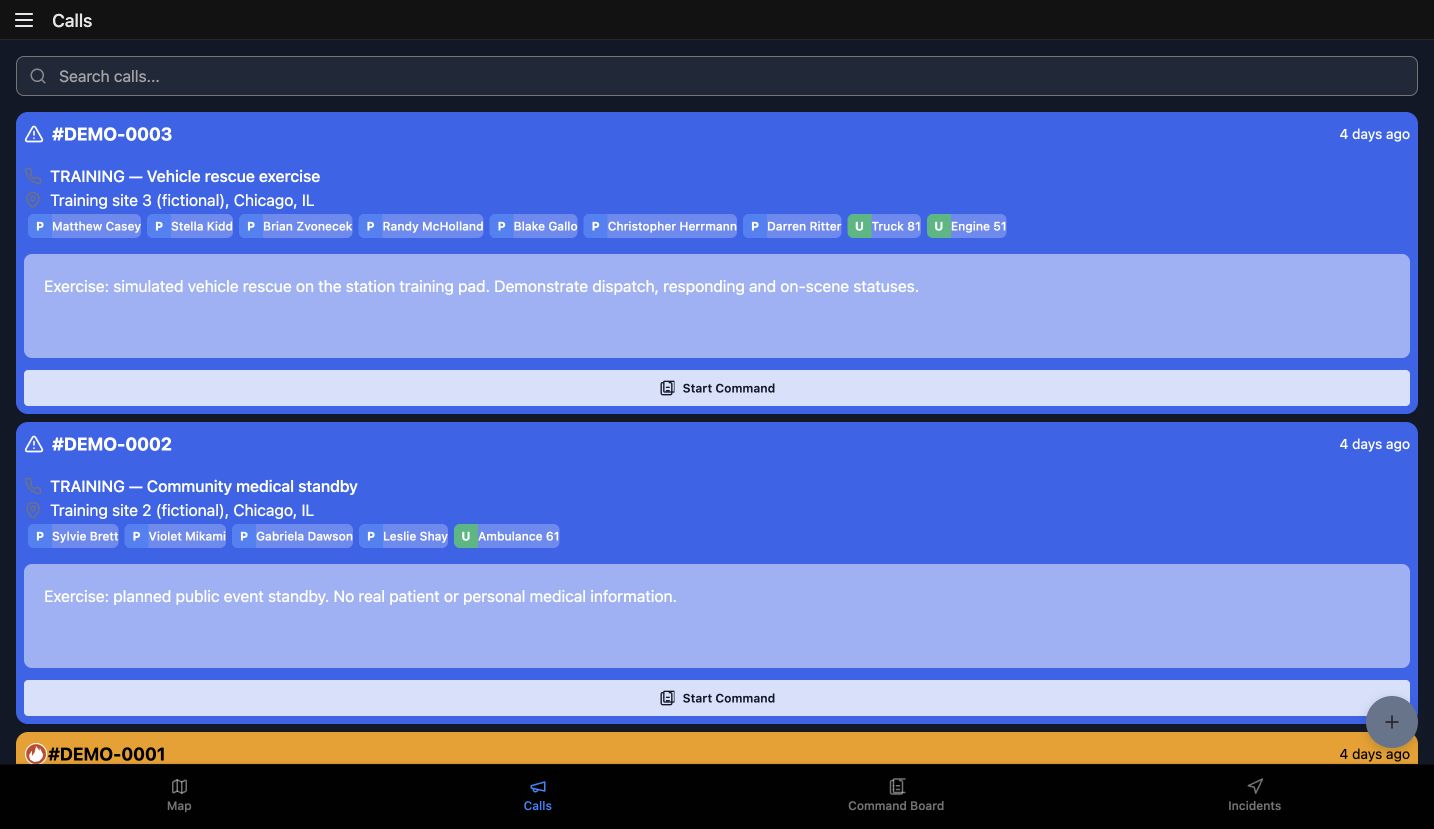
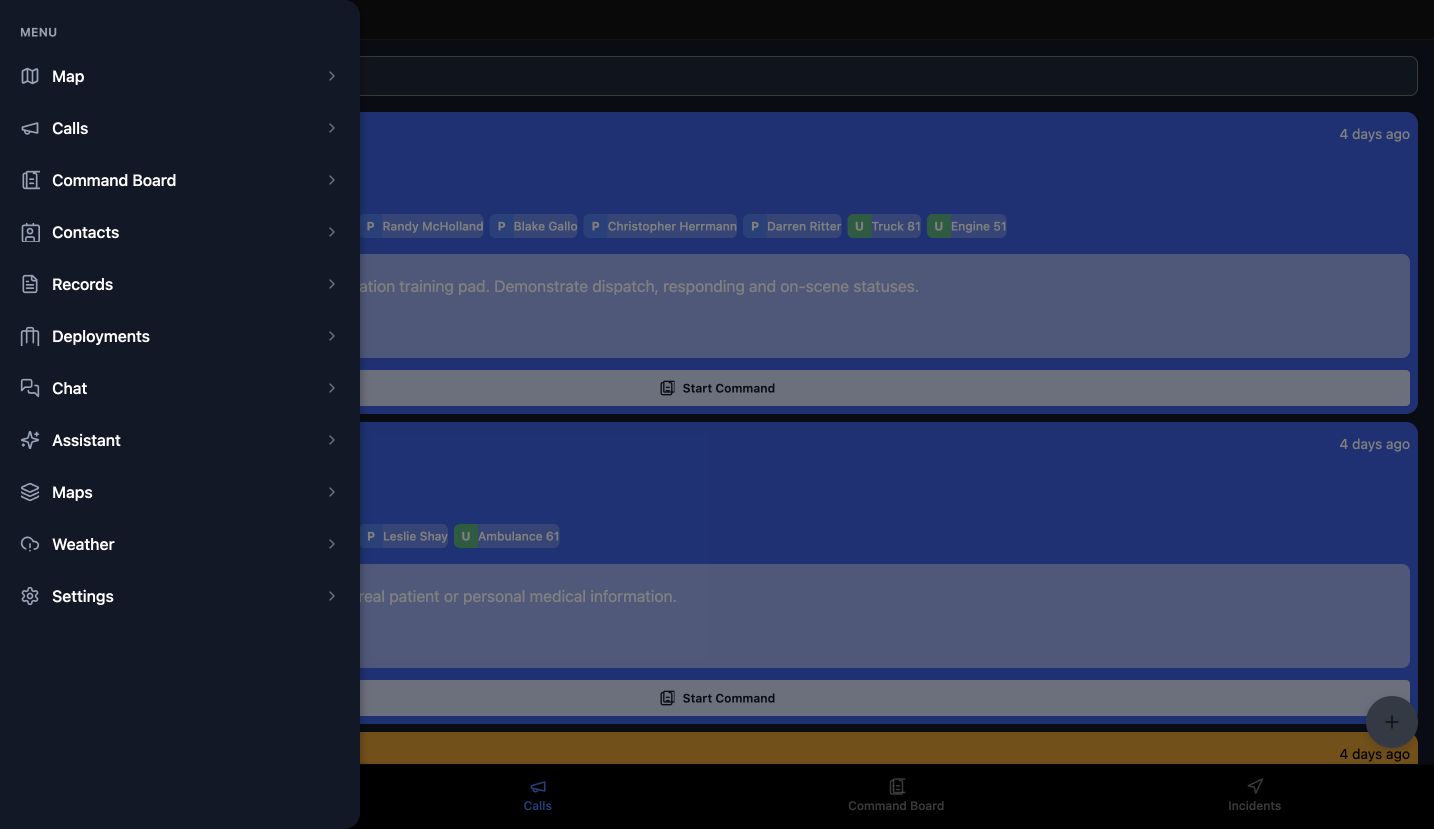
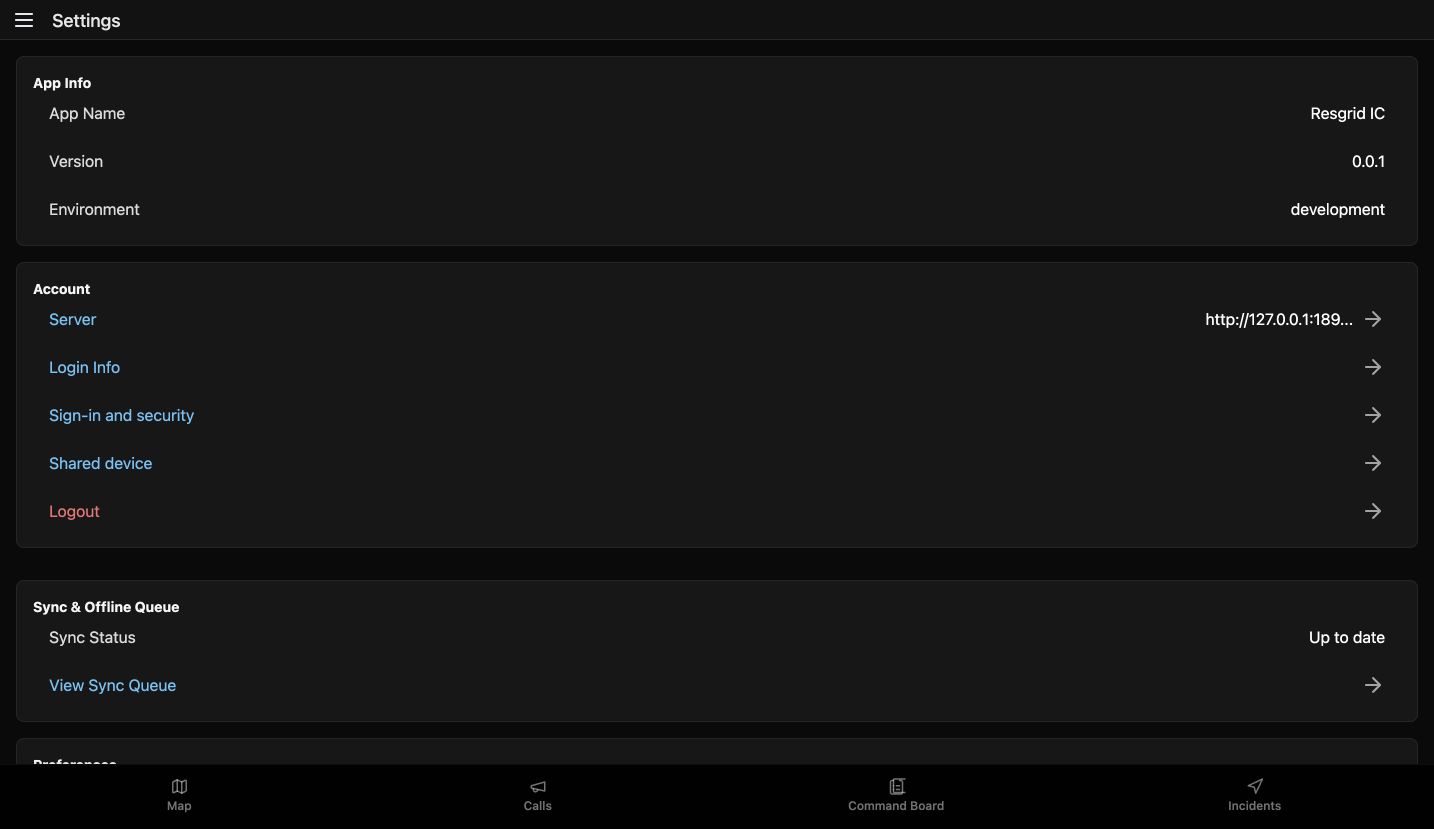
Before taking over a command workstation, check which application and environment you are using. We begin in IC's Calls workspace, with the department's training incidents already listed. Open the menu at the upper left and choose Settings. At the top, App Info shows App Name, Version and Environment; this example identifies Resgrid IC in development. That gives a command aide useful details when reporting a problem. For practice, locate those three values, then find the Account section directly underneath before reviewing connection or sign-in settings.
Practice
From your signed-in IC workspace, locate Settings and identify the app name, version and environment before discussing a support issue.
Step 2
Inspect the intended server
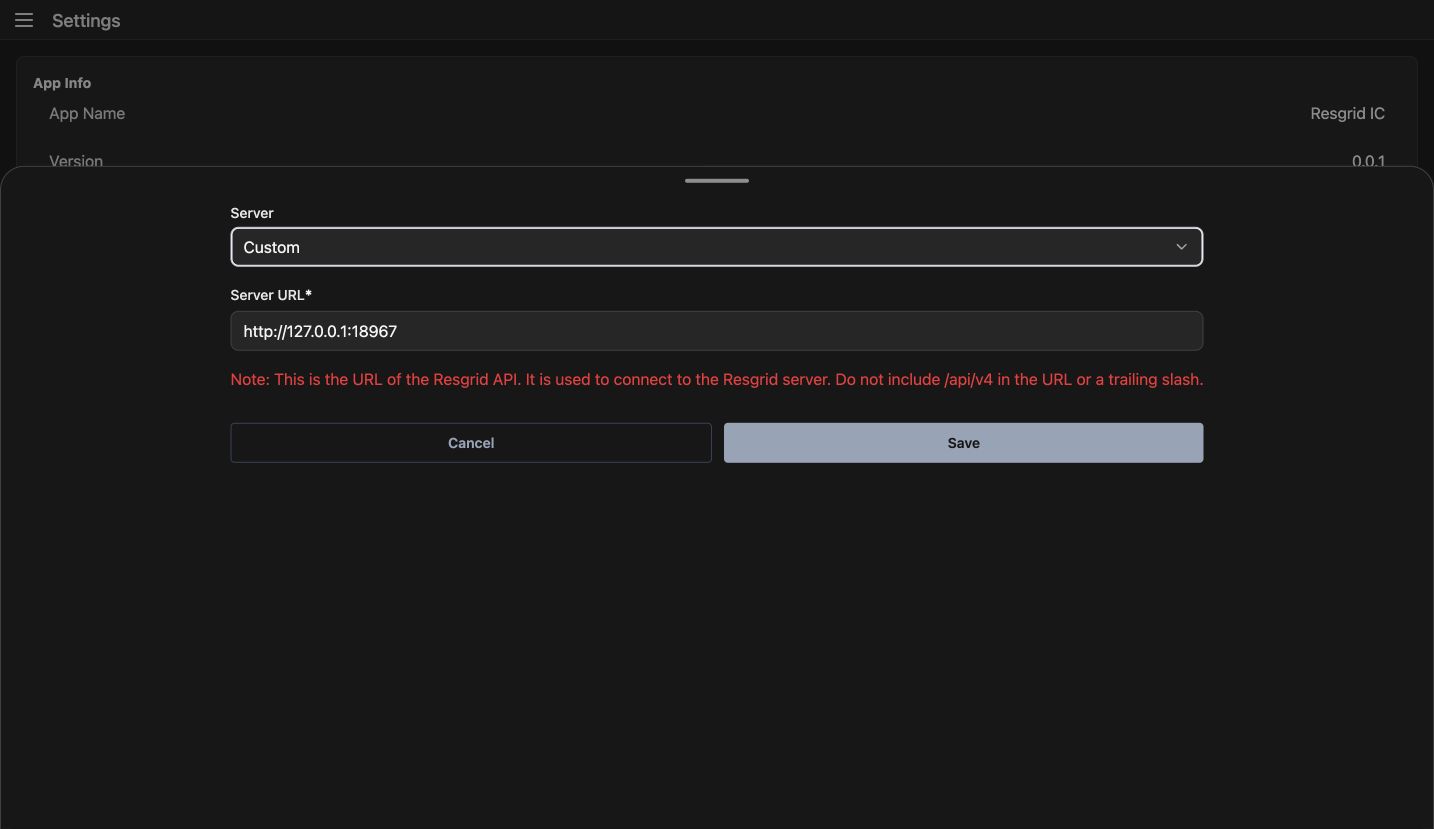
In Settings, Account, open Server to inspect the connection address. The form shows Custom and a complete Server URL; the loopback address here belongs to this local training environment. Use the address supplied by your administrator for your own installation. The note says to leave off the API version path and a trailing slash. Cancel closes this review without saving a different server. During a command handover, comparing the address first helps avoid troubleshooting the wrong installation. Practice finding the complete address rather than relying on the shortened Account row.
Practice
Compare the full Server URL with your administrator's approved address, then use Cancel without changing it.
Step 3
Read the current sign-in summary
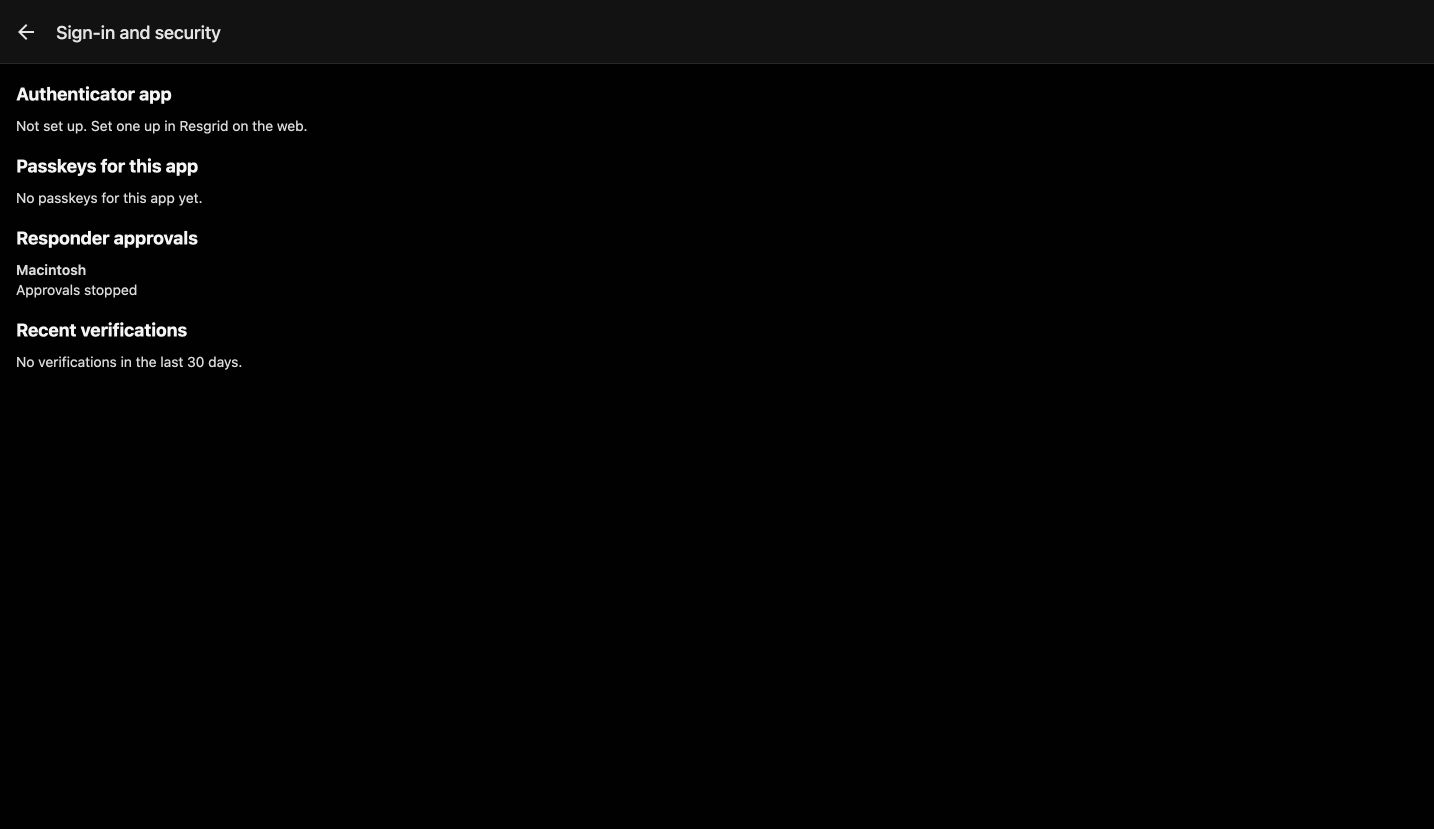
Back in Account, choose Sign-in and security. Read each section as the current account's summary. Here, Authenticator app says it is not set up, and Passkeys for this app says there are none yet. Responder approvals lists Macintosh with Approvals stopped. Recent verifications reports no verifications in the last thirty days. These are separate facts, so check each rather than treating one heading as a general security verdict. If your department requires another method, arrange its approved setup separately. This review does not enroll an authenticator or create a passkey.
Practice
Identify the current authenticator, app passkey, approval and recent-verification states without changing an account method.
Step 4
Recognize the Login Info form
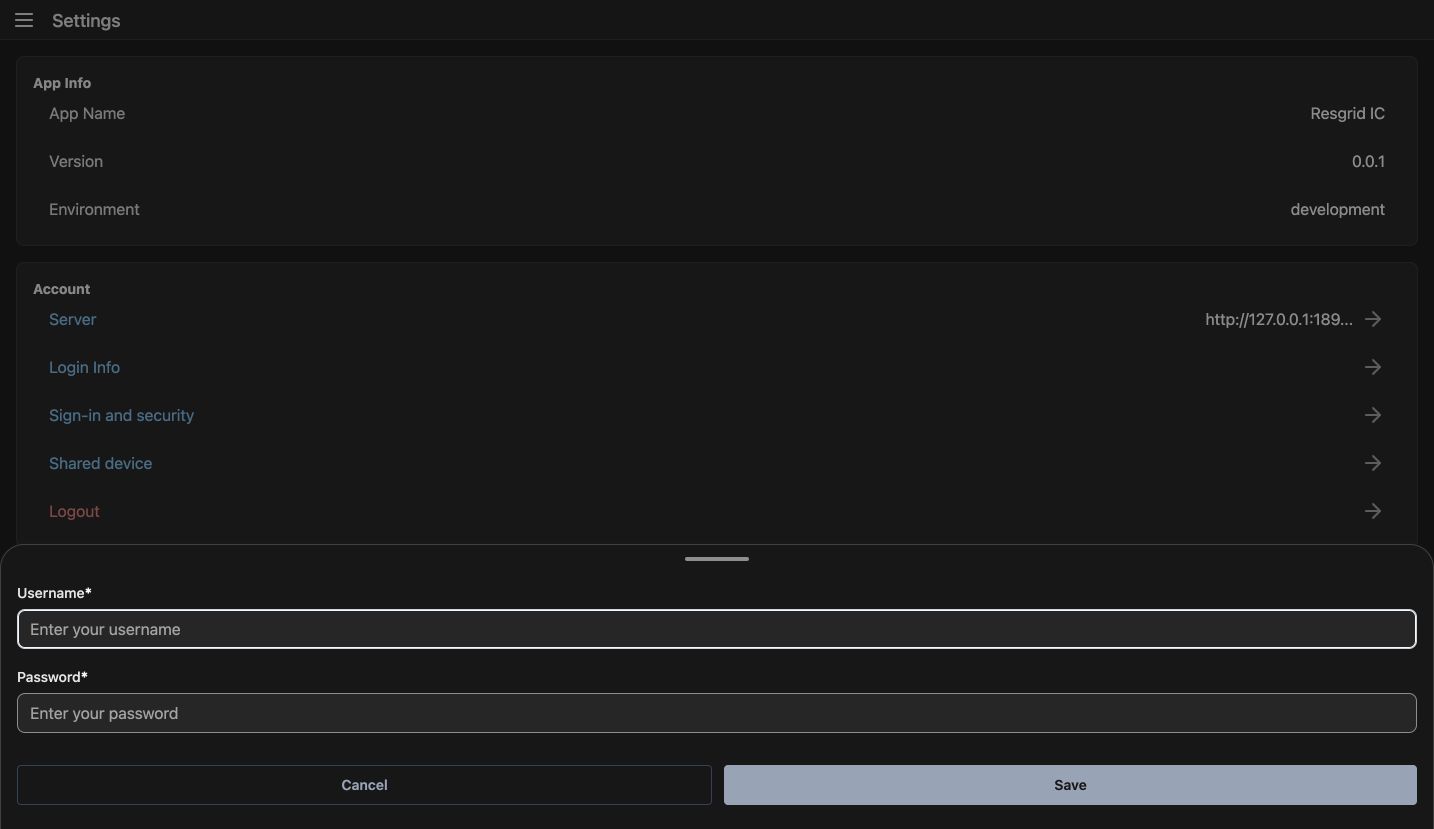
In Account, Login Info opens the Username and Password form. Both fields are empty in this demonstration, and Cancel and Save are visible together. Save submits these details to sign in; it is not an account password-change screen. For a routine workstation review, leave the fields empty and choose Cancel. This is especially useful when a supervisor is showing a colleague where account access lives: you can explain the form without putting anyone's credentials into a shared presentation or recording.
Practice
Locate both empty fields and Cancel. Explain the difference between submitting sign-in details here and changing an account password.
Step 5
Review the shared-workstation choice
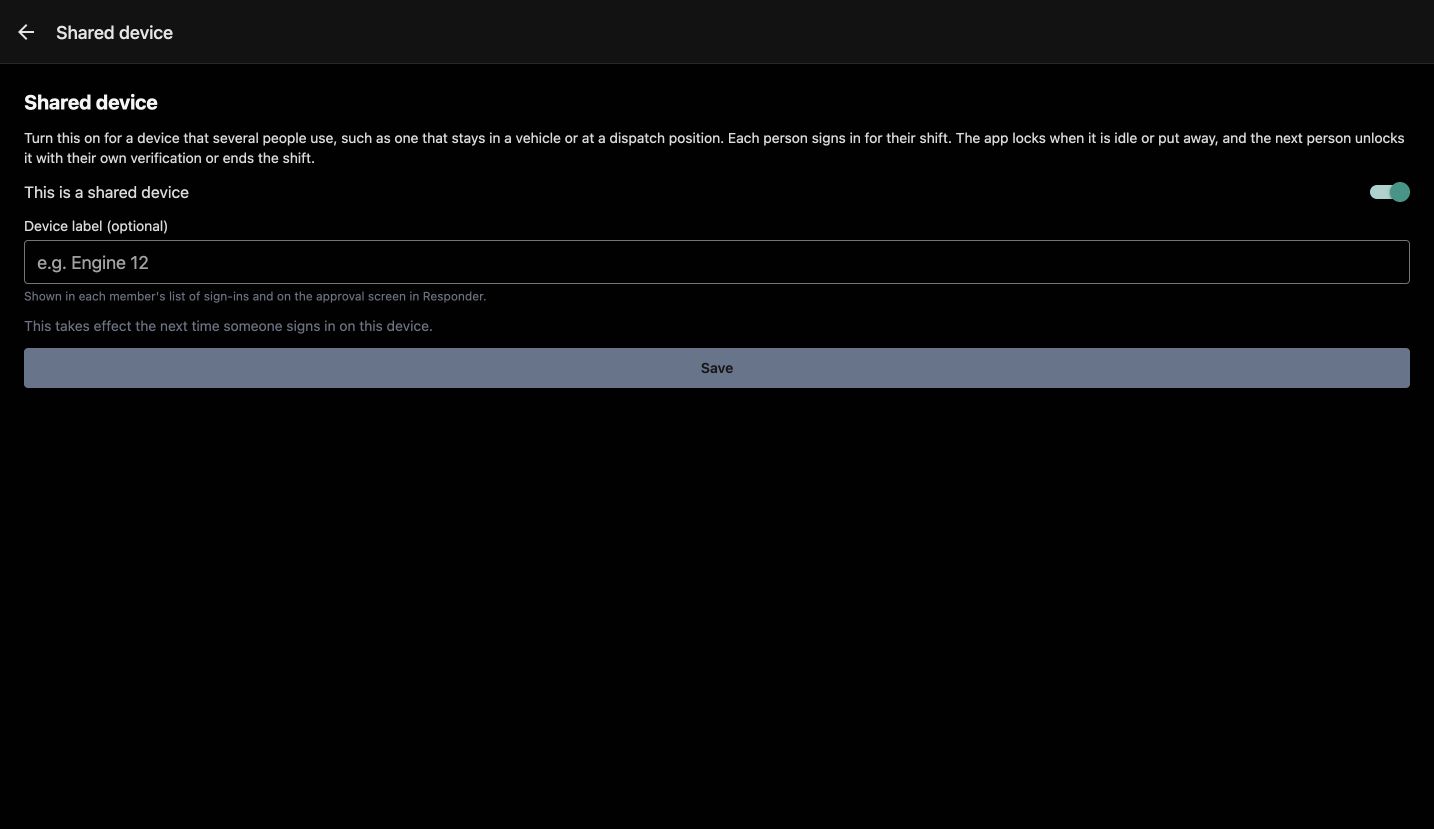
In Account, Shared device is the place to review a workstation used by several operators. The page explains the shared-session purpose, shows This is a shared device switched on, and offers a Device label, which is optional. The important note says this takes effect the next time someone signs in on this device. The form shown here has not been saved, so its switch alone does not prove a shared policy is active. Before a shift handover, compare this choice with department guidance and decide who should configure it.
Practice
Read the next-sign-in note and discuss whether this is a personal or shared workstation. Leave the form unsaved during the review.
Step 6
Read presentation preferences and support destinations
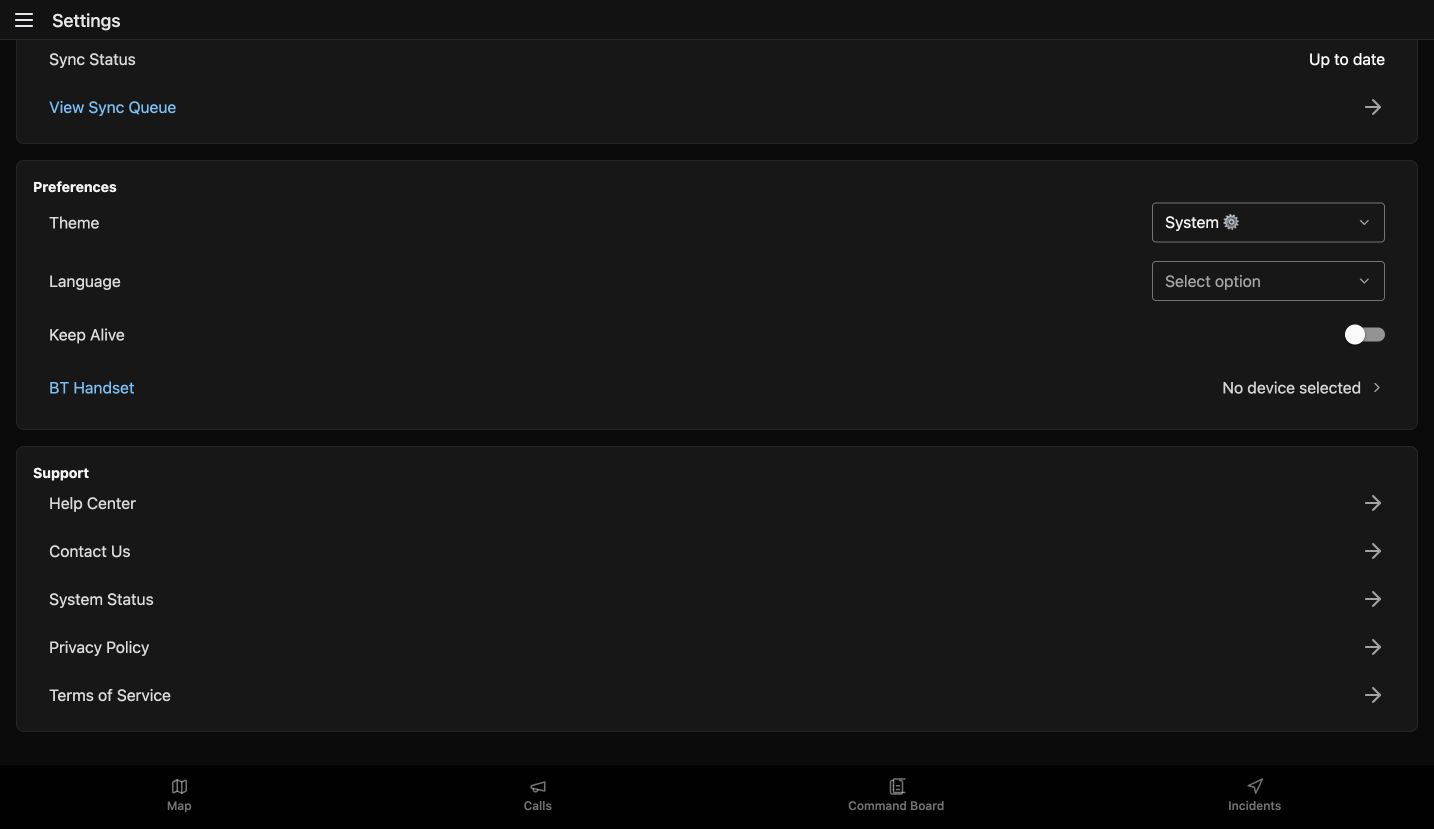
Lower in Settings, Preferences groups the display and device choices. Theme currently shows System, while Language shows Select option. Keep Alive is off, and BT Handset says No device selected. Check these displayed states before assuming a workstation has your preferred presentation or audio arrangement; this browser view does not demonstrate a connected handset or a device staying awake. Immediately below, Support lists Help Center, Contact Us, System Status, Privacy Policy and Terms of Service. For practice, identify the appropriate support destination without opening an external page during this review.
Practice
Read the current preference values, distinguish the Language placeholder from a selected language, and locate Help Center and System Status.
Step 7
Interpret the current sync queue
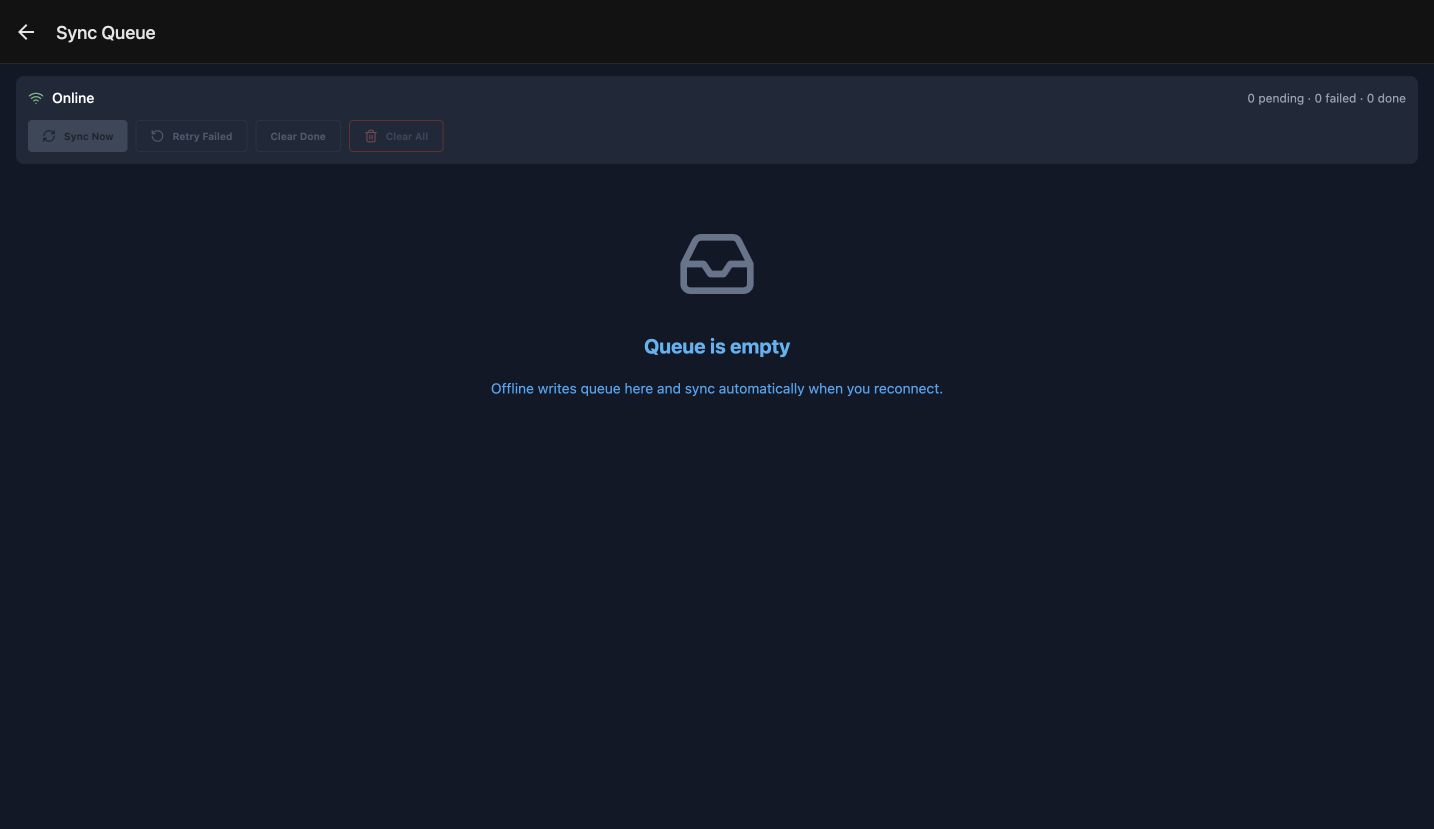
In Settings, Sync and Offline Queue shows a Sync Status of Up to date. Choose View Sync Queue for the detailed picture. This session is Online, with zero pending, zero failed and zero done, and the center says Queue is empty. The queue actions are disabled because there is nothing here to process or clear. An empty queue is a useful handover check, but it does not demonstrate an offline write or successful replay. Practice reading connectivity and all three counts together before describing the current sync state to another operator.
Practice
Report the observed connection state and each count. Explain why this empty queue cannot demonstrate a retry or offline replay.
Step 8
Inspect the logout consequence and finish the review
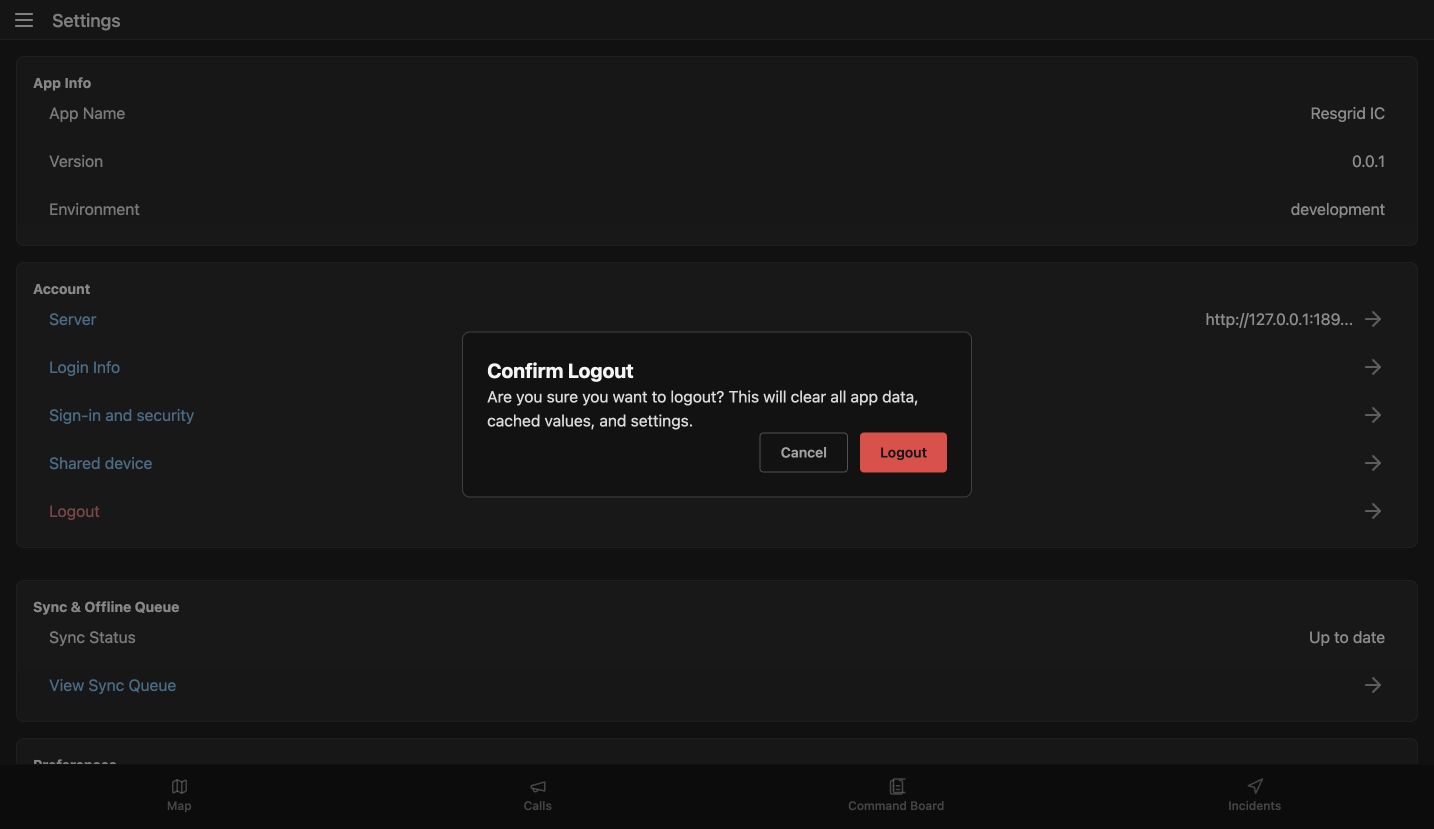
Finally, in Account, choose Logout to read Confirm Logout. The warning says logout will clear app data, cached values and settings. Choose Cancel to finish this review while keeping the session; an actual logout is a separate decision. The same checks help a fire or EMS command aide, a community crisis coordinator, a search-and-rescue lead, a security supervisor, a wildland command team or an industrial response desk. In each setting, a useful handover names the environment, account state and current queue rather than leaving the next operator to guess.
Practice
Read the logout warning, use Cancel, and summarize the environment, account state and current queue for the next authorized operator.
Examples for your department
- Fire / EMS
- A command aide checks the IC application, environment and server before a relief officer takes the workstation.
- Community response
- A mobile crisis coordination desk shares a workstation across shifts.
- Search and rescue
- A search coordinator hands the planning workstation to another authorized lead.
- Security
- A supervisor checks account access before an event command handover.
- Wildland
- A command team checks workstation presentation and audio expectations at shift change.
- Industrial
- An industrial response desk distinguishes app support from a session-ending action.
Transcript
Download transcriptRead the complete transcript
Review IC access, session settings and sync status
Audience: Incident commanders, command aides and supervisors who use IC on a personal or shared workstation.

Start with the application and environment
Before taking over a command workstation, check which application and environment you are using. We begin in IC's Calls workspace, with the department's training incidents already listed. Open the menu at the upper left and choose Settings. At the top, App Info shows App Name, Version and Environment; this example identifies Resgrid IC in development. That gives a command aide useful details when reporting a problem. For practice, locate those three values, then find the Account section directly underneath before reviewing connection or sign-in settings.
Practice: From your signed-in IC workspace, locate Settings and identify the app name, version and environment before discussing a support issue.

Inspect the intended server
In Settings, Account, open Server to inspect the connection address. The form shows Custom and a complete Server URL; the loopback address here belongs to this local training environment. Use the address supplied by your administrator for your own installation. The note says to leave off the API version path and a trailing slash. Cancel closes this review without saving a different server. During a command handover, comparing the address first helps avoid troubleshooting the wrong installation. Practice finding the complete address rather than relying on the shortened Account row.
Practice: Compare the full Server URL with your administrator's approved address, then use Cancel without changing it.

Read the current sign-in summary
Back in Account, choose Sign-in and security. Read each section as the current account's summary. Here, Authenticator app says it is not set up, and Passkeys for this app says there are none yet. Responder approvals lists Macintosh with Approvals stopped. Recent verifications reports no verifications in the last thirty days. These are separate facts, so check each rather than treating one heading as a general security verdict. If your department requires another method, arrange its approved setup separately. This review does not enroll an authenticator or create a passkey.
Practice: Identify the current authenticator, app passkey, approval and recent-verification states without changing an account method.

Recognize the Login Info form
In Account, Login Info opens the Username and Password form. Both fields are empty in this demonstration, and Cancel and Save are visible together. Save submits these details to sign in; it is not an account password-change screen. For a routine workstation review, leave the fields empty and choose Cancel. This is especially useful when a supervisor is showing a colleague where account access lives: you can explain the form without putting anyone's credentials into a shared presentation or recording.
Practice: Locate both empty fields and Cancel. Explain the difference between submitting sign-in details here and changing an account password.

Review the shared-workstation choice
In Account, Shared device is the place to review a workstation used by several operators. The page explains the shared-session purpose, shows This is a shared device switched on, and offers a Device label, which is optional. The important note says this takes effect the next time someone signs in on this device. The form shown here has not been saved, so its switch alone does not prove a shared policy is active. Before a shift handover, compare this choice with department guidance and decide who should configure it.
Practice: Read the next-sign-in note and discuss whether this is a personal or shared workstation. Leave the form unsaved during the review.

Read presentation preferences and support destinations
Lower in Settings, Preferences groups the display and device choices. Theme currently shows System, while Language shows Select option. Keep Alive is off, and BT Handset says No device selected. Check these displayed states before assuming a workstation has your preferred presentation or audio arrangement; this browser view does not demonstrate a connected handset or a device staying awake. Immediately below, Support lists Help Center, Contact Us, System Status, Privacy Policy and Terms of Service. For practice, identify the appropriate support destination without opening an external page during this review.
Practice: Read the current preference values, distinguish the Language placeholder from a selected language, and locate Help Center and System Status.

Interpret the current sync queue
In Settings, Sync and Offline Queue shows a Sync Status of Up to date. Choose View Sync Queue for the detailed picture. This session is Online, with zero pending, zero failed and zero done, and the center says Queue is empty. The queue actions are disabled because there is nothing here to process or clear. An empty queue is a useful handover check, but it does not demonstrate an offline write or successful replay. Practice reading connectivity and all three counts together before describing the current sync state to another operator.
Practice: Report the observed connection state and each count. Explain why this empty queue cannot demonstrate a retry or offline replay.

Inspect the logout consequence and finish the review
Finally, in Account, choose Logout to read Confirm Logout. The warning says logout will clear app data, cached values and settings. Choose Cancel to finish this review while keeping the session; an actual logout is a separate decision. The same checks help a fire or EMS command aide, a community crisis coordinator, a search-and-rescue lead, a security supervisor, a wildland command team or an industrial response desk. In each setting, a useful handover names the environment, account state and current queue rather than leaving the next operator to guess.
Practice: Read the logout warning, use Cancel, and summarize the environment, account state and current queue for the next authorized operator.

Examples for your department
Fire / EMS: A command aide checks the IC application, environment and server before a relief officer takes the workstation.
Community response: A mobile crisis coordination desk shares a workstation across shifts.
Search and rescue: A search coordinator hands the planning workstation to another authorized lead.
Security: A supervisor checks account access before an event command handover.
Wildland: A command team checks workstation presentation and audio expectations at shift change.
Industrial: An industrial response desk distinguishes app support from a session-ending action.