
Dispatch · Video walkthrough
Save a pending call, review recipients and dispatch it
Create one fictional pending exercise, verify its identity and proposed member, dispatch it deliberately, then close only that exercise and check the retained record.
Before you begin
- Authorized fictional training department and normal Dispatch create/update access.
- Use an explicitly named training exercise and permitted fictional recipient; preserve unrelated calls and command boards.
- Complete the department-required fields and custom fields. This bounded example leaves location and destination blank.
- Browser view recorded here. Native controls may differ; no real device location, hardware, offline behavior or provider delivery was tested.
Chapters
Watch the walkthrough
Step 1
Prepare a recognizable exercise call
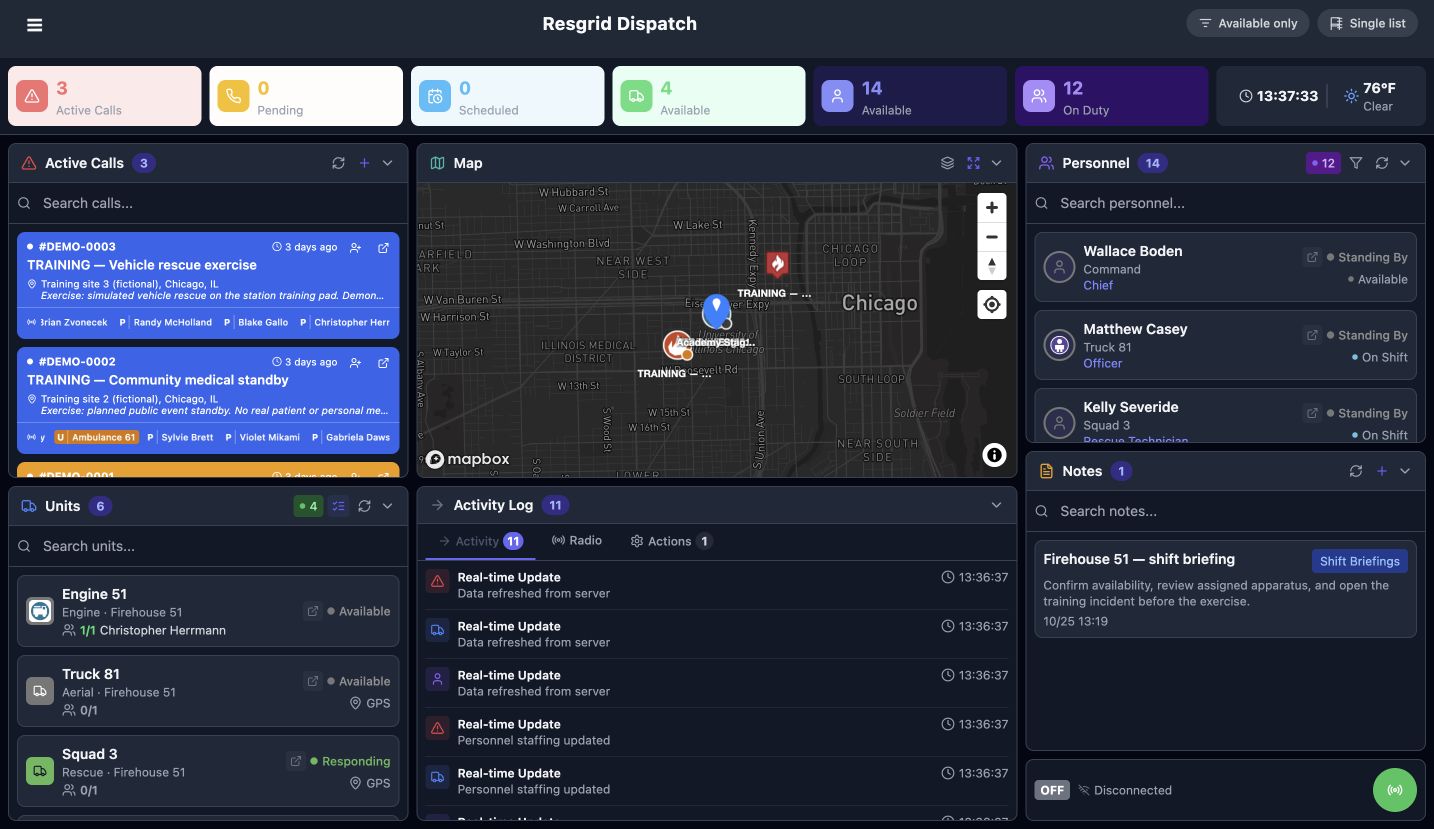
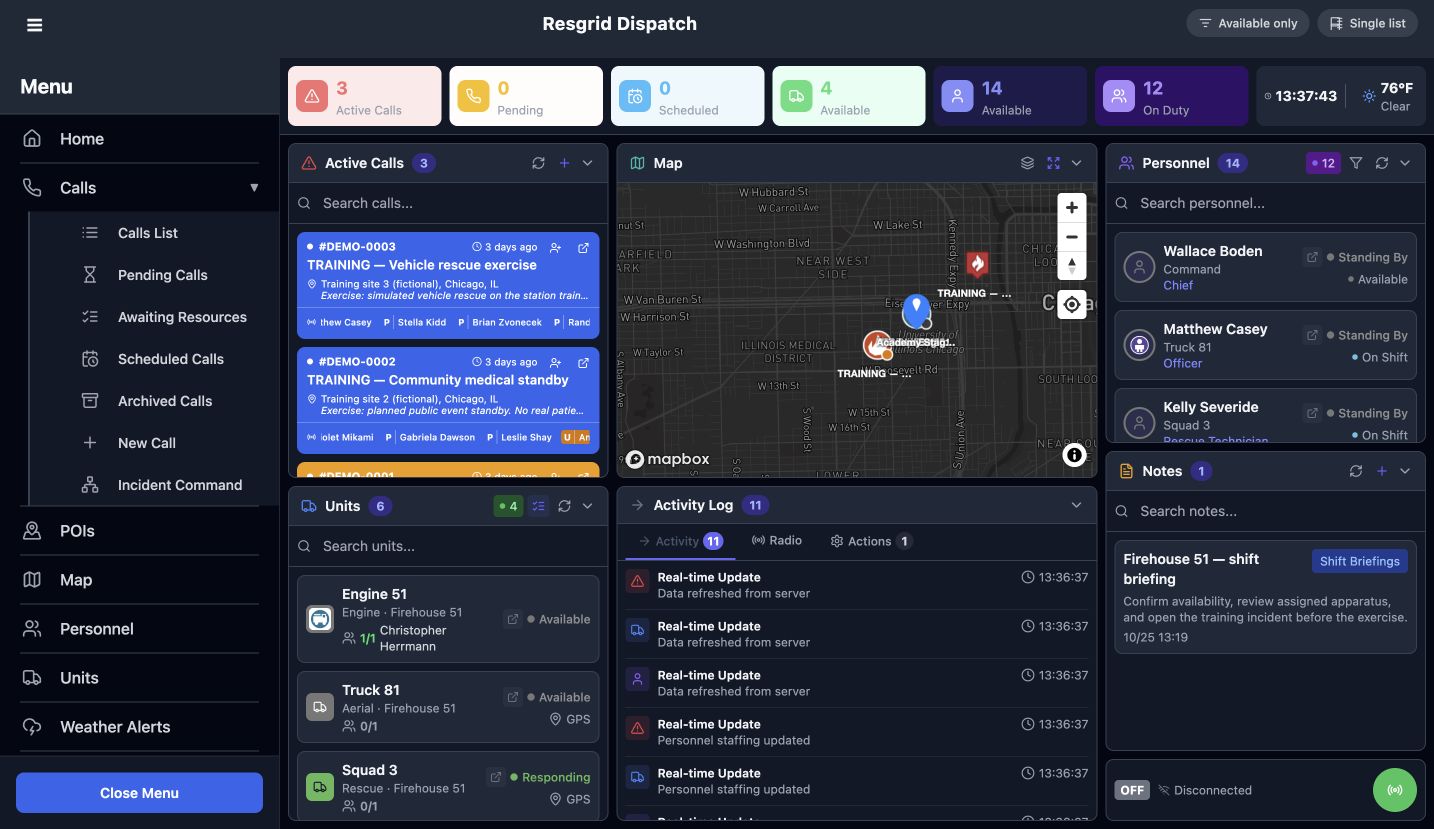
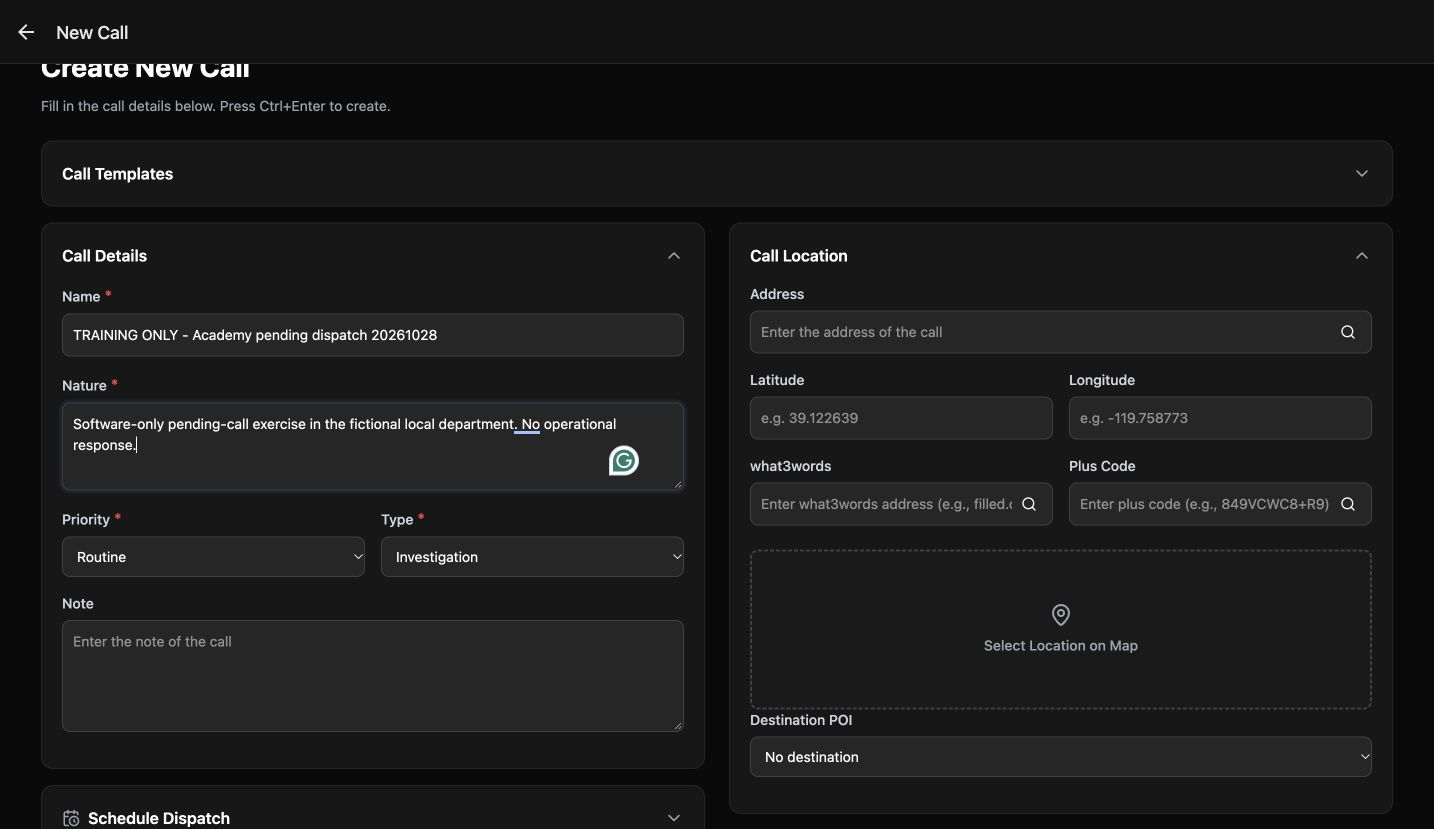
Pending calls let dispatchers prepare a record before releasing it to selected responders. This walkthrough uses one clearly marked software exercise in a fictional department. Open Calls and choose New Call. Enter a recognizable Name and a concise Nature, then review Priority and Type. We select Routine and Investigation. The location and destination remain blank in this small example; for your own work, complete the fields your department requires and use an accurate, permitted incident location.
Practice
Prepare an authorized exercise title and description; check every required field before saving.
Step 2
Choose pending rather than immediate dispatch
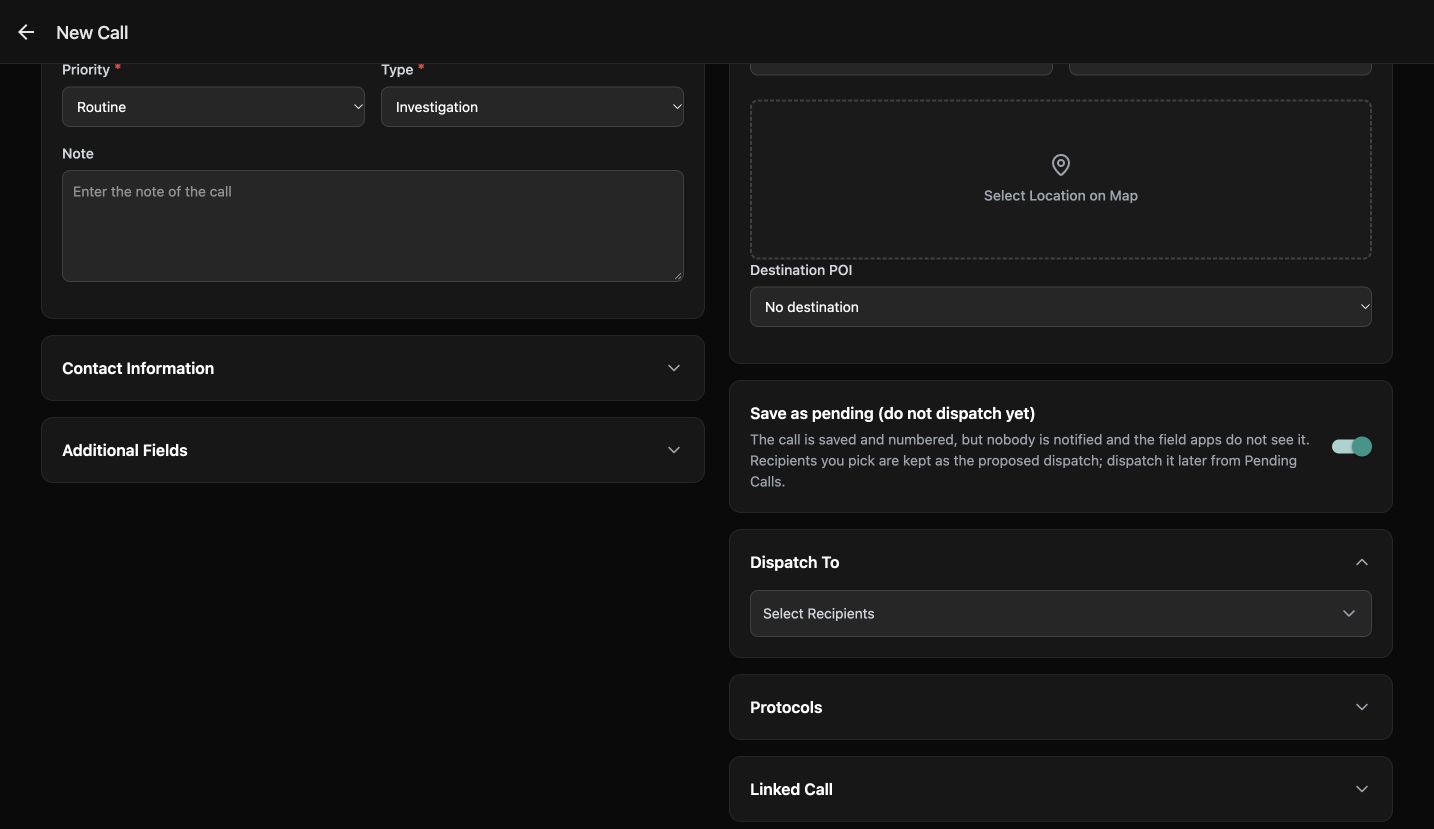
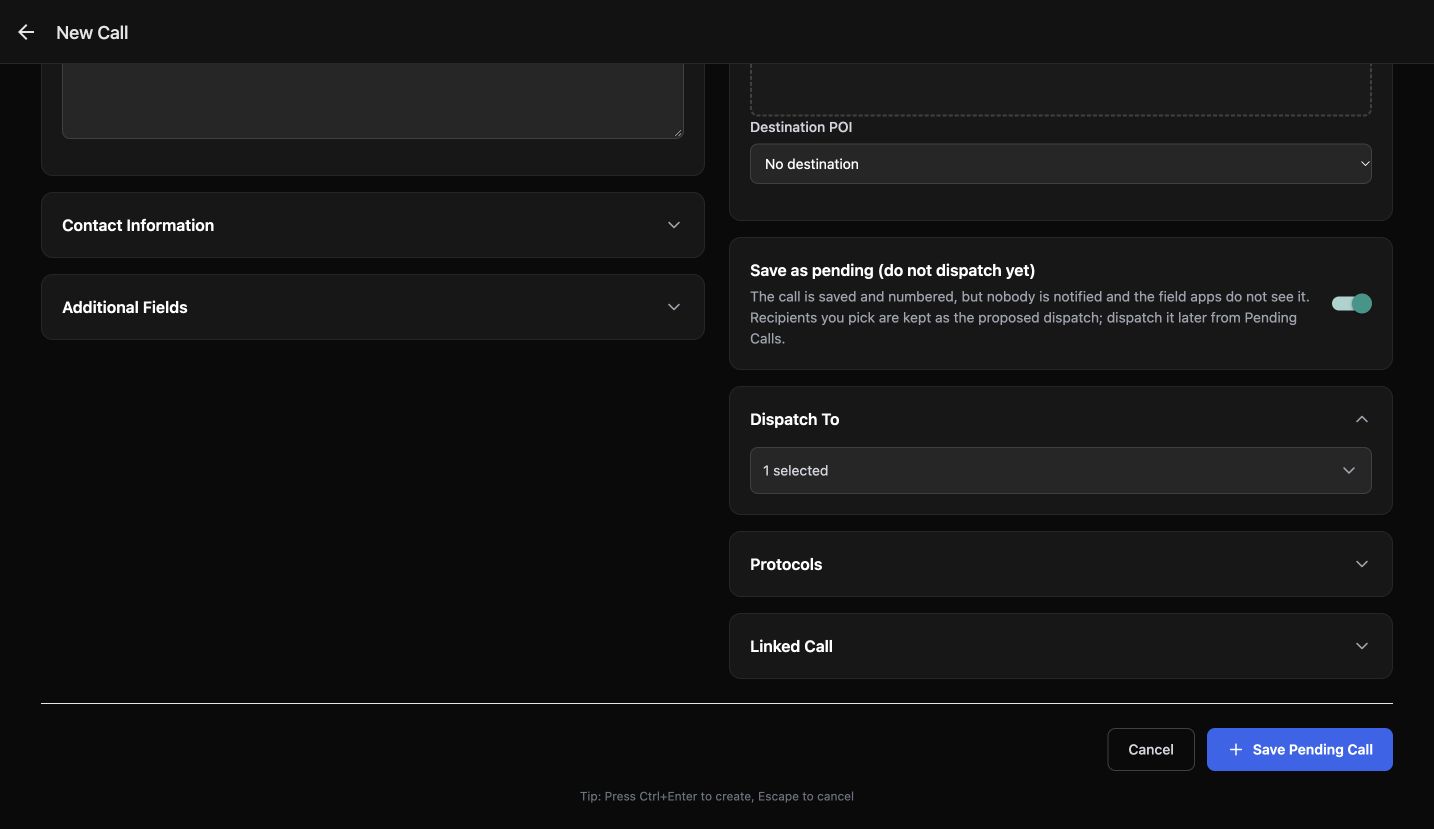
Turn on Save as pending, do not dispatch yet. Read the explanation beside the switch. The call will be saved and numbered, with any selected recipients retained as a proposed dispatch. Saving a pending record and dispatching it are separate decisions. This is useful when a dispatcher needs to finish a nonurgent request or review its recipient list before releasing it.
Practice
Explain the difference between a saved pending record and a dispatched call using the visible switch explanation.
Step 3
Review the proposed member and save
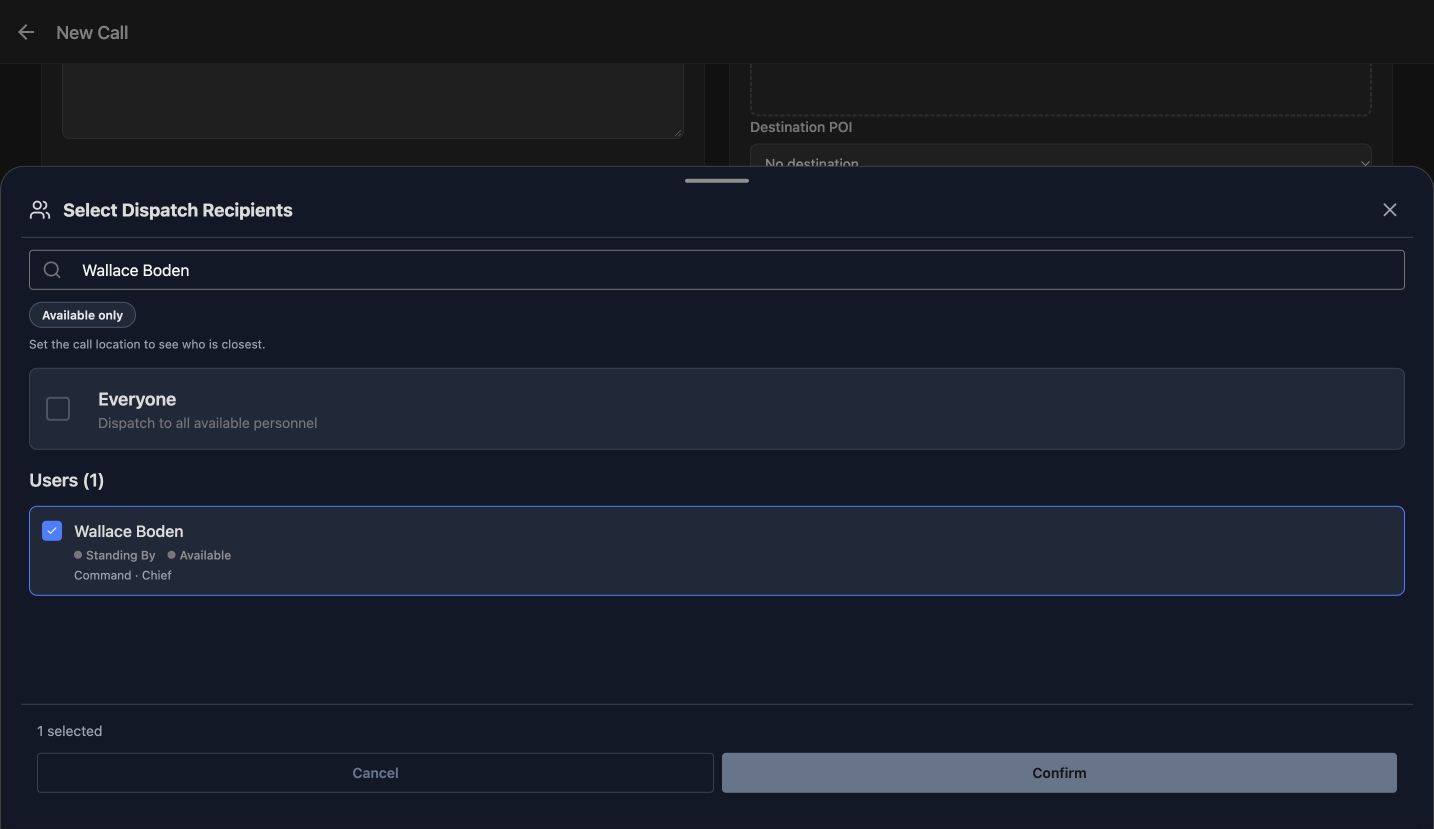
Open Select Recipients and search for Wallace Boden, our fictional member. Check his row and leave Everyone unchecked. The picker shows one selected. Choose Confirm to return that proposed selection to the form. At the bottom, verify one selected, the pending switch and the full Save Pending Call button. Check the exact title and description before choosing Save Pending Call. The member selected here is still part of the proposed list.
Practice
Choose one permitted fictional member, check the selected count, and read back the exact form before saving.
Step 4
Read the saved identity and pending state
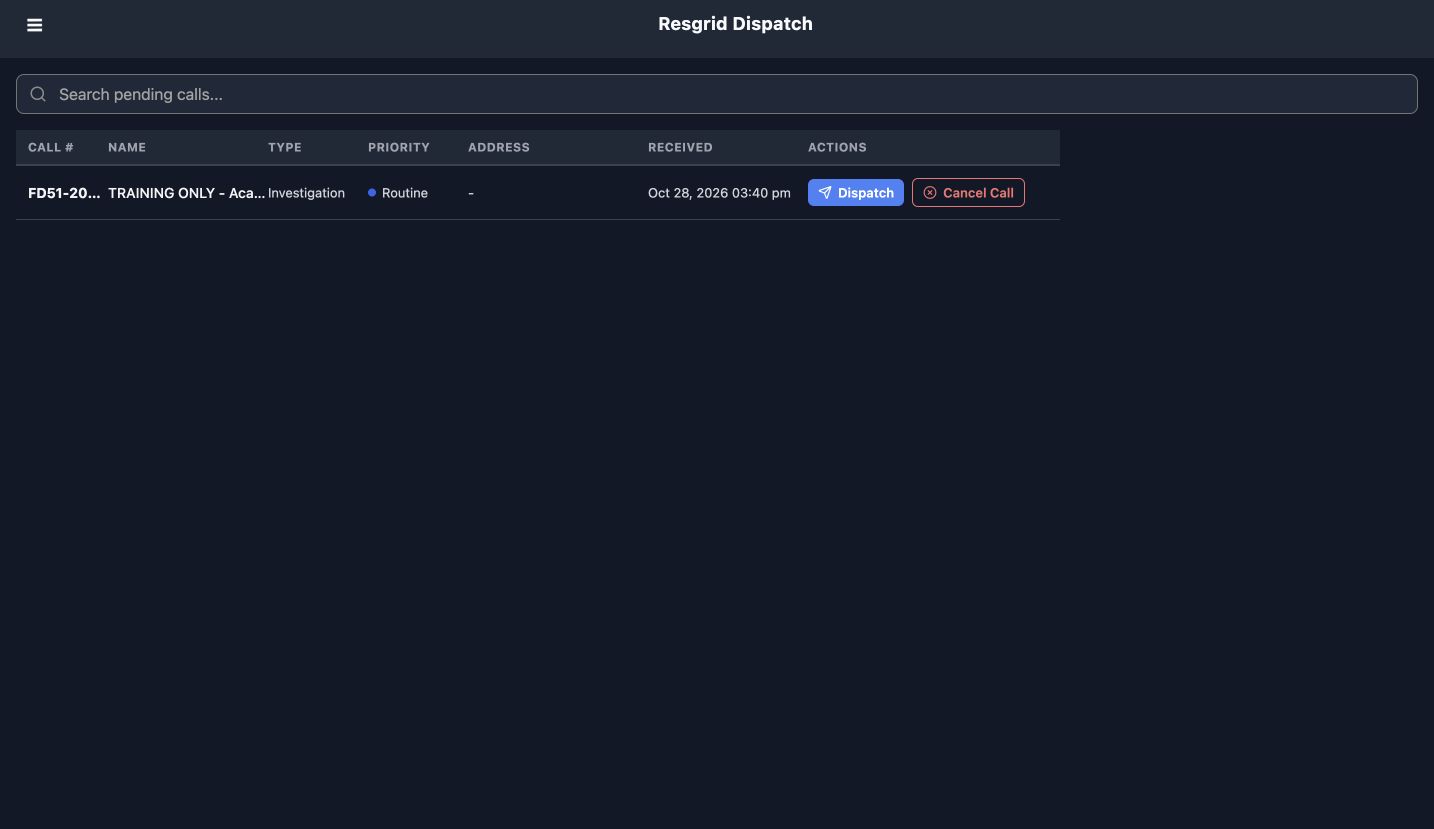
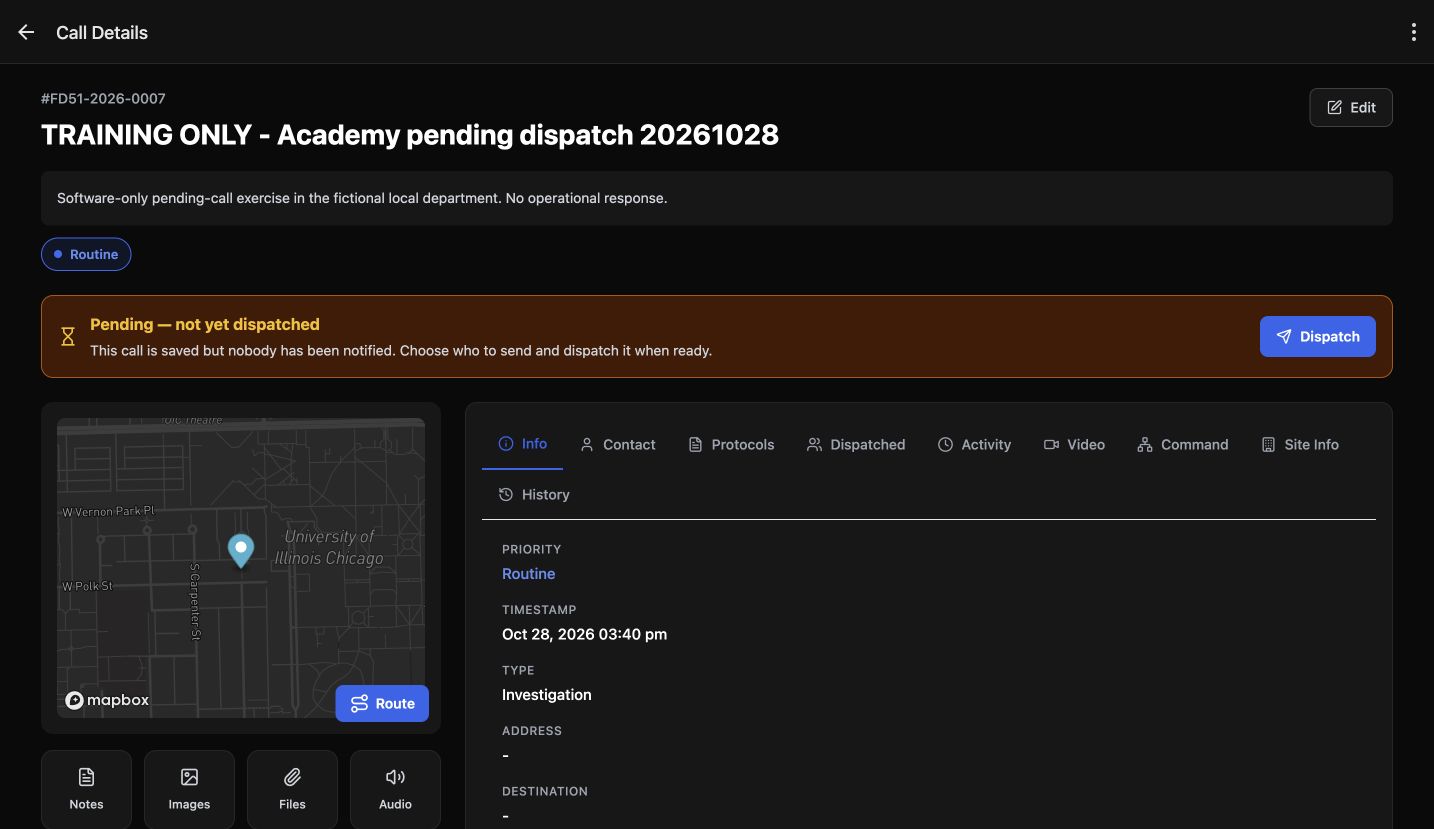
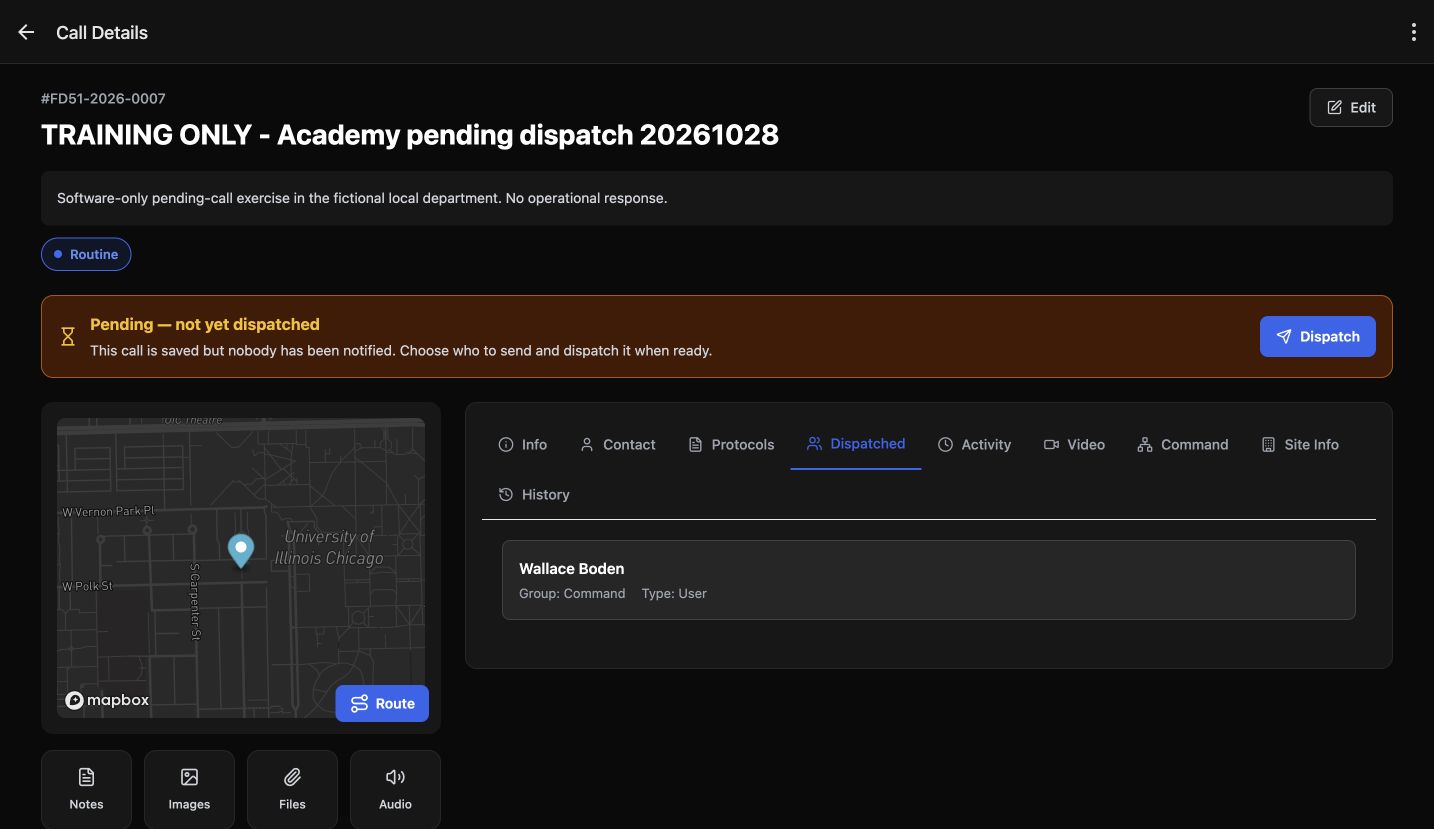
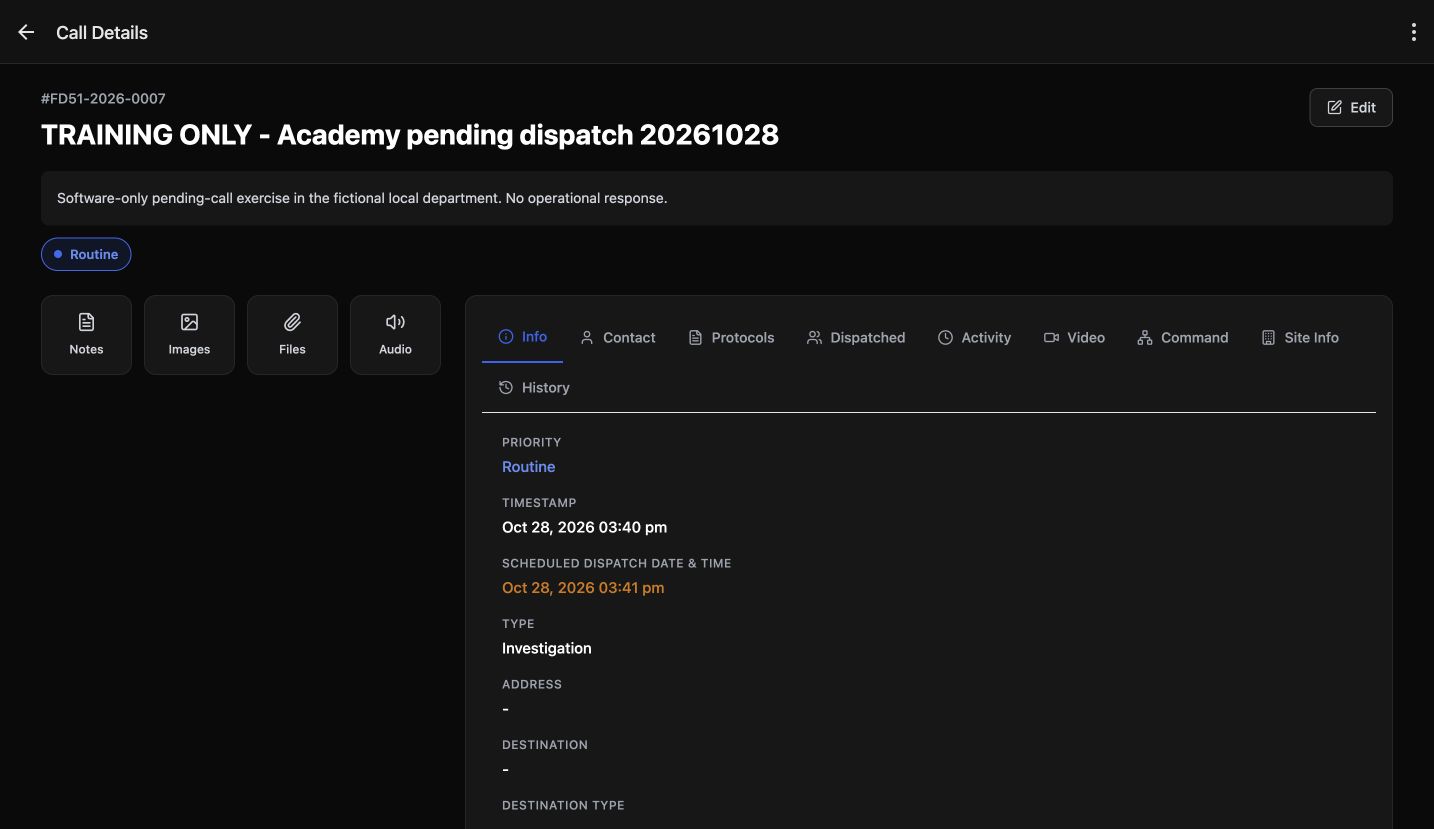
The app opens the pending queue with a numbered row. Its narrow columns shorten the name and number, so open the row to read the complete identity. This example is F D fifty one, twenty twenty six, zero zero zero seven. Call Details says Pending, not yet dispatched. Open Dispatched and you can already see Wallace Boden. While the pending banner remains, that tab shows the proposed recipient; its title alone does not mean the call has been released.
Practice
Match the full detail identity to the pending row and distinguish the pending banner from the Dispatched tab name.
Step 5
Make the dispatch selection explicit
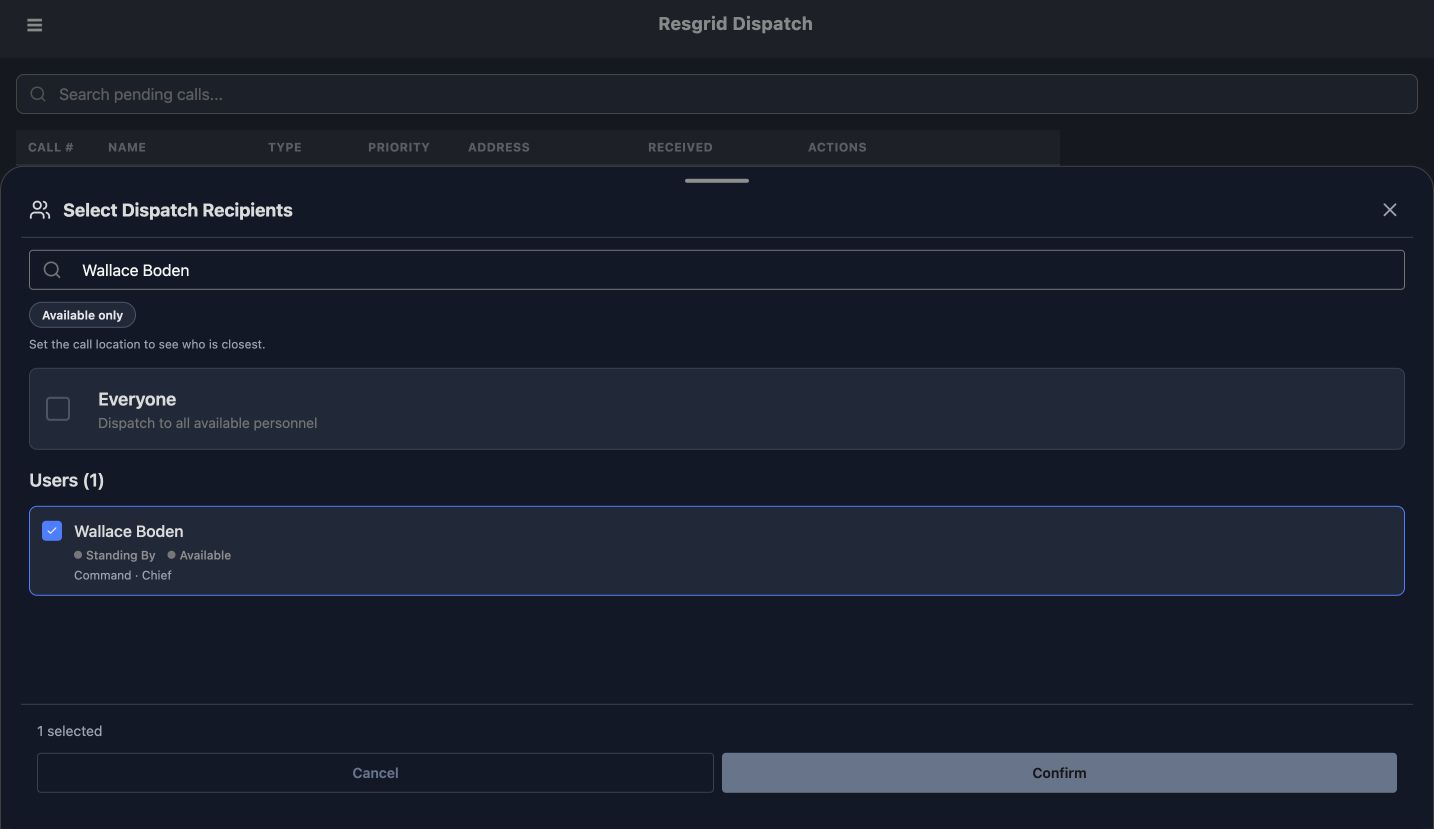
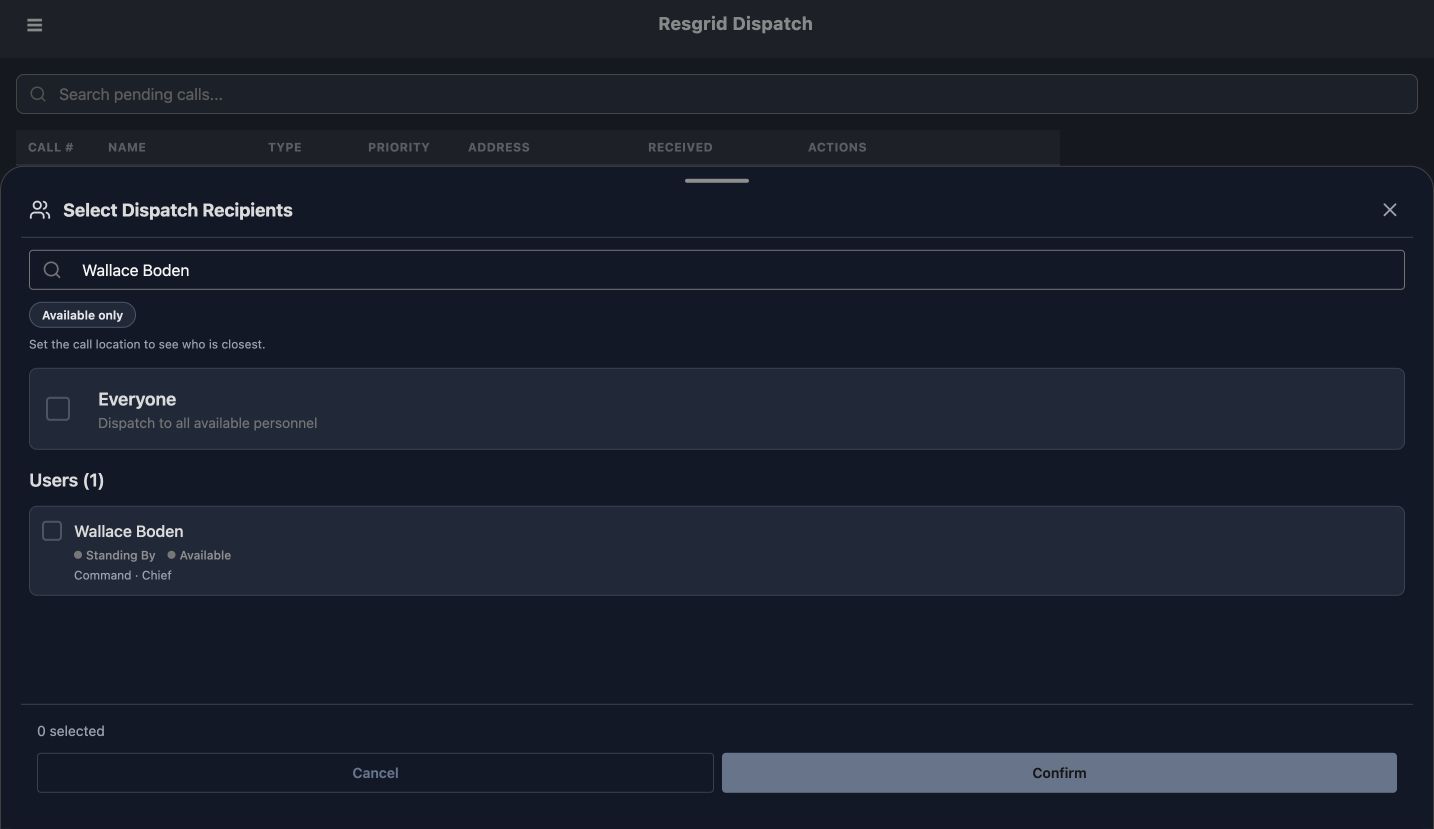
Return to Pending Calls and choose Dispatch for that record. Review the proposed member in Select Dispatch Recipients. Here we clear Boden once: the count becomes zero and Confirm is disabled. Select him again and verify one selected, with Everyone still unchecked. Review this final choice before pressing Confirm. This is the action that releases the waiting call to the selected recipient, so use the same care you would when making a new dispatch.
Practice
Check the recipient name and count immediately before Confirm; do not infer selection from search text alone.
Step 6
Verify the dispatch result
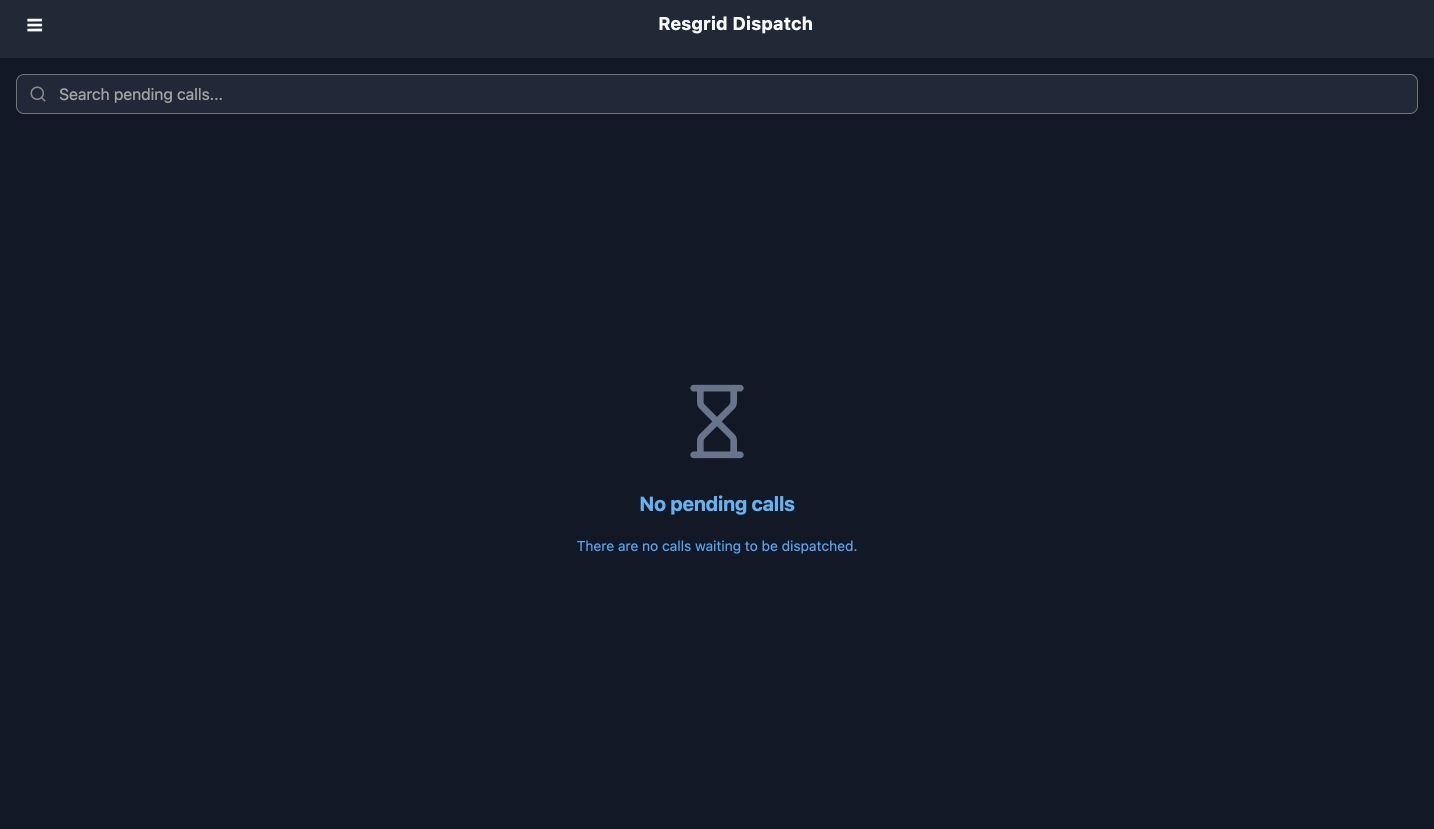
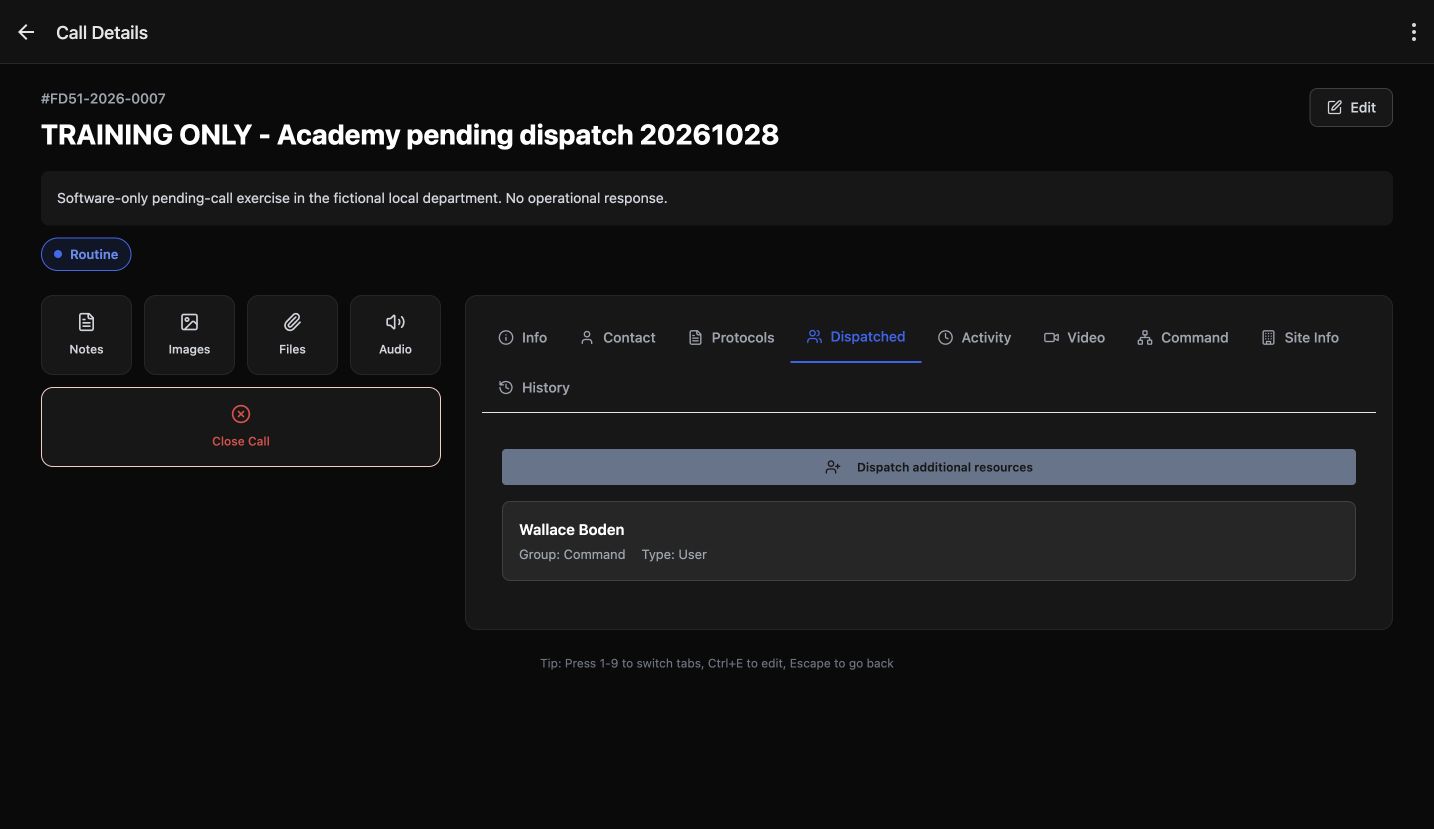
Check the result in two places. The pending queue now says No pending calls. In the same saved call, Dispatched lists Wallace Boden, with Command as his group and User as the recipient type. The pending banner is gone, and Dispatch additional resources is available. We leave that separate action alone. These checks confirm the recorded dispatch state and selected recipient inside the app.
Practice
Verify removal from Pending and read the saved recipient in the same call before considering another action.
Step 7
Close only the completed exercise
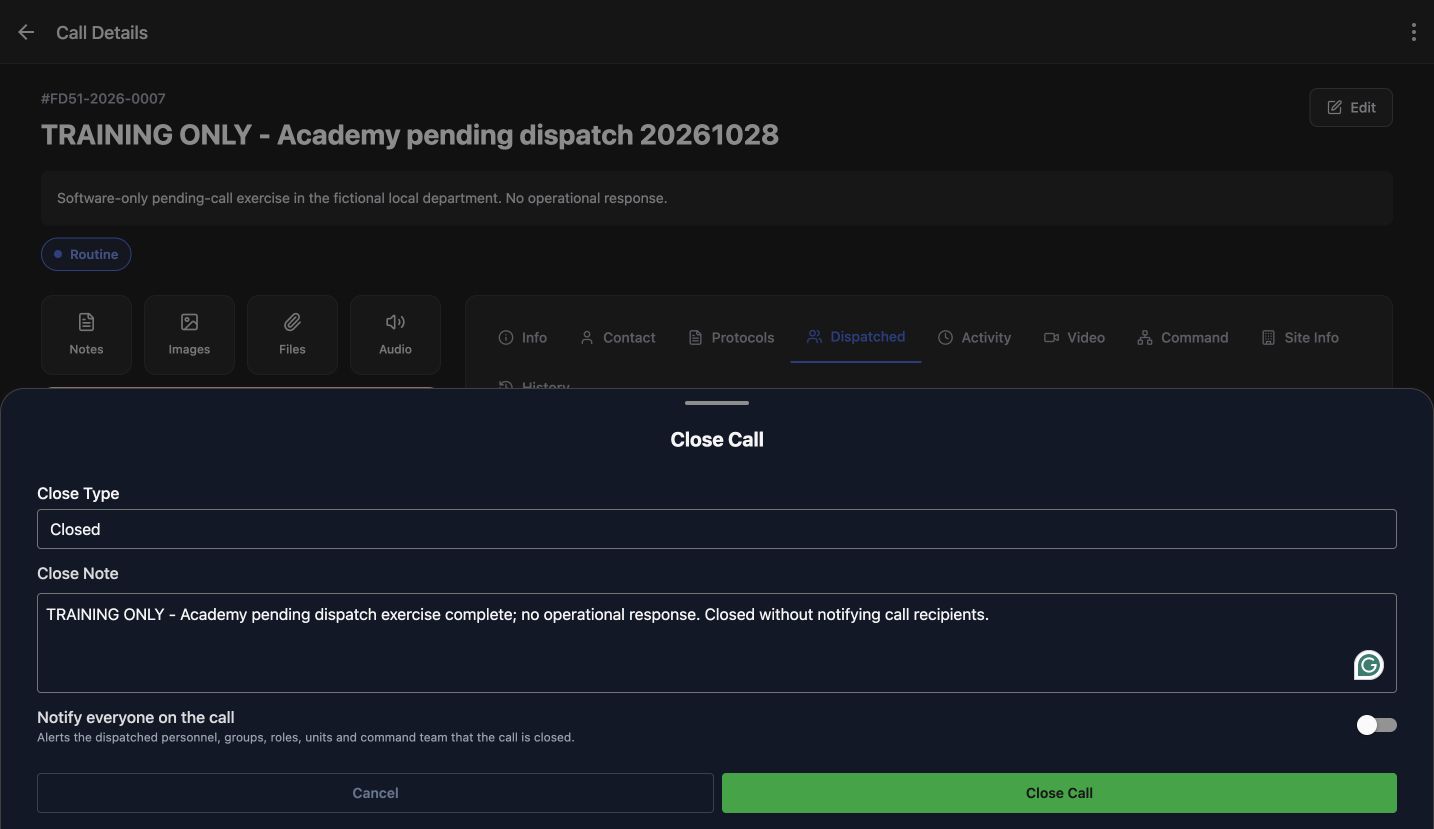
To finish this exercise, check its title and number, then choose Close Call. Select Closed under Close Type and enter a Close Note that identifies the training activity. Turn off Notify everyone on the call for this local cleanup. Read back the type, complete note and switch before selecting the final Close Call button. Close only your exercise record; keep unrelated incidents and their command boards intact.
Practice
Read back the exercise identity, Closed type, exact note and notification switch before closing your own record.
Step 8
Check the console and retained record
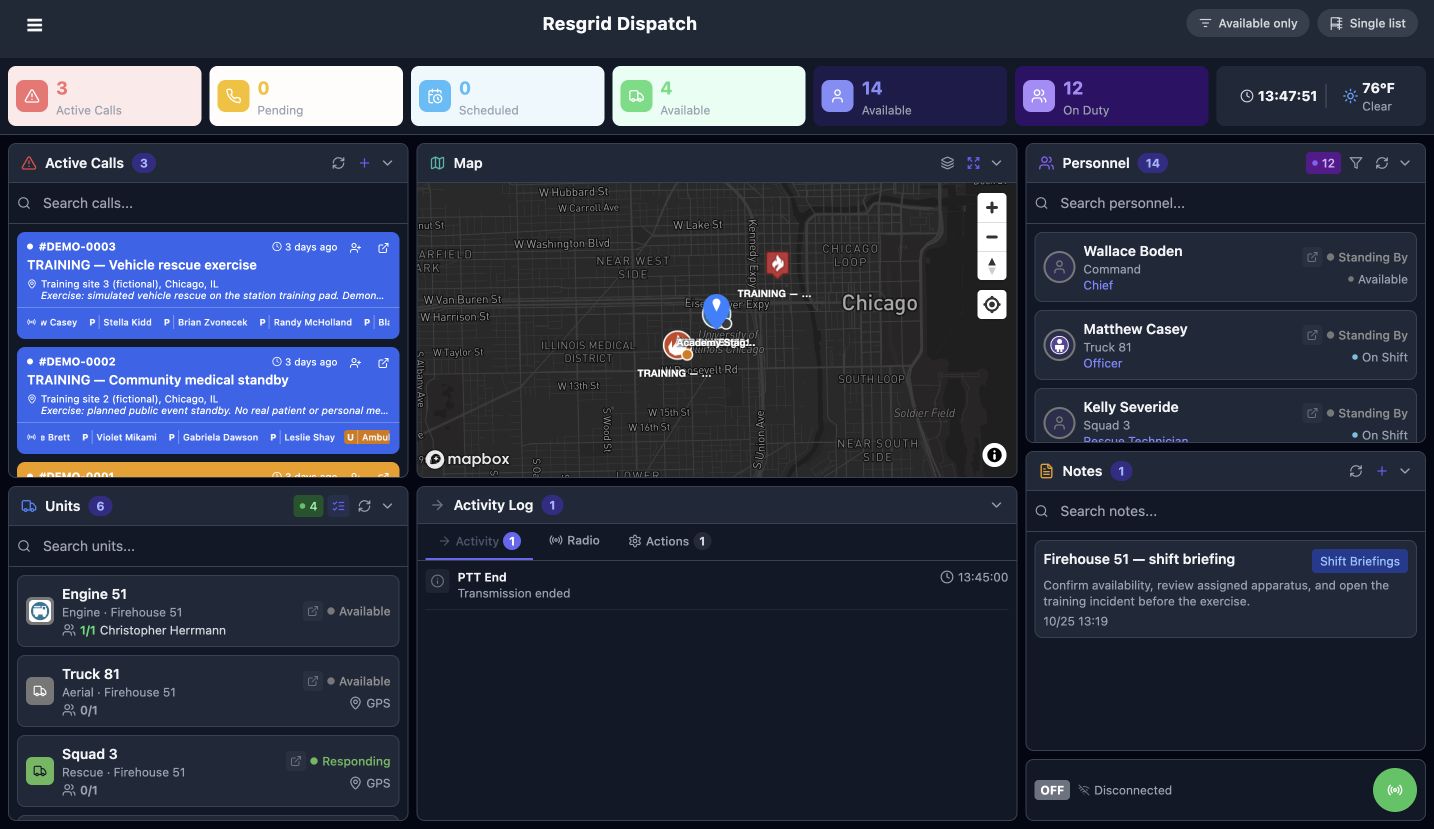
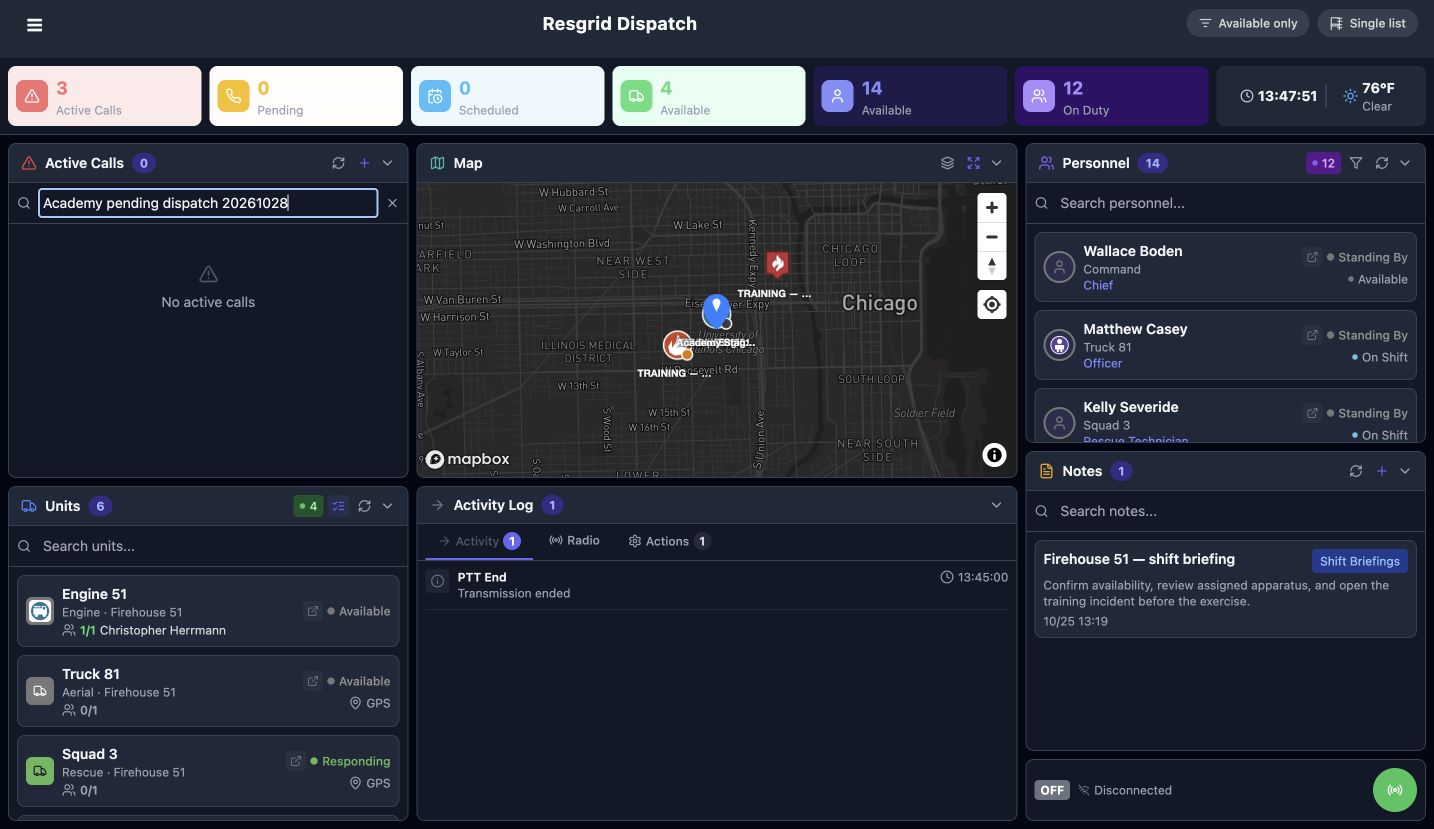
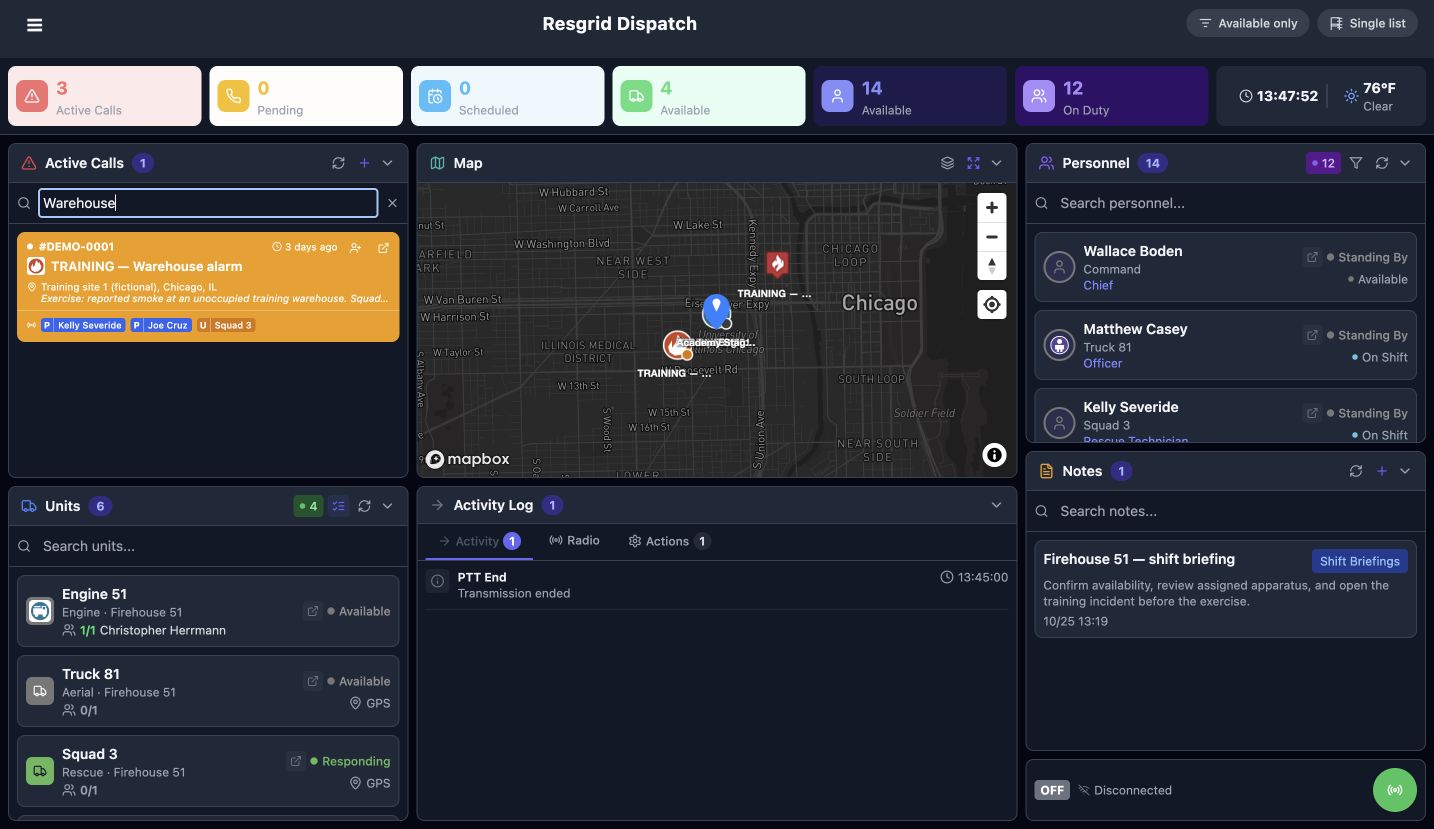
The console returns to three active training calls, with zero pending and zero scheduled. Search for our exercise name: the call panel shows No active calls while the department total remains three. A warehouse search still finds the original incident. Our exercise record also remains readable in Call Details, with its Close Call action removed. Clear the search when finished. The same prepare and review pattern can serve fire and EMS, community care and mental health teams, search and rescue, security, wildland contractors, and industrial teams. This browser exercise confirms these application records; it does not establish notification delivery, a physical response or native device behavior.
Practice
Check the department total and search results separately, then clear the filter and retain the exercise reference.
Examples for your department
- Fire / EMS
- Prepare a nonurgent training follow-up, review its proposed member, then dispatch and close the exercise according to department procedure.
- Community response
- Use the same pending review for a fictional care-vehicle support request; keep sensitive visit details out of general training records.
- Search and rescue
- Prepare a fictional search-support request while the authorized dispatcher verifies its selected team contact.
- Security
- Review a patrol-support exercise and explicitly choose its intended member before release.
- Wildland
- Hold a contractor-support exercise for recipient review, then verify its saved dispatch state.
- Industrial
- Prepare a fictional site-support exercise, confirm the required fields and recipient, then retain the closed record.
Transcript
Download transcriptRead the complete transcript
Save a pending call, review recipients and dispatch it
Audience: Dispatchers and authorized operations staff who prepare and release calls.

Prepare a recognizable exercise call
Pending calls let dispatchers prepare a record before releasing it to selected responders. This walkthrough uses one clearly marked software exercise in a fictional department. Open Calls and choose New Call. Enter a recognizable Name and a concise Nature, then review Priority and Type. We select Routine and Investigation. The location and destination remain blank in this small example; for your own work, complete the fields your department requires and use an accurate, permitted incident location.
Practice: Prepare an authorized exercise title and description; check every required field before saving.

Choose pending rather than immediate dispatch
Turn on Save as pending, do not dispatch yet. Read the explanation beside the switch. The call will be saved and numbered, with any selected recipients retained as a proposed dispatch. Saving a pending record and dispatching it are separate decisions. This is useful when a dispatcher needs to finish a nonurgent request or review its recipient list before releasing it.
Practice: Explain the difference between a saved pending record and a dispatched call using the visible switch explanation.

Review the proposed member and save
Open Select Recipients and search for Wallace Boden, our fictional member. Check his row and leave Everyone unchecked. The picker shows one selected. Choose Confirm to return that proposed selection to the form. At the bottom, verify one selected, the pending switch and the full Save Pending Call button. Check the exact title and description before choosing Save Pending Call. The member selected here is still part of the proposed list.
Practice: Choose one permitted fictional member, check the selected count, and read back the exact form before saving.

Read the saved identity and pending state
The app opens the pending queue with a numbered row. Its narrow columns shorten the name and number, so open the row to read the complete identity. This example is F D fifty one, twenty twenty six, zero zero zero seven. Call Details says Pending, not yet dispatched. Open Dispatched and you can already see Wallace Boden. While the pending banner remains, that tab shows the proposed recipient; its title alone does not mean the call has been released.
Practice: Match the full detail identity to the pending row and distinguish the pending banner from the Dispatched tab name.

Make the dispatch selection explicit
Return to Pending Calls and choose Dispatch for that record. Review the proposed member in Select Dispatch Recipients. Here we clear Boden once: the count becomes zero and Confirm is disabled. Select him again and verify one selected, with Everyone still unchecked. Review this final choice before pressing Confirm. This is the action that releases the waiting call to the selected recipient, so use the same care you would when making a new dispatch.
Practice: Check the recipient name and count immediately before Confirm; do not infer selection from search text alone.

Verify the dispatch result
Check the result in two places. The pending queue now says No pending calls. In the same saved call, Dispatched lists Wallace Boden, with Command as his group and User as the recipient type. The pending banner is gone, and Dispatch additional resources is available. We leave that separate action alone. These checks confirm the recorded dispatch state and selected recipient inside the app.
Practice: Verify removal from Pending and read the saved recipient in the same call before considering another action.

Close only the completed exercise
To finish this exercise, check its title and number, then choose Close Call. Select Closed under Close Type and enter a Close Note that identifies the training activity. Turn off Notify everyone on the call for this local cleanup. Read back the type, complete note and switch before selecting the final Close Call button. Close only your exercise record; keep unrelated incidents and their command boards intact.
Practice: Read back the exercise identity, Closed type, exact note and notification switch before closing your own record.

Check the console and retained record
The console returns to three active training calls, with zero pending and zero scheduled. Search for our exercise name: the call panel shows No active calls while the department total remains three. A warehouse search still finds the original incident. Our exercise record also remains readable in Call Details, with its Close Call action removed. Clear the search when finished. The same prepare and review pattern can serve fire and EMS, community care and mental health teams, search and rescue, security, wildland contractors, and industrial teams. This browser exercise confirms these application records; it does not establish notification delivery, a physical response or native device behavior.
Practice: Check the department total and search results separately, then clear the filter and retain the exercise reference.

Examples for your department
Fire / EMS: Prepare a nonurgent training follow-up, review its proposed member, then dispatch and close the exercise according to department procedure.
Community response: Use the same pending review for a fictional care-vehicle support request; keep sensitive visit details out of general training records.
Search and rescue: Prepare a fictional search-support request while the authorized dispatcher verifies its selected team contact.
Security: Review a patrol-support exercise and explicitly choose its intended member before release.
Wildland: Hold a contractor-support exercise for recipient review, then verify its saved dispatch state.
Industrial: Prepare a fictional site-support exercise, confirm the required fields and recipient, then retain the closed record.