
Dispatch · Video walkthrough
Dispatch: map layers and site references
Use a real map-layer comparison, POI filters and a fictional contact to find reference information and recognize missing records. Locate workspace settings without changing them.
Before you begin
- An existing authorized Dispatch session and permission to view the fictional local department. No sign-in flow is demonstrated.
- The already configured Academy Staging layer/point and fictional warehouse contact used in these actual screens.
- Only local display/search controls are exercised; original calls and department records remain unchanged.
Chapters
Watch the walkthrough
Step 1
Start from the dispatch workspace
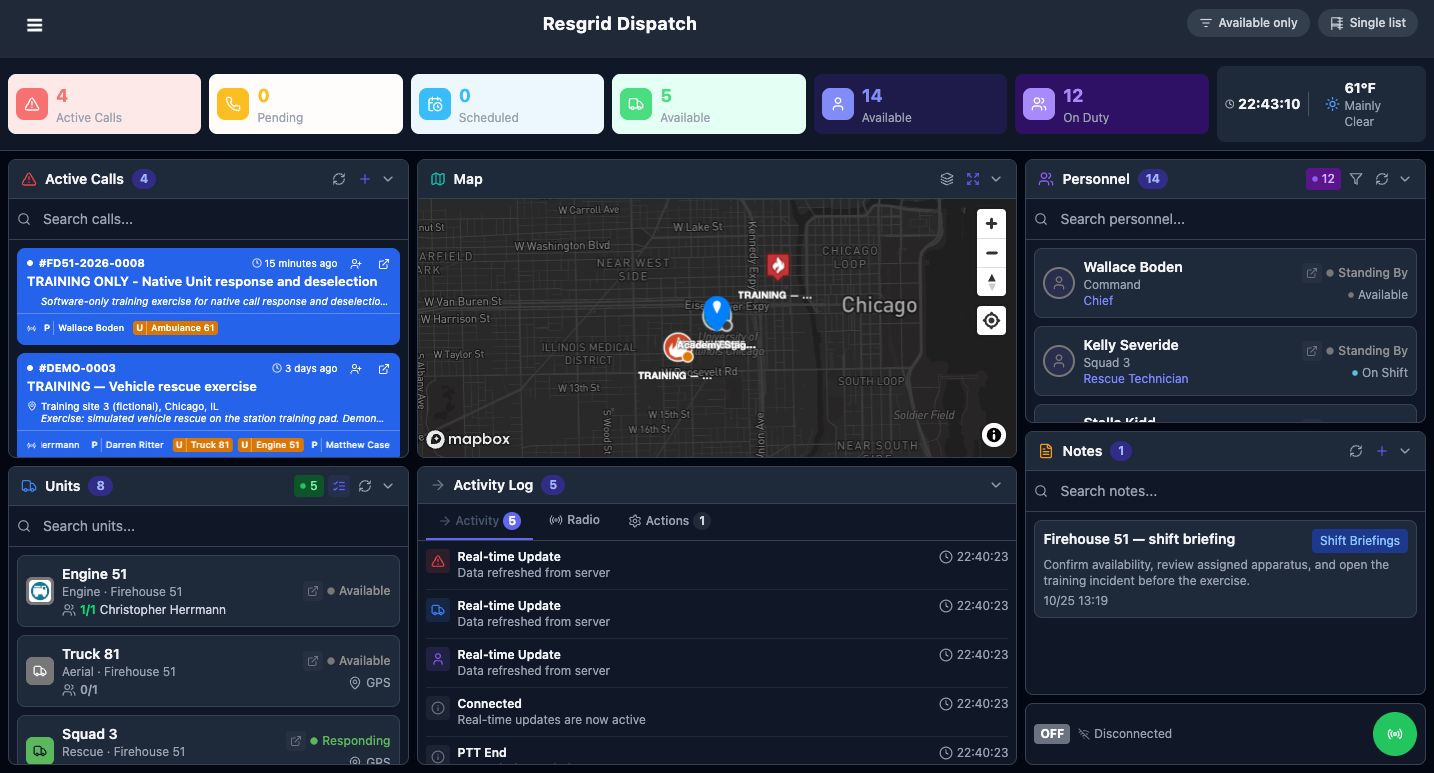
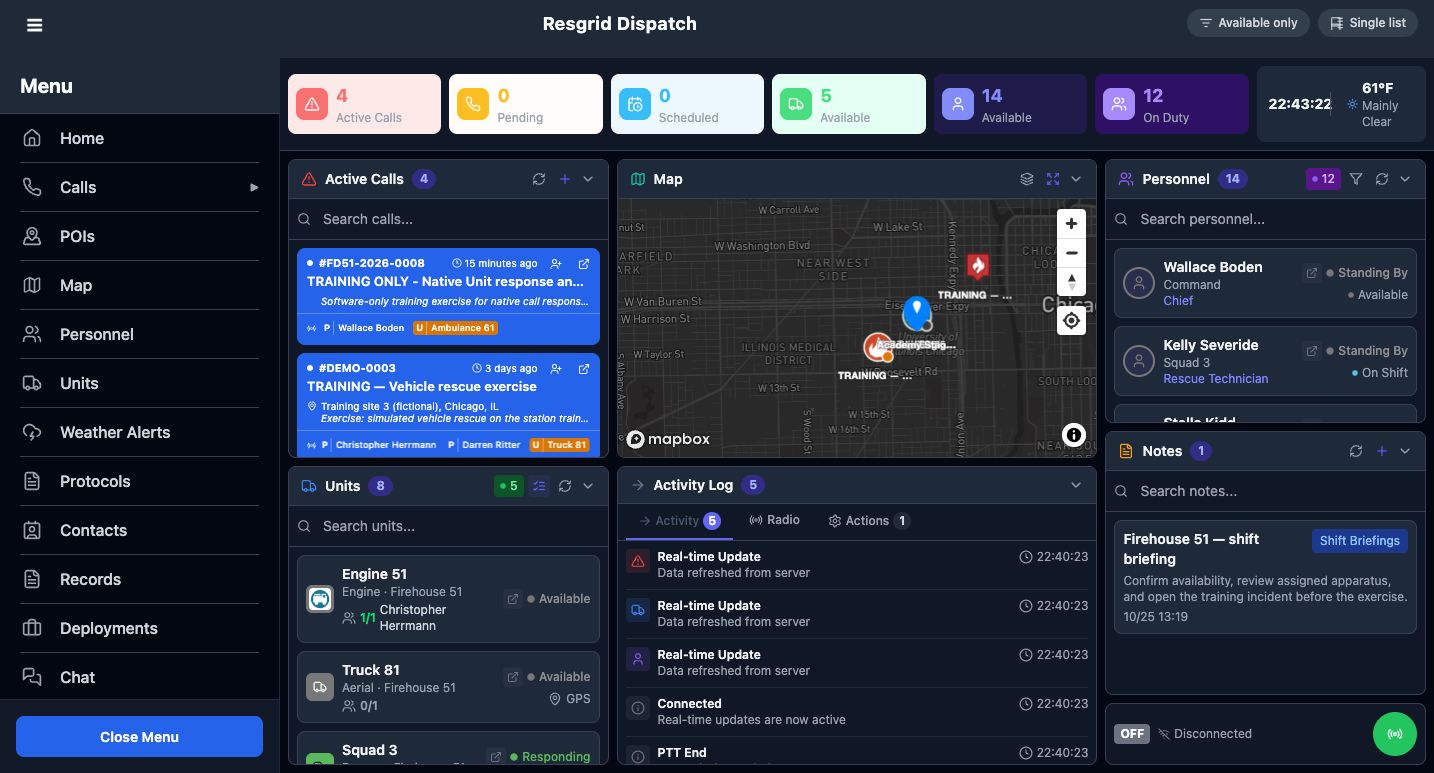
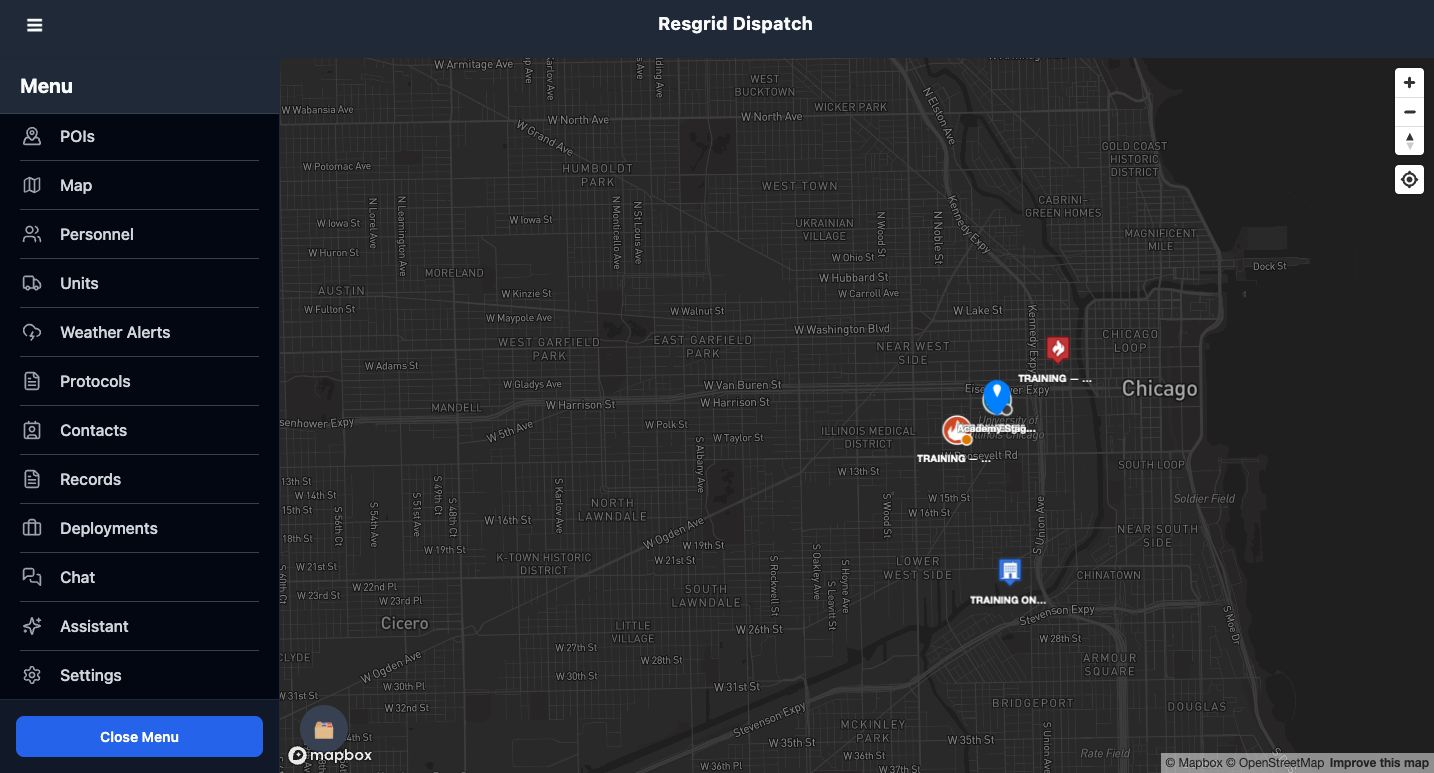
Dispatch brings calls, apparatus, personnel, a map, and reference notes into one workspace. This lesson follows a read-only reference check in a fictional training department. From Home, open the menu in the upper-left corner. Map, POIs, Protocols, and Contacts lead to different kinds of information. Choose the reference that answers your question before changing a call or assigning resources. We will use the map and site records without making a dispatch.
Practice
Find Map, POIs, Protocols and Contacts in the menu before opening a reference page.
Step 2
Use layers to simplify the map
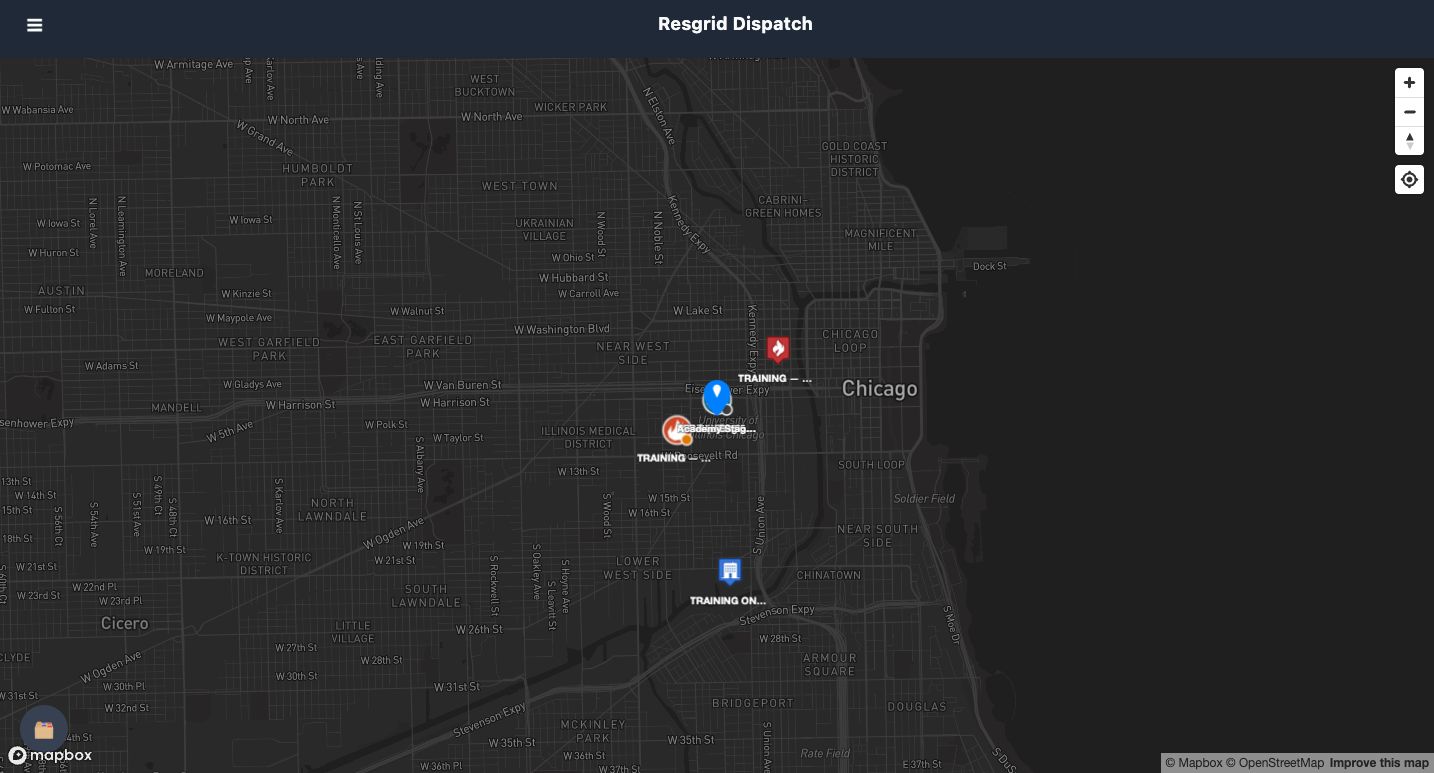
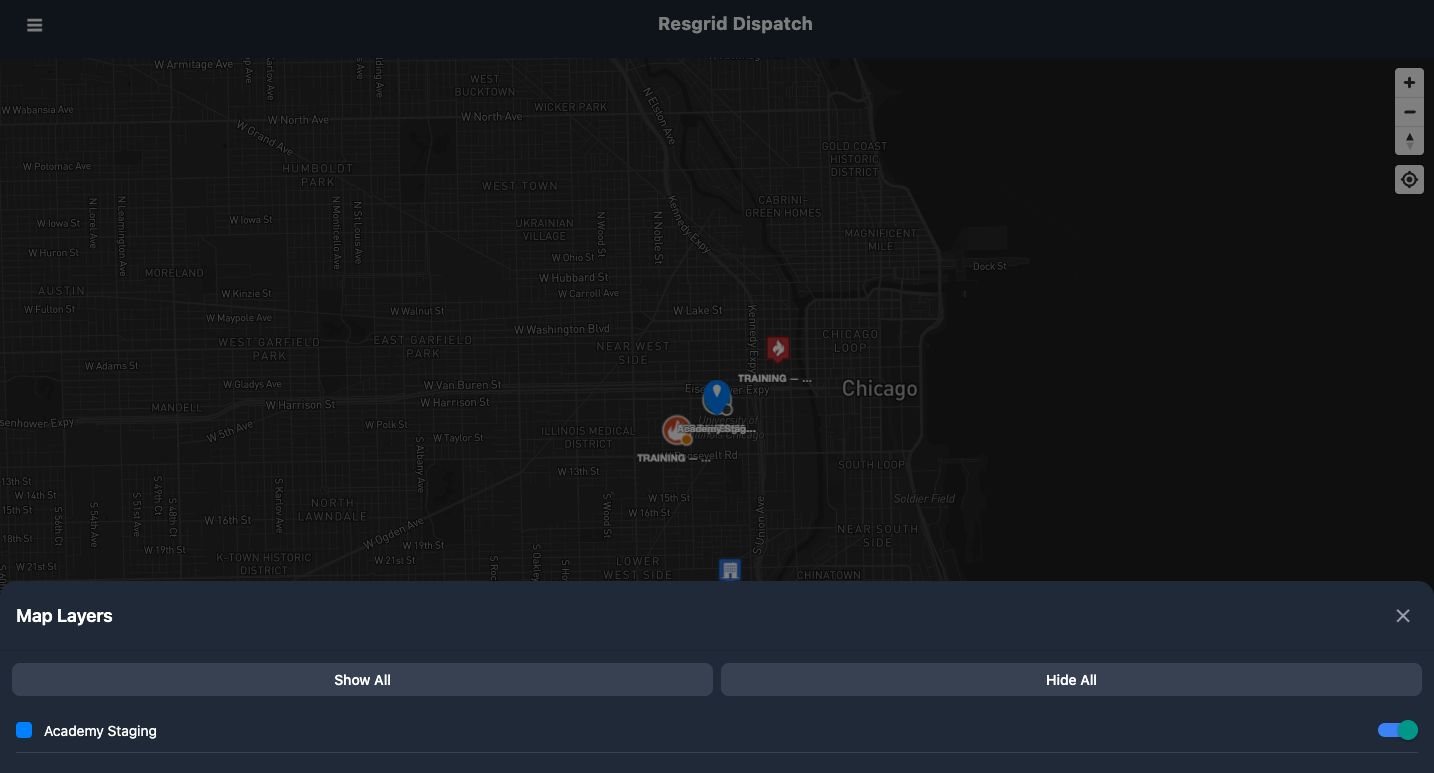
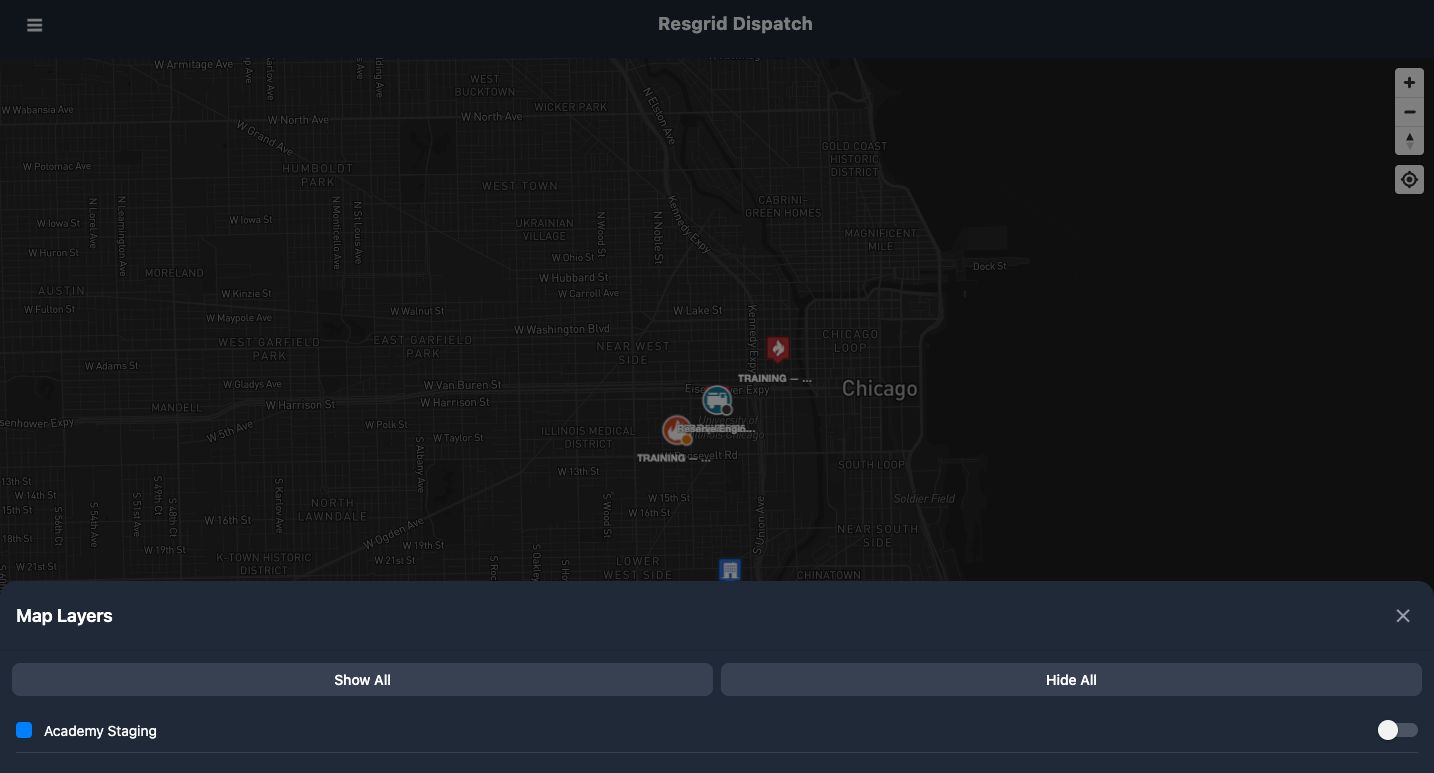
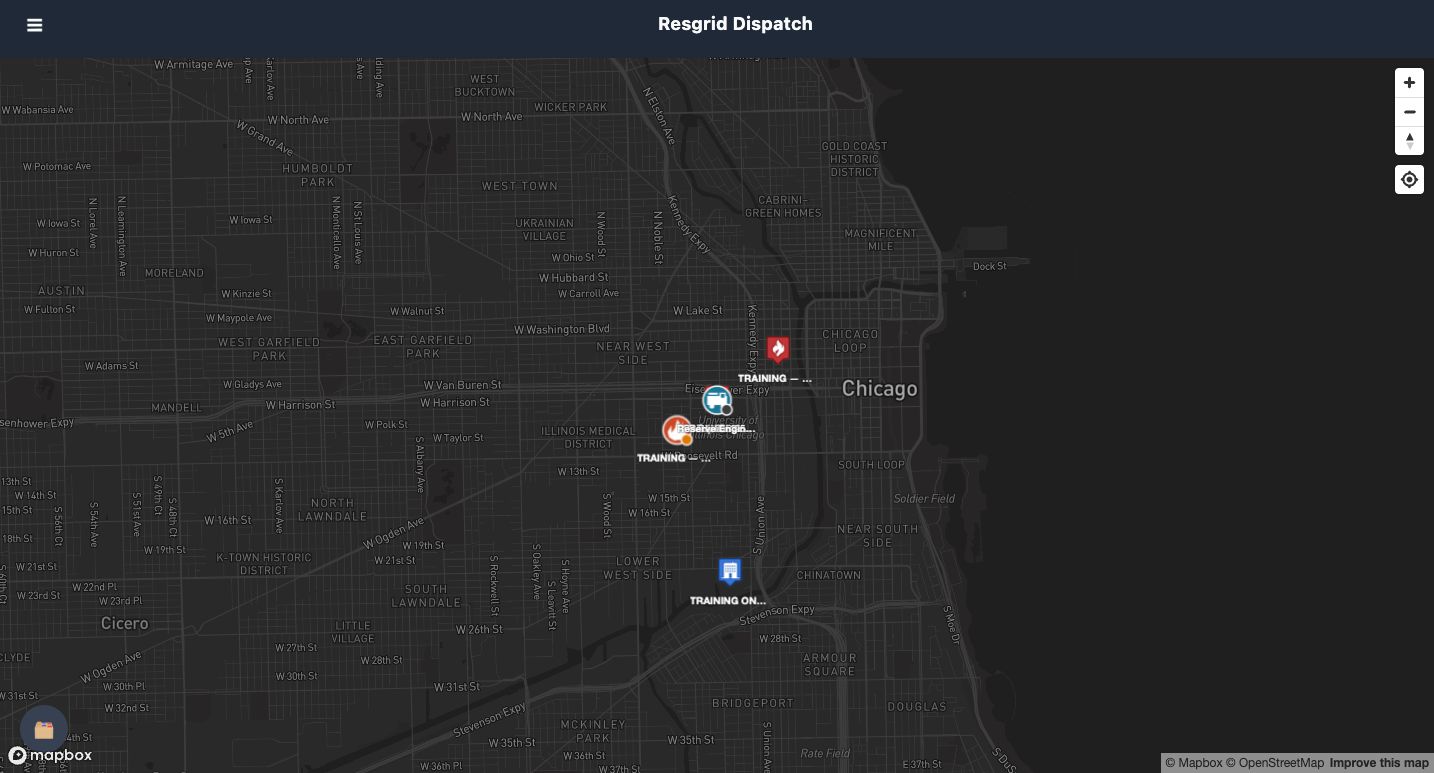
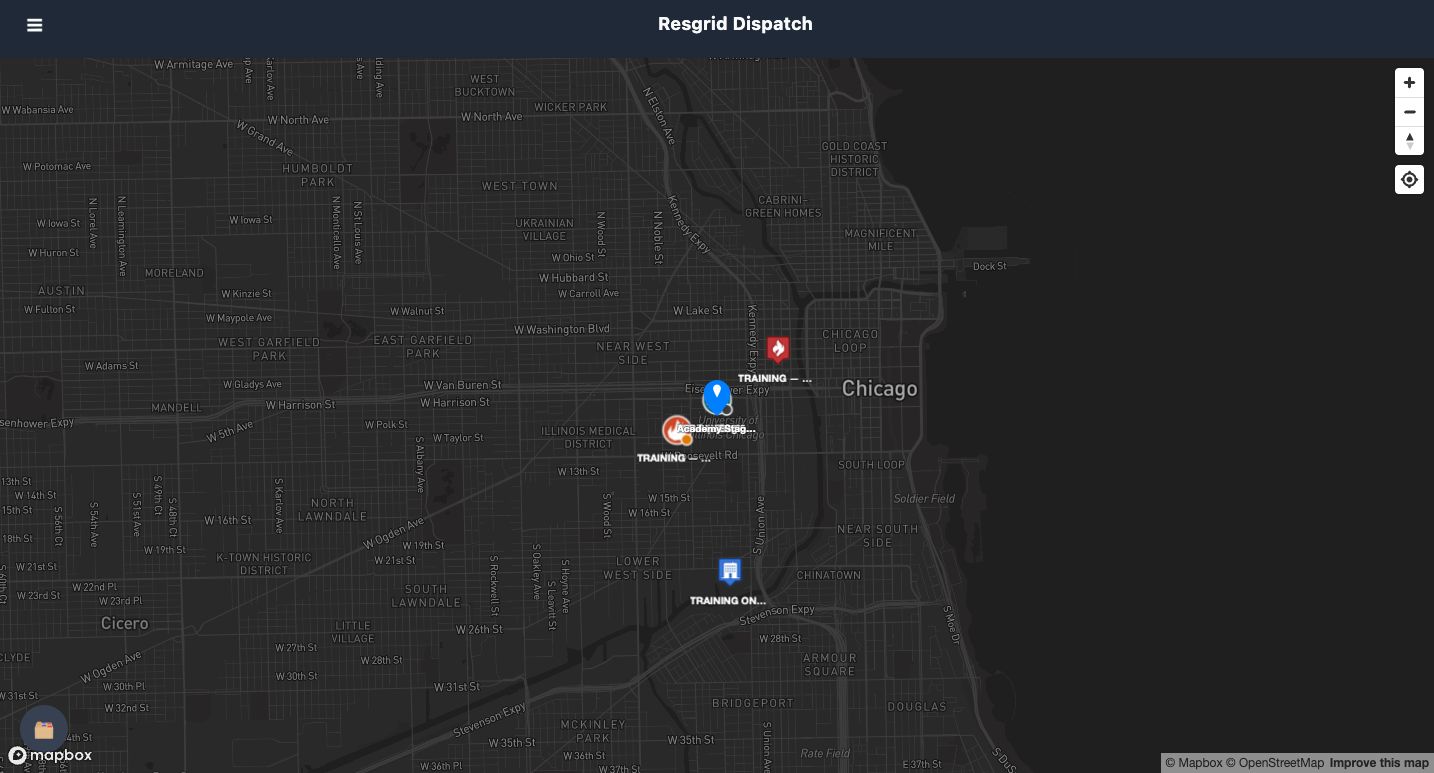
Open Map for a larger view of the Chicago training area. The folder control in the lower-left corner opens Map Layers. Academy Staging is enabled in this example. Choose Hide All and inspect the changed layer switch, then close the panel to compare the map. The blue staging point disappears while the other incident and unit markers remain. Reopen the panel and choose Show All to restore the layer. These controls change what this map displays; they do not delete the point or dispatch a resource.
Practice
Compare the enabled and disabled layer views, then restore the original visible layers.
Step 3
Find a known point in the POI list
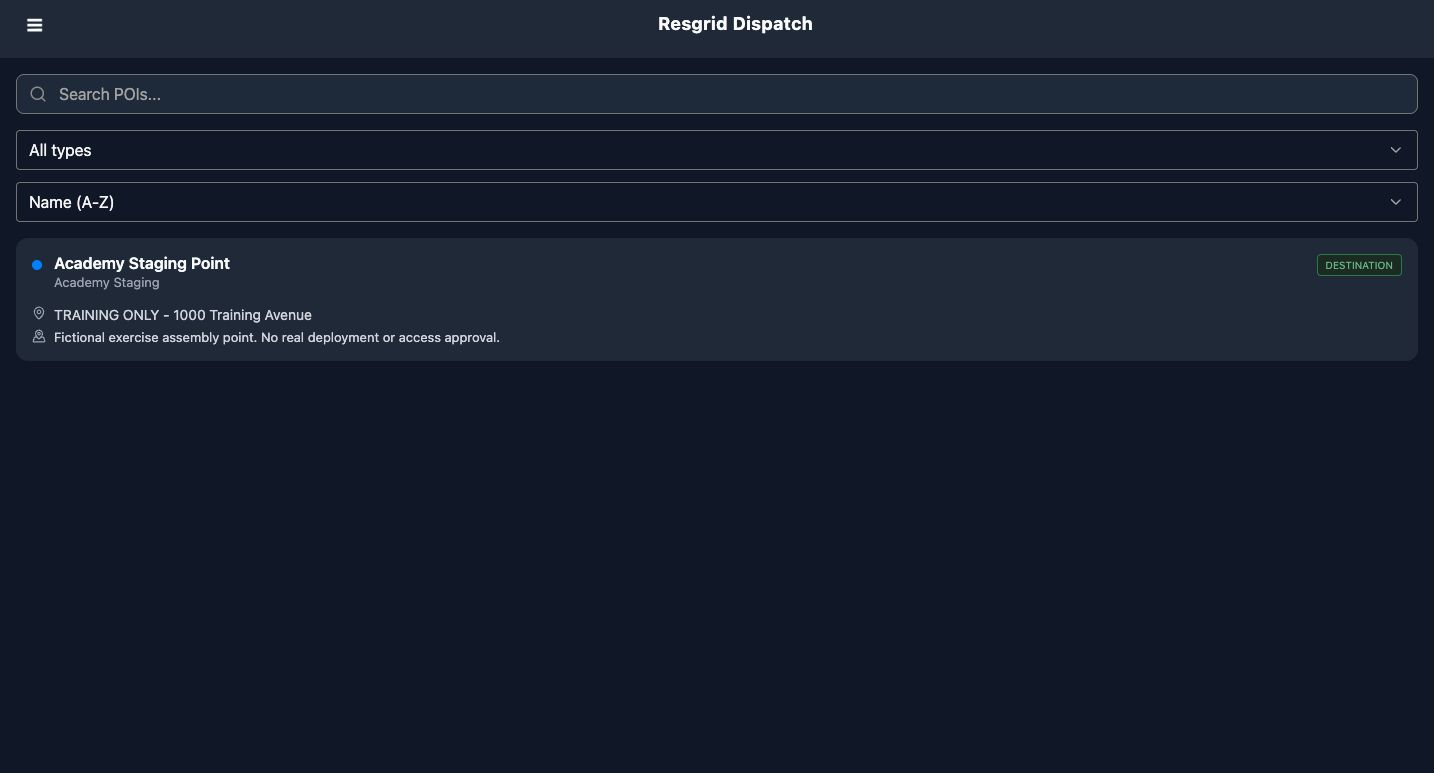
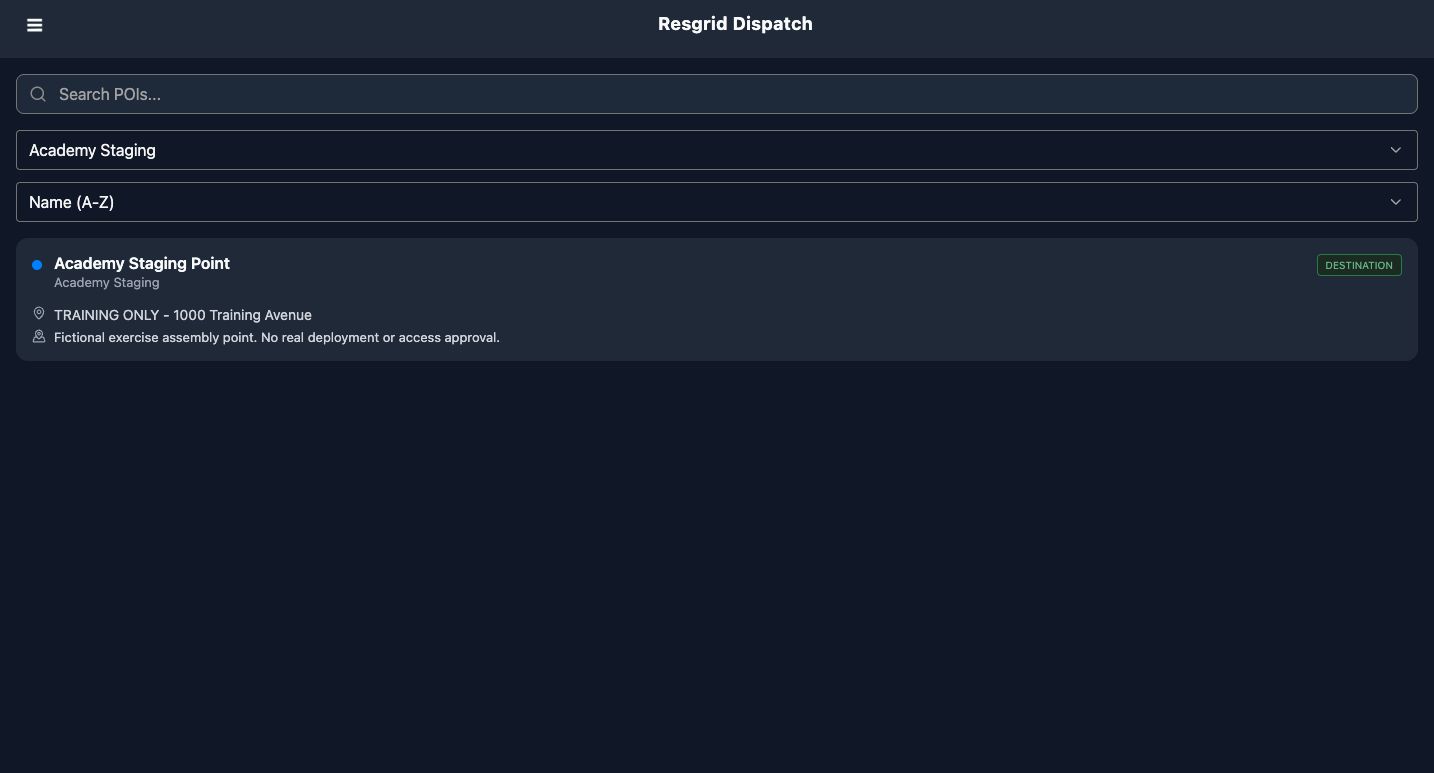
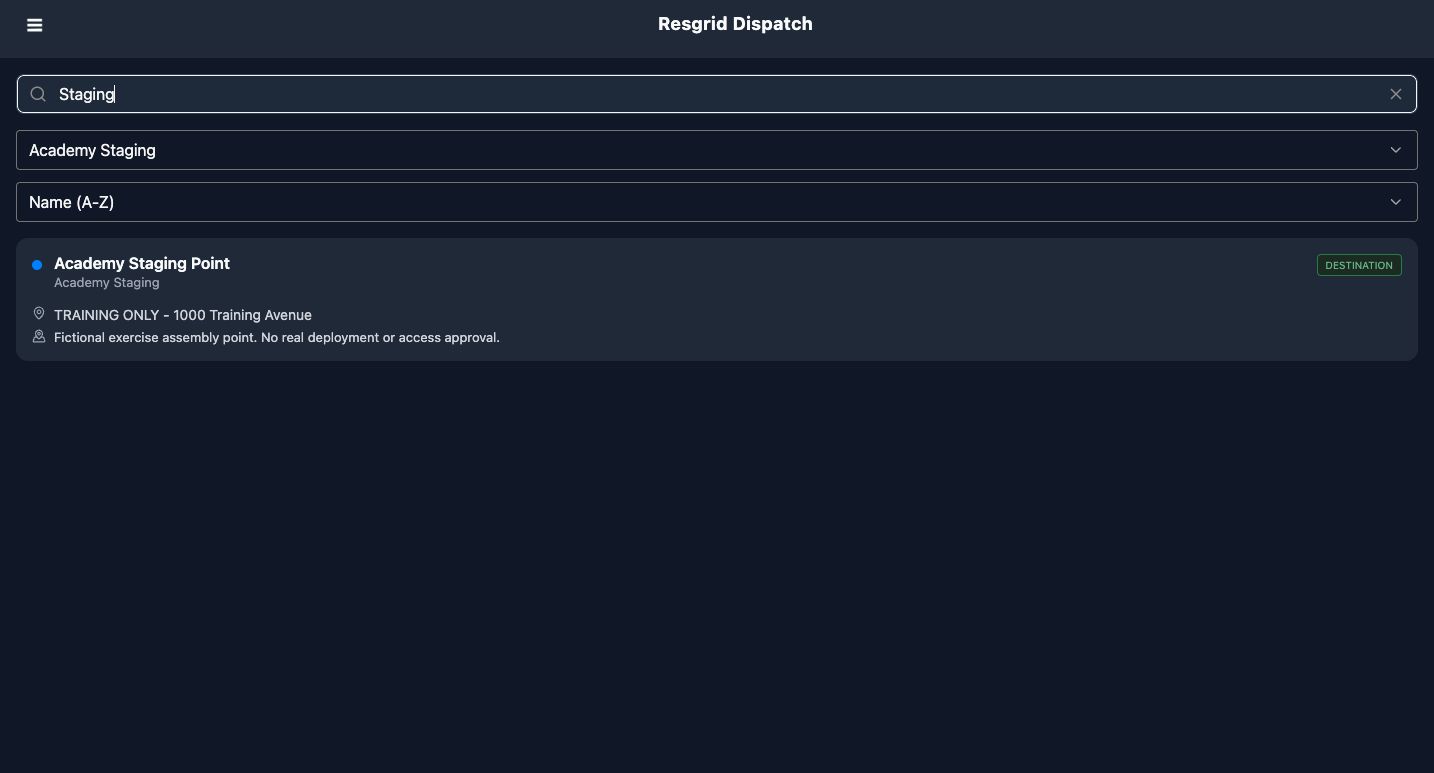
For a named reference, choose POIs from the menu. The list starts with All types and Name, A to Z. Select Academy Staging in the type selector, then enter Staging in Search POIs. The existing Academy Staging Point remains in the result. A type filter and a search work together, so check both when a point seems missing. This example has only one point; it does not demonstrate a change in sorting order.
Practice
Locate the staging point by its displayed type and name. Keep a filtered list separate from the full department catalog.
Step 4
Read the point as a stored reference
Read the card before using its location. It identifies Academy Staging Point, its Academy Staging type, a Destination badge, and a clearly marked training address. The note calls it a fictional exercise assembly point and says it provides no real deployment or access approval. Use those stored details to confirm you found the intended reference. A point on this map is not evidence that a device reported its position or that a crew reached the site.
Practice
Check the point name, type, training address and note together rather than relying on its map symbol alone.
Step 5
Check whether a protocol is available
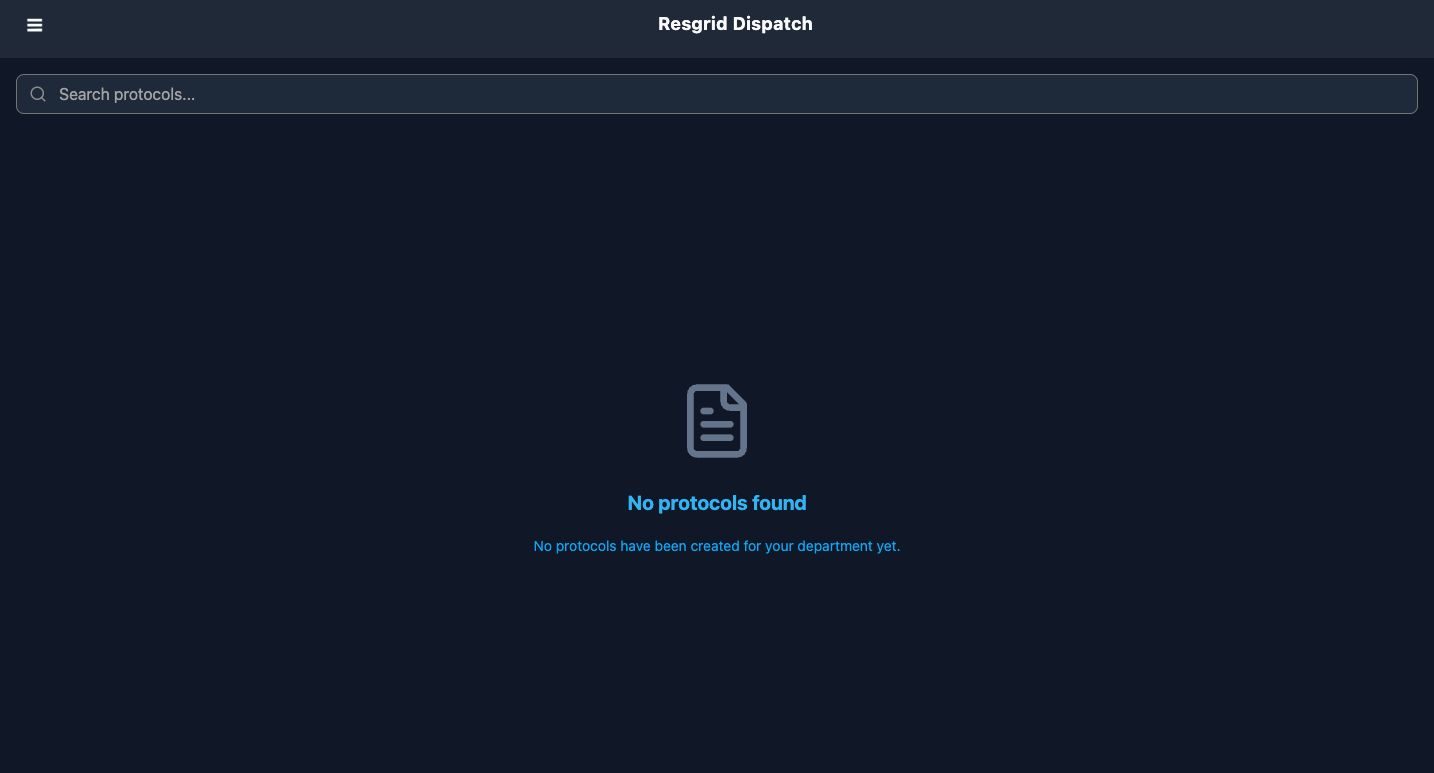
Protocols is a separate menu entry for departmental procedures. Here the page says No protocols found and explains that none have been created for the department. That is the available information for this exercise. There is no procedure to open or follow in this recording. Treat an empty reference page as something to resolve through your authorized departmental process, rather than assuming the app supplied the missing instructions.
Practice
Read the empty-state message and distinguish an unconfigured protocol list from an available procedure.
Step 6
Find and identify the site contact
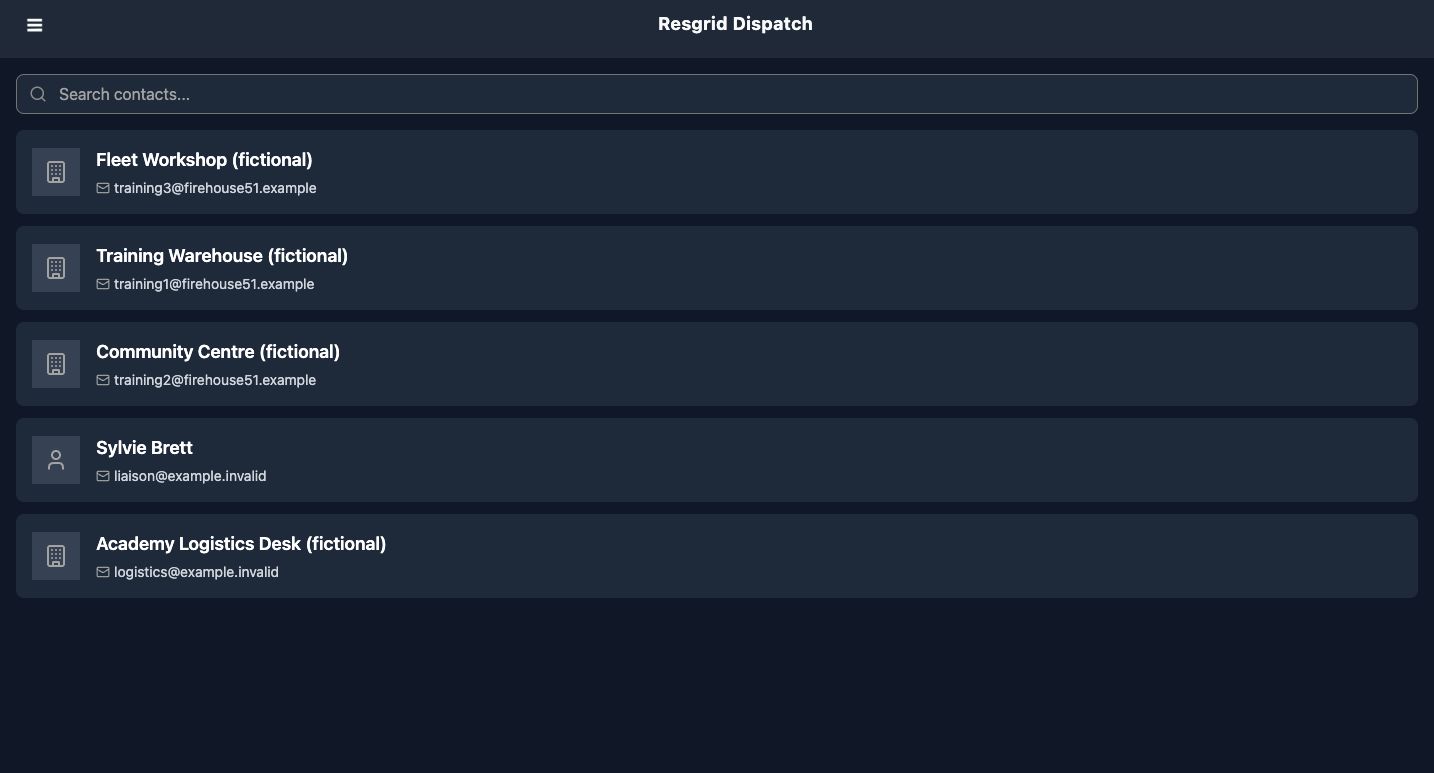
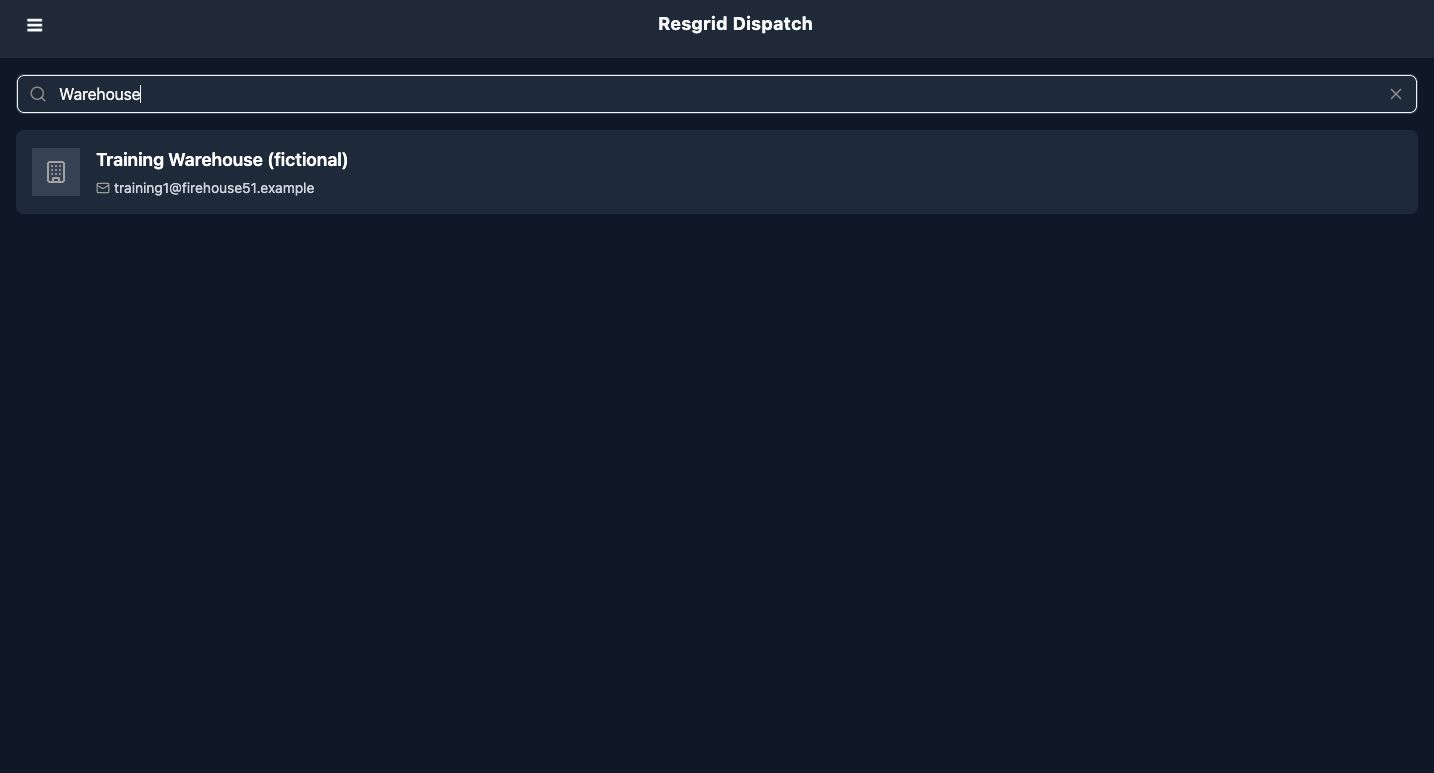
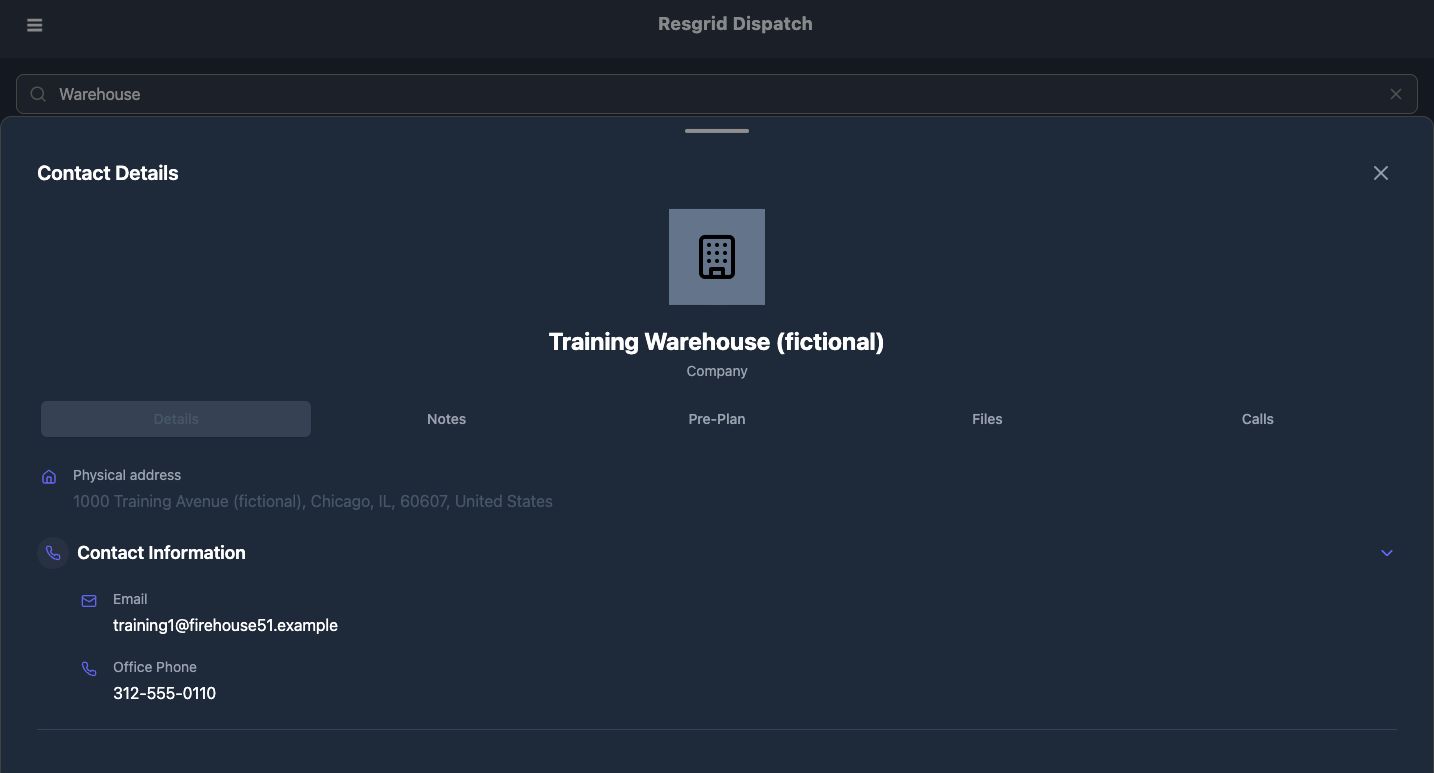
Open Contacts to find the site record. Enter Warehouse in Search contacts, then open Training Warehouse, marked fictional. Contact Details keeps that name and the Company category above its reference tabs. The Contact Information section shows an email address and office phone for this training record. Confirm the identity before reading further; a similar place name is not enough. We inspect the stored reference here without calling, emailing, opening an address link, or changing the contact.
Practice
Find the fictional warehouse and confirm its full name and category before using its supporting tabs.
Step 7
Read supporting context and its gaps
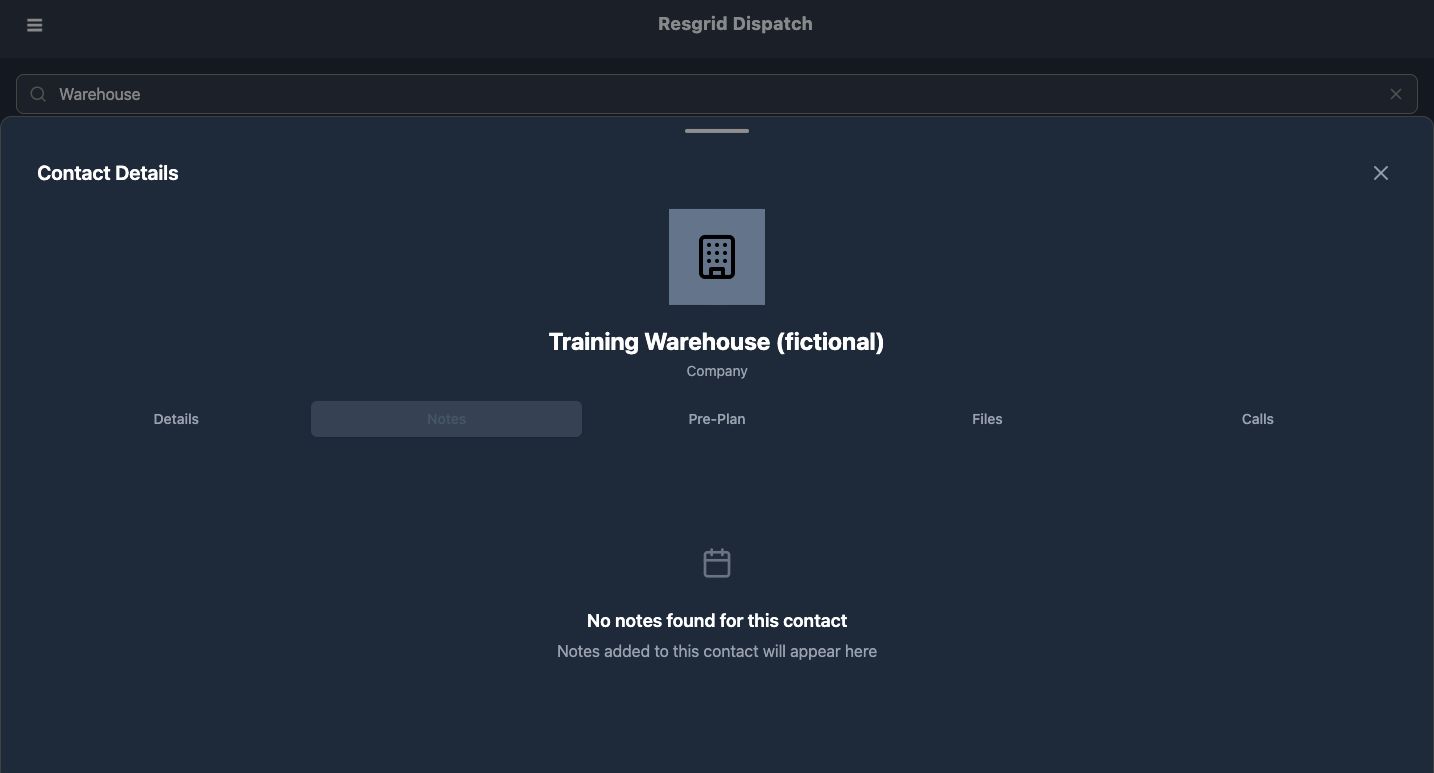
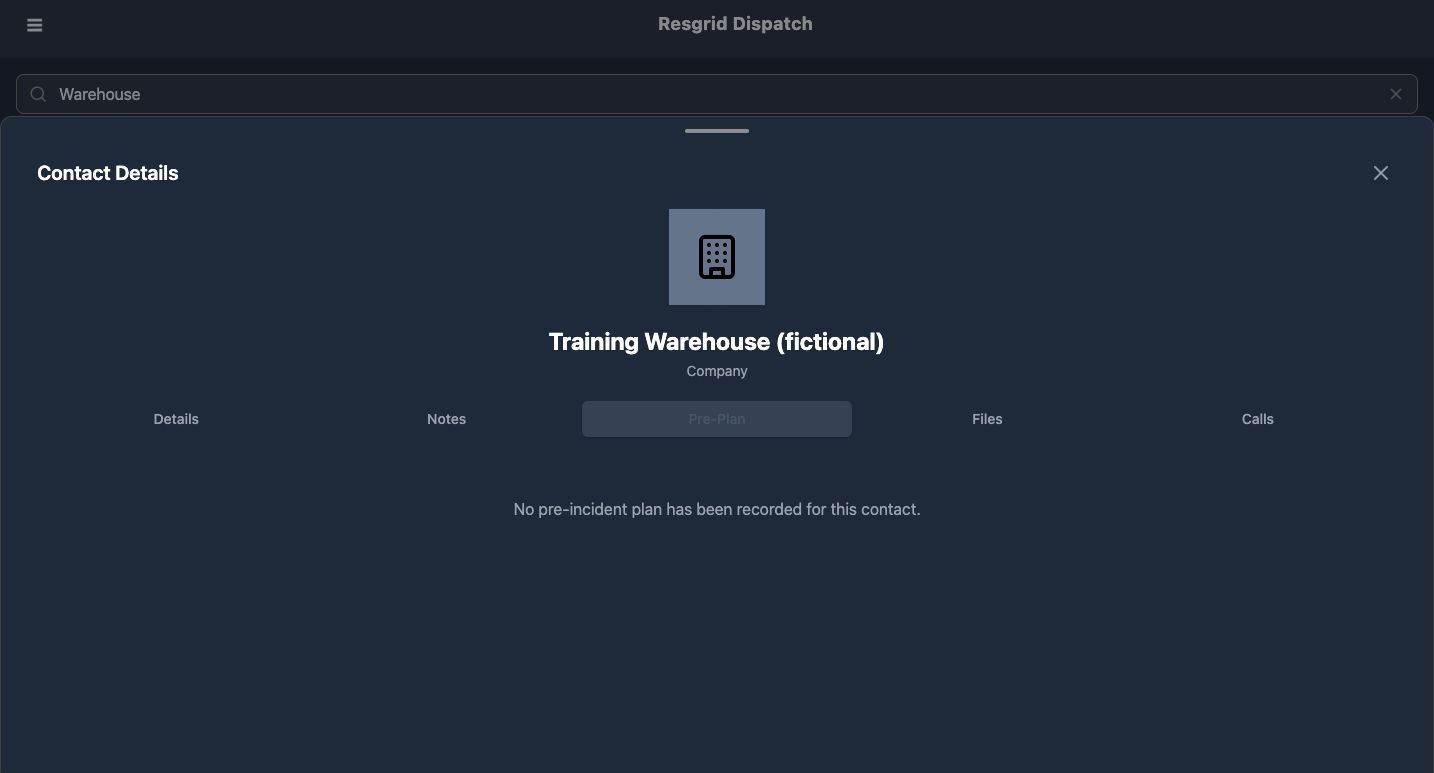
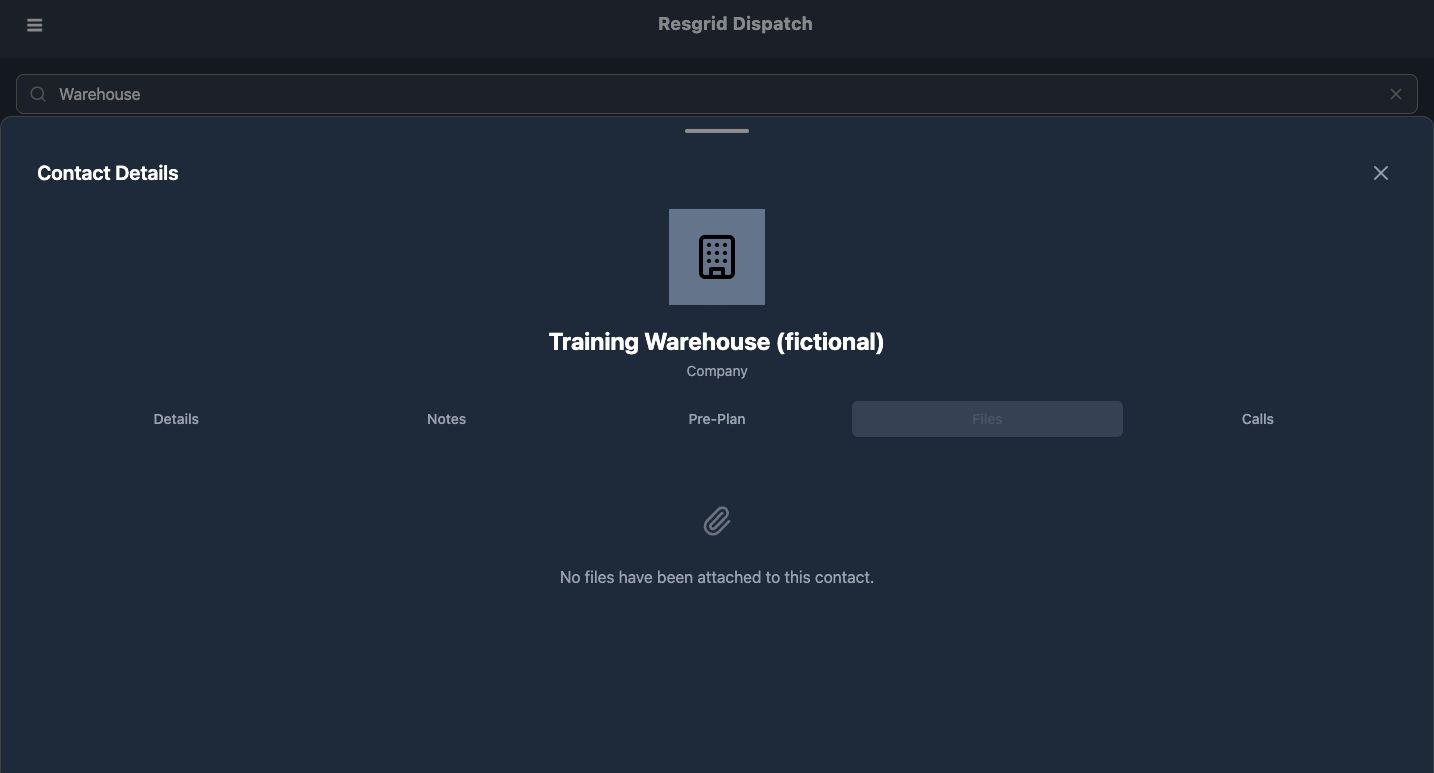
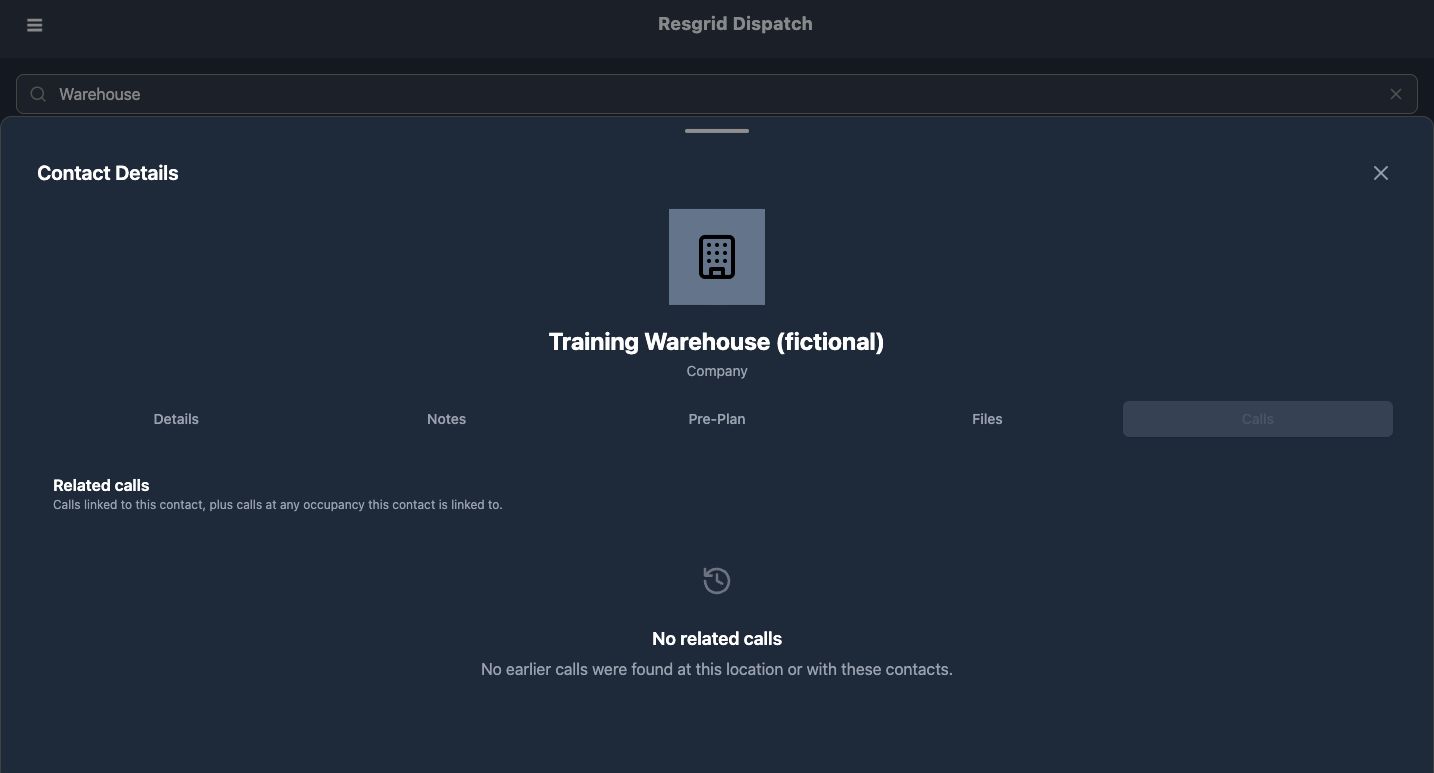
The supporting tabs stay with the same contact. Open Notes: this warehouse has no notes in that tab. Pre-Plan explicitly says that no pre-incident plan has been recorded. Files says that no files have been attached. Check each message rather than assuming a tab contains material because its name is present. Calls opens Related calls, covering calls linked to this contact and calls at its linked occupancies. The example returns No related calls. That result describes this contact query; it does not mean the dispatch console has no active incidents.
Practice
Match each reference tab to its actual result. Record a missing reference as missing rather than describing an unshown plan, file or incident history.
Step 8
Locate settings and apply the reference pattern
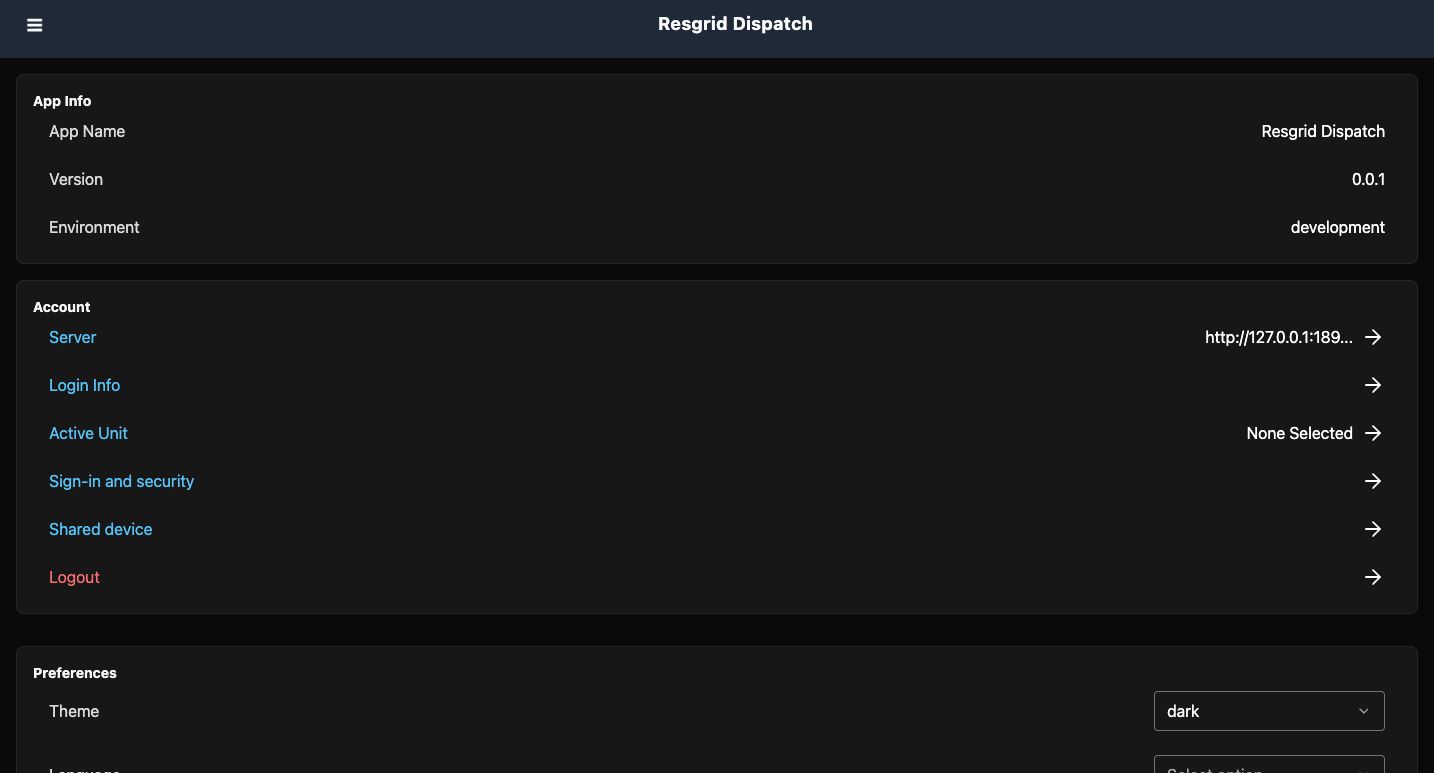
Settings is lower in the menu. App Info identifies the app, version, and environment, which helps when requesting support. Scrolling reveals Preferences, including Theme, Language, and Keep Alive, followed by Support links. We leave those settings and links unchanged; this browser view does not prove a device wake lock or native hardware behavior. Apply the same map, point, and contact checks to fire and EMS, community-care or mental-health teams, search and rescue, security, wildland contractors, and industrial teams. The common task is finding the right place and recognizing which reference information is actually available.
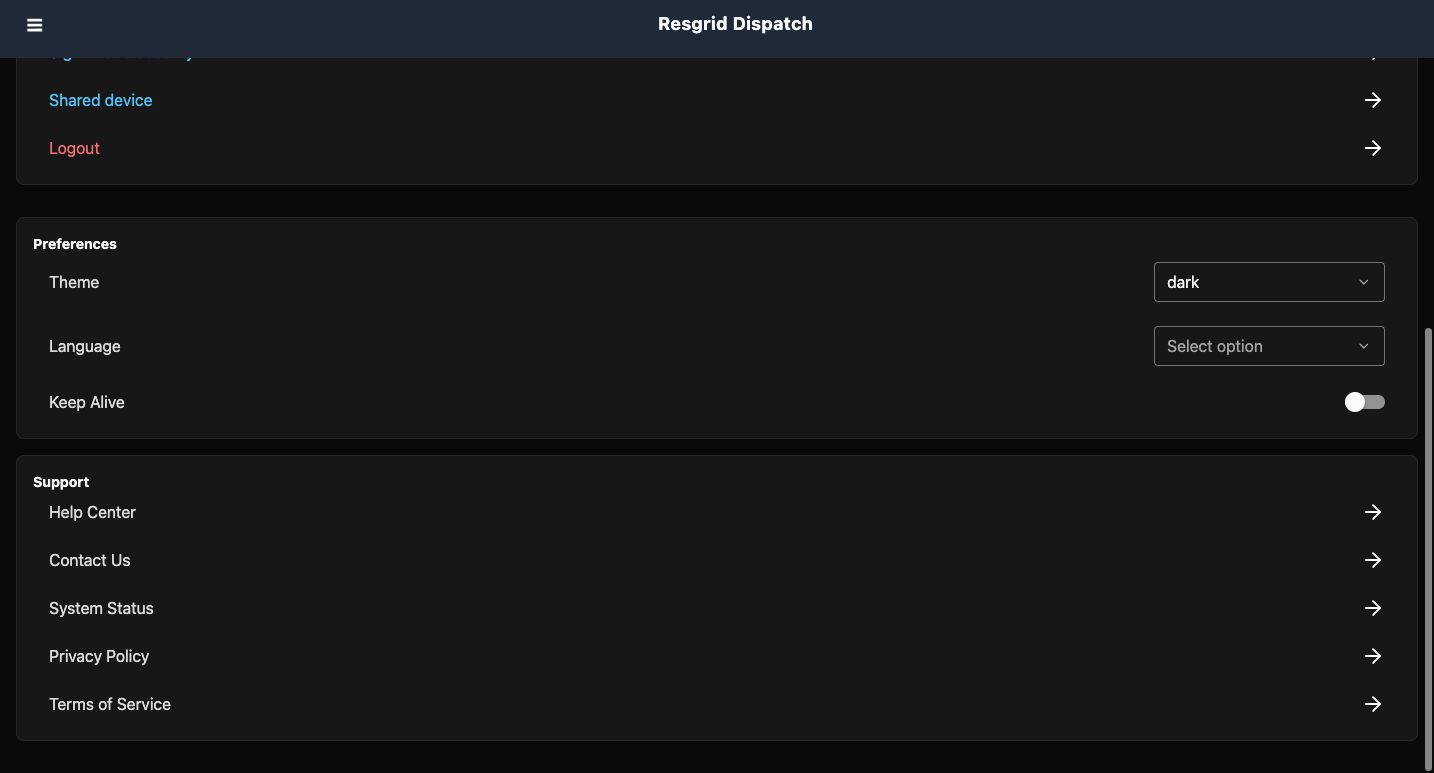
Practice
Locate the app version and preference controls without changing an account, server or security setting. Choose a sector scenario and identify the references you would need.
Examples for your department
- Fire / EMS
- Use the displayed staging layer and fictional warehouse contact to rehearse a reference check before an exercise, without dispatching apparatus.
- Community response
- Use a fictional care-site or assembly point to practice selecting the correct place and recognizing missing contact reference information.
- Search and rescue
- Use the point list and layer comparison to rehearse finding a rendezvous reference; no search deployment or physical GPS is demonstrated.
- Security
- Identify a fictional site contact and distinguish its stored phone/email information from an actual communication or access authorization.
- Wildland
- Practice locating a contractor staging reference and checking for an available preplan; the empty tab supplies no field procedure.
- Industrial
- Review a fictional assembly point, site contact and explicit missing files/history without treating the reference as a completed response.
Transcript
Download transcriptRead the complete transcript
Dispatch: map layers and site references
Audience: Dispatchers and control-room coordinators, Team members authorized to read department mapping and site references

Start from the dispatch workspace
Dispatch brings calls, apparatus, personnel, a map, and reference notes into one workspace. This lesson follows a read-only reference check in a fictional training department. From Home, open the menu in the upper-left corner. Map, POIs, Protocols, and Contacts lead to different kinds of information. Choose the reference that answers your question before changing a call or assigning resources. We will use the map and site records without making a dispatch.
Practice: Find Map, POIs, Protocols and Contacts in the menu before opening a reference page.

Use layers to simplify the map
Open Map for a larger view of the Chicago training area. The folder control in the lower-left corner opens Map Layers. Academy Staging is enabled in this example. Choose Hide All and inspect the changed layer switch, then close the panel to compare the map. The blue staging point disappears while the other incident and unit markers remain. Reopen the panel and choose Show All to restore the layer. These controls change what this map displays; they do not delete the point or dispatch a resource.
Practice: Compare the enabled and disabled layer views, then restore the original visible layers.

Find a known point in the POI list
For a named reference, choose POIs from the menu. The list starts with All types and Name, A to Z. Select Academy Staging in the type selector, then enter Staging in Search POIs. The existing Academy Staging Point remains in the result. A type filter and a search work together, so check both when a point seems missing. This example has only one point; it does not demonstrate a change in sorting order.
Practice: Locate the staging point by its displayed type and name. Keep a filtered list separate from the full department catalog.

Read the point as a stored reference
Read the card before using its location. It identifies Academy Staging Point, its Academy Staging type, a Destination badge, and a clearly marked training address. The note calls it a fictional exercise assembly point and says it provides no real deployment or access approval. Use those stored details to confirm you found the intended reference. A point on this map is not evidence that a device reported its position or that a crew reached the site.
Practice: Check the point name, type, training address and note together rather than relying on its map symbol alone.

Check whether a protocol is available
Protocols is a separate menu entry for departmental procedures. Here the page says No protocols found and explains that none have been created for the department. That is the available information for this exercise. There is no procedure to open or follow in this recording. Treat an empty reference page as something to resolve through your authorized departmental process, rather than assuming the app supplied the missing instructions.
Practice: Read the empty-state message and distinguish an unconfigured protocol list from an available procedure.

Find and identify the site contact
Open Contacts to find the site record. Enter Warehouse in Search contacts, then open Training Warehouse, marked fictional. Contact Details keeps that name and the Company category above its reference tabs. The Contact Information section shows an email address and office phone for this training record. Confirm the identity before reading further; a similar place name is not enough. We inspect the stored reference here without calling, emailing, opening an address link, or changing the contact.
Practice: Find the fictional warehouse and confirm its full name and category before using its supporting tabs.

Read supporting context and its gaps
The supporting tabs stay with the same contact. Open Notes: this warehouse has no notes in that tab. Pre-Plan explicitly says that no pre-incident plan has been recorded. Files says that no files have been attached. Check each message rather than assuming a tab contains material because its name is present. Calls opens Related calls, covering calls linked to this contact and calls at its linked occupancies. The example returns No related calls. That result describes this contact query; it does not mean the dispatch console has no active incidents.
Practice: Match each reference tab to its actual result. Record a missing reference as missing rather than describing an unshown plan, file or incident history.

Locate settings and apply the reference pattern
Settings is lower in the menu. App Info identifies the app, version, and environment, which helps when requesting support. Scrolling reveals Preferences, including Theme, Language, and Keep Alive, followed by Support links. We leave those settings and links unchanged; this browser view does not prove a device wake lock or native hardware behavior. Apply the same map, point, and contact checks to fire and EMS, community-care or mental-health teams, search and rescue, security, wildland contractors, and industrial teams. The common task is finding the right place and recognizing which reference information is actually available.
Practice: Locate the app version and preference controls without changing an account, server or security setting. Choose a sector scenario and identify the references you would need.

Examples for your department
Fire / EMS: Use the displayed staging layer and fictional warehouse contact to rehearse a reference check before an exercise, without dispatching apparatus.
Community response: Use a fictional care-site or assembly point to practice selecting the correct place and recognizing missing contact reference information.
Search and rescue: Use the point list and layer comparison to rehearse finding a rendezvous reference; no search deployment or physical GPS is demonstrated.
Security: Identify a fictional site contact and distinguish its stored phone/email information from an actual communication or access authorization.
Wildland: Practice locating a contractor staging reference and checking for an available preplan; the empty tab supplies no field procedure.
Industrial: Review a fictional assembly point, site contact and explicit missing files/history without treating the reference as a completed response.