
BigBoard · Video walkthrough
Big Board: configure unit timers, acknowledge and mute alerts
Configure Core unit status timers and required reasons, inspect an overdue unit in Big Board, acknowledge and mute it, improve note visibility, and verify the persisted results.
Before you begin
- An isolated fictional department with authorized Core settings access and a signed-in Big Board session.
- A fictional unit with an existing timed status; acknowledgement controls require the supported call-creation permission.
Chapters
- Add Unit Alerts and understand the empty state
- Find the department timer table
- Set the fictional Responding thresholds
- Require a reason and read back the saved settings
- Inspect the overdue unit on the refreshed board
- Acknowledge with a reason and inspect the saved result
- Give the panel enough space for its note
- Save and inspect a fifteen-minute training mute
- Verify persistence and clear the saved mute
- Apply the review process across departments
Watch the walkthrough
Step 1
Add Unit Alerts and understand the empty state
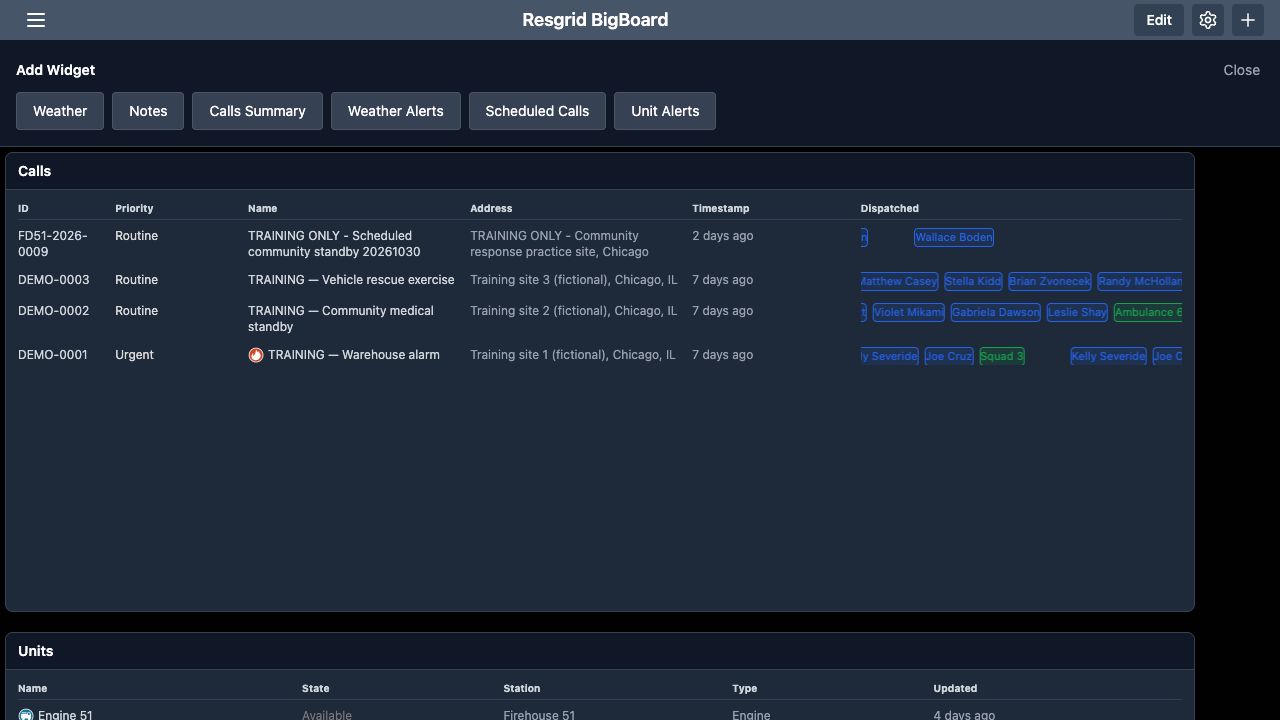
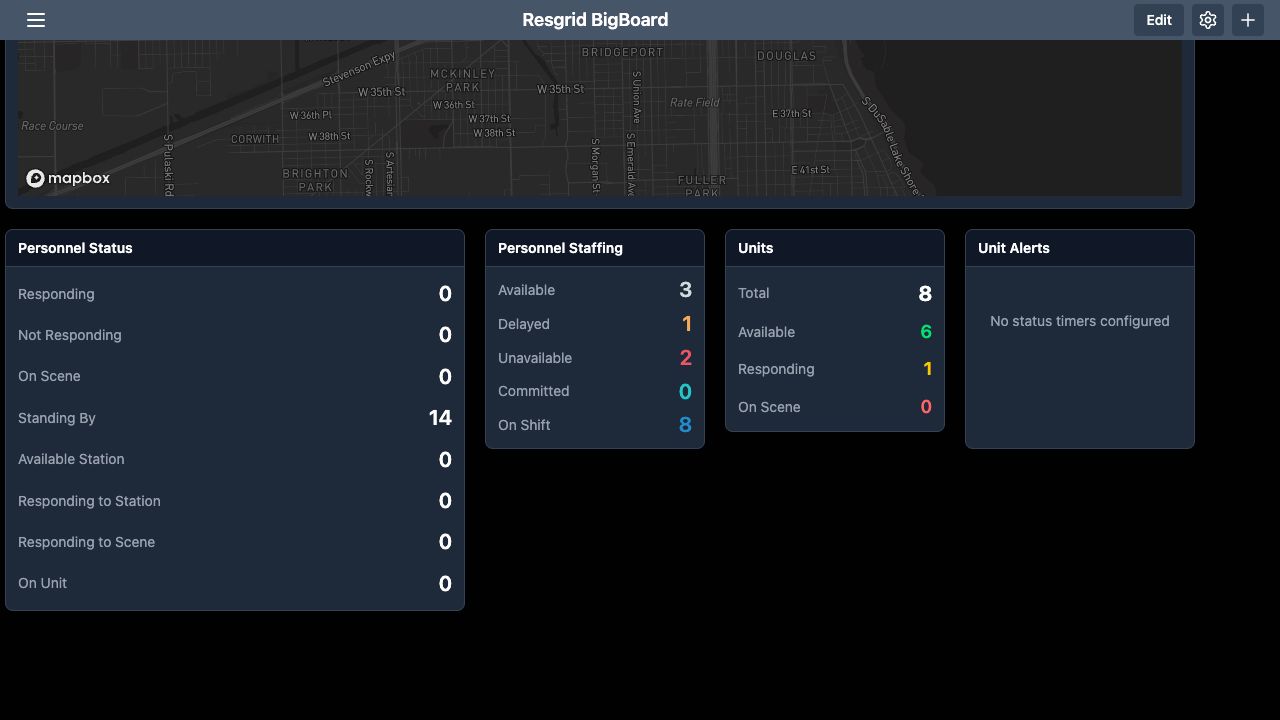
Unit Alerts helps a coordination team find units that have remained in a timed status longer than the department expects. In Big Board, use the plus icon and choose Unit Alerts from Add Widget. Scroll to the new panel. This department initially shows No status timers configured. That message describes the missing timer configuration; it does not establish that every unit has reported promptly. The thresholds are department settings managed in the Core website.
Practice
Add Unit Alerts and understand the empty state in an isolated fictional training department.
Step 2
Find the department timer table
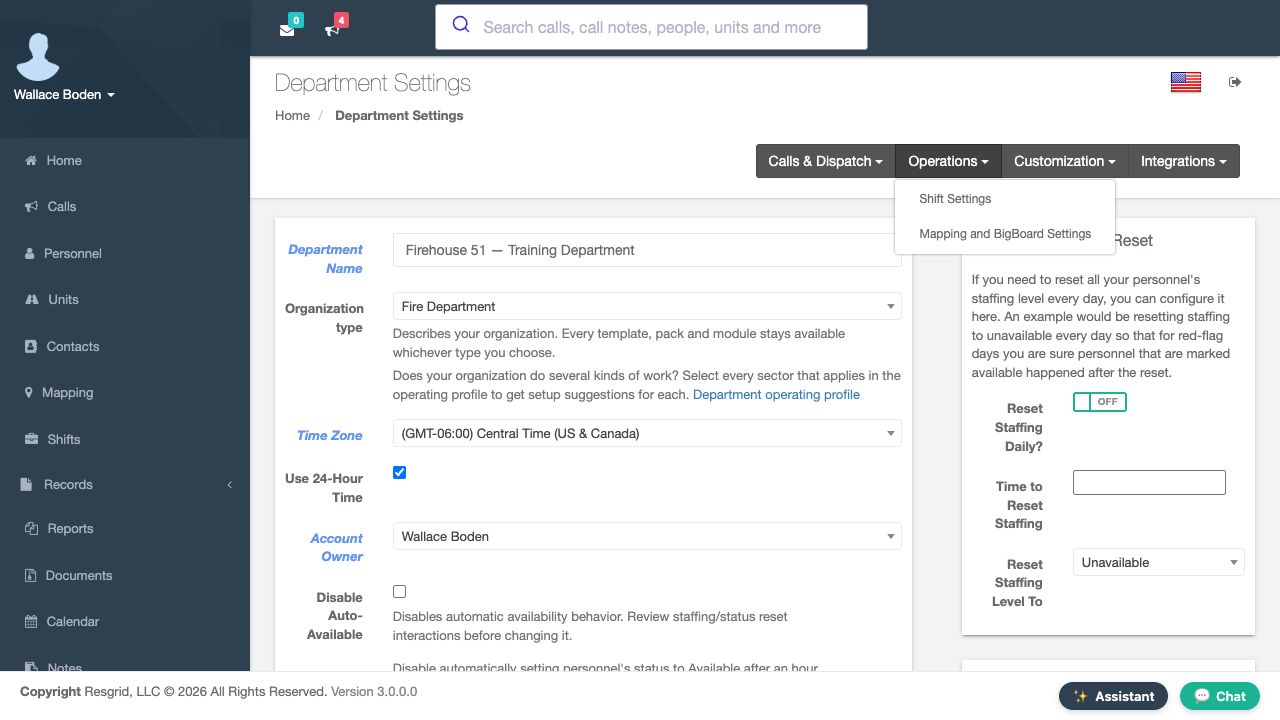
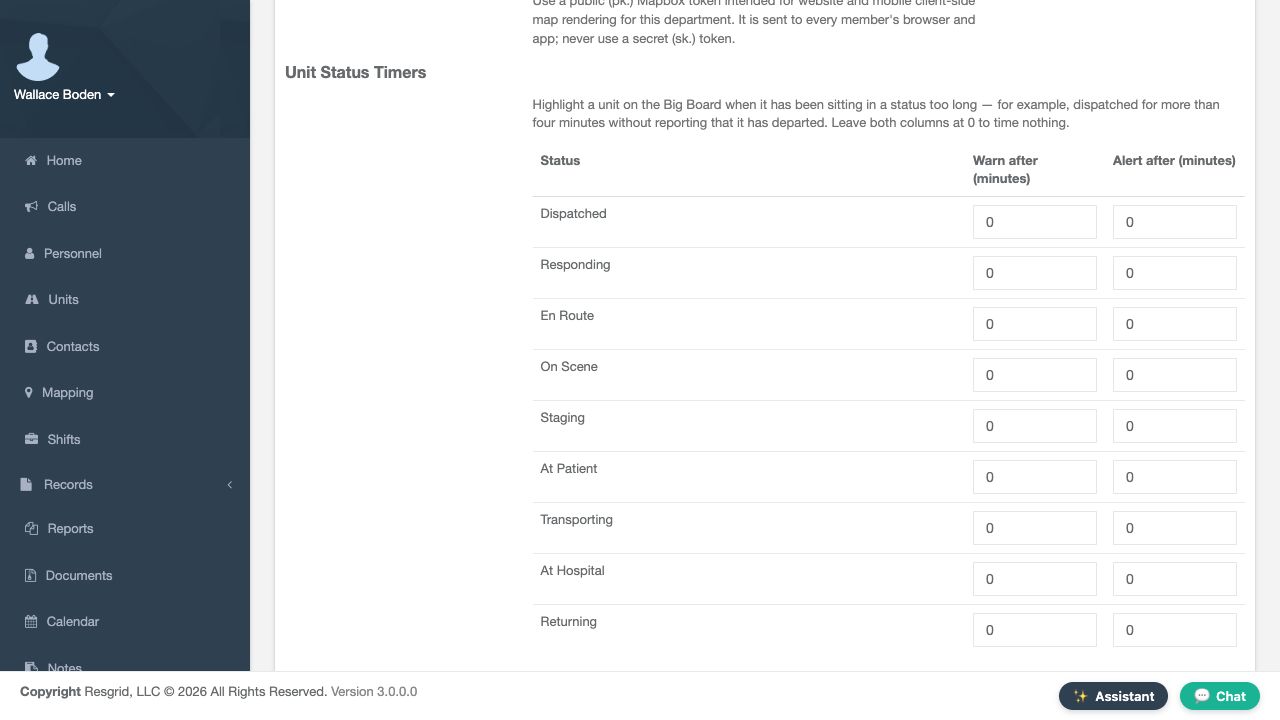
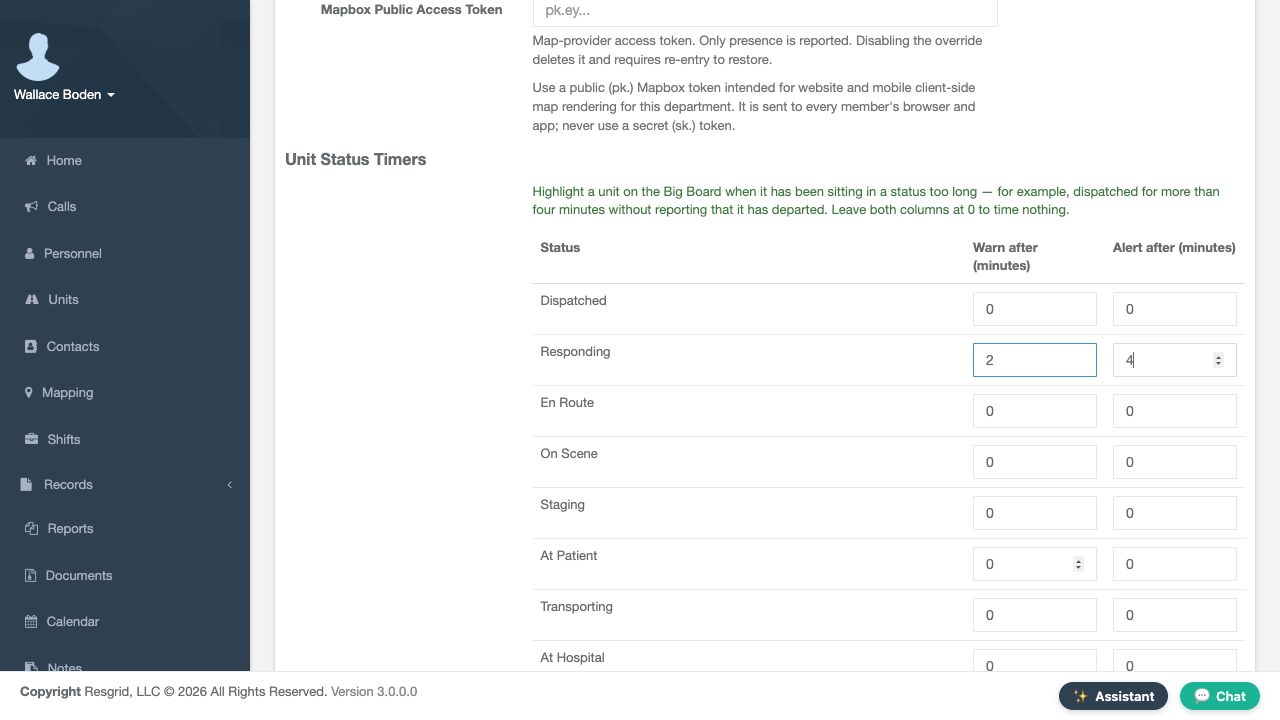
In Core, open Department Settings, choose Operations, then Mapping and BigBoard Settings. Scroll to Unit Status Timers. The table separates Status, Warn after in minutes, and Alert after in minutes. Each displayed status has its own row, including Dispatched, Responding, En Route and On Scene. Initially, both columns are zero throughout this training table. The helper text explains that leaving both at zero times nothing. Choose values that fit your department's reporting process.
Practice
Find the department timer table in an isolated fictional training department.
Step 3
Set the fictional Responding thresholds
For this software exercise, enter two under Warn after and four under Alert after on the Responding row. Leave the other rows unchanged. These are demonstration values, not a recommended response standard. The two columns allow the department to distinguish a warning interval from a later alert interval for the same status. Review the row label and both minute values before saving, so the timer applies to the intended operational meaning.
Practice
Set the fictional Responding thresholds in an isolated fictional training department.
Step 4
Require a reason and read back the saved settings
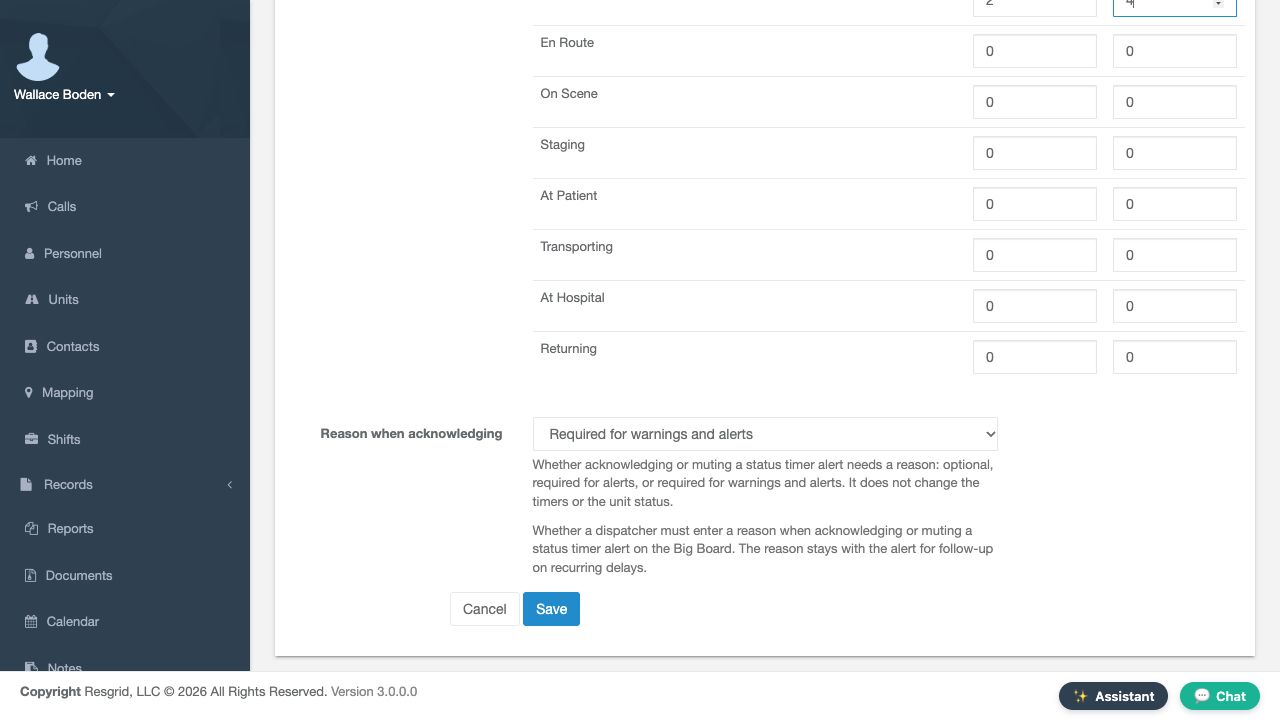
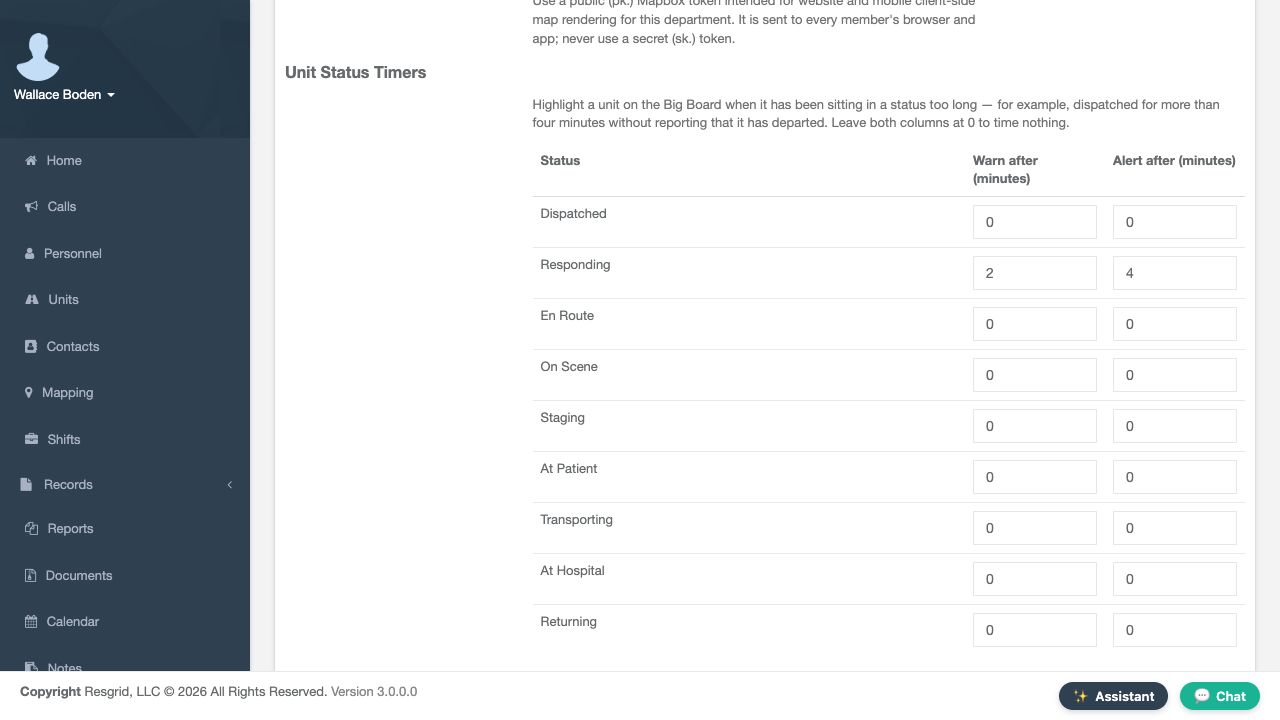
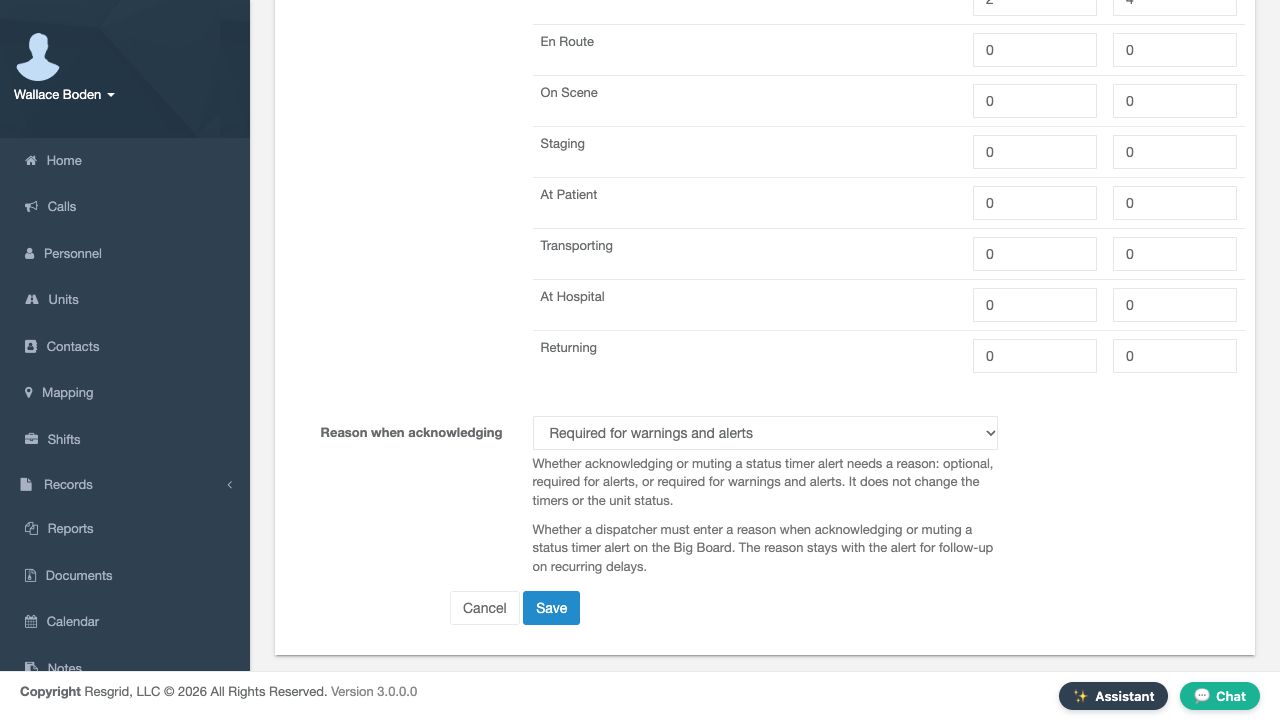
Below the table, set Reason when acknowledging to Required for warnings and alerts. The help explains that this policy applies when acknowledging or muting a status timer alert. Select Save. Reload Mapping and BigBoard Settings and return to the table: Responding still shows two and four. Scroll down again and verify the required-reason selection. Reading back both controls checks the saved configuration before you examine its effect in Big Board.
Practice
Require a reason and read back the saved settings in an isolated fictional training department.
Step 5
Inspect the overdue unit on the refreshed board
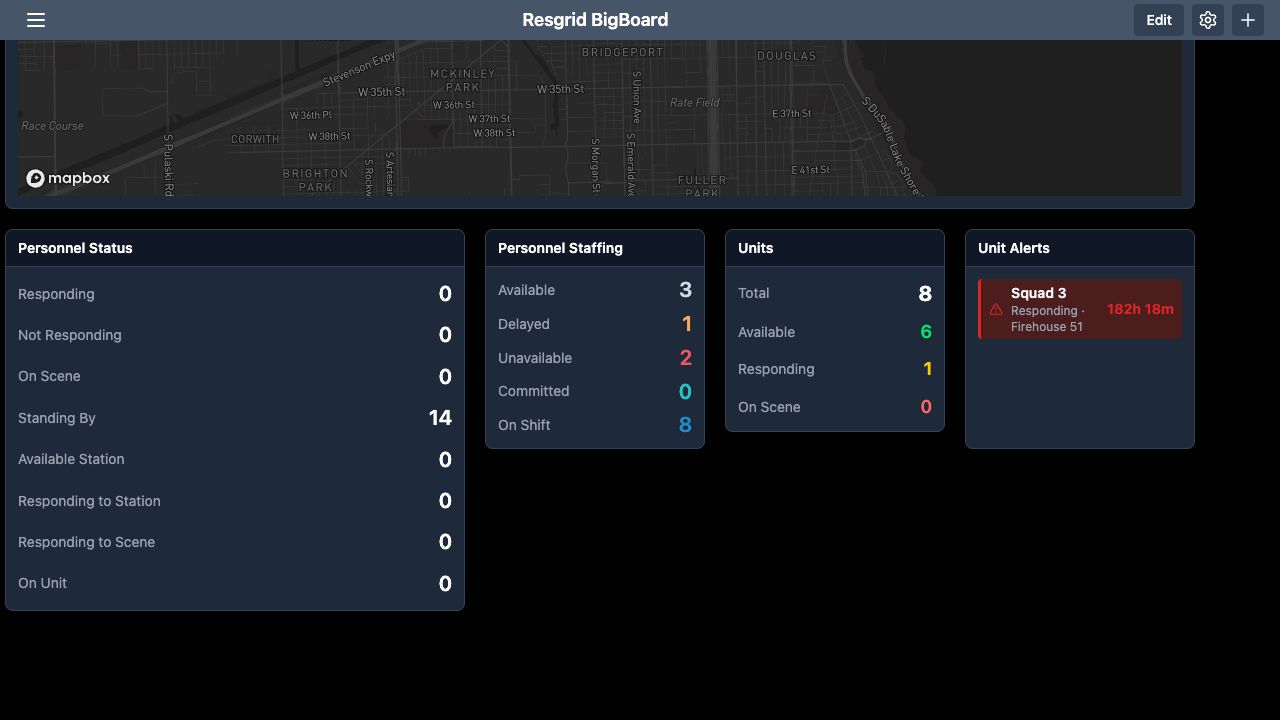
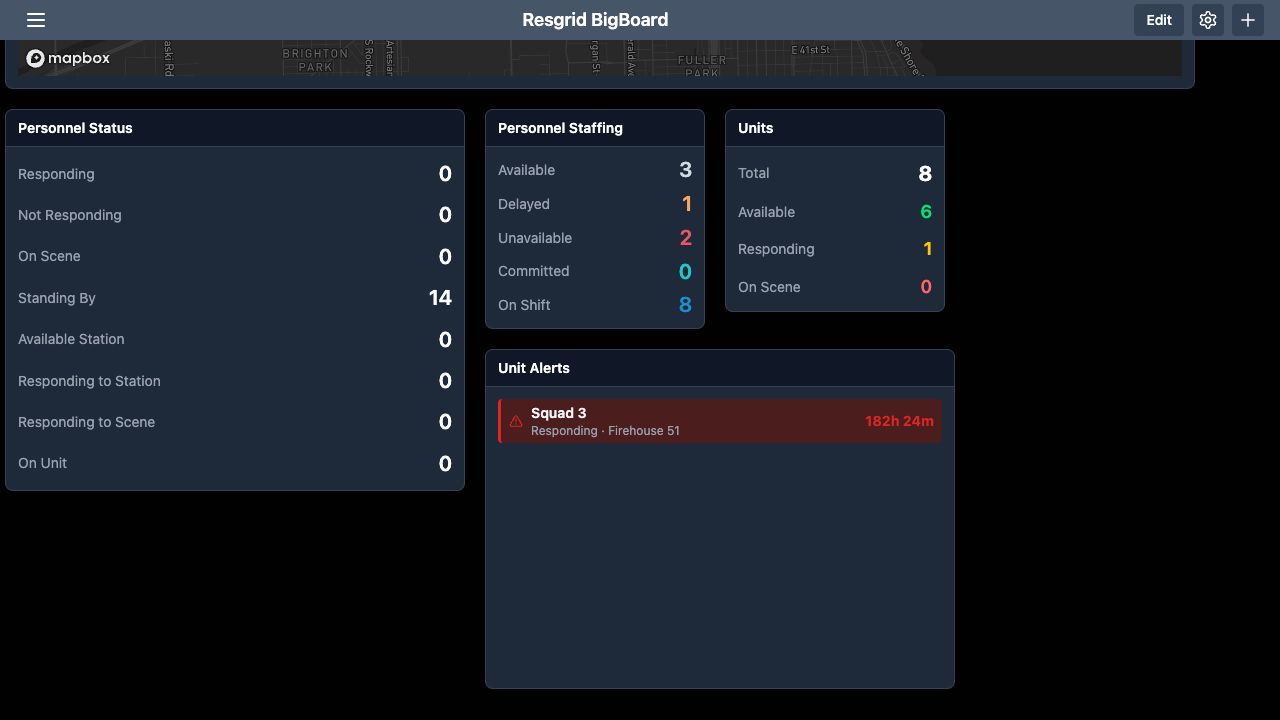
Reload Big Board. Unit Alerts now shows Squad Three, its Responding state, Firehouse Fifty One and the elapsed time in that state. This fictional record is already more than one hundred eighty hours old, far beyond the four-minute alert threshold, so it appears red immediately. The elapsed value helps identify a status report needing review. It does not explain why the report is old. Use the unit's normal reporting and coordination process to investigate.
Practice
Inspect the overdue unit on the refreshed board in an isolated fictional training department.
Step 6
Acknowledge with a reason and inspect the saved result
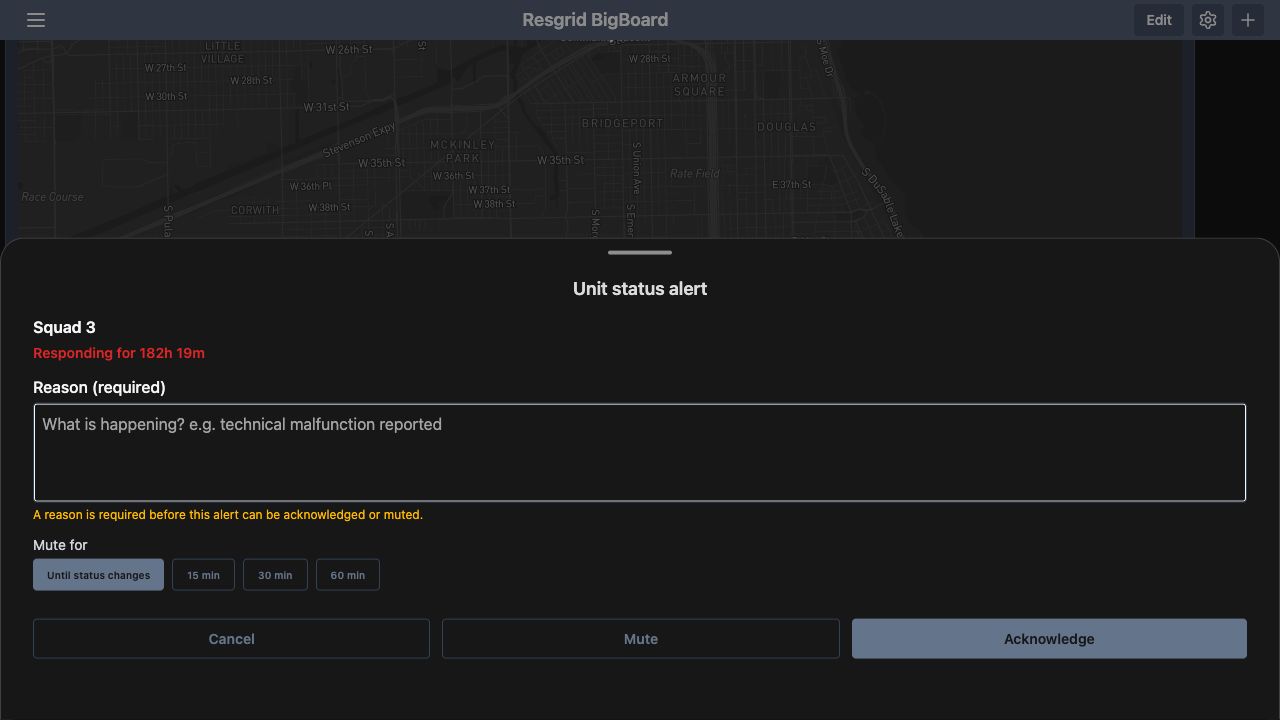
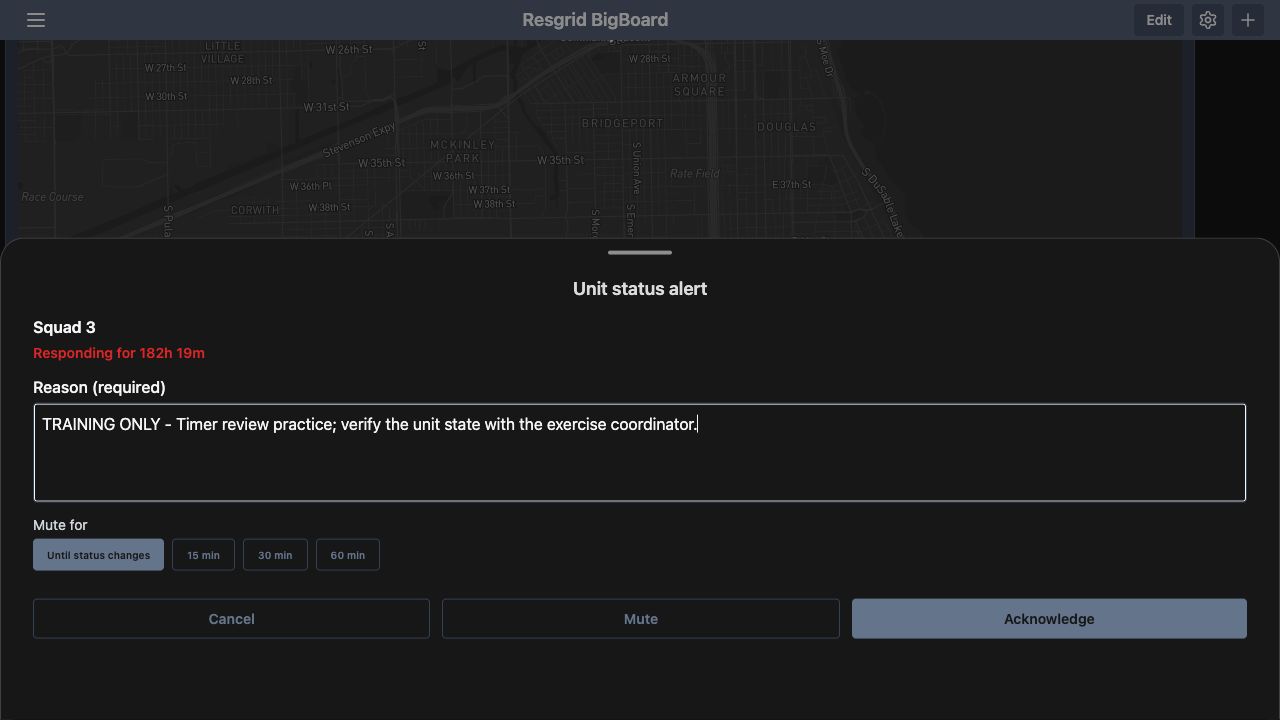
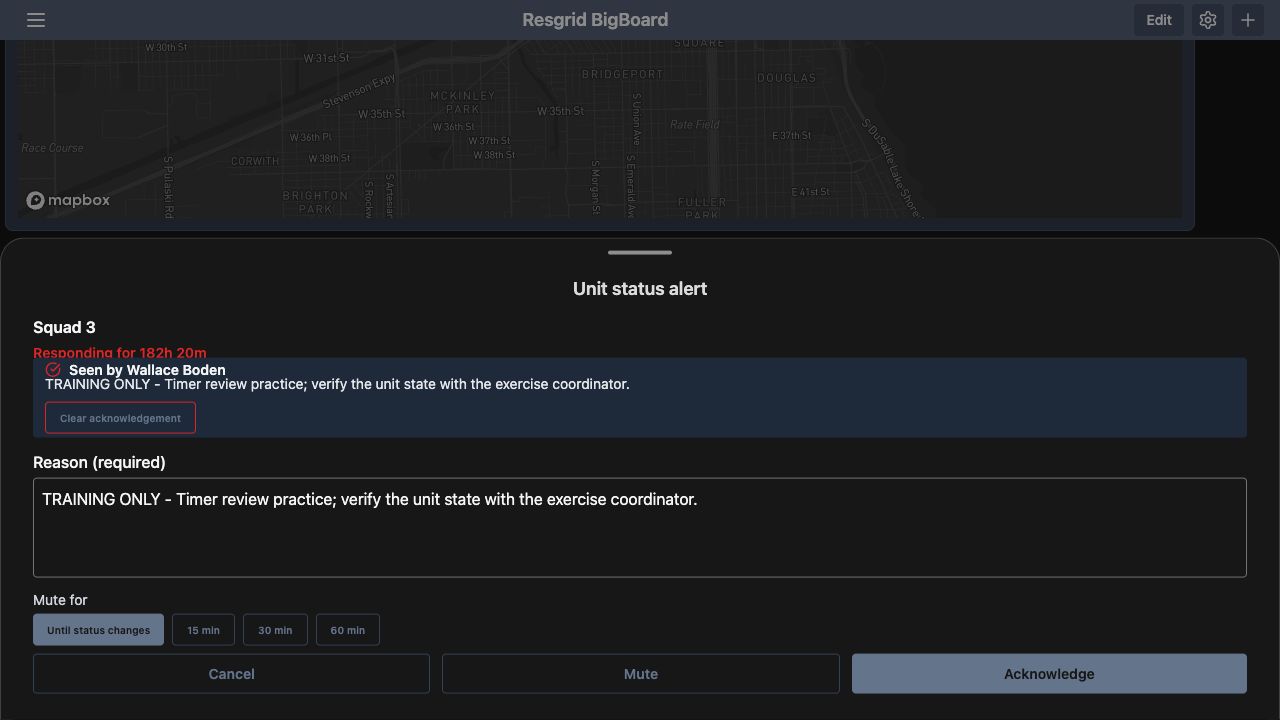
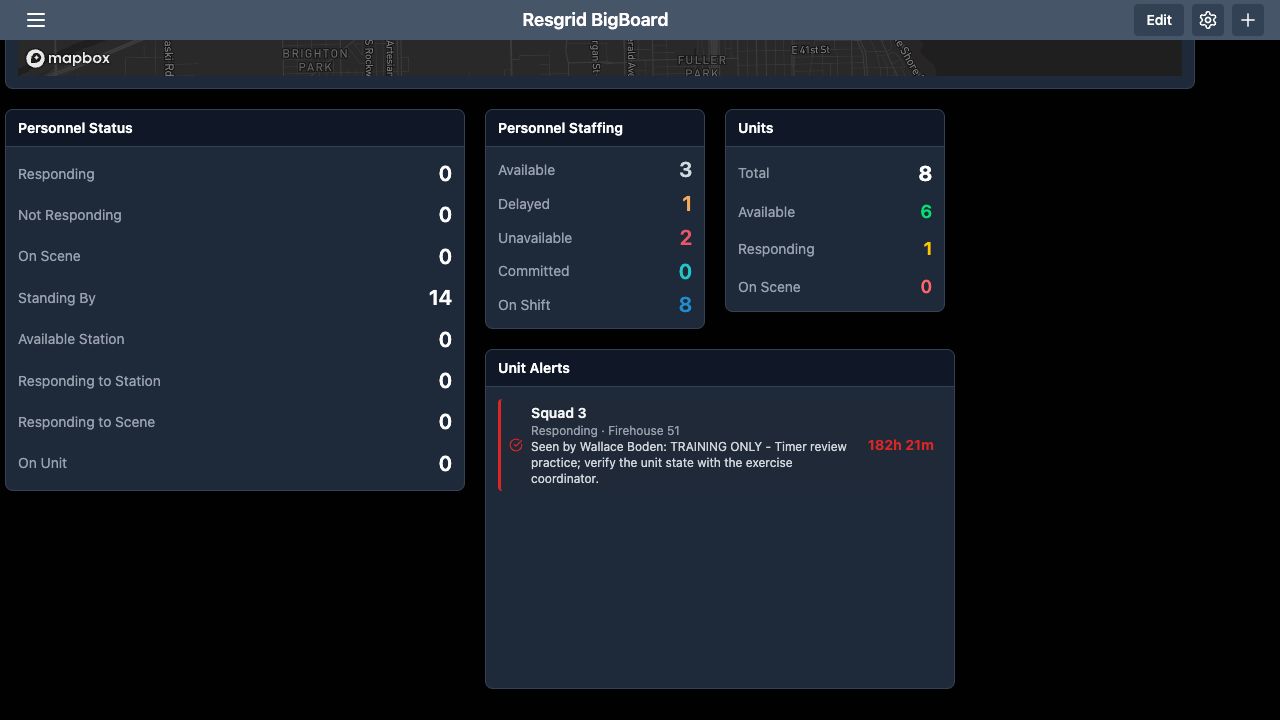
Select the Squad Three row to open Unit status alert. With Reason empty, the sheet explains the requirement and disables Acknowledge and Mute. Enter the clearly labeled training reason, then select Acknowledge. Reopen the row. The saved section now says Seen by Wallace Boden and retains the exercise note. Acknowledging records that review; the unit still has its Responding state. The sheet also offers Clear acknowledgement for removing the saved acknowledgement.
Practice
Acknowledge with a reason and inspect the saved result in an isolated fictional training department.
Step 7
Give the panel enough space for its note
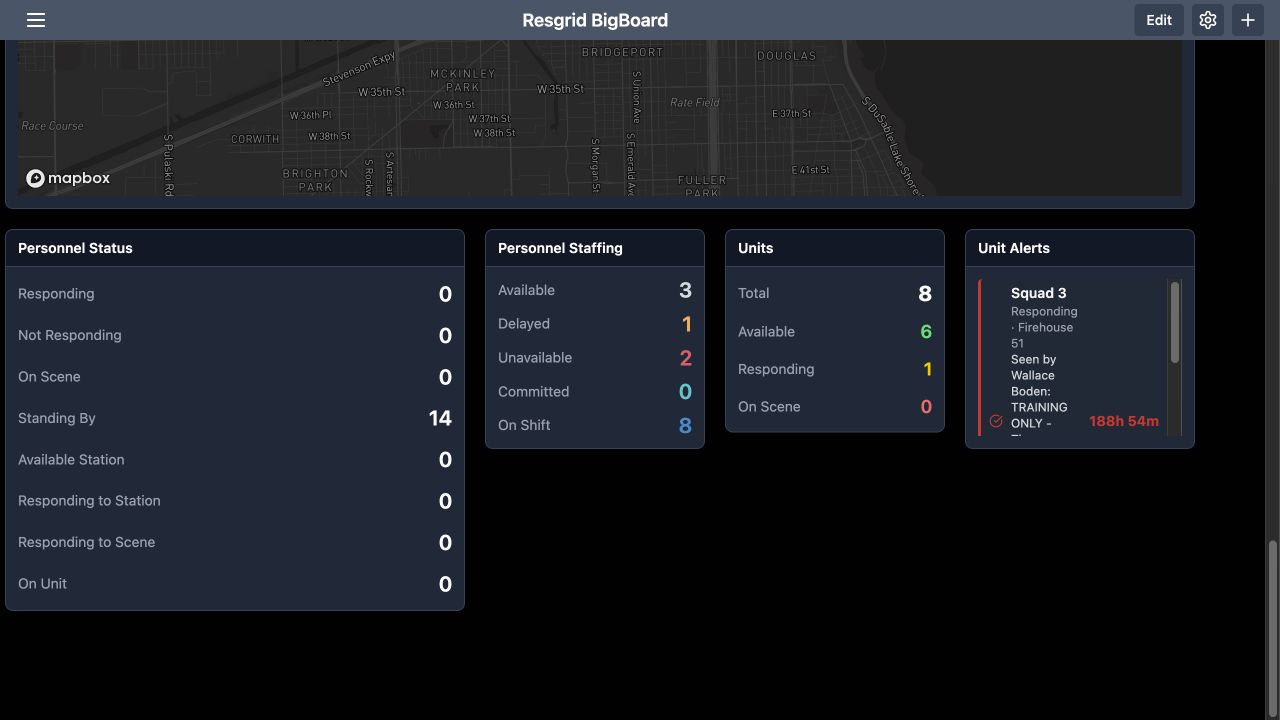
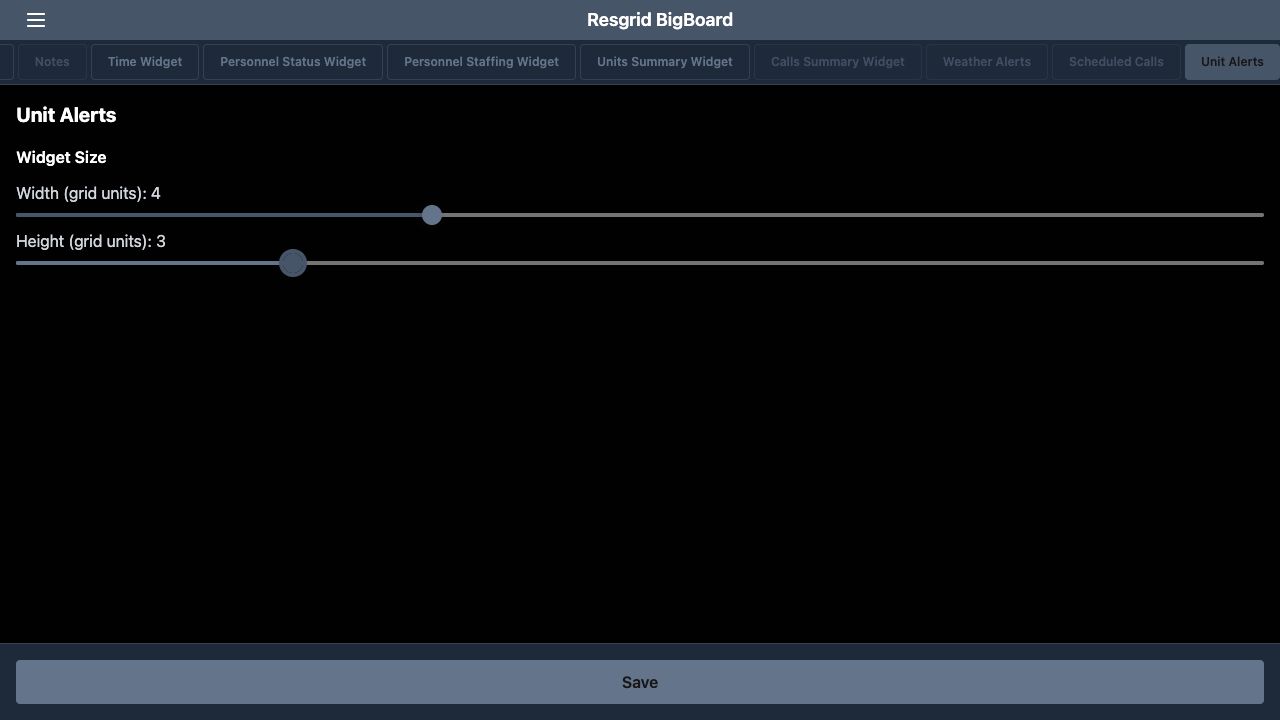
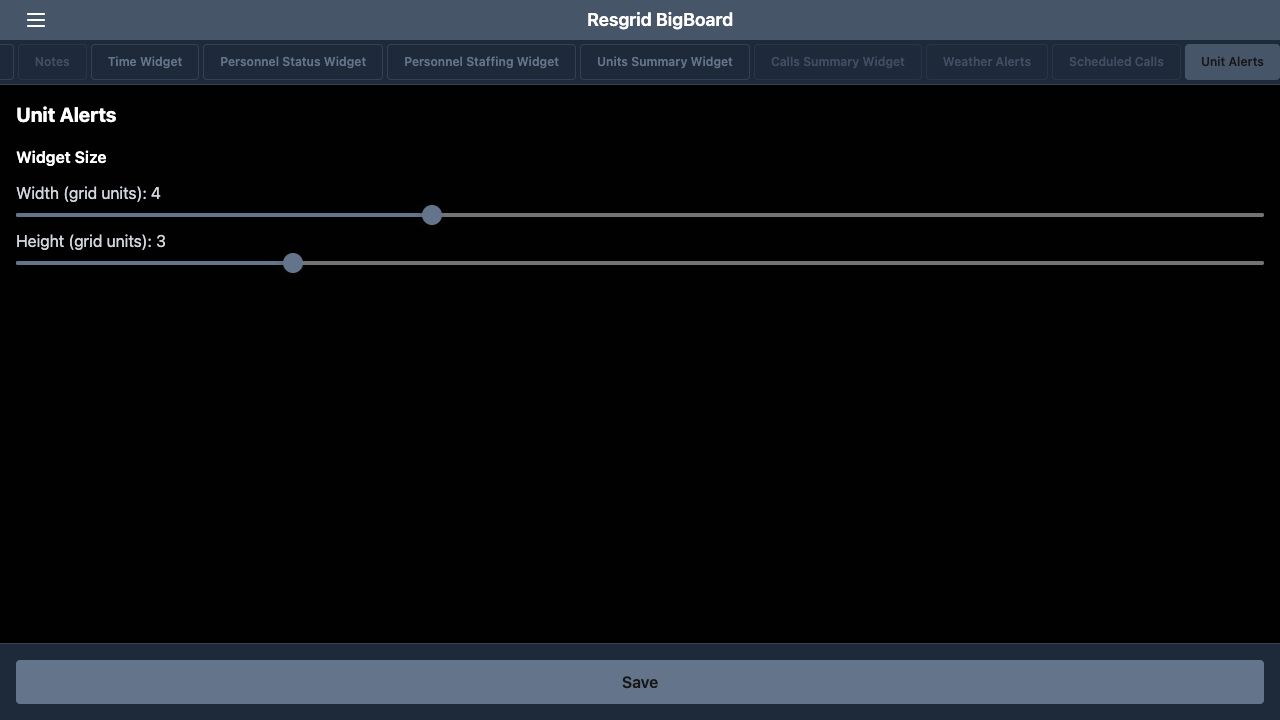
If the small alert panel clips the saved note, open the gear settings and select Unit Alerts. Under Widget Size, this example uses width four and height three grid units. Select Save and return to the panel. The wider, taller result shows the unit, state, reviewer and complete training note together. Reopening these settings after a later reload still shows four by three. Check the rendered result as well as the values in the editing form.
Practice
Give the panel enough space for its note in an isolated fictional training department.
Step 8
Save and inspect a fifteen-minute training mute
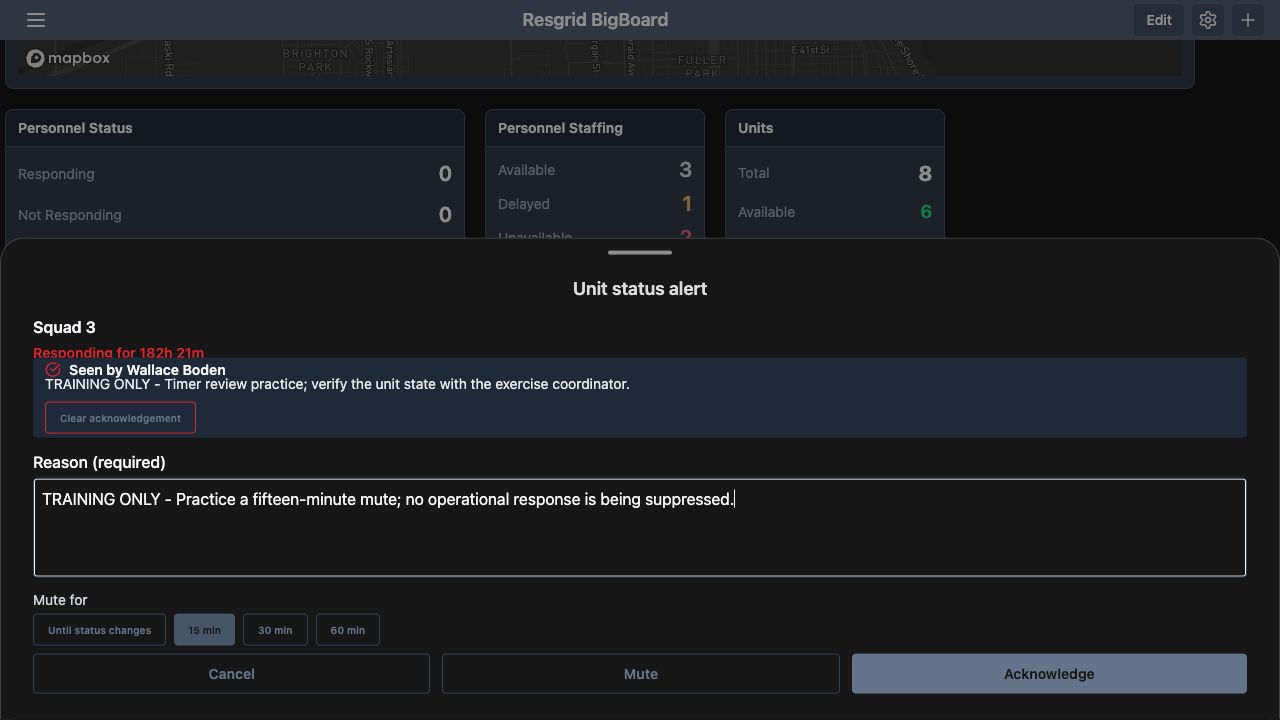
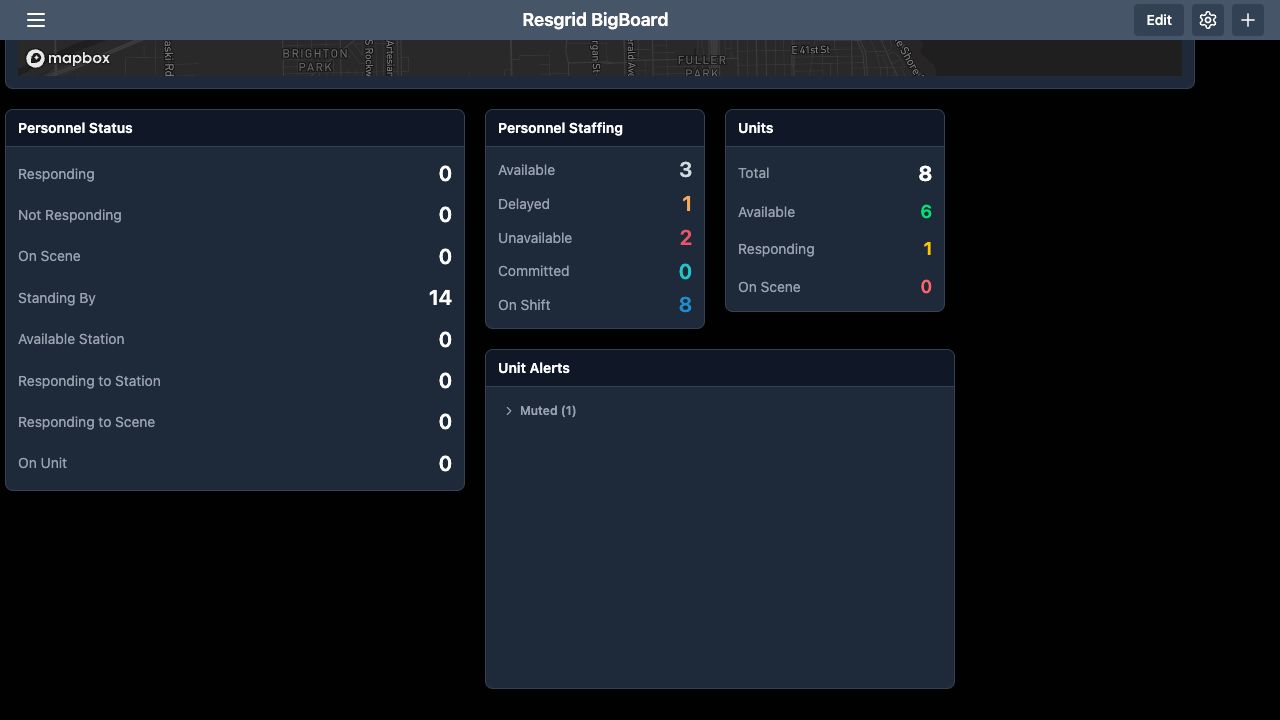
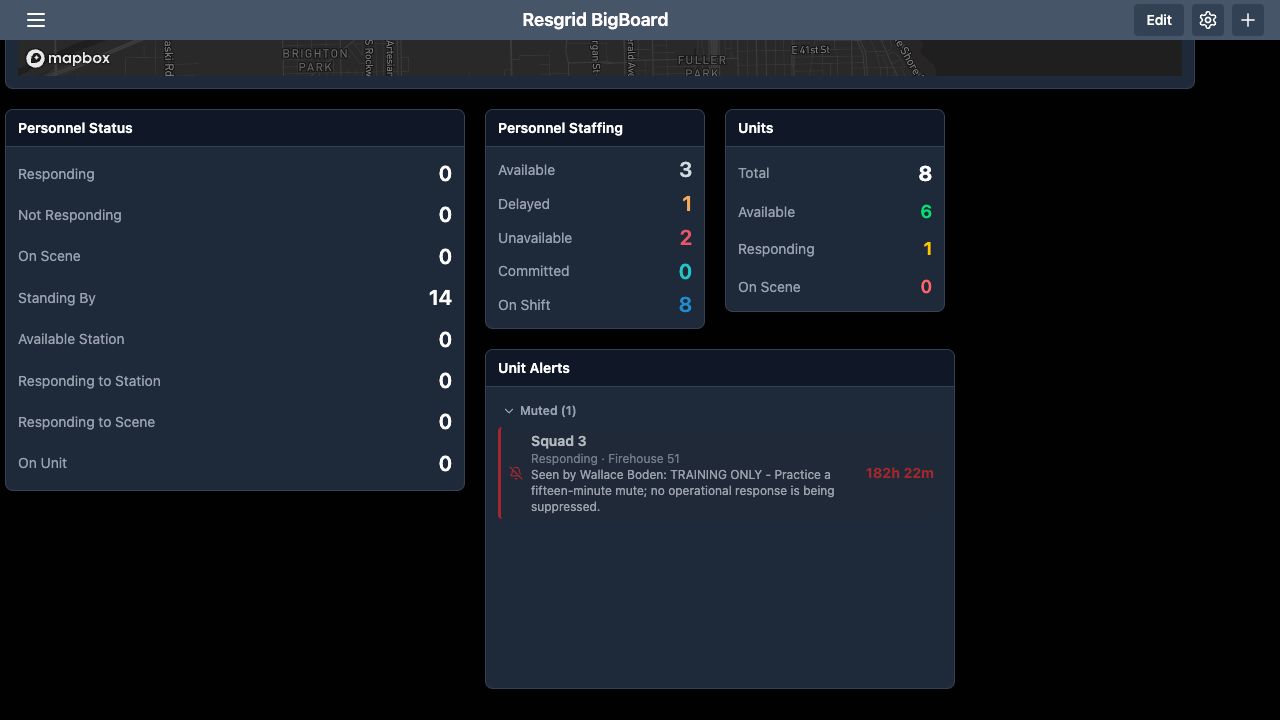
Open the same alert again. Under Mute for, select fifteen minutes. Replace the reason with the note describing this fictional mute exercise, then choose Mute. The panel now has a collapsed Muted, one, section. Expand it to see Squad Three and the saved mute reason. The unit still says Responding. Moving an alert into this section changes how the timer alert is presented; it does not resolve the underlying unit state.
Practice
Save and inspect a fifteen-minute training mute in an isolated fictional training department.
Step 9
Verify persistence and clear the saved mute
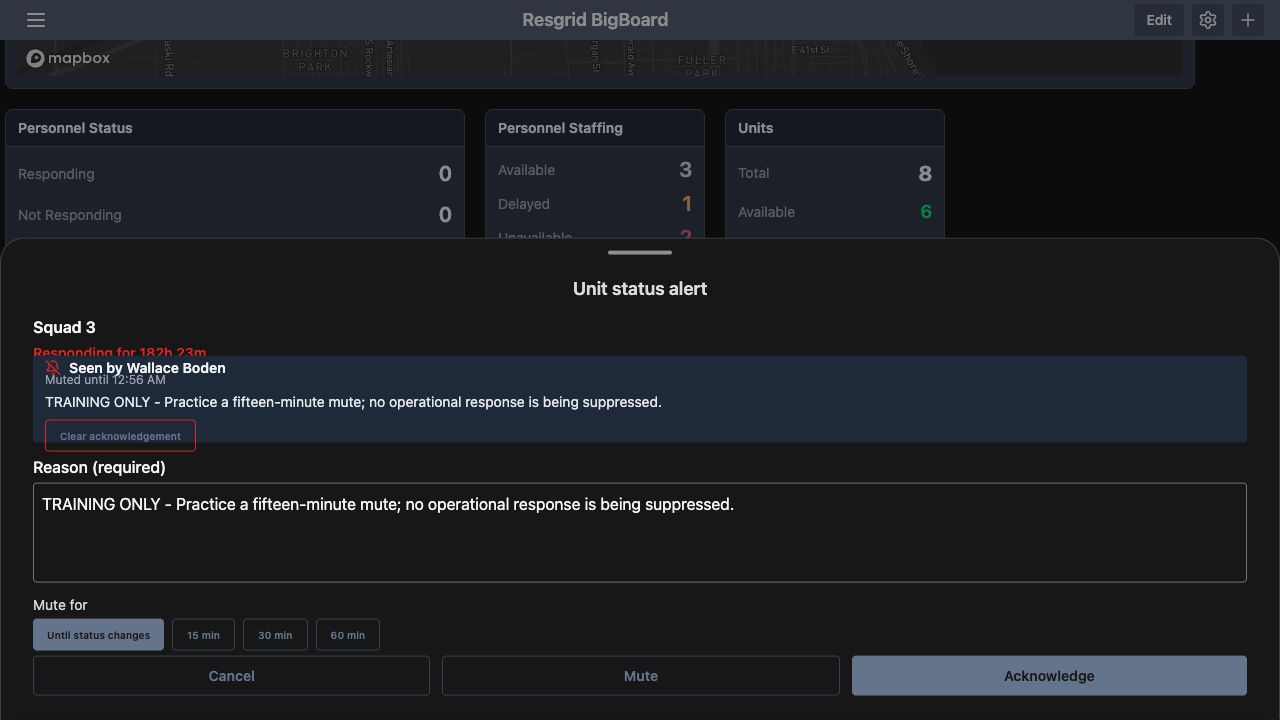
Reload Big Board, expand Muted, one, and reopen Squad Three. The sheet retains the reviewer and reason and displays a Muted until time. This checks that the saved mute survived a reload. For this exercise, choose Clear acknowledgement. The unit returns to the active red alert panel, because its unchanged Responding record is still beyond the configured threshold. The timer, saved acknowledgement or mute, and underlying unit status are separate things to verify.
Practice
Verify persistence and clear the saved mute in an isolated fictional training department.
Step 10
Apply the review process across departments
A security control room can use status timers to review a delayed patrol update. Search-and-rescue coordinators can follow a team's reporting interval. Community paramedicine and mental health response teams, wildland contractors, industrial response teams, and fire and E M S departments can apply the same review process with appropriate statuses and thresholds. Configure the timer, inspect the actual unit and elapsed time, document the review, and verify the saved result using fictional data before adopting the process.
Practice
Apply the review process across departments in an isolated fictional training department.
Examples for your department
- Fire / EMS
- Practice timer configuration and acknowledgement using fictional units.
- Community response
- Review unit status reports for paramedicine and mental health response coordination.
- Search and rescue
- Use department-defined reporting intervals to review team updates.
- Security
- Review delayed patrol-unit status reports and document the reason.
- Wildland
- Document a contractor resource status-timer review.
- Industrial
- Inspect aging response-unit states and saved review notes.
Transcript
Download transcriptRead the complete transcript
Big Board: configure unit timers, acknowledge and mute alerts
Audience: Department administrators configuring unit timers, Authorized dispatch and coordination staff, Duty supervisors

Add Unit Alerts and understand the empty state
Unit Alerts helps a coordination team find units that have remained in a timed status longer than the department expects. In Big Board, use the plus icon and choose Unit Alerts from Add Widget. Scroll to the new panel. This department initially shows No status timers configured. That message describes the missing timer configuration; it does not establish that every unit has reported promptly. The thresholds are department settings managed in the Core website.
Practice: Add Unit Alerts and understand the empty state in an isolated fictional training department.

Find the department timer table
In Core, open Department Settings, choose Operations, then Mapping and BigBoard Settings. Scroll to Unit Status Timers. The table separates Status, Warn after in minutes, and Alert after in minutes. Each displayed status has its own row, including Dispatched, Responding, En Route and On Scene. Initially, both columns are zero throughout this training table. The helper text explains that leaving both at zero times nothing. Choose values that fit your department's reporting process.
Practice: Find the department timer table in an isolated fictional training department.

Set the fictional Responding thresholds
For this software exercise, enter two under Warn after and four under Alert after on the Responding row. Leave the other rows unchanged. These are demonstration values, not a recommended response standard. The two columns allow the department to distinguish a warning interval from a later alert interval for the same status. Review the row label and both minute values before saving, so the timer applies to the intended operational meaning.
Practice: Set the fictional Responding thresholds in an isolated fictional training department.

Require a reason and read back the saved settings
Below the table, set Reason when acknowledging to Required for warnings and alerts. The help explains that this policy applies when acknowledging or muting a status timer alert. Select Save. Reload Mapping and BigBoard Settings and return to the table: Responding still shows two and four. Scroll down again and verify the required-reason selection. Reading back both controls checks the saved configuration before you examine its effect in Big Board.
Practice: Require a reason and read back the saved settings in an isolated fictional training department.

Inspect the overdue unit on the refreshed board
Reload Big Board. Unit Alerts now shows Squad Three, its Responding state, Firehouse Fifty One and the elapsed time in that state. This fictional record is already more than one hundred eighty hours old, far beyond the four-minute alert threshold, so it appears red immediately. The elapsed value helps identify a status report needing review. It does not explain why the report is old. Use the unit's normal reporting and coordination process to investigate.
Practice: Inspect the overdue unit on the refreshed board in an isolated fictional training department.

Acknowledge with a reason and inspect the saved result
Select the Squad Three row to open Unit status alert. With Reason empty, the sheet explains the requirement and disables Acknowledge and Mute. Enter the clearly labeled training reason, then select Acknowledge. Reopen the row. The saved section now says Seen by Wallace Boden and retains the exercise note. Acknowledging records that review; the unit still has its Responding state. The sheet also offers Clear acknowledgement for removing the saved acknowledgement.
Practice: Acknowledge with a reason and inspect the saved result in an isolated fictional training department.

Give the panel enough space for its note
If the small alert panel clips the saved note, open the gear settings and select Unit Alerts. Under Widget Size, this example uses width four and height three grid units. Select Save and return to the panel. The wider, taller result shows the unit, state, reviewer and complete training note together. Reopening these settings after a later reload still shows four by three. Check the rendered result as well as the values in the editing form.
Practice: Give the panel enough space for its note in an isolated fictional training department.

Save and inspect a fifteen-minute training mute
Open the same alert again. Under Mute for, select fifteen minutes. Replace the reason with the note describing this fictional mute exercise, then choose Mute. The panel now has a collapsed Muted, one, section. Expand it to see Squad Three and the saved mute reason. The unit still says Responding. Moving an alert into this section changes how the timer alert is presented; it does not resolve the underlying unit state.
Practice: Save and inspect a fifteen-minute training mute in an isolated fictional training department.

Verify persistence and clear the saved mute
Reload Big Board, expand Muted, one, and reopen Squad Three. The sheet retains the reviewer and reason and displays a Muted until time. This checks that the saved mute survived a reload. For this exercise, choose Clear acknowledgement. The unit returns to the active red alert panel, because its unchanged Responding record is still beyond the configured threshold. The timer, saved acknowledgement or mute, and underlying unit status are separate things to verify.
Practice: Verify persistence and clear the saved mute in an isolated fictional training department.

Apply the review process across departments
A security control room can use status timers to review a delayed patrol update. Search-and-rescue coordinators can follow a team's reporting interval. Community paramedicine and mental health response teams, wildland contractors, industrial response teams, and fire and E M S departments can apply the same review process with appropriate statuses and thresholds. Configure the timer, inspect the actual unit and elapsed time, document the review, and verify the saved result using fictional data before adopting the process.
Practice: Apply the review process across departments in an isolated fictional training department.

Examples for your department
Fire / EMS: Practice timer configuration and acknowledgement using fictional units.
Community response: Review unit status reports for paramedicine and mental health response coordination.
Search and rescue: Use department-defined reporting intervals to review team updates.
Security: Review delayed patrol-unit status reports and document the reason.
Wildland: Document a contractor resource status-timer review.
Industrial: Inspect aging response-unit states and saved review notes.