
BigBoard · Video walkthrough
Big Board: interpret readiness summaries and improve contrast
Add personnel-status, staffing and unit summaries; improve status-count contrast; compare totals with unit states and update ages; and verify saved preferences.
Before you begin
- An authenticated Big Board session connected to an isolated fictional department.
- Existing personnel staffing, personnel status and unit state data in the training department.
Chapters
- Add the three readiness summaries
- Separate personnel status from staffing
- Improve contrast and verify the visible result
- Read the staffing distribution without overinterpreting it
- Compare unit totals with individual states
- Check the age of the underlying unit information
- Reload and read back the saved preferences
- Use the same panels across different organizations
Watch the walkthrough
Step 1
Add the three readiness summaries
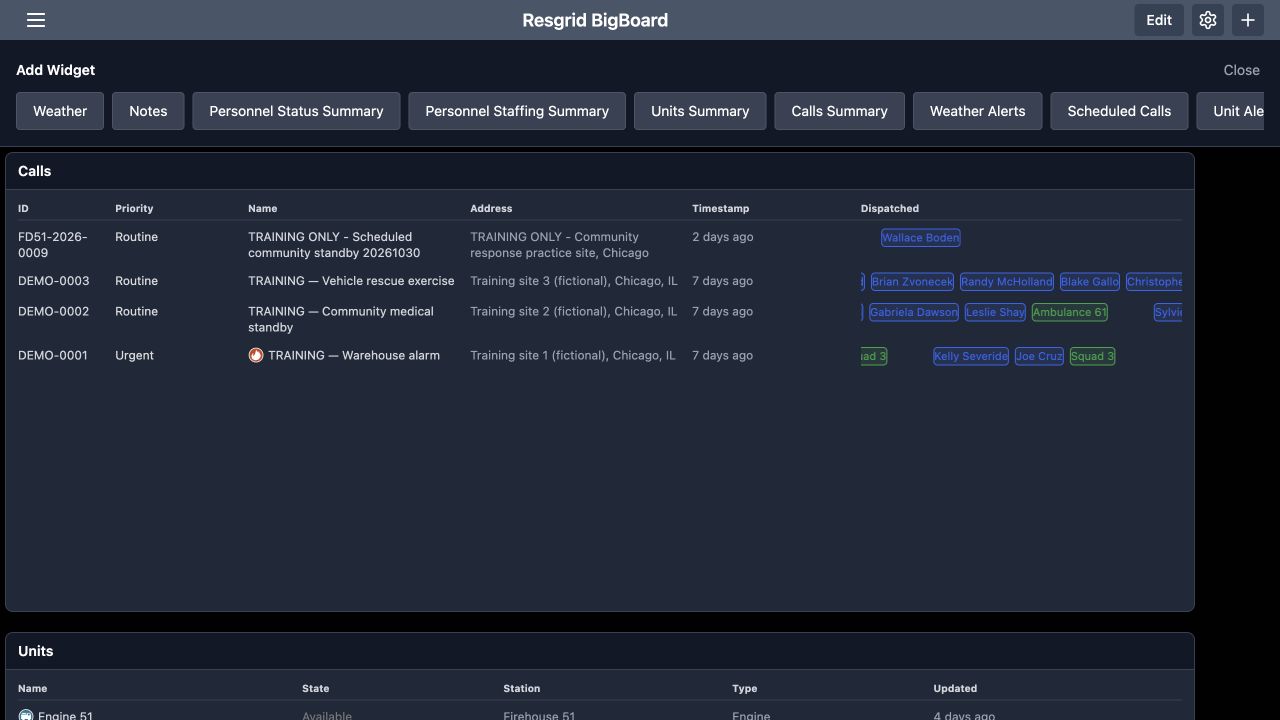
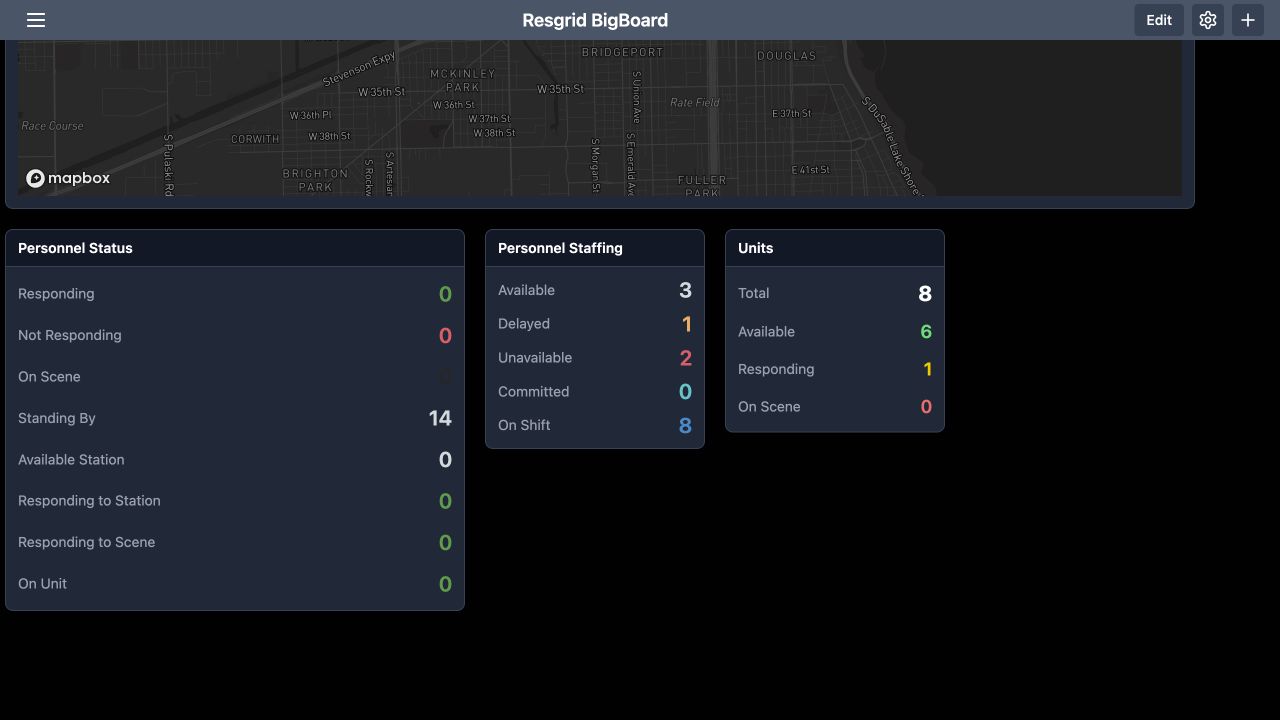
Big Board gives a duty supervisor or department coordinator a shared view of operational information. From the board, use the plus icon at the upper right to open Add Widget. Choose Personnel Status Summary, Personnel Staffing Summary and Units Summary. After adding them, scroll to the three rendered panels. This fictional department already has calls, units and a personnel list elsewhere on its board. These summary panels provide counts that you can compare with those detailed views.
Practice
Add the three readiness summaries using an isolated fictional department and training board.
Step 2
Separate personnel status from staffing
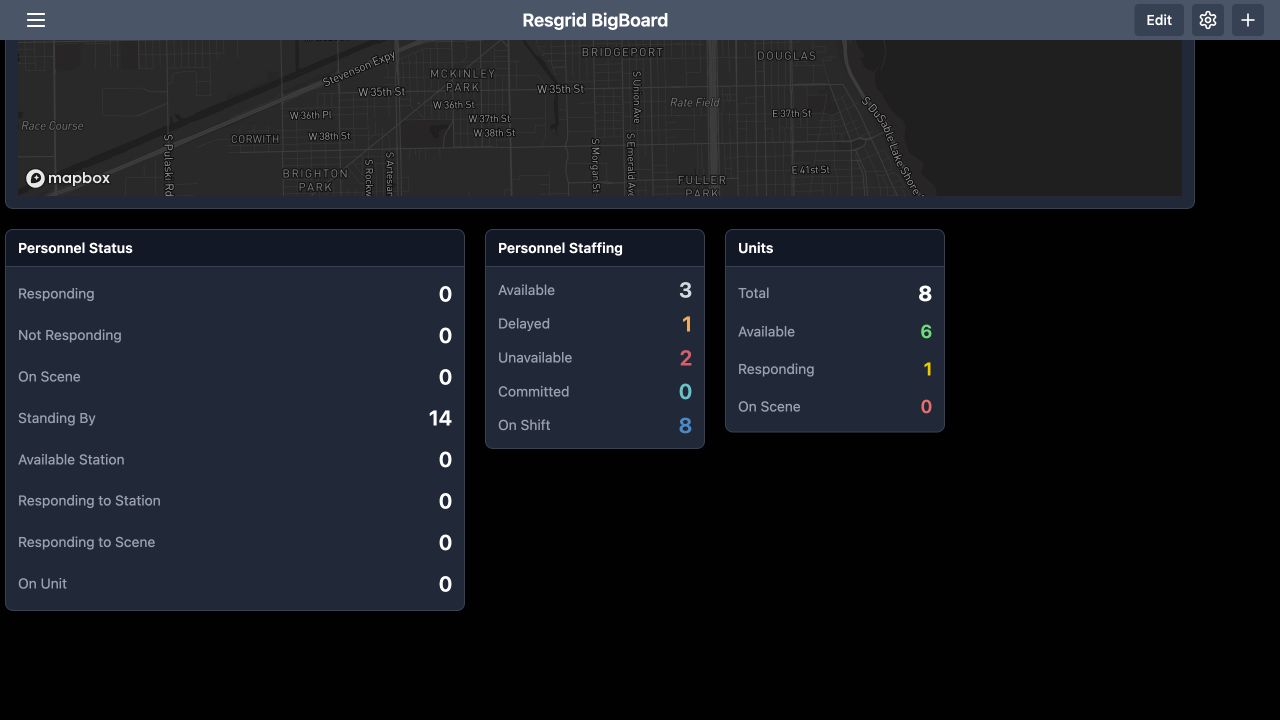
Read Personnel Status and Personnel Staffing as separate measures. Here, Standing By shows fourteen in the status panel. Staffing shows three Available, one Delayed, two Unavailable, zero Committed and eight On Shift. The same fourteen people are being described in different ways. A Standing By status therefore does not mean that fourteen people have Available staffing. Keep both panels visible when discussing the department's current staffing picture, rather than treating one count as a substitute for the other.
Practice
Separate personnel status from staffing using an isolated fictional department and training board.
Step 3
Improve contrast and verify the visible result
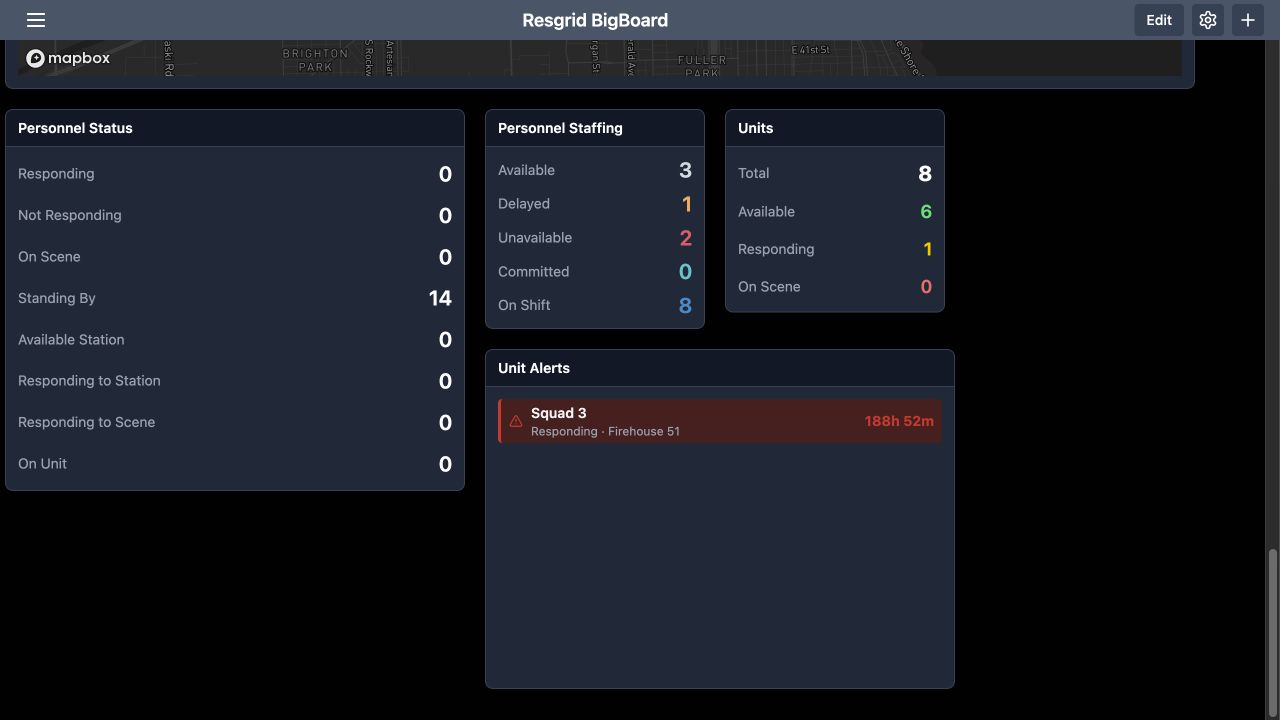
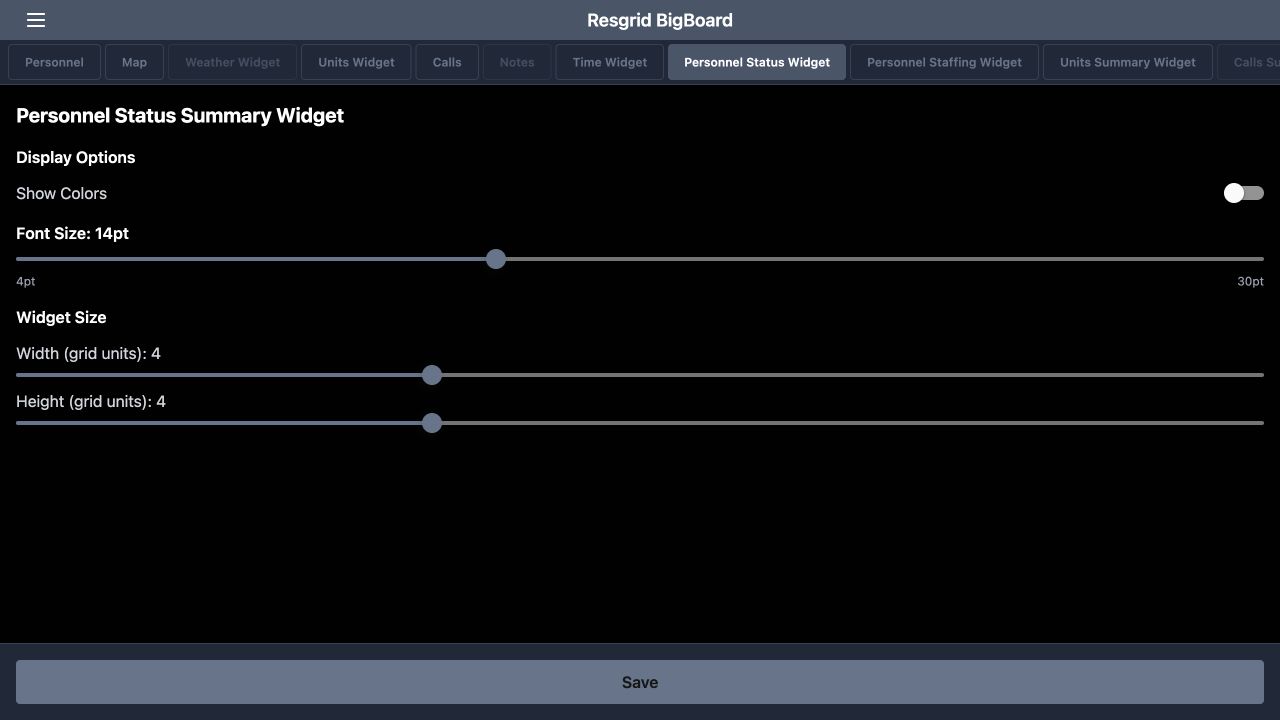
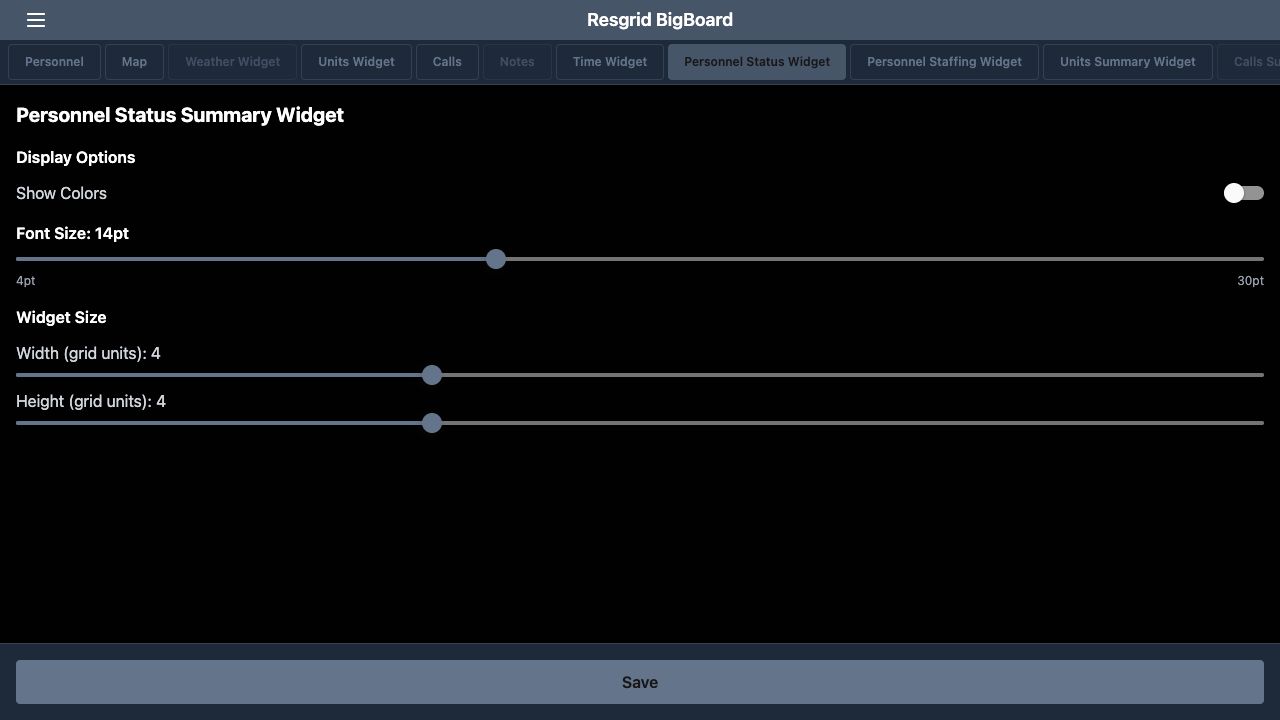
The colored personnel-status counts are difficult to distinguish against this dark background. Use the gear icon at the upper right to open configuration, then select Personnel Status Widget. On Personnel Status Summary Widget, turn Show Colors off. This example keeps Font Size at fourteen points, with width and height both set to four grid units. Select Save and return to the board. The Personnel Status numbers now use neutral light text, making the zero values easier to see.
Practice
Improve contrast and verify the visible result using an isolated fictional department and training board.
Step 4
Read the staffing distribution without overinterpreting it
In Personnel Staffing, compare all five rows. Available is three, Delayed is one, Unavailable is two, Committed is zero and On Shift is eight. These totals describe the staffing values currently reported for the demo roster. The panel does not identify which individuals make up each count. Use it to spot a staffing question, then consult the personnel details before making an assignment. A count alone does not tell you a person's qualifications, current location or suitability for a particular task.
Practice
Read the staffing distribution without overinterpreting it using an isolated fictional department and training board.
Step 5
Compare unit totals with individual states
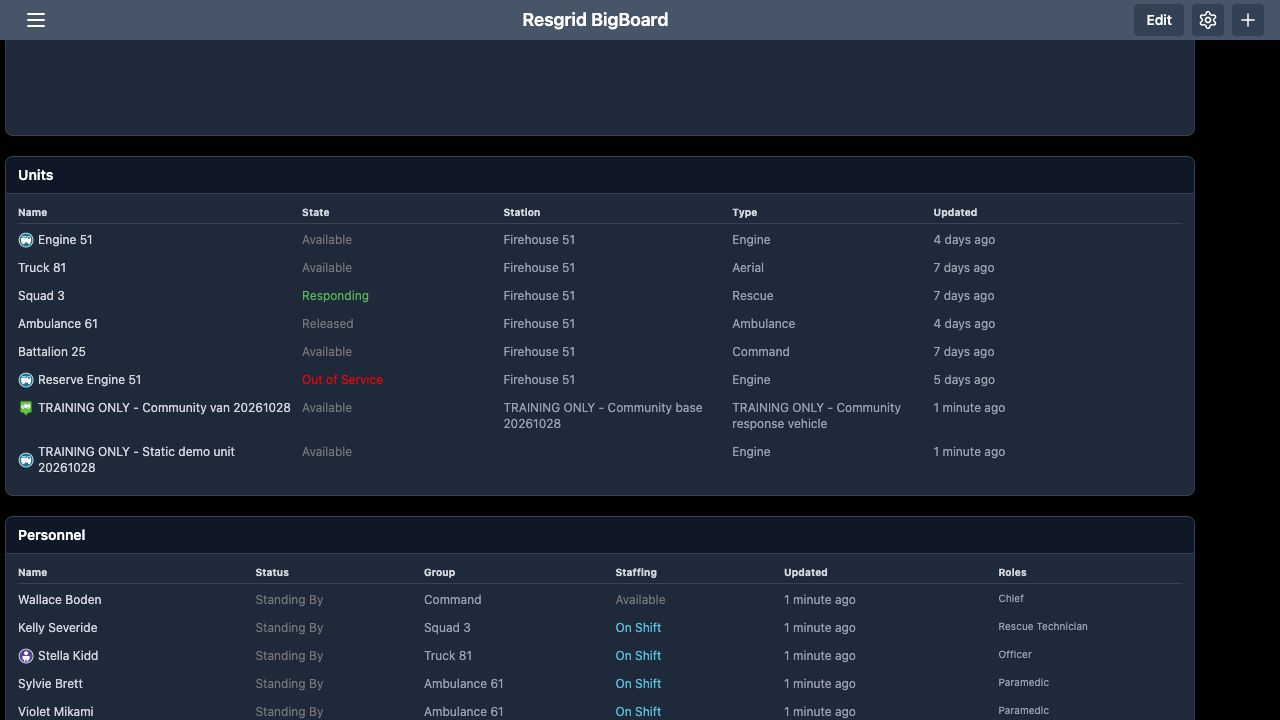
Units Summary shows eight total units, six Available, one Responding and zero On Scene. Scroll to the detailed Units table to see the individual names and State values. Squad Three is Responding, Ambulance Sixty One is Released, and Reserve Engine Fifty One is Out of Service. Other rows say Available. The summary groups underlying status categories, so its Available number is not simply a count of rows containing that exact word. Review the detailed states when selecting a specific resource.
Practice
Compare unit totals with individual states using an isolated fictional department and training board.
Step 6
Check the age of the underlying unit information
The Units table also includes Station, Type and Updated. In this recorded example, several unit updates are four, five or seven days old, while the two training vehicles show one minute ago. Those ages matter when interpreting a summary built from these states. A visible count does not establish that every underlying report is recent. Read Updated alongside State, and resolve stale information through your department's normal status-reporting process before relying on the board for an operational decision.
Practice
Check the age of the underlying unit information using an isolated fictional department and training board.
Step 7
Reload and read back the saved preferences
After saving, reload the board and return to the summary panels. The neutral personnel-status counts remain visible. Reopen configuration and select Personnel Status Widget again. Show Colors is still off, and the form still shows fourteen points and four-by-four grid dimensions. This readback checks the setting that was actually saved. Repeat that check on the display used by your team, and assess the text from the distance where viewers will read it.
Practice
Reload and read back the saved preferences using an isolated fictional department and training board.
Step 8
Use the same panels across different organizations
These panels can support more than fire and E M S. A security supervisor can compare staffing with patrol-unit states. A search-and-rescue coordinator can review people and vehicles separately. Community paramedicine and mental health response teams, wildland contractors and industrial emergency response teams can use the same distinction between personnel status, staffing and unit state. Keep the labels meaningful to your department, use the detailed lists to investigate the counts, and make sure the displayed information is readable and current.
Practice
Use the same panels across different organizations using an isolated fictional department and training board.
Examples for your department
- Fire / EMS
- Compare separate status, staffing and unit-state views in a fictional training department.
- Community response
- Distinguish staffing from personnel status for paramedicine and mental health response teams.
- Search and rescue
- Review personnel and vehicle counts separately, then inspect the detailed units.
- Security
- Compare staffing distribution with patrol-unit states.
- Wildland
- Review contractor personnel and unit readiness with update ages.
- Industrial
- Use readable summary panels alongside detailed response-team resources.
Transcript
Download transcriptRead the complete transcript
Big Board: interpret readiness summaries and improve contrast
Audience: Duty supervisors, Department coordinators, Administrators configuring a shared operational display

Add the three readiness summaries
Big Board gives a duty supervisor or department coordinator a shared view of operational information. From the board, use the plus icon at the upper right to open Add Widget. Choose Personnel Status Summary, Personnel Staffing Summary and Units Summary. After adding them, scroll to the three rendered panels. This fictional department already has calls, units and a personnel list elsewhere on its board. These summary panels provide counts that you can compare with those detailed views.
Practice: Add the three readiness summaries using an isolated fictional department and training board.

Separate personnel status from staffing
Read Personnel Status and Personnel Staffing as separate measures. Here, Standing By shows fourteen in the status panel. Staffing shows three Available, one Delayed, two Unavailable, zero Committed and eight On Shift. The same fourteen people are being described in different ways. A Standing By status therefore does not mean that fourteen people have Available staffing. Keep both panels visible when discussing the department's current staffing picture, rather than treating one count as a substitute for the other.
Practice: Separate personnel status from staffing using an isolated fictional department and training board.

Improve contrast and verify the visible result
The colored personnel-status counts are difficult to distinguish against this dark background. Use the gear icon at the upper right to open configuration, then select Personnel Status Widget. On Personnel Status Summary Widget, turn Show Colors off. This example keeps Font Size at fourteen points, with width and height both set to four grid units. Select Save and return to the board. The Personnel Status numbers now use neutral light text, making the zero values easier to see.
Practice: Improve contrast and verify the visible result using an isolated fictional department and training board.

Read the staffing distribution without overinterpreting it
In Personnel Staffing, compare all five rows. Available is three, Delayed is one, Unavailable is two, Committed is zero and On Shift is eight. These totals describe the staffing values currently reported for the demo roster. The panel does not identify which individuals make up each count. Use it to spot a staffing question, then consult the personnel details before making an assignment. A count alone does not tell you a person's qualifications, current location or suitability for a particular task.
Practice: Read the staffing distribution without overinterpreting it using an isolated fictional department and training board.

Compare unit totals with individual states
Units Summary shows eight total units, six Available, one Responding and zero On Scene. Scroll to the detailed Units table to see the individual names and State values. Squad Three is Responding, Ambulance Sixty One is Released, and Reserve Engine Fifty One is Out of Service. Other rows say Available. The summary groups underlying status categories, so its Available number is not simply a count of rows containing that exact word. Review the detailed states when selecting a specific resource.
Practice: Compare unit totals with individual states using an isolated fictional department and training board.

Check the age of the underlying unit information
The Units table also includes Station, Type and Updated. In this recorded example, several unit updates are four, five or seven days old, while the two training vehicles show one minute ago. Those ages matter when interpreting a summary built from these states. A visible count does not establish that every underlying report is recent. Read Updated alongside State, and resolve stale information through your department's normal status-reporting process before relying on the board for an operational decision.
Practice: Check the age of the underlying unit information using an isolated fictional department and training board.

Reload and read back the saved preferences
After saving, reload the board and return to the summary panels. The neutral personnel-status counts remain visible. Reopen configuration and select Personnel Status Widget again. Show Colors is still off, and the form still shows fourteen points and four-by-four grid dimensions. This readback checks the setting that was actually saved. Repeat that check on the display used by your team, and assess the text from the distance where viewers will read it.
Practice: Reload and read back the saved preferences using an isolated fictional department and training board.

Use the same panels across different organizations
These panels can support more than fire and E M S. A security supervisor can compare staffing with patrol-unit states. A search-and-rescue coordinator can review people and vehicles separately. Community paramedicine and mental health response teams, wildland contractors and industrial emergency response teams can use the same distinction between personnel status, staffing and unit state. Keep the labels meaningful to your department, use the detailed lists to investigate the counts, and make sure the displayed information is readable and current.
Practice: Use the same panels across different organizations using an isolated fictional department and training board.

Examples for your department
Fire / EMS: Compare separate status, staffing and unit-state views in a fictional training department.
Community response: Distinguish staffing from personnel status for paramedicine and mental health response teams.
Search and rescue: Review personnel and vehicle counts separately, then inspect the detailed units.
Security: Compare staffing distribution with patrol-unit states.
Wildland: Review contractor personnel and unit readiness with update ages.
Industrial: Use readable summary panels alongside detailed response-team resources.