
BigBoard · Video walkthrough
Big Board: configure call totals, priority counts and recent-call display
Add Calls Summary, compare active and priority totals, change the visible sections and priority-row limit, improve readability, and verify saved preferences.
Before you begin
- An authenticated Big Board session connected to an isolated fictional department.
- Existing fictional calls and configured department priorities.
Chapters
- Add Calls Summary to the training board
- Configure a readable complete summary
- Compare the summary with the detailed calls
- Limit visible priority rows without filtering active calls
- Show counts without the recent-call card
- Use a minimal total and understand its limits
- Restore the full view and check saved preferences
- Apply the same display choices across organizations
Watch the walkthrough
Step 1
Add Calls Summary to the training board
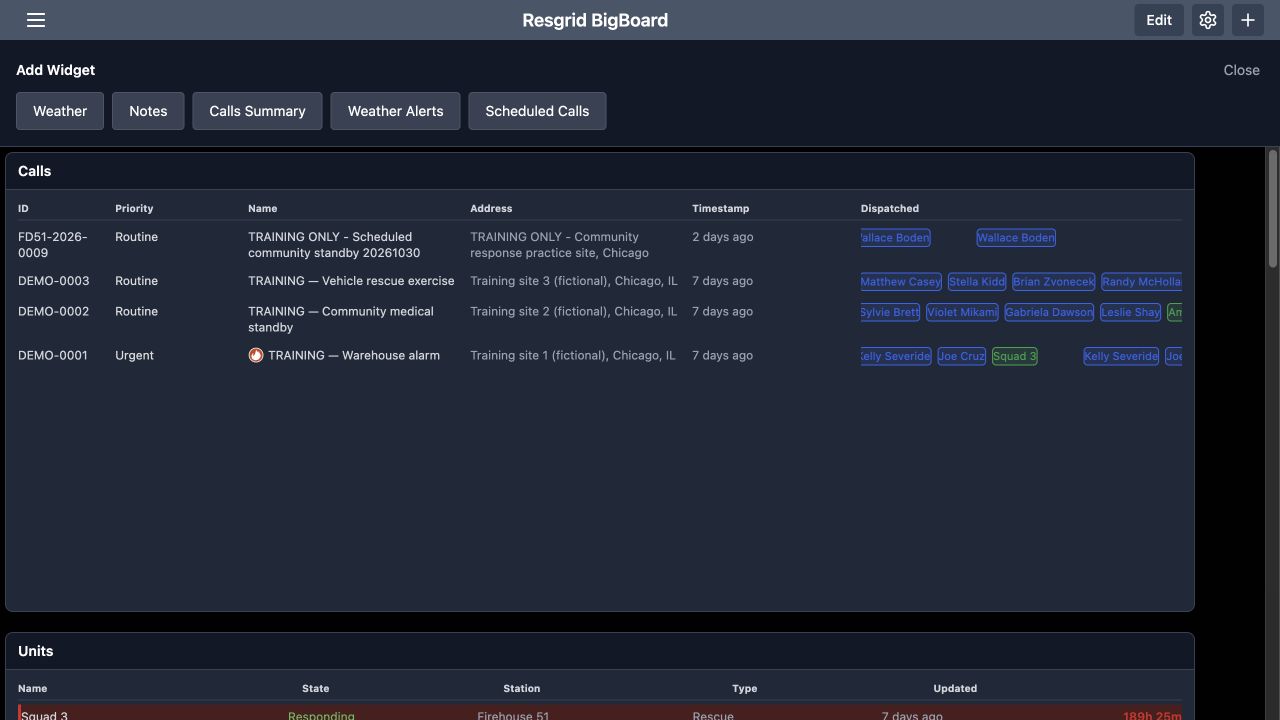
Calls Summary gives a supervisor a compact view of the department's active-call workload. In the open Add Widget panel, choose Calls Summary. This example uses four fictional calls and the department's Routine, Urgent and Emergency priorities. A shared display can help the coordination team notice workload, then turn to the detailed calls list for the incident names and assignments. Use a training department when practicing changes to the board.
Practice
Add Calls Summary to the training board using an isolated fictional department and training board.
Step 2
Configure a readable complete summary
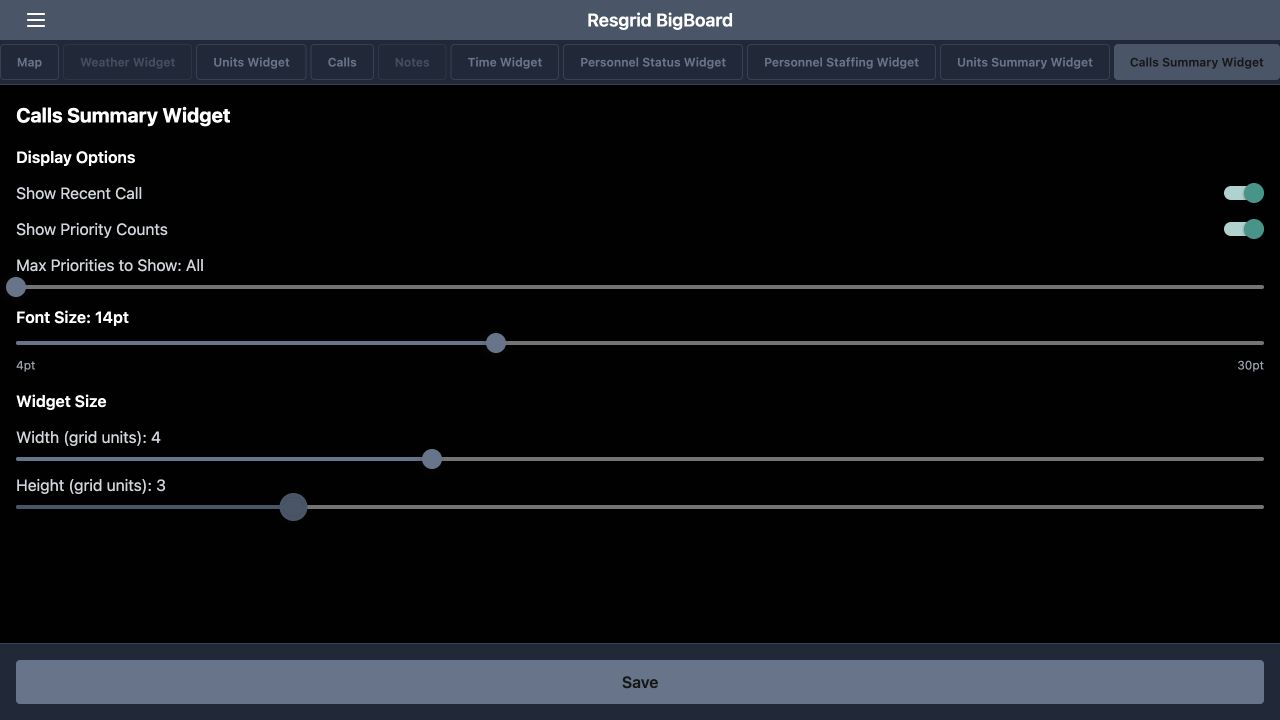
Use the gear icon at the upper right to open configuration, then select Calls Summary Widget. Keep Show Recent Call and Show Priority Counts on. Set Max Priorities to Show to All. This first view uses Font Size at fourteen points, width four and height three grid units. Select Save and scroll to the summary. Giving the panel enough room keeps the recent-call card and priority rows readable together.
Practice
Configure a readable complete summary using an isolated fictional department and training board.
Step 3
Compare the summary with the detailed calls
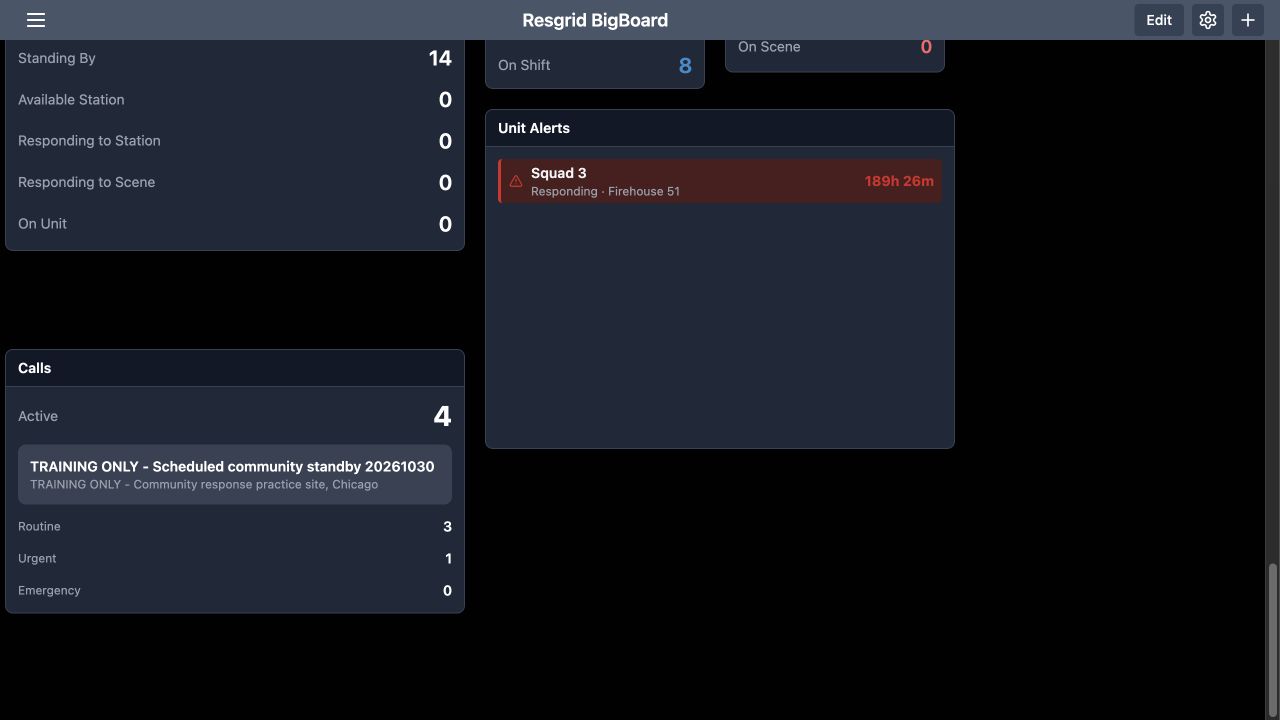
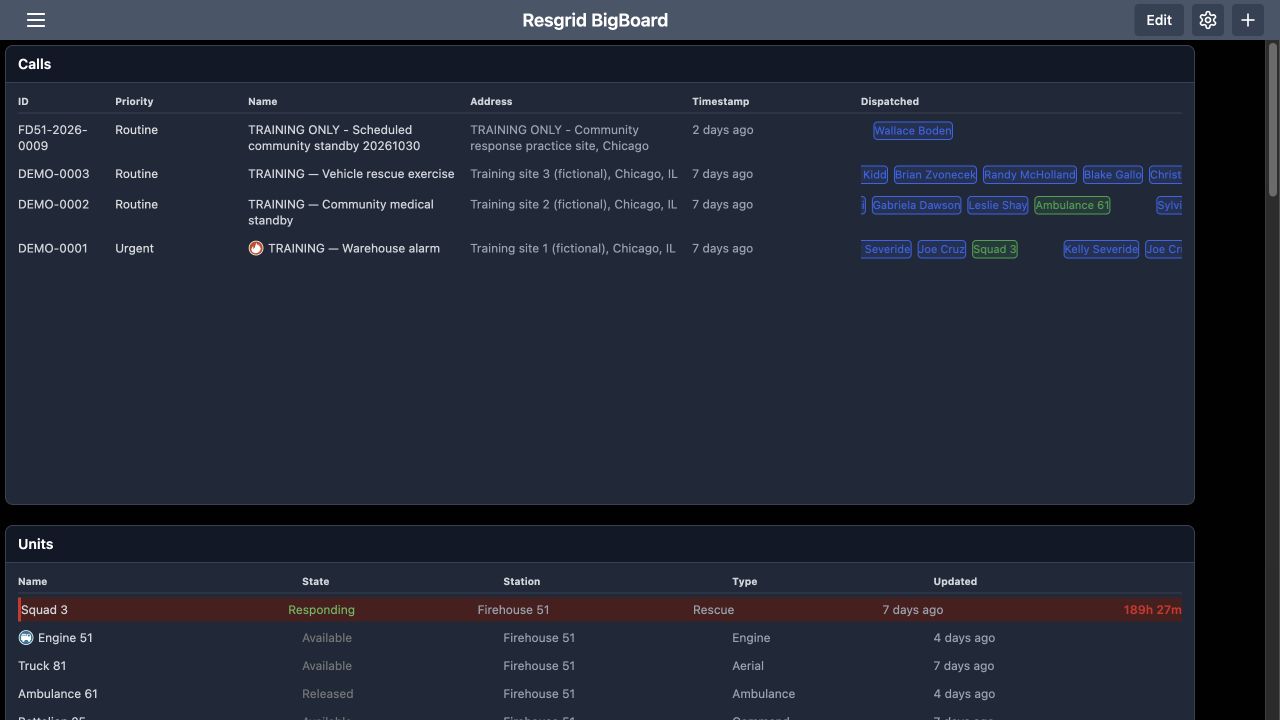
The summary shows Active four, Routine three, Urgent one and Emergency zero. Its recent-call card displays the fictional scheduled community standby that was already dispatched during an earlier exercise. The date in its name is a historical training label. Scroll to the detailed Calls table and compare the Priority column: three rows are Routine, and the warehouse alarm is Urgent. A priority count summarizes calls; it does not identify which people or units are available to respond.
Practice
Compare the summary with the detailed calls using an isolated fictional department and training board.
Step 4
Limit visible priority rows without filtering active calls
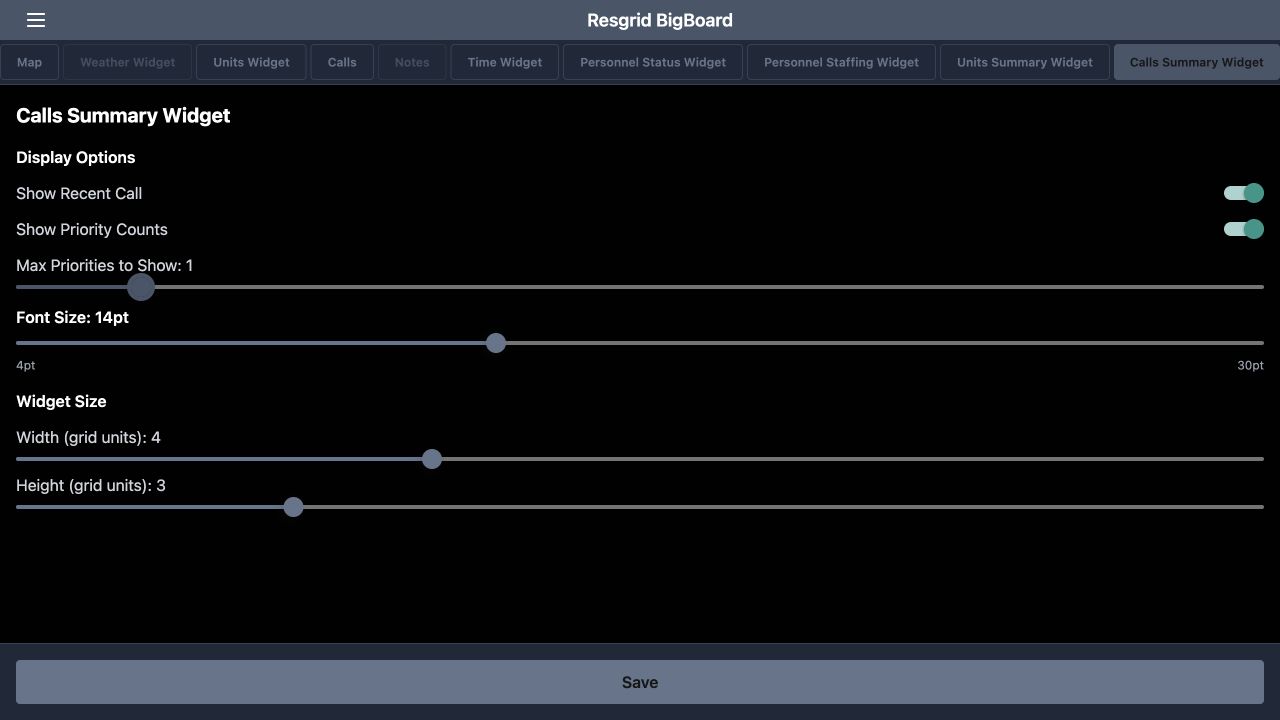
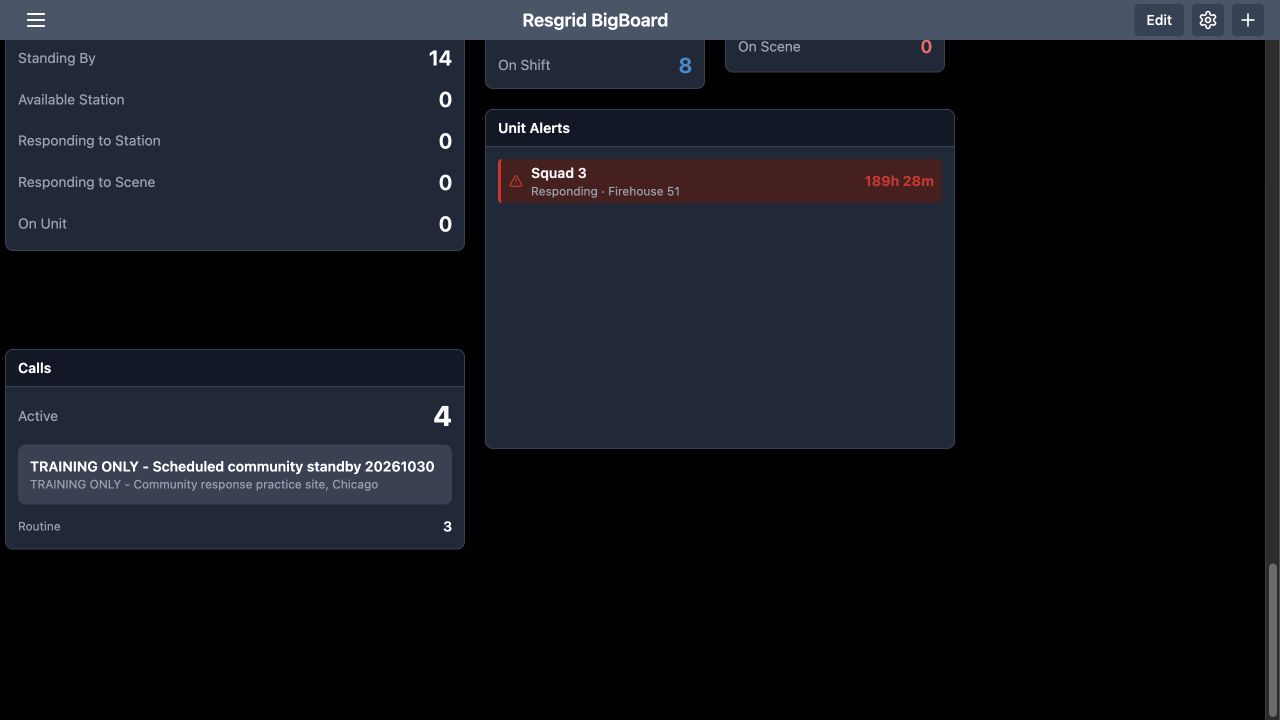
Return to Calls Summary Widget and change Max Priorities to Show to one. Select Save and inspect the board again. Only the Routine row, with three calls, remains in the priority section. Active still shows four. This option limits how many priority rows the panel displays; it does not close, remove or filter the underlying calls. A restricted display can therefore omit an urgent category even while its call still contributes to the total.
Practice
Limit visible priority rows without filtering active calls using an isolated fictional department and training board.
Step 5
Show counts without the recent-call card
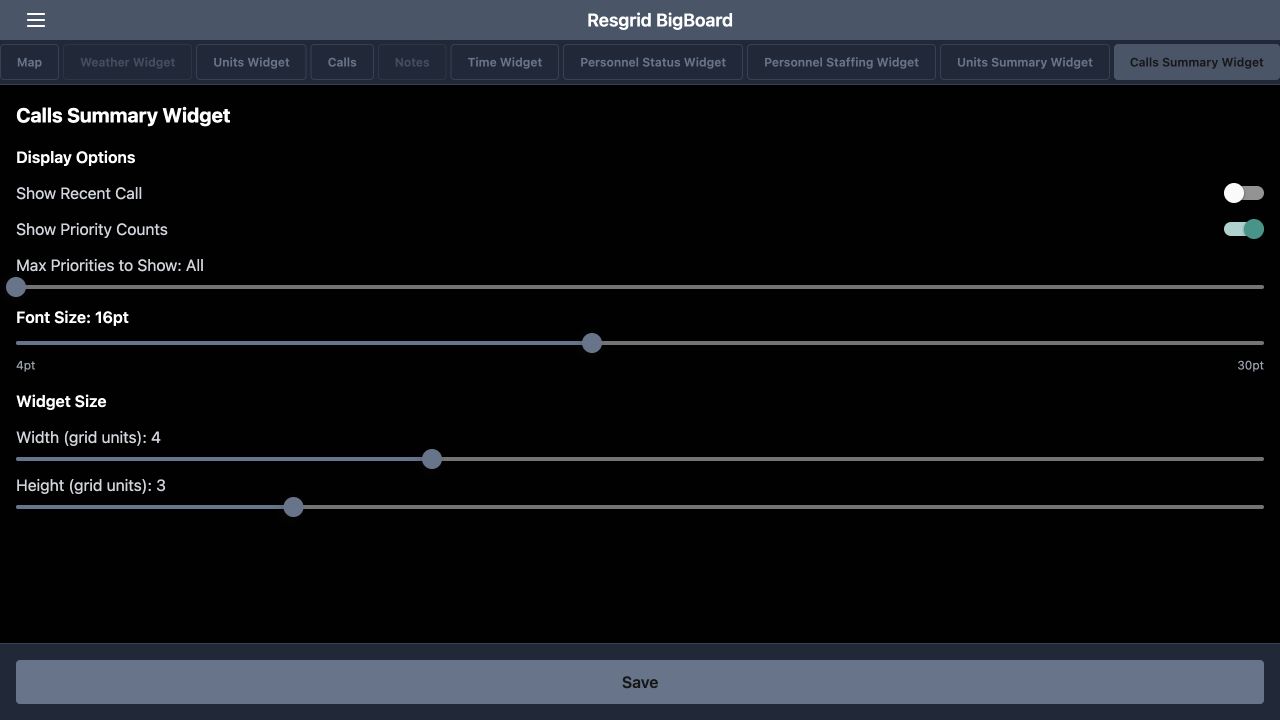
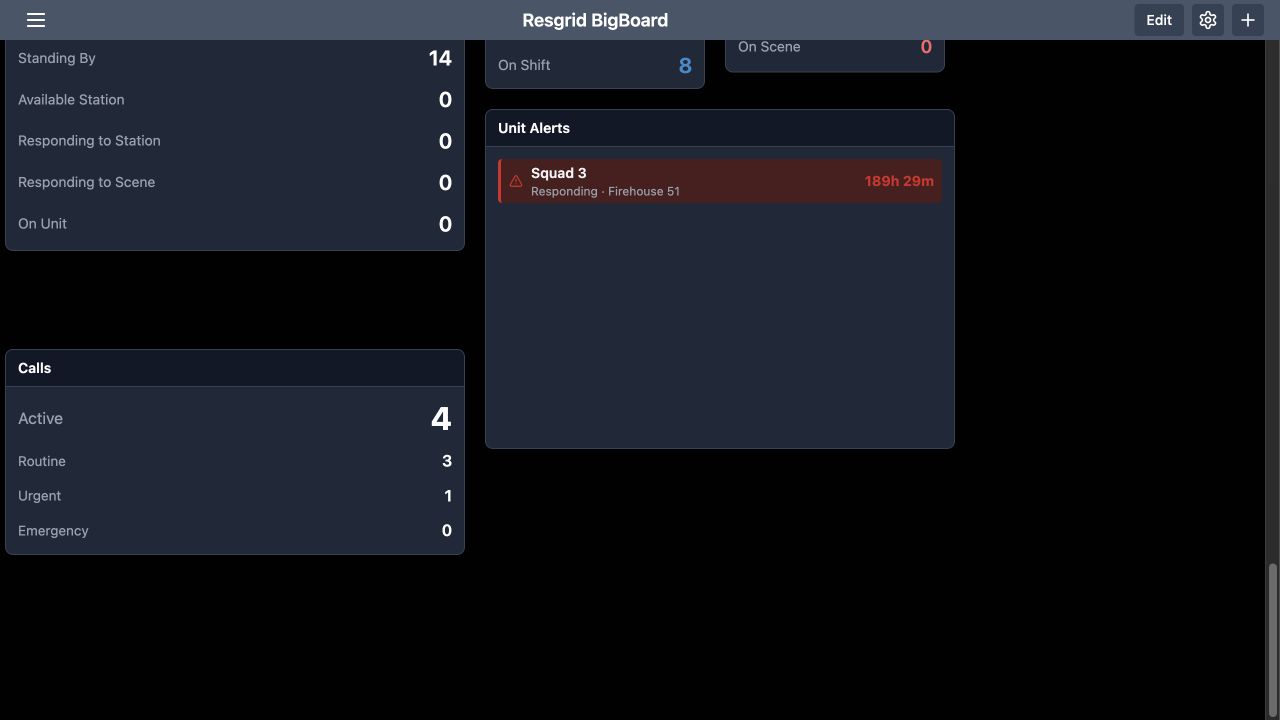
For a count-focused display, return Max Priorities to Show to All, turn Show Recent Call off and keep Show Priority Counts on. Increase Font Size to sixteen points, then select Save. The board now shows Active four and all three priority rows without the recent-call name and address card. This changes the summary presentation. The detailed calls remain available elsewhere on the board. Choose a text size that people can read from the actual viewing distance.
Practice
Show counts without the recent-call card using an isolated fictional department and training board.
Step 6
Use a minimal total and understand its limits
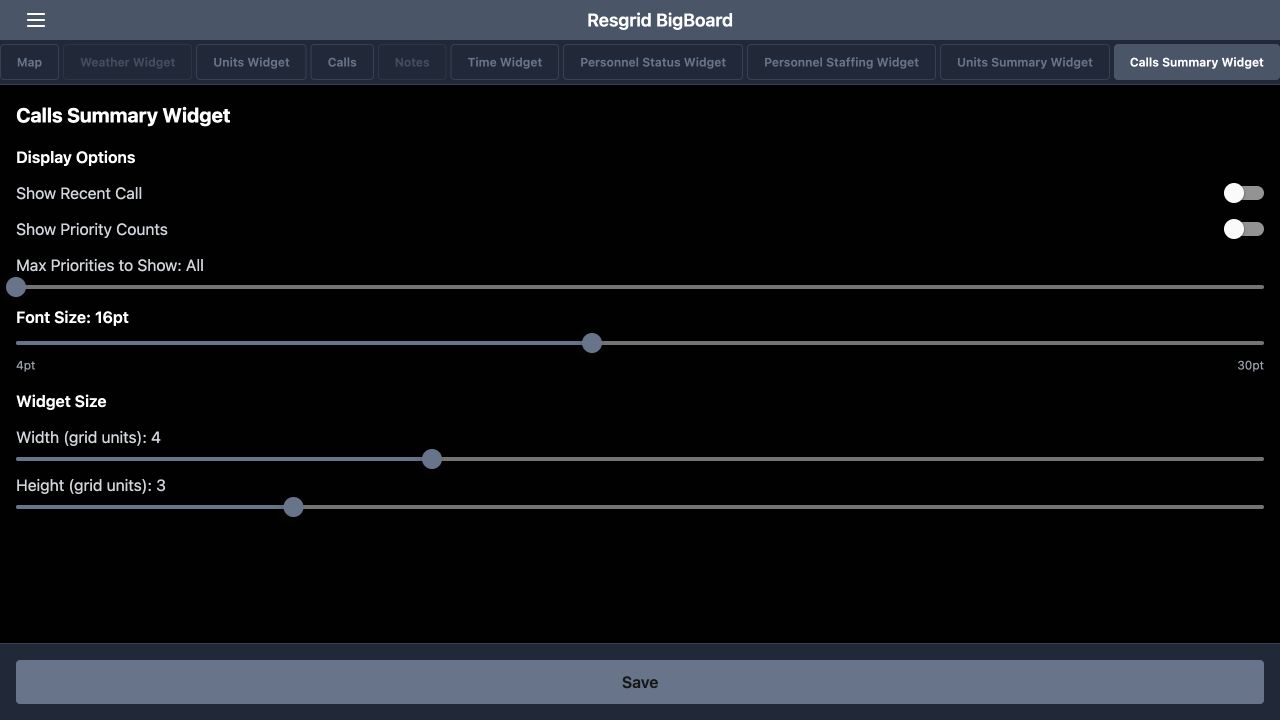
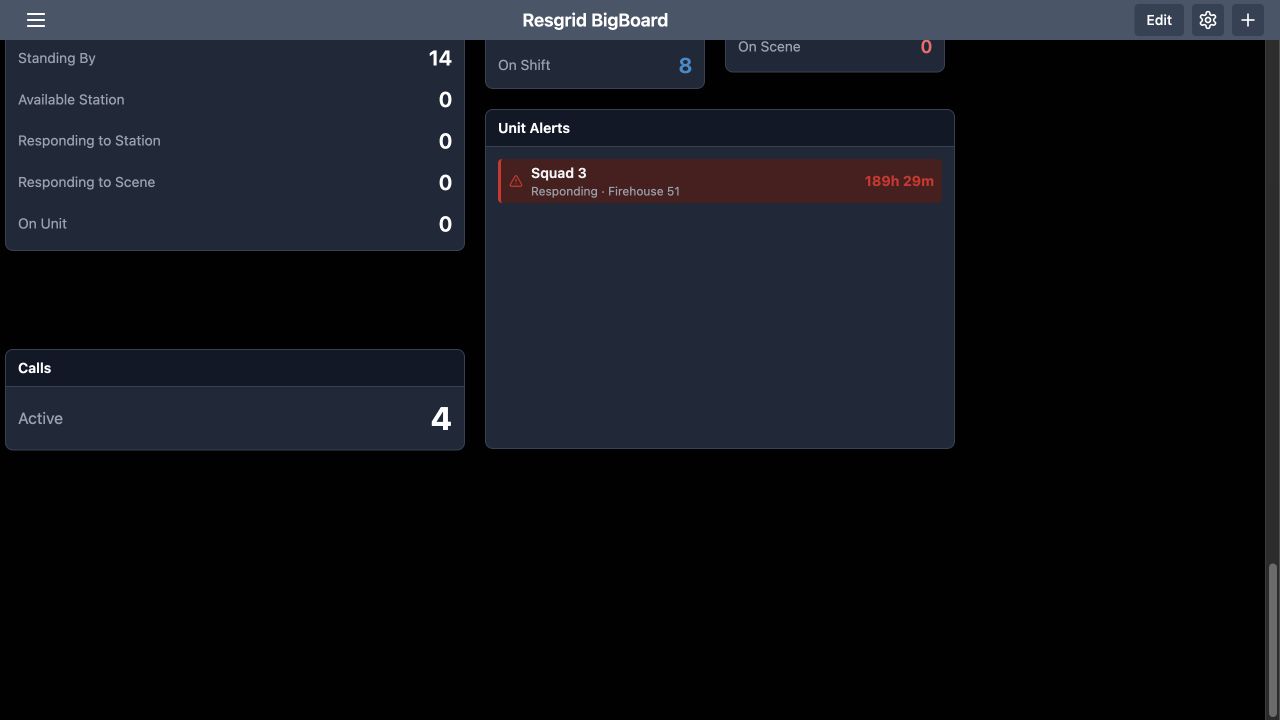
Turn Show Priority Counts off as well and select Save. With both optional sections hidden, the Calls panel contains just Active four. The compact total may suit a secondary display, but viewers can no longer see the workload's priority distribution in that panel. Hiding information does not make its underlying incidents disappear. Decide what your coordination team needs to see before adopting this minimal view.
Practice
Use a minimal total and understand its limits using an isolated fictional department and training board.
Step 7
Restore the full view and check saved preferences
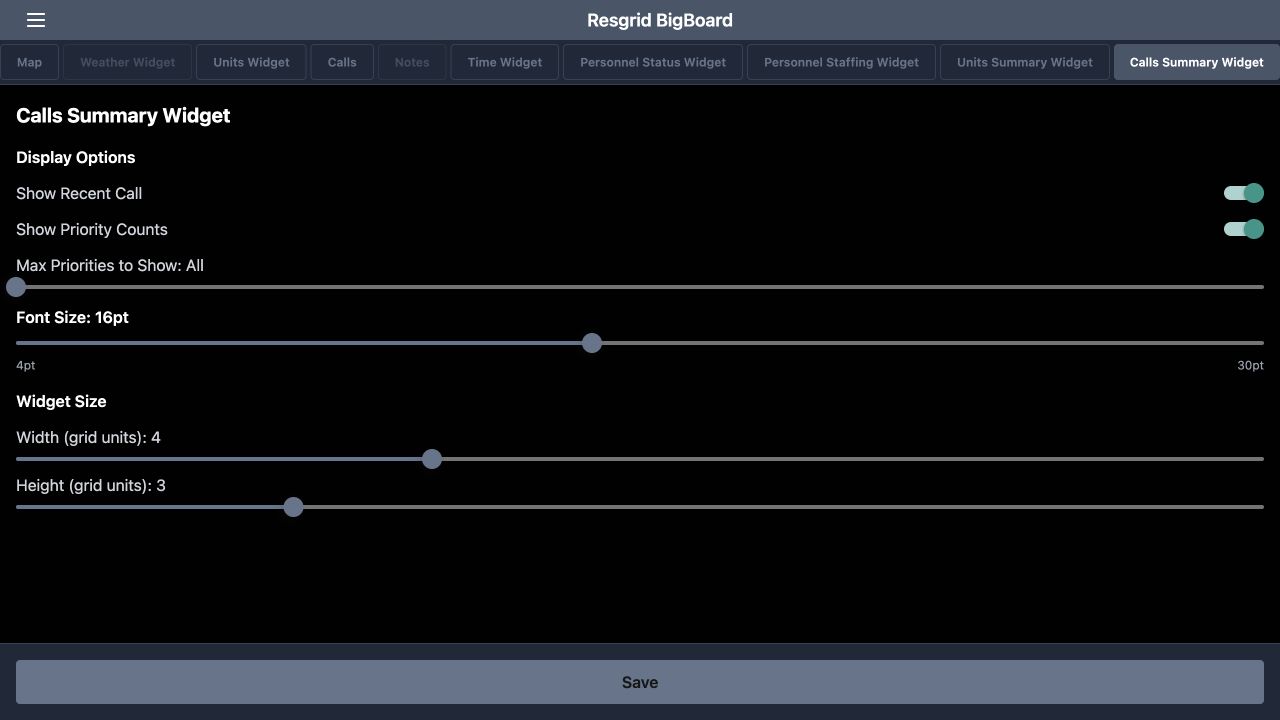
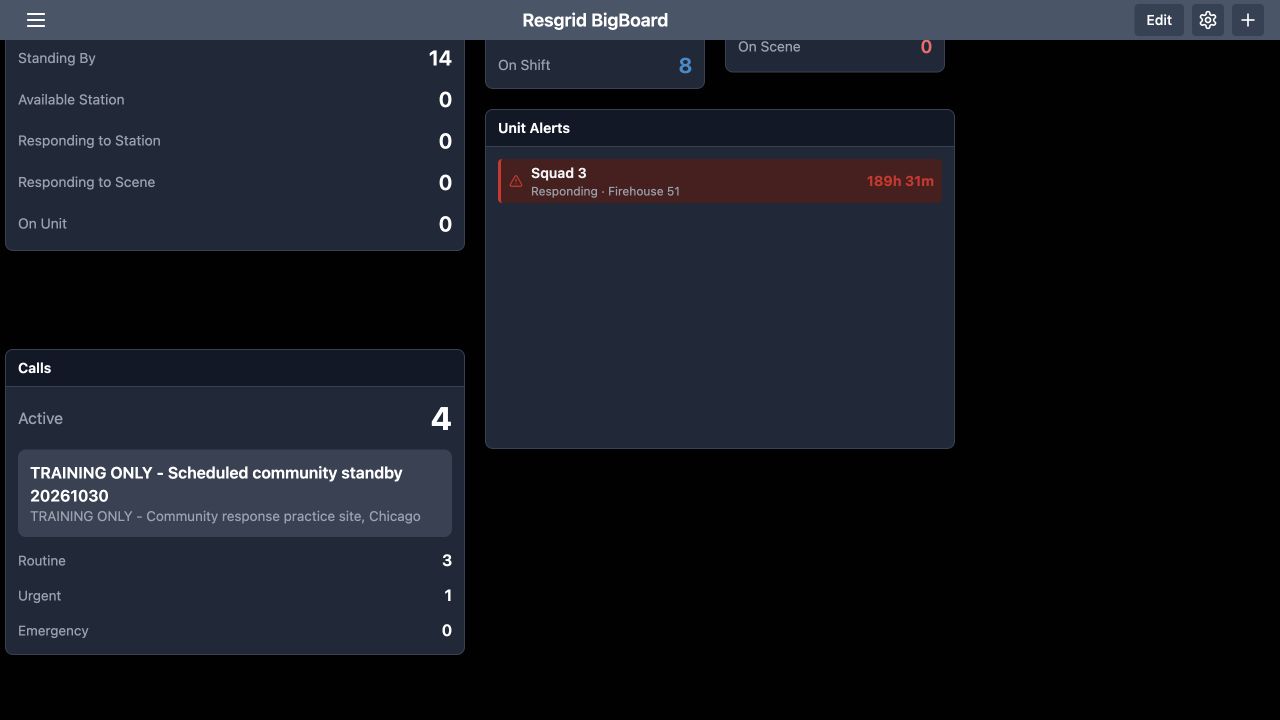
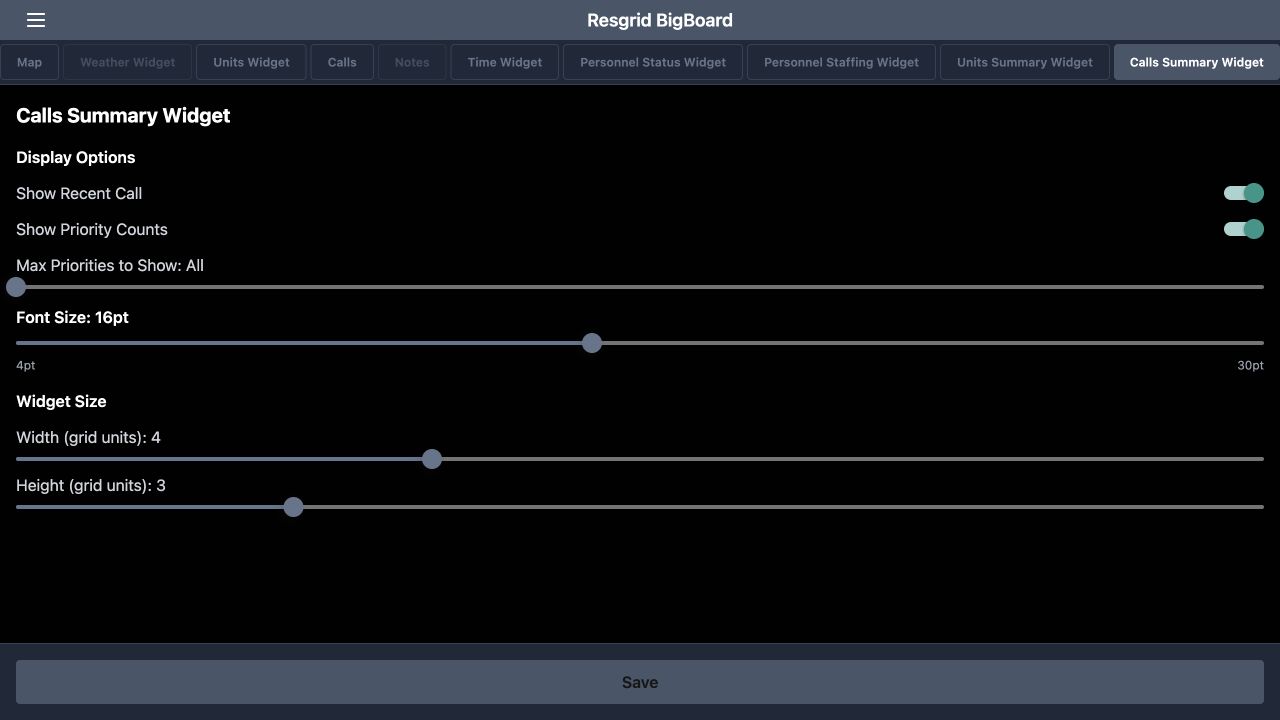
Restore Show Recent Call and Show Priority Counts, leave Max Priorities to Show at All, and select Save. Reload the board and inspect the complete summary again. Active remains four, with Routine three, Urgent one and Emergency zero. Reopen Calls Summary Widget to read back both enabled switches, All, Font Size sixteen and the four-by-three dimensions. Checking the saved controls as well as the visible result confirms the configuration the display is actually using.
Practice
Restore the full view and check saved preferences using an isolated fictional department and training board.
Step 8
Apply the same display choices across organizations
These display choices also fit departments beyond fire and E M S. Security teams can summarize service calls and patrol incidents. Search-and-rescue coordinators can monitor their mission workload. Community paramedicine and mental health response teams, wildland contractors and industrial emergency response teams can use their own call priorities in the same way. Keep the full category view when every priority matters, and consult the detailed Calls table when a count needs investigation.
Practice
Apply the same display choices across organizations using an isolated fictional department and training board.
Examples for your department
- Fire / EMS
- Compare incident counts with the detailed calls and assignments.
- Community response
- Summarize paramedicine and mental health response workload using department priorities.
- Search and rescue
- Review mission totals and priority categories.
- Security
- Monitor service-call and patrol-incident workload.
- Wildland
- Review contractor incidents without confusing calls with available resources.
- Industrial
- Use shared workload summaries alongside incident details.
Transcript
Download transcriptRead the complete transcript
Big Board: configure call totals, priority counts and recent-call display
Audience: Coordination supervisors, Dispatch supervisors, Administrators configuring shared operational displays

Add Calls Summary to the training board
Calls Summary gives a supervisor a compact view of the department's active-call workload. In the open Add Widget panel, choose Calls Summary. This example uses four fictional calls and the department's Routine, Urgent and Emergency priorities. A shared display can help the coordination team notice workload, then turn to the detailed calls list for the incident names and assignments. Use a training department when practicing changes to the board.
Practice: Add Calls Summary to the training board using an isolated fictional department and training board.

Configure a readable complete summary
Use the gear icon at the upper right to open configuration, then select Calls Summary Widget. Keep Show Recent Call and Show Priority Counts on. Set Max Priorities to Show to All. This first view uses Font Size at fourteen points, width four and height three grid units. Select Save and scroll to the summary. Giving the panel enough room keeps the recent-call card and priority rows readable together.
Practice: Configure a readable complete summary using an isolated fictional department and training board.

Compare the summary with the detailed calls
The summary shows Active four, Routine three, Urgent one and Emergency zero. Its recent-call card displays the fictional scheduled community standby that was already dispatched during an earlier exercise. The date in its name is a historical training label. Scroll to the detailed Calls table and compare the Priority column: three rows are Routine, and the warehouse alarm is Urgent. A priority count summarizes calls; it does not identify which people or units are available to respond.
Practice: Compare the summary with the detailed calls using an isolated fictional department and training board.

Limit visible priority rows without filtering active calls
Return to Calls Summary Widget and change Max Priorities to Show to one. Select Save and inspect the board again. Only the Routine row, with three calls, remains in the priority section. Active still shows four. This option limits how many priority rows the panel displays; it does not close, remove or filter the underlying calls. A restricted display can therefore omit an urgent category even while its call still contributes to the total.
Practice: Limit visible priority rows without filtering active calls using an isolated fictional department and training board.

Show counts without the recent-call card
For a count-focused display, return Max Priorities to Show to All, turn Show Recent Call off and keep Show Priority Counts on. Increase Font Size to sixteen points, then select Save. The board now shows Active four and all three priority rows without the recent-call name and address card. This changes the summary presentation. The detailed calls remain available elsewhere on the board. Choose a text size that people can read from the actual viewing distance.
Practice: Show counts without the recent-call card using an isolated fictional department and training board.

Use a minimal total and understand its limits
Turn Show Priority Counts off as well and select Save. With both optional sections hidden, the Calls panel contains just Active four. The compact total may suit a secondary display, but viewers can no longer see the workload's priority distribution in that panel. Hiding information does not make its underlying incidents disappear. Decide what your coordination team needs to see before adopting this minimal view.
Practice: Use a minimal total and understand its limits using an isolated fictional department and training board.

Restore the full view and check saved preferences
Restore Show Recent Call and Show Priority Counts, leave Max Priorities to Show at All, and select Save. Reload the board and inspect the complete summary again. Active remains four, with Routine three, Urgent one and Emergency zero. Reopen Calls Summary Widget to read back both enabled switches, All, Font Size sixteen and the four-by-three dimensions. Checking the saved controls as well as the visible result confirms the configuration the display is actually using.
Practice: Restore the full view and check saved preferences using an isolated fictional department and training board.

Apply the same display choices across organizations
These display choices also fit departments beyond fire and E M S. Security teams can summarize service calls and patrol incidents. Search-and-rescue coordinators can monitor their mission workload. Community paramedicine and mental health response teams, wildland contractors and industrial emergency response teams can use their own call priorities in the same way. Keep the full category view when every priority matters, and consult the detailed Calls table when a count needs investigation.
Practice: Apply the same display choices across organizations using an isolated fictional department and training board.

Examples for your department
Fire / EMS: Compare incident counts with the detailed calls and assignments.
Community response: Summarize paramedicine and mental health response workload using department priorities.
Search and rescue: Review mission totals and priority categories.
Security: Monitor service-call and patrol-incident workload.
Wildland: Review contractor incidents without confusing calls with available resources.
Industrial: Use shared workload summaries alongside incident details.